Adding a Drop Ship Address to Your Address Book
A drop ship address is a one-off delivery destination that isn't one of your account's standard Ship To addresses — a job site, a customer's location, or a temporary warehouse. Adding it to your Address Book saves it for reuse so you don't have to retype it on every order.
:::info Behind the scenes This walkthrough was captured against the UAT site. See the test instructions it was driven from, and the test results recorded during the run. :::
Before you begin: You're already signed in and on your My Dashboard page, with the account you want to add the address to selected. Have the delivery address details on hand — company name, street address, city, state, ZIP code and a contact phone number.
Step 1 — Open your Address Book
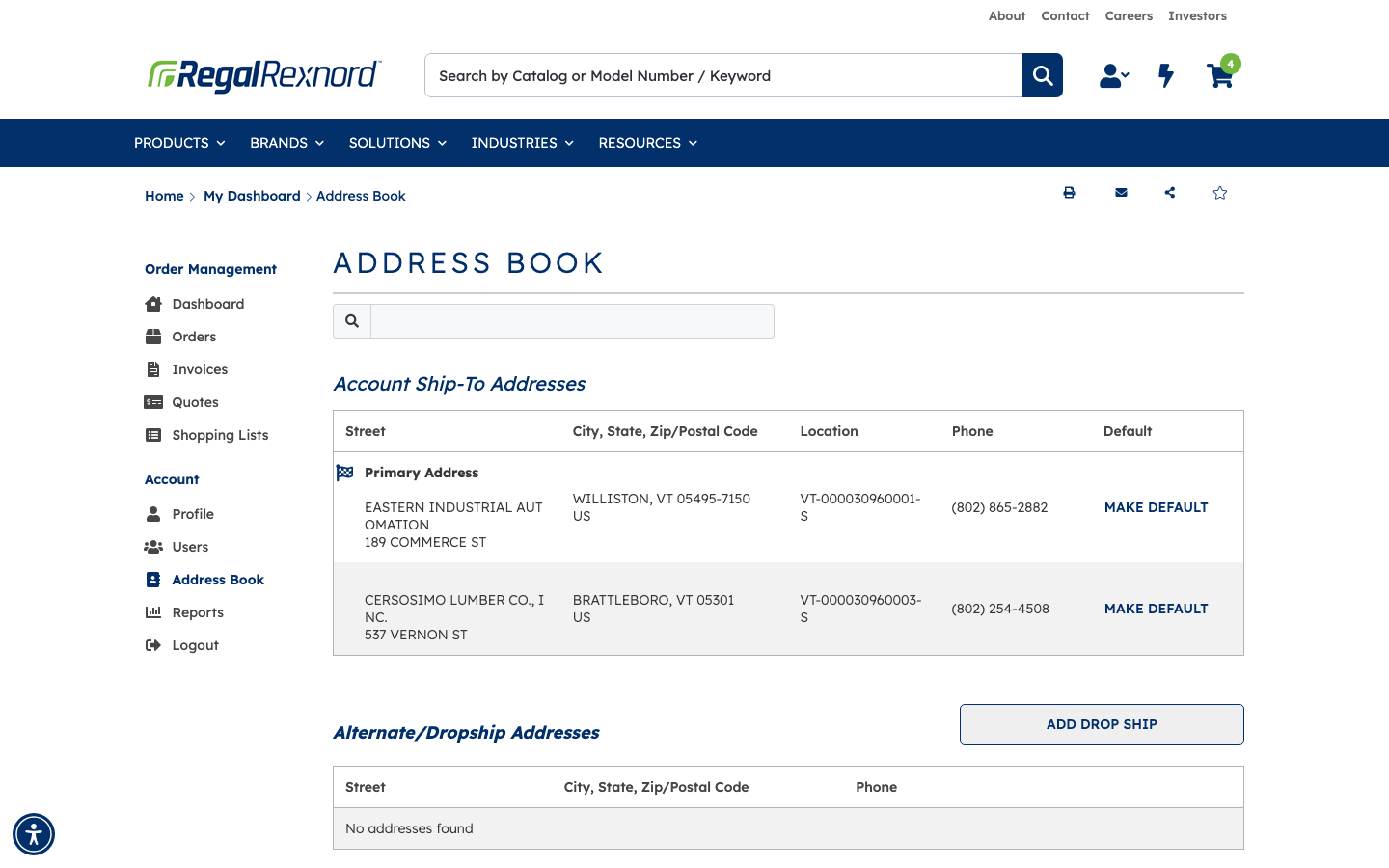
In the left-hand menu, under Account, click Address Book.
The page shows two lists:
- Account Ship-To Addresses — the standard delivery locations already set up on your account. These are managed for you and can't be added to from this page.
- Alternate/Dropship Addresses — the one-off addresses you add yourself. If you haven't added any yet, this section reads No addresses found.
Step 2 — Start a new drop ship address
Click ADD DROP SHIP to the right of the Alternate/Dropship Addresses heading.
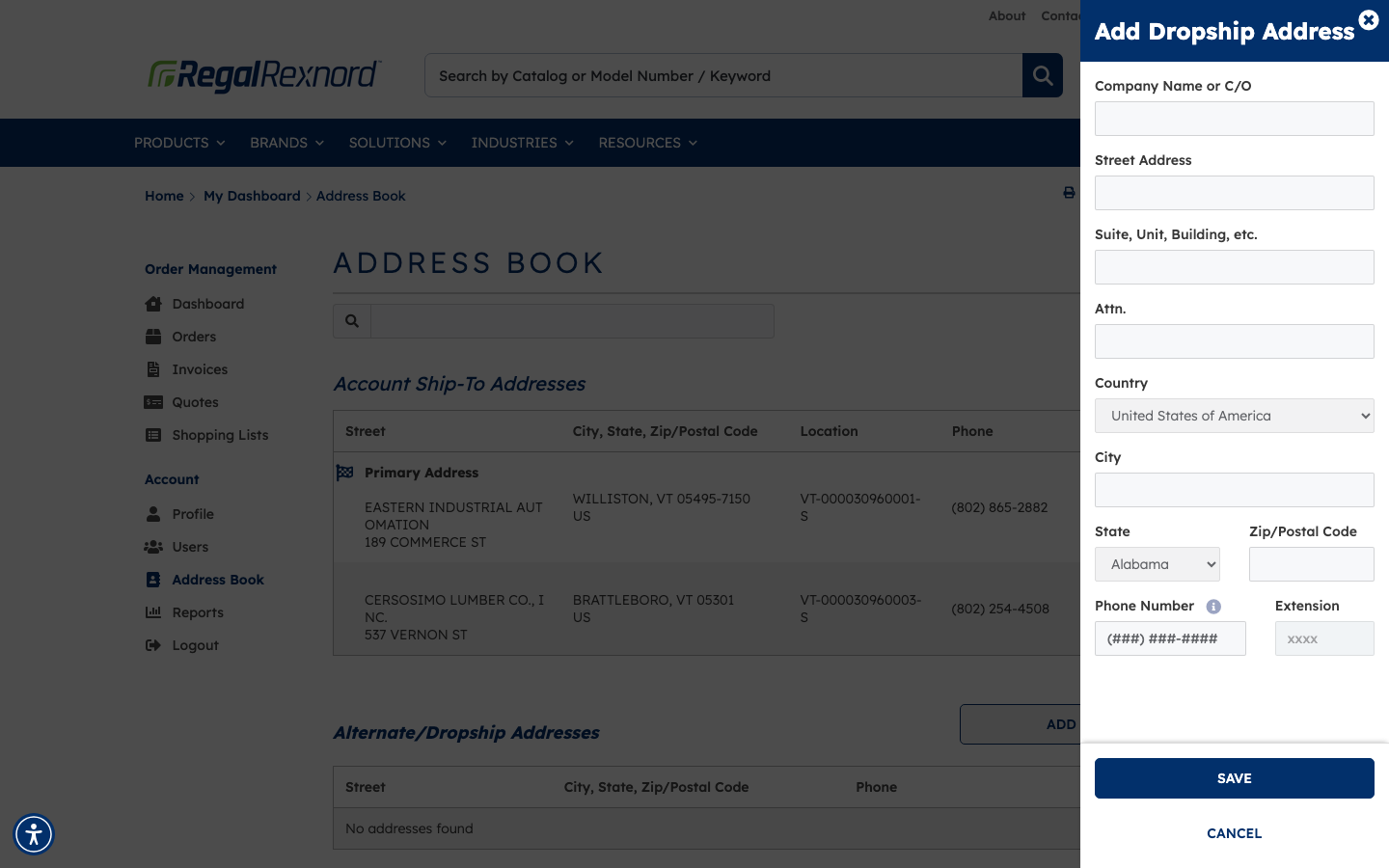
A panel titled Add Dropship Address slides in from the right side of the screen. Country is already set to United States of America for you.
Step 3 — Fill in the address
Enter the delivery details. Only a few fields are required — the rest are there to help the carrier find the right door.
| Field | What to enter |
|---|---|
| Company Name or C/O | The business or person receiving the shipment |
| Street Address | The street number and name |
| Suite, Unit, Building, etc. | Any secondary address line — optional |
| Attn. | A specific person to receive the delivery — optional |
| Country | Leave as United States of America, or change it if shipping elsewhere |
| City | The delivery city |
| State | Pick the state from the dropdown |
| Zip/Postal Code | The delivery ZIP code |
| Phone Number | A contact number for the delivery — formatting is applied as you type |
| Extension | A phone extension, if there is one — optional |
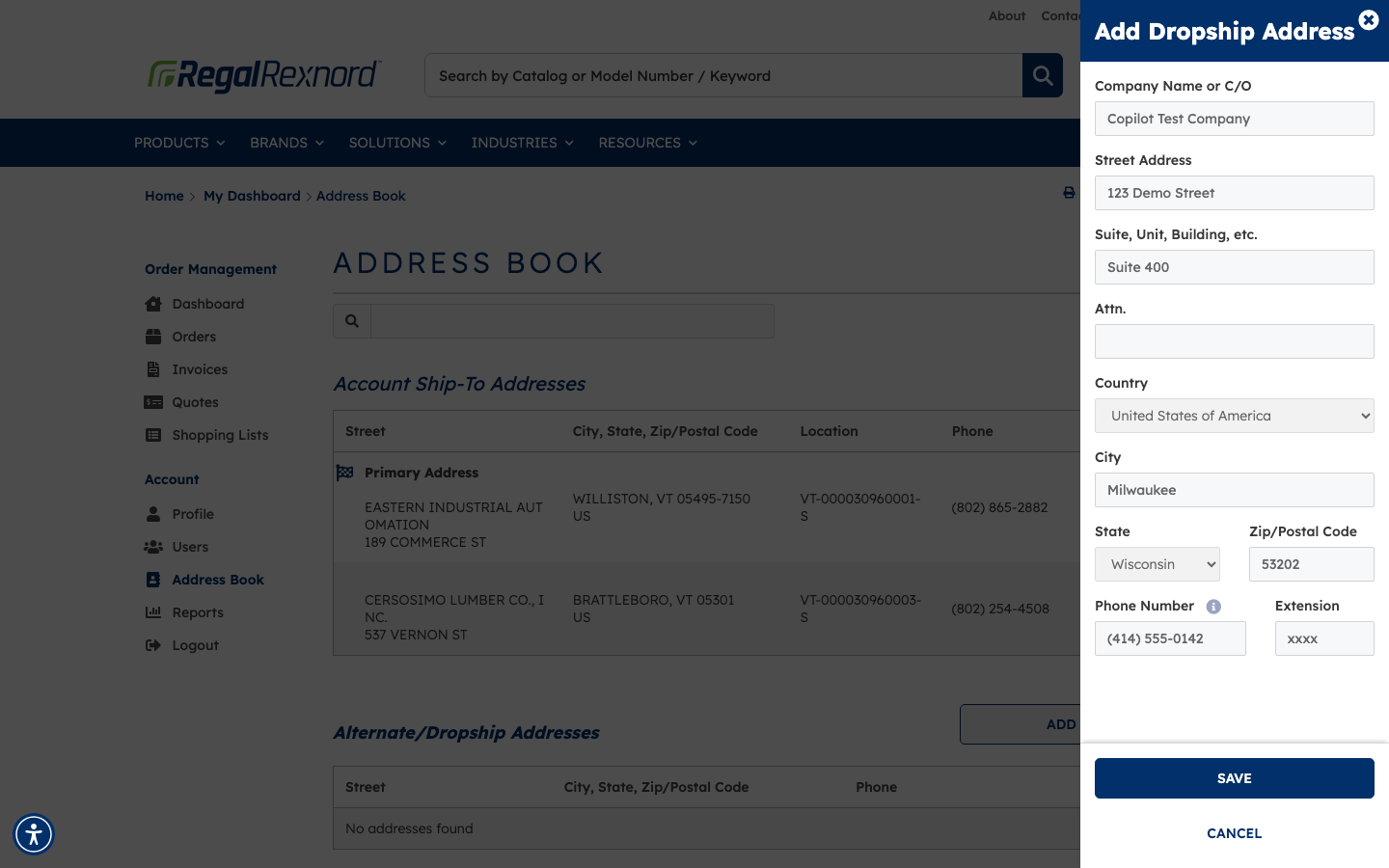
In this example, we're adding Copilot Test Company, 123 Demo Street, Suite 400, Milwaukee, WI 53202 with a phone number of (414) 555-0142.
Step 4 — Save the address
Click SAVE at the bottom of the panel.
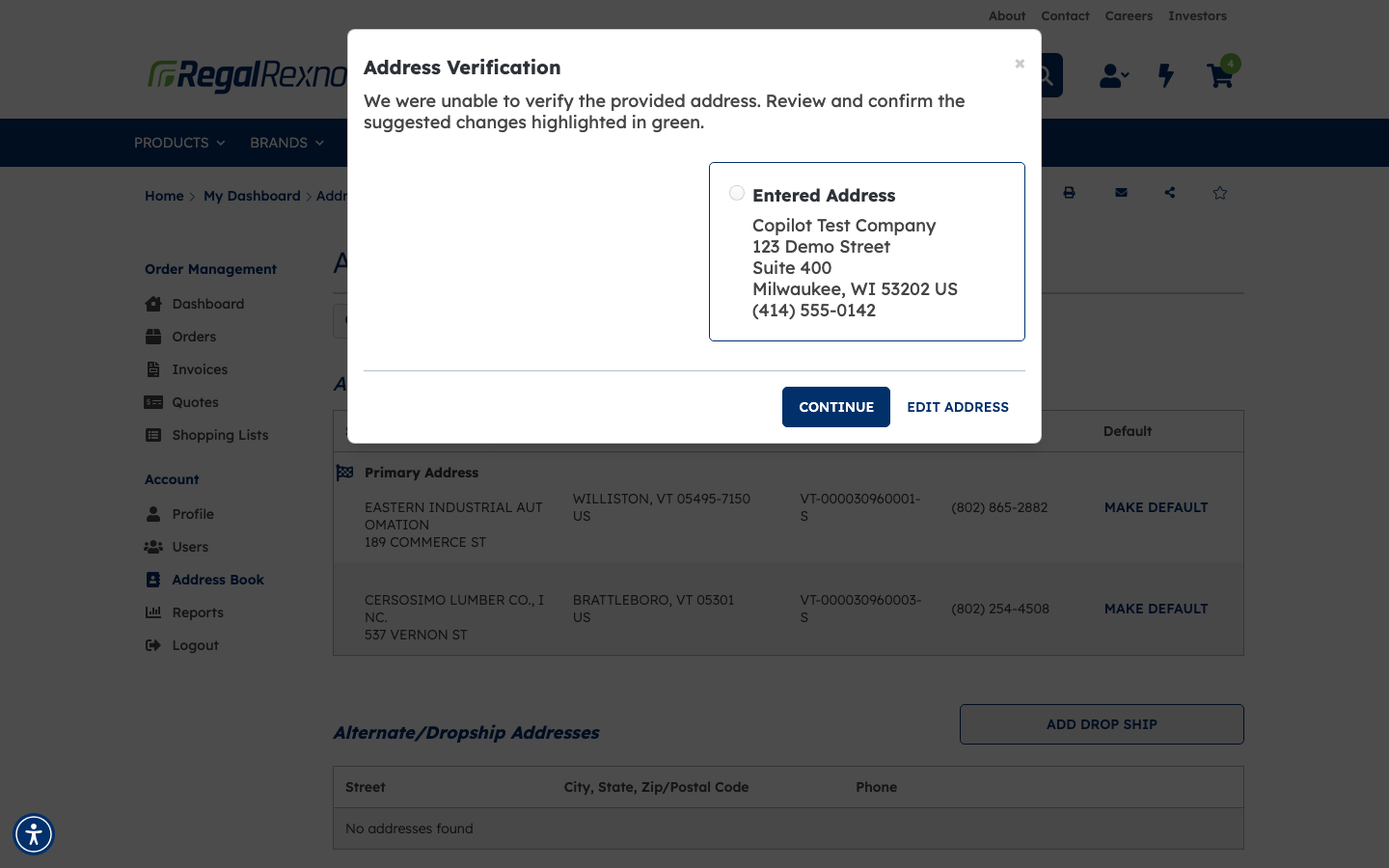
Your address is checked against a delivery-address database. If it can't be matched exactly, an Address Verification window appears showing what you typed, along with any corrected version it suggests (highlighted in green).
- Pick the version you want to keep, then click CONTINUE to save it.
- Or click EDIT ADDRESS to go back and fix a typo.
If the address matches cleanly, this window won't appear at all and your address saves right away.
Step 5 — Check that it was added
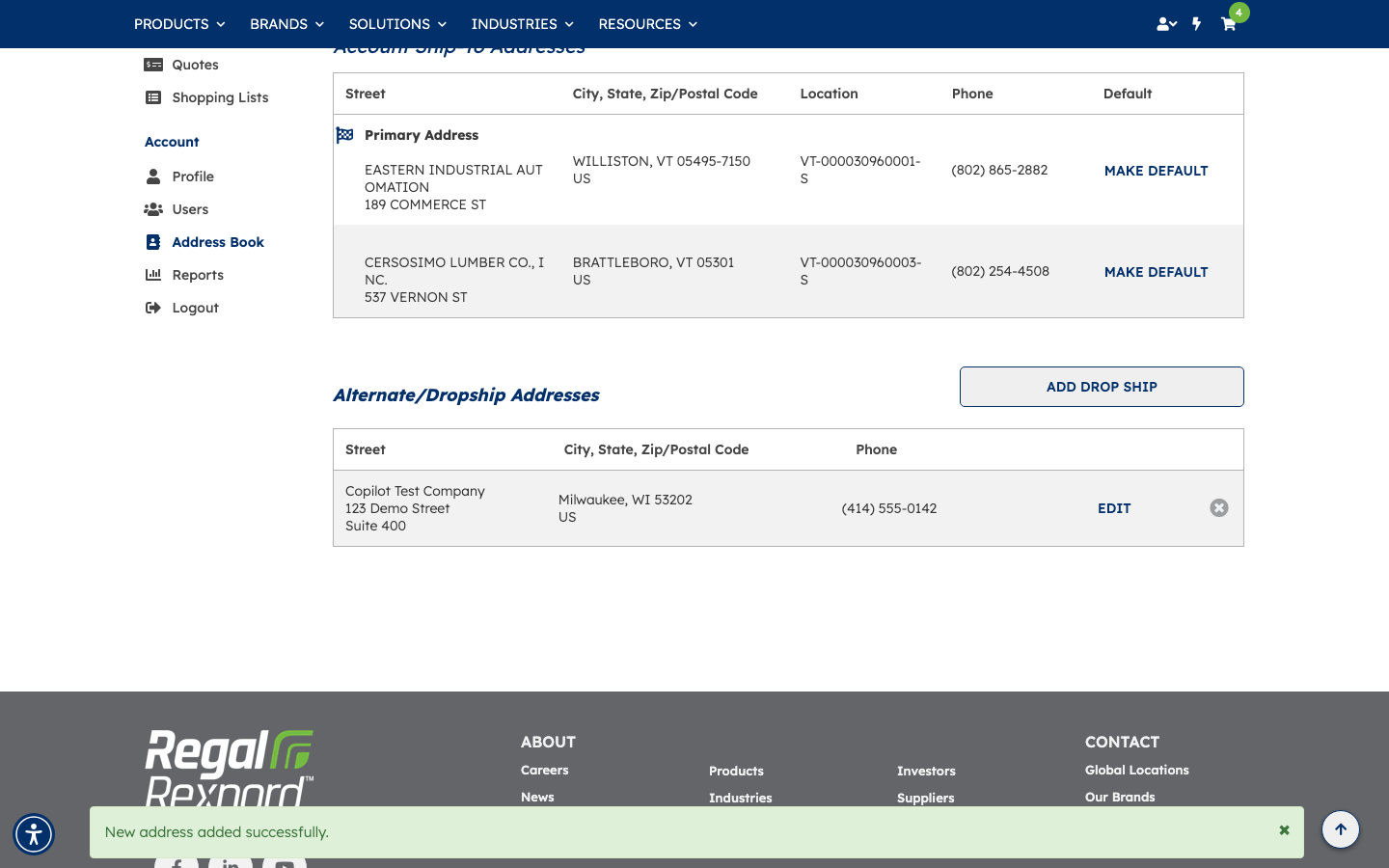
The panel closes and a green message confirms New address added successfully.
Your new address now appears under Alternate/Dropship Addresses, with an EDIT link to change it later and an ✕ icon to remove it.
Step 6 — Find an address later
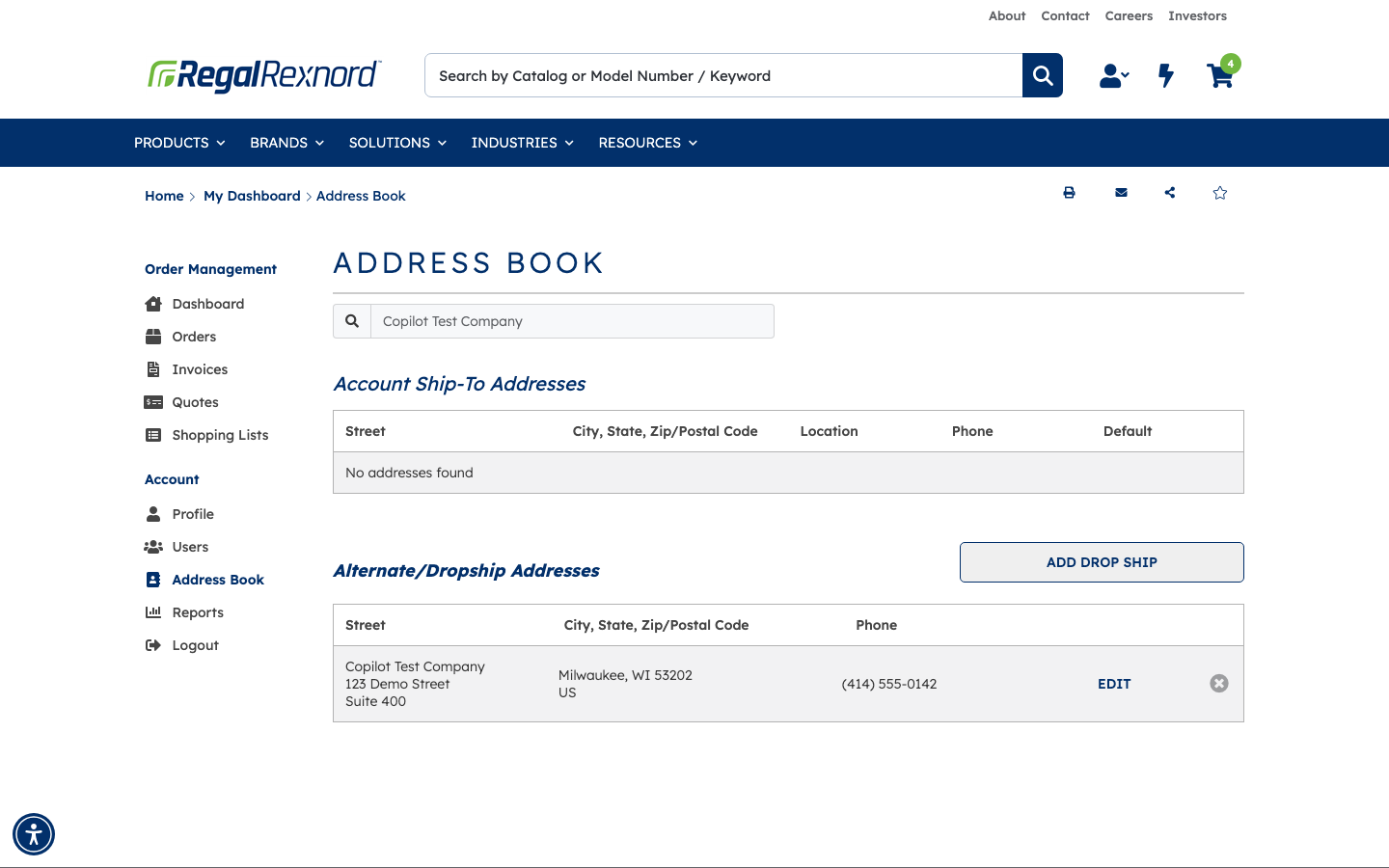
Once you have several addresses saved, use the search box at the top of the Address Book to narrow the list. Start typing a company name, street or city and both sections filter as you type.
That's it. Your drop ship address is saved to the account and will be available to choose as a delivery destination when you place an order. You can come back to the Address Book any time to edit it or remove it.