Adding a Drop Ship Address to Your Address Book — Test results
2026-08-27T17:03:54Z by Showboat 0.6.1
Supporting detail for the feature demo.
This demo adds a new drop ship address through the Address Book in Account Management on https://uatwww.rrxpreview.com/. Signed in as agent@forliion.com with account U3427563 — EASTERN INDUSTRIAL AUTOMATION selected. A drop ship address is a one-off delivery destination that is not one of the account's standard Ship To addresses. The address details used here are test values: Copilot Test Company, 123 Demo Street, Suite 400, Milwaukee, WI 53202, (414) 555-0142.
Prerequisites
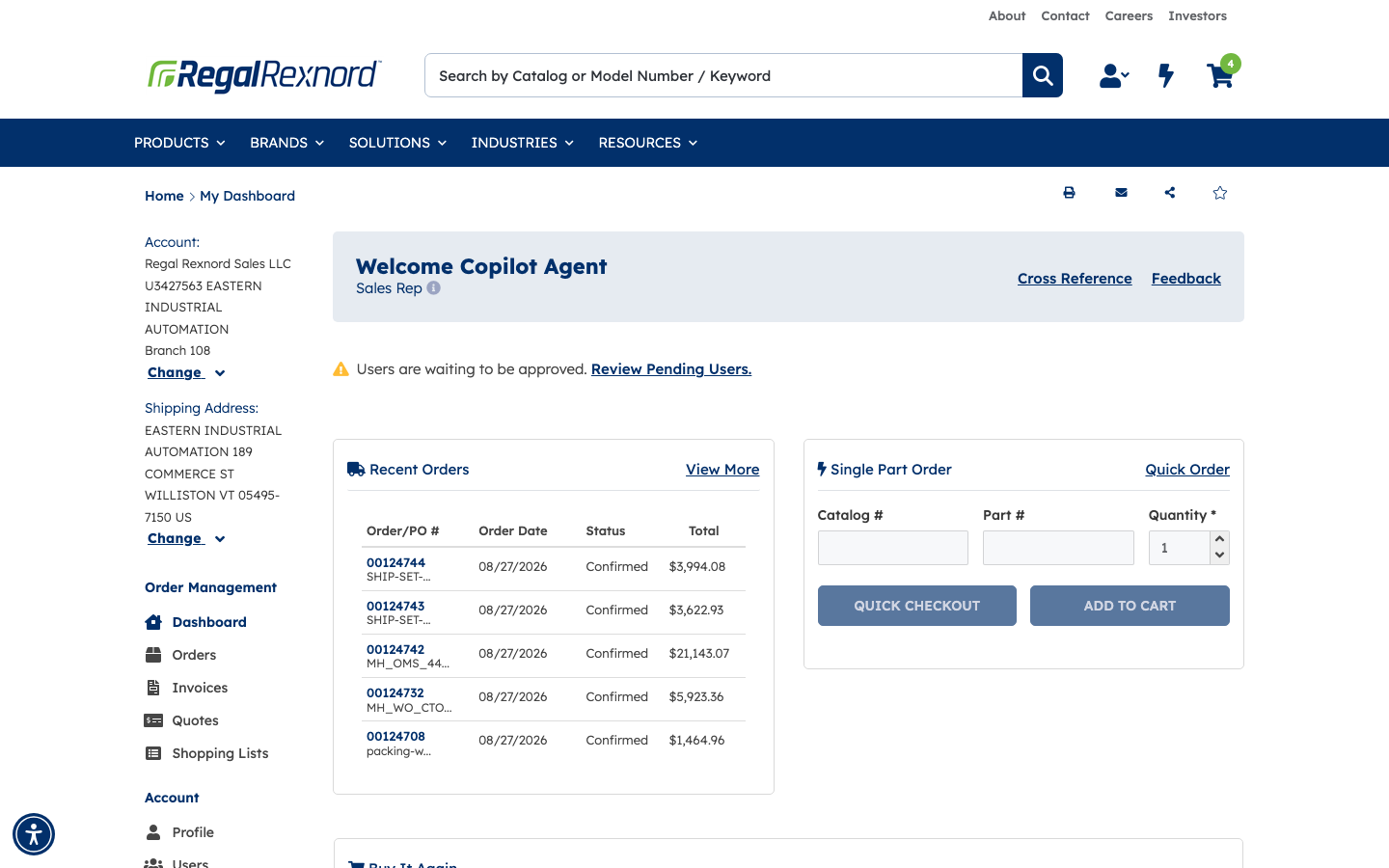
Open the site, dismiss the cookie consent banner using Accept Cookies, and sign in as agent@forliion.com with account U3427563 / EASTERN INDUSTRIAL AUTOMATION selected. The Dashboard at https://uatwww.rrxpreview.com/accountmanagement confirms the signed-in user with the header Welcome Copilot Agent, and the left-hand Account navigation contains the Address Book entry.
Step 1 — Open the Address Book
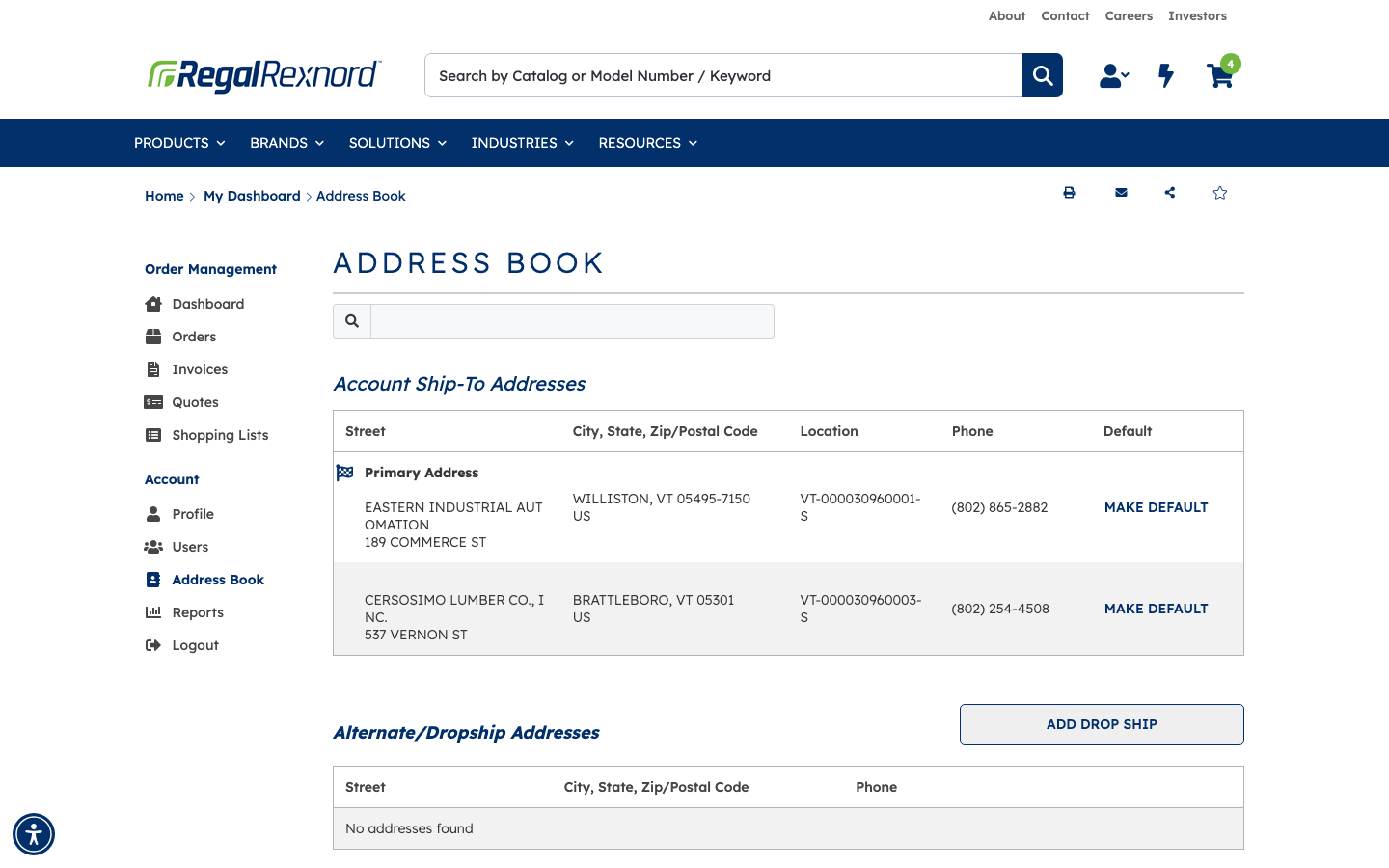
From the Dashboard, select Address Book in the left-hand Account navigation (https://uatwww.rrxpreview.com/accountmanagement/addressbook). The page shows two sections: Account Ship-To Addresses (the two standard addresses on account U3427563) and Alternate/Dropship Addresses. This is the before state — the dropship list reads No addresses found.
Step 2 — Open the Add Dropship Address panel
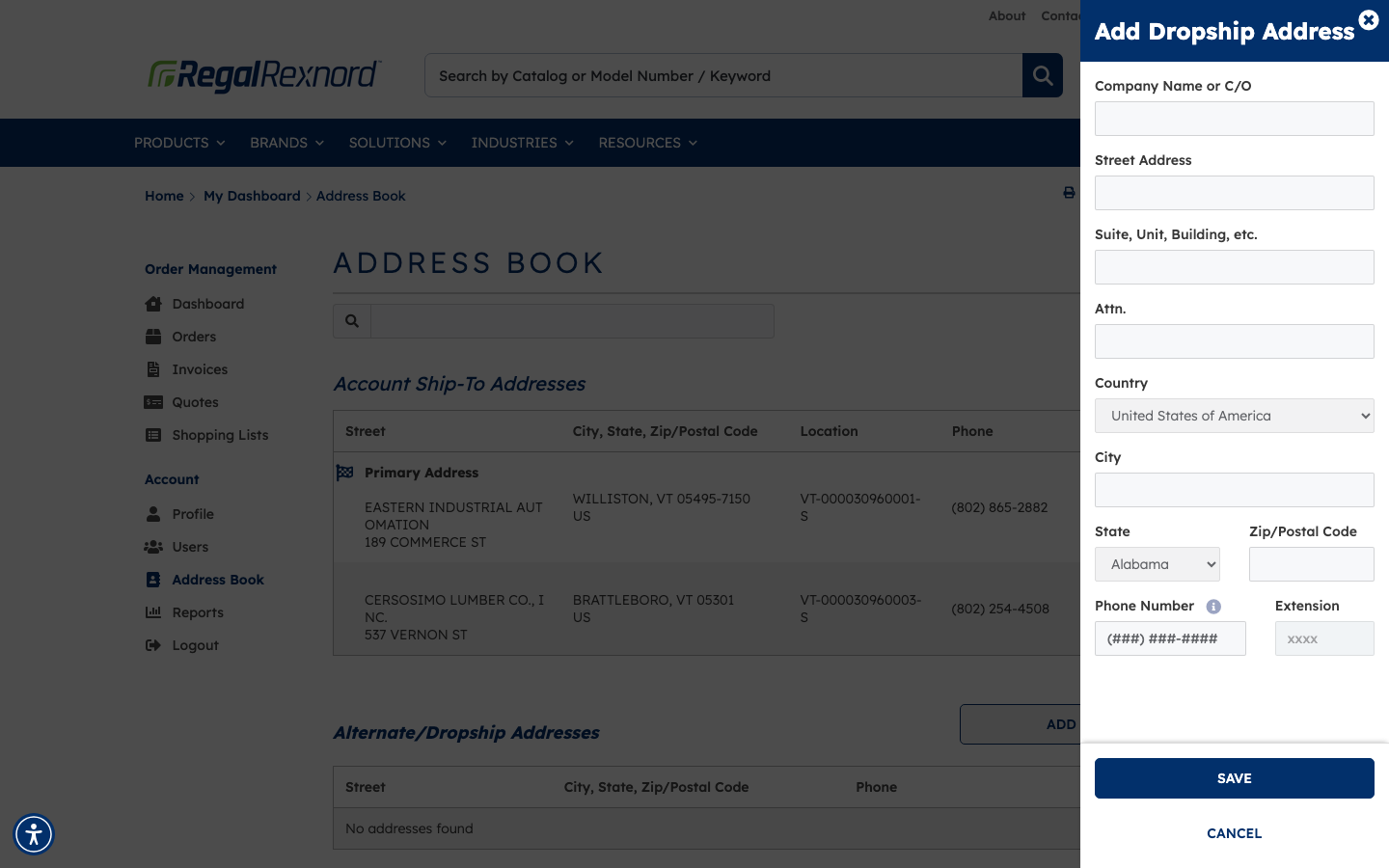
Click ADD DROP SHIP. The Add Dropship Address panel slides in from the right with fields for Company Name or C/O, Street Address, Suite, Unit, Building, etc., Attn., Country, City, State, Zip/Postal Code, Phone Number and Extension. Country defaults to United States of America and State defaults to Alabama.
Step 3 — Enter the address details
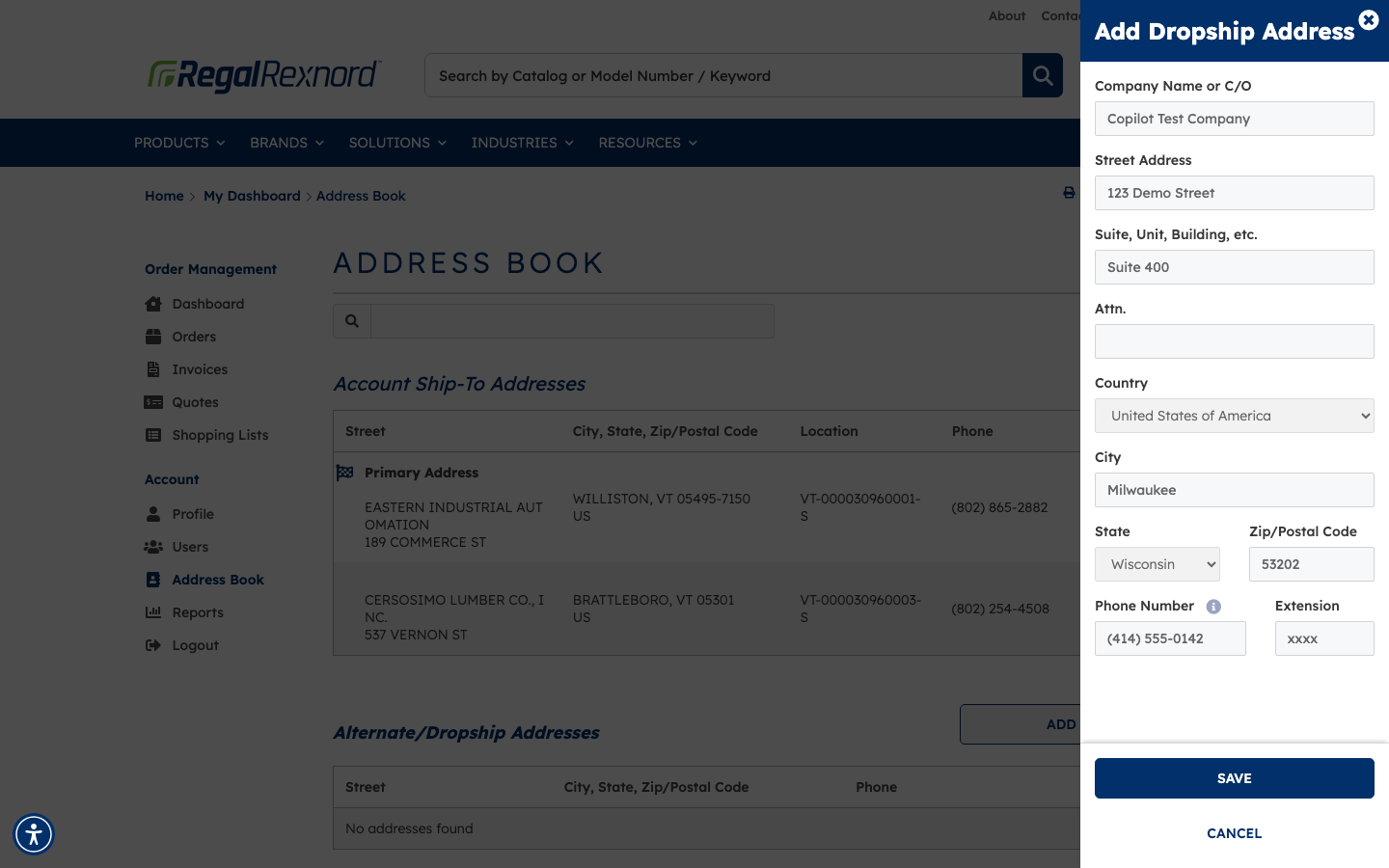
Fill in the test address:
| Field | Value |
|---|---|
| Company Name or C/O | Copilot Test Company |
| Street Address | 123 Demo Street |
| Suite, Unit, Building, etc. | Suite 400 |
| Attn. | (left blank) |
| Country | United States of America |
| City | Milwaukee |
| State | Wisconsin |
| Zip/Postal Code | 53202 |
| Phone Number | (414) 555-0142 |
The Phone Number field applies an input mask in the format (###) ###-####.
Step 4 — Save and confirm the address
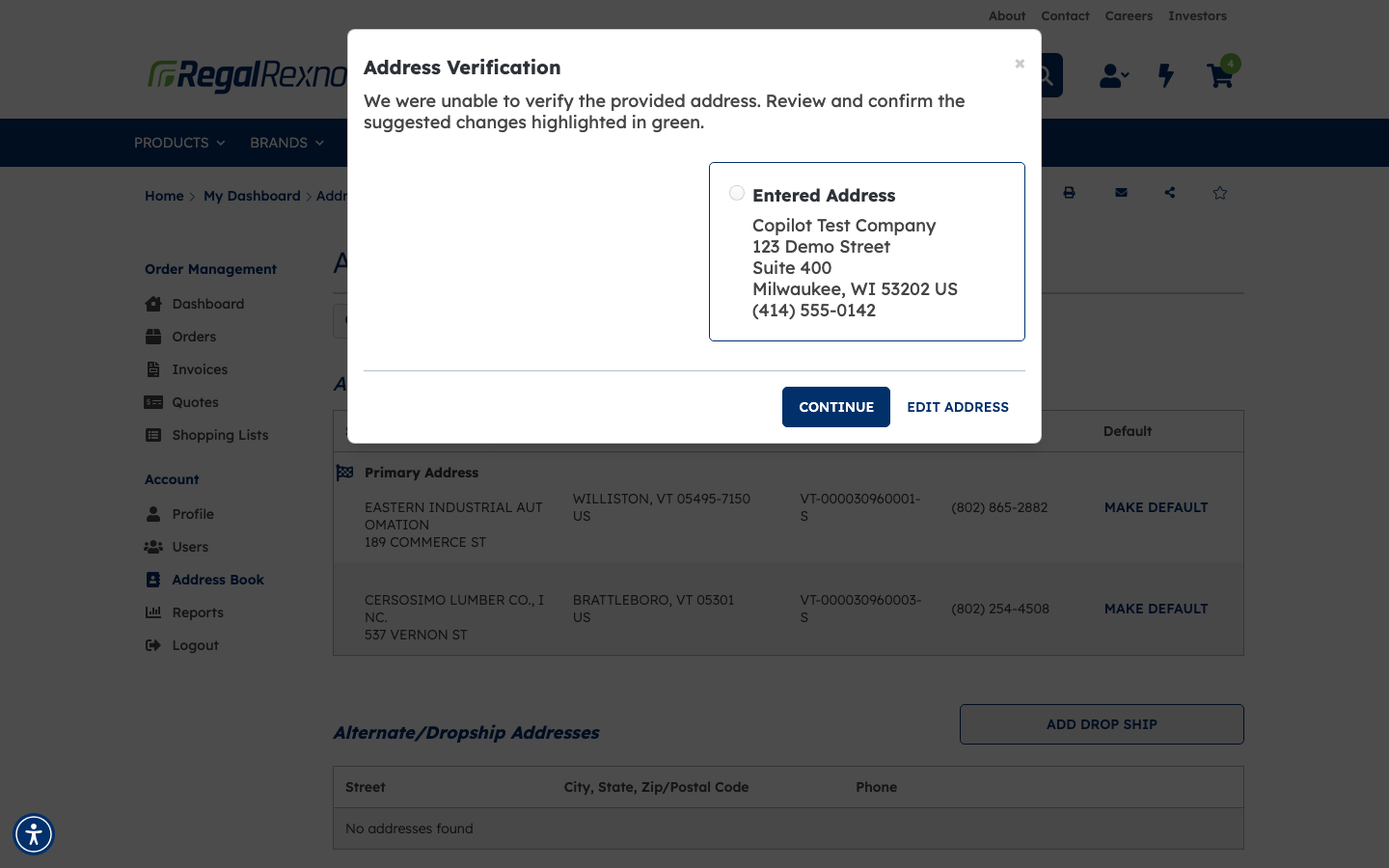
Click SAVE. Because the test address is not a real deliverable location, an Address Verification dialog appears: "We were unable to verify the provided address. Review and confirm the suggested changes highlighted in green." No suggested alternative is offered here, so select the Entered Address option and click CONTINUE to save it as typed. (EDIT ADDRESS would return to the form instead.)
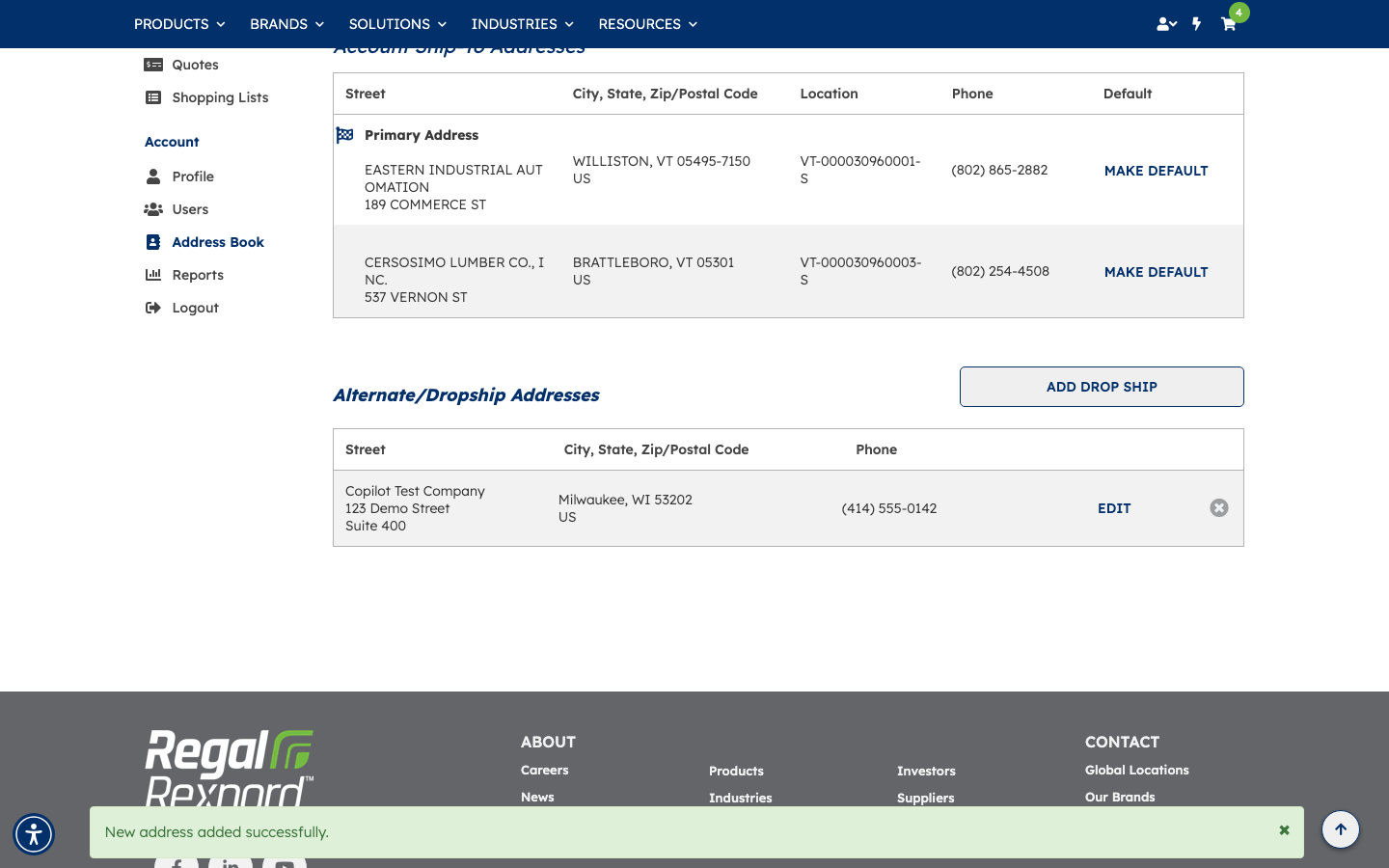
The panel closes and a green confirmation banner reads New address added successfully. The new entry now appears under Alternate/Dropship Addresses with an EDIT action and a remove icon.
Verification — the address persists
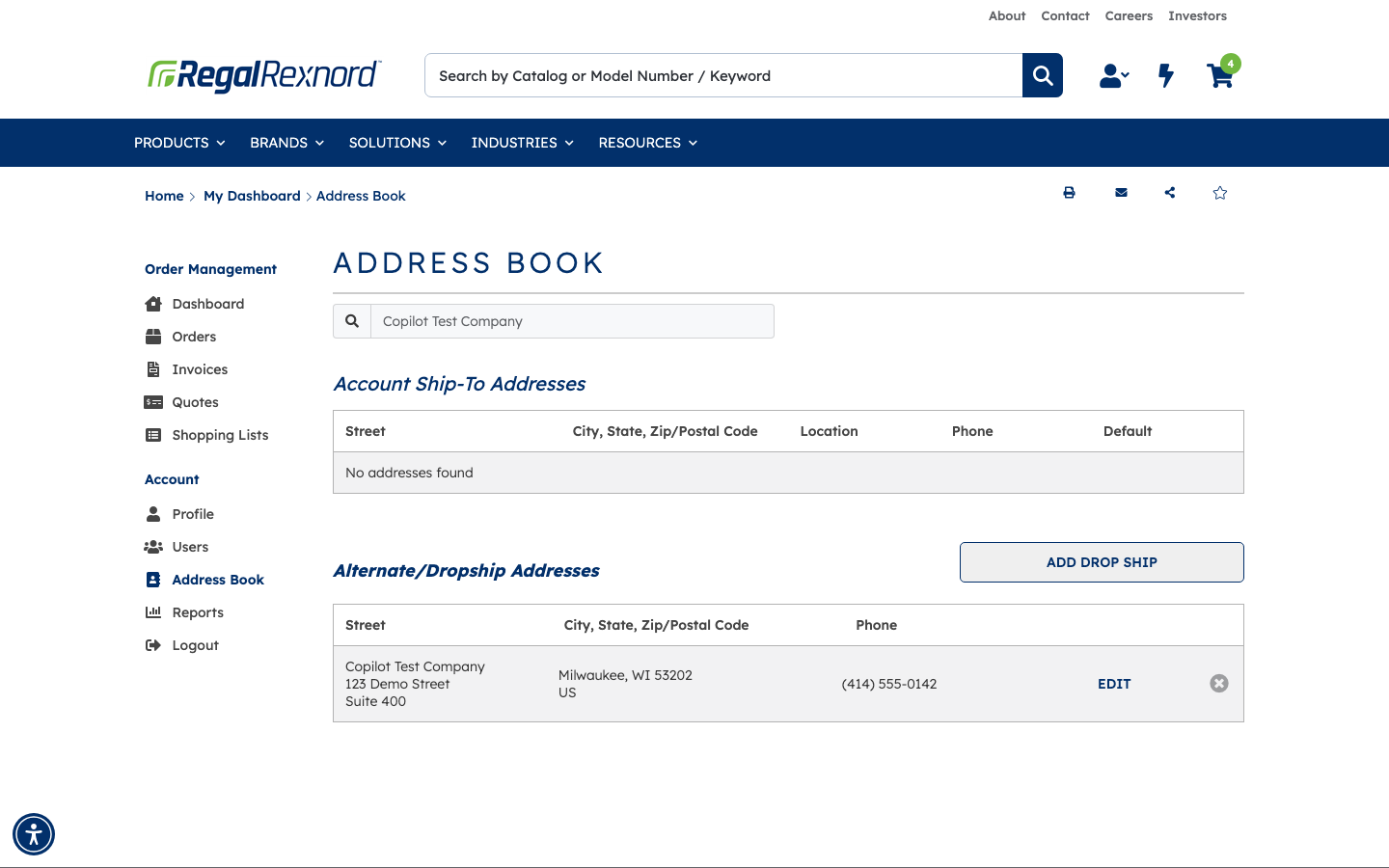
Reload /accountmanagement/addressbook and type Copilot Test Company into the Address Book search box. The search filters both sections: Account Ship-To Addresses drops to No addresses found, while Alternate/Dropship Addresses returns the newly created record with its full street, city/state/zip, country and phone number intact. The address survived a full page reload, confirming it was persisted server-side and not just rendered client-side.
Before / after
| Account Ship-To Addresses | Alternate/Dropship Addresses | |
|---|---|---|
| Before | 2 (Primary + Cersosimo Lumber) | No addresses found |
| After | 2 (unchanged) | 1 — Copilot Test Company, Milwaukee WI 53202 |
Summary
| # | Step | Expected Result | Status |
|---|---|---|---|
| 1 | Open Address Book from the dashboard nav | Address Book loads with Account Ship-To and Alternate/Dropship sections | ✅ |
| 2 | Click ADD DROP SHIP | Add Dropship Address side panel slides open | ✅ |
| 3 | Enter Company Name / Street / Suite | Values accepted in the text fields | ✅ |
| 4 | Confirm Country = United States of America | Country pre-selected to US by default | ✅ |
| 5 | Enter City = Milwaukee | Value accepted | ✅ |
| 6 | Select State = Wisconsin | State dropdown set to WI | ✅ |
| 7 | Enter Zip/Postal Code = 53202 | Value accepted | ✅ |
| 8 | Enter Phone Number = (414) 555-0142 | Input mask formats the number correctly | ✅ |
| 9 | Leave Attn. and Extension blank | Optional fields accept empty values, no validation error | ✅ |
| 10 | Click SAVE | Address submitted for validation | ✅ |
| 11 | Address Verification dialog | Dialog appeared (address could not be verified); selected Entered Address and clicked CONTINUE | ⚠️ Expected for a fictitious test address — not a defect |
| 12 | Panel closes | Side panel closed automatically | ✅ |
| 13 | Success confirmation | Green banner: New address added successfully | ✅ |
| 14 | New address appears in list | Listed under Alternate/Dropship Addresses with EDIT and remove actions | ✅ |
| 15 | Reload the page | Address still present after reload | ✅ |
| 16 | Search for the address | Search filters to the new dropship address; all field values intact | ✅ |
Notes
- Address Verification dialog. Because
123 Demo Street, Milwaukee, WI 53202is not a real deliverable address, the address-validation service could not match it and the dialog offered no green-highlighted suggestion — only the Entered Address option. Choosing that option and clicking CONTINUE saves the address as typed. A real address would normally either save silently or present a corrected suggestion to accept. - Access requirements. Viewing the Alternate/Dropship list requires the
ViewDropShipAddressespermission, and the ADD DROP SHIP button requiresNewShipToRequesting. Users without these will not see the section or the button. - Account scope. Address Book contents are scoped to the currently selected account (U3427563 — Eastern Industrial Automation for this run). Switching accounts shows a different set of addresses.