Signing In and Choosing Your Account
When you sign in, Regal Rexnord asks which account and which shipping address you want to work under for the session. That choice isn't cosmetic — it decides which products you can see, what pricing you're shown, and where orders default to at checkout.
This walkthrough covers signing in and making those two selections, and shows how to change either one later without signing out.
You'll need your email address and password for the site. If you only have access to a single account and a single address, the site may make these choices for you and take you straight to your dashboard.
Step 1 — Sign in
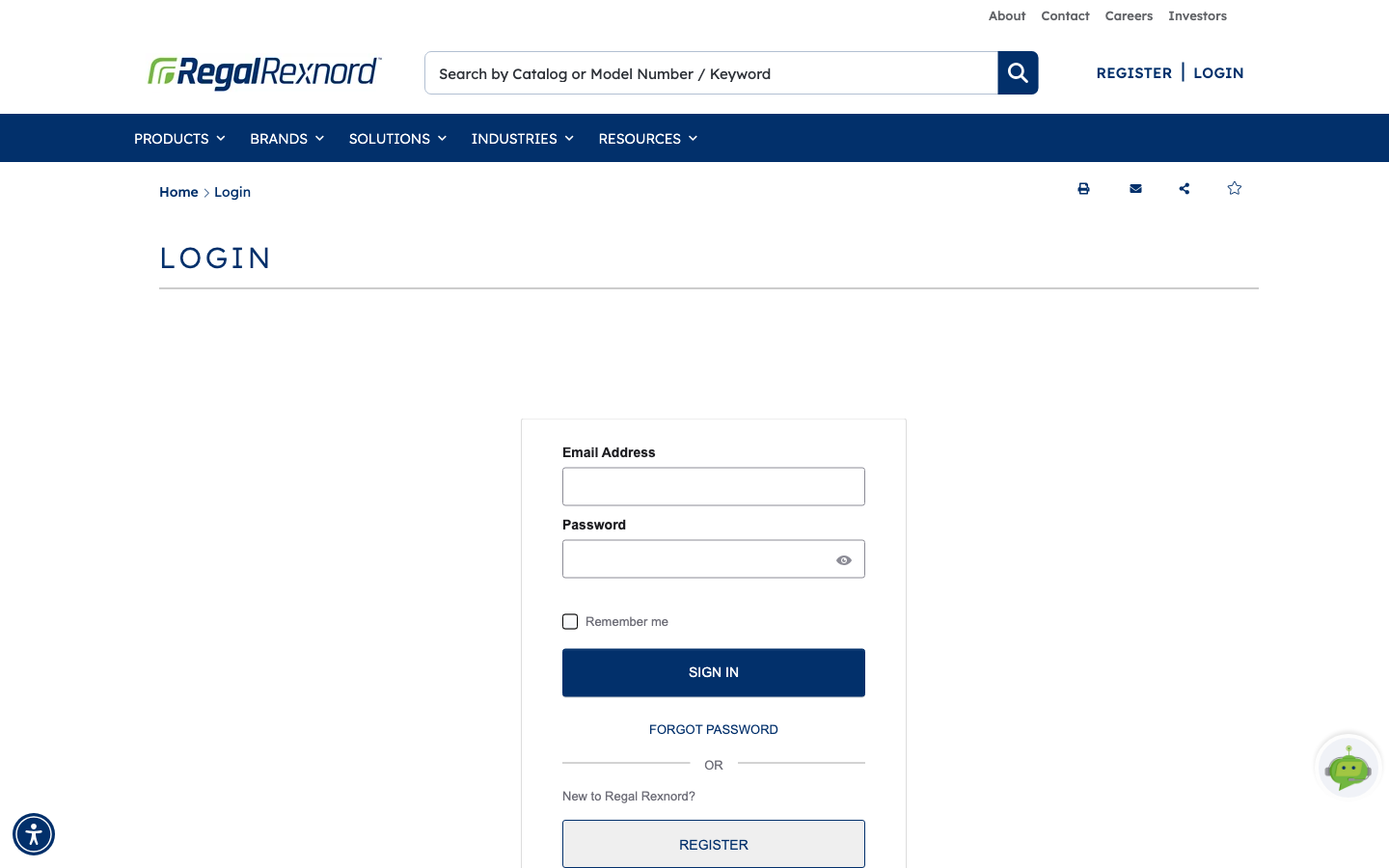
Click LOGIN in the site header, in the top right next to REGISTER.
Enter your email address and password, then click SIGN IN. Tick Remember me if you'd rather not re-enter your email next time.
If you've forgotten your password, FORGOT PASSWORD below the button will email you a reset link. If you don't have an account yet, REGISTER at the bottom of the panel starts that process.
Step 2 — Choose your account
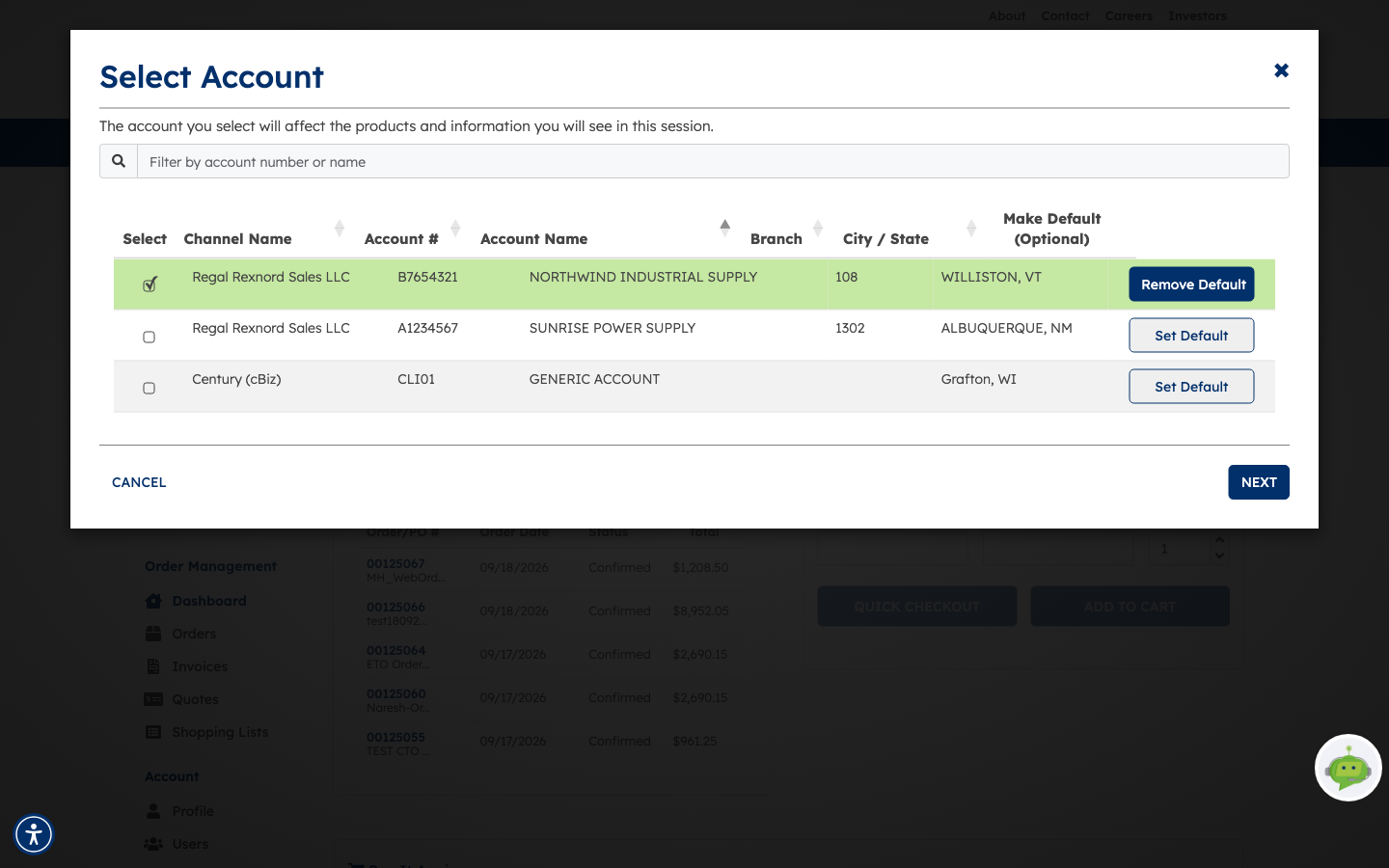
Once you're authenticated, the Select Account window opens. It lists every account you're entitled to work under, with its channel, account number, branch and location.
The account you select will affect the products and information you will see in this session.
Pick the row you want and click NEXT. A few things worth knowing:
- Filter by account number or name at the top is the quickest way through a long list.
- Any column header with arrows can be sorted.
- Set Default marks an account as your usual one so it's pre-selected next time. The current default shows Remove Default instead. This is optional.
Step 3 — Choose your shipping address
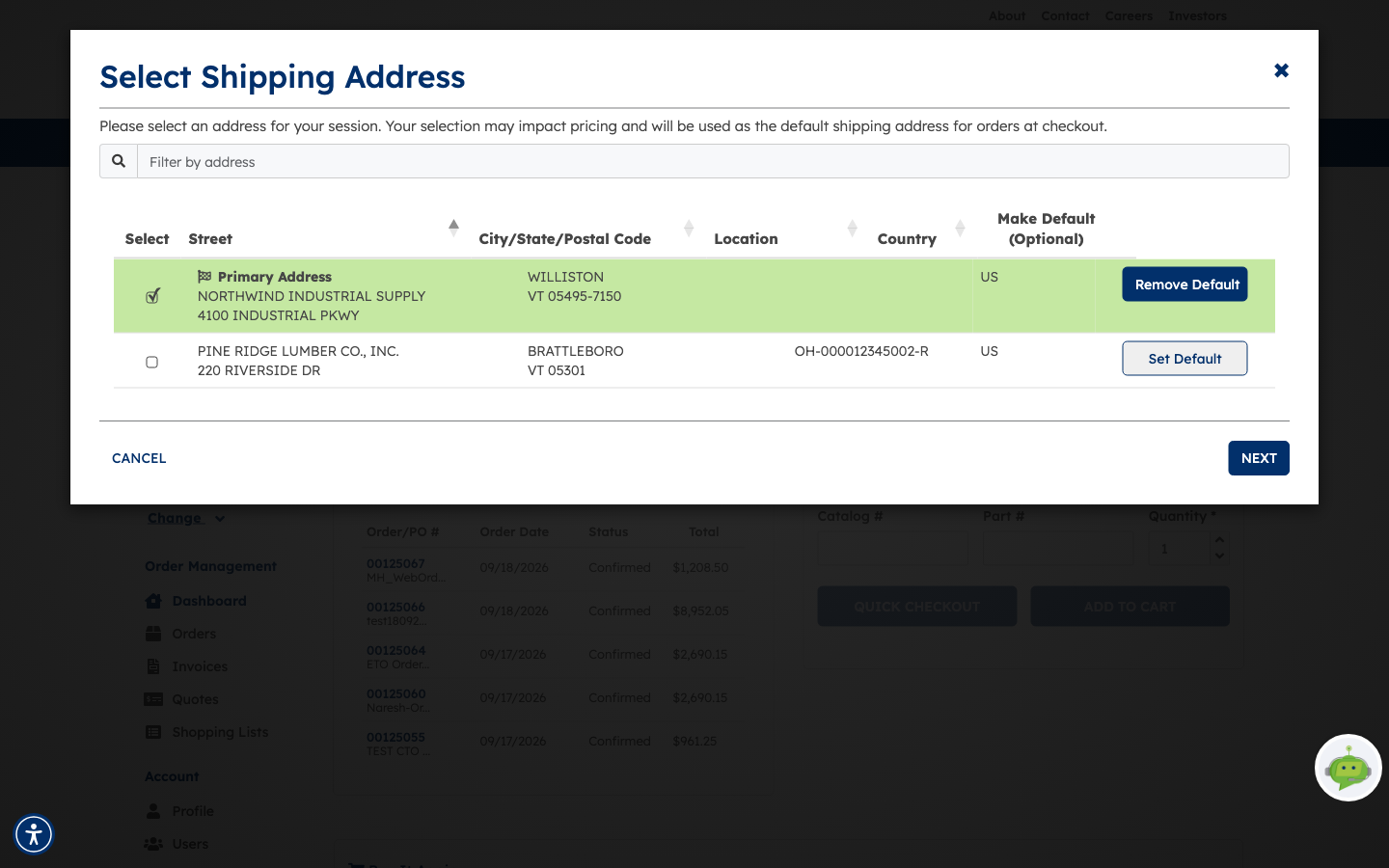
Next comes Select Shipping Address, listing the addresses held against the account you just chose.
Your selection may impact pricing and will be used as the default shipping address for orders at checkout.
Your Primary Address is flagged with a marker and selected by default — take that one unless you're specifically shipping somewhere else. As with accounts, you can filter, sort, and Set Default.
Click NEXT to finish, or BACK if you picked the wrong account.
Step 4 — You land on your dashboard
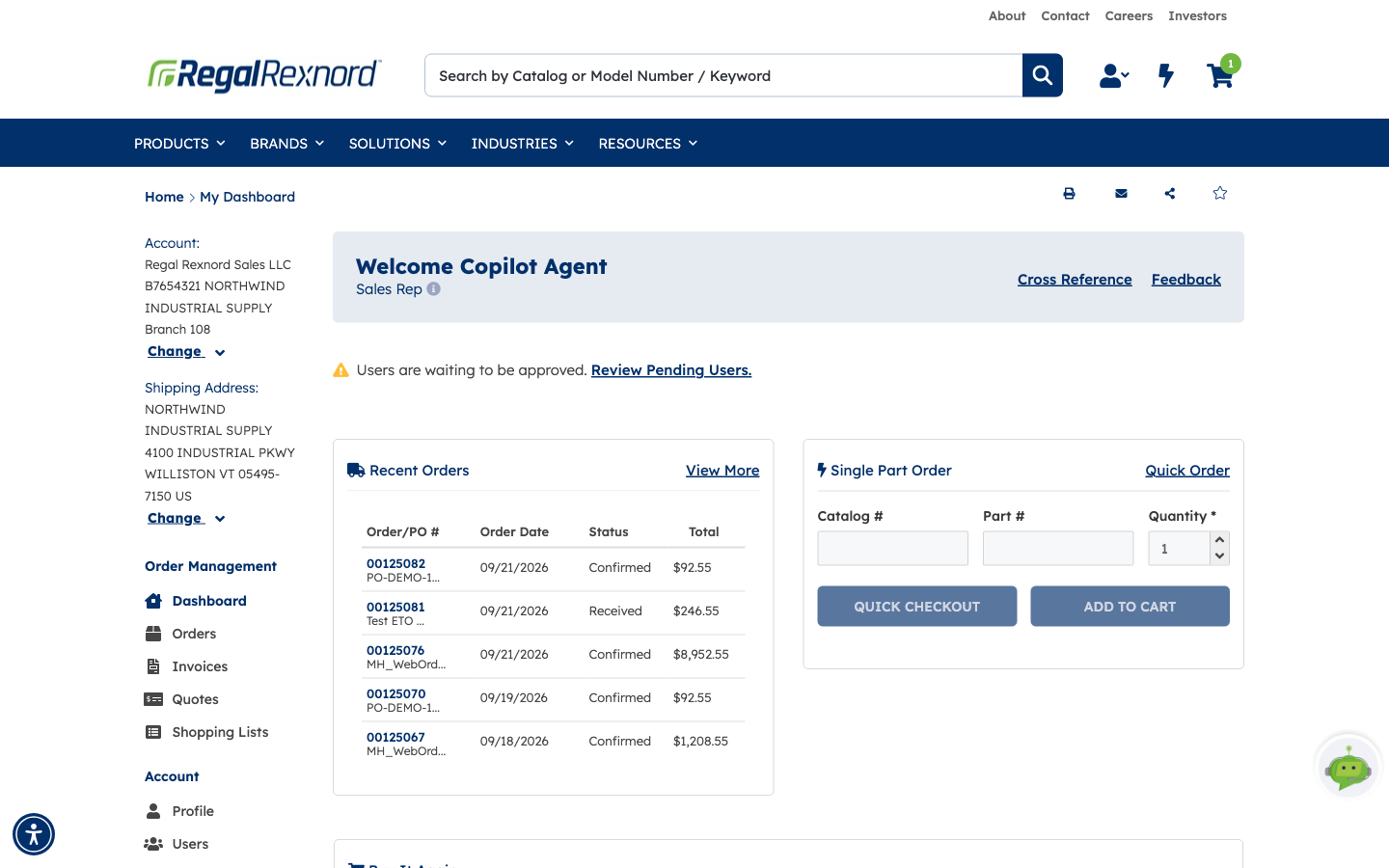
You arrive at My Dashboard, with a Welcome header confirming who you're signed in as and your role on the account.
The left column always shows the context you just chose:
- Account: channel, account number, customer name and branch
- Shipping Address: the address selected for this session
From here you can reach Orders, Invoices, Quotes and Shopping Lists, manage Profile, Users and the Address Book, and place a quick single-part order without leaving the page.
Switching account or address later
You don't have to sign out to change your mind. Each block in the left column of the dashboard has its own Change link:
- Change under Account reopens the Select Account window from Step 2.
- Change under Shipping Address reopens Select Shipping Address from Step 3.
Both take effect immediately for the rest of your session. Because the account you're under drives pricing and product visibility, it's worth a glance at that left column whenever a price or a part looks unexpected — you may simply be under a different account than you assumed.