Changing Your Password
You can change your own password at any time from your account. The form checks your new password against the security policy as you type, so you find out immediately whether it will be accepted.
Sign in and have your current password to hand — you'll need it to confirm the change.
Step 1 — Open the Change Password form
From the account menu, choose Profile, then Change Password — or go straight to Change Password from the Account Management navigation.
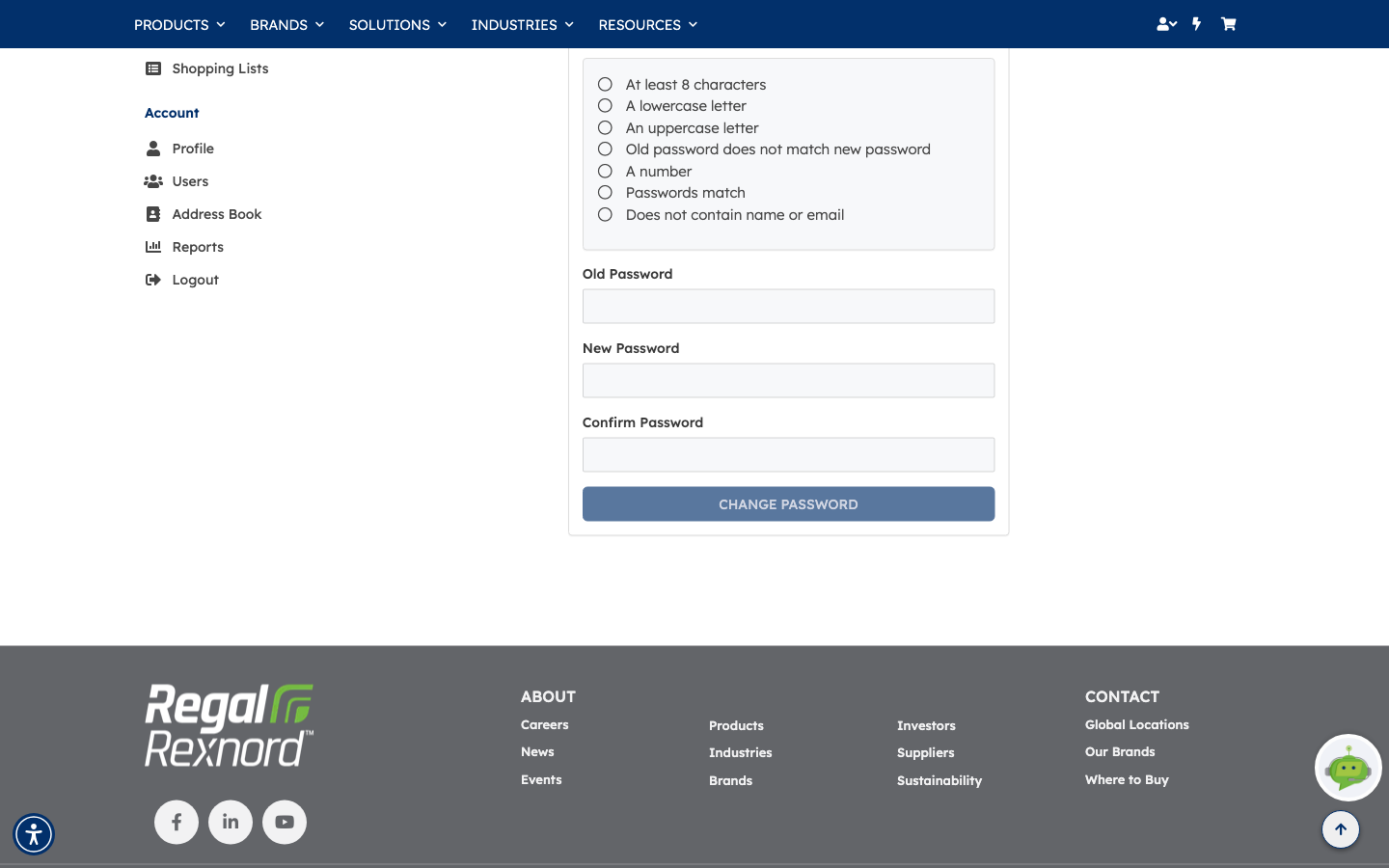
The page opens with a checklist of the password rules and three fields: Old Password, New Password and Confirm Password. Above the checklist it names the account being changed, so you can be sure you're changing the right one.
Every rule starts unticked, and the CHANGE PASSWORD button is greyed out. It stays that way until all seven rules pass.
Step 2 — Enter your current password and watch the rules
Type your current password into Old Password, then start on New Password.
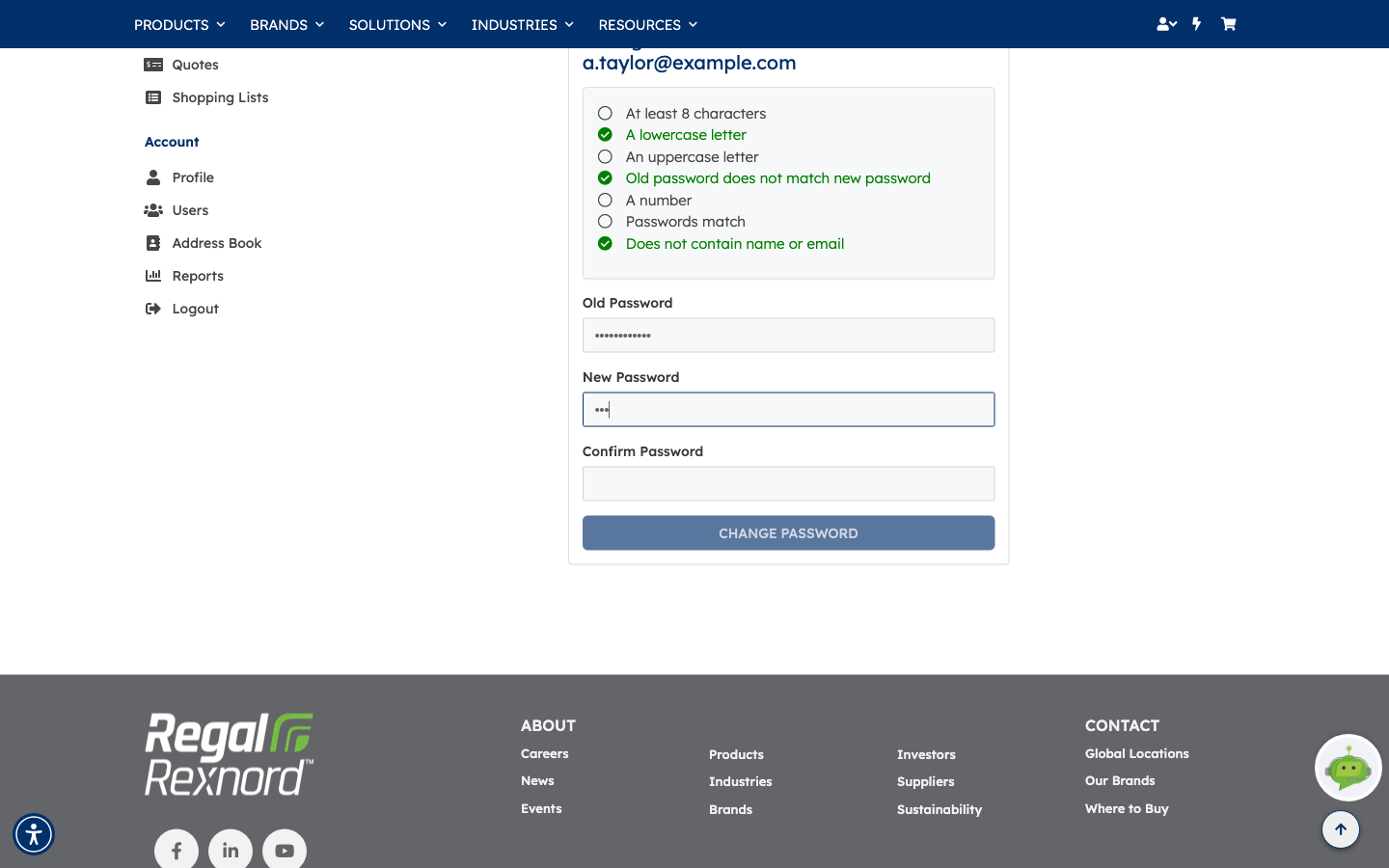
The checklist updates on every keystroke. Type something short like abc and only a few rules turn
green — a lowercase letter, and the fact that it differs from your old password. The rest stay open,
and the button stays disabled.
This is the point of the checklist: you're never guessing why a password was rejected.
Step 3 — Confirm the new password
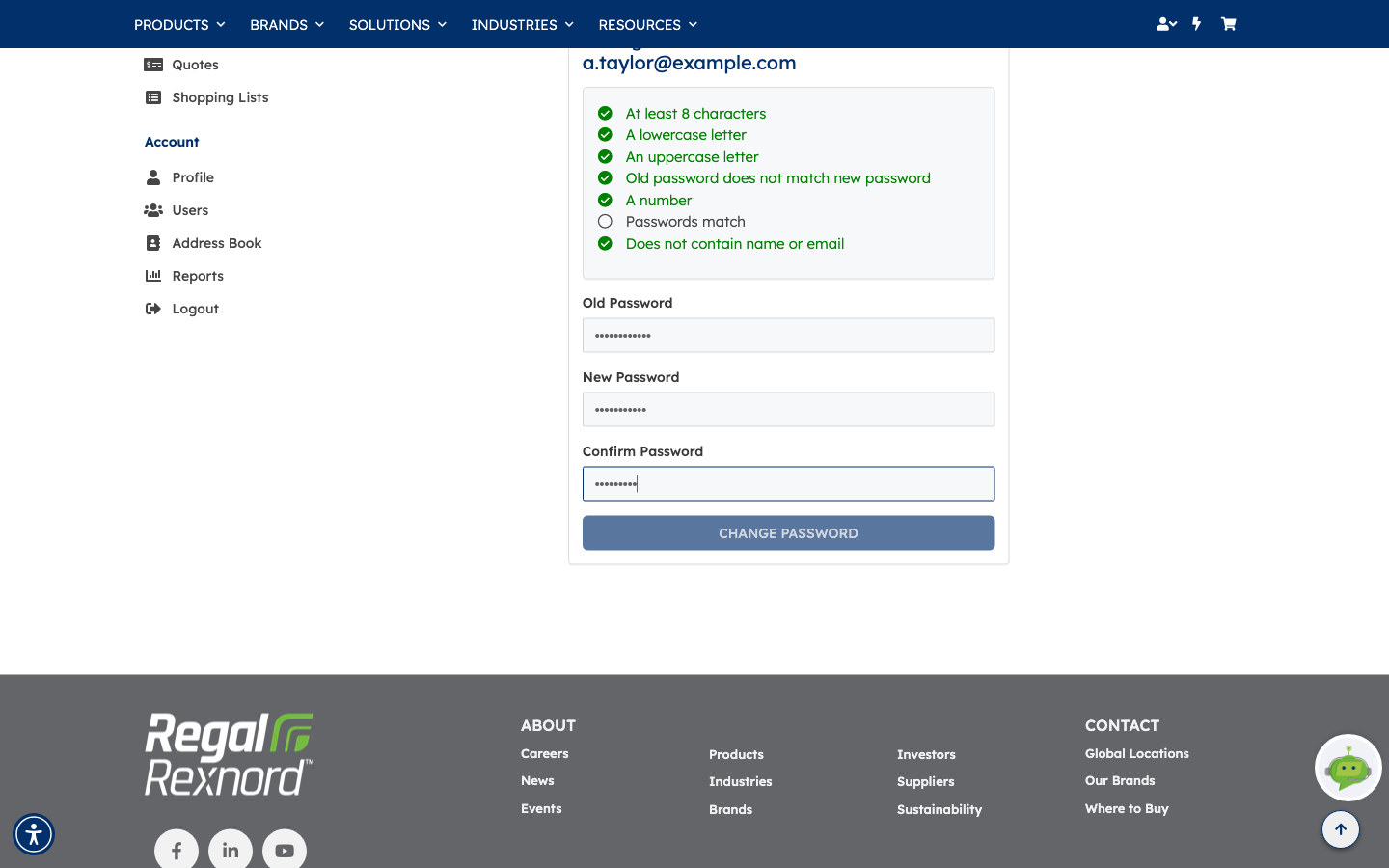
Enter a password that satisfies the policy, then repeat it in Confirm Password.
If the two don't match exactly, the Passwords match rule stays unticked and the button stays disabled — a typo in the confirmation field can't slip through.
Step 4 — Submit
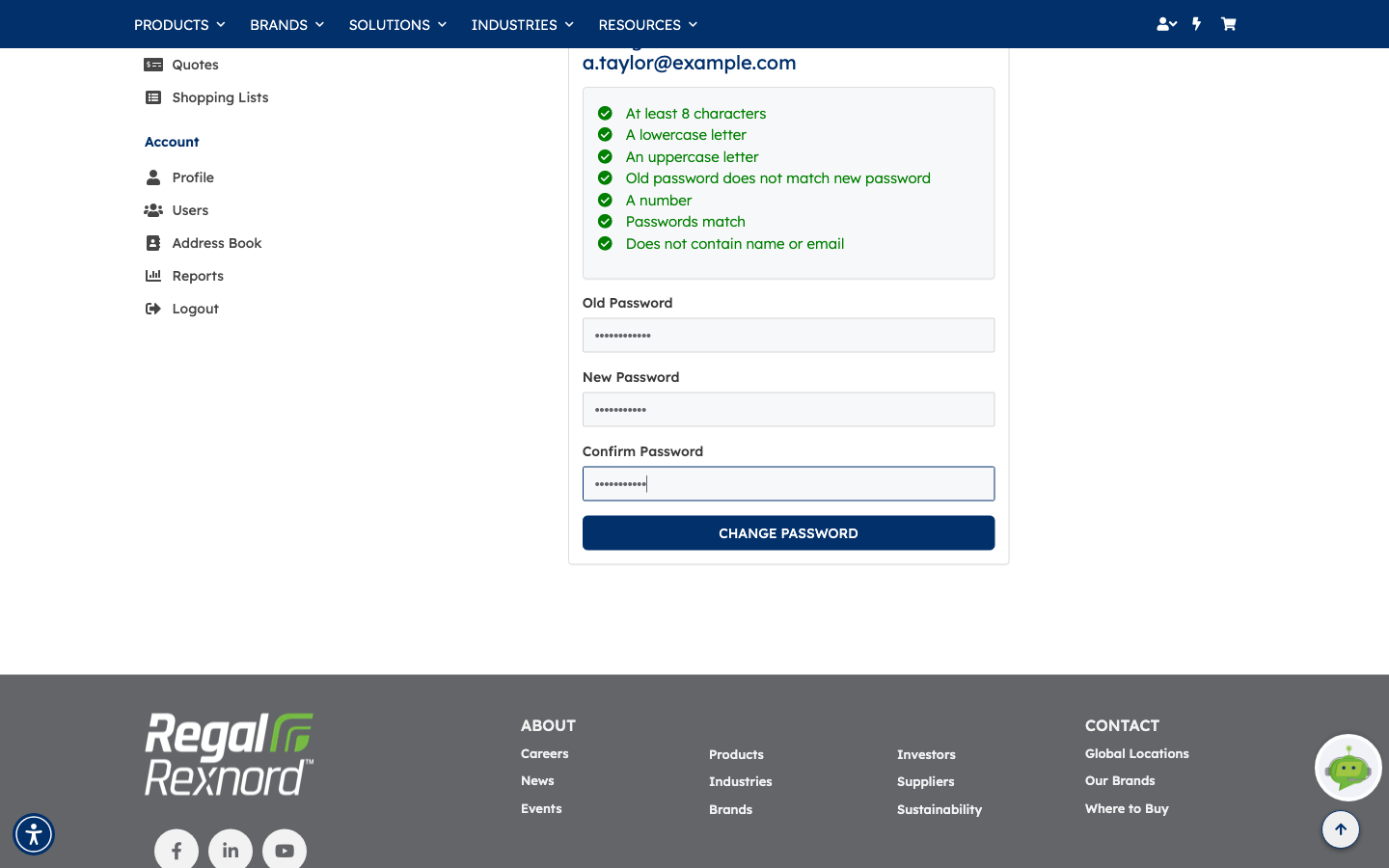
Once the confirmation matches, every rule turns green and CHANGE PASSWORD becomes active. Click it to apply the change.
The seven rules are:
- At least 8 characters
- A lowercase letter
- An uppercase letter
- Old password does not match new password
- A number
- Passwords match
- Does not contain name or email
If you change your mind before submitting, use BACK TO PROFILE at the top of the page to leave without making any change.
What you've done
You've changed your password, with the policy checked before submission rather than after.
Your new password takes effect immediately — use it the next time you sign in. Nothing else about your profile changes, and you stay signed in on this device.
Worth remembering
- The button only enables when all seven rules pass — if it's greyed out, look for the untick.
- The new password can't reuse the old one, and can't contain your name or email.
- Both password fields must match exactly, including case.
- BACK TO PROFILE leaves without changing anything.
- Screenshots of this walkthrough stop short of submitting; the values shown are illustrative only.