Resetting a Forgotten Password
If you can't remember your password, you don't need to contact anyone — the sign-in page can email you a reset link.
You'll need access to the mailbox for the email address you sign in with.
Step 1 — Start from the sign-in page
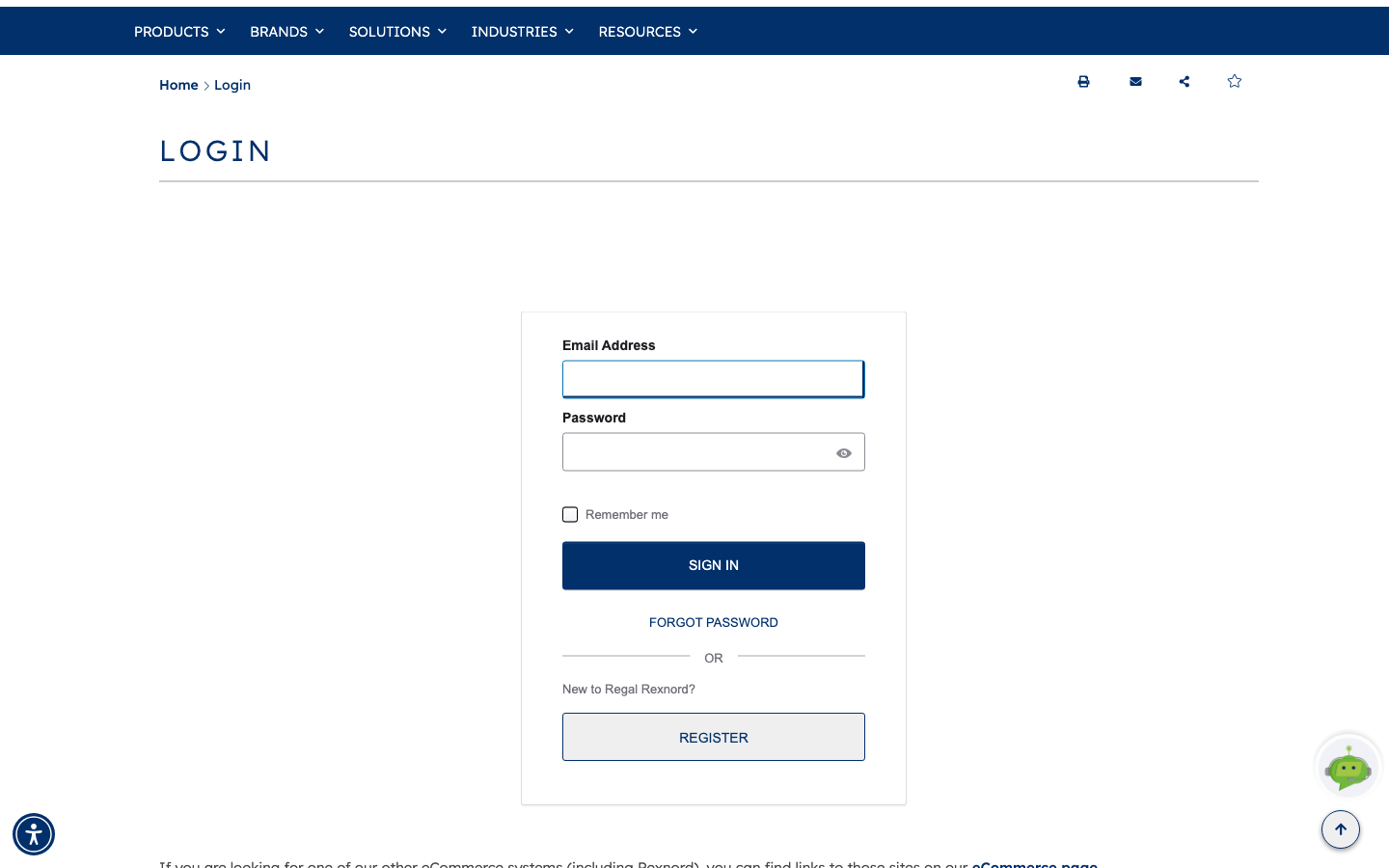
Go to Login. Beneath Email Address, Password and the SIGN IN button there's a FORGOT PASSWORD link.
If you're actually new to the site, the REGISTER button below is the one you want instead.
Step 2 — Ask for a reset link
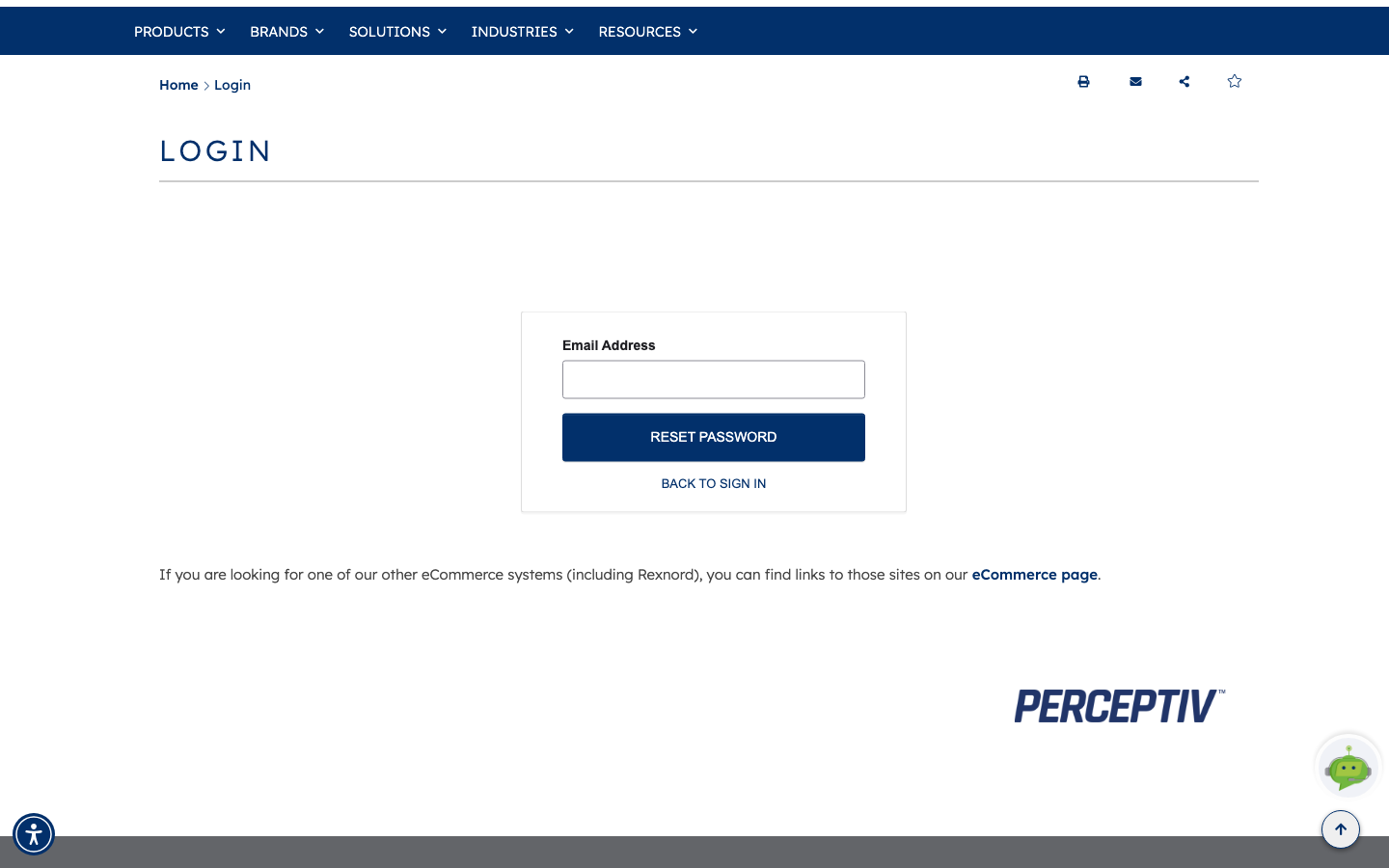
FORGOT PASSWORD replaces the sign-in form with a shorter one: a single Email Address field, a RESET PASSWORD button, and BACK TO SIGN IN if you remembered it after all.
Enter the address you sign in with — not a colleague's, and not a personal address unless that's the one on your account. The link is sent only to the address on file.
Step 3 — Fix anything the form flags
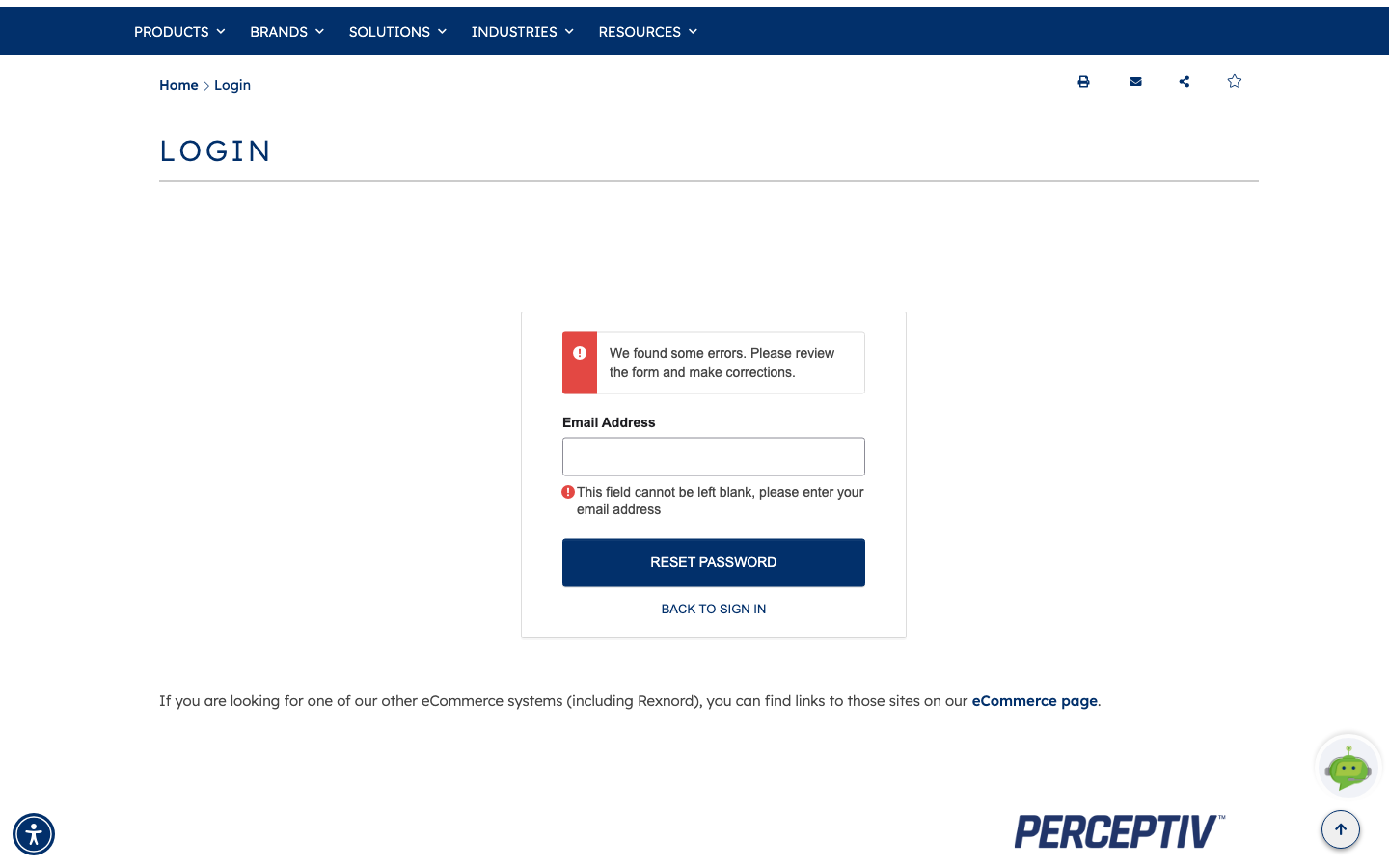
Submit without an address and the form stops you: We found some errors. Please review the form and make corrections, with This field cannot be left blank, please enter your email address under the field itself. A badly formed address is caught the same way.
Step 4 — Check your email
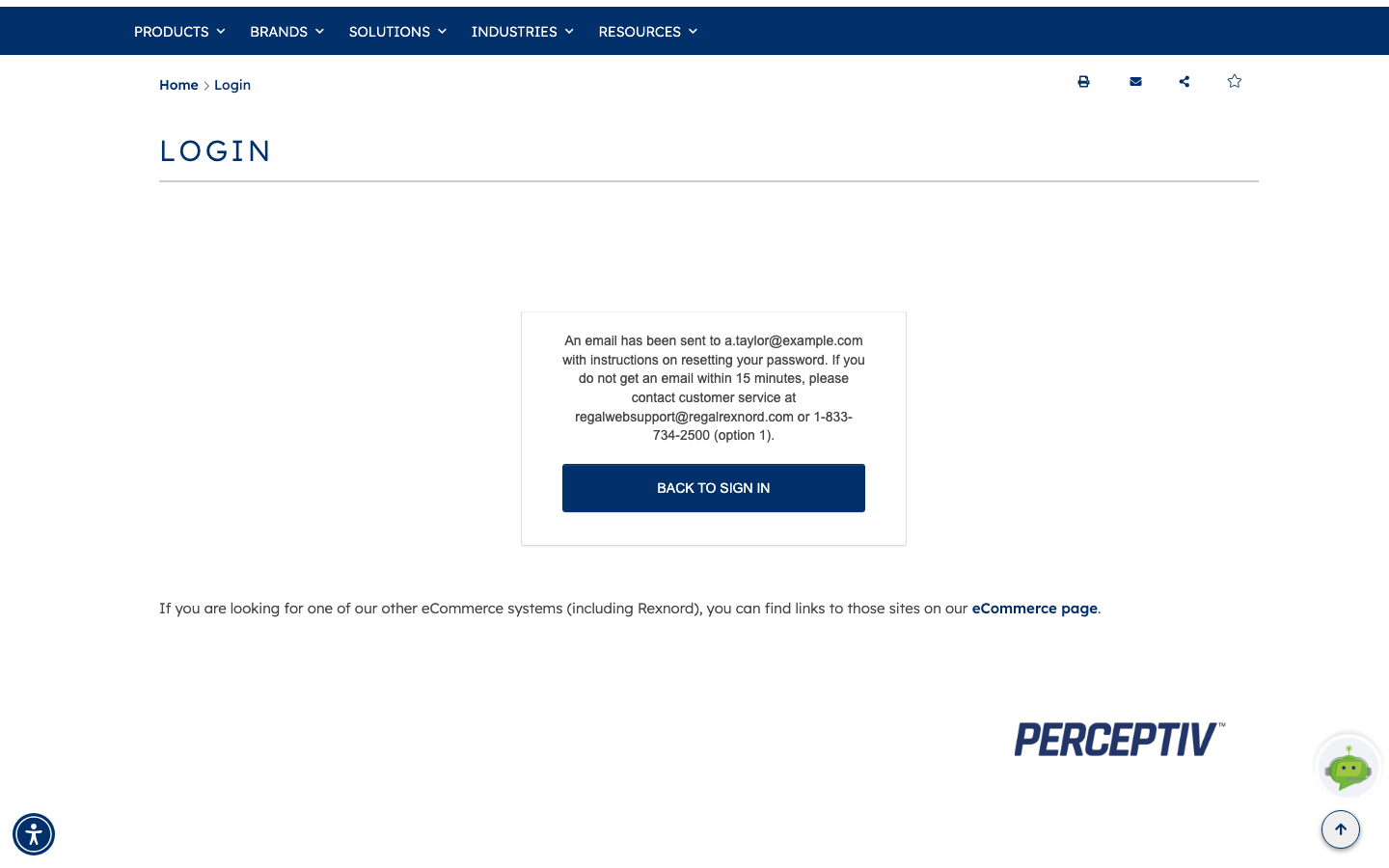
With a valid address, the panel confirms the request: An email has been sent to … with instructions on resetting your password.
It also tells you what to do if nothing arrives within 15 minutes — contact customer service at regalwebsupport@regalrexnord.com or 1-833-734-2500 (option 1).
Worth knowing: this confirmation appears whether or not the address has an account. That's deliberate — it stops the page being used to discover who has an account.
Step 5 — Follow the link and set a new password
Open the email and follow the reset link. It takes you to a Reset your password page showing the account the reset applies to, with New password and Repeat password fields and the password requirements listed alongside:
- At least 8 characters
- A lowercase letter
- An uppercase letter
- A number
- No parts of your username
- Not one of your last 30 passwords
Both fields hide what you type; use the eye icon at the right of a field if you want to check what you've entered.
Tick Sign me out of all other devices if you want every other signed-in session ended — a good idea if you think someone else may have had access to your account.
Enter the same new password in both fields and submit. Your password changes immediately. You're then signed in — or returned to the sign-in page to use your new password.
The link is time-limited and single-use. If it's expired by the time you get to it, just start again from FORGOT PASSWORD.
The reset email itself isn't shown here — it lands in your own mailbox, and the link inside is unique to your account.
What you've done
You've reset your password without needing anyone's help, and you know what to do if the email doesn't turn up.
Worth remembering
- The link only goes to the address on your account.
- The confirmation looks identical for unrecognised addresses — it isn't proof the account exists.
- No email after 15 minutes? Check junk mail, then use the customer service details on the confirmation.
- Reset links expire, and each one works once.
- Sign me out of all other devices is worth ticking if you suspect someone else had access.
- If you know your current password, use Change Password in your account instead.