Getting to Know Your Dashboard
Your Dashboard is your home page after you sign in. It shows which account you're working in, your latest orders, products you buy often, and shortcuts to everything else in your account, all on one page.
You're already signed in and on your My Dashboard page. This guide walks you down the page from top to bottom. Each numbered red outline in a screenshot matches a numbered section below.
The prices in the screenshots are illustrative stand-ins. They all end in .55, so totals won't tally. On the live site they will.
At a glance
| # | Component | What it's for |
|---|---|---|
| 1 | Account and Shipping Address | Shows which account and ship-to address you're working in |
| 2 | Welcome banner | Your name, your role, and quick links |
| 3 | Recent Orders | Your five most recent orders and their status |
| 4 | Single Part Order | Order one part without leaving the Dashboard |
| 5 | Order Management and Account menu | Links to every area of your account |
| 6 | Get Help | Reach customer support |
| 7 | Buy It Again | Products you've ordered before, ready to reorder |
| 8 | Recently Viewed Products | Products you've looked at lately |
| 9 | Favorites | Products you've starred |
| 10 | Recent Activity | Pages you've visited lately |
Step 1 — Check your account, then review the top of the page
The top of the Dashboard shows who you are, which account you're in, and your latest orders.
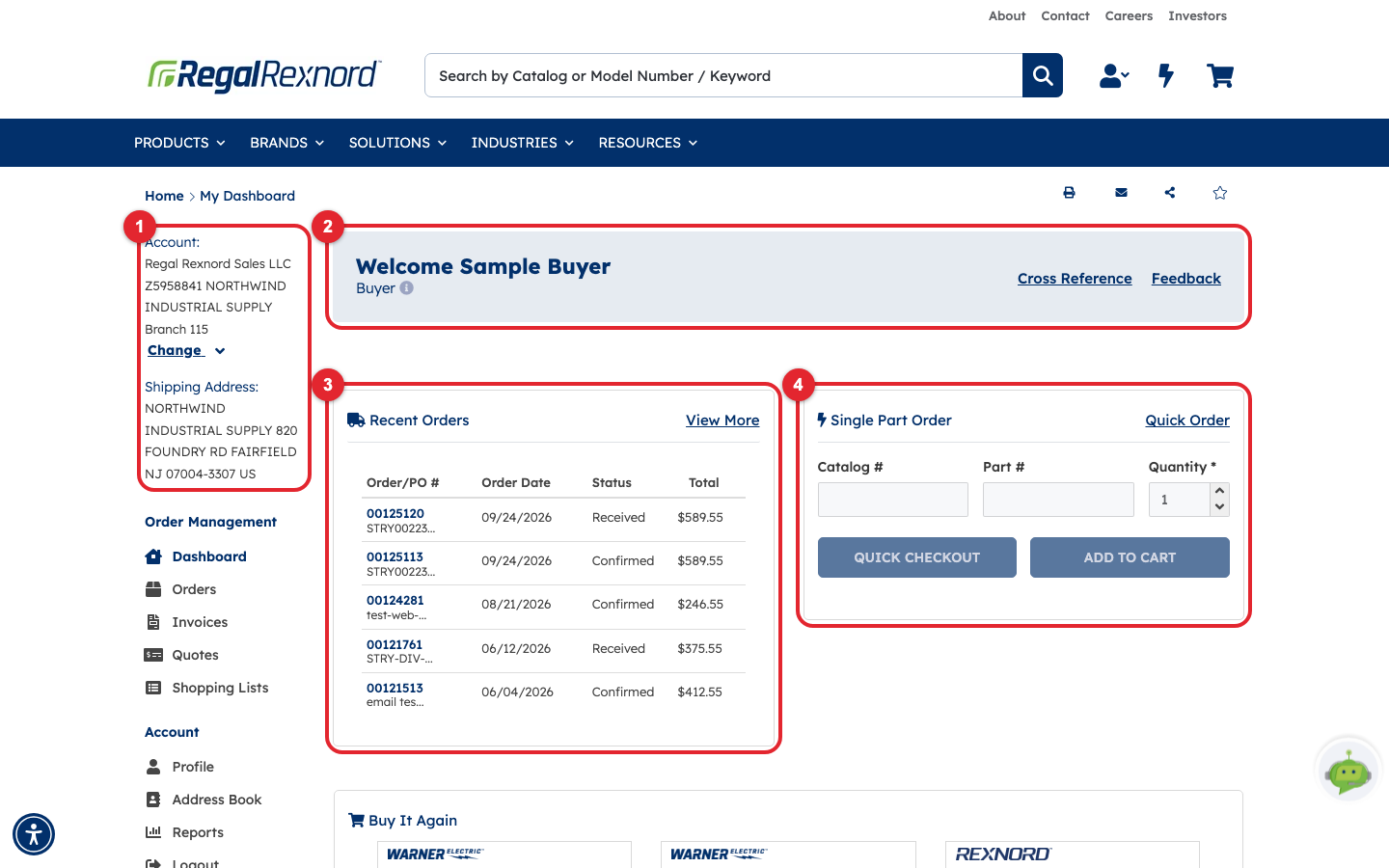
1 — Account and Shipping Address. The left column shows the account you're currently working in. In this example it's Z5958841 NORTHWIND INDUSTRIAL SUPPLY, Branch 115. Below that is the shipping address your orders will go to. The account you pick controls the products and prices you see, so check it first. If you have access to more than one account, click Change to switch.
2 — Welcome banner. This greets you by name (Welcome Sample Buyer in this example). Under your name is your role, which here is Buyer. Your role decides what you're allowed to do on the site. On the right are two quick links:
| Link | What it does |
|---|---|
| Cross Reference | Find a Regal Rexnord equivalent for another manufacturer's part number |
| Feedback | Tell us about your experience with the site |
3 — Recent Orders. Your five most recent orders, newest first. Click an order number to open its details, or click View More for your full order history.
| Column | What it shows |
|---|---|
| Order/PO # | The order number, with your purchase order number underneath |
| Order Date | When the order was placed |
| Status | Where the order is, for example Received or Confirmed |
| Total | The order total |
4 — Single Part Order. A quick way to order one part without searching for it. Enter a Catalog # or a Part #, set the Quantity, and then choose one of these:
| Button | What it does |
|---|---|
| QUICK CHECKOUT | Takes you straight to checkout with this part |
| ADD TO CART | Adds the part to your cart so you can keep shopping |
Click Quick Order in the corner to enter several parts at once.
Step 2 — Use the menu on the left
As you scroll down, the left column becomes a menu of everything in your account.
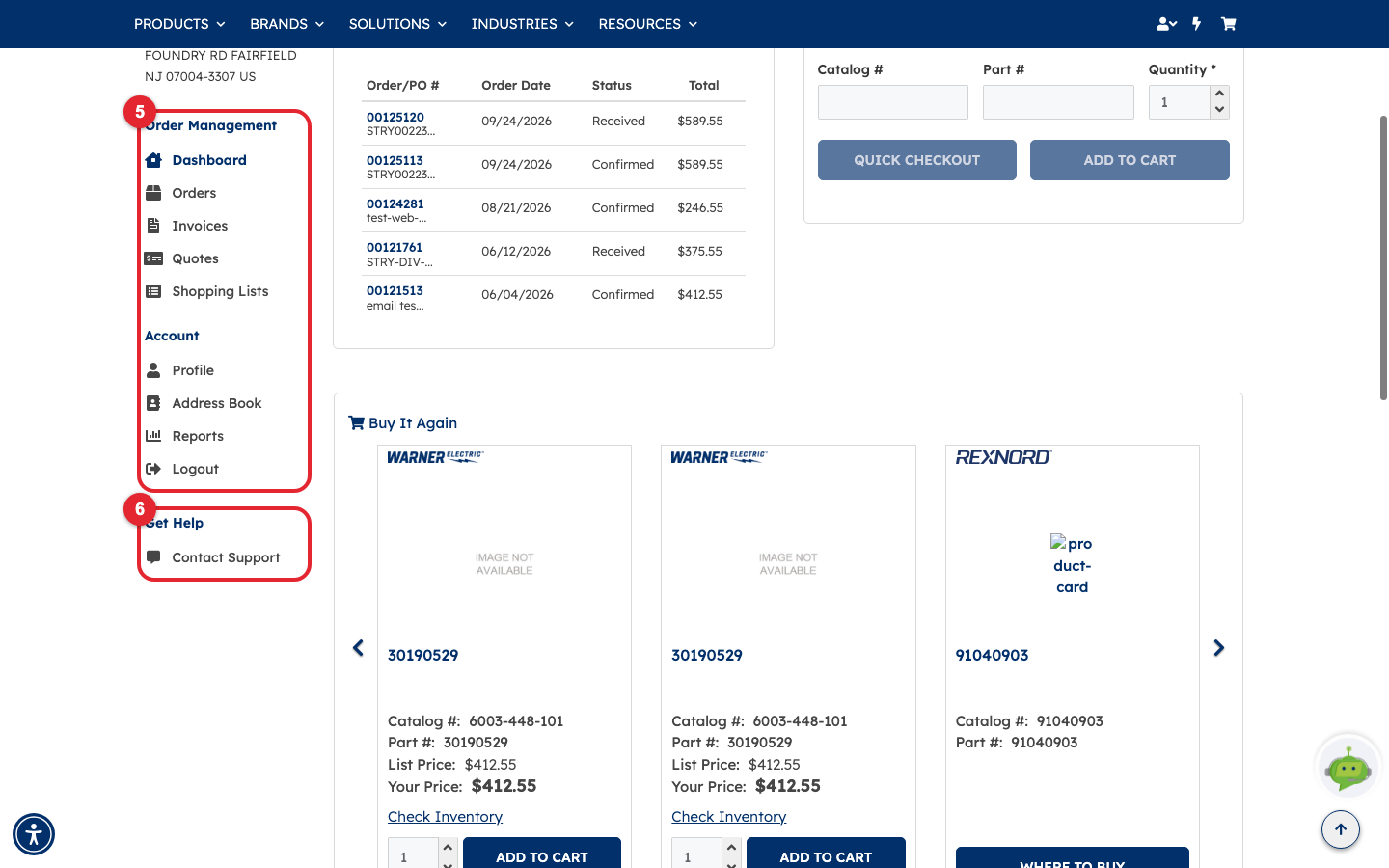
5 — Order Management and Account. These links take you to each area of your account:
| Section | Link | What you'll find there |
|---|---|---|
| Order Management | Dashboard | This page |
| Orders | Your full order history | |
| Invoices | Your invoices | |
| Quotes | Quotes you've requested or received | |
| Shopping Lists | Lists of products you've saved to order later | |
| Account | Profile | Your personal details and account settings |
| Address Book | Your saved shipping addresses | |
| Reports | Account reports | |
| Logout | Sign out of the site |
6 — Get Help. Click Contact Support to reach the customer support team.
Step 3 — Reorder from Buy It Again
7 — Buy It Again lists products you've ordered before, so reordering takes one click. Use the arrows on each side to scroll through more products.
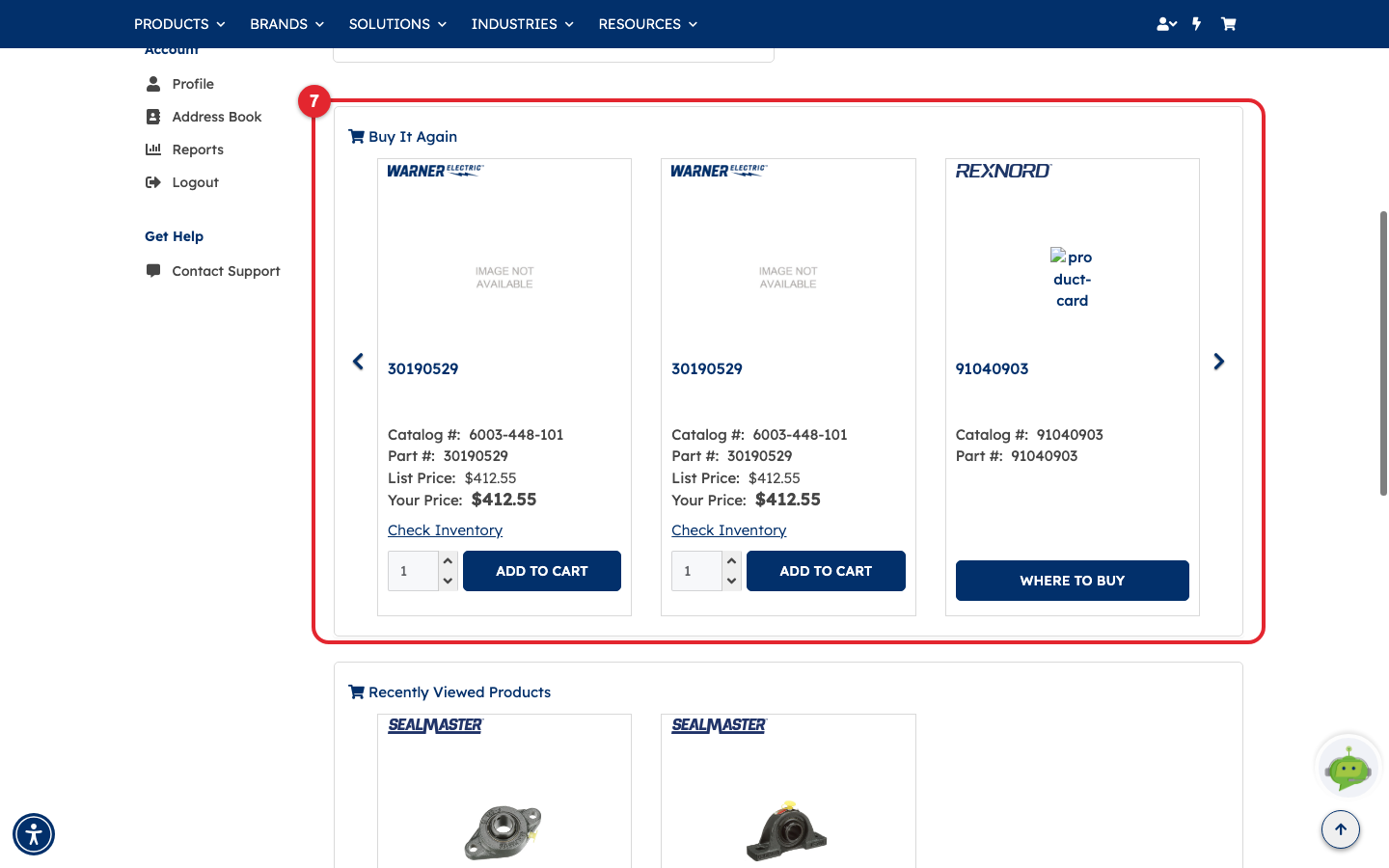
Each product card shows:
| What you see | What it means |
|---|---|
| Catalog # and Part # | The product's identifiers |
| List Price | The standard price |
| Your Price | Your account's price |
| Check Inventory | Shows stock at each warehouse |
| Quantity box and ADD TO CART | Choose a quantity and add it to your cart |
| WHERE TO BUY | Shown instead of ADD TO CART when you can't buy the product online. Click it to find a distributor. |
In this example, the first two cards show part 30190529 (catalog 6003-448-101). The third, part 91040903, shows WHERE TO BUY.
In these screenshots, List Price and Your Price on the Buy It Again cards happen to show the same stand-in value. On the live site, your own price is shown separately and may differ from the list price.
Step 4 — Return to Recently Viewed Products
8 — Recently Viewed Products lists the products you've looked at lately, so you can get back to them without searching again.
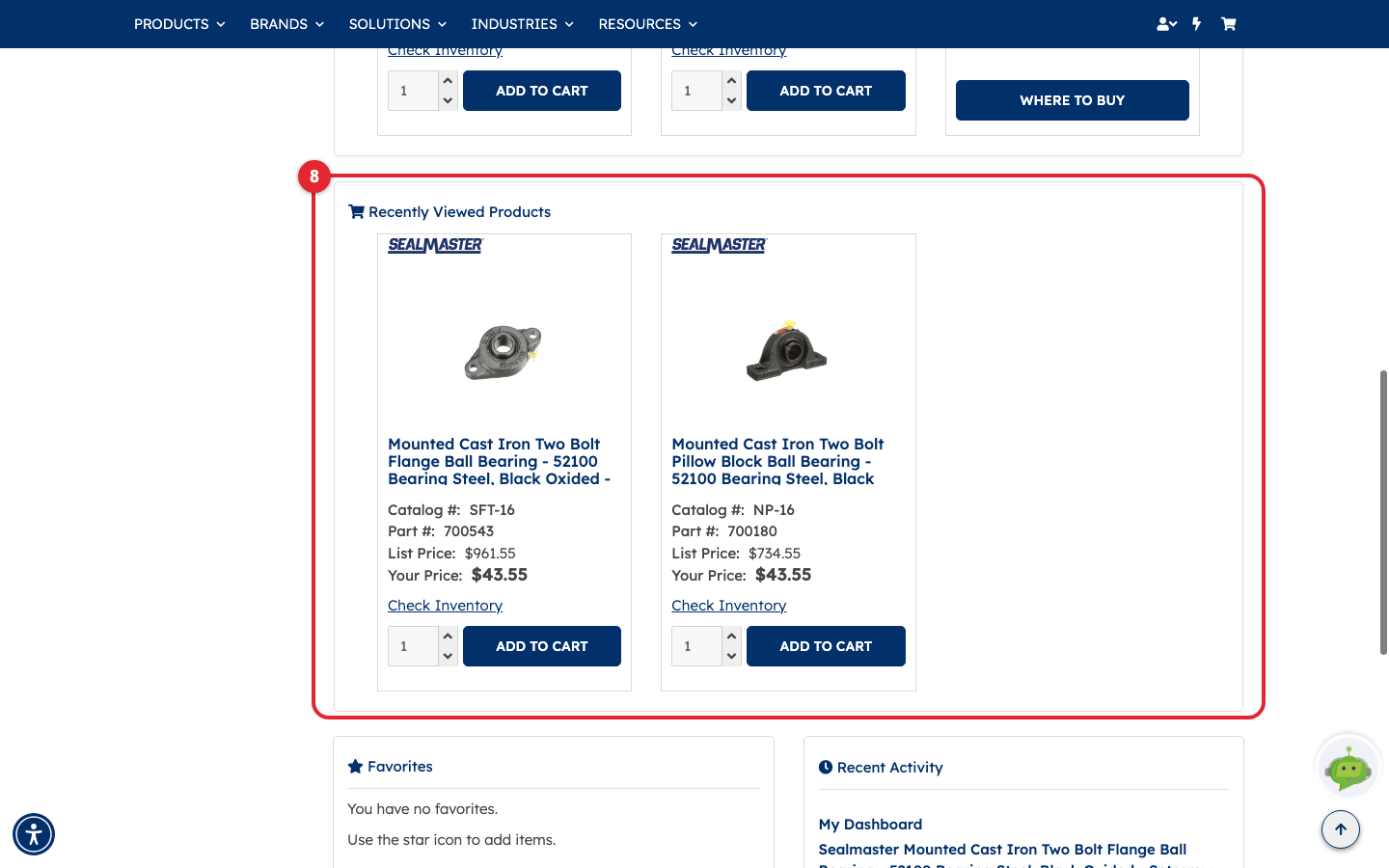
The cards work just like Buy It Again. In this example, you recently viewed a Mounted Cast Iron Two Bolt Flange Ball Bearing (catalog SFT-16) and a Mounted Cast Iron Two Bolt Pillow Block Ball Bearing (catalog NP-16). Click a product name to open its page.
Step 5 — Check Favorites and Recent Activity
The last two panels are at the bottom of the page, just above the footer.
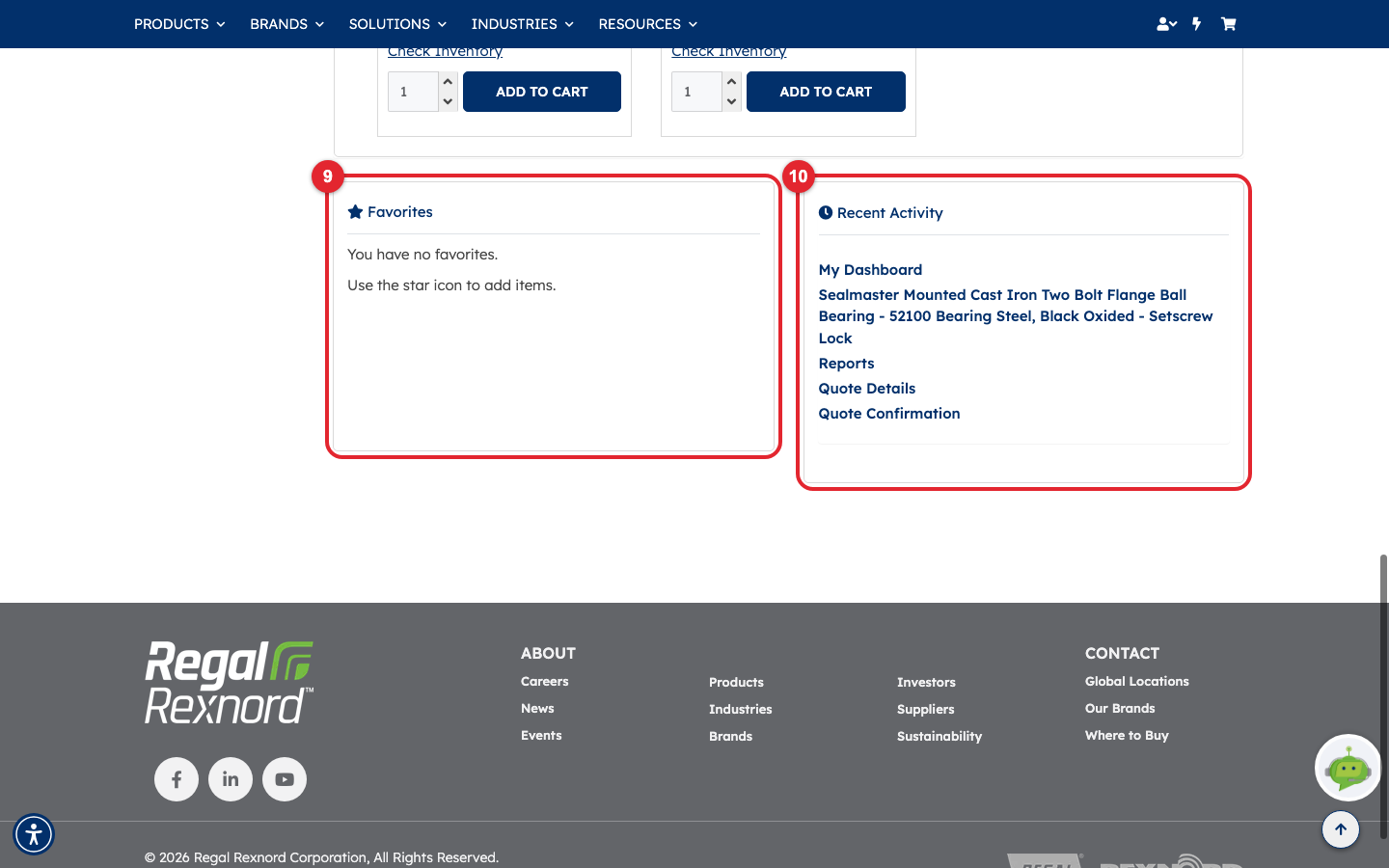
9 — Favorites. Products you've starred for quick access. If you haven't starred any yet, the panel shows You have no favorites. To add a product, click the star icon on its product page.
10 — Recent Activity. The pages you've visited lately, newest first, such as My Dashboard, a product page, Reports, Quote Details and Quote Confirmation. Click any entry to go back to that page.
That's it. You now know what each part of your Dashboard does. Use it to check your account, follow your latest orders, reorder products you use often, and get to any area of your account.