Adding Another Account to Your Profile — Test results
2026-08-26T19:22:09Z by Showboat 0.6.1
Supporting detail for the feature demo.
This demo walks through adding additional account access to a user profile on the Regal Rexnord B2B storefront.
Environment: https://uatwww.rrxpreview.com/ Test user: agent@forliion.com (Copilot Agent) Access type requested: Global Sales Rep Account added: H5230420
The journey uses the Add Additional Access To Your Profile section on the Profile page to request access to an additional account, then verifies the account appears in the Existing Accounts list after the page is refreshed.
Prerequisites
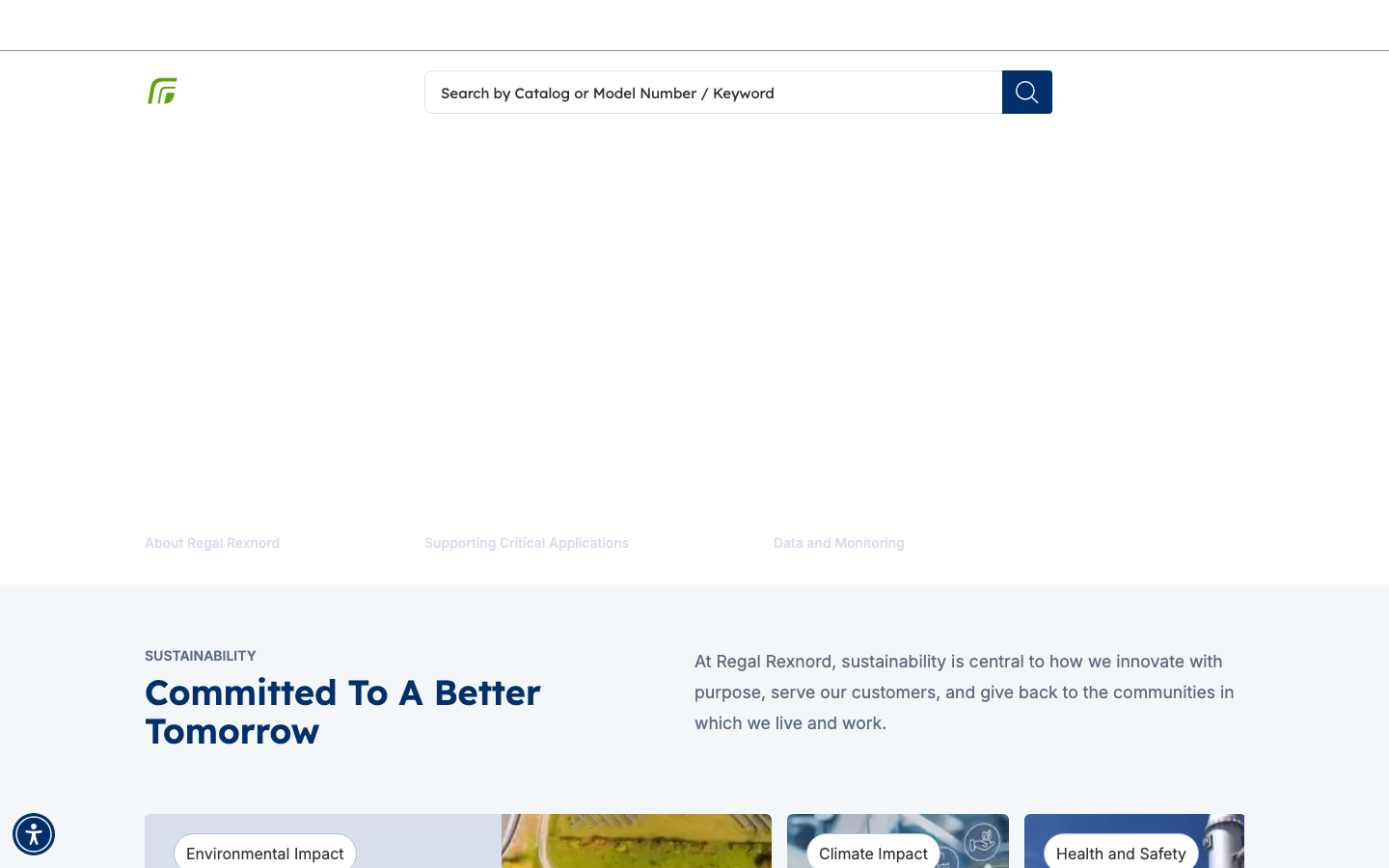
Open the Regal Rexnord UAT storefront at https://uatwww.rrxpreview.com/ and dismiss the cookie banner if one is presented.
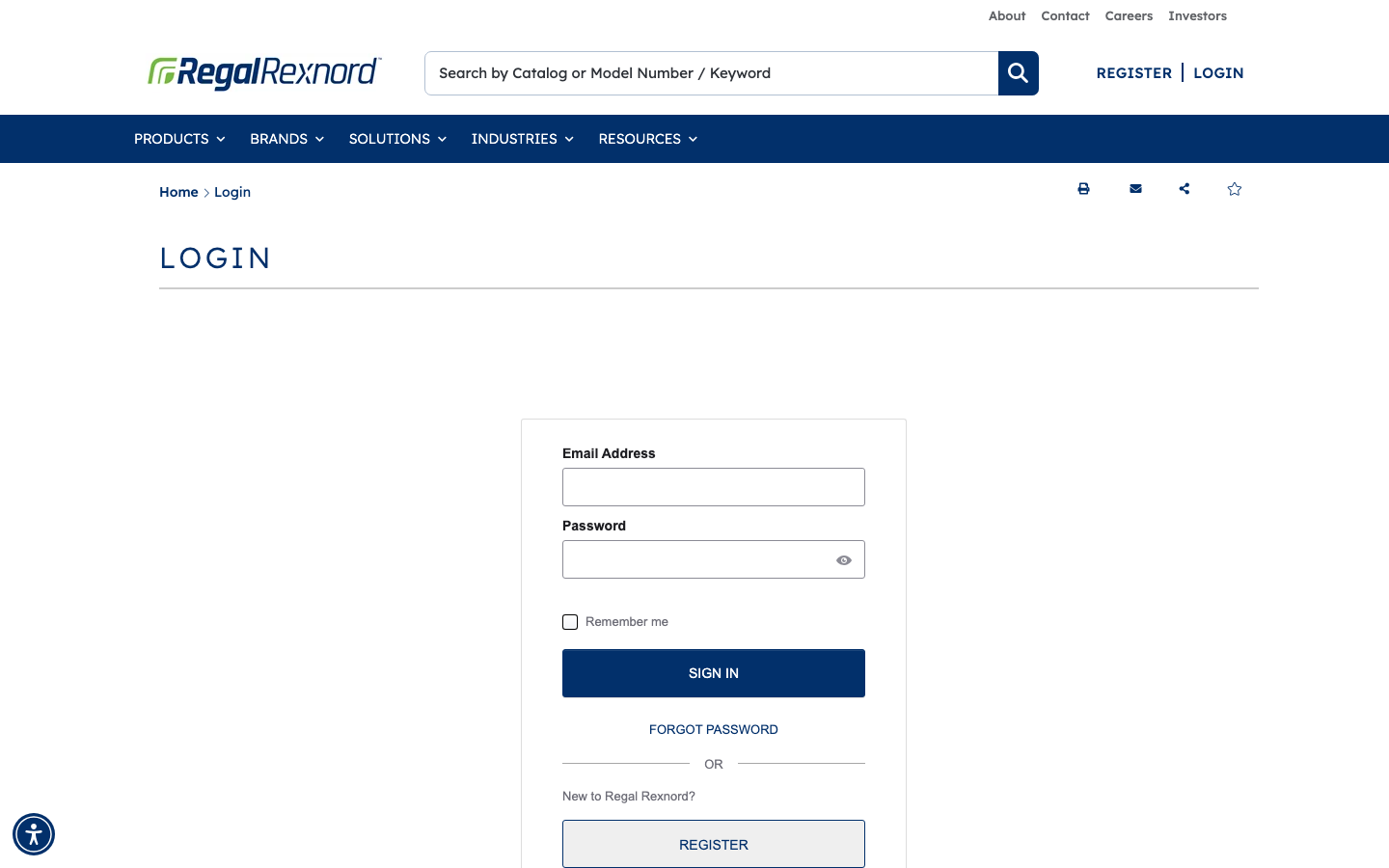
Sign in as the test user agent@forliion.com via the Okta-backed login form.
After authenticating, the session prompts for a shipping address. The Primary Address (first option) is selected.


Login succeeds and lands on My Dashboard. The header confirms the expected test user: Welcome Copilot Agent, signed in as a Sales Rep on account U3427563 EASTERN INDUSTRIAL AUTOMATION.

Step 1 — Open the Profile page
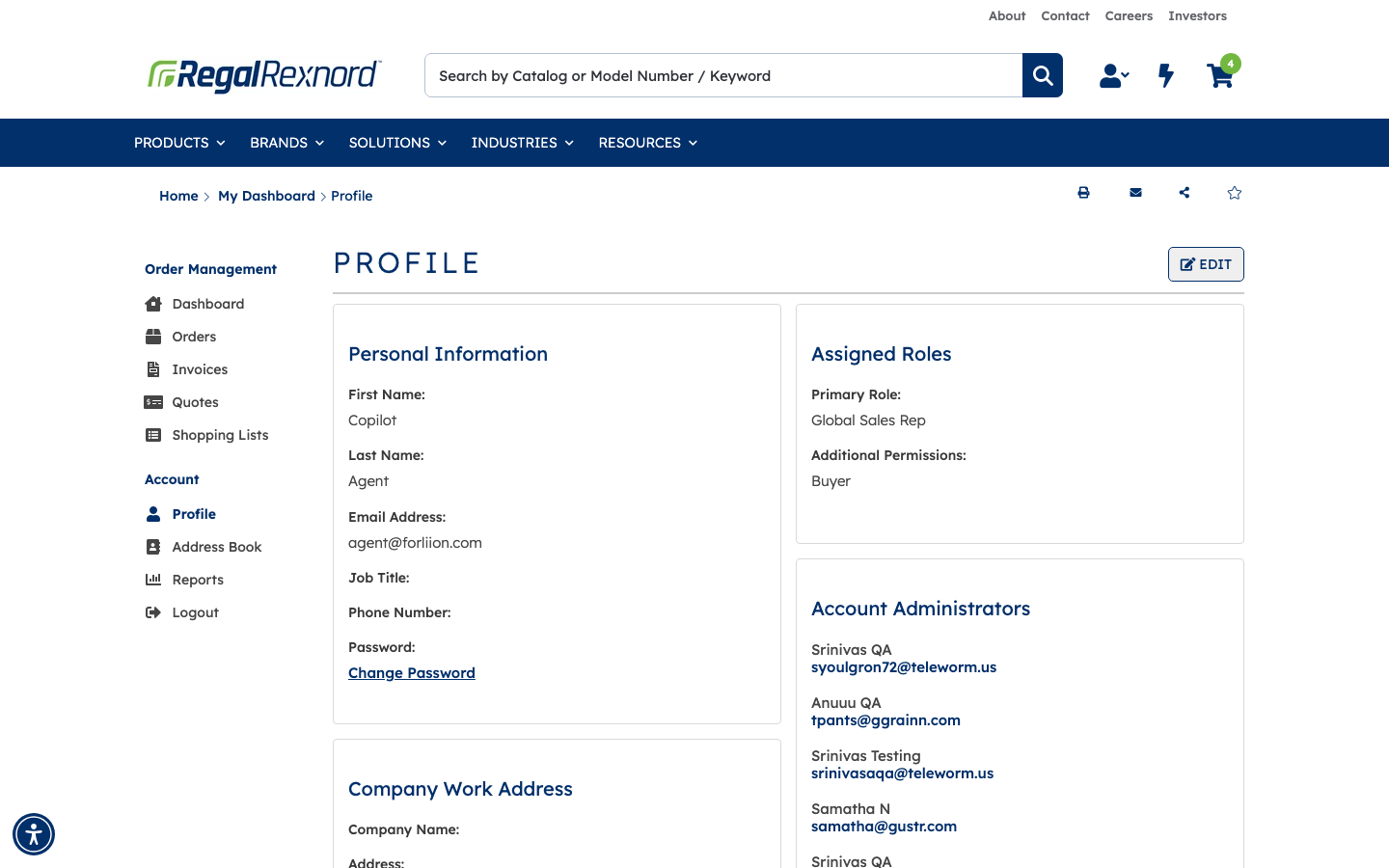
From the Dashboard, the Account → Profile link opens the profile at https://uatwww.rrxpreview.com/accountmanagement/editprofile.
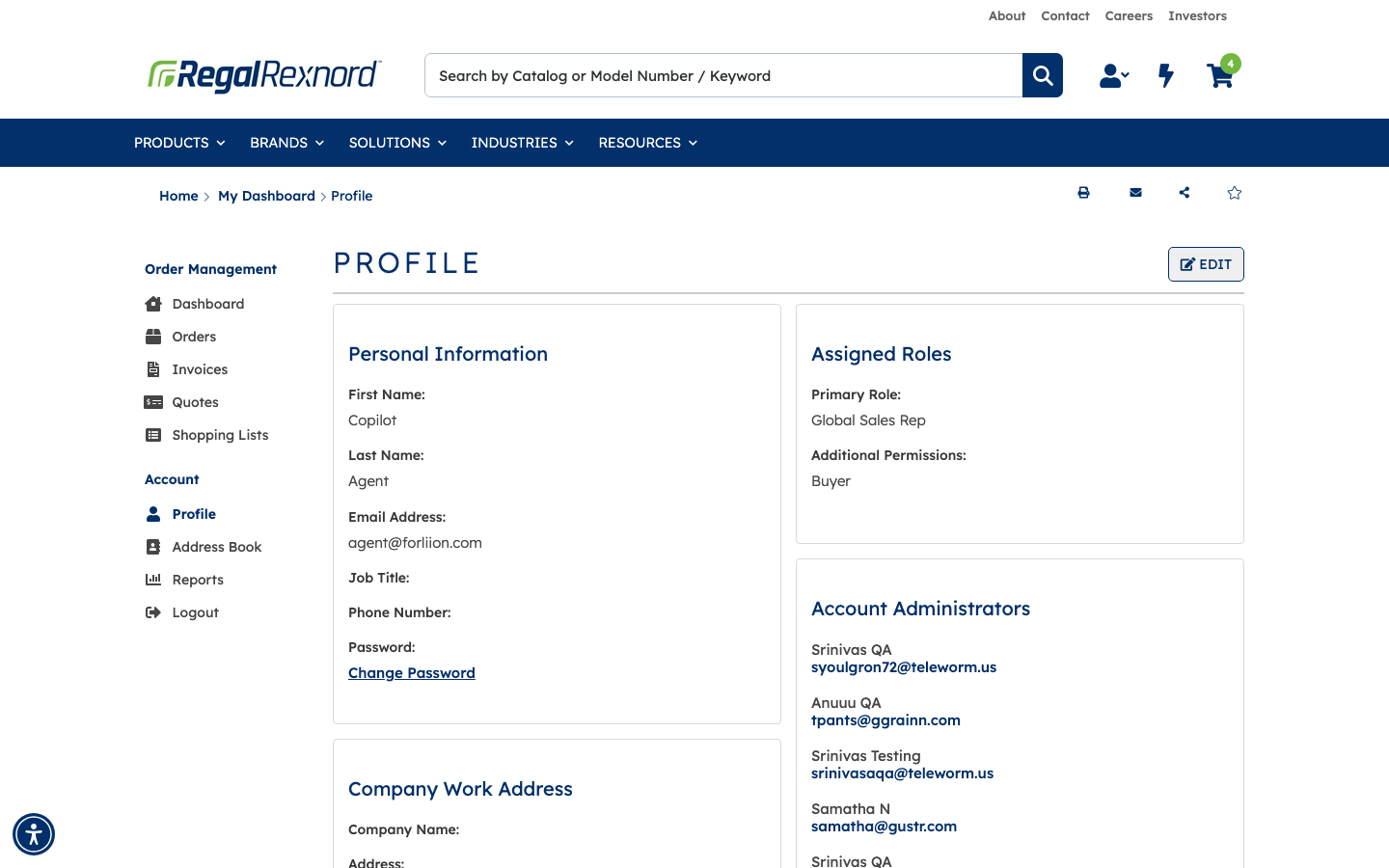
Note the Assigned Roles panel: the test user's Primary Role is Global Sales Rep, which is the access level used to request the additional account.
Steps 2-3 — Baseline the Existing Accounts list
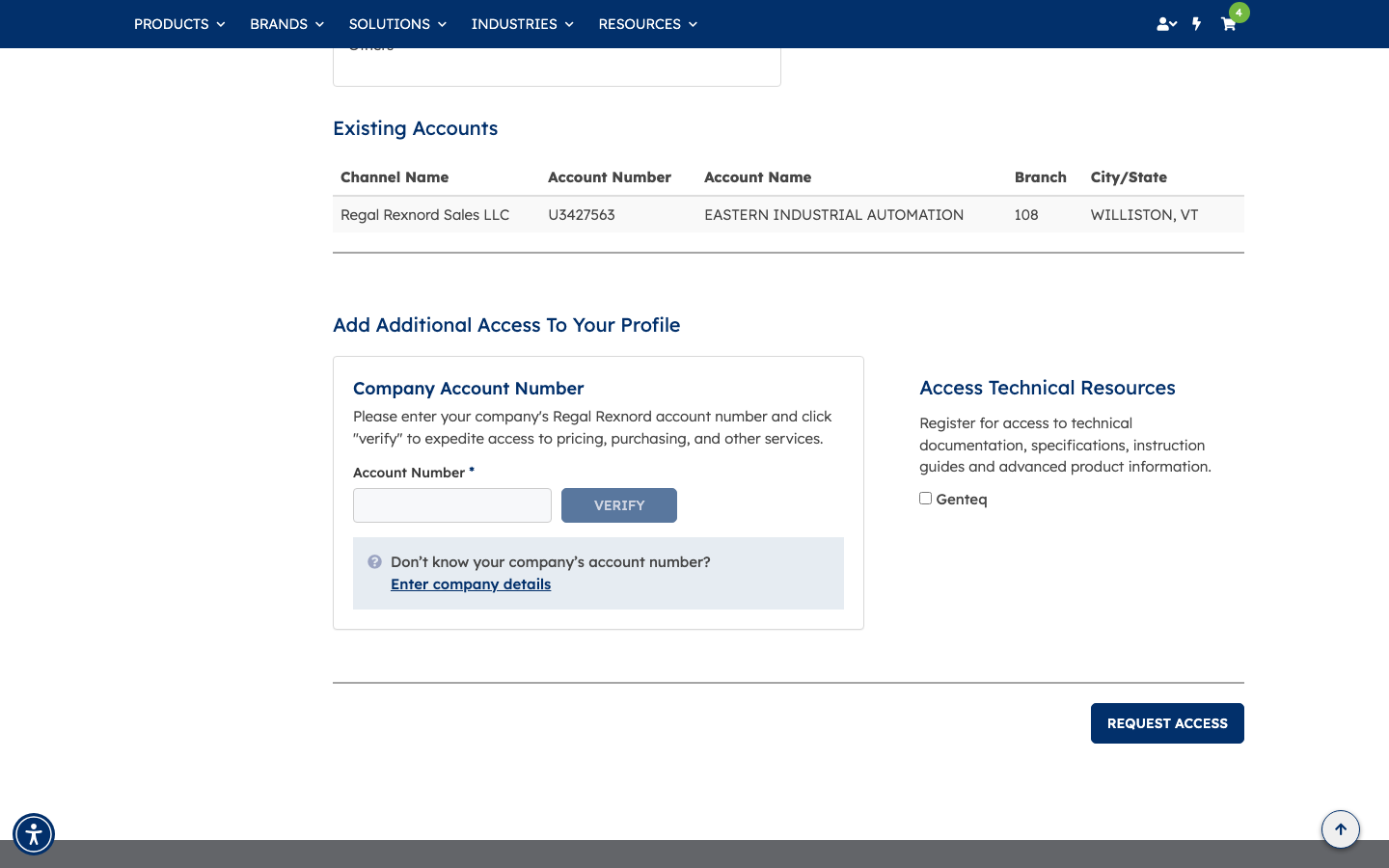
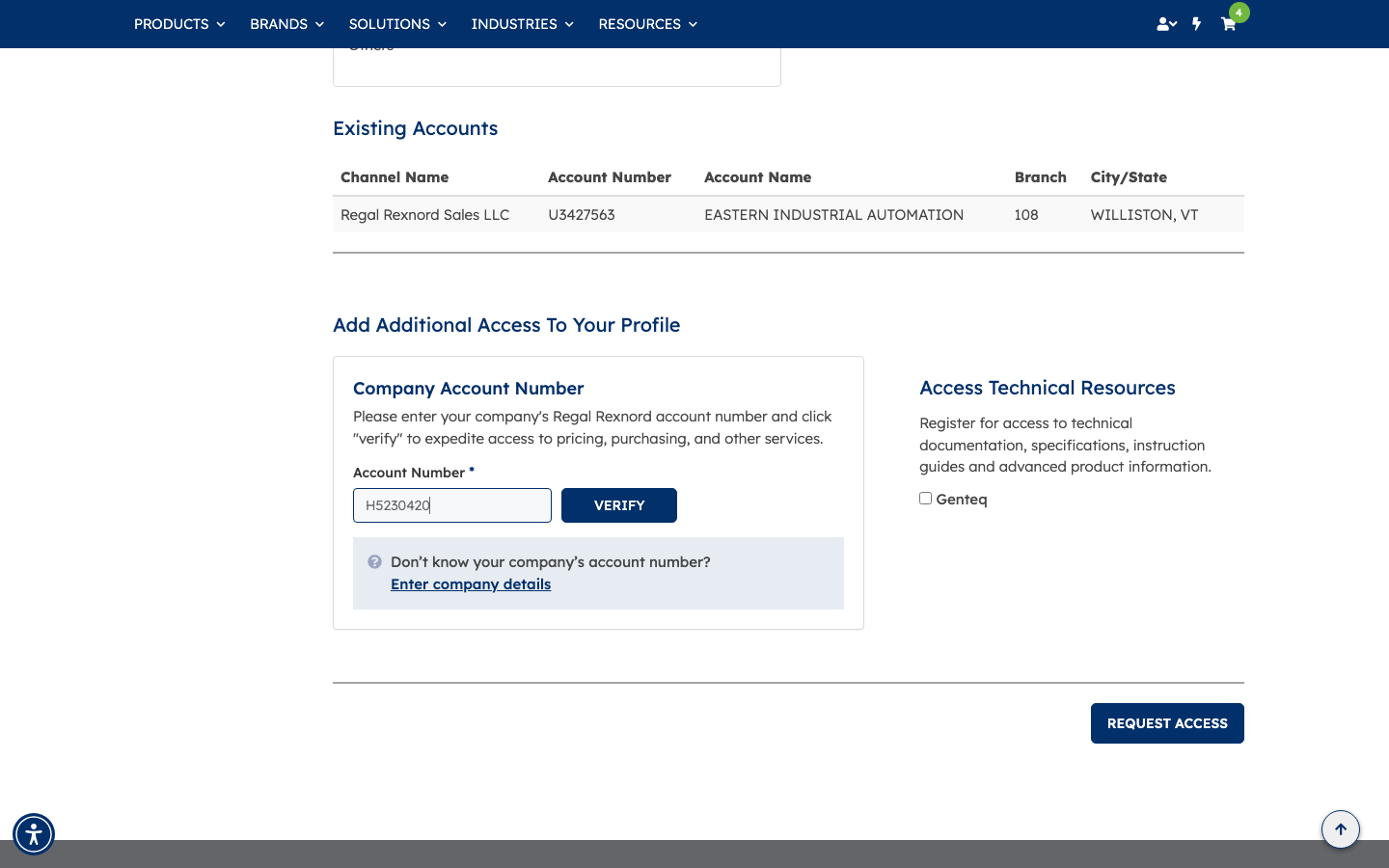
Scrolling down reveals the Existing Accounts table and, directly beneath it, the Add Additional Access To Your Profile section.
Before the request, Existing Accounts contains a single row:
| Channel Name | Account Number | Account Name | Branch | City/State |
|---|---|---|---|---|
| Regal Rexnord Sales LLC | U3427563 | EASTERN INDUSTRIAL AUTOMATION | 108 | WILLISTON, VT |
Account H5230420 is not present yet.
Steps 4-5 — Request access for account H5230420
In the Add Additional Access To Your Profile section, the account number H5230420 is entered in the Company Account Number field. The VERIFY button activates as soon as a value is present.
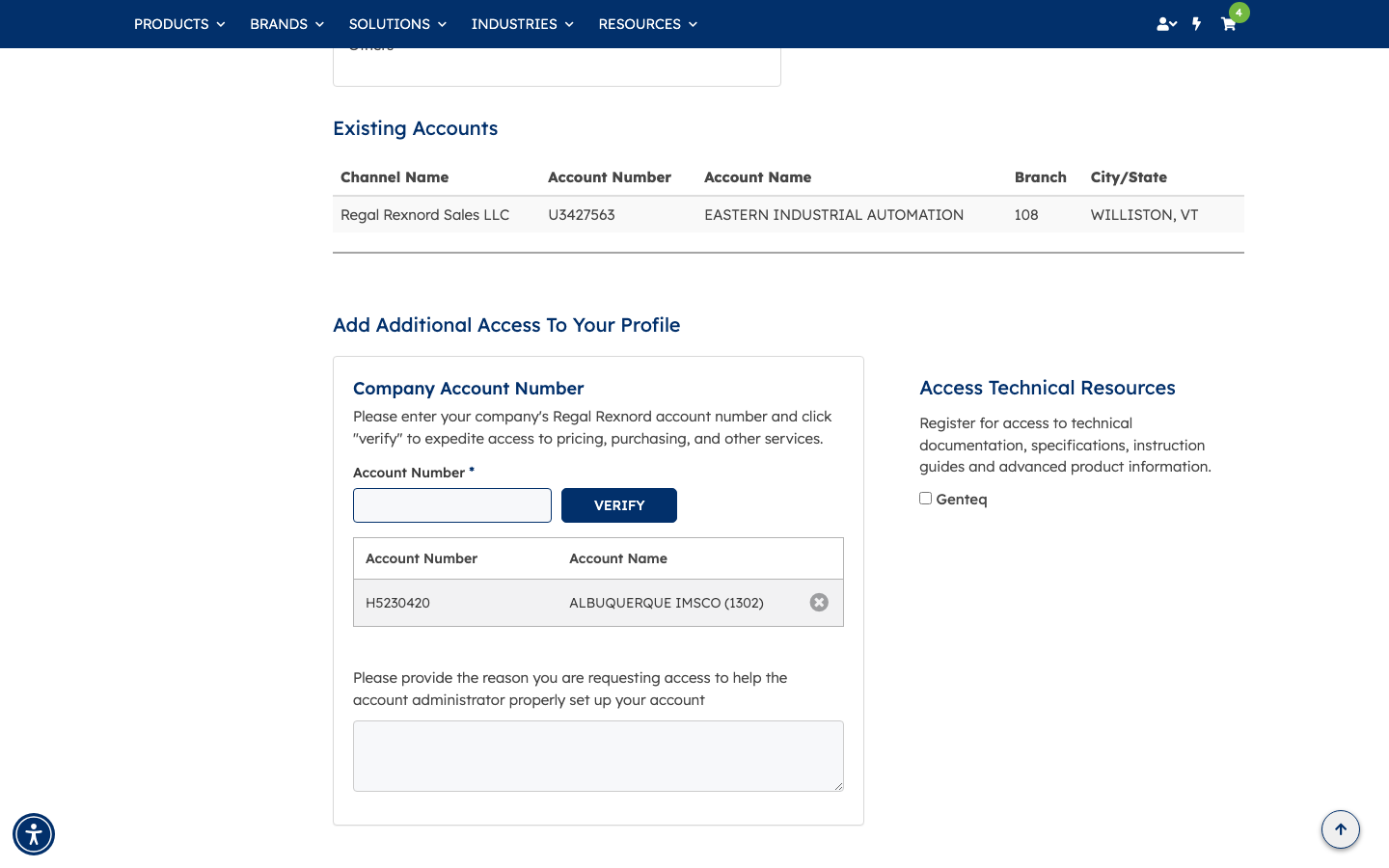
Clicking VERIFY resolves the account number against the ERP and adds it to the pending list, confirming H5230420 = ALBUQUERQUE IMSCO (1302). A reason field then appears so the account administrator has context for the request.
Step 6 — Submit the request
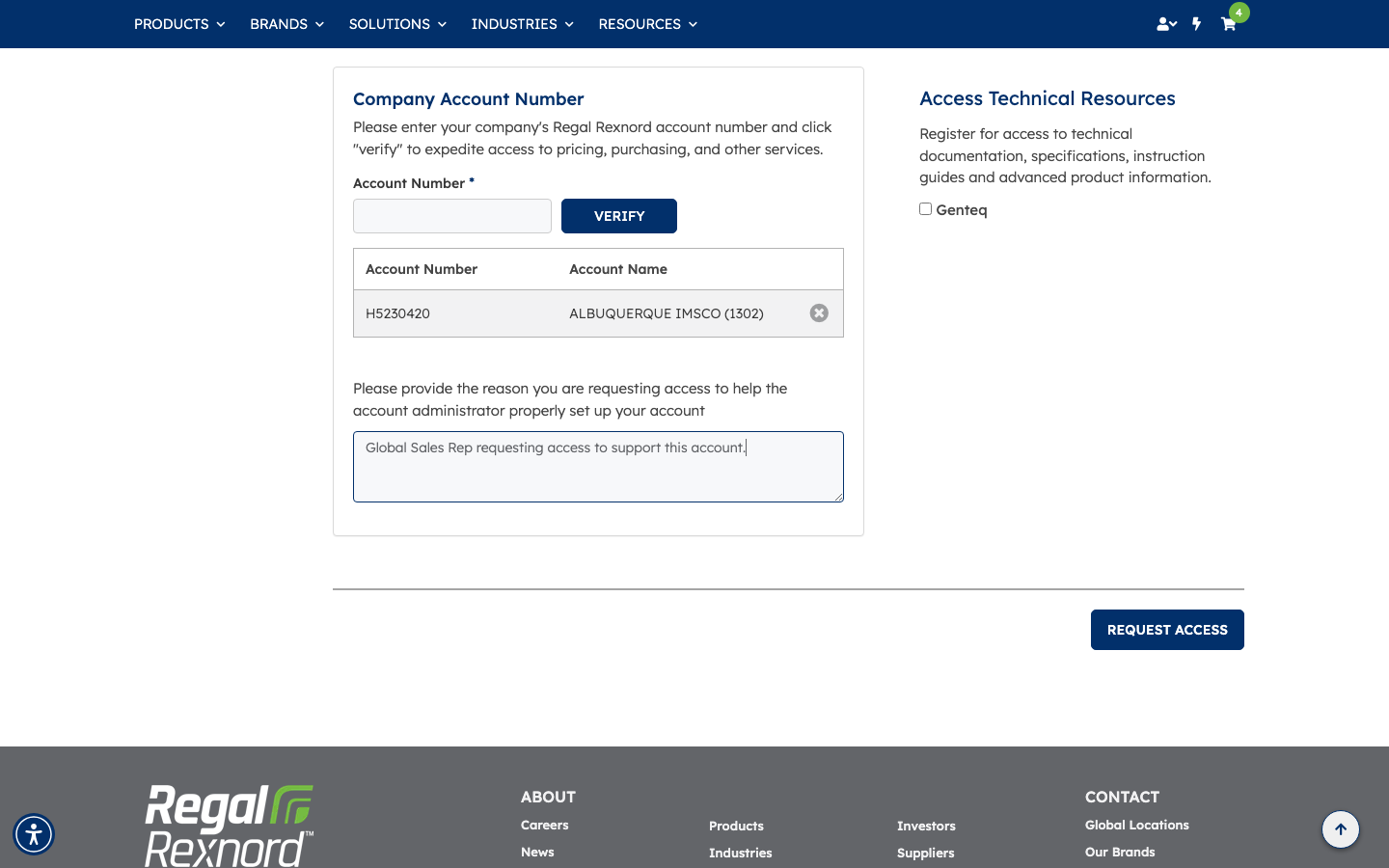
A reason is supplied for the account administrator, and the request is submitted with REQUEST ACCESS.
Step 7 — Success confirmation
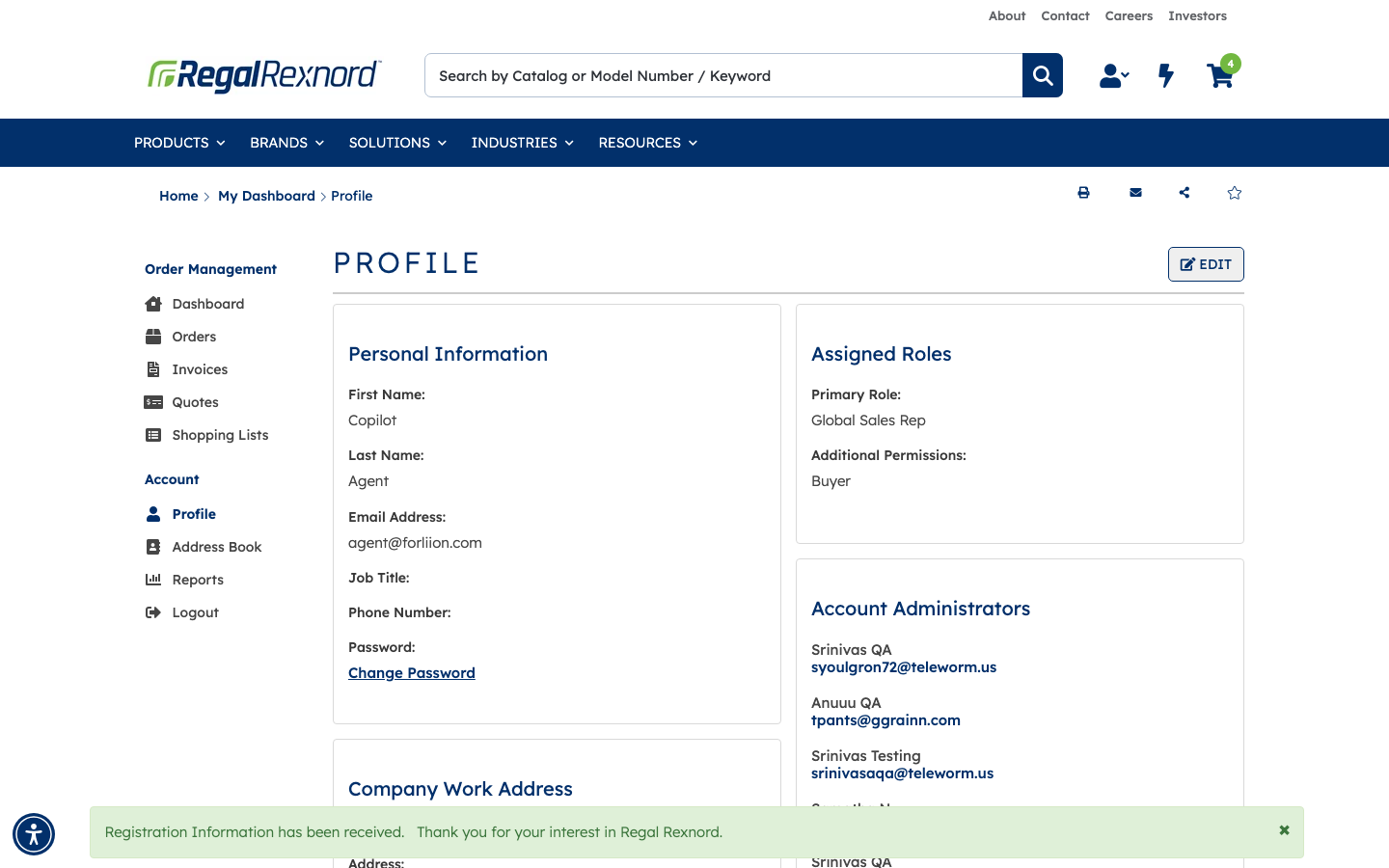
The page returns to the Profile view and displays the confirmation banner: "Registration Information has been received. Thank you for your interest in Regal Rexnord."
Steps 8-10 — Refresh and verify
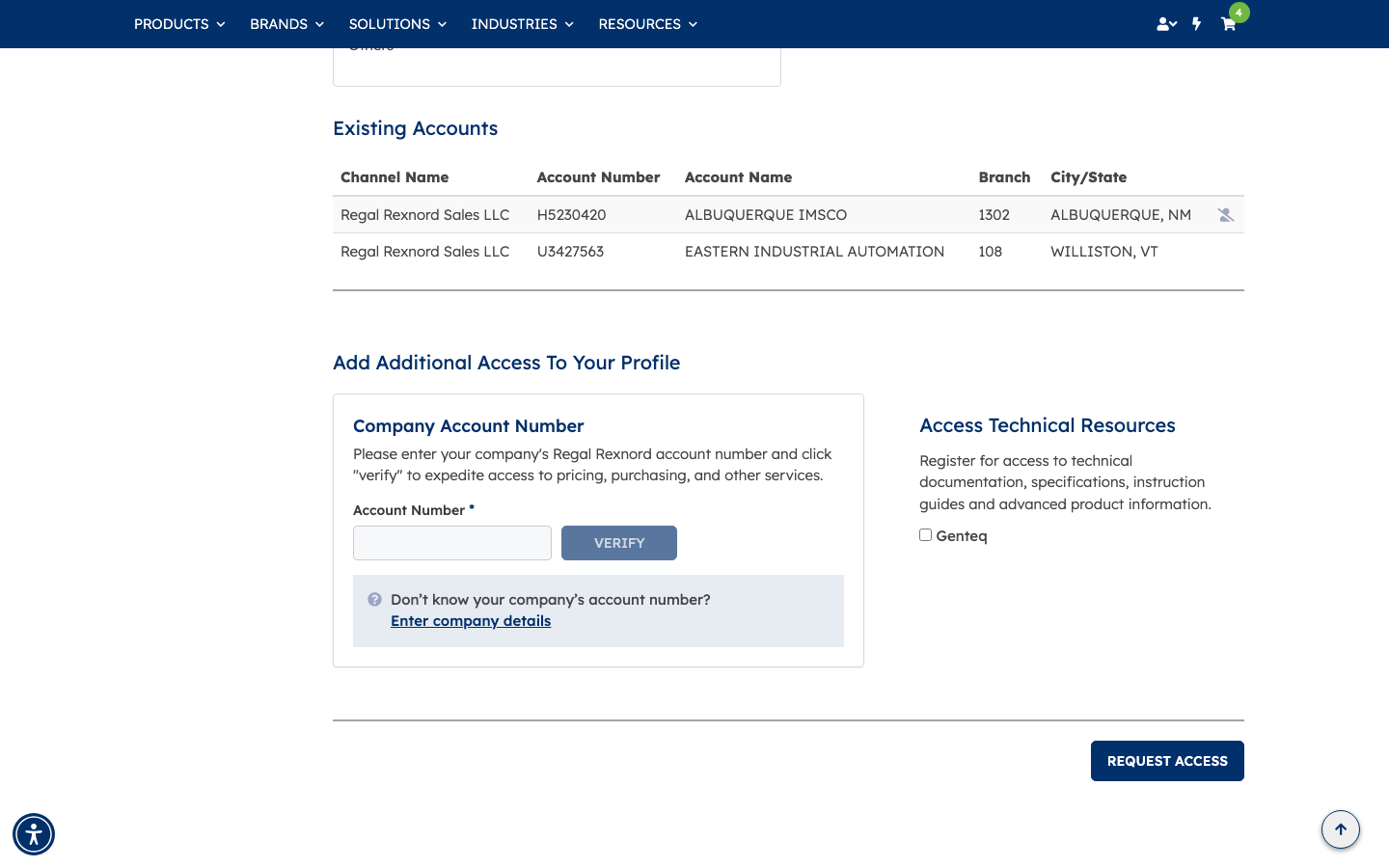
Reloading https://uatwww.rrxpreview.com/accountmanagement/editprofile and scrolling to Existing Accounts confirms the new access has been granted. The table now contains two rows:
| Channel Name | Account Number | Account Name | Branch | City/State |
|---|---|---|---|---|
| Regal Rexnord Sales LLC | H5230420 | ALBUQUERQUE IMSCO | 1302 | ALBUQUERQUE, NM |
| Regal Rexnord Sales LLC | U3427563 | EASTERN INDUSTRIAL AUTOMATION | 108 | WILLISTON, VT |
Account H5230420 now appears alongside the original account.
The Assigned Roles panel confirms the access was granted under the expected access type — Primary Role: Global Sales Rep (Additional Permissions: Buyer) — which now spans both accounts.
Summary
| # | Step | Expected Result | Status |
|---|---|---|---|
| — | Open site and accept cookies | Home page loads, no blocking banner | ✅ |
| — | Log in as agent@forliion.com | Shipping address prompt, then Dashboard with "Welcome Copilot Agent" | ✅ |
| 1 | Navigate to the Profile page | Profile loads at /accountmanagement/editprofile | ✅ |
| 2 | Scroll to "Add Additional Access To Your Profile" | Section is present below Existing Accounts | ✅ |
| 3 | Note current Existing Accounts list | Single row: U3427563 EASTERN INDUSTRIAL AUTOMATION | ✅ |
| 4 | Global Sales Rep access type | Assigned Roles shows Primary Role: Global Sales Rep | ✅ |
| 5 | Enter account number H5230420 | Value accepted, VERIFY enabled | ✅ |
| 6 | Submit the request | VERIFY resolves H5230420 = ALBUQUERQUE IMSCO (1302); REQUEST ACCESS submitted | ✅ |
| 7 | Verify success confirmation | Banner: "Registration Information has been received." | ✅ |
| 8 | Refresh the Profile page | Page reloads cleanly | ✅ |
| 9 | Scroll to Existing Accounts | List renders with updated contents | ✅ |
| 10 | Verify H5230420 in Existing Accounts | H5230420 ALBUQUERQUE IMSCO, branch 1302, ALBUQUERQUE NM present under the Global Sales Rep role | ✅ |
Result: all steps passed. The Global Sales Rep user successfully added account H5230420 through the Profile page, and the access is reflected in the Existing Accounts list after refresh.
Note: the Profile page URL is /accountmanagement/editprofile — /accountmanagement/profile returns a 404.