Registering for an Account
Registration is how you get pricing, ordering and order history on RegalRexnord.com. The form asks a few questions up front so your request can be matched to the right company account and the right level of access.
You don't need an account to start — that's what you're creating. Have your work email address, your company name and work address, and (if you're registering to buy) your company's billing address or Regal Rexnord account number ready.
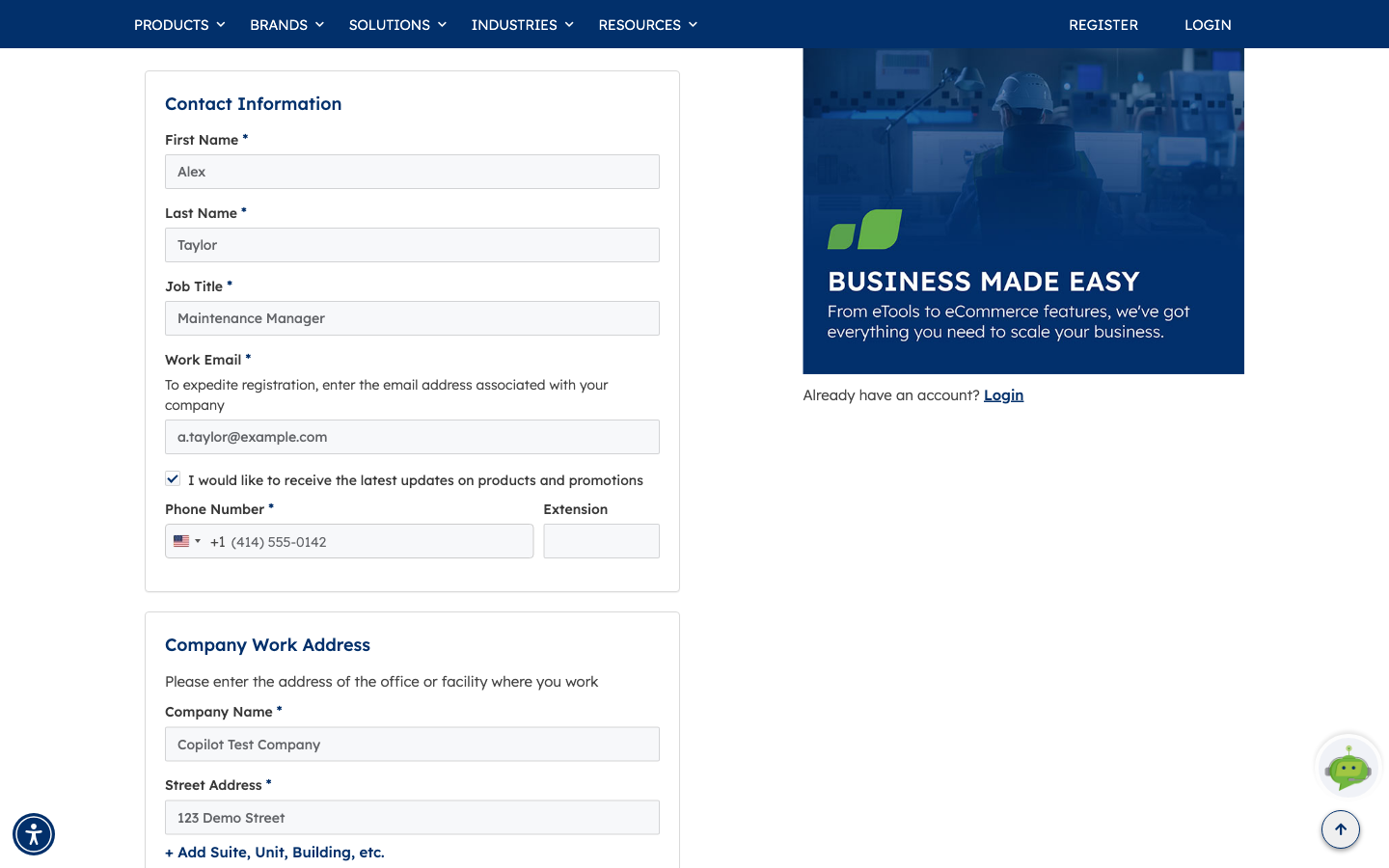
The details shown in these screenshots are fictional examples, not a real company.
Which access do I need?
| What you get | Buy Products on RegalRexnord.com | Training and eTools only |
|---|---|---|
| Submit orders | ✅ | — |
| Check availability | ✅ | — |
| Review invoices | ✅ | — |
| Premium selection & design eTools | ✅ | ✅ |
| Product training | ✅ | ✅ |
Buy Products includes everything Training and eTools offers, plus purchasing. Choose Training and eTools only if you need the design tools and training material but won't be ordering — it's a single-step form rather than two, because it skips the questions that only matter for purchasing.
Step 1 — Choose your access type
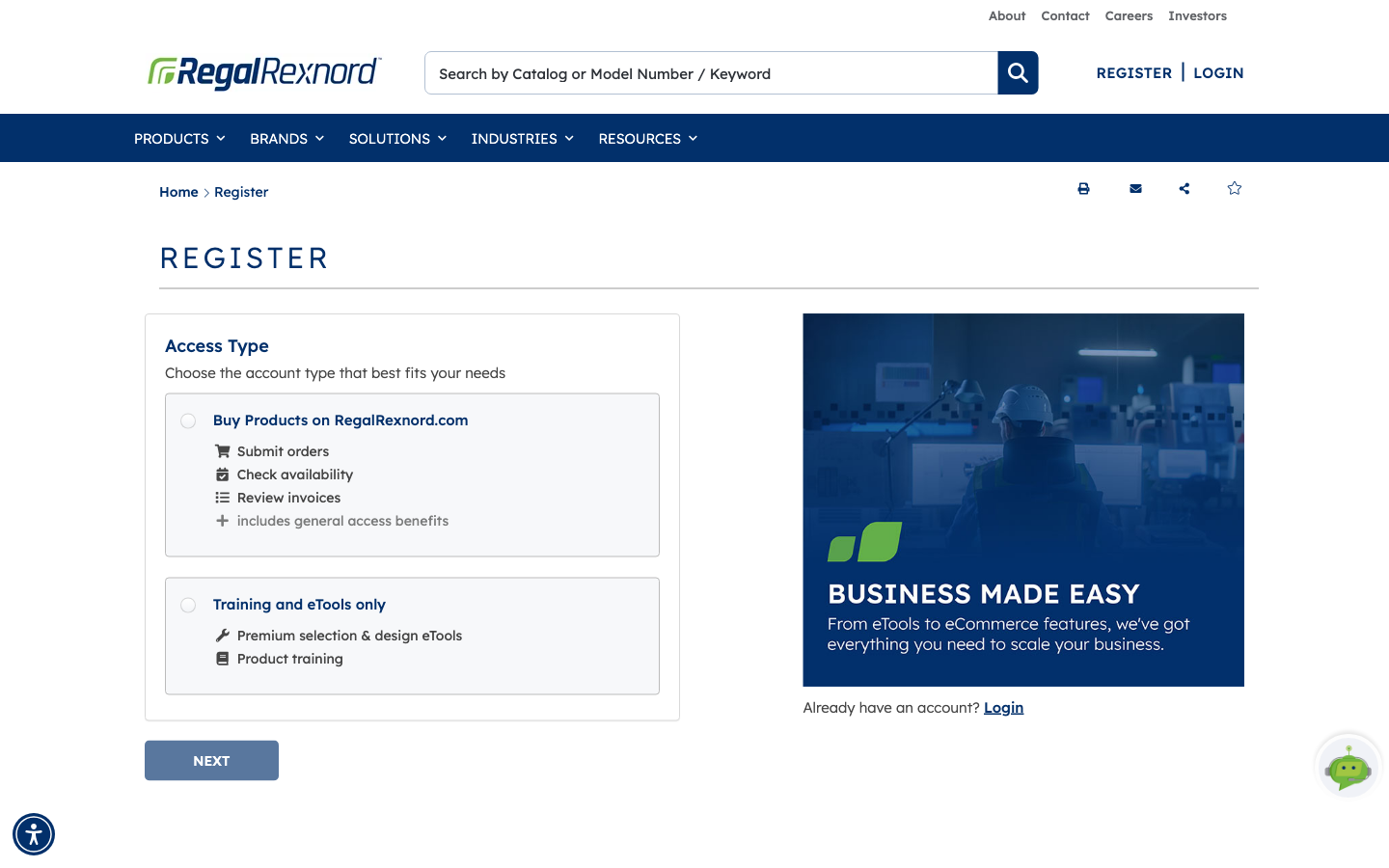
From the site header choose Register (or Create an Account). The first step asks which kind of access you need:
- Buy Products on RegalRexnord.com — submit orders, check availability, review invoices. This also includes the general access benefits.
- Training and eTools only — premium selection and design eTools, plus product training, without purchasing.
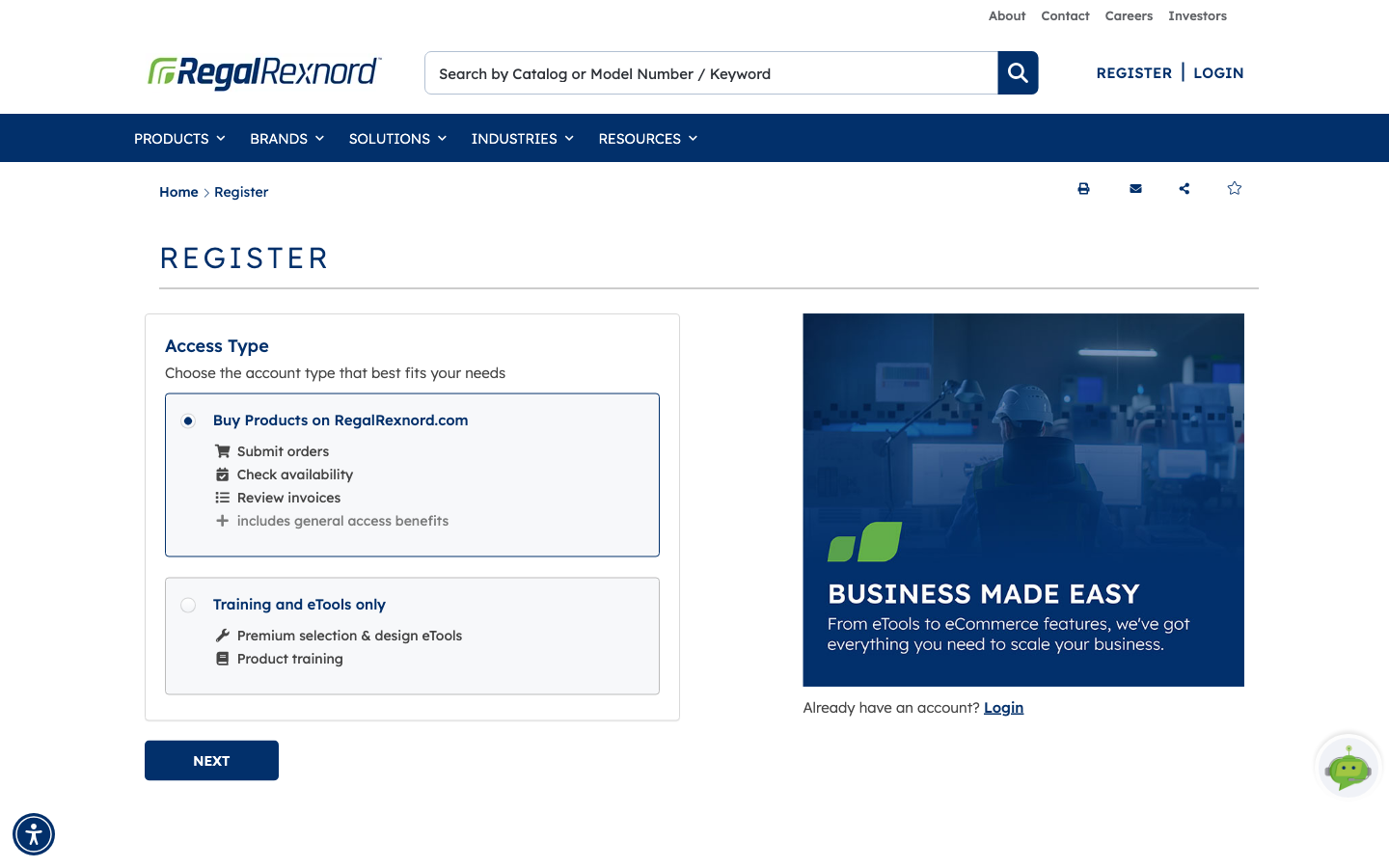
NEXT stays disabled until you pick one. The choice changes the rest of the form, so it's worth reading both.
Selecting an option highlights it and enables NEXT.
Step 2 — Fill in your contact details
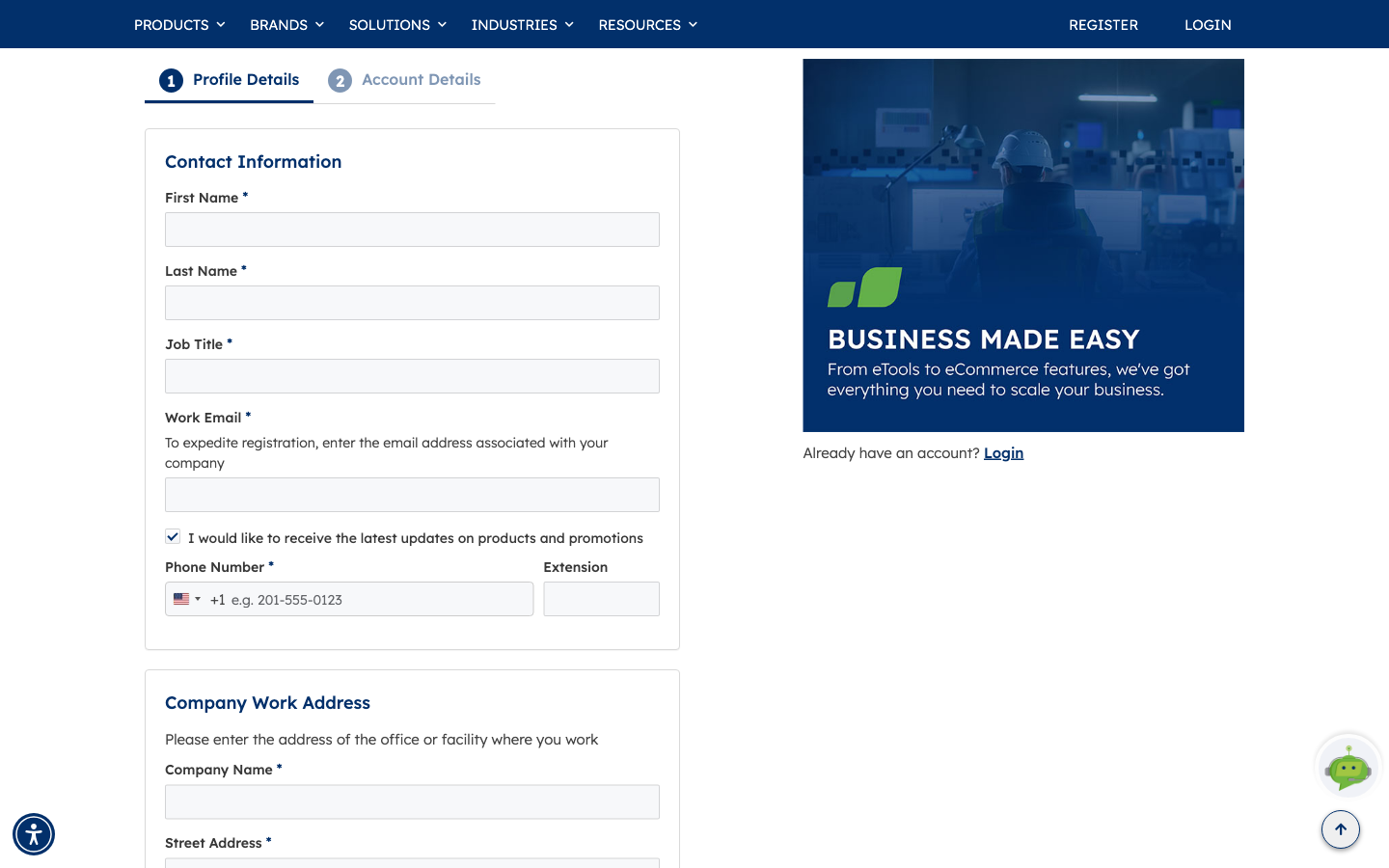
Choosing Buy Products splits the form into two numbered steps: 1 Profile Details and 2 Account Details. You start on Profile Details.
The numbered progress bar at the top is your cue that this path has a second step waiting after the one on screen. The Training and eTools only path has no progress bar, because it's a single page.
The Contact Information panel asks for first name, last name, job title, work email and phone number, with an optional extension.
Use your work email. The note under the field explains why: an address on your company's domain lets the team match you to an existing account automatically, which is the difference between access in minutes and access after a manual check.
Step 3 — Add your company address
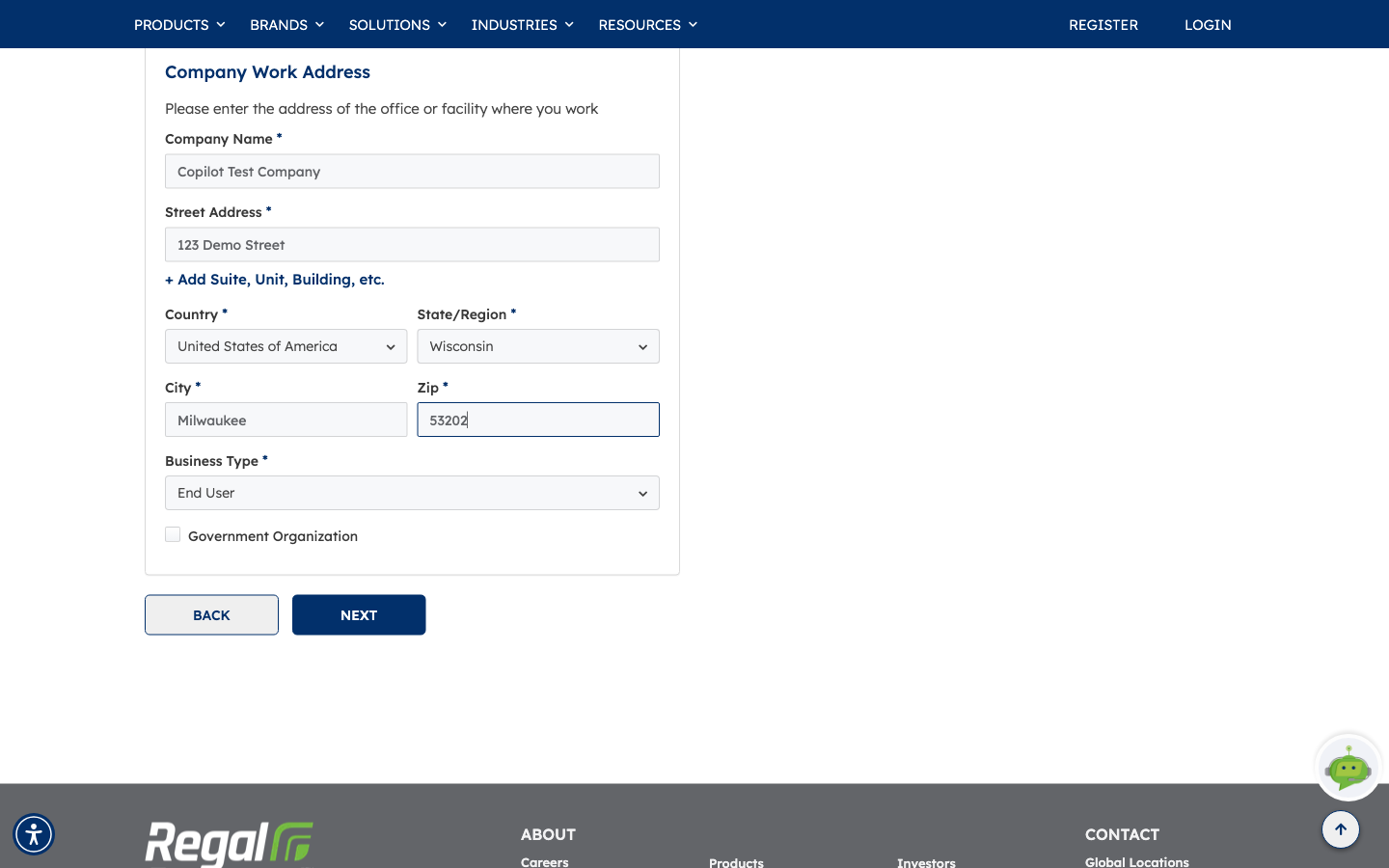
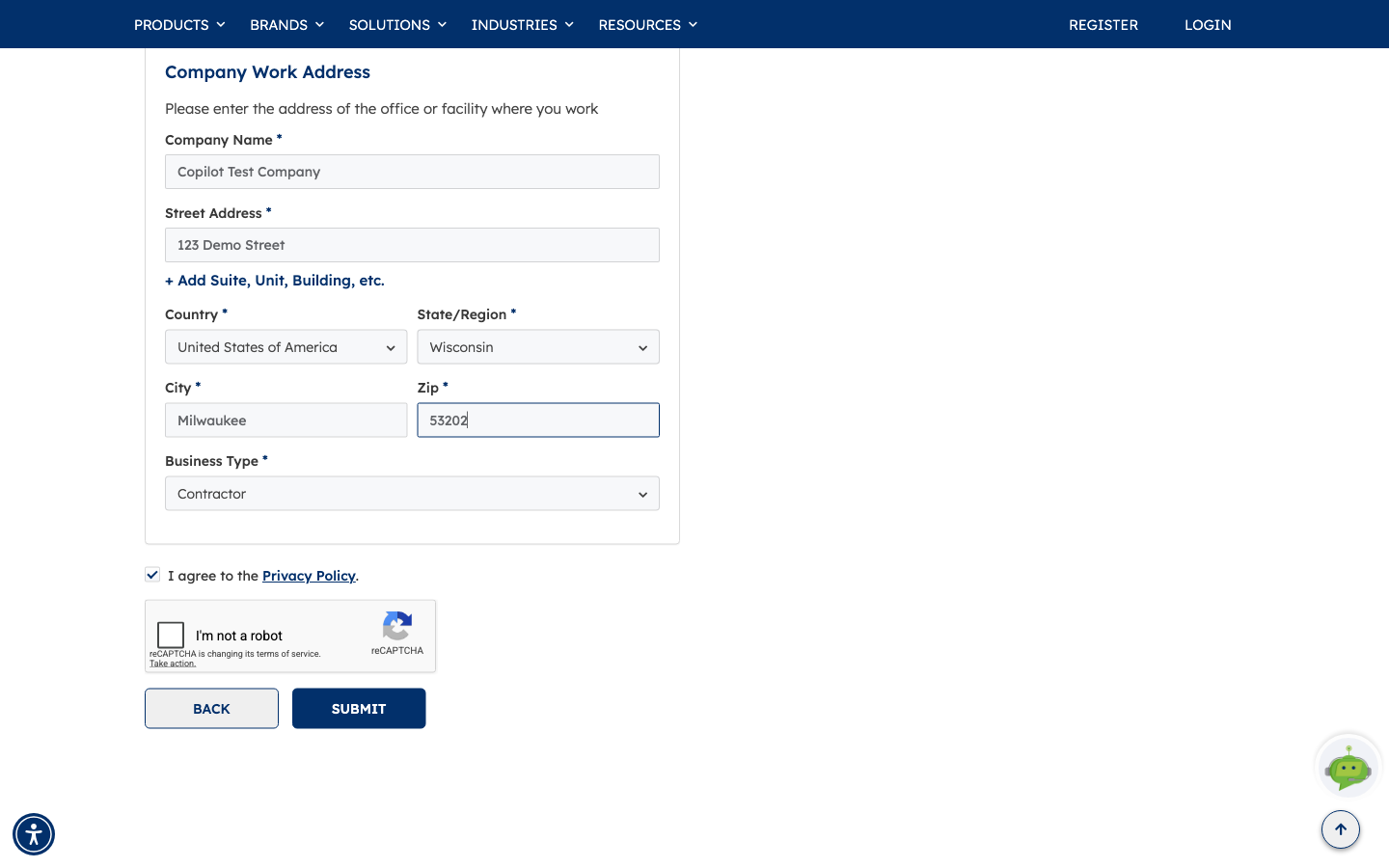
Below that, Company Work Address asks for the office or facility where you work: company name, street address (with + Add Suite, Unit, Building, etc. for a second line), country, state/region, city and zip.
Two things to watch:
- Choose Country first — it decides what the State/Region list contains.
- Business Type is required: Contractor, Distributor, End User, Engineering Firm, OEM, Service Provider or Others.
There's also a Government Organization checkbox. Only tick it if it genuinely applies — it routes your registration down a different path.
The button here is NEXT, not Submit. There's another step to come.
Step 4 — Tell us about your account
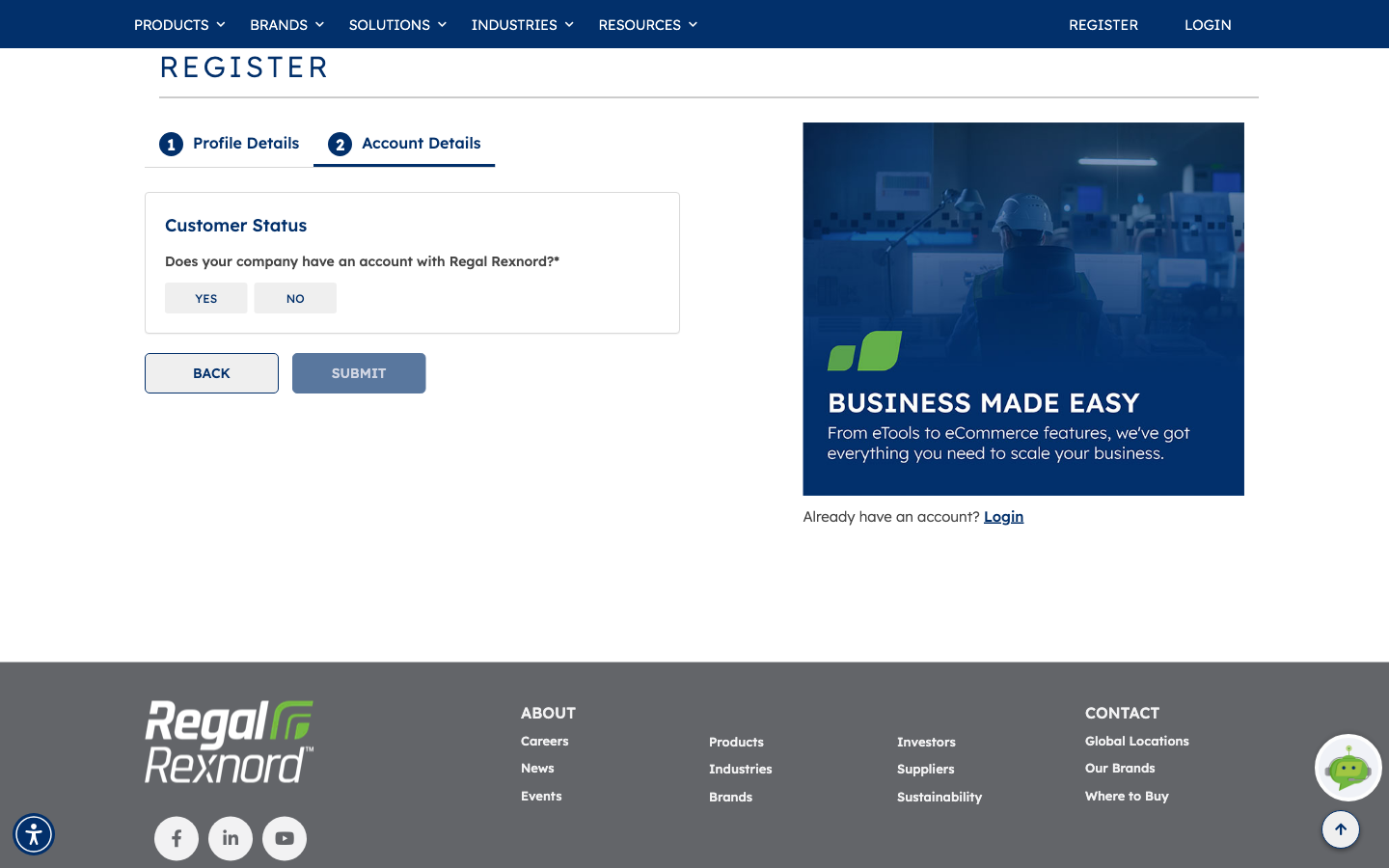
Account Details opens with one question: Does your company have an account with Regal Rexnord? Your answer changes what's asked next.
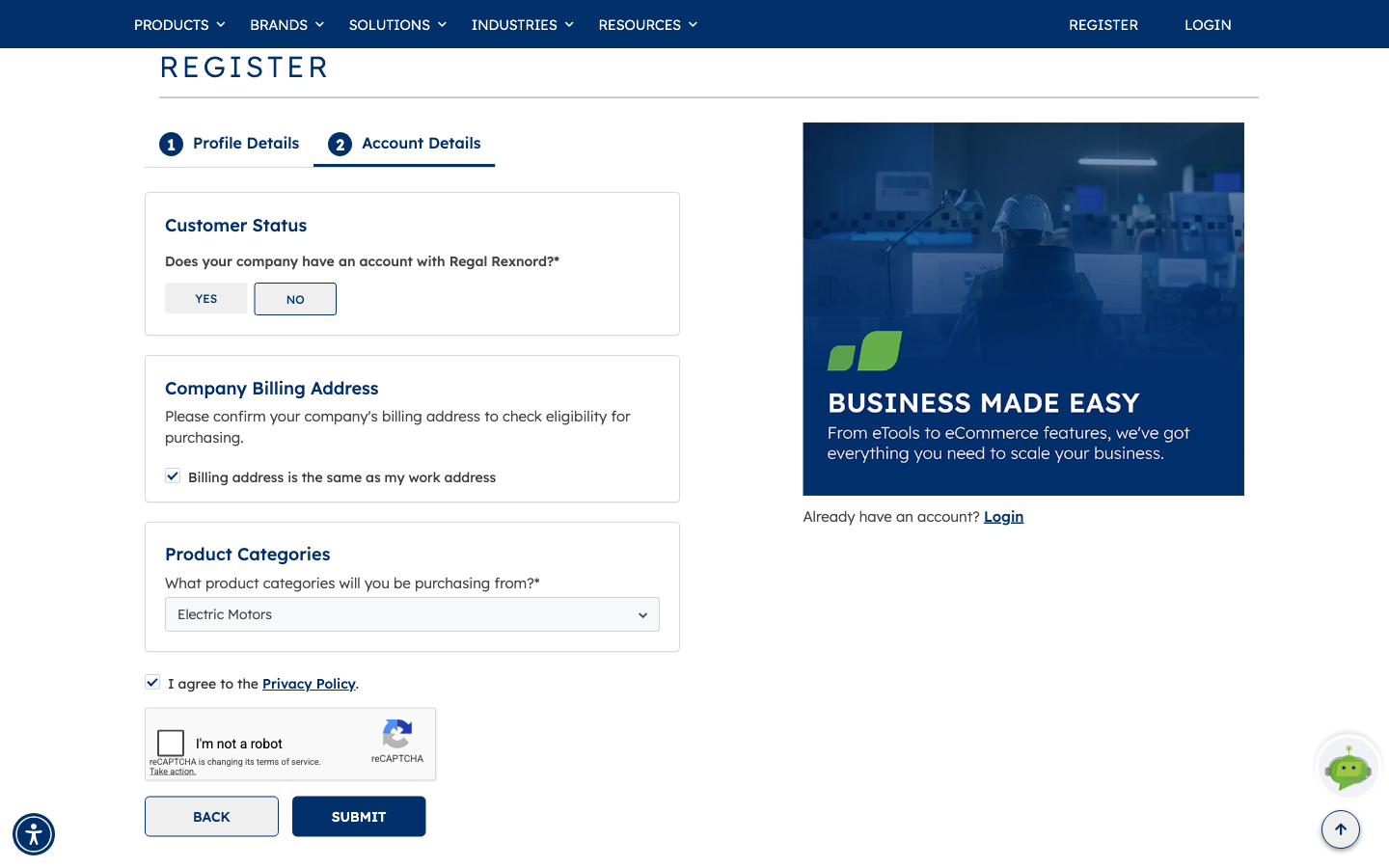
If you answer NO
You're asked to confirm a Company Billing Address. Billing address is the same as my work address is ticked by default — untick it if billing is handled somewhere else.
Then choose a Product Category — what you expect to buy from, such as Electric Motors, Bearings, Couplings or Gearing — and tick I agree to the Privacy Policy.
Finally, complete the reCAPTCHA and click SUBMIT.
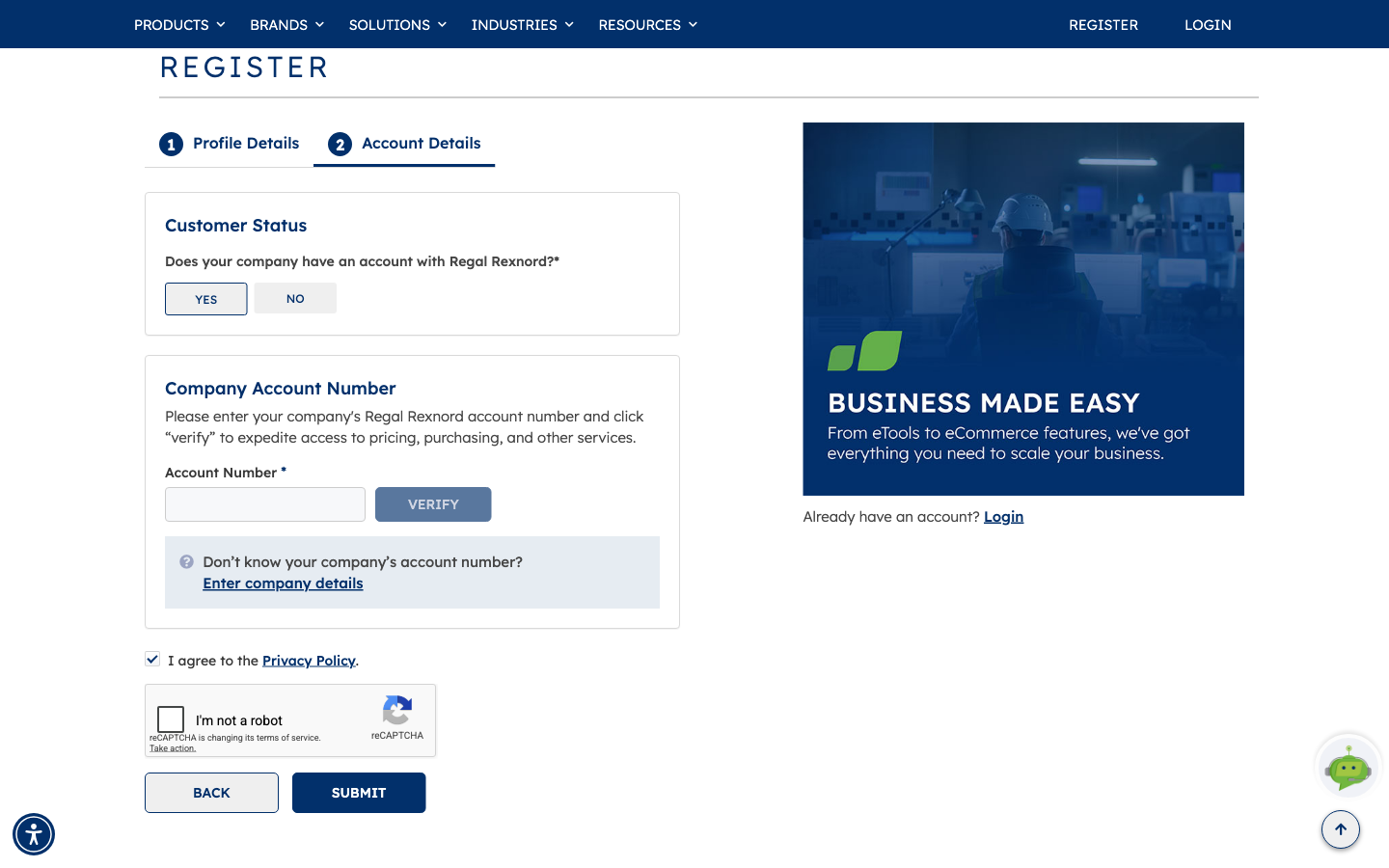
If you answer YES
Instead of the billing address you get Company Account Number. Enter it and click VERIFY to confirm the account before submitting — this is the fastest route to full access.
Don't know it? Enter company details switches you back to the address-based path, so a missing account number never blocks you.
The Training and eTools path
If you chose Training and eTools only at the start, registration is shorter — a single page with no numbered steps, no account questions and no product categories. Contact details, work address, business type, the privacy policy tick, reCAPTCHA, SUBMIT.
What happens next
Your registration goes for review. Once it's approved you'll get an email to verify your address and set a password, and you can sign in.
Changed your mind? If you register for Training and eTools only and later find you need to place orders, contact Regal Rexnord — you won't need to start a second registration from scratch.
Worth remembering
- The access type you pick first decides how long the form is — choose deliberately.
- Register with your work email; a personal address slows the match to your company.
- Choose Country before State/Region.
- An account number is the quickest route; Enter company details is the fallback.
- Only tick Government Organization if it applies — it changes how your request is handled.
- The reCAPTCHA must be completed before SUBMIT will go through.