Managing Your Address Book
The address book holds every place an order can go. Some entries come from your account and can't be changed; others you add yourself for one-off deliveries — a job site, a customer, a different warehouse.
Sign in, and make sure the account you want to add the address to is selected — addresses belong to an account, not to you. Adding drop-ship addresses needs a role that permits it. Have the delivery details on hand: company name, street address, city, state, ZIP code and a contact phone number.
Step 1 — See what's there
Open Address Book from the Account menu. It's split in two.
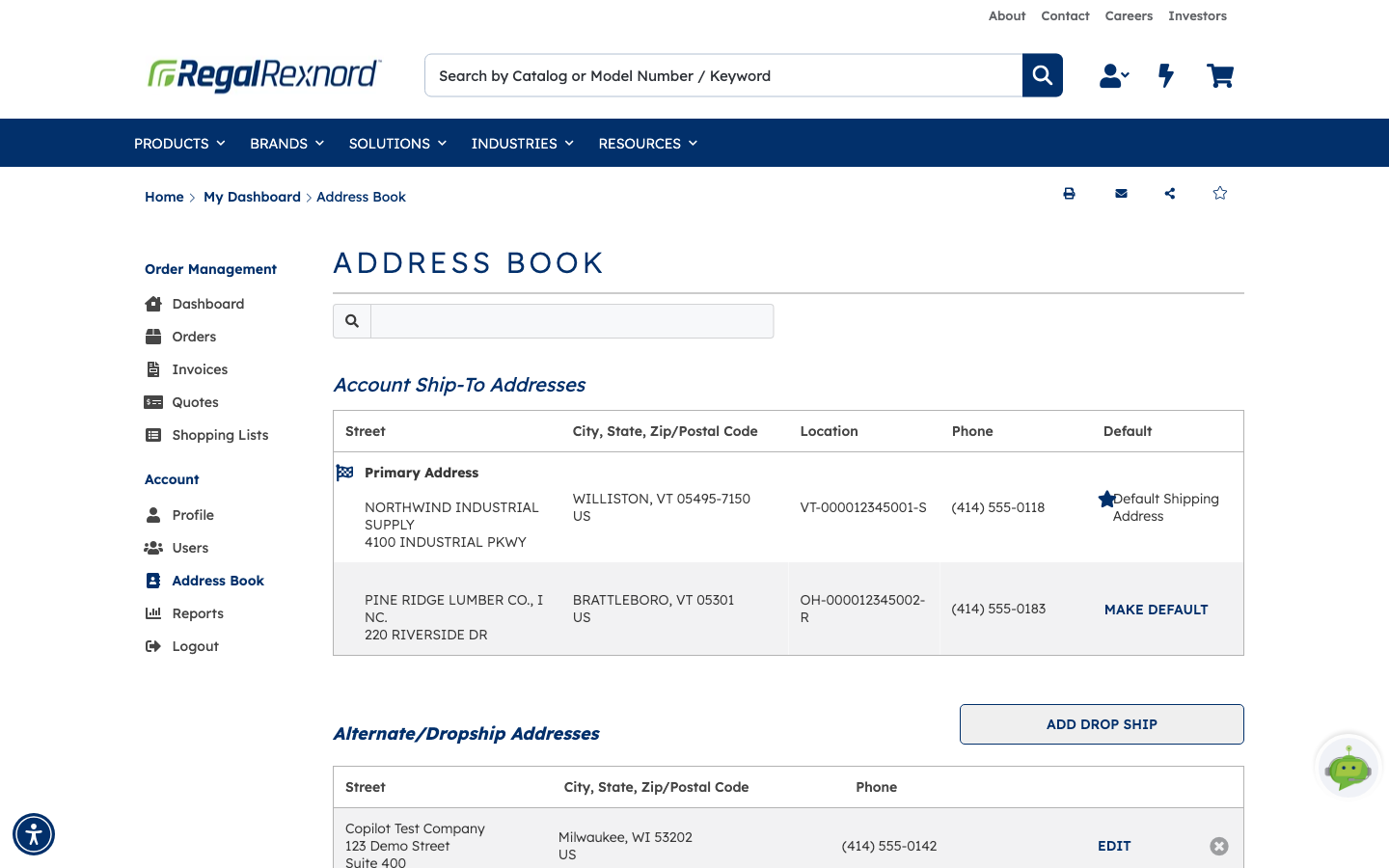
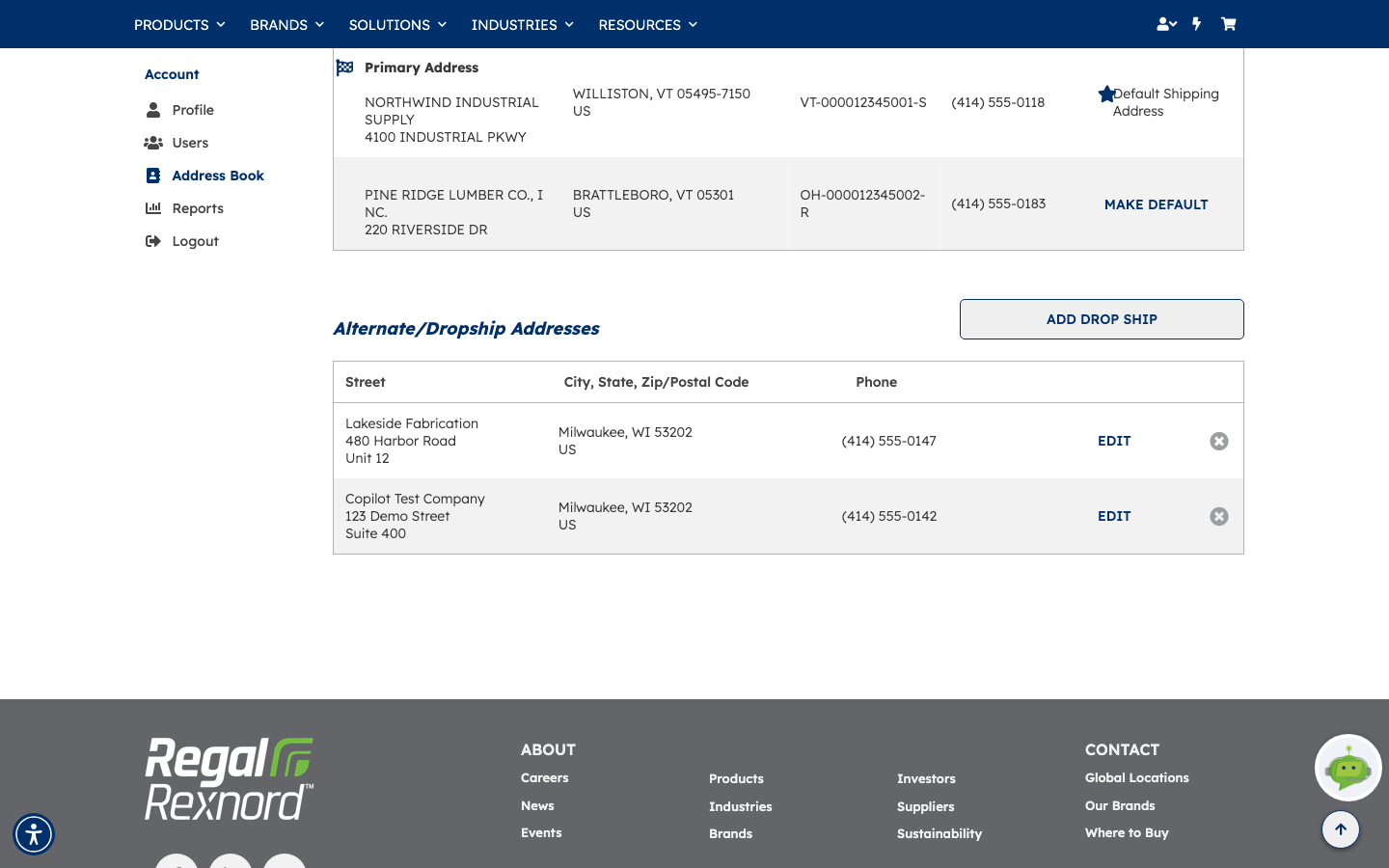
Account Ship-To Addresses are the addresses attached to your account. They come from your account record, so you can't edit or delete them here — but you can choose which one is used by default:
- The Primary Address carries a flag icon and, if it's the default, a star and Default Shipping Address.
- Any other row offers MAKE DEFAULT, which moves the star and changes what checkout pre-selects.
Each row shows street, city/state/postal code, a location reference and a phone number.
Alternate/Dropship Addresses below are yours to manage — added, edited and deleted from this page.
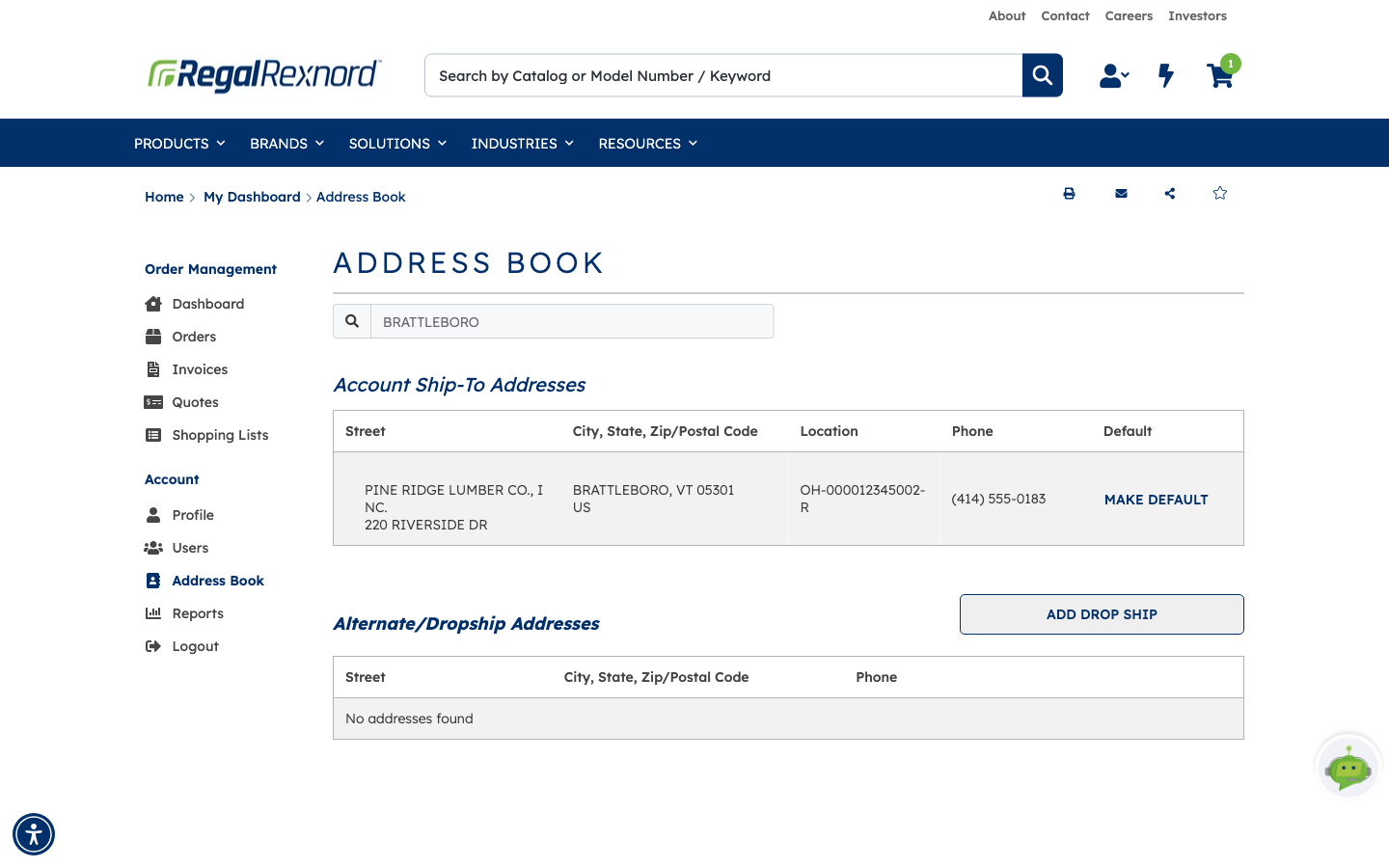
The search box at the top filters both lists at once. It matches on the address itself, so search by street or town rather than company name.
Type a street or town into the box and both tables narrow as you type — here, searching BRATTLEBORO leaves a single ship-to address and reports No addresses found under Alternate/Dropship. Clear the box to bring the full lists back.
Step 2 — Add a drop-ship address
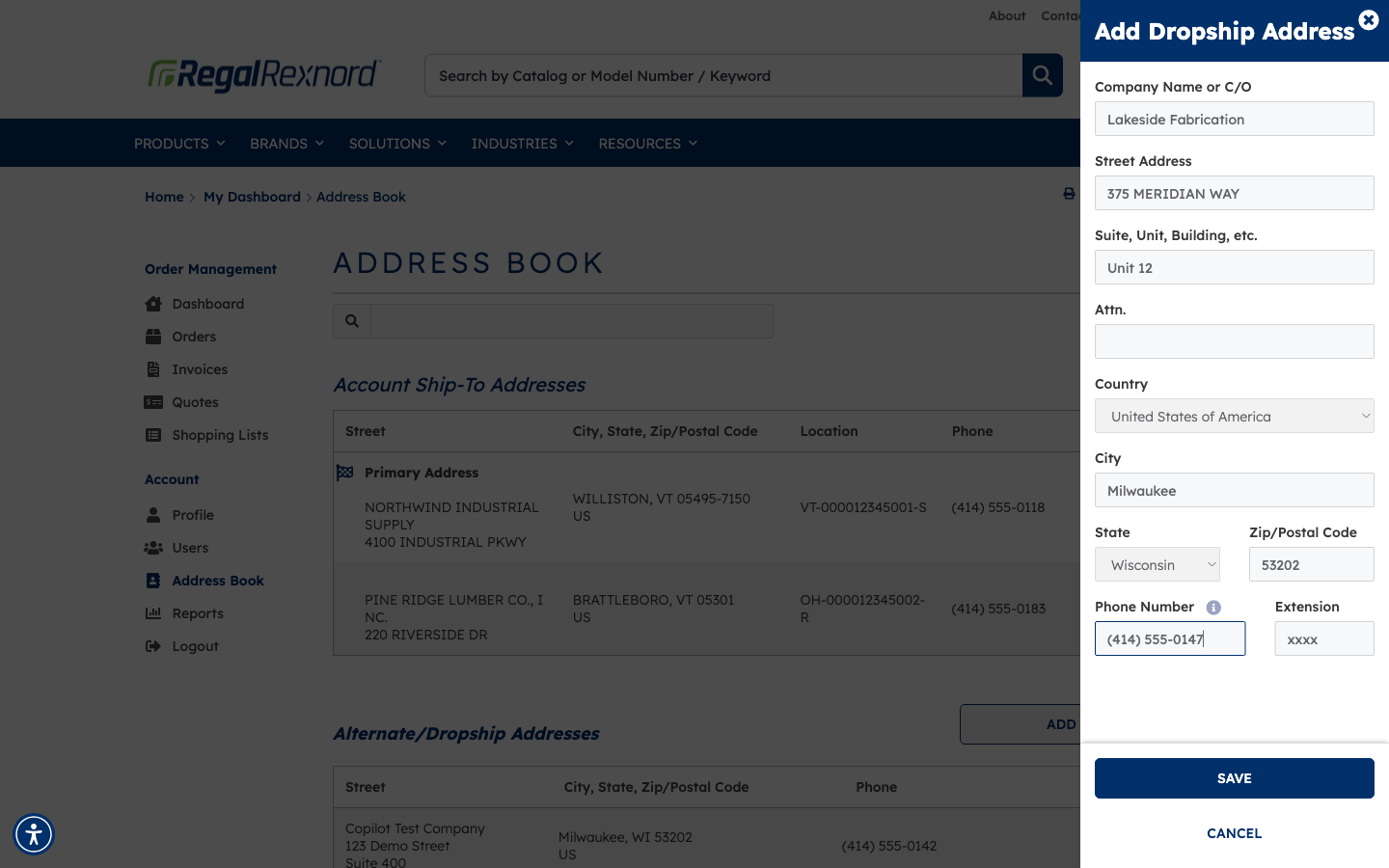
Click ADD DROP SHIP and a panel slides in from the right. Only a few fields are required — the rest are there to help the carrier find the right door.
| Field | What to enter |
|---|---|
| Company Name or C/O | The business or person receiving the shipment |
| Street Address | The street number and name |
| Suite, Unit, Building, etc. | Any secondary address line — optional |
| Attn. | A specific person to receive the delivery — optional |
| Country | Leave as United States of America, or change it if shipping elsewhere |
| City | The delivery city |
| State | Pick the state from the dropdown |
| Zip/Postal Code | The delivery ZIP code |
| Phone Number | A contact number for the delivery — formatting is applied as you type |
| Extension | A phone extension, if there is one — optional |
The carrier uses the phone number for delivery problems, so it's worth filling in properly.
Country determines what State offers, so pick it first.
Step 3 — Confirm the verification prompt
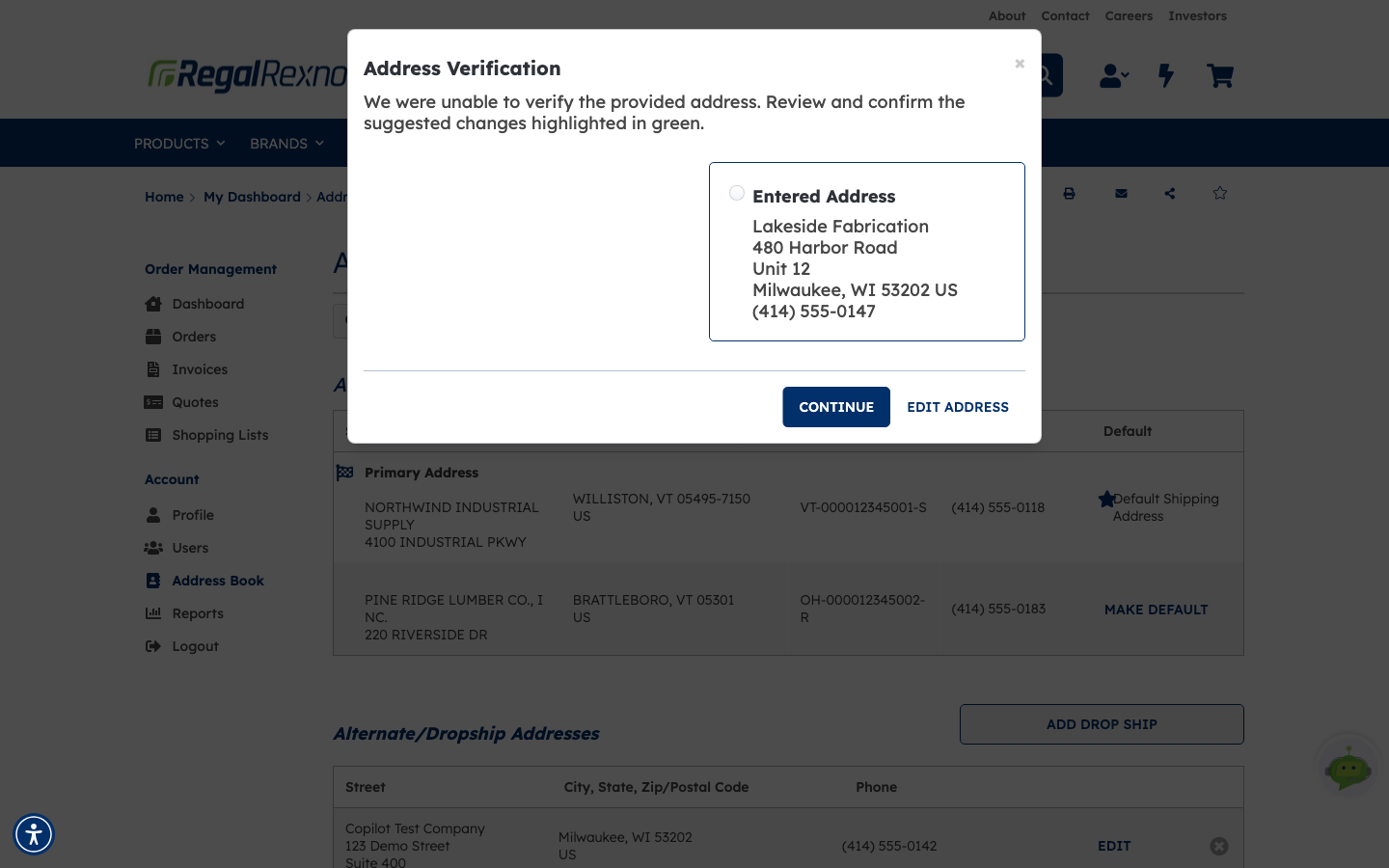
Click SAVE and the address is checked against a postal database. If it can't be matched exactly, Address Verification appears: We were unable to verify the provided address. Review and confirm the suggested changes highlighted in green.
You get two ways out:
- CONTINUE — keep the address as you entered it, or take a suggested correction if one is offered.
- EDIT ADDRESS — go back to the form and fix it.
This step is easy to miss. If the dialog is dismissed without choosing, the address is not saved — you'll come back to the list and wonder why it isn't there. Always finish with CONTINUE.
Step 4 — Check it saved
The new address appears in Alternate/Dropship Addresses, with EDIT to change it and the ✕ at the end of the row to delete it.
From now on it's selectable at checkout through Change Ship-To Address, so you don't have to retype it for every order.
What you've done
You've added a delivery address you can reuse at checkout, and you know which addresses you control and which come from your account.
Worth remembering
- Account ship-to addresses can't be edited here — only made default.
- MAKE DEFAULT changes what checkout pre-selects for every order.
- Choose Country before State; it drives the list.
- The verification dialog must be finished with CONTINUE, or nothing is saved.
- Fill in the phone number. The carrier uses it when a delivery goes wrong.
- The search box matches the address, not the company name.