Finding Out Who Administers Your Account
Some things on the site can only be done by an account administrator — approving a new colleague's access, changing someone's permissions, removing a user who has left. If you need one of those done and you aren't an administrator yourself, you need to know who to ask.
Your Profile page tells you, and gives you a way to contact them directly.
You're signed in. Nothing here changes anything — it's read-only.
Step 1 — Open your Profile
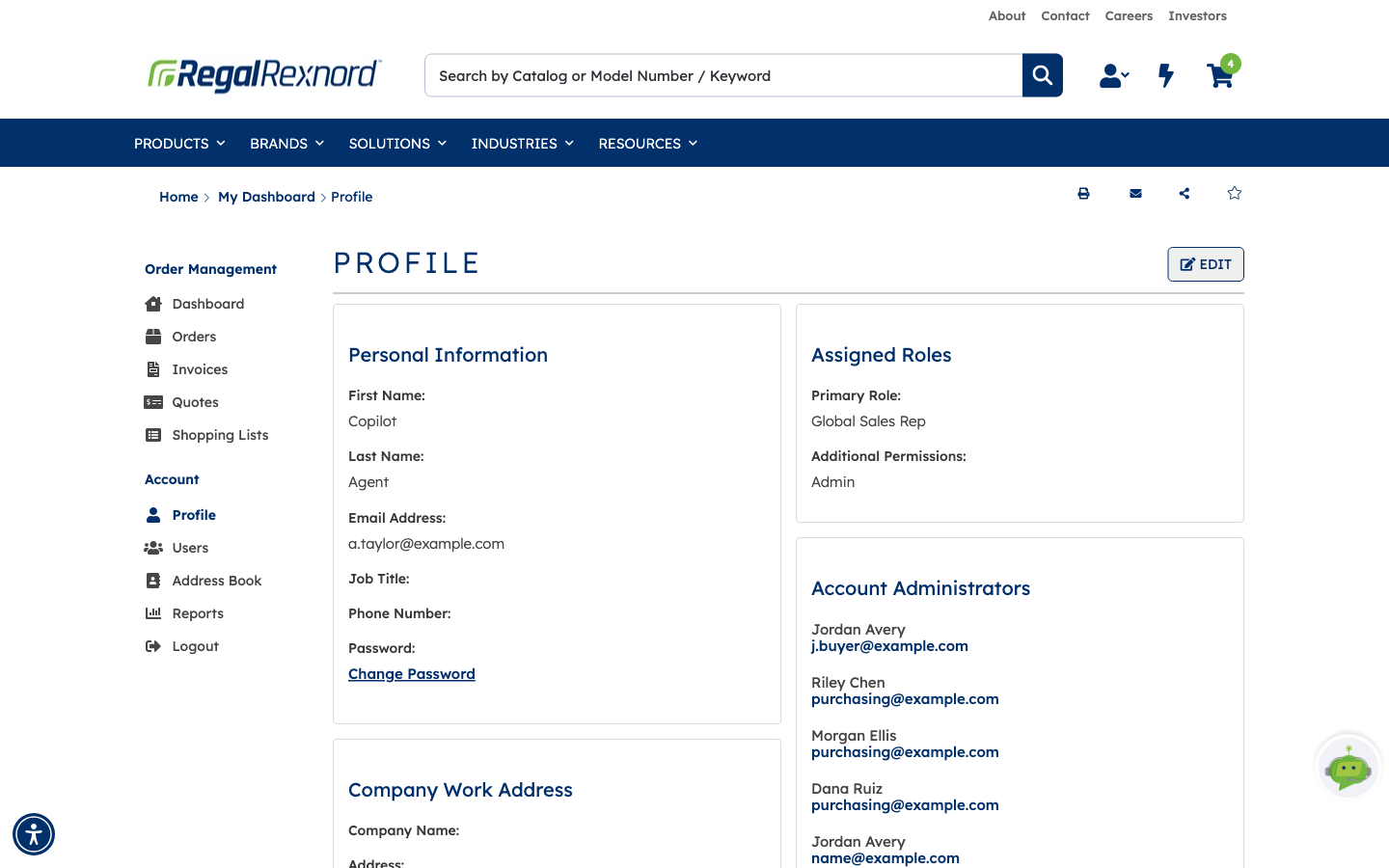
From the dashboard, click Profile under Account in the left-hand menu.
The page opens with your own details: Personal Information, your Assigned Roles, and your Company Work Address. Your roles are worth a glance while you're here — Primary Role and Additional Permissions are what determine whether you can approve users yourself. If Additional Permissions already says Admin, you are an administrator for this account.
Step 2 — Read the Account Administrators panel
On the right, below Assigned Roles, is Account Administrators. It lists the administrators for the account you're currently working under — each one's name with their email address underneath.
Each email is a link. Click it and your mail client opens a new message to that person, so you don't need to copy the address out by hand.
If there are more administrators than fit, view all at the bottom of the panel expands the full list.
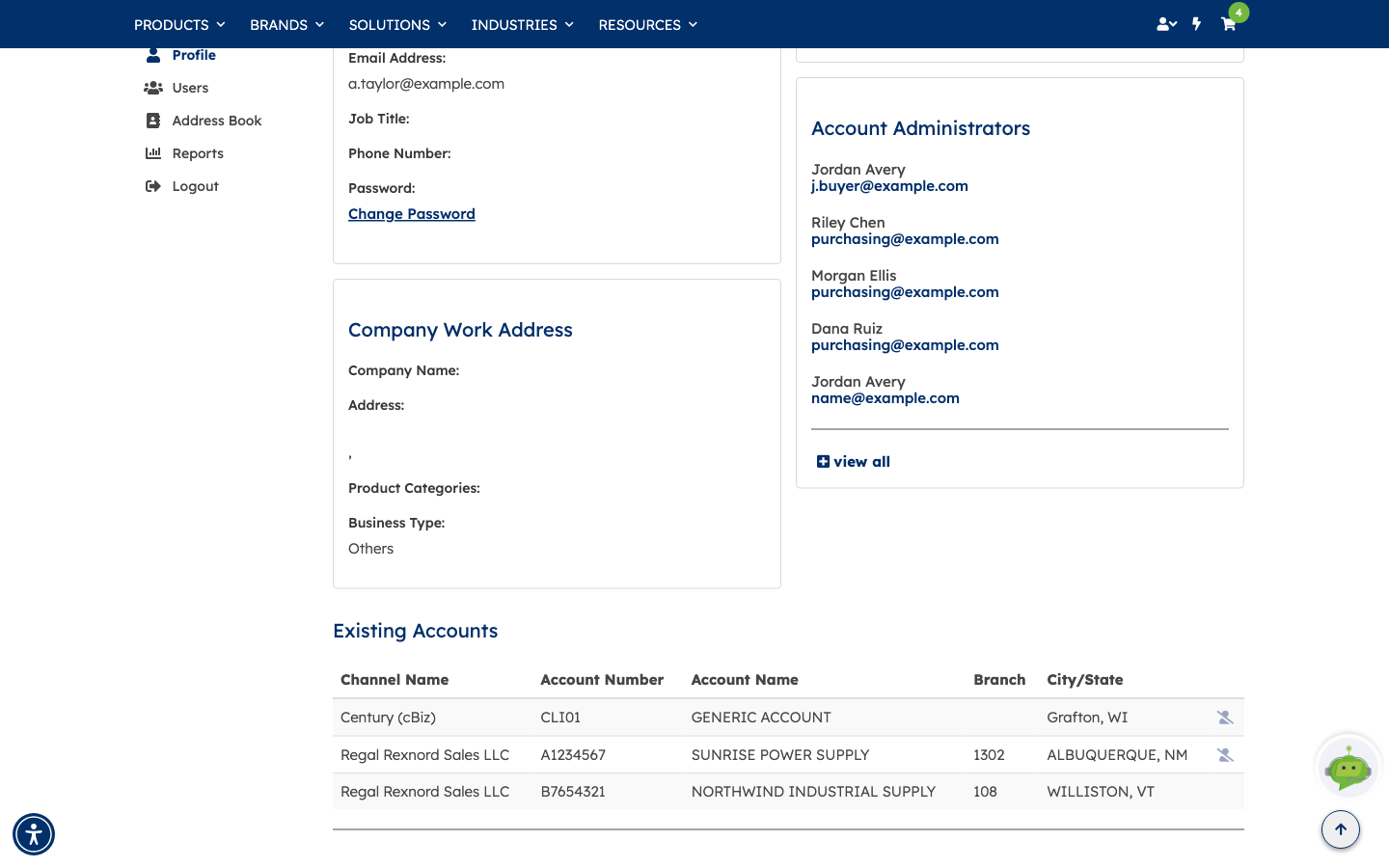
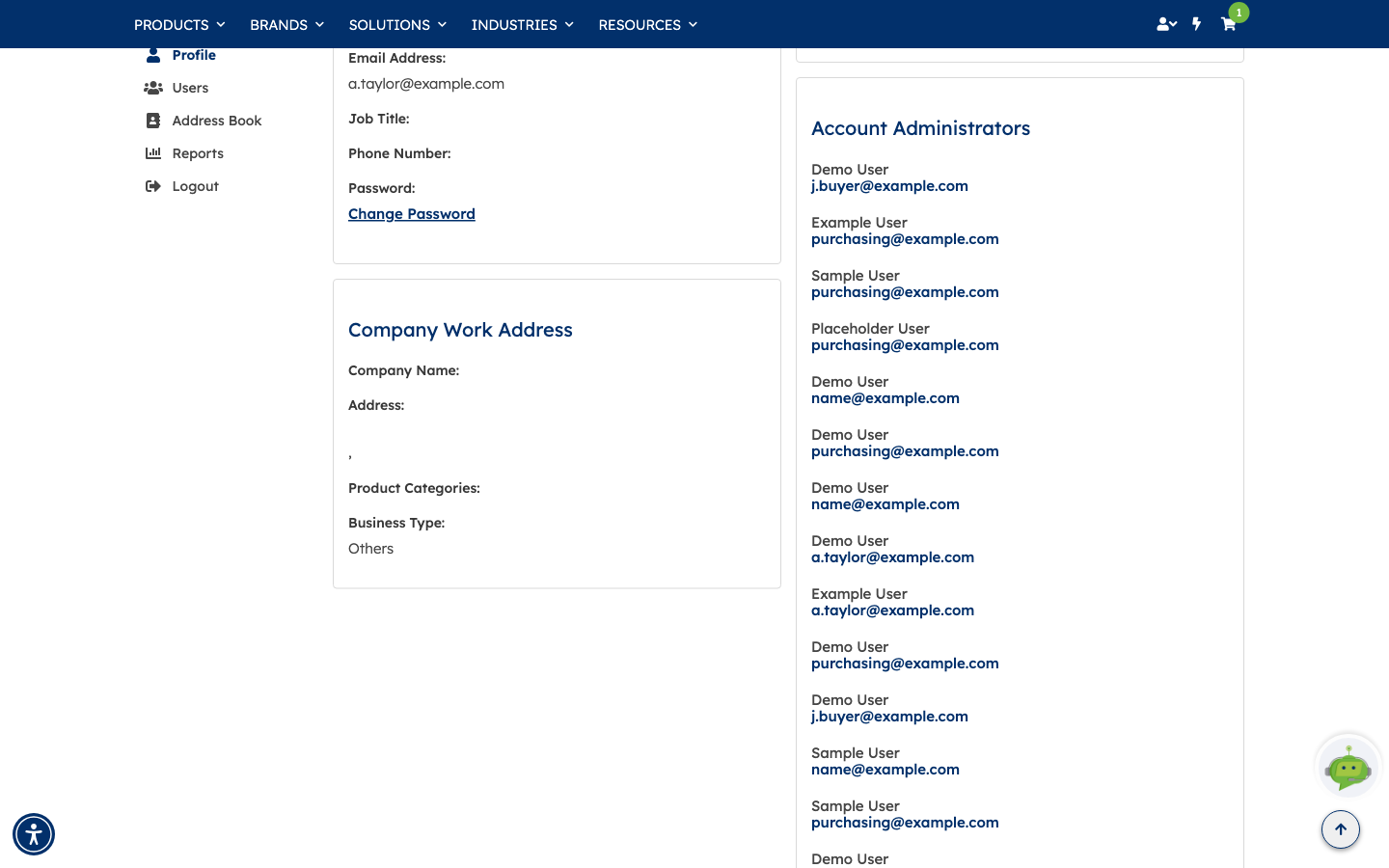
Expanded, the panel runs on down the page with every administrator on the account, name above email — useful on a large account where the person you need isn't in the first handful.
A couple of things worth knowing
- The list follows your selected account. Administrators are per-account, so if you switch accounts using Change on the dashboard, this panel changes with it. Check you're under the right account before you email anyone.
- The accounts you can reach are listed lower down. Scroll past Account Administrators to Existing Accounts for every account attached to your profile, with its number, branch and location — and Add Additional Access To Your Profile below that if you need another one added.
That's it. You now know who can approve users, adjust permissions and manage access on your account — and you can reach them in a click.