Requesting Access to an Additional Account
If you buy for more than one company account — a second location, a sister company, a branch you've just picked up — you don't have to wait for someone to set that up for you. You can ask for access yourself from your Profile page, and once it's approved the new account sits alongside the ones you already have.
The Global Sales Rep role is for internal associates only.
You're already signed in and viewing your Profile page. You'll need the Regal Rexnord account number you want access to — in this example, we're requesting account C2468013.
What happens when you submit
| When you click REQUEST ACCESS | Most users | Global Sales Reps |
|---|---|---|
| Request is reviewed by someone first | ✅ | — |
| Account appears straight away | — | ✅ |
| You need to wait for a decision | ✅ | — |
Your Assigned Roles panel tells you which of these applies to you. If your primary role is Global Sales Rep, skip to the last section — everything else works the same, only faster.
Step 1 — Open your Profile page
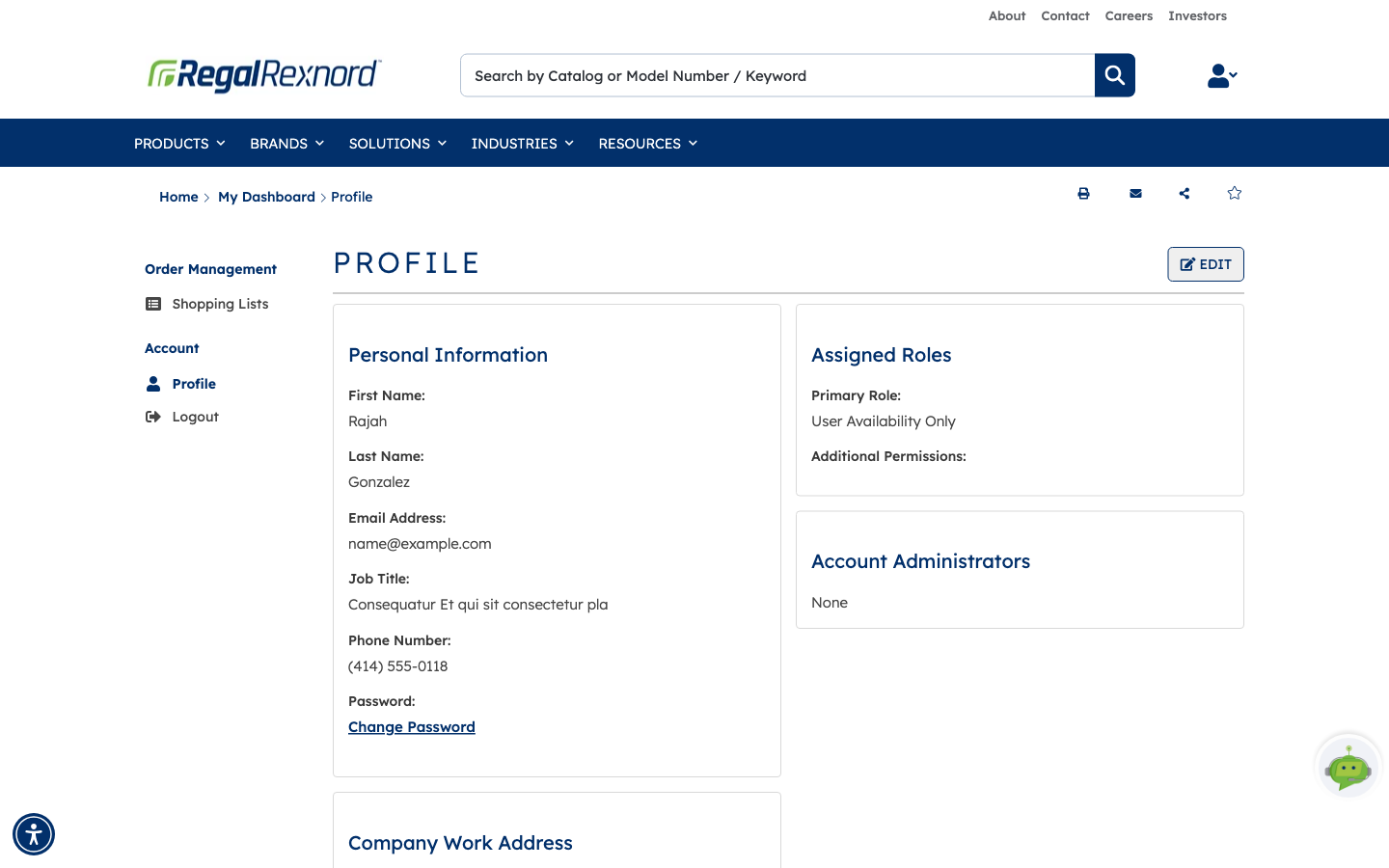
In the left-hand menu under Account, choose Profile.
Two panels on the right are worth reading before you start.
| What you see | What it means |
|---|---|
| Primary Role | The kind of access you have. User Availability Only is a standard buying user. |
| Additional Permissions | Any extra rights on top of your primary role — often blank. |
| Account Administrators | The people who approve access for your account. None means there's no administrator yet, and your request will go to Regal Rexnord instead. |
Step 2 — Check which accounts you have today
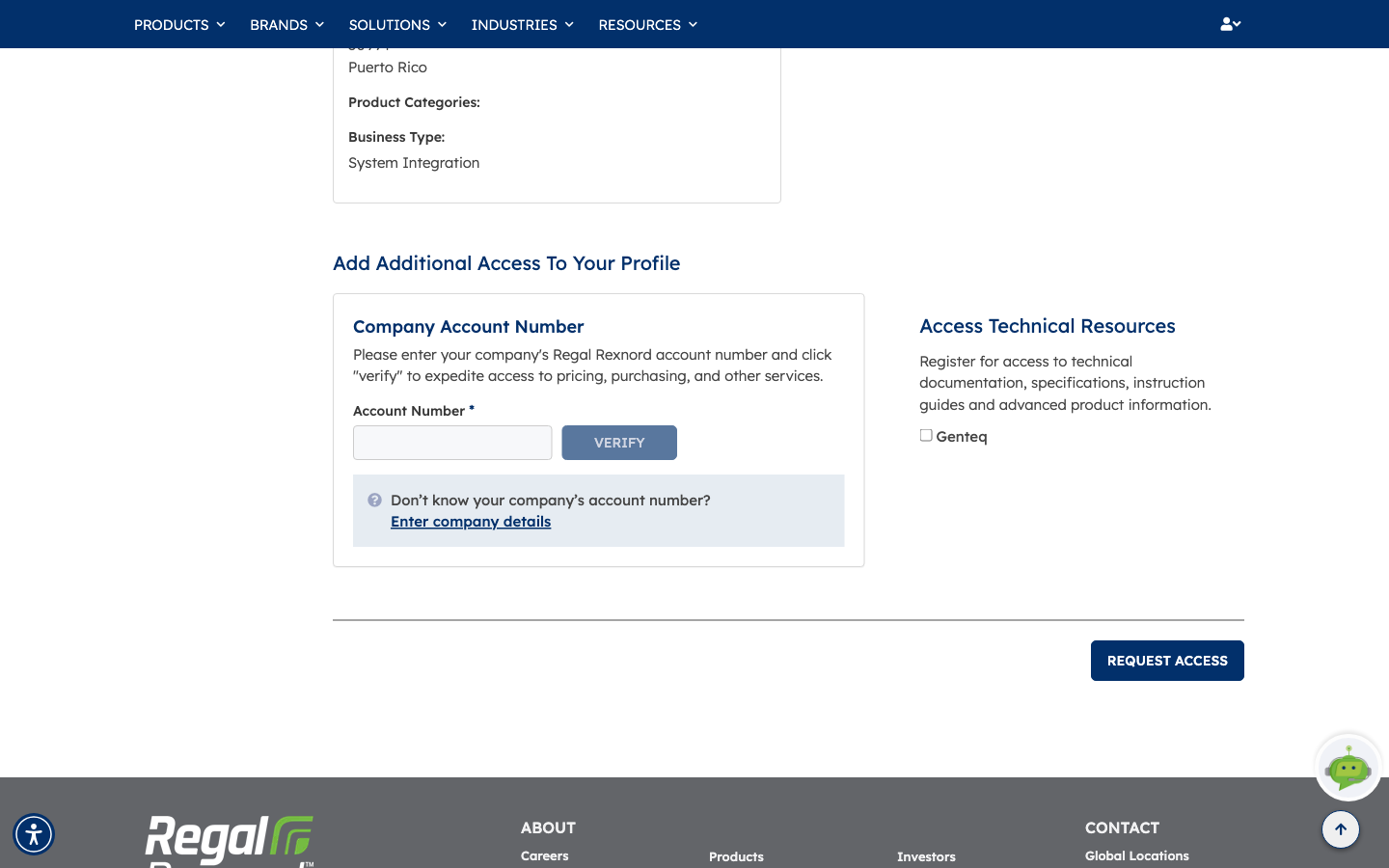
Scroll down past your company address. If you already have accounts, they're listed in an Existing Accounts table — that's every account you can currently work with. This example user has none yet, so the table doesn't appear at all and the page goes straight to Add Additional Access To Your Profile.
Make a note of what's there now. It's the easiest way to tell later whether your new account has come through.
Step 3 — Enter the account number you want
Type the number into the Account Number field. VERIFY stays greyed out until you've entered something, then turns solid blue and is ready to click.
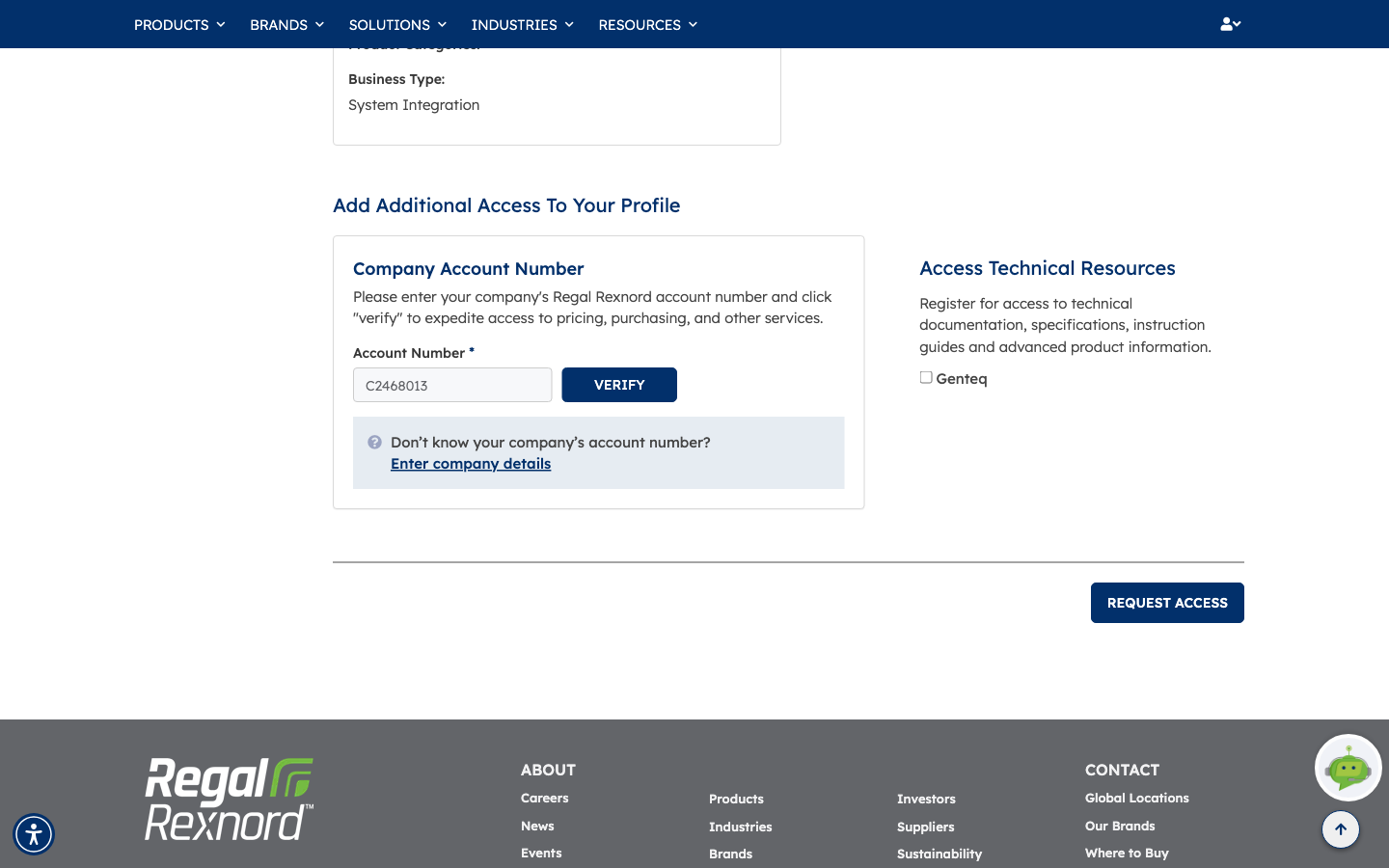
Don't know the number? Use the Enter company details link underneath instead and look the company up by its details.
Step 4 — Check it's the right account
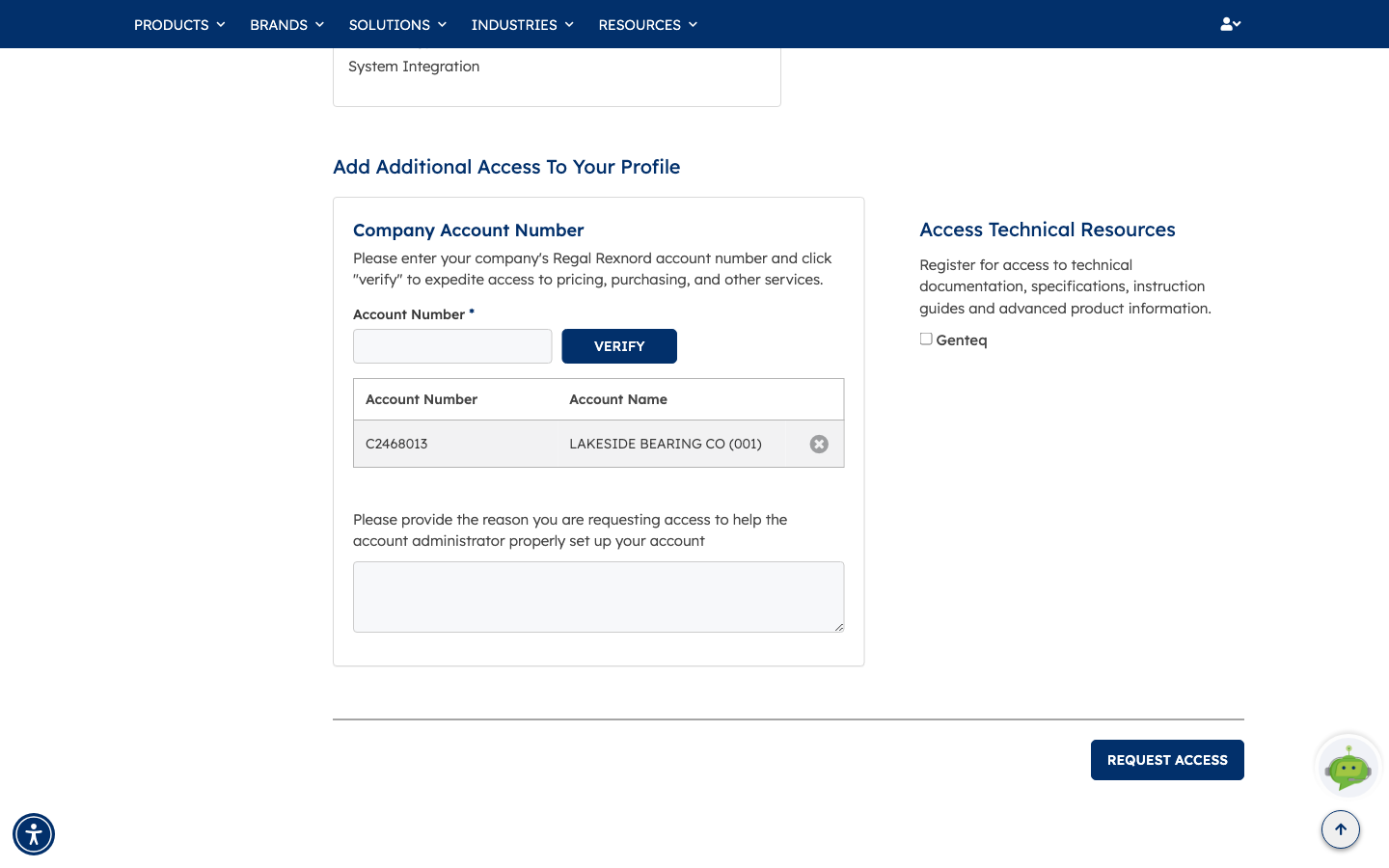
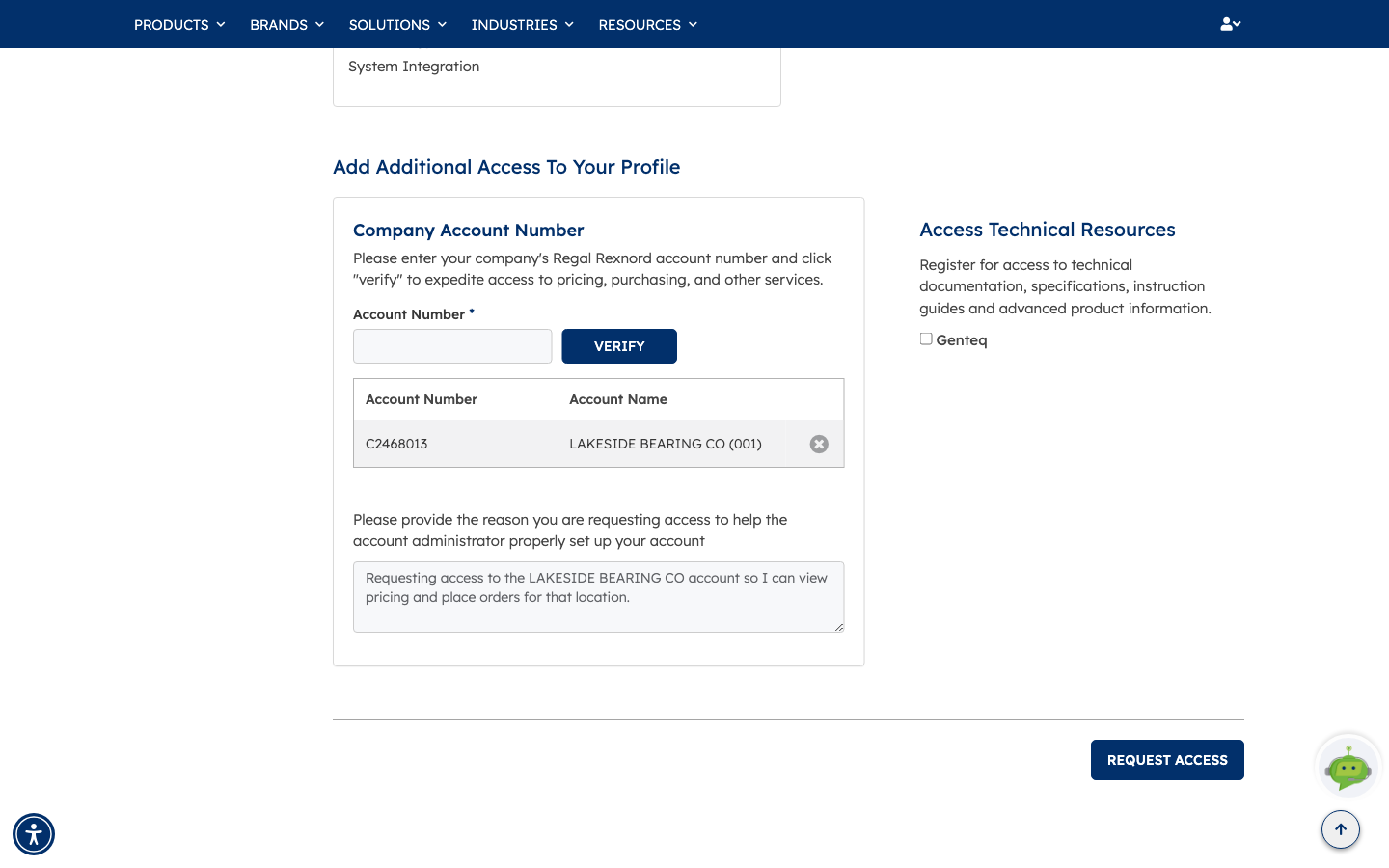
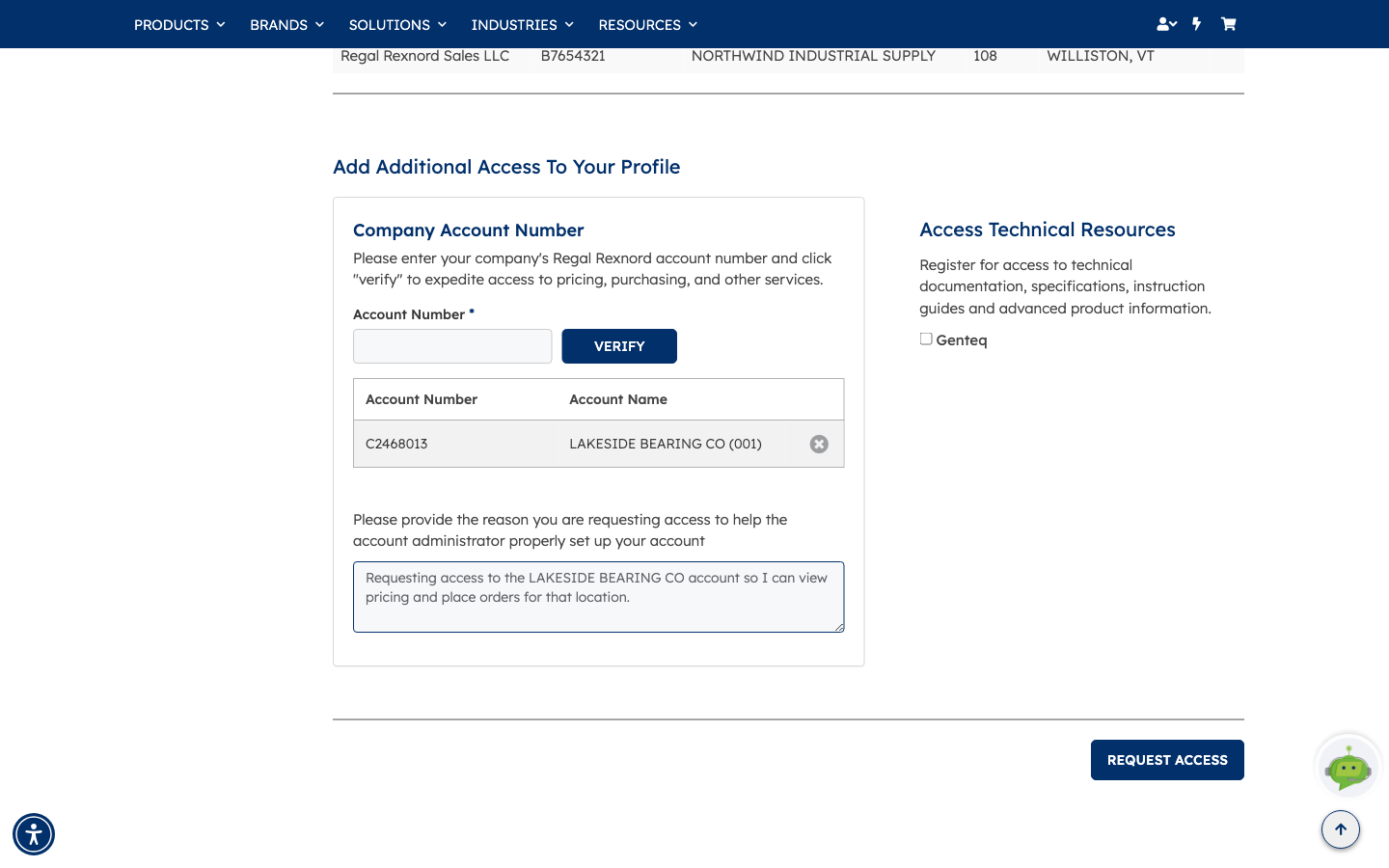
Click VERIFY. The number is looked up and the matching company is shown back to you, so you can be sure you've asked for the right one — here it comes back as C2468013 — LAKESIDE BEARING CO (001).
A reason box appears underneath at the same time.
| Field | What to enter |
|---|---|
| Account Number | The Regal Rexnord account number you want access to. Clear the field and verify again if the company that comes back isn't the one you expected. |
| Reason | Why you need access. Required — this is what the reviewer reads. |
Step 5 — Say why you need access
Write a short, specific reason. Something like "Requesting access to the LAKESIDE BEARING CO account so I can view pricing and place orders for that location." tells a reviewer everything they need; "please add me" doesn't.
Step 6 — Submit the request
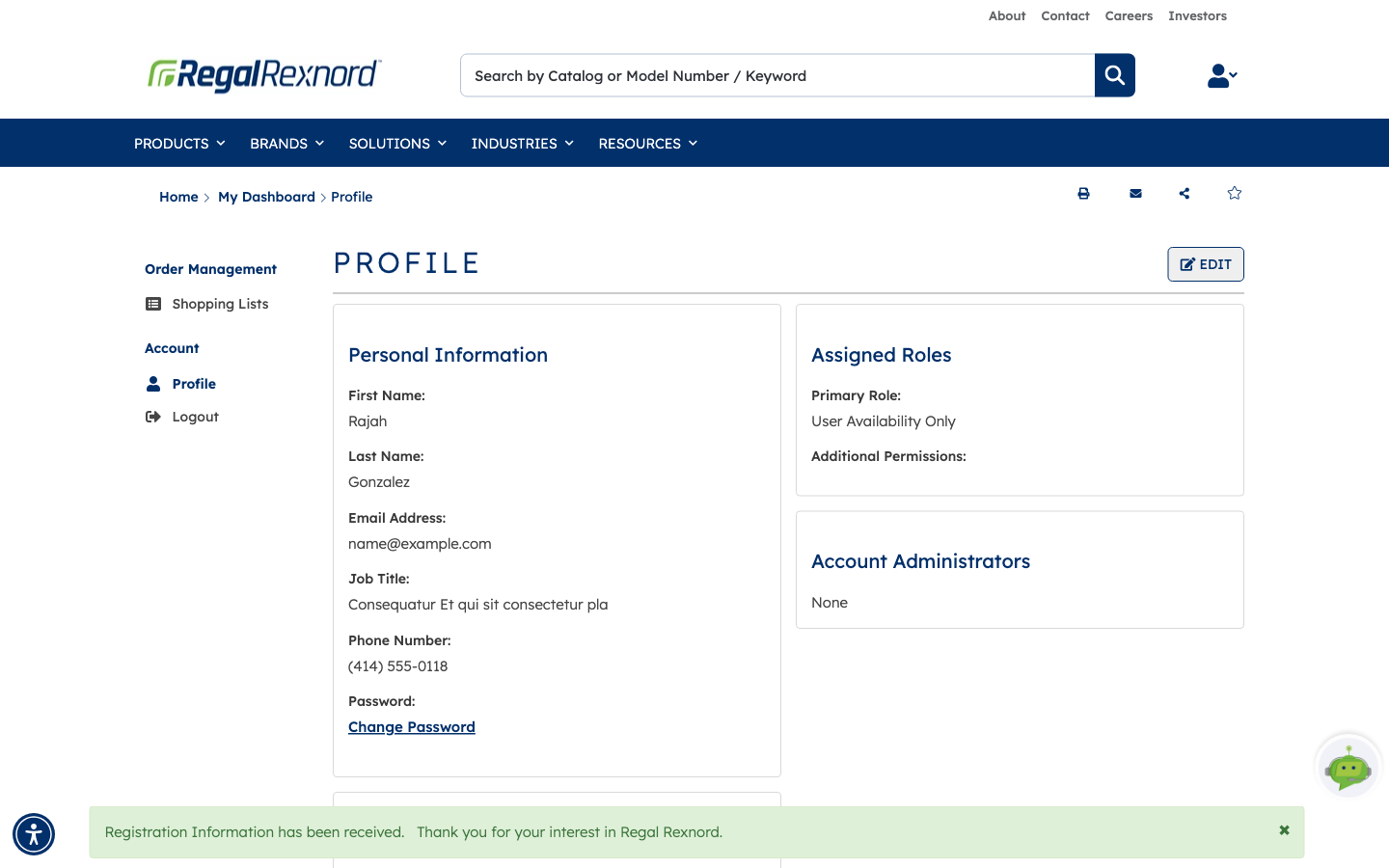
Click REQUEST ACCESS. You're taken back to the top of your Profile page with a green confirmation:
Registration Information has been received. Thank you for your interest in Regal Rexnord.
That's your sign the request went through. There's nothing else to fill in.
Step 7 — What happens next
Your request now goes to somebody for a decision:
| Who reviews it | When |
|---|---|
| Your account's Customer Admin | When the account already has one — these are the people named in the Account Administrators panel on your Profile page. |
| Regal Rexnord Customer Care | When the account has no Customer Admin assigned. |
You'll hear back once it's been decided, and there's nothing more for you to do in the meantime.
If you refresh your Profile page while you're waiting, the new account won't be in Existing Accounts yet — it's added only once your request is approved. That's expected, not a sign anything went wrong.
If you're a Global Sales Rep
There's one exception to all of the above. If your Assigned Roles panel shows a primary role of Global Sales Rep, nobody has to approve your request — the account is added the moment you submit it.
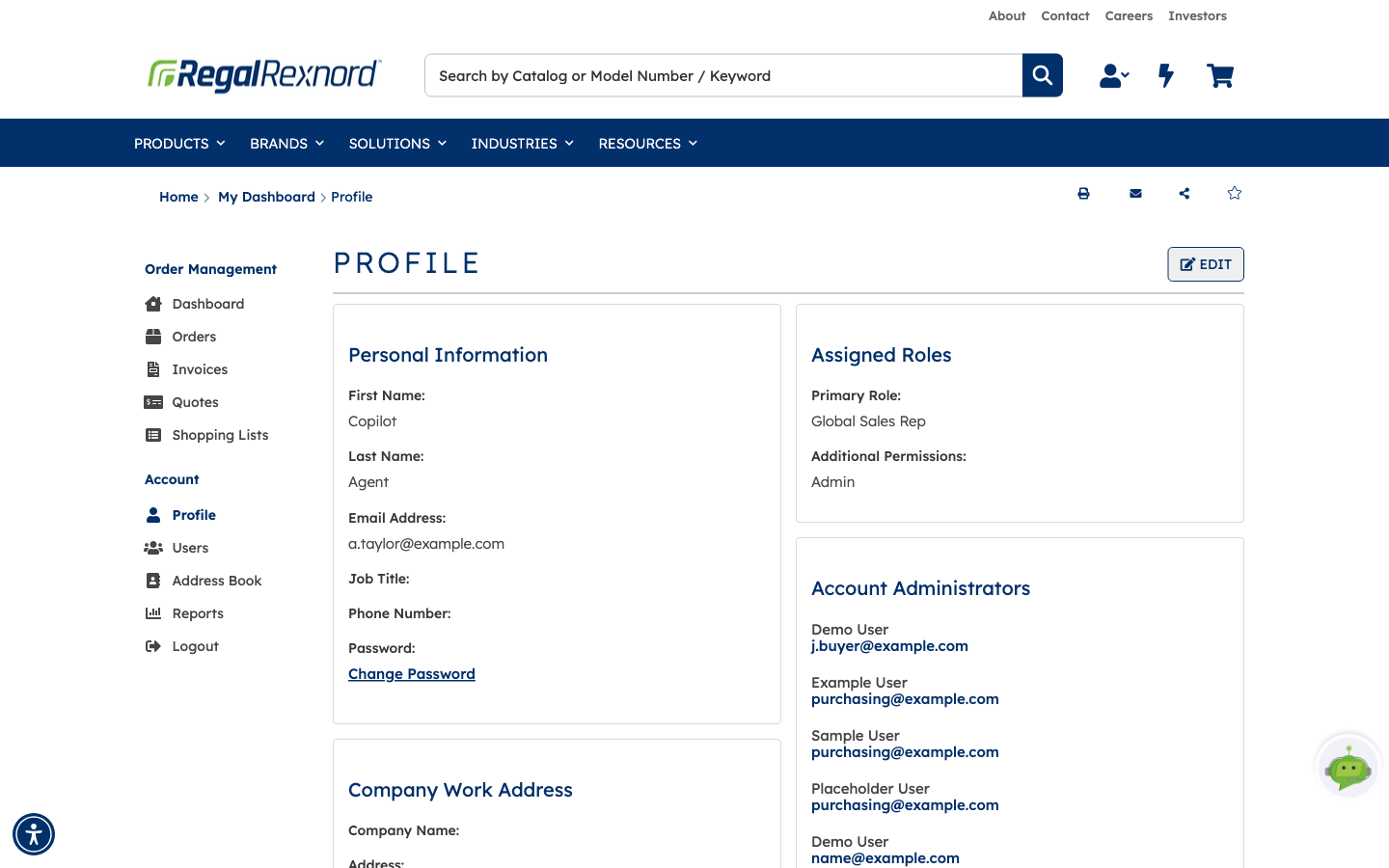
Before requesting, this user could work with three accounts:
| Channel Name | Account Number | Account Name | Branch | City/State |
|---|---|---|---|---|
| Century (cBiz) | CLI01 | GENERIC ACCOUNT | Grafton, WI | |
| Regal Rexnord Sales LLC | A1234567 | SUNRISE POWER SUPPLY | 1302 | ALBUQUERQUE, NM |
| Regal Rexnord Sales LLC | B7654321 | NORTHWIND INDUSTRIAL SUPPLY | 108 | WILLISTON, VT |
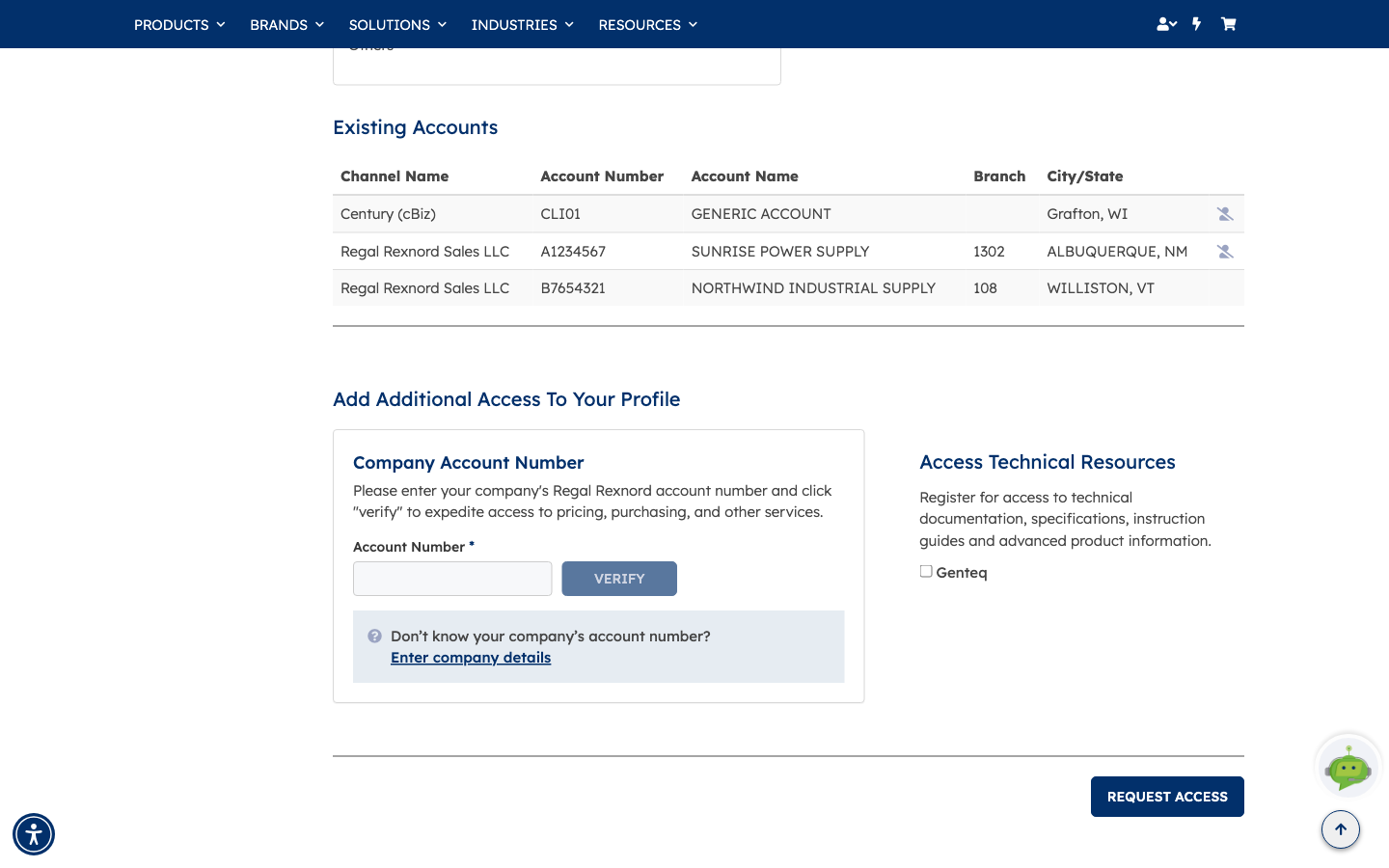
The steps are identical — enter the account number, click VERIFY, check the company that comes back, write your reason, then click REQUEST ACCESS.
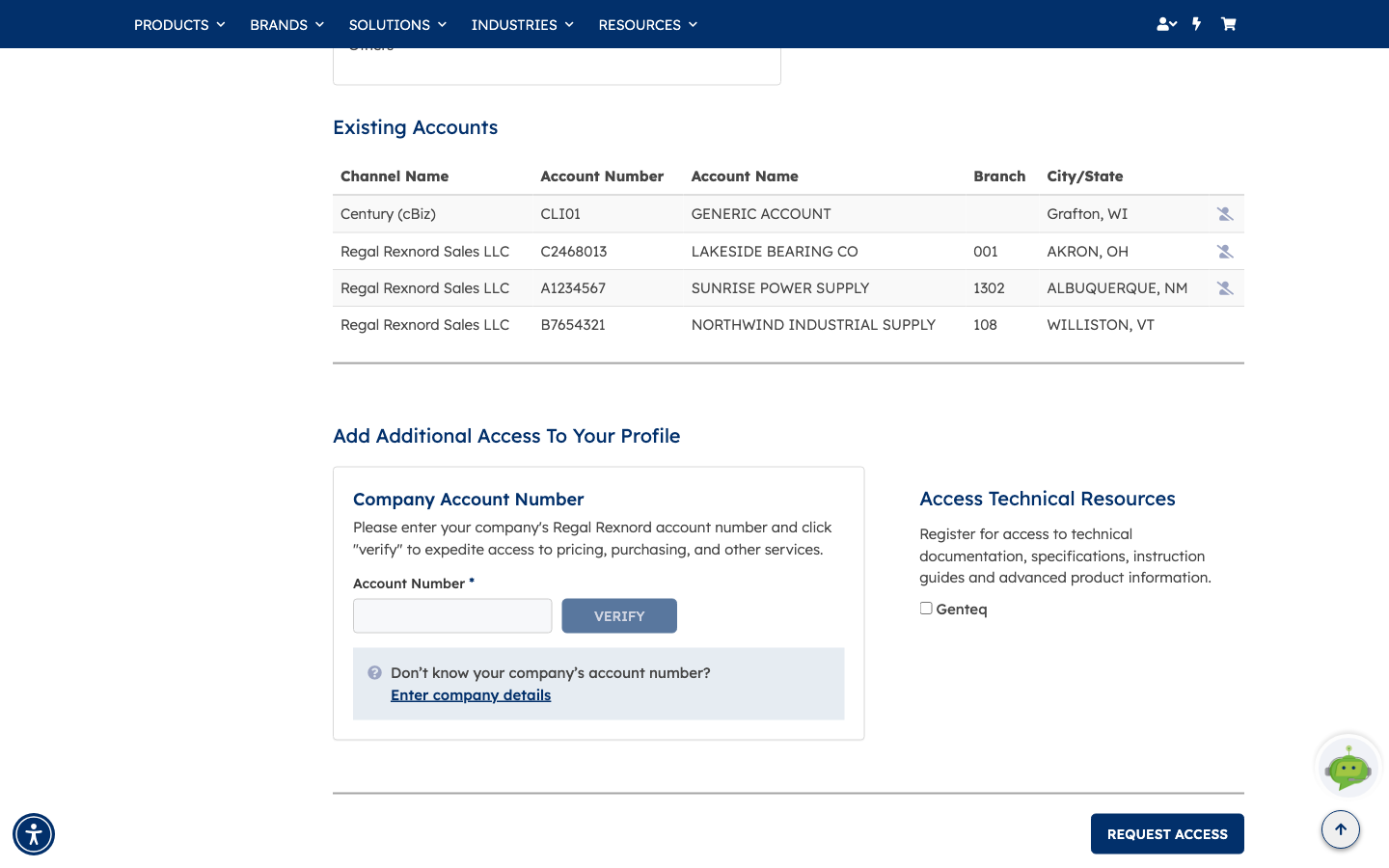
What's different is what happens afterwards. Refresh the Profile page and the new account is already in Existing Accounts, with its branch and location filled in:
| Before | After | |
|---|---|---|
| Accounts you can work with | 3 | 4 |
| LAKESIDE BEARING CO (C2468013) | Not listed | Listed — Regal Rexnord Sales LLC, branch 001, AKRON, OH |
| Approval needed | — | None |
Your own role doesn't change — you're still a Global Sales Rep, and that role now covers the new account too.
That's it. Once the request is approved — or straight away, if you're a Global Sales Rep — the new account appears in Existing Accounts, and you can switch to it and order against it exactly as you do with your original account.