How to Register for an Account on RegalRexnord.com
Registering gives you online access to the Regal Rexnord storefront so you can browse products, request pricing, and — if approved for purchasing access — place orders directly on the site. If you don't have an account yet, this guide walks you through the full sign-up process.
:::info Behind the scenes This walkthrough was captured against the UAT site. See the test instructions it was driven from, and the test results recorded during the run. :::
Before you begin: You'll need your work email address, your company name and business address, and your Regal Rexnord customer account number. You should also know the type of access you're requesting — most new users select Buy Products on RegalRexnord.com. Have those details on hand before you start.
Step 1 — Go to the Register page
From any page on the site, find the Sign In / Register link in the top navigation header and click it. On the sign-in panel that appears, look for the option to Register and click it. This opens the Register for Access page.
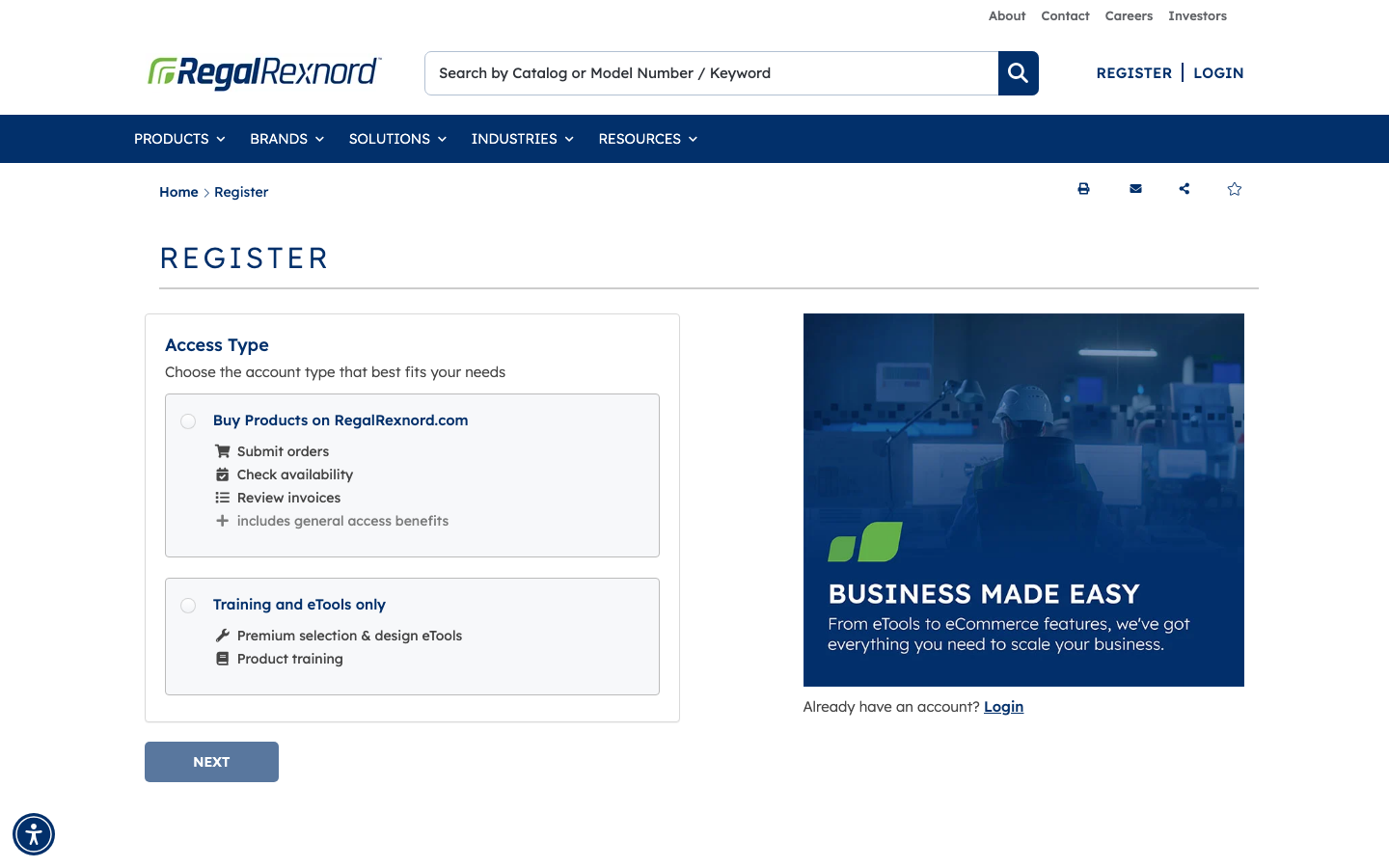
Step 2 — Choose your access type
On the Register for Access page you'll see a list of access options. Select Buy Products on RegalRexnord.com if you need full purchasing access. Other options may be available depending on your role — choose the one that matches what you need.
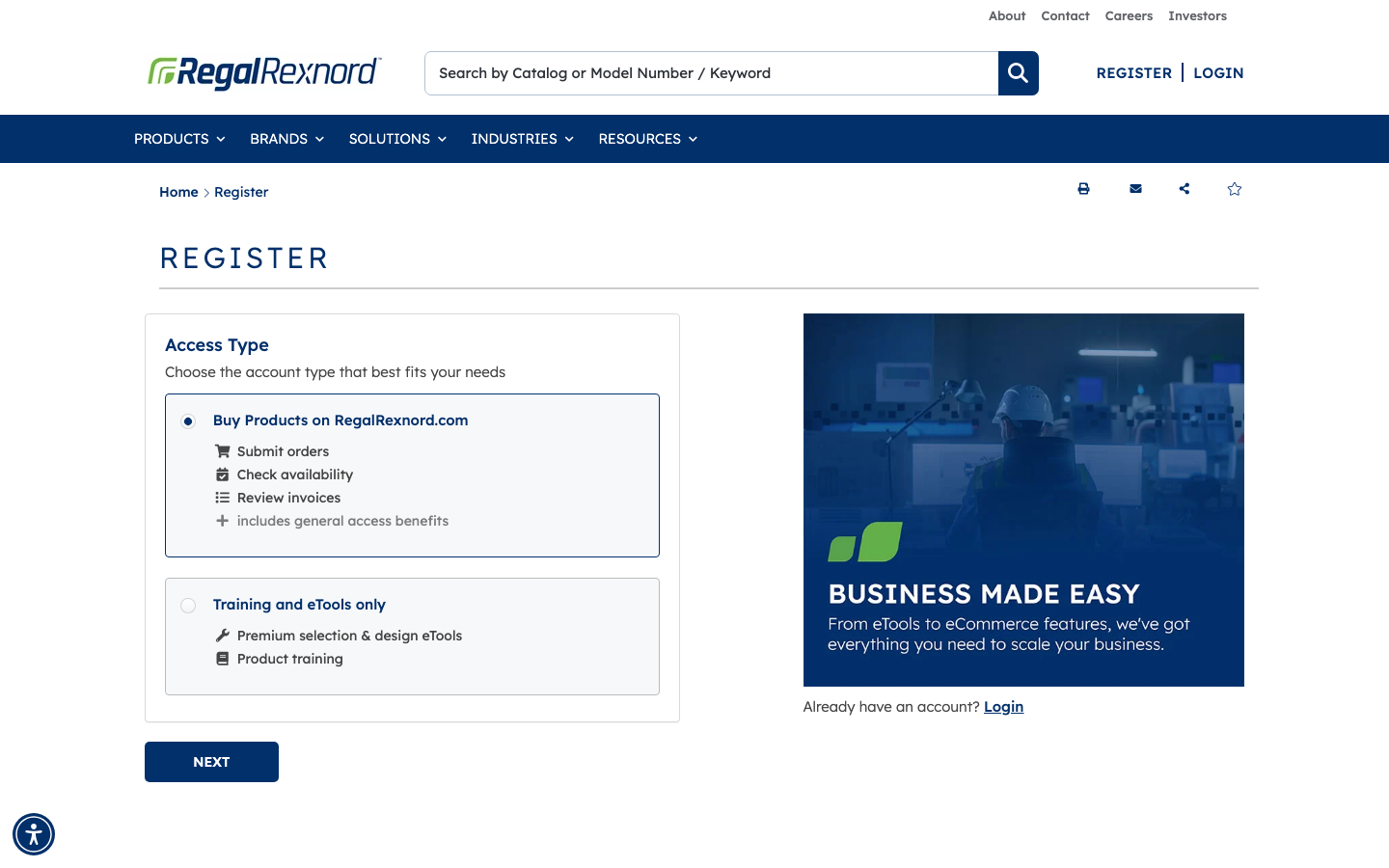
Step 3 — Start filling in your profile details
After selecting an access type, the form expands to collect your contact and company information. You'll see fields for your name, work email address, phone number, job title, and company name. Fill in each required field (marked with an asterisk).
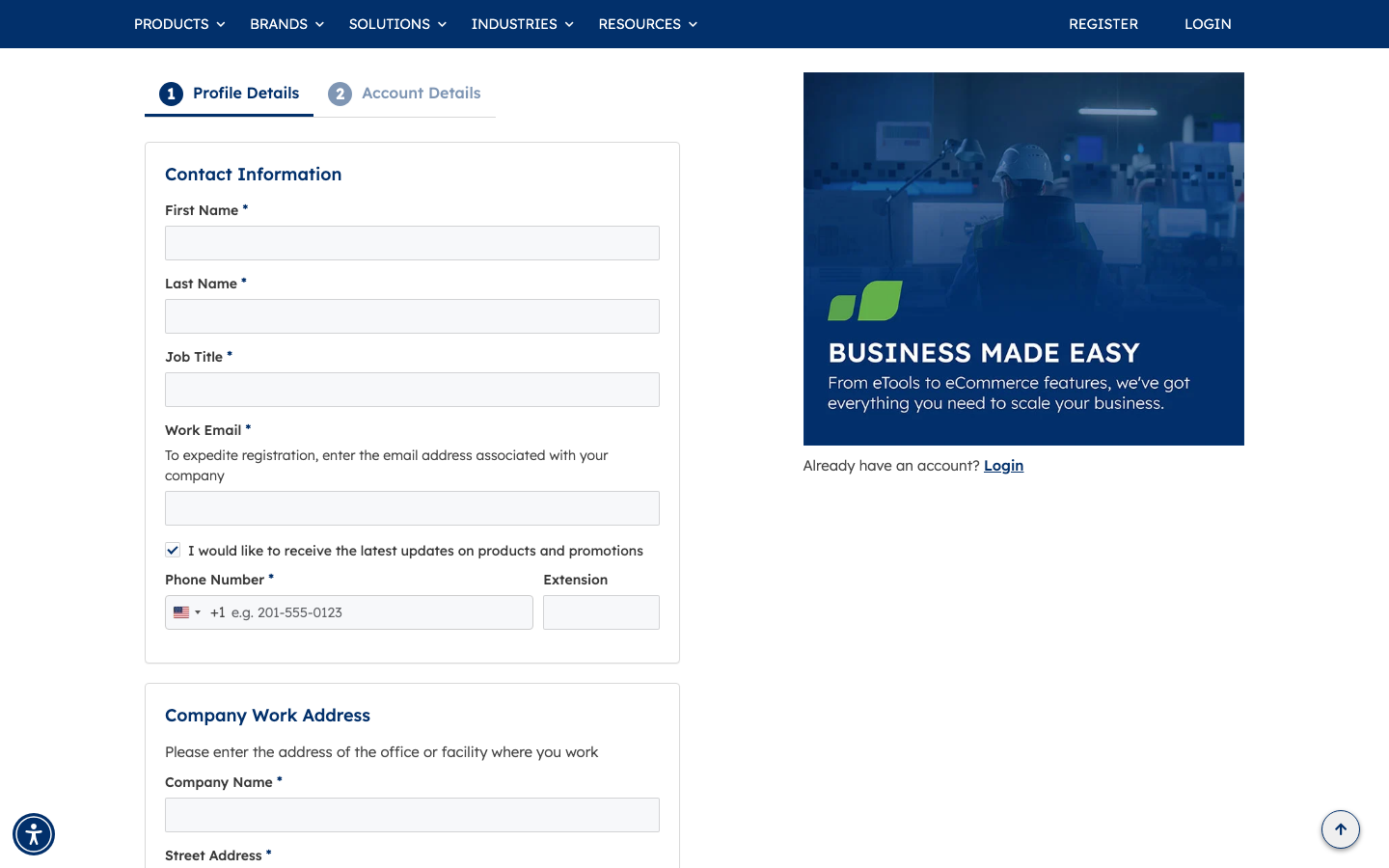
Step 4 — Complete your profile and company address
Continue filling in the remaining profile fields, including your company's work address. Use your work email address — for example, yourname@yourcompany.com — as the contact email. This is the address where you'll receive confirmation and any follow-up from the Regal Rexnord team.
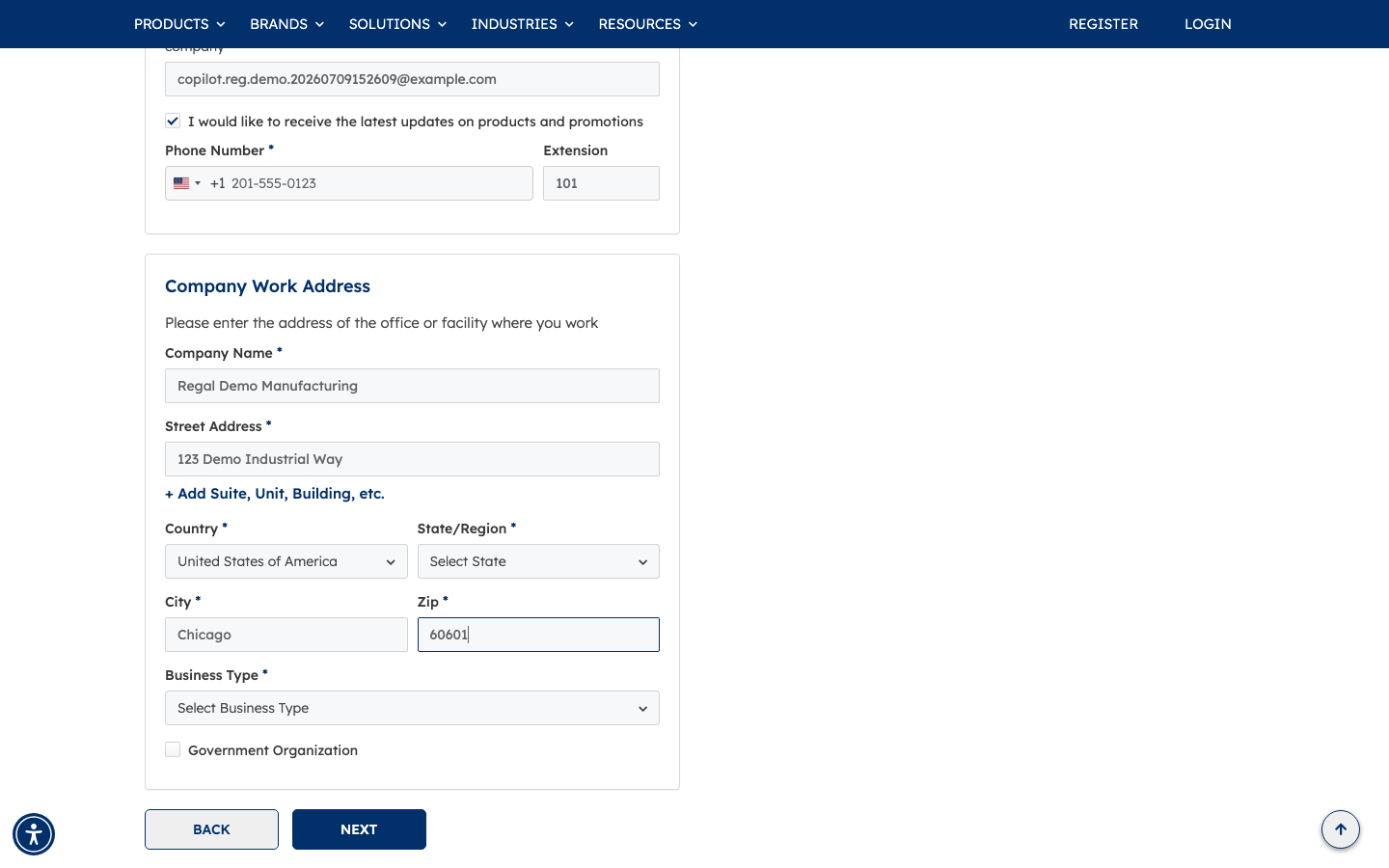
Step 5 — Move to account details
Once your profile section is complete, click Continue (or the equivalent next-step button) to advance to the Account Details section. This section collects additional context about your business relationship with Regal Rexnord.
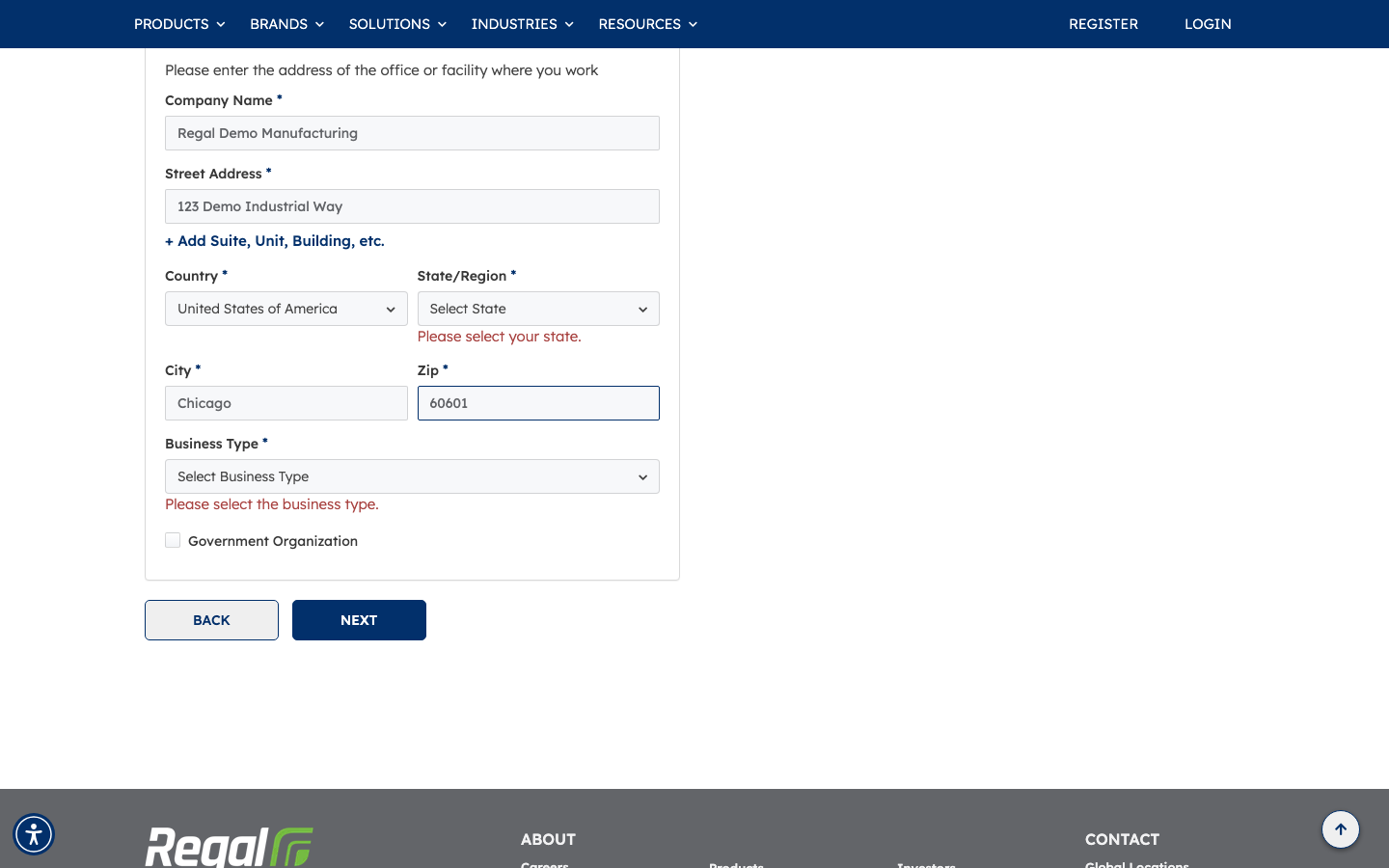
Step 6 — Complete your account details
Fill in the remaining account context fields, such as your customer account number and any additional address or business details requested. When everything is filled in, click Continue to move to the final section.
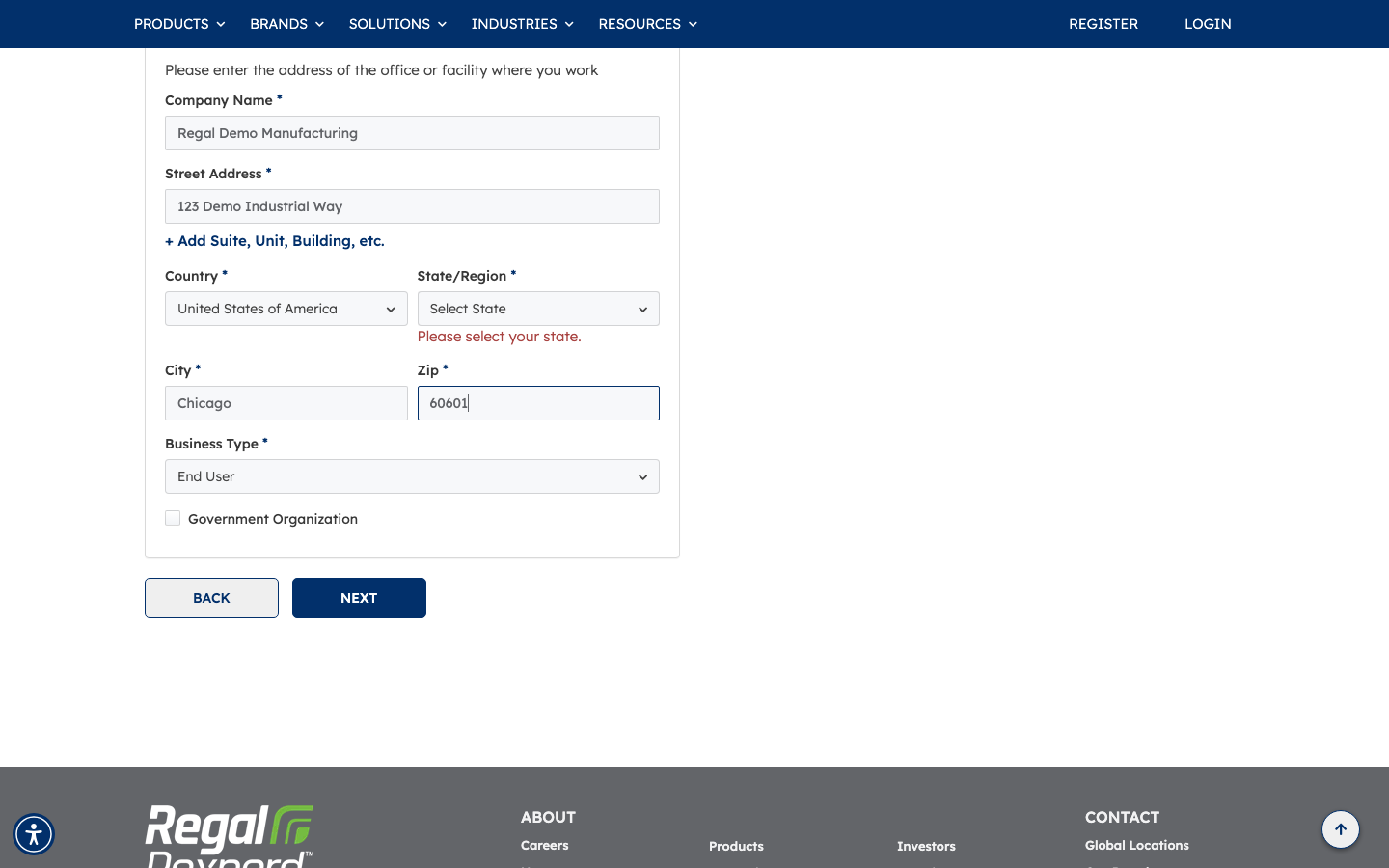
Step 7 — Review the final panel and select your product category
The last section asks for a few final details, including your Customer Status and the Product Category most relevant to your work. Make your selections from the available options.
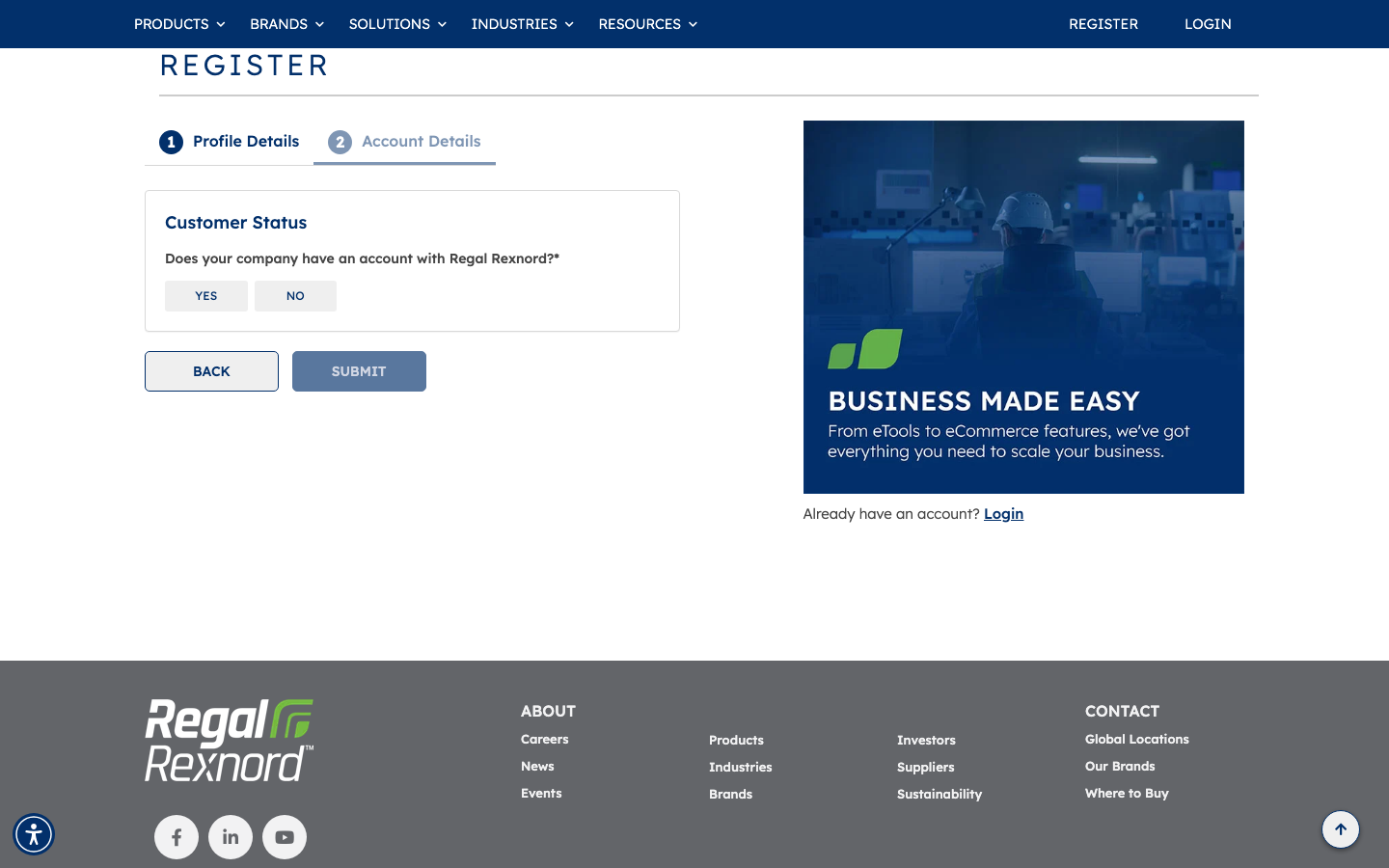
Step 8 — Accept the Privacy Policy and submit
Before submitting, check the Privacy Policy checkbox to confirm you've read and agree to the terms. Once the checkbox is checked and all required fields are complete, the Submit button becomes active. Click Submit to send your registration request.
Note: The form includes a reCAPTCHA check to confirm you're a real person. Complete the CAPTCHA challenge when prompted, then click Submit.
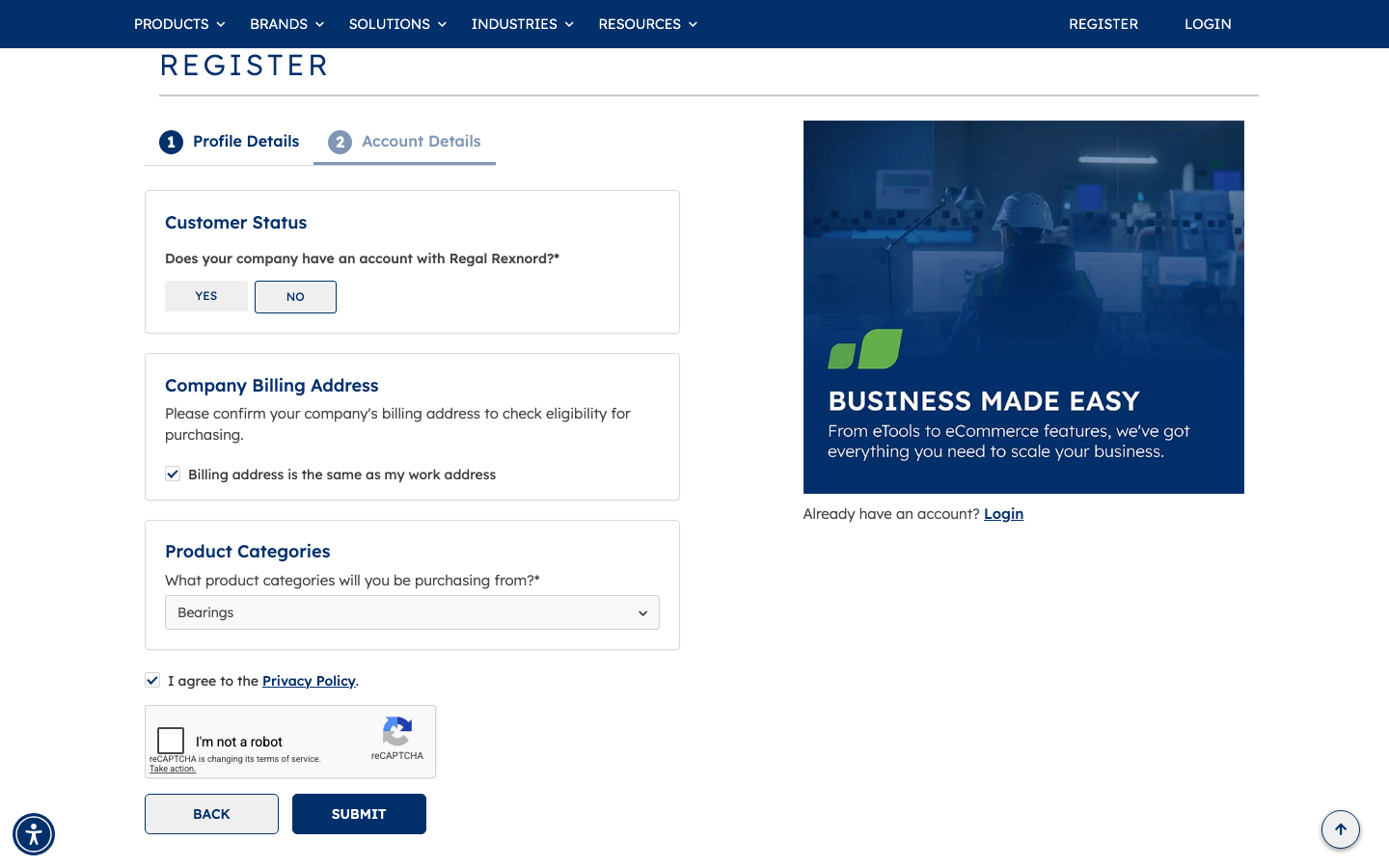
That's it. Your registration request is sent to a Regal Rexnord administrator for review. You should receive a confirmation email at the work address you provided, and the team will follow up once your account access has been approved.