Using the Onboarding Dashboard — Test results
2026-07-17T13:49:59Z by Showboat 0.6.1
Supporting detail for the feature demo.
This demo validates the Onboarding Dashboard on https://uatwww.rrxpreview.com/ using the designated test account, including account, file, job, and date-management drill-downs. Credentials are intentionally omitted.
The UAT home page loads successfully with the cookie banner absent, indicating consent was already recorded for this browser session.
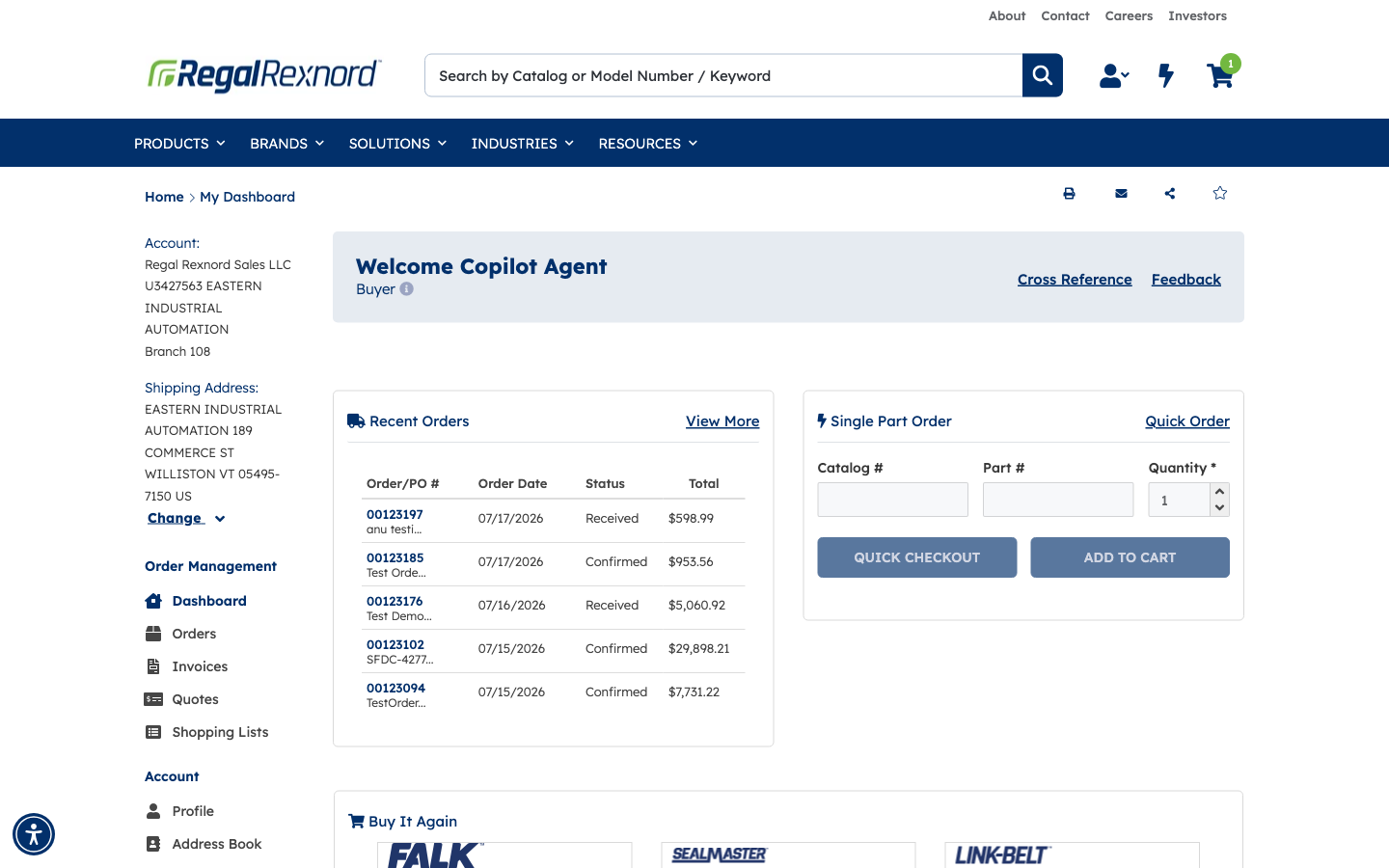
Authentication succeeds with the Primary Address selected. The account dashboard confirms the required identity: Welcome Copilot Agent.
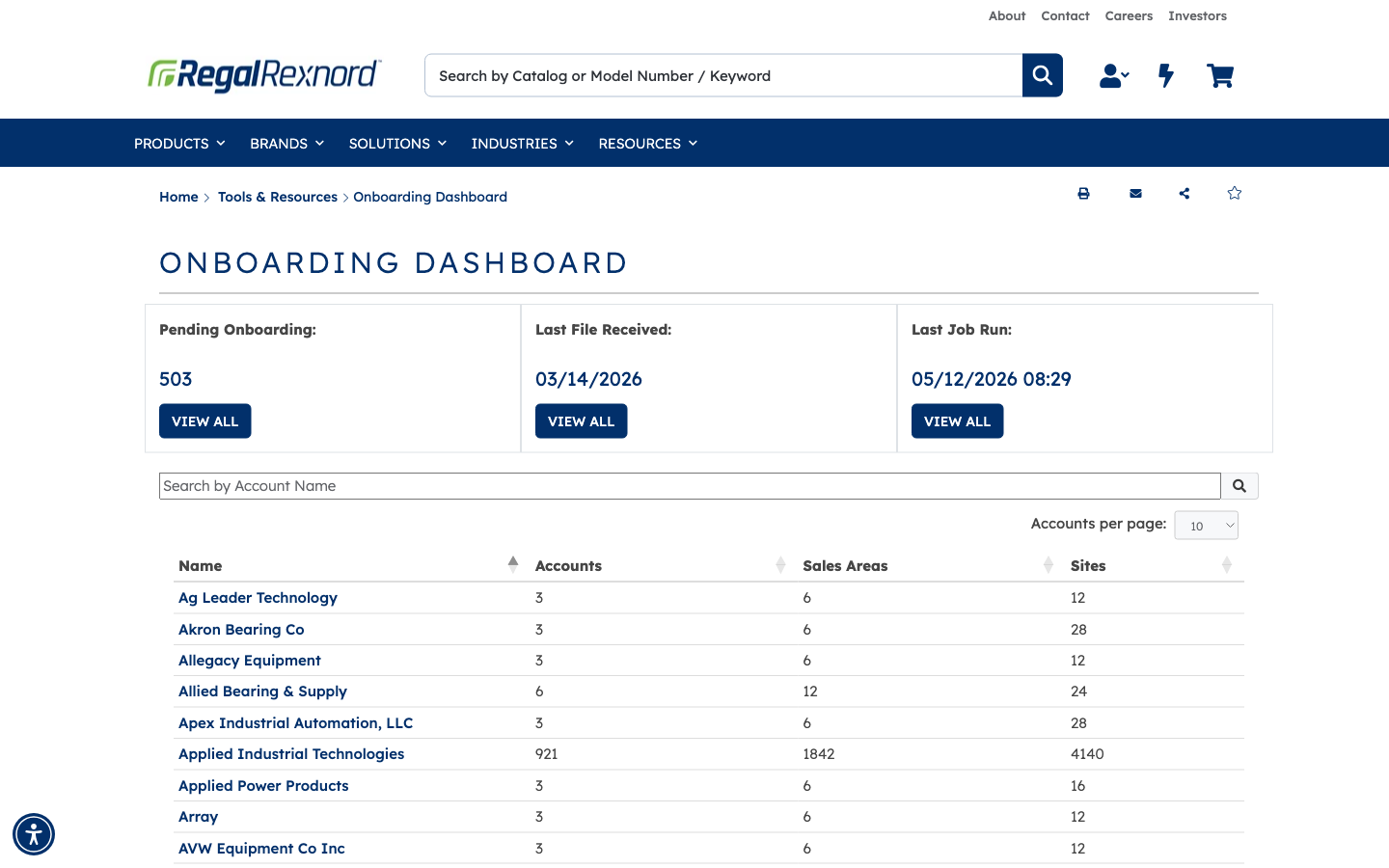
The Onboarding Dashboard opens without a permission warning. Its summary shows Pending Onboarding, Last File Received, and Last Job Run, while the account table exposes Name, Accounts, Sales Areas, and Sites.
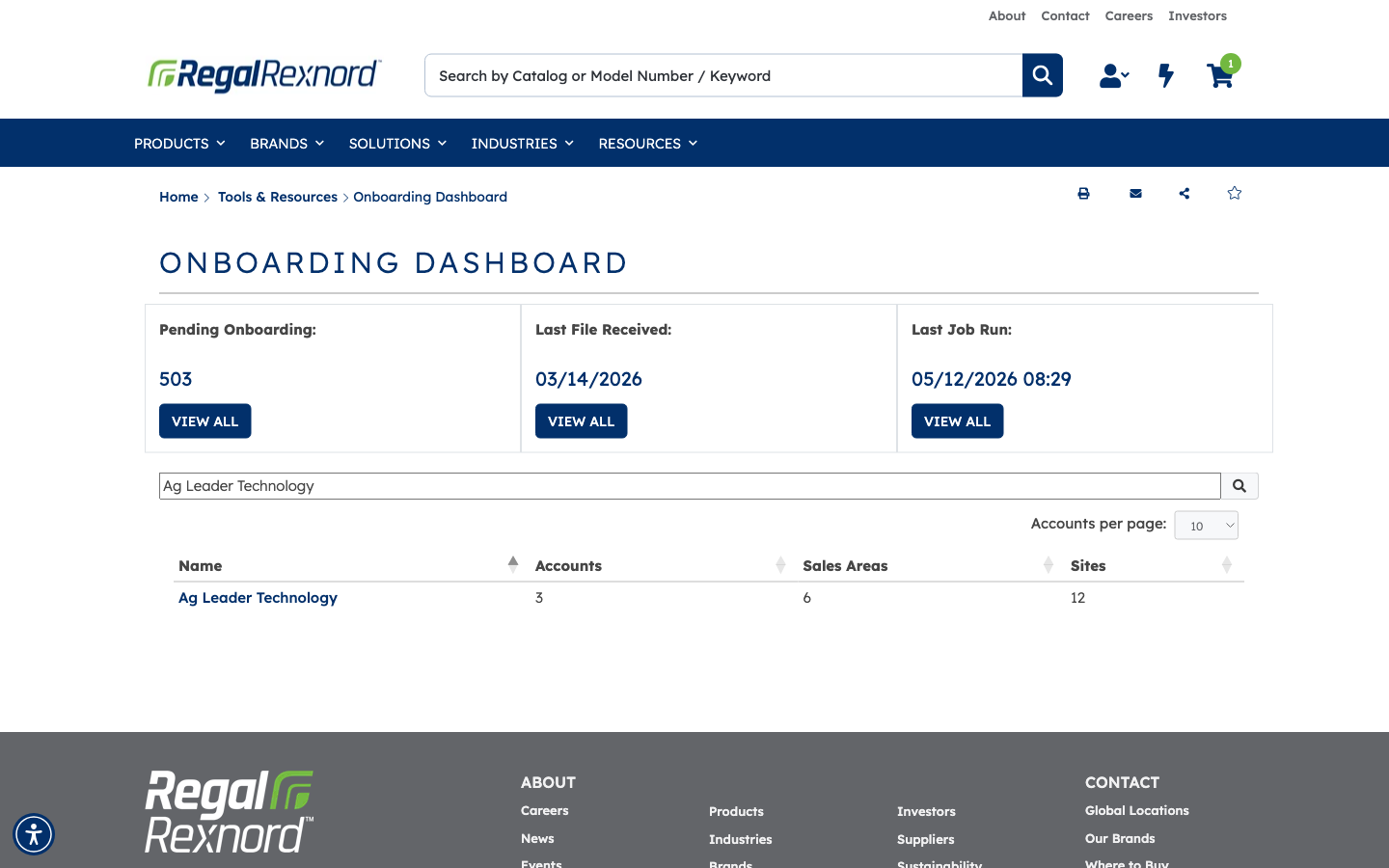
Searching for the first visible parent account, Ag Leader Technology, filters the table to that single matching row.
Clearing the account search restores the first page of the full account list (10 rows).
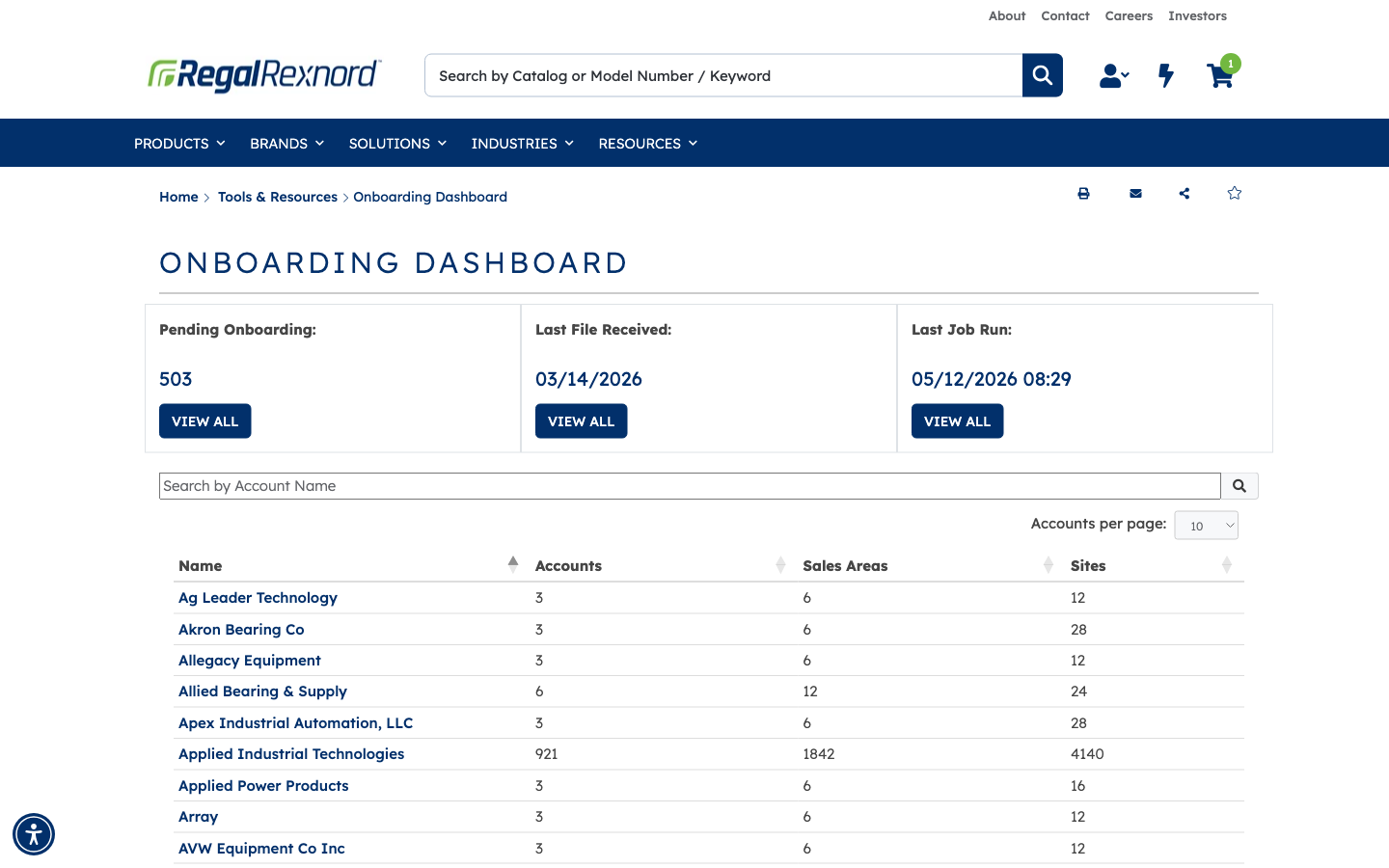
Opening the first parent account displays Ag Leader Technology and the required Account Name, Salesforce Account Id, Salesforce Account Number, and Branch Code columns.
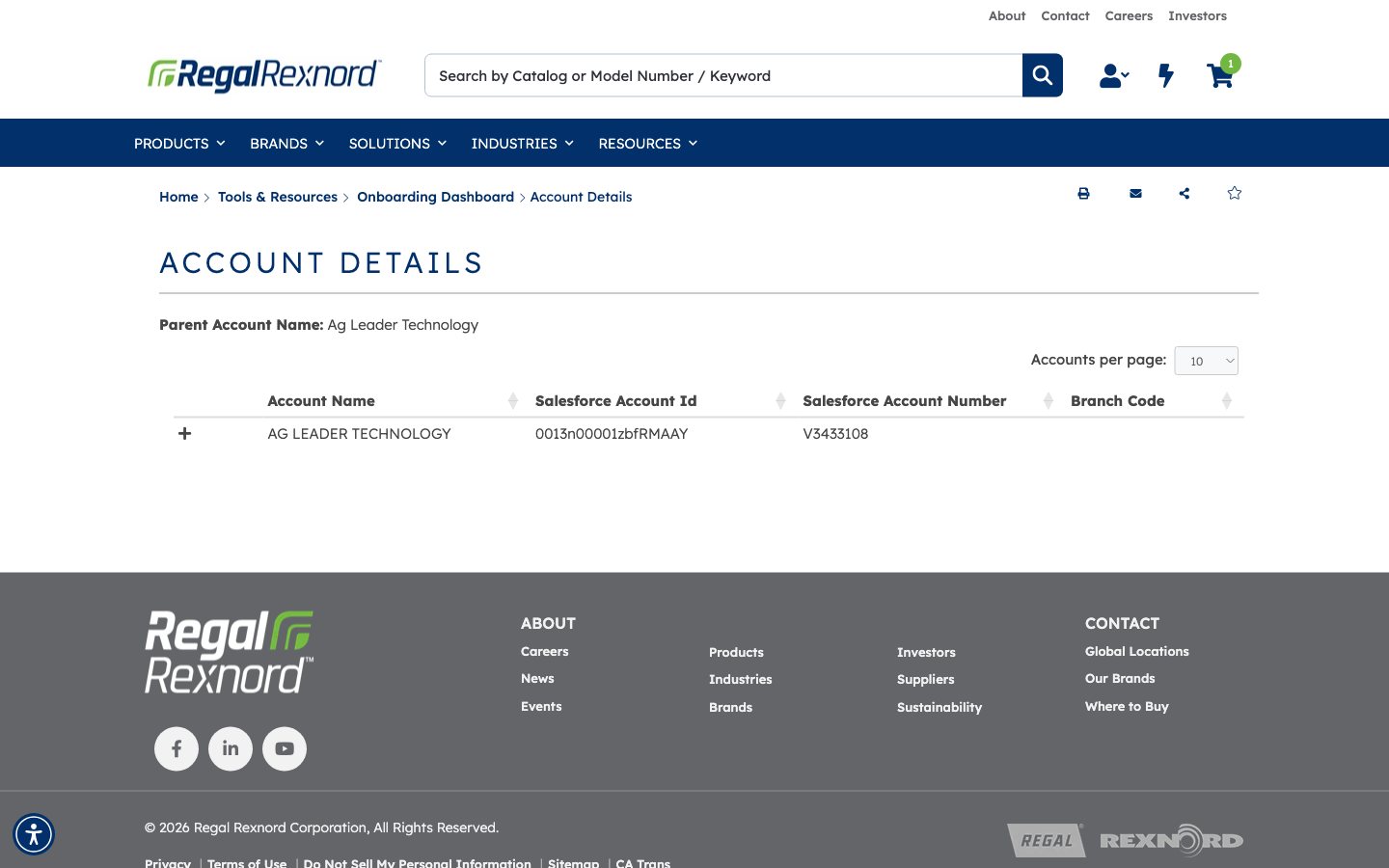
Expanding the account row reveals ERP, Legal Entity, Account Id, Account Number, Last Modified, and Go Live details.
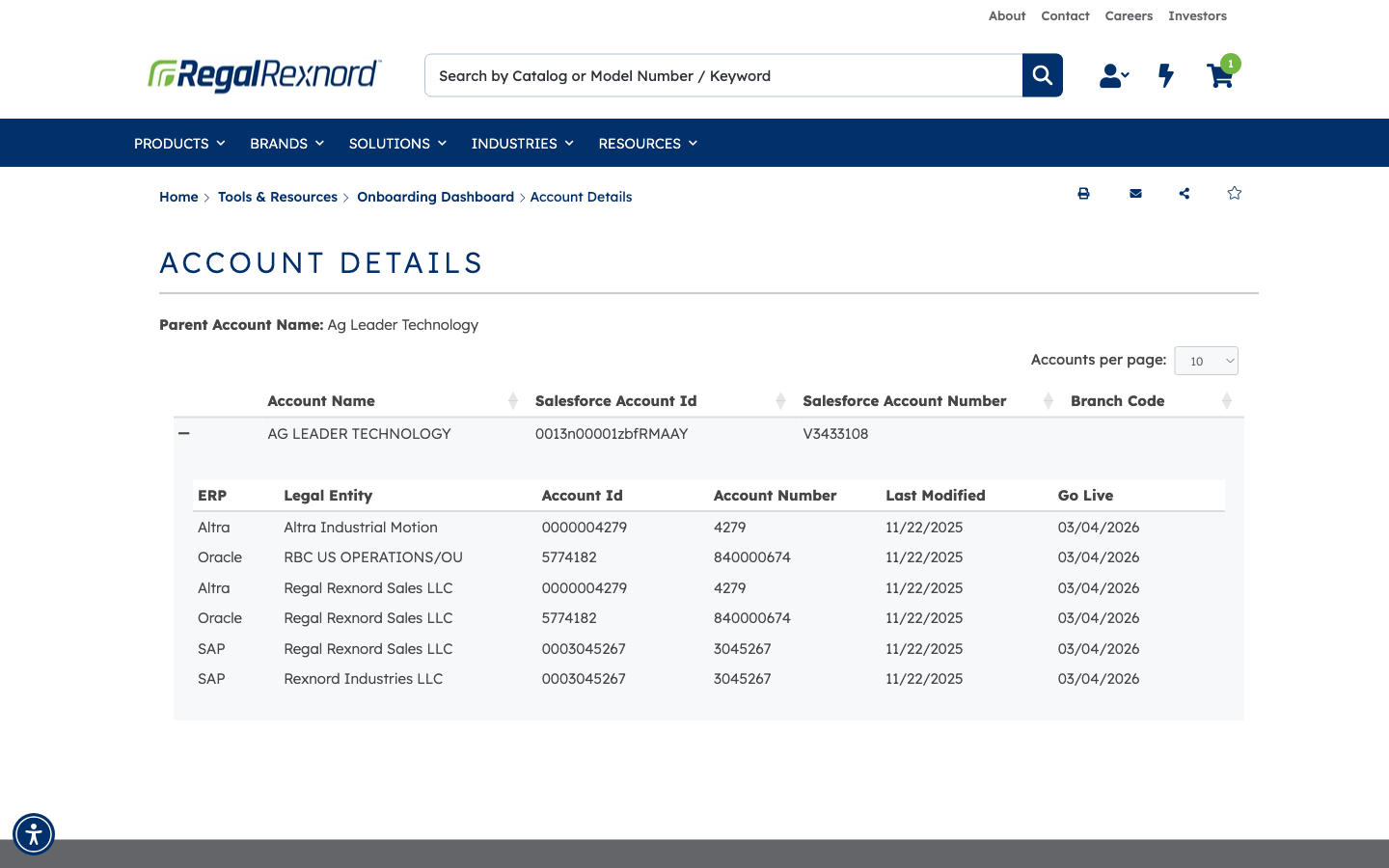
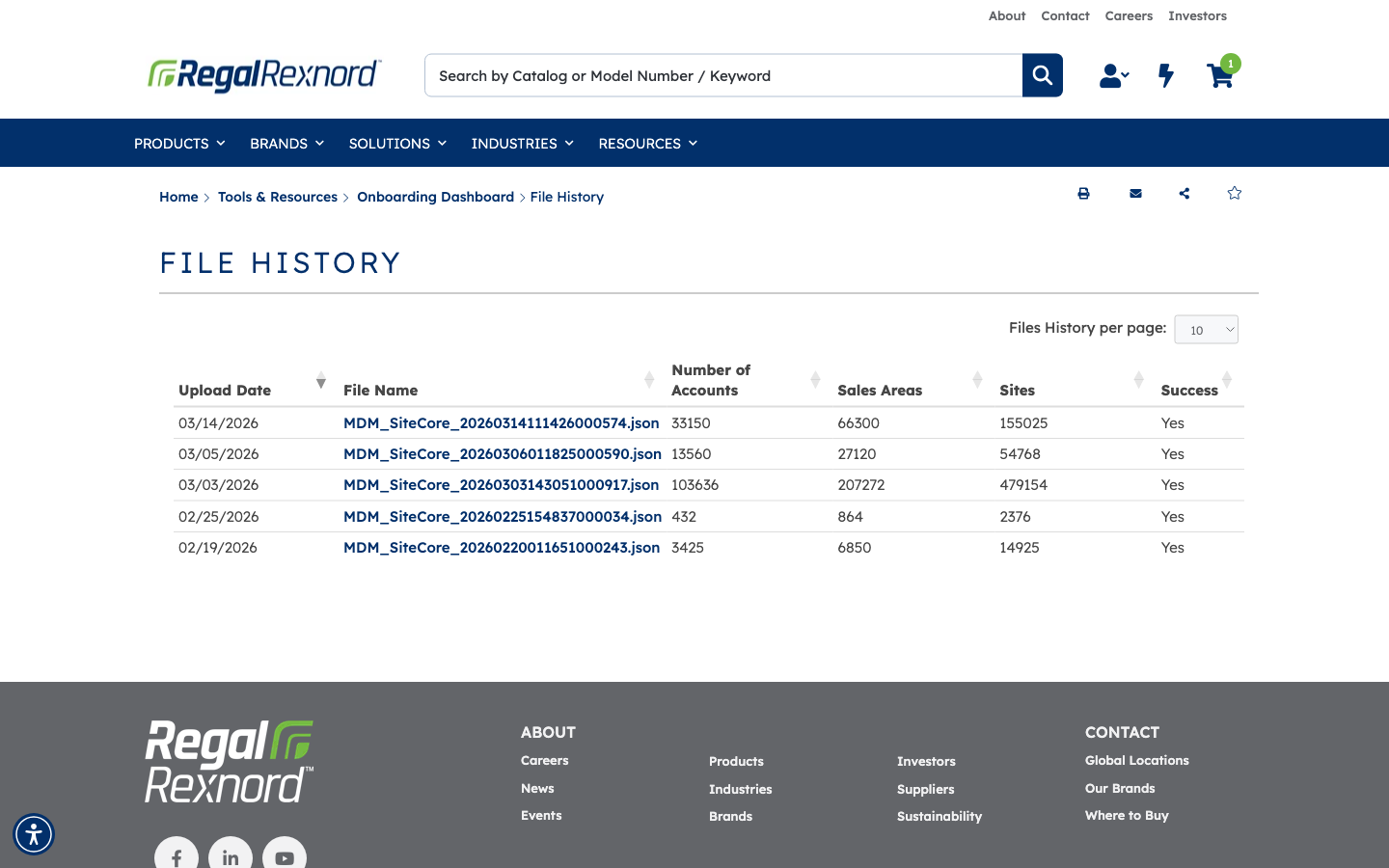
File History lists upload date, file name, account count, sales-area count, site count, and success status for available files.
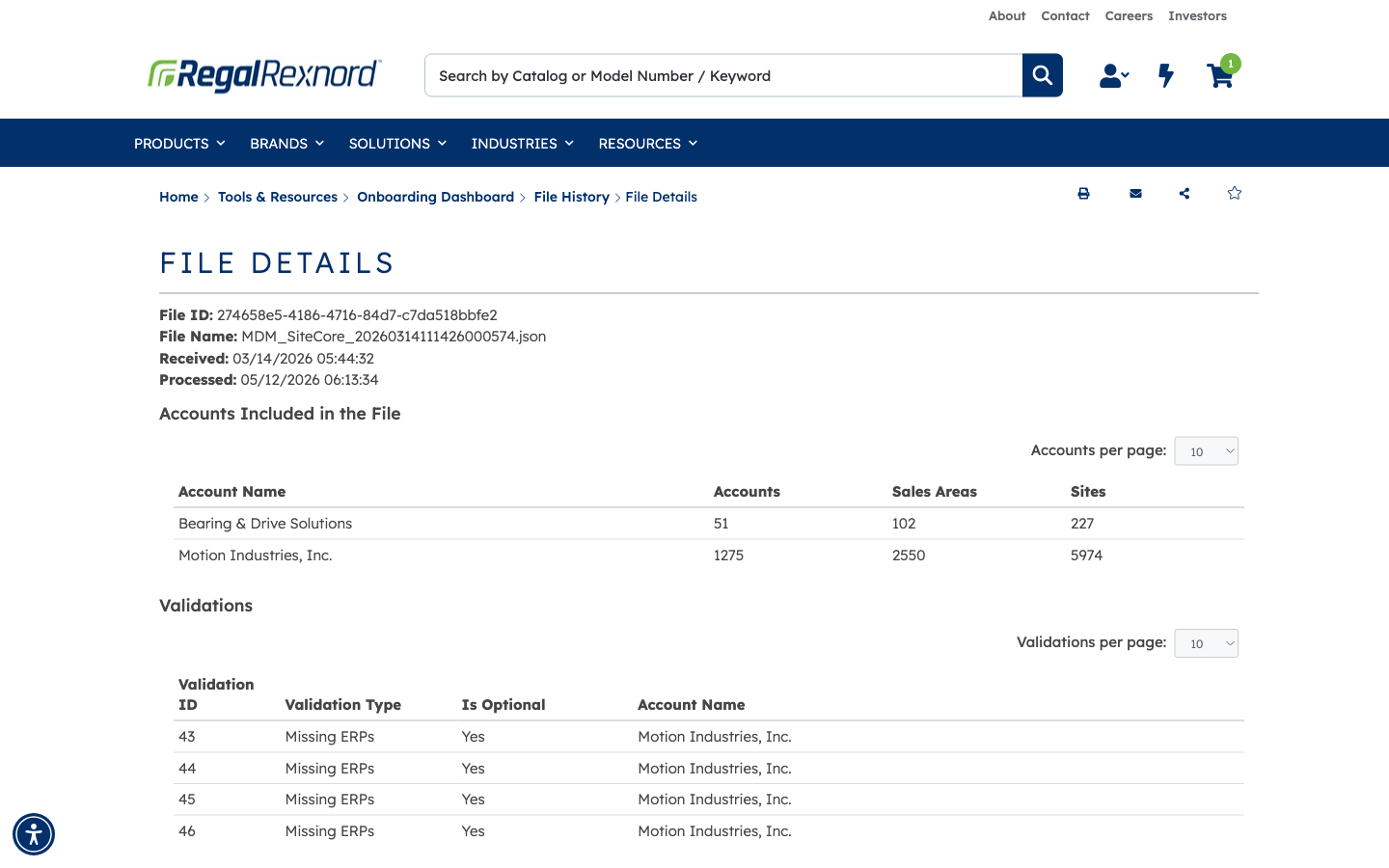
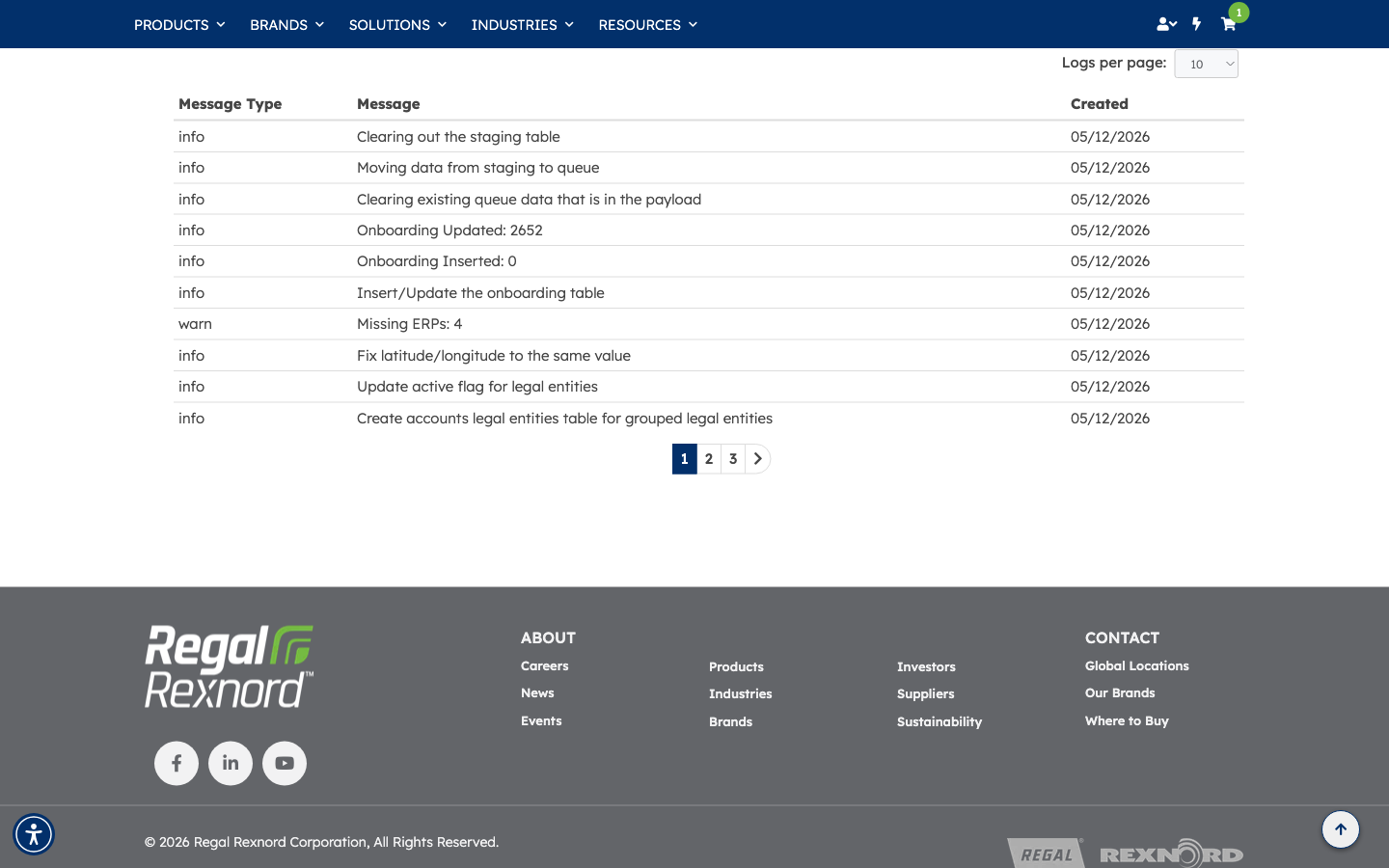
The first file exposes its file ID, name, received and processed timestamps, account totals, validation results, and processing logs.
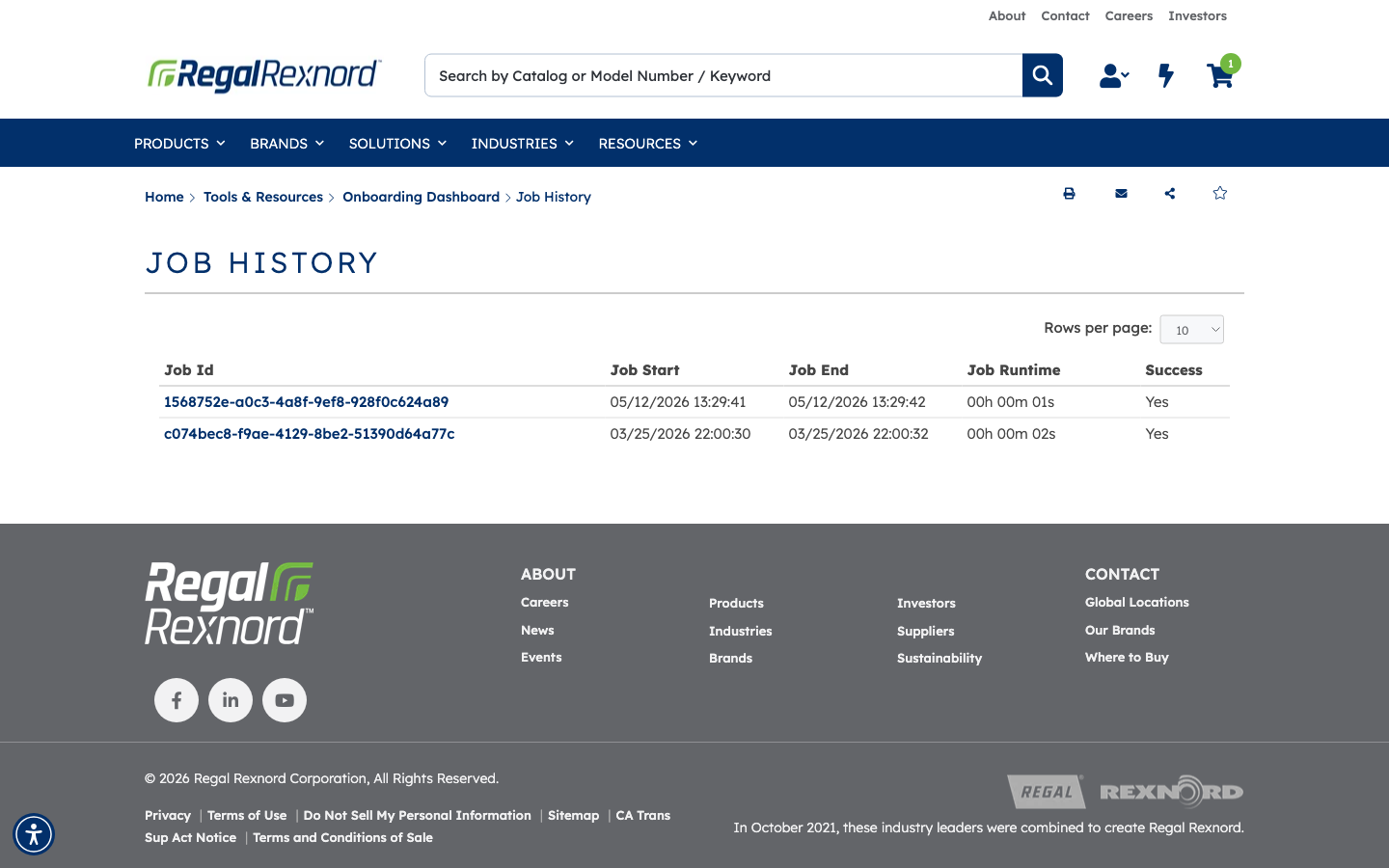
Job History displays job ID, start time, end time, runtime, and success status.
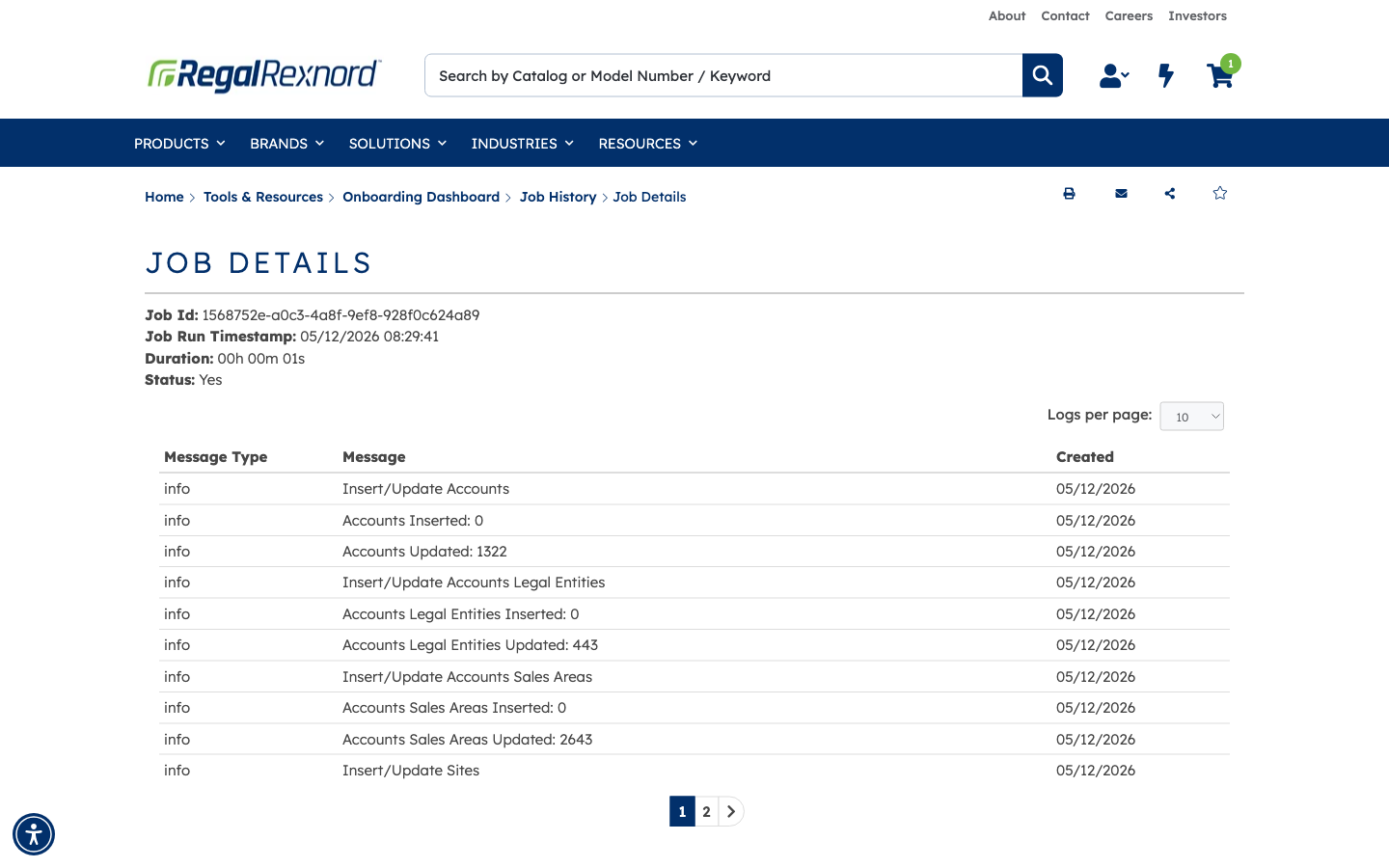
The first job shows its job ID, run timestamp, duration, successful status, and detailed processing logs.
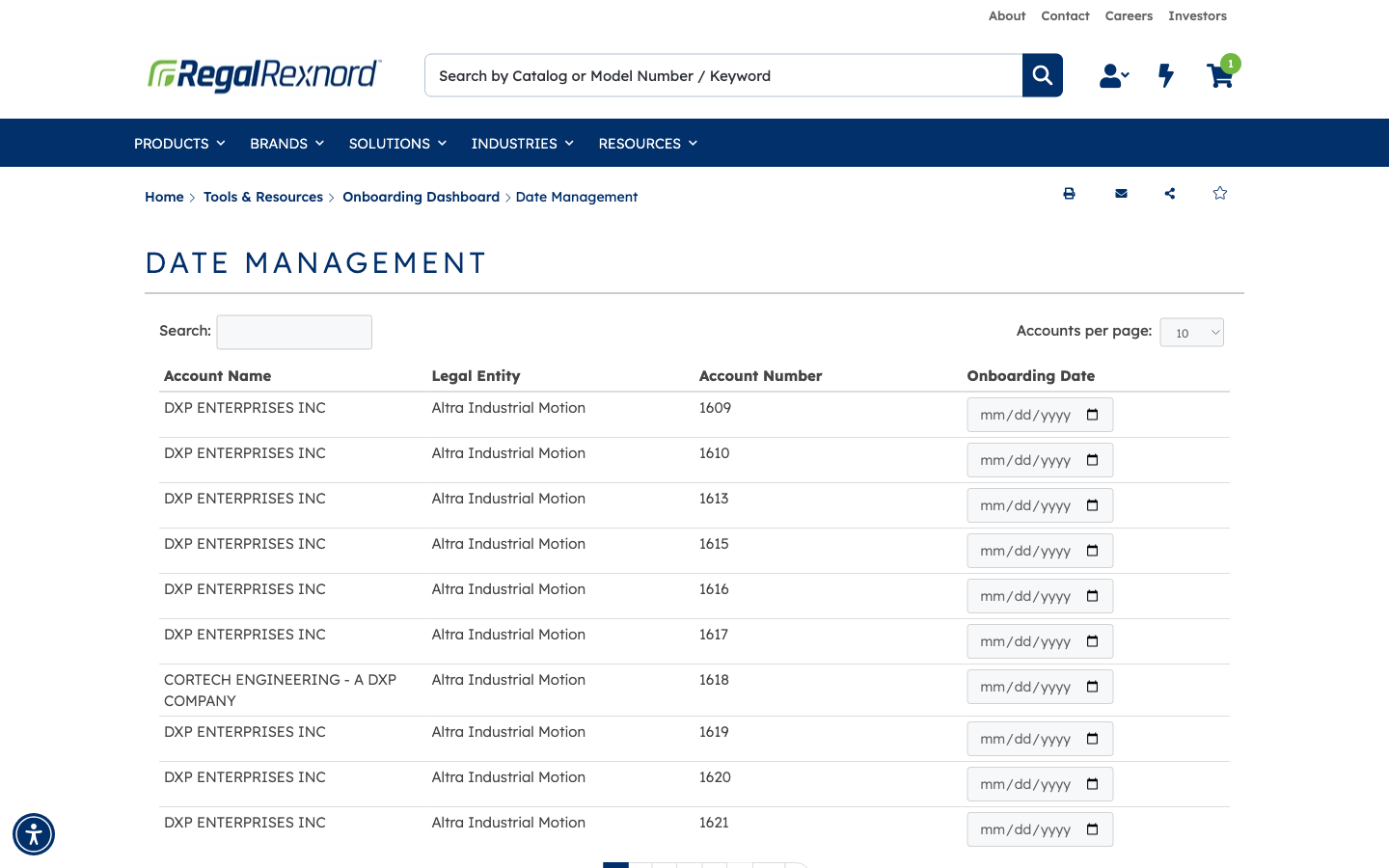
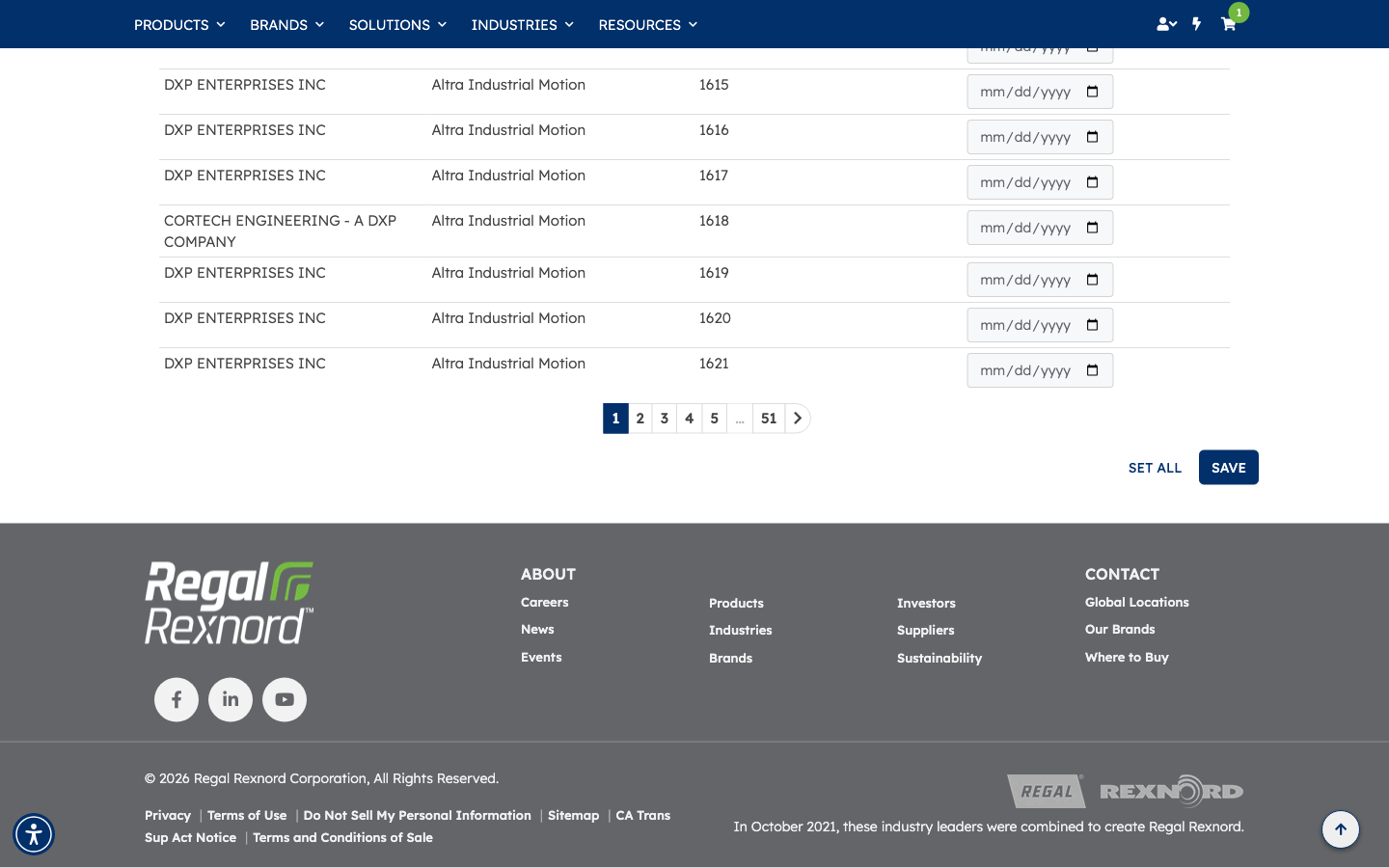
Date Management lists pending account name, legal entity, account number, and empty onboarding-date controls. Set All and Save are available; no date was entered or saved.
Summary
| Step | Expected result | Status |
|---|---|---|
| 1 | UAT site opens | ✅ |
| 2 | Cookie consent is handled | ✅ |
| 3 | Test user logs in and Primary Address is selected | ✅ |
| 4 | Header displays Welcome Copilot Agent | ✅ |
| 5 | Onboarding Dashboard opens by direct URL | ✅ |
| 6 | No page-permission message appears | ✅ |
| 7 | Pending Onboarding, Last File Received, and Last Job Run appear | ✅ |
| 8 | Account table shows Name, Accounts, Sales Areas, and Sites | ✅ |
| 9 | First parent-account search filters to the matching account | ✅ |
| 10 | Clearing search restores the full first page | ✅ |
| 11 | First parent account opens | ✅ |
| 12 | Account details show the parent name and required columns | ✅ |
| 13 | Expanded row shows ERP, legal entity, identifiers, dates, and go-live date | ✅ |
| 14 | Returned to Onboarding Dashboard | ✅ |
| 15 | File History opens | ✅ |
| 16 | File History shows required columns and success | ✅ |
| 17 | First file shows metadata, totals, validations, and logs | ✅ |
| 18 | Returned to dashboard and Job History opens | ✅ |
| 19 | Job History shows ID, timestamps, runtime, and success | ✅ |
| 20 | First job shows metadata, status, duration, and logs | ✅ |
| 21 | Returned to dashboard and Date Management opens | ✅ |
| 22 | Pending accounts show required fields and date controls | ✅ |
| 23 | Set All and Save are available; no date was entered or saved | ✅ |