Building an Order Fast with Quick Order
If you already know the part numbers you want, Quick Order is the shortest route from a list to a cart. Type them straight into a grid, or bring them in wholesale from a spreadsheet, and the site resolves descriptions, warehouses and pricing as you go.
This walkthrough keys five parts in by hand, puts four of them in the cart, and goes as far as the order review. It does not place an order.
Sign in, and start with an empty cart if you want the totals to reflect just this order. Prices shown throughout are those of the account you're working under.
The prices in the screenshots are illustrative stand-ins — they all end in .55 — so totals won't tally. On the live site they will.
Step 1 — Open Quick Order and get the lie of the land
Quick Order sits under Quick Orders in the account menu, and behind the lightning-bolt icon in the site header — the fastest way in from anywhere on the site.

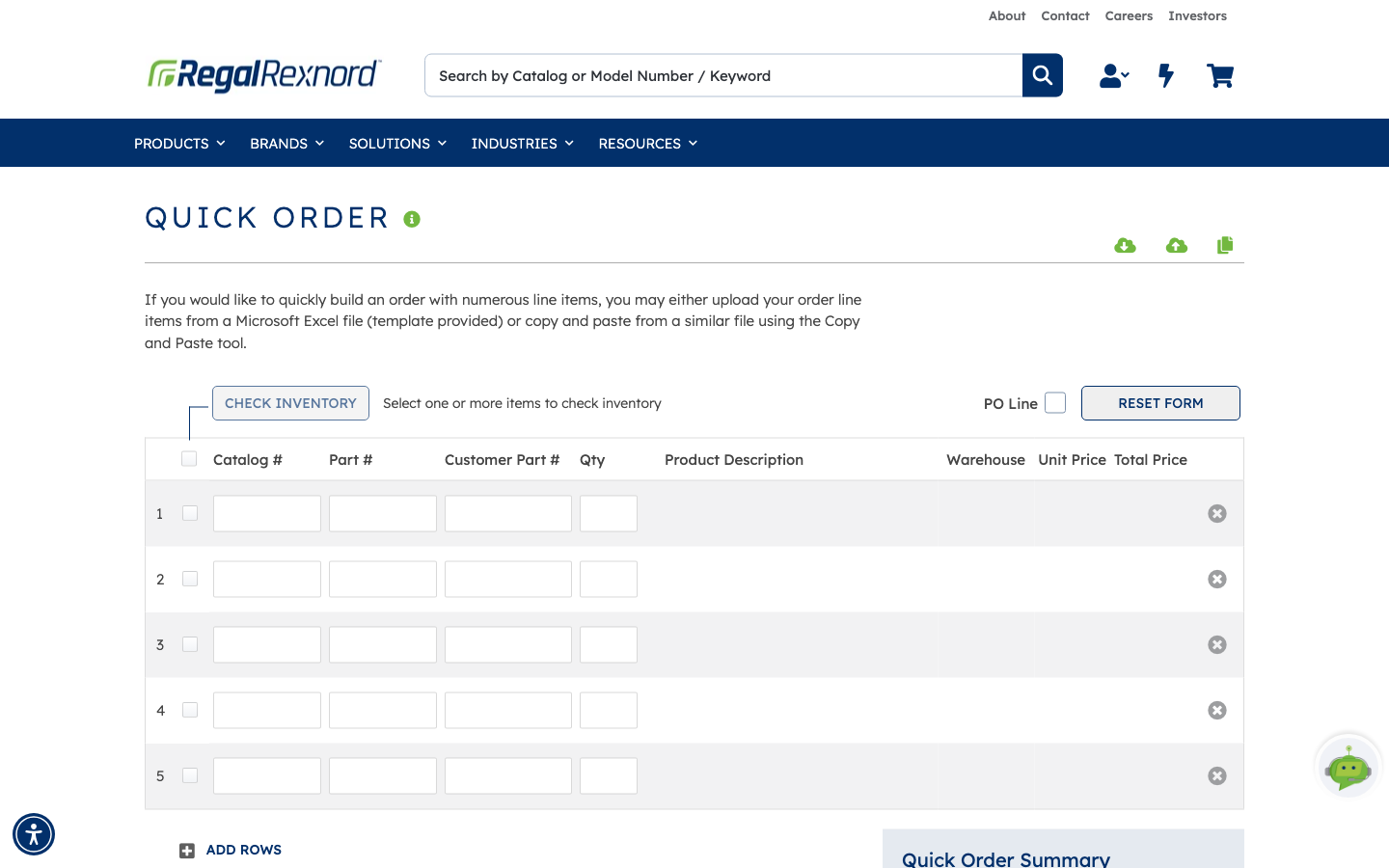
The page is one editable grid with a column for each thing the site needs to know:
- Catalog # and Part # — enter either one and the other fills itself in.
- Customer Part # — your own internal number for the item, if you use one. Optional.
- Qty — defaults to 1 once a line resolves.
- Product Description, Warehouse, Unit Price, Total Price — filled in for you.
Three controls are worth knowing before you start:
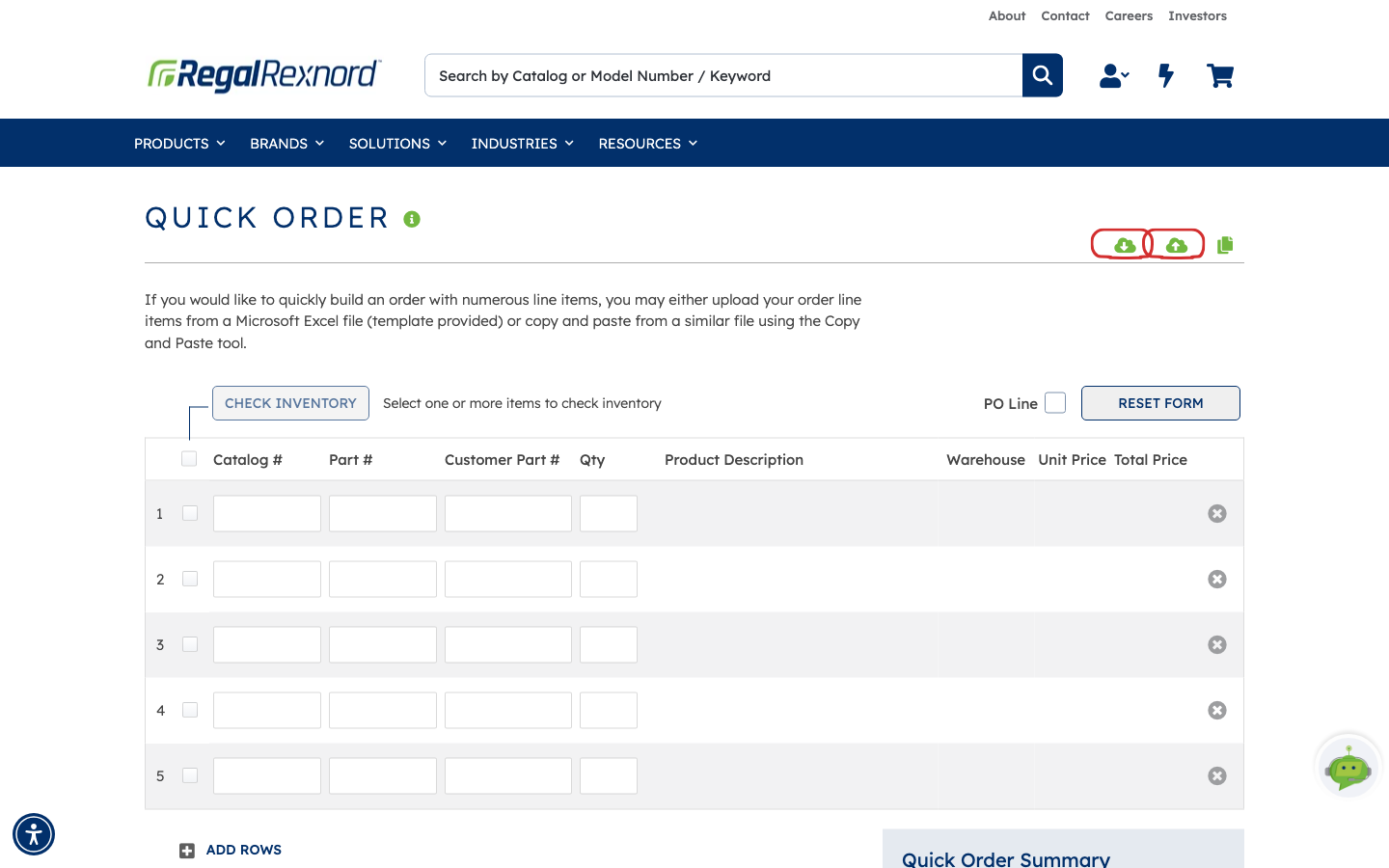
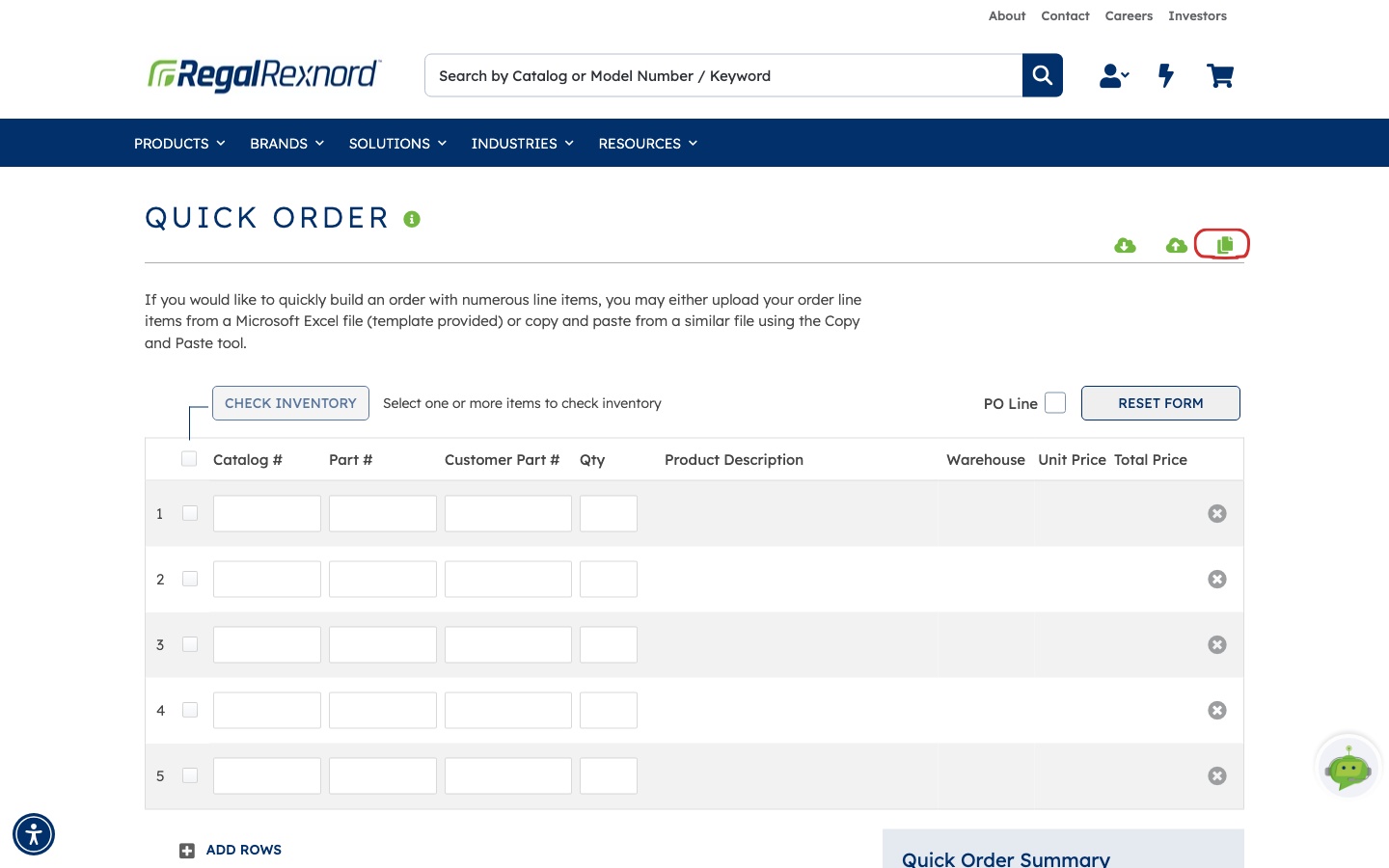
- The three green icons at top right — download an Excel template, upload a completed one, and the Copy & Paste editor. These are the bulk routes, covered at the end.
- CHECK INVENTORY — tick one or more lines and check stock without leaving the grid.
- RESET FORM — clears everything and starts again.
Step 2 — Key in the parts
Click into Part # on row 1 and type the number. The field offers matches as you type; pick one, or finish typing and move on.
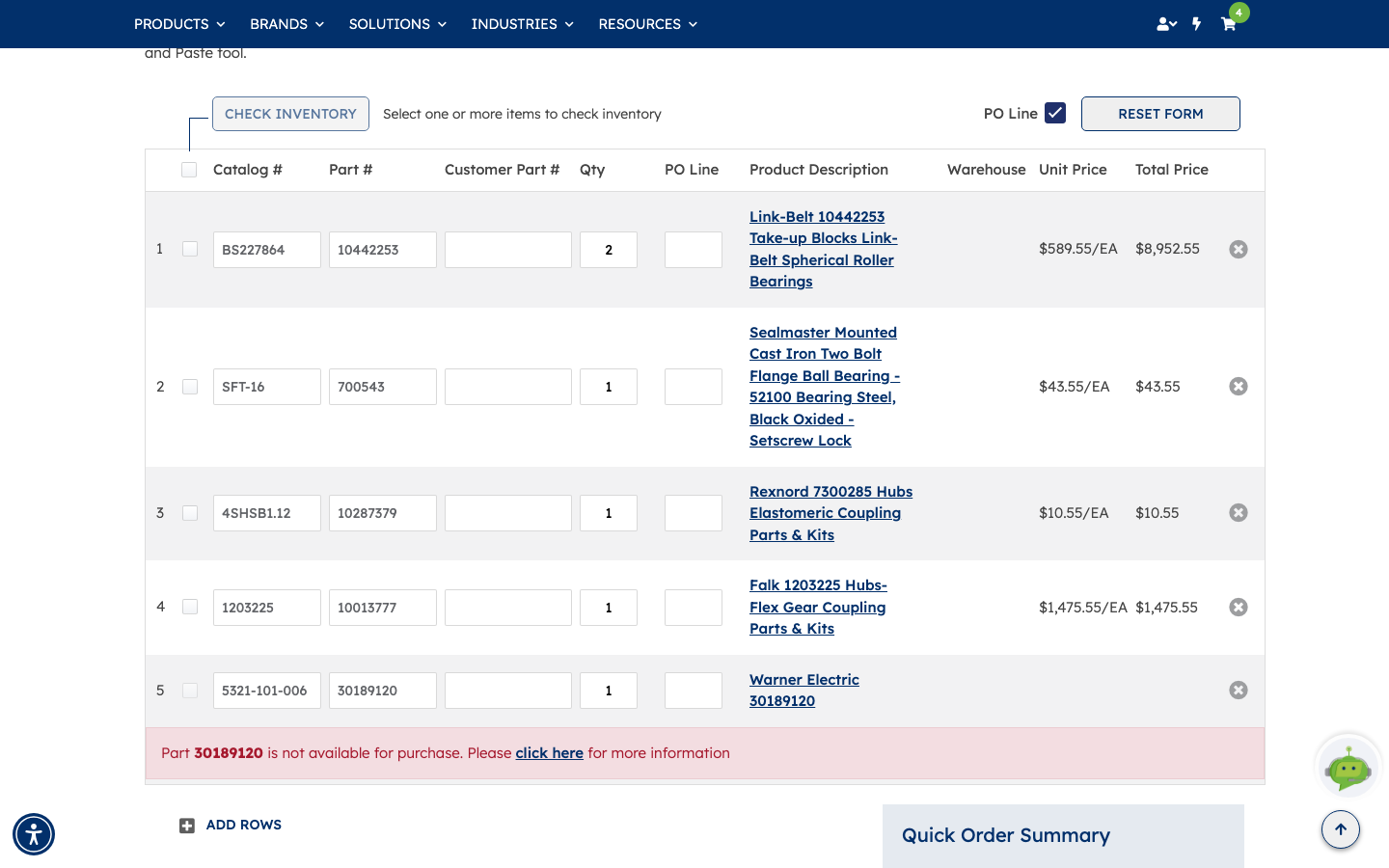
The line resolves a moment later: the catalog number appears alongside it, the product description fills in as a link to the product page, quantity defaults to 1, and unit and total price arrive with it. Repeat down the grid — a new empty row appears each time you fill the last one, and ADD ROWS adds more in a batch.
To change a quantity, type over the Qty value. The line's total price recalculates.
Watch for lines that don't resolve cleanly. In the example, the fifth part comes back with Part 30189120 is not available for purchase, with a click here link for the detail. This matters more than it looks: ADD TO CART won't add anything at all while a blocked line is in the grid. Clear the offending row with the ⊗ at the end of it, then add to cart.
The Quick Order Summary at the bottom keeps a running Total Weight and Subtotal as you go.
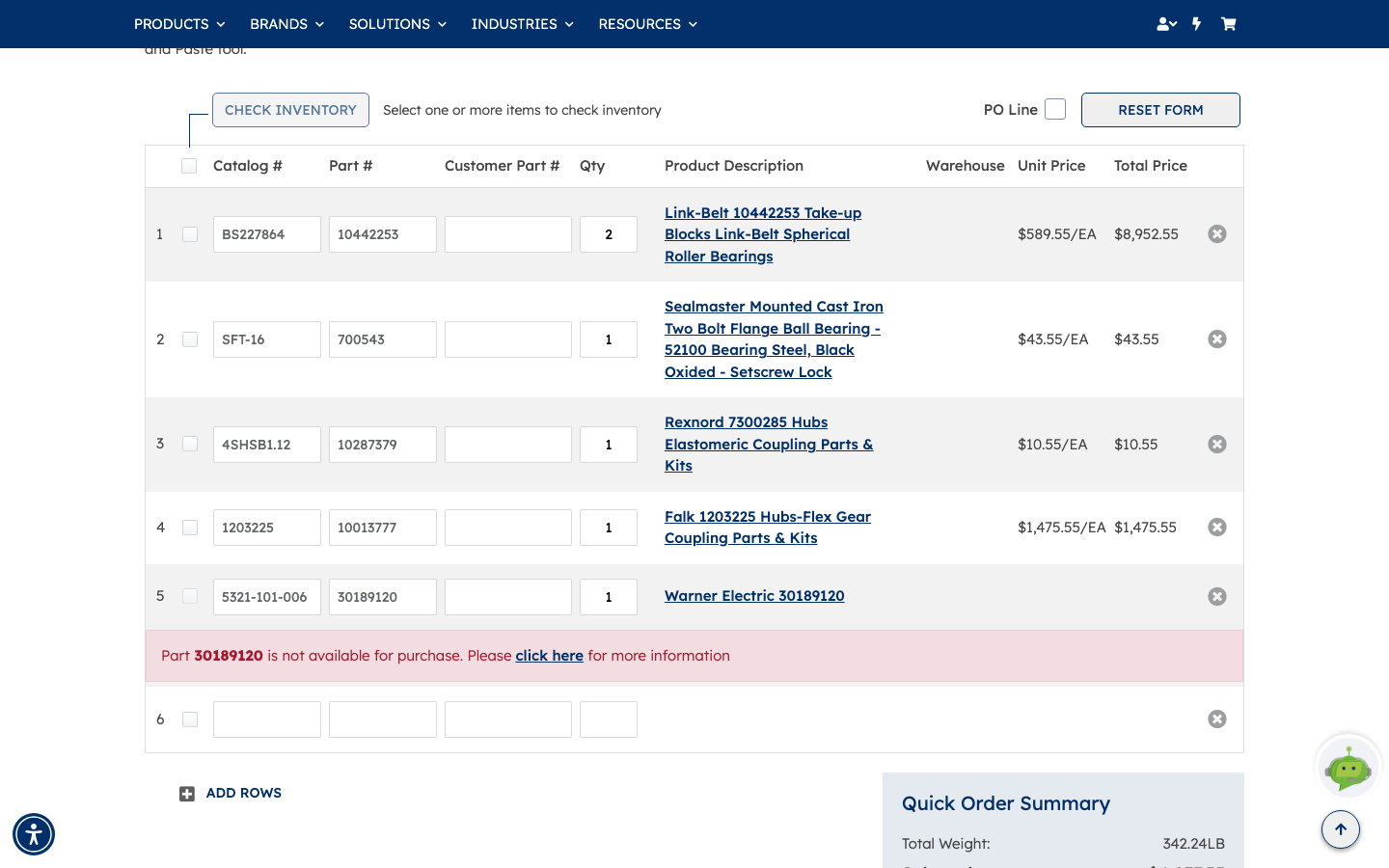
The five lines in this example resolve like this:
| Row | Part # | Catalog # | Product | Qty | Unit Price |
|---|---|---|---|---|---|
| 1 | 10442253 | BS227864 | Link-Belt 10442253 Take-up Blocks Link-Belt Spherical Roller Bearings | 2 | $589.55/EA |
| 2 | 700543 | SFT-16 | Sealmaster Mounted Cast Iron Two Bolt Flange Ball Bearing — 52100 Bearing Steel, Black Oxided — Setscrew Lock | 1 | $43.55/EA |
| 3 | 10287379 | 4SHSB1.12 | Rexnord 7300285 Hubs Elastomeric Coupling Parts & Kits | 1 | $10.55/EA |
| 4 | 10013777 | 1203225 | Falk 1203225 Hubs-Flex Gear Coupling Parts & Kits | 1 | $1,475.55/EA |
| 5 | 30189120 | 5321-101-006 | Warner Electric 30189120 | 1 | — not available |
Row 5 is the blocked line. It never prices, and it stops the other four from reaching the cart.
Step 3 — Add the lines to your cart
Click ADD TO CART.
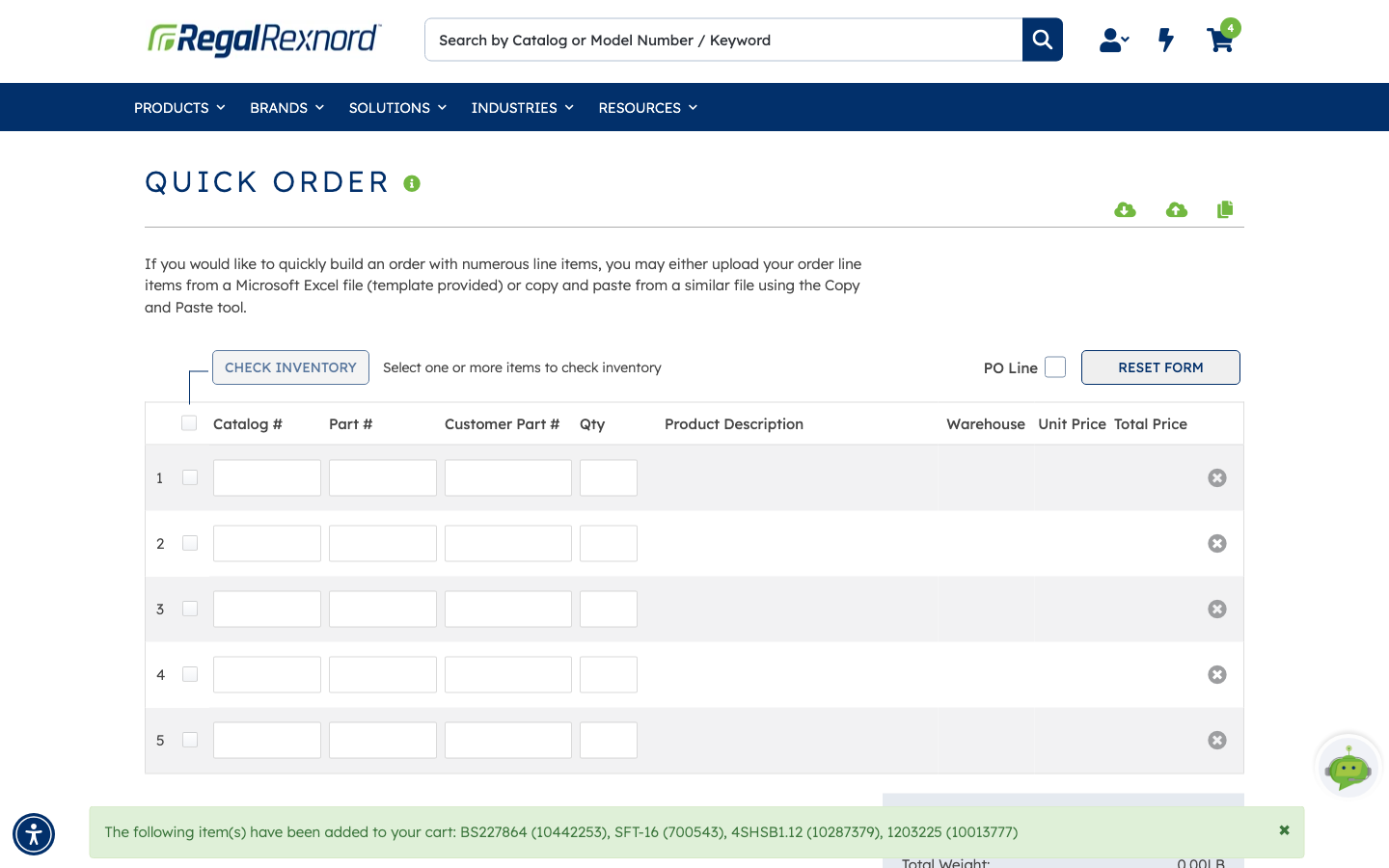
A green confirmation names exactly what went in — catalog number with part number in brackets for every line — the header cart count goes up, and the grid clears ready for the next batch.
ADD TO LIST instead saves the same lines to a shopping list for reuse, and QUICK CHECKOUT skips the cart and takes you straight to checkout.
Step 4 — Check the cart
Open the cart from the header.
Cart Summary on the right gives you Total Weight, Order Subtotal, and a note that shipping is Calculated at Shipment. Three things can happen from here: CHECKOUT, ADD TO LIST, or CREATE QUOTE if you'd rather price it up formally first.
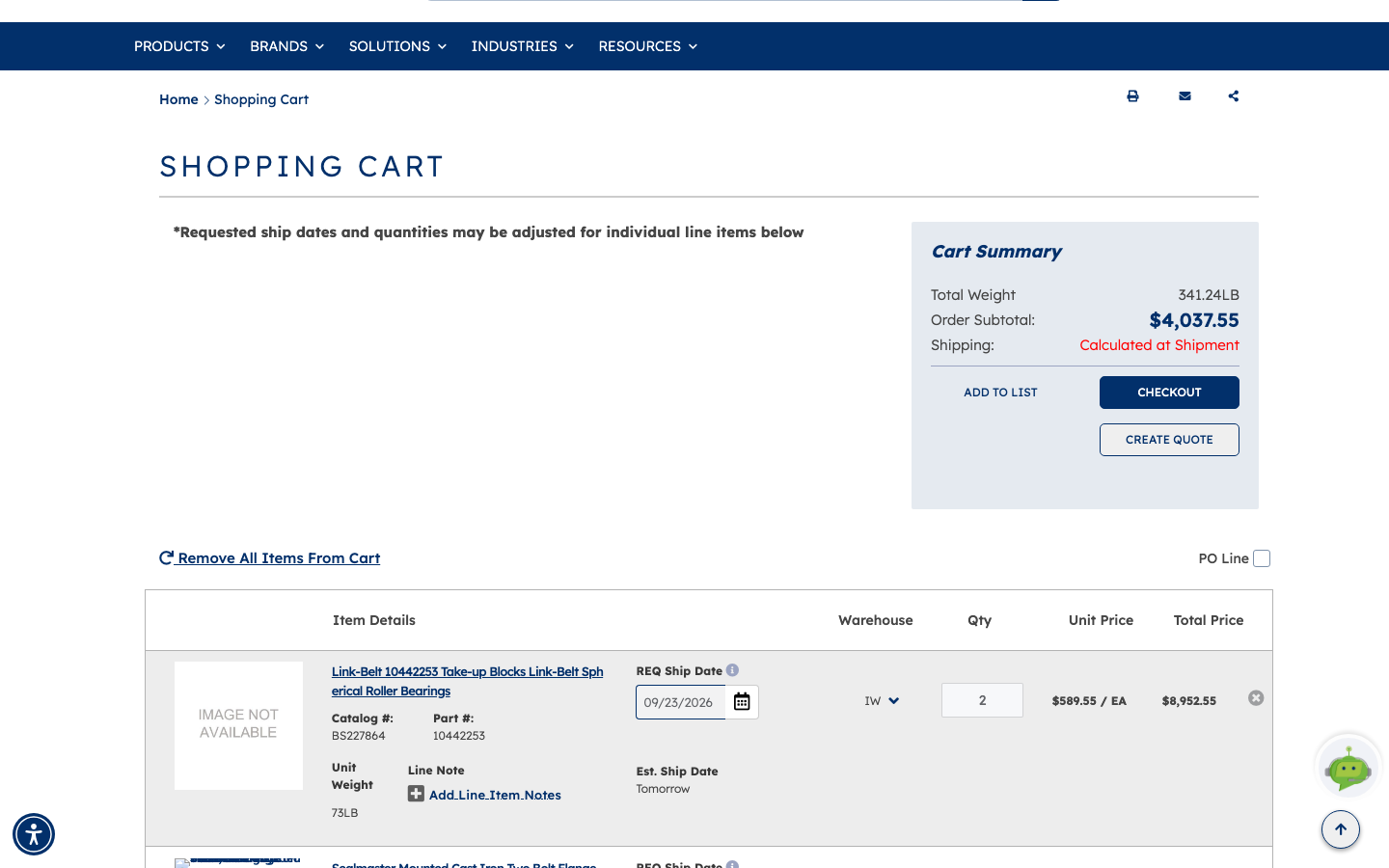
Each line below carries more detail than the Quick Order grid did, and more of it is editable:
- REQ Ship Date — a date picker per line. You can stagger deliveries across one order.
- Warehouse — a drop-down, so you can move a line to a different stocking location.
- Qty, Unit Price and Total Price.
- Est. Ship Date — what the chosen warehouse can actually do, shown as a date or a range.
- Add Line Item Notes — free text that travels with the line.
- VIEW SUBSTITUTE — appears where an alternative part exists, which is worth a look on any line whose estimated ship date is further out than you'd like.
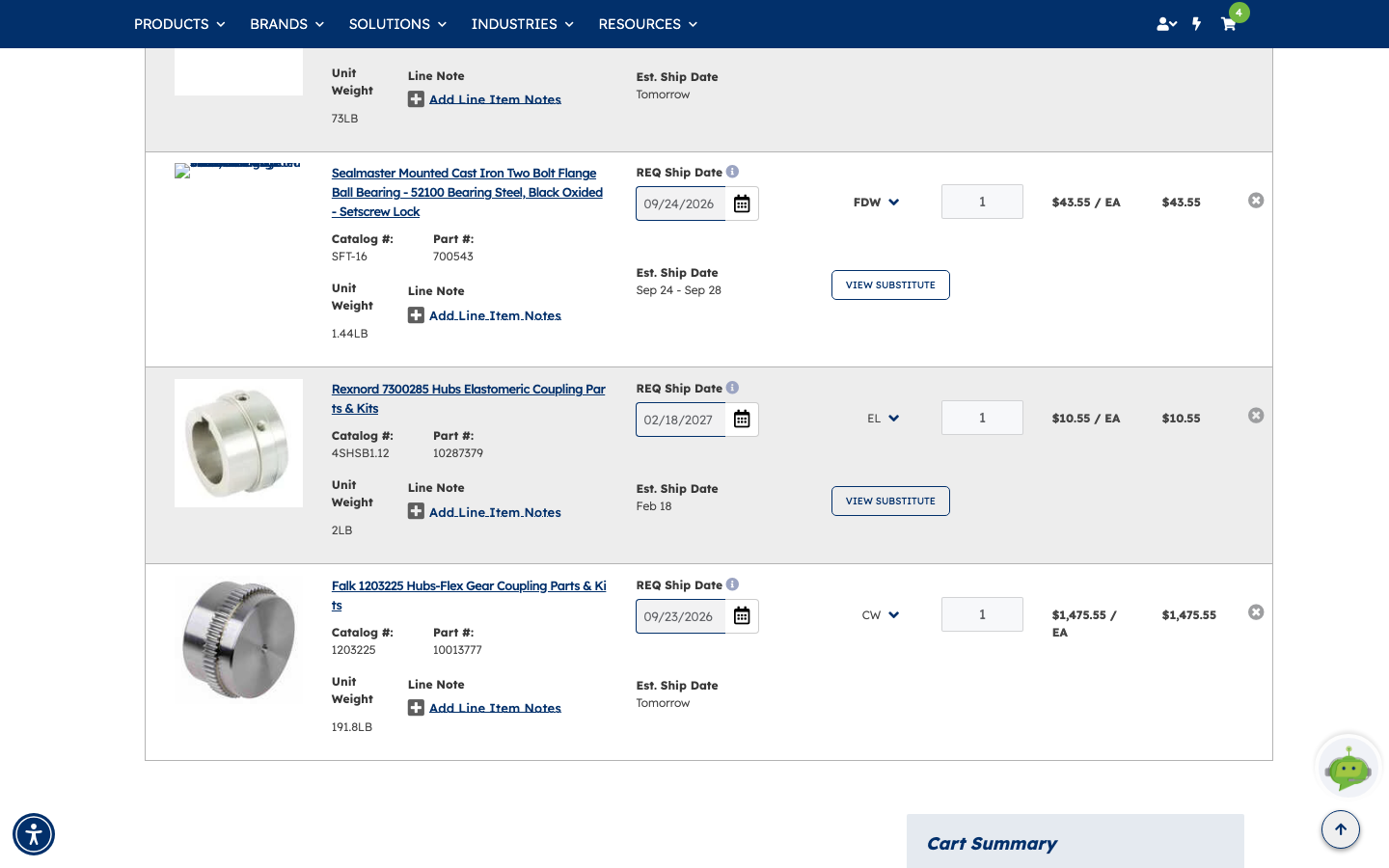
The four lines carry through from Quick Order like this:
| Part # | Catalog # | Qty | Unit Price | Total | Warehouse | Est. Ship Date |
|---|---|---|---|---|---|---|
| 10442253 | BS227864 | 2 | $589.55/EA | $8,952.55 | IW | Tomorrow |
| 700543 | SFT-16 | 1 | $43.55/EA | $43.55 | FDW | Sep 24 – Sep 28 |
| 10287379 | 4SHSB1.12 | 1 | $10.55/EA | $10.55 | EL | Feb 18 |
| 10013777 | 1203225 | 1 | $1,475.55/EA | $1,475.55 | CW | Tomorrow |
Note how different the estimated ship dates are — three lines ship this week, one not until February. That spread is the reason REQ Ship Date and Warehouse are editable per line rather than per order, and the reason VIEW SUBSTITUTE is worth a click on the February line.
Step 5 — Checkout
CHECKOUT opens Payment & Shipping Information.
Payment Information shows the billing address held against your account, and asks for a PO# — marked required, so you'll need it to proceed — plus an optional End Customer PO # if you're buying on someone else's behalf.
Order Summary on the right carries the weight, subtotal, shipping and order total, along with the terms and conditions tick box you have to accept before the order can be placed.
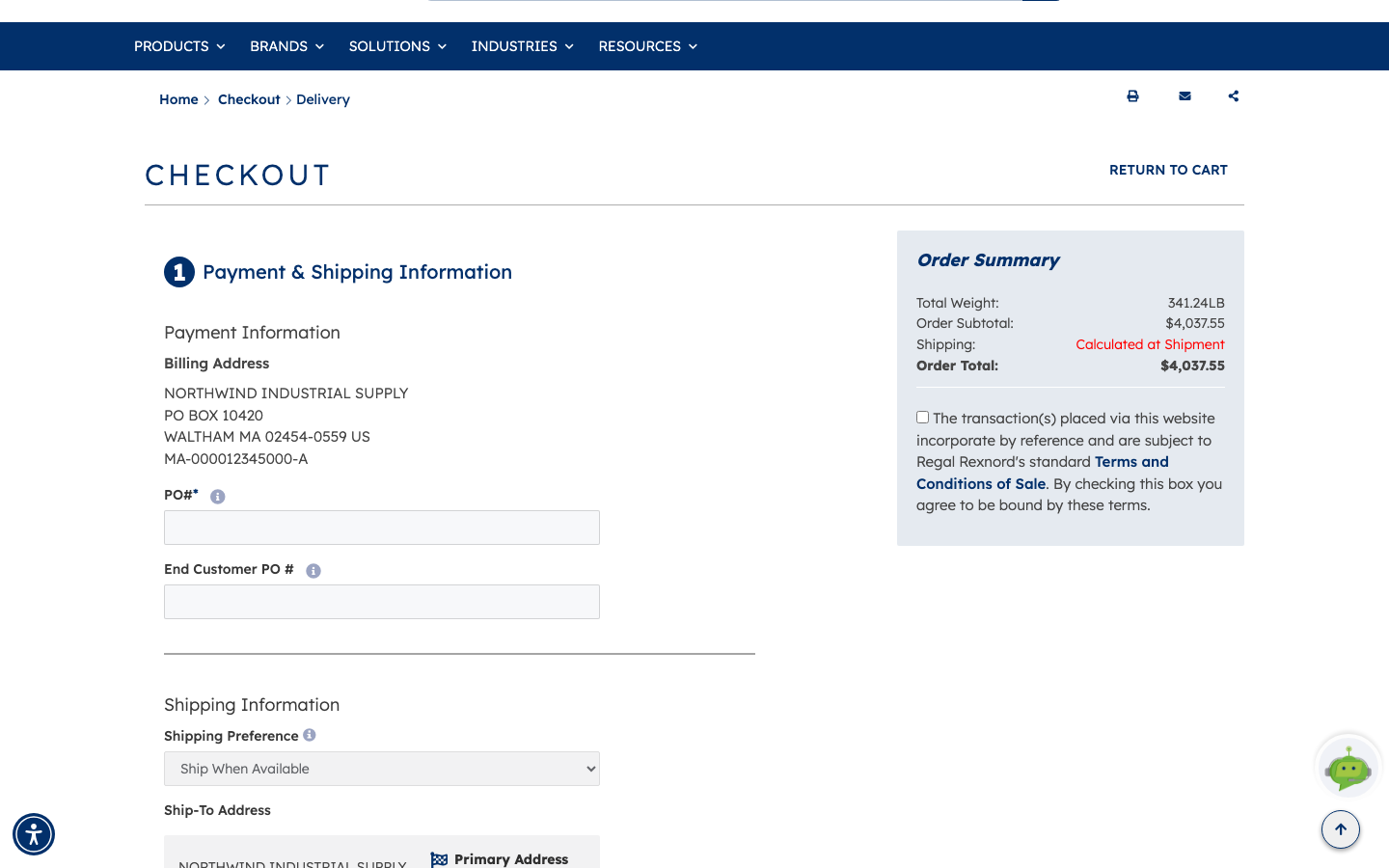
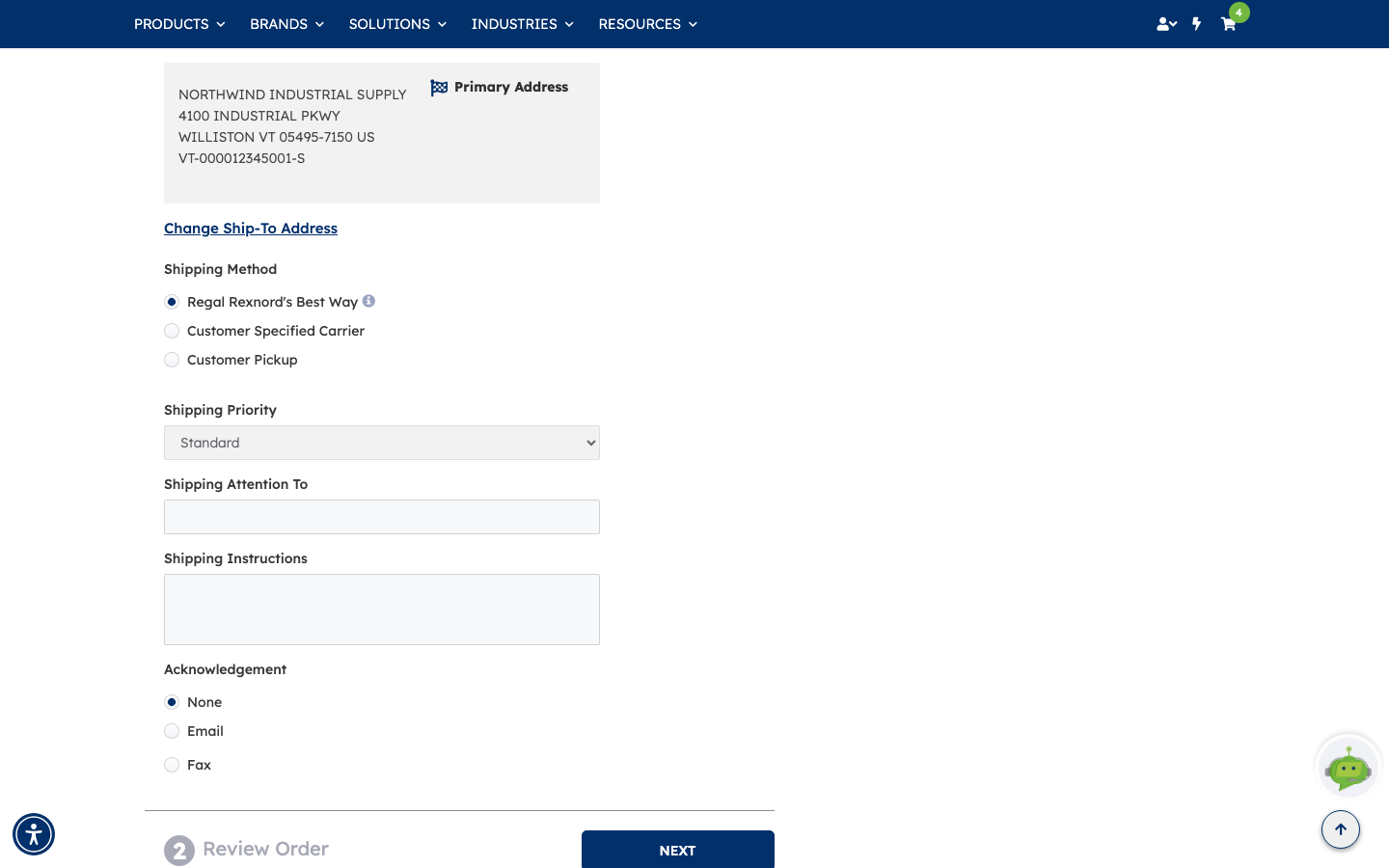
Shipping Information, below it, is where most of the decisions are:
- Shipping Preference — Ship When Available sends what's ready now, or hold for a complete order.
- Ship-To Address — your primary address, with Change Ship-To Address to pick another from the address book.
- Shipping Method — Regal Rexnord's Best Way, Customer Specified Carrier (your own carrier and account), or Customer Pickup.
- Shipping Priority, Shipping Attention To and Shipping Instructions — who it's for and anything the warehouse needs to know.
- Acknowledgement — None, Email or Fax confirmation.
Work down the page, accept the terms, and click NEXT.
Step 6 — Review the order, then submit
Checkout is two steps, not one. NEXT collapses everything you just filled in into a summary you can reopen with EDIT, and opens Review Order beneath it.
This is your last look before the order is placed. Order Detail lists every line in full — catalog and part numbers, weight, requested and estimated ship date, the warehouse it ships from, quantity and price — and Order Summary carries the weight, subtotal, shipping and Order Total.
Tick the terms and conditions box, then SUBMIT ORDER places the order.
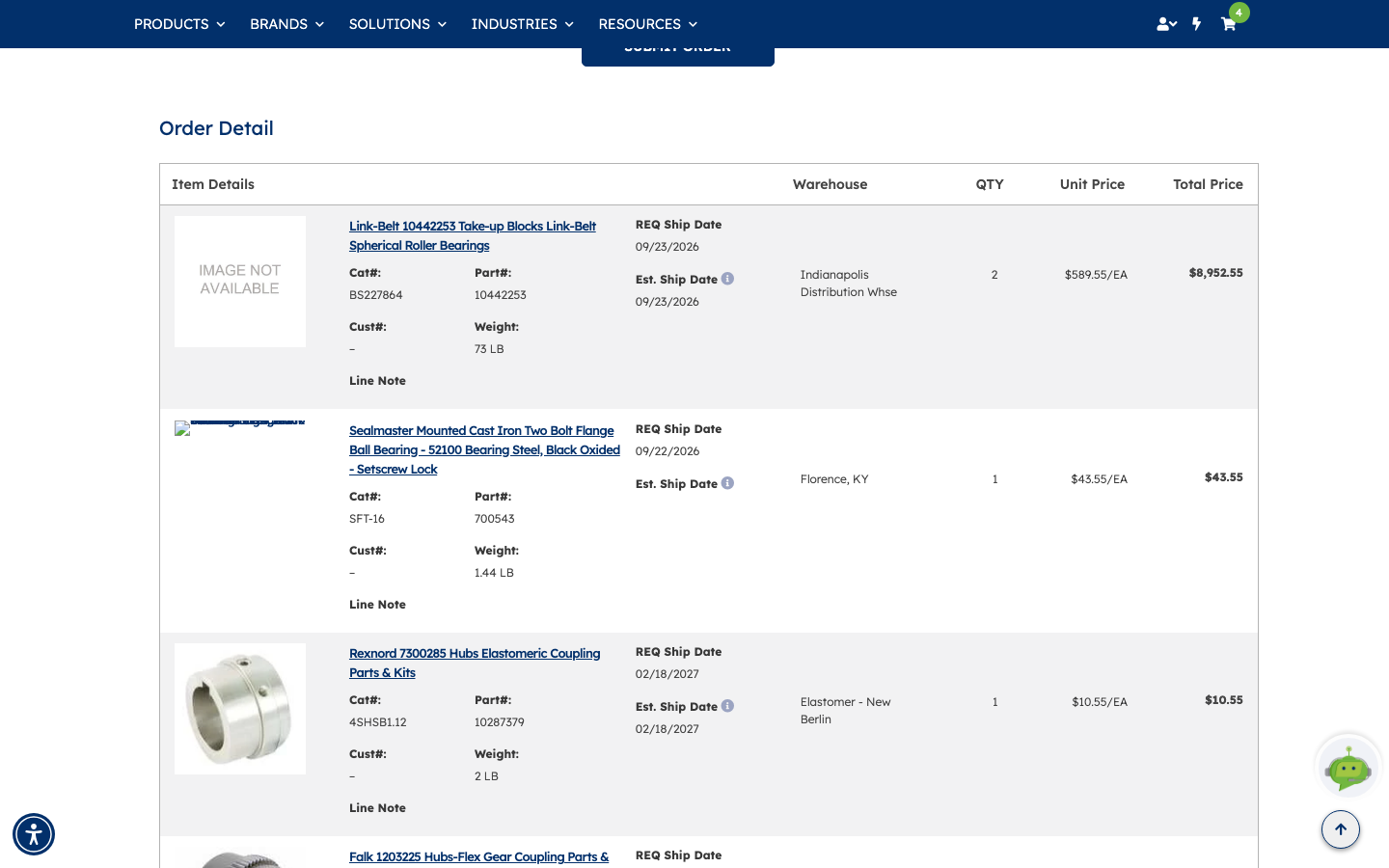
Nothing is ordered until you click SUBMIT ORDER. Up to that point EDIT on the step above takes you back to the payment and shipping details, and RETURN TO CART takes you back to the cart with everything intact.
Two faster ways in
Typing works for a handful of parts. If your list already lives in a spreadsheet or an email, the icons at the top right of the grid save you the keying — and both routes give exactly the same result as typing every line by hand.
Option A — Use the Excel template
Best when you build your order list offline, or when you want to reuse the same list next month.
A1. Find the two template icons. They sit in the top-right corner of the Quick Order page, just above the grid. The first icon downloads the template; the second uploads it back once you've filled it in.
A2. Download the template. Click the download icon. A spreadsheet saves to your computer with a sheet named QuickOrder List and four column headings:
| Catalog/Part Number | Customer Part Number | Quantity | PO Line Number |
|---|
Only Catalog/Part Number and Quantity are required. Leave the other two blank unless you use them.
A3. Fill it in. Add one row per item, then save the file. Using the same five parts from this guide:
| Catalog/Part Number | Customer Part Number | Quantity | PO Line Number |
|---|---|---|---|
| 10442253 | 2 | ||
| 700543 | 1 | ||
| 10287379 | 1 | ||
| 10013777 | 1 | ||
| 30189120 | 1 |
You can enter either a part number or a catalog number in the first column — both are recognised.
A4. Upload it. Click the upload icon and choose your saved file. The grid fills in immediately with every row resolved: catalog numbers, product descriptions, your quantities and pricing.
Two things to notice:
- Because the template includes a PO Line Number column, uploading turns on the PO Line option and adds that column to the grid — even if you left it blank.
- Parts you can't order are still flagged, exactly as they are when you type them.
Option B — Use the Copy & Paste editor
Best when your list is already on screen — in a spreadsheet, an email or a document — and you just want to drop it in. No file needed.
B1. Open the editor. Click the Copy & Paste Editor icon, the third of the three icons in the top-right corner.
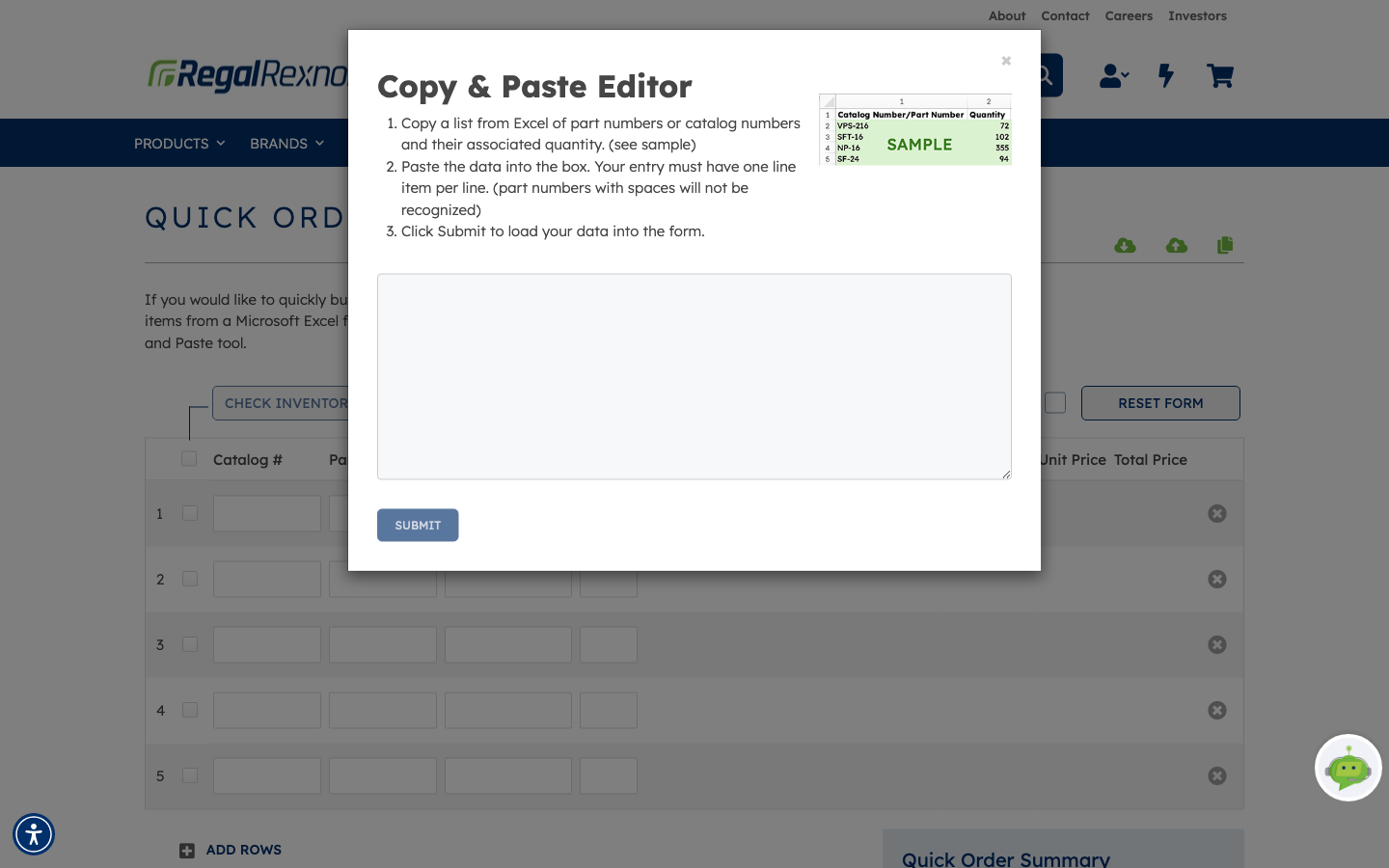
B2. Read the format. The editor opens with a large text box and three short instructions. The format is simple: one item per line, part number first, then a space, then the quantity.
If you're copying two columns straight out of a spreadsheet, paste them in as-is — the tab between the columns counts as the space.
B3. Paste your list. One line per item. Using the same five parts:
10442253 2
700543 1
10287379 1
10013777 1
30189120 1
SUBMIT becomes available as soon as there's something in the box.
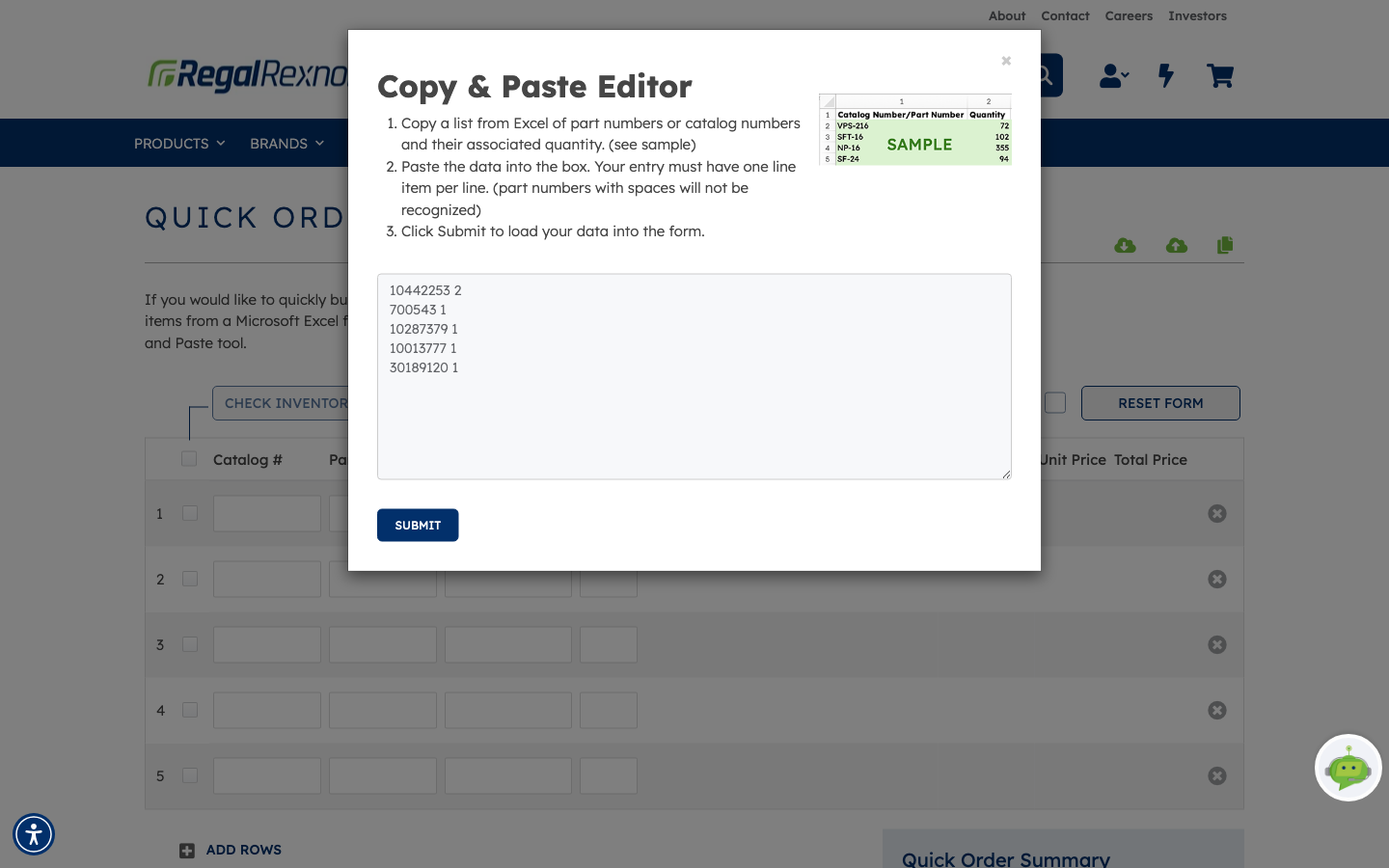
Each line must have exactly two values, and the second must be a number. Part numbers containing spaces aren't recognised. Any line that doesn't fit the format is listed back to you as an error rather than being quietly skipped.
B4. Click SUBMIT. The editor closes and the grid fills in with all your parts — descriptions, quantities and pricing resolved. The subtotal comes out identical to typing the parts by hand or uploading the spreadsheet.
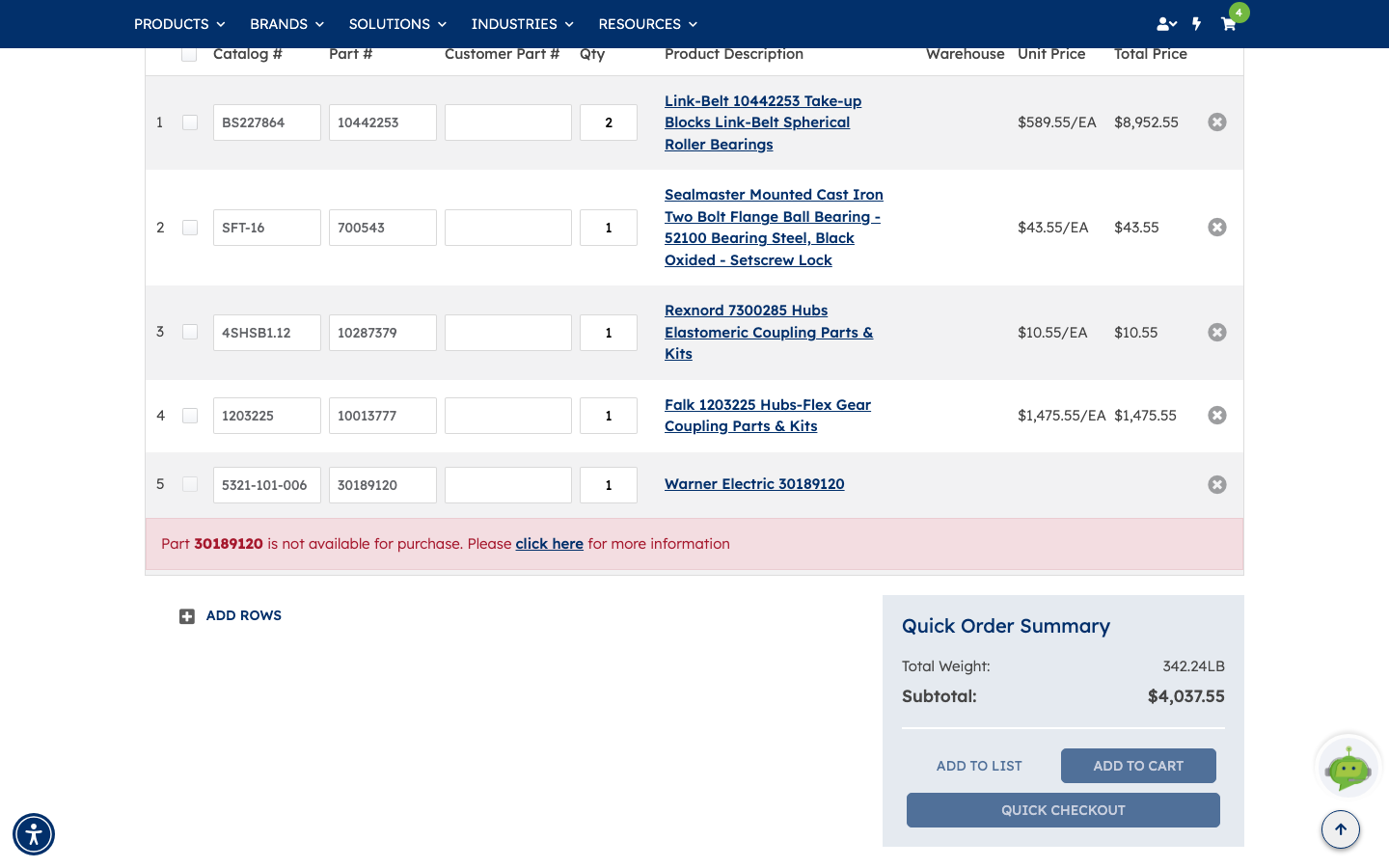
Note the one difference from the spreadsheet route: pasting doesn't switch the PO Line column on, because there's nowhere in the pasted format to put a PO line number.
Both routes land in the same grid, so you can tidy quantities or drop a line before adding to cart.
What you've done
You've gone from a list of part numbers to a checkout-ready cart without touching the catalogue, then reviewed and adjusted the lines — ship dates, warehouses, quantities — before committing.
Worth remembering
- One unavailable line blocks the whole ADD TO CART. Remove it and try again.
- Catalog # and Part # are interchangeable as the way in; fill either.
- Requested ship date and warehouse are per line, not per order.
- PO# is required at checkout, so have it to hand.
- Checkout has a Review Order step after NEXT — nothing is placed until SUBMIT ORDER.
- For anything longer than a handful of parts, the Excel template or the Copy & Paste editor is faster than typing, and lands in the same grid.