Finding and Viewing an Invoice
Invoices is where you go to answer the everyday billing questions: what was billed, how much is still owed, when it's due, and which order and PO it belongs to.
This walkthrough covers finding an invoice, reading its detail page, and getting a copy of the invoice PDF.
You're signed in. If you're looking for one specific invoice, it helps to have its invoice number, order number or PO number on hand. Everything here is read-only. Nothing in this walkthrough pays, disputes or changes an invoice. The invoices you see belong to the account you're currently working under.
The prices in the screenshots are illustrative stand-ins. They all end in .55 (apart from zero amounts, shown as $0.00), so totals won't tally, and different invoices can show the same stand-in amount. On the live site you'll see your real figures.
Step 1 — Open Invoices and find the one you want
Click Invoices under Order Management in the left-hand menu.
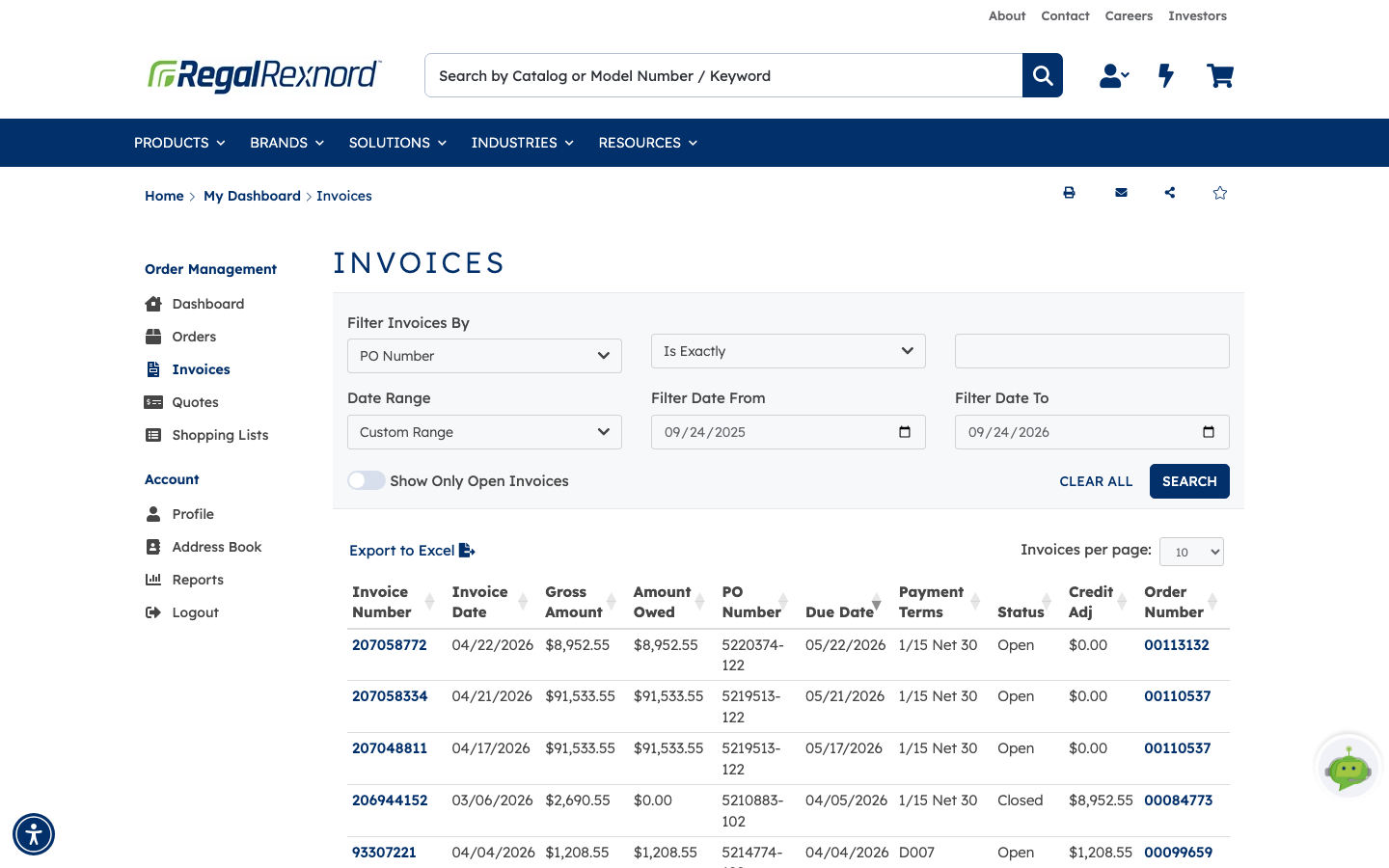
The list shows each invoice with these columns:
| Column | What it tells you |
|---|---|
| Invoice Number | The invoice. Click it to open the invoice's details. |
| Invoice Date | When the invoice was issued |
| Gross Amount | The full amount billed |
| Amount Owed | What's still unpaid. $0.00 means the invoice is settled. |
| PO Number | Your purchase order number |
| Due Date | When payment is due |
| Payment Terms | The terms that apply, for example 1/15 Net 30 |
| Status | Open (still owed) or Closed (paid) |
| Credit Adj | Any credit applied against the invoice |
| Order Number | The order that was billed. Click it to open the order. |
Any column header with arrows will sort on that column.
To narrow it down, use the controls at the top:
- Filter Invoices By: choose a field (Invoice Number, PO Number, Order Number, Catalog Number, Part Number or Customer Part No.), choose how to match it (Is Exactly, Starts With, Includes), type the value, then click SEARCH.
- Date Range: defaults to the last 30 days. If you see No Rows Found, the invoice is probably older. Pick 60 Days or 90 Days, or choose Custom Range and set Filter Date From and Filter Date To.
- Show Only Open Invoices: hides anything already paid.
- CLEAR ALL: resets everything.
Export to Excel exports the list, with your current filters applied, to a spreadsheet.
In this example, the date range is set to Custom Range covering the past year.
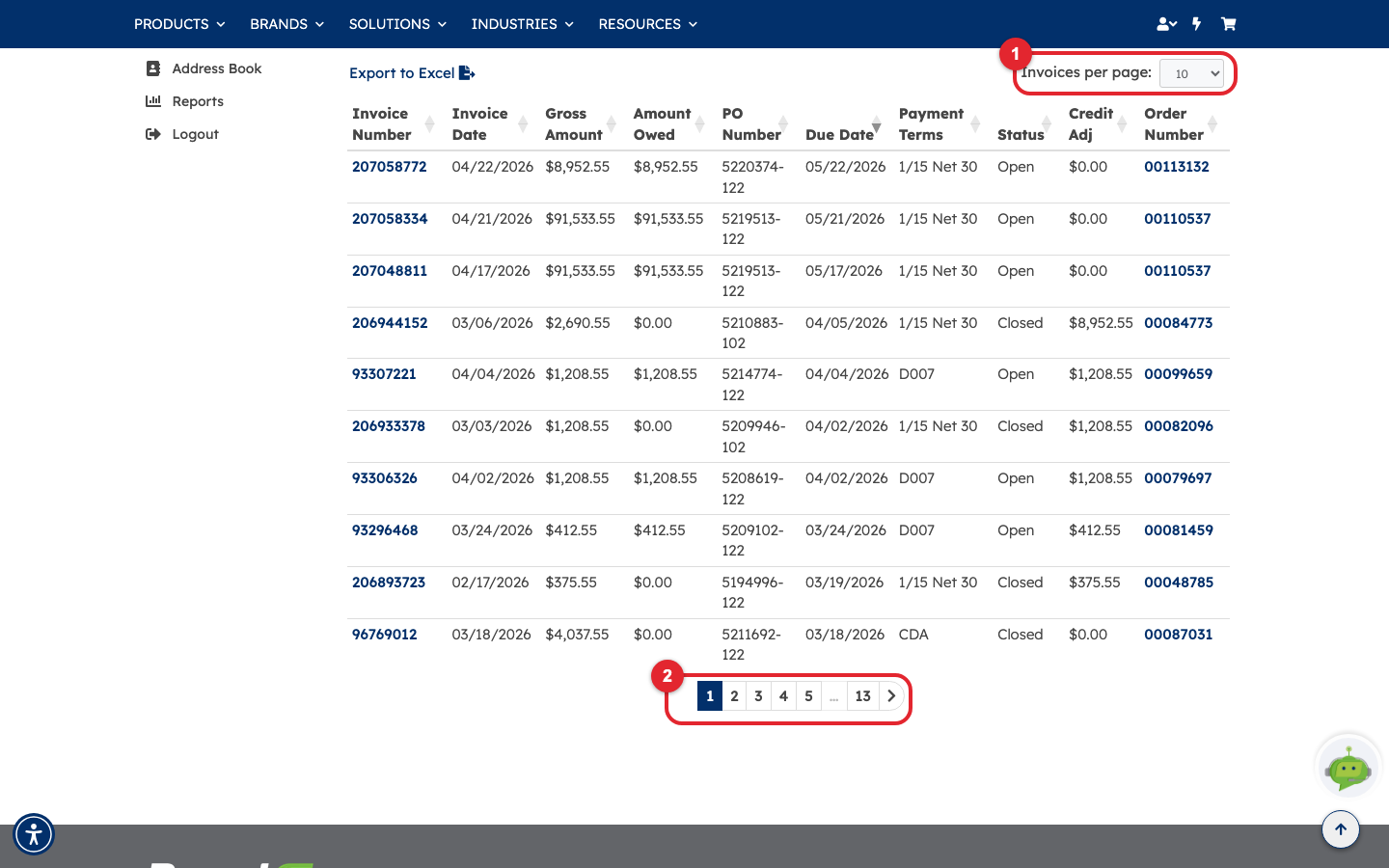
Long lists are split into pages. Invoices per page (1) sets how many rows you see at a time: 10, 25, 50 or 100. The page numbers at the bottom of the table (2) move you through the rest.
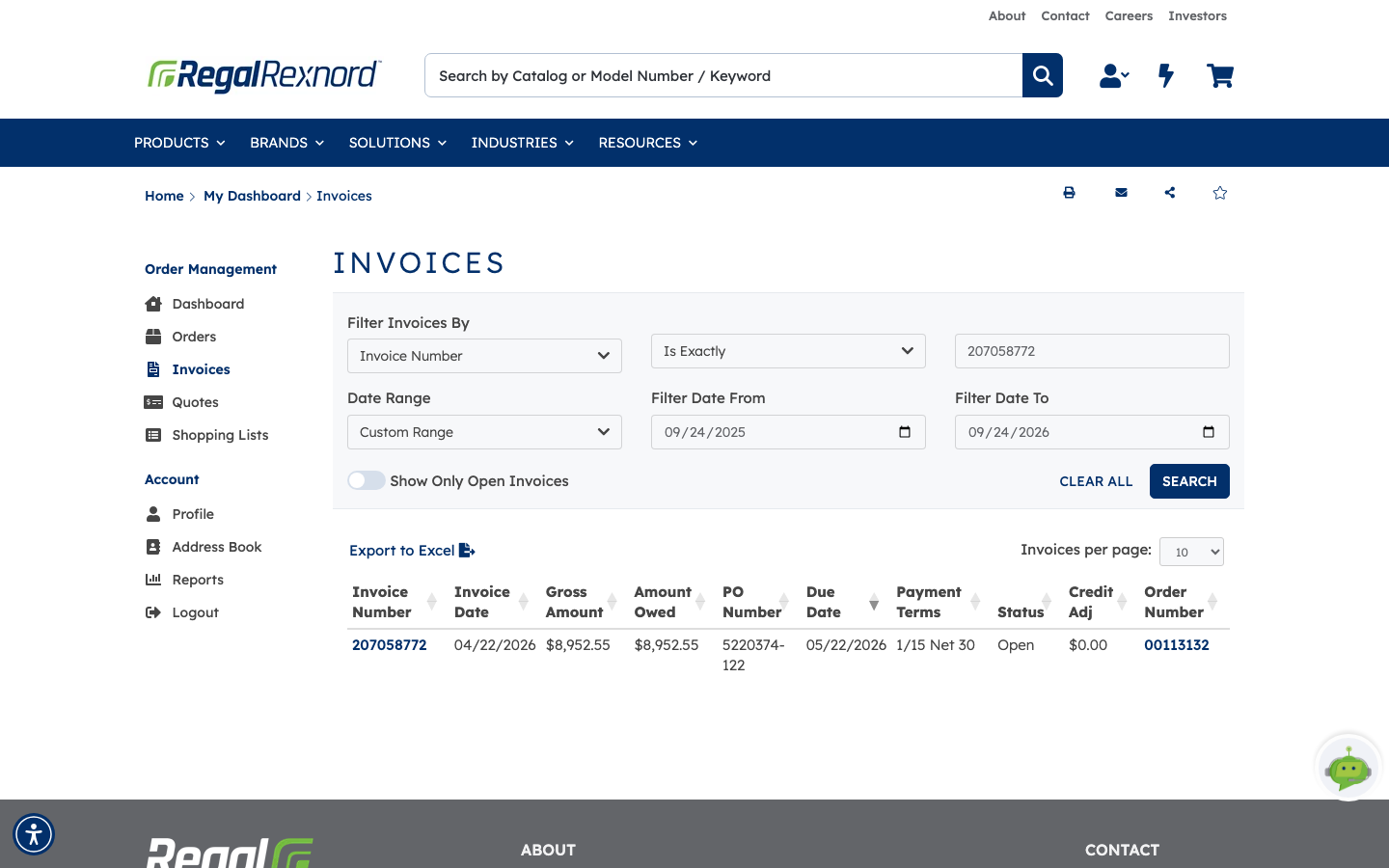
Filtering works the same way whichever field you pick. In this example, Invoice Number / Is Exactly / 207058772 narrows thirteen pages of invoices down to the single matching one.
Step 2 — Open the invoice
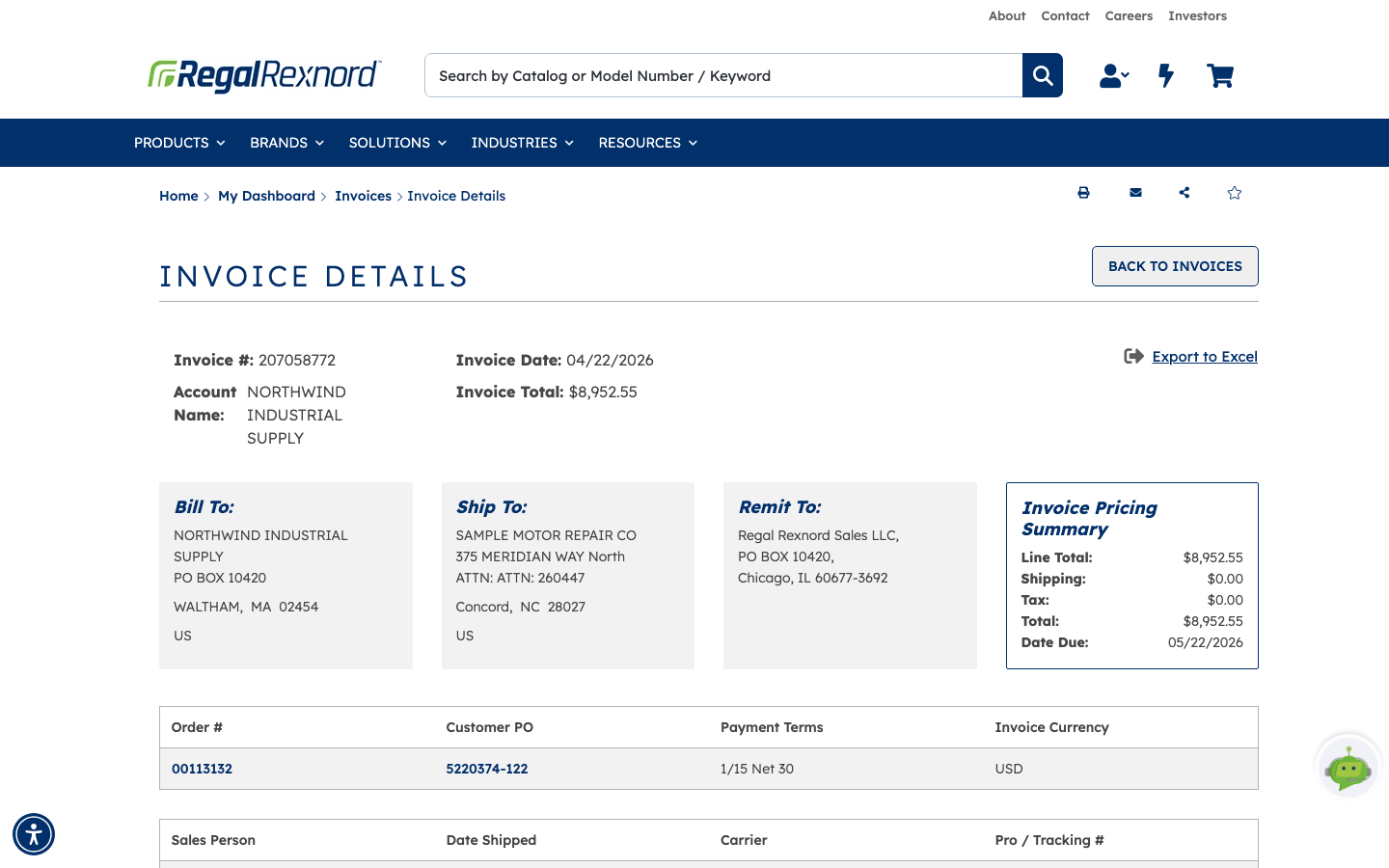
Click the Invoice Number to open Invoice Details. In this example we're opening invoice 207058772.
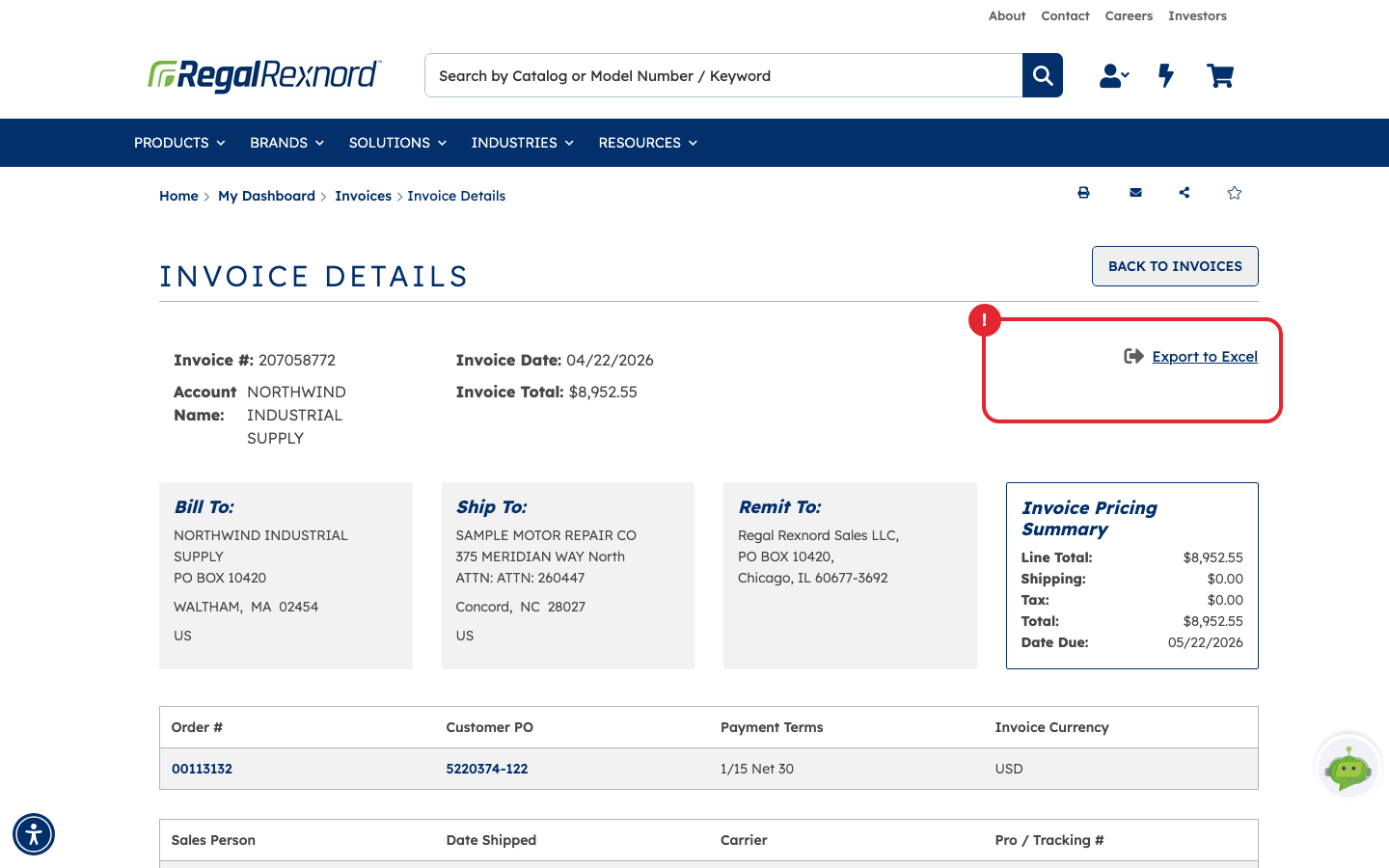
The Invoice Details page shows everything about that invoice in one place:
| What you see | What it tells you |
|---|---|
| Invoice #, Invoice Date, Invoice Total | Which invoice this is, when it was issued and what it came to |
| Account Name | Which account was billed |
| Bill To | The billing address |
| Ship To | Where the goods on this invoice were delivered |
| Remit To | Where to send payment |
| Invoice Pricing Summary | Line Total, Shipping, Tax, the Total, and the Date Due |
Step 3 — Check the order, shipment and line items
Scroll down to see what the invoice covers.
The first two panels tie the invoice back to its order and its shipment:
| Panel | What it shows |
|---|---|
| Order #, Customer PO, Payment Terms, Invoice Currency | The order that was billed (here 00113132) and your PO number (5220374-122). Both are links. |
| Sales Person, Date Shipped, Carrier, Pro / Tracking # | When and how the goods shipped. Click the tracking entry to follow the shipment. |
Below those are the invoiced lines. Each line shows the QTY Ordered, QTY Shipped, UOM, Part #, Catalog #, Customer Part #, the Net Price and the Ext Price (the line total), plus its PO Line Number.
| Line | QTY Ordered | QTY Shipped | UOM | Part # | Catalog # | Net Price | Ext Price | PO Line Number |
|---|---|---|---|---|---|---|---|---|
| 1 | 1 | 1 | EA | GRG8260212.00 | GRG-BMQ826-40-D-140 | $8,952.55 | $8,952.55 | 10 |
Comparing QTY Ordered with QTY Shipped tells you whether the invoice covers the whole order line or only part of it.
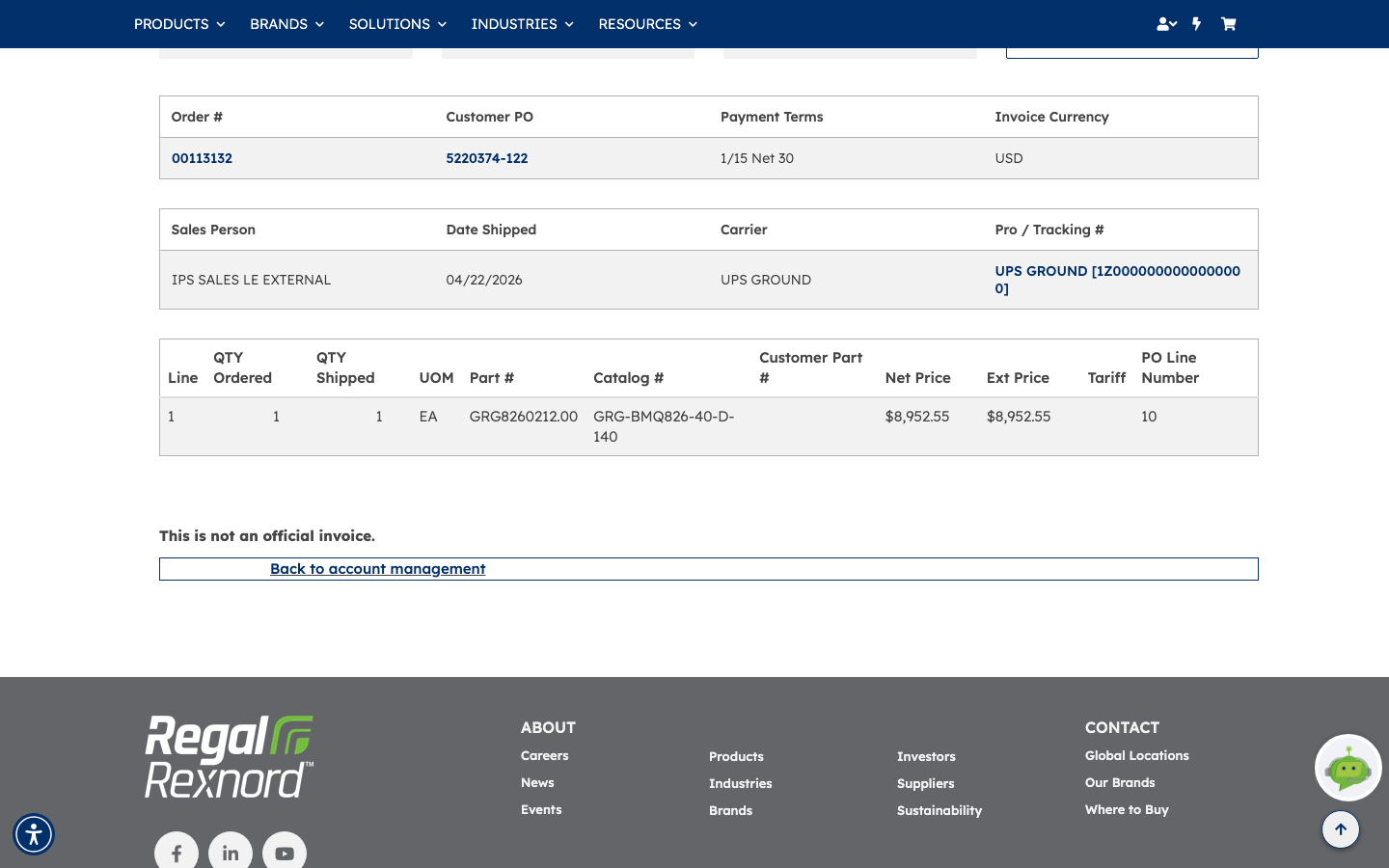
The page ends with This is not an official invoice. It's a summary of the invoice record. For the official copy, download the invoice PDF (next step).
Step 4 — Download the invoice PDF
The invoice PDF is in Documents, which appears at the top right of Invoice Details, directly below Export to Excel, in the area outlined here.
Click Documents to open a window listing everything filed against the invoice. Each entry shows the document type (such as Invoice) and, on the link itself, the account number, invoice number, document date and file size. Click the Invoice entry to download the PDF. CLOSE returns you to the invoice exactly as you left it.
Documents only appears once the PDF is available for that invoice. If you don't see it yet (as on the invoice in this example), you can still open the order from Order # and check its Documents, or use Export to Excel on this page for the invoice's figures.
That's it. BACK TO INVOICES at the top right returns you to the list.
If you need the invoice's figures in a spreadsheet, Export to Excel on the detail page exports that single invoice's lines.