Looking Up a Past Order
Orders is where you go to answer the everyday questions about something you've already bought: has it shipped, what did it cost, which warehouse is it coming from, and where's the order confirmation.
This walkthrough covers finding an order, reading its detail page, and getting at its documents.
You're signed in. If you're looking for one specific order, it helps to have its order number or PO number on hand. Everything here is read-only — nothing in this walkthrough changes or cancels an order. The orders you see belong to the account you're currently working under.
The prices in the screenshots are illustrative stand-ins — they all end in .55 — so totals won't tally, and two different lines can land on the same stand-in amount. On the live site they will be your real figures.
Step 1 — Open Orders and find the one you want
Click Orders under Order Management in the left-hand menu.
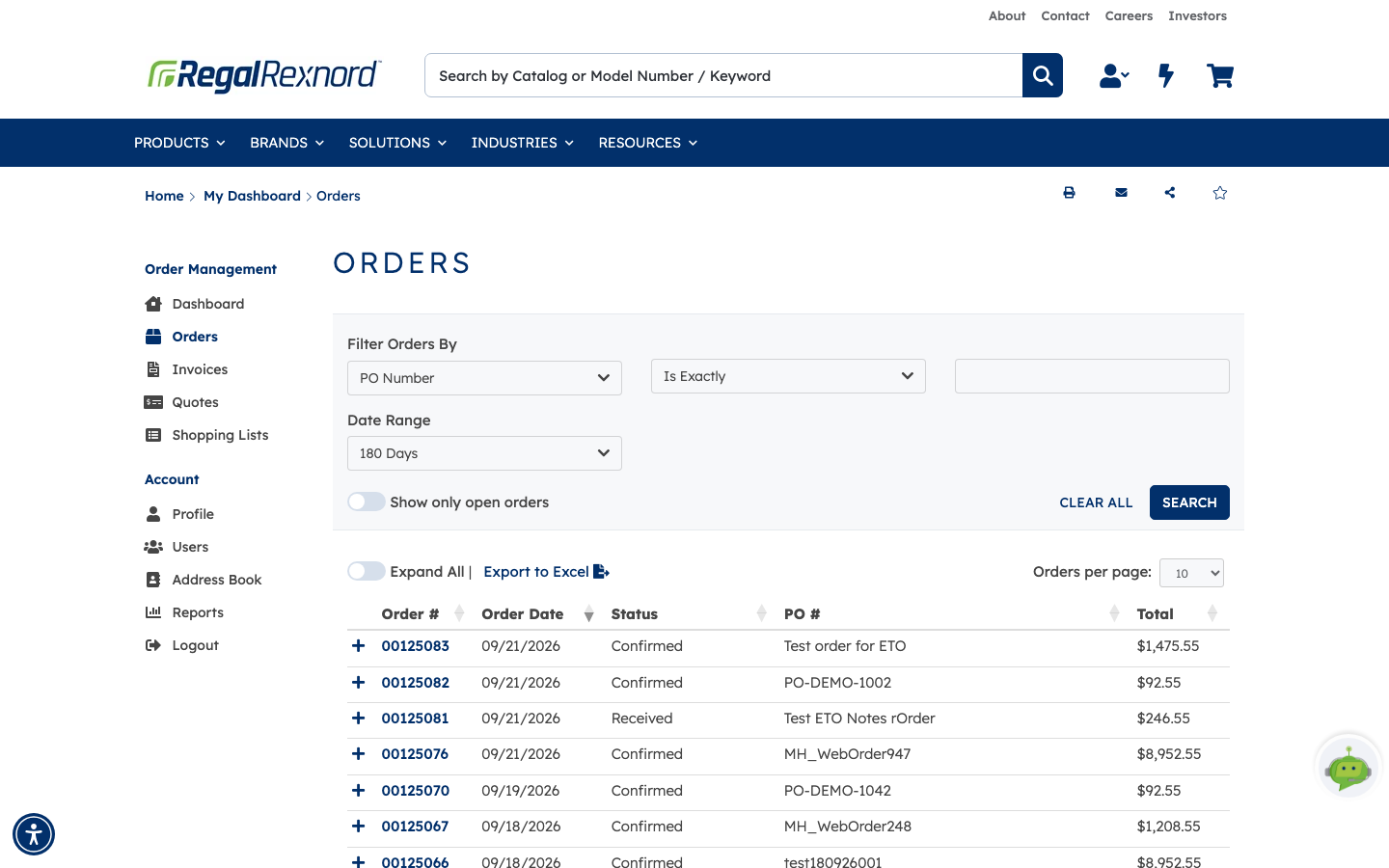
The list shows Order #, Order Date, Status, PO # and Total, most recent first. Any column header with arrows will sort on that column.
To narrow it down, use the controls at the top:
- Filter Orders By — choose a field such as PO Number, choose how to match it (Is Exactly, Starts With), type the value, then click SEARCH.
- Date Range — defaults to the last 180 days. Widen it if you're looking for something older.
- Show only open orders — hides anything already completed.
- CLEAR ALL resets everything.
Two shortcuts worth knowing: the + at the start of each row expands that order's lines without leaving the list (Expand All does the lot), and Export to Excel takes the list as filtered into a spreadsheet.
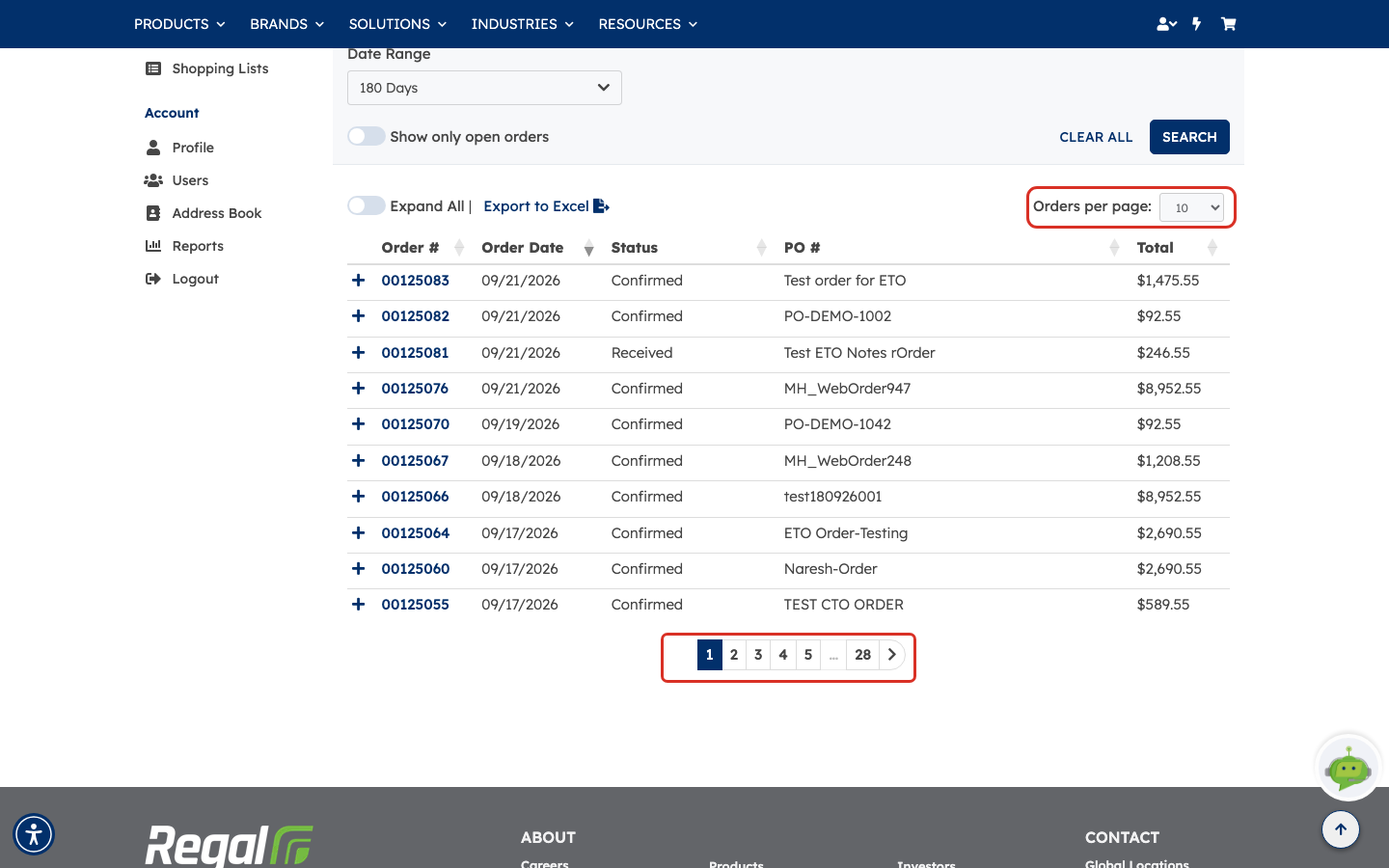
Long lists are paged. Orders per page sets how many rows you see at a time — 10, 25, 50 or 100 — and the page numbers at the foot of the table move you through the rest.
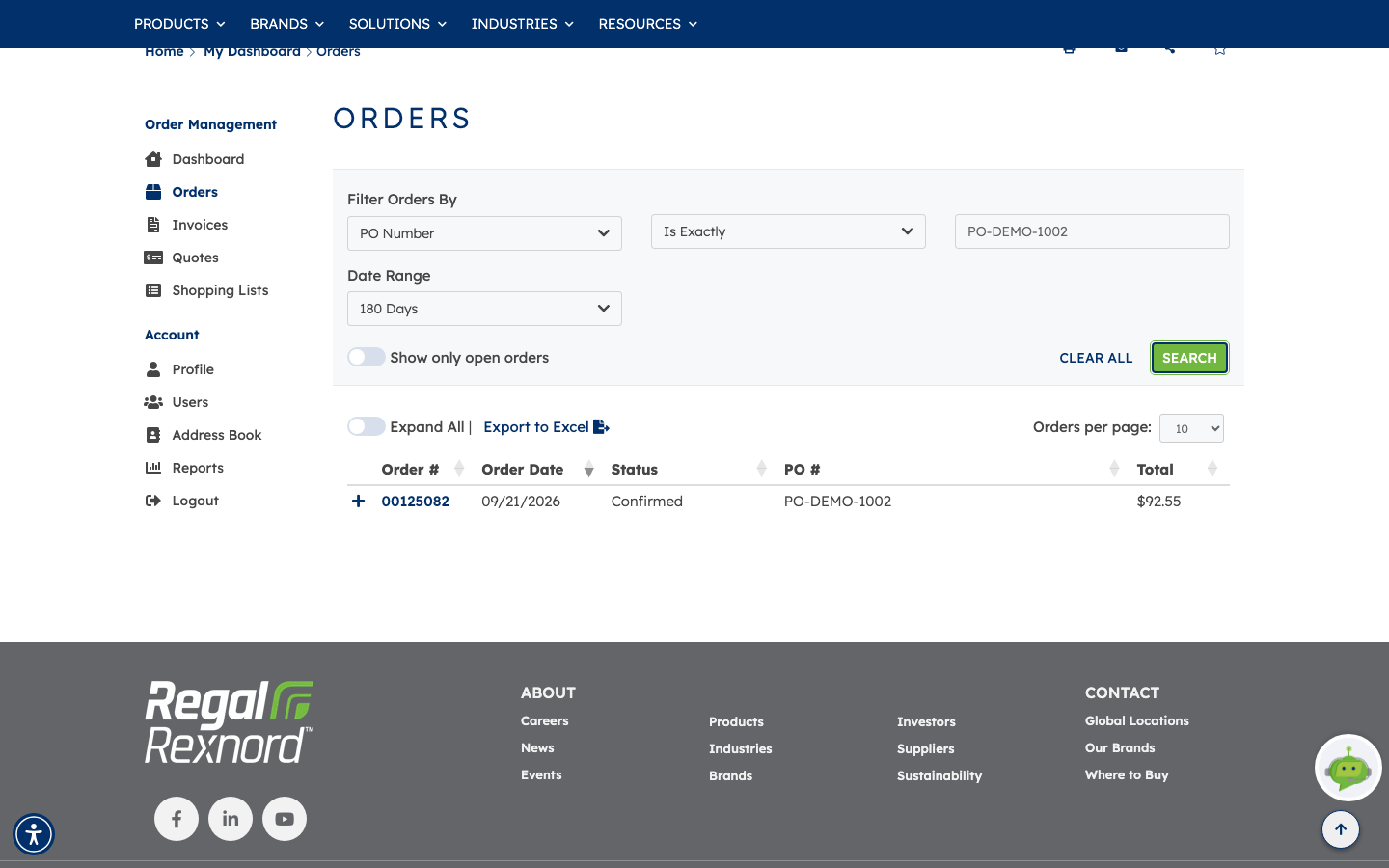
Filtering works the same way whichever field you pick. In this example, PO Number / Is Exactly / PO-DEMO-1002 narrows twenty-eight pages of orders down to the single matching one.
Step 2 — Open the order
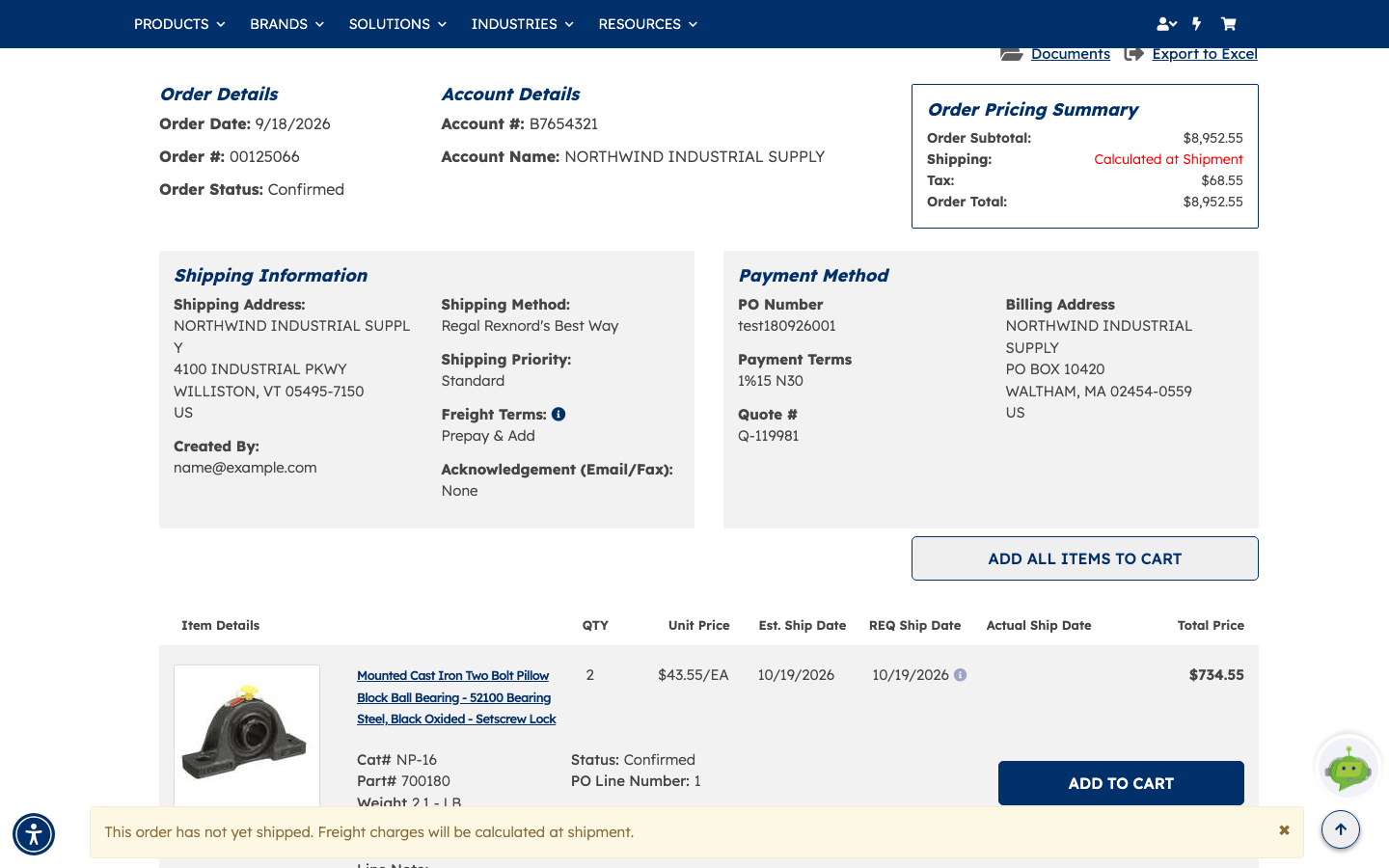
Click the Order # to open Order Detail. In this example we're opening order 00125066.
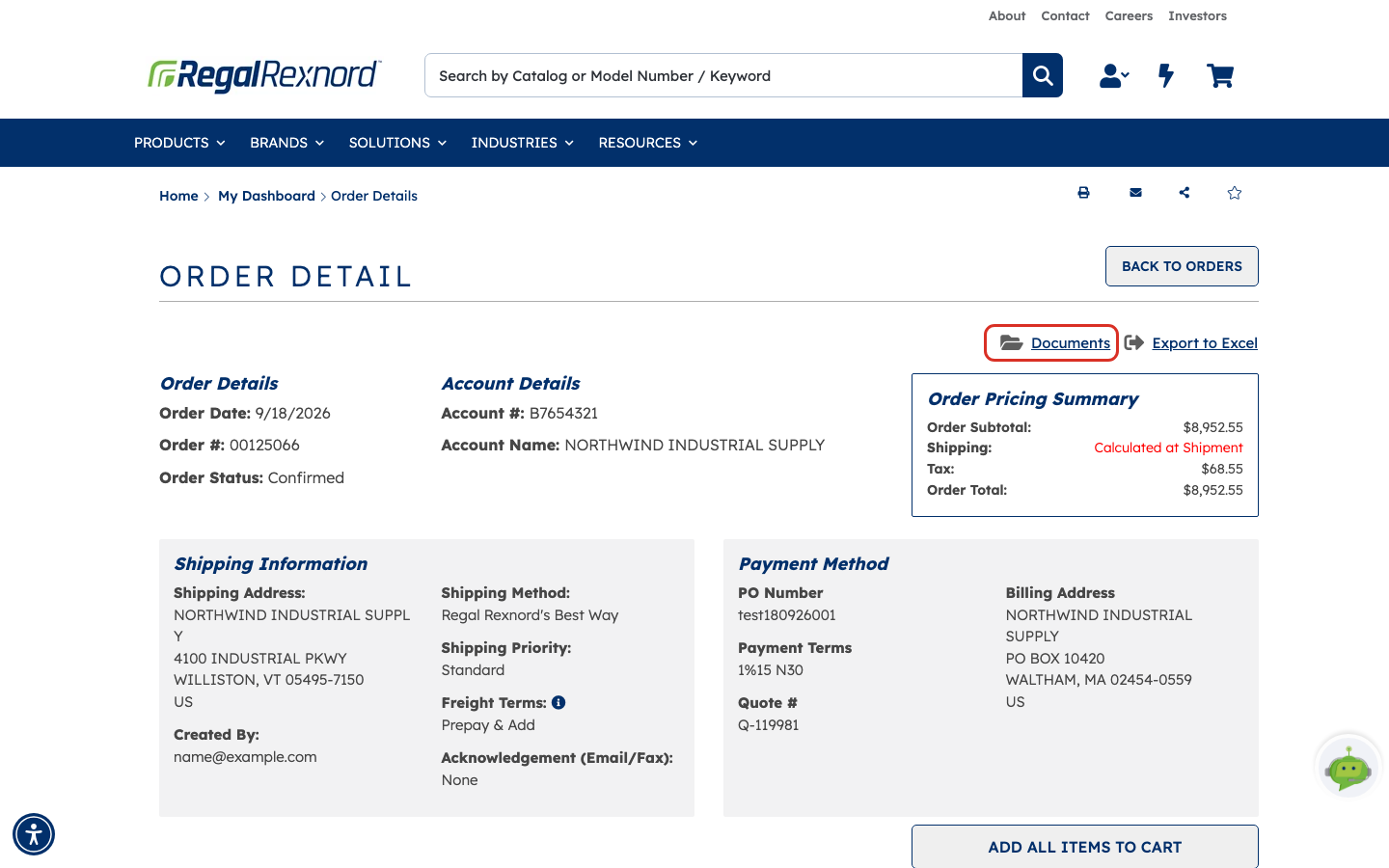
The Order Detail page opens with everything about that order in one place:
| What you see | What it tells you |
|---|---|
| Order Details | The order date, order number and current status |
| Account Details | Which account the order was placed against |
| Order Pricing Summary | Subtotal, shipping, tax and the order total |
| Shipping Information | Where it ships, the shipping method and priority, freight terms, and who placed the order |
| Payment Method | Your PO number, payment terms, the related quote, and the billing address |
If shipping shows Calculated at Shipment rather than an amount, the order hasn't shipped yet — freight is worked out when it does. The page flags the same thing in a banner.
If the order came from a quote, Quote # under Payment Method links it back — here the order traces to quote Q-119981.
Step 3 — Check the line items
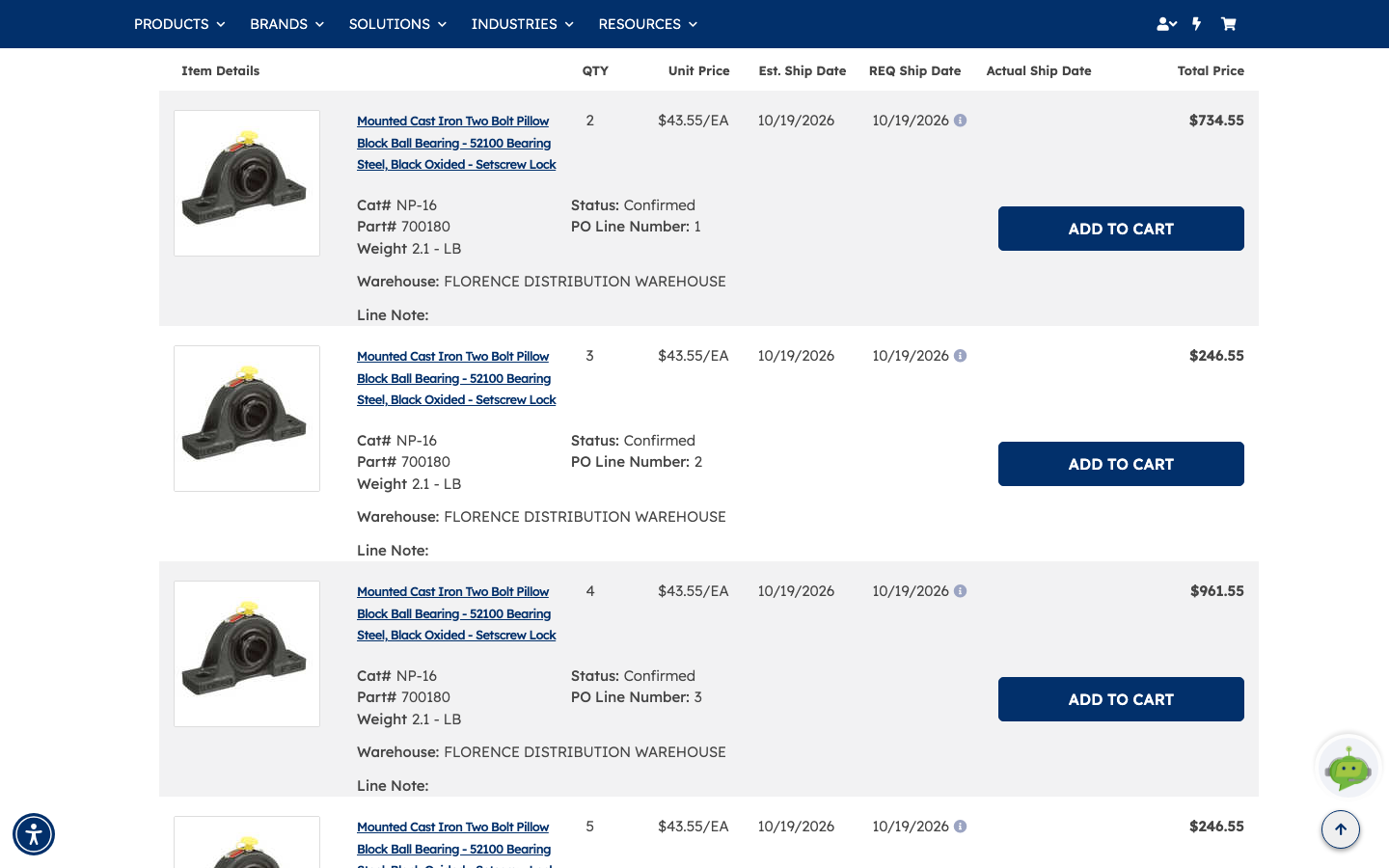
Scrolling down gives you every line on the order.
Each line shows the product with its Cat#, Part# and weight, the quantity, the unit price and the total price for that line, plus its own Status and PO Line Number.
| PO Line | QTY | Unit Price | Est. / Req. Ship Date | Warehouse | Status | Total Price |
|---|---|---|---|---|---|---|
| 1 | 2 | $43.55/EA | 10/19/2026 | Florence Distribution Warehouse | Confirmed | $734.55 |
| 2 | 3 | $43.55/EA | 10/19/2026 | Florence Distribution Warehouse | Confirmed | $246.55 |
| 3 | 4 | $43.55/EA | 10/19/2026 | Florence Distribution Warehouse | Confirmed | $961.55 |
The dates are the useful part when you're chasing a delivery — Est. Ship Date, Req. Ship Date and Actual Ship Date are tracked per line, so a part-shipped order shows exactly which lines have gone. Warehouse tells you where each line is shipping from, which explains why lines on one order can arrive separately.
ADD TO CART on any line is the quick way to reorder just that item.
Step 4 — Get the paperwork
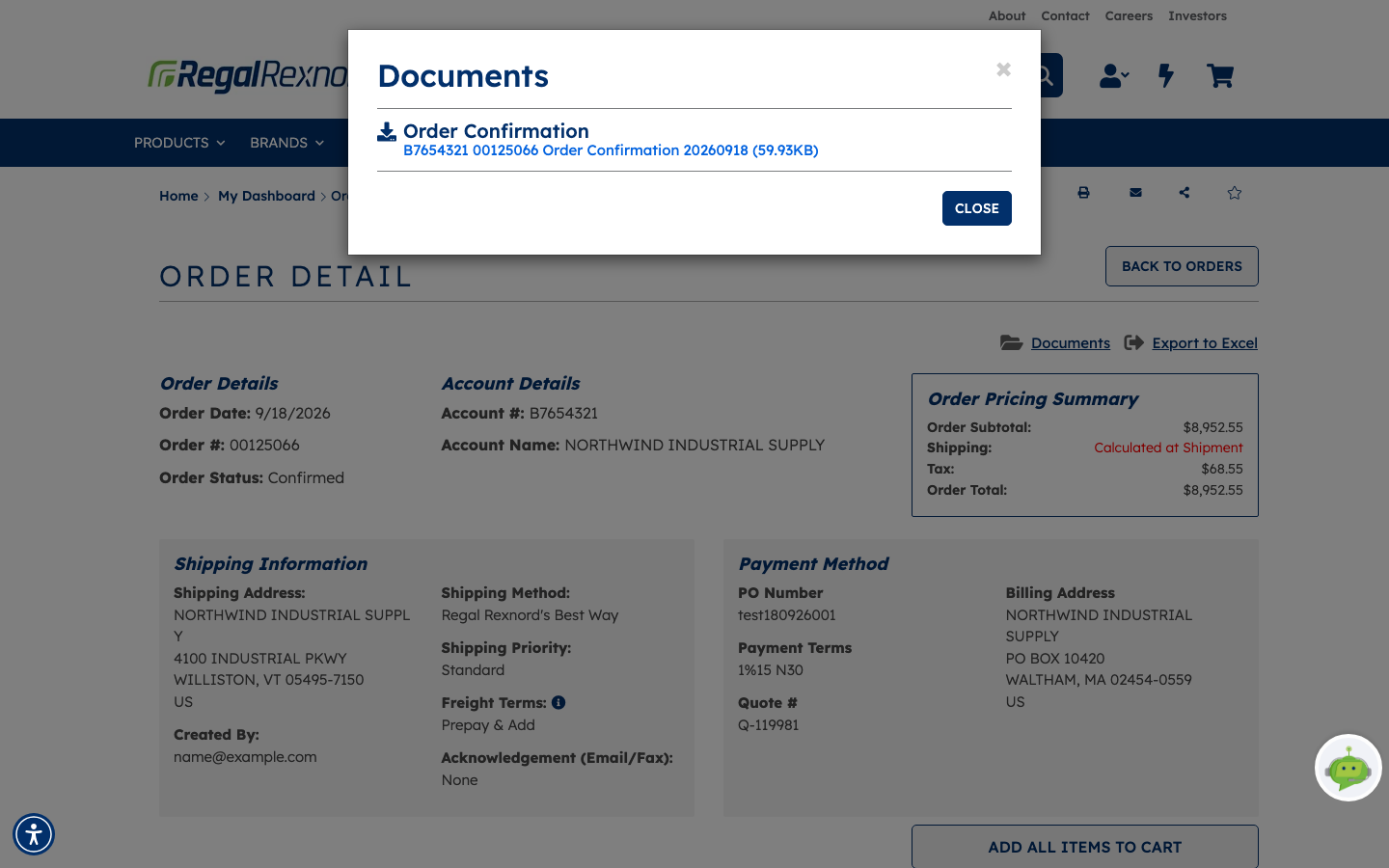
Documents, near the top right of the order, opens everything filed against it — order confirmations, and once the order has shipped and been billed, packing slips and invoices too.
Each entry shows the document type and, on the link itself, the account number, the order number, the document date and the file size — here Order Confirmation 20260918 (59.93KB). Click it to download. CLOSE returns you to the order exactly as you left it.
That's it. BACK TO ORDERS at the top right returns you to the list with your filters intact.
If you need the order's figures in a spreadsheet, Export to Excel sits next to Documents on the detail page and exports that single order's lines.