Placing an Order, Start to Finish
This is the full journey: find a part, put it in the cart, check out, and confirm the order landed. Every other ordering shortcut on the site — Quick Order, quotes, reordering — ends up here.
Sign in, and empty your cart if you want this order to contain only the part you're about to add. You'll also need your company's purchase order number (PO#) at checkout, so have it ready.
The prices in the screenshots are illustrative stand-ins — they all end in .55 — so totals won't tally, and two figures that should differ may show the same amount. On the live site they will be your real prices and they will add up.
Step 1 — Find the part
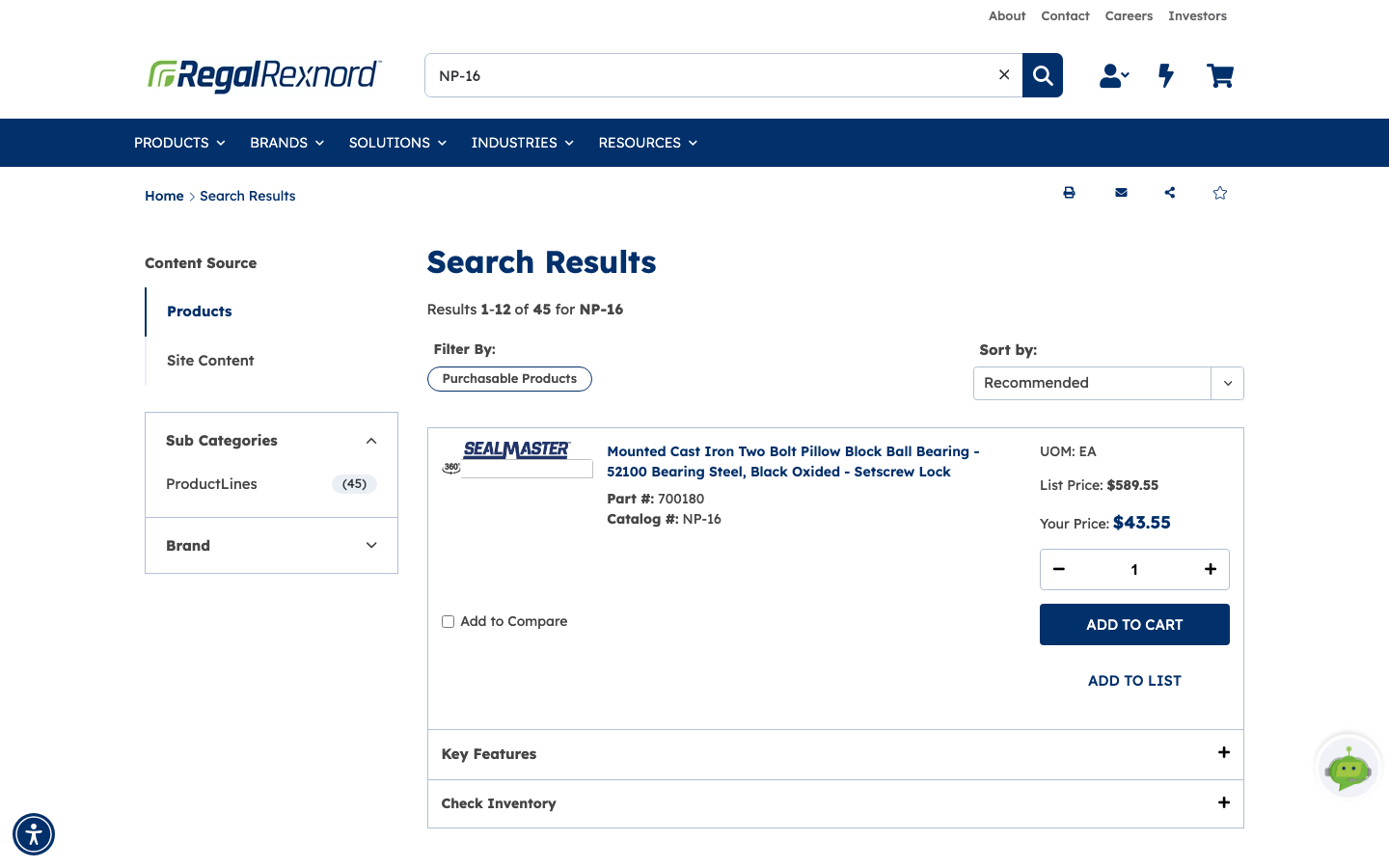
Type a catalog number, part number or keyword into the search box in the header and press Enter. The example searches for catalog number NP-16.

The results page gives you, for each product, List Price and Your Price — your contracted price — plus a quantity box and ADD TO CART. If you already know exactly what you want and the quantity, you can add it straight from here.
Filter By: Purchasable Products narrows the list to things you can actually buy on your account; Content Source on the left switches between Products and Site Content.
Step 2 — Check the product page
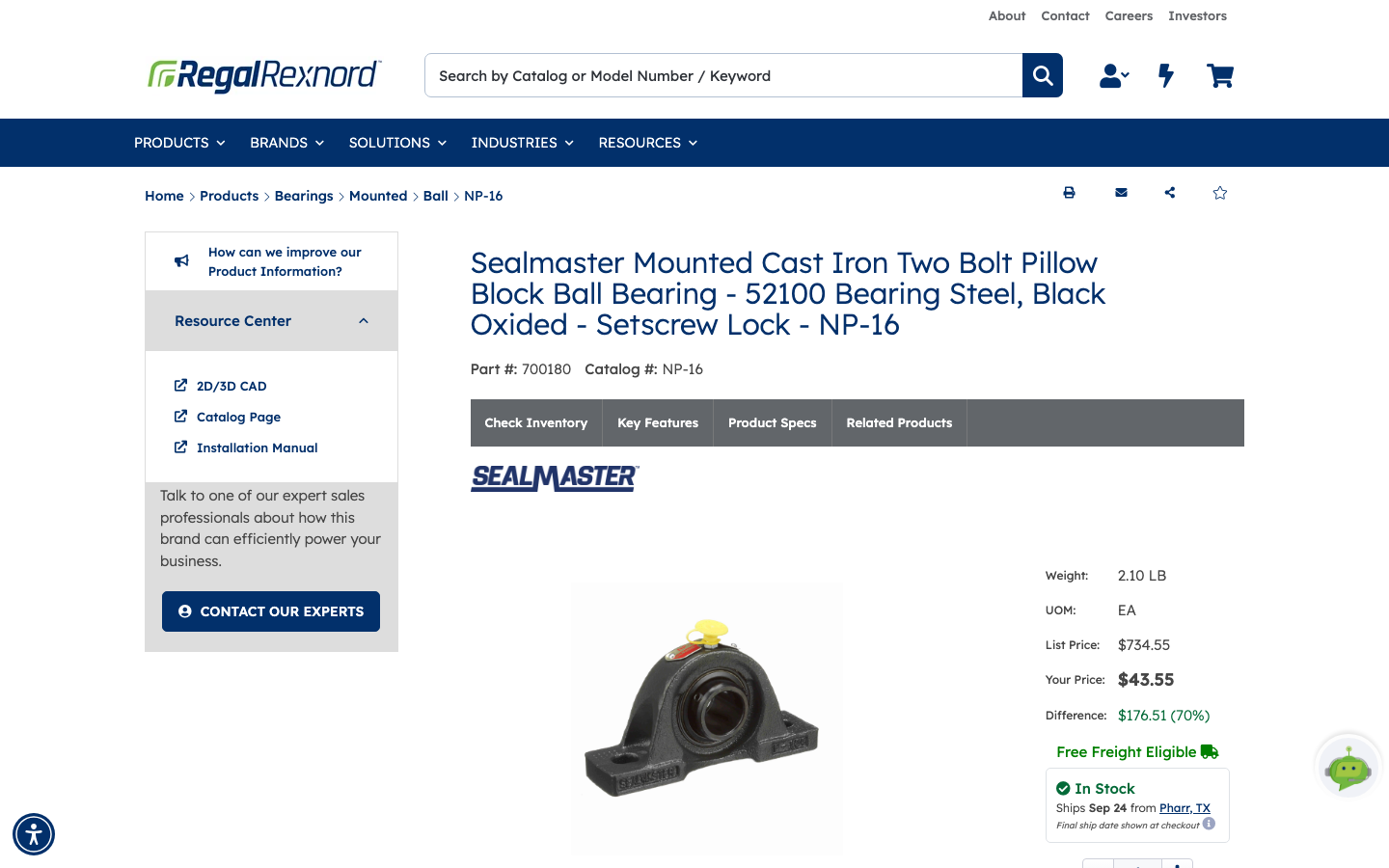
Click the product title to open its detail page, and check you have the right thing before you buy:
- Part # and Catalog # at the top.
- List Price, Your Price and the Difference — what your account pricing saves you.
- Free Freight Eligible, if it applies.
- In Stock, with the warehouse it ships from.
- Resource Center on the left — 2D/3D CAD, catalog page, installation manual.
- Tabs for Check Inventory, Key Features, Product Specs and Related Products.
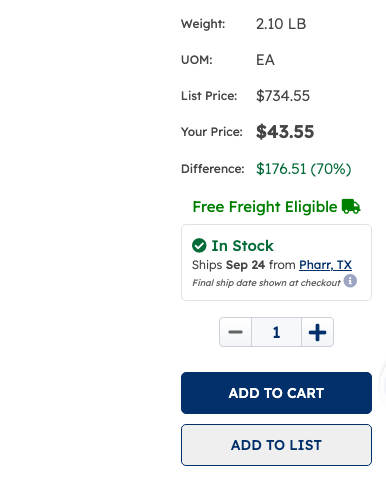
Everything you need to buy sits in one panel on the right — weight and unit of measure, the three prices, free freight, the stock position with the warehouse it ships from and the date it ships, then the quantity stepper and ADD TO CART.
| What you see | What it means |
|---|---|
| List Price | The published price before your account terms |
| Your Price | What you'll actually pay |
| Difference | What your account saves against list, in currency and percent |
| Free Freight Eligible | This line doesn't attract a freight charge |
| In Stock / Ships | The stocking location and the date it can leave |
Step 3 — Add it to the cart
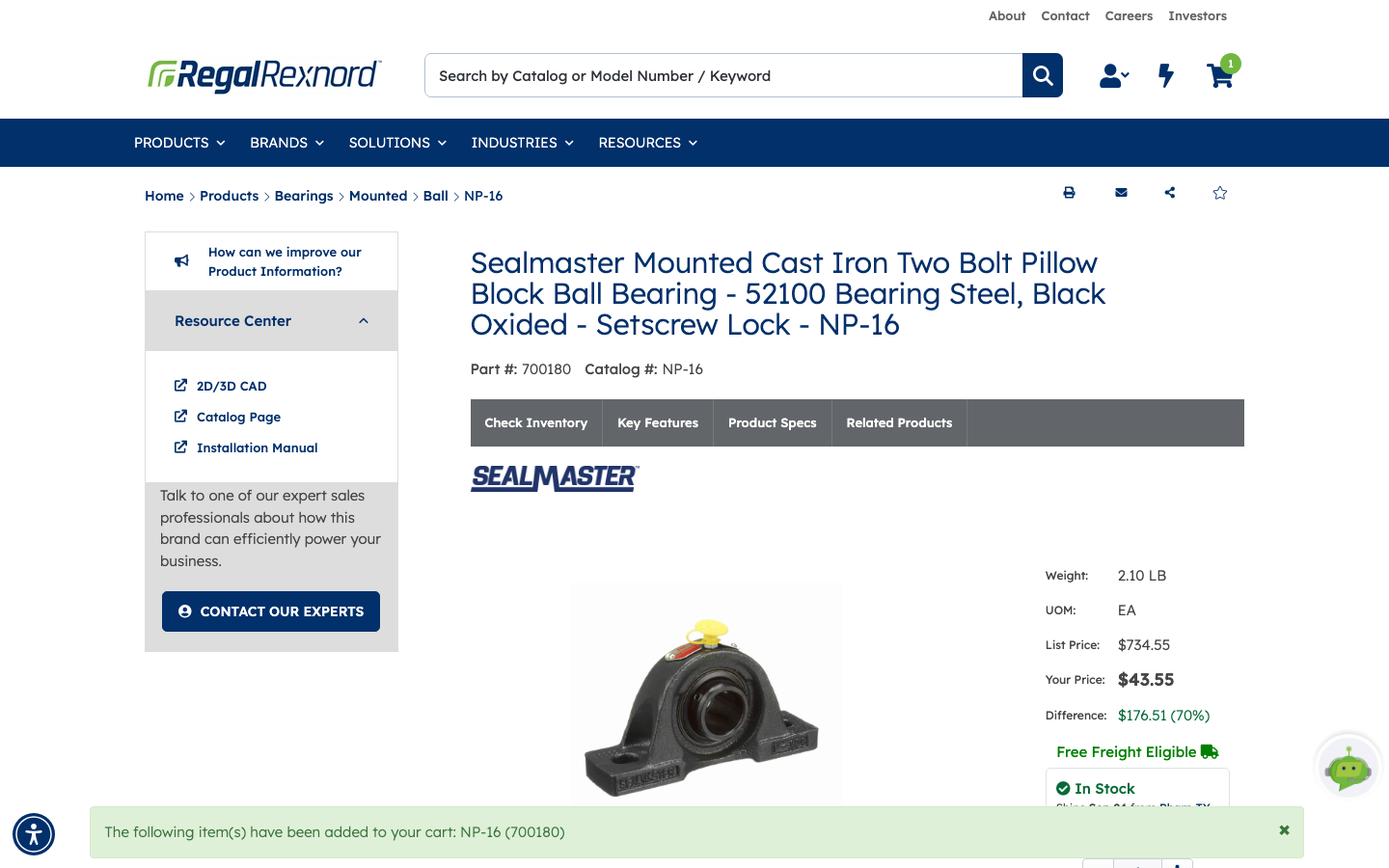
Set the quantity and click ADD TO CART. A green banner confirms what went in — The following item(s) have been added to your cart — and the cart badge in the header ticks up.
Step 4 — Review the cart
Open the cart from the header. Check the line before you commit:
- Qty, Unit Price and Total Price.
- Warehouse — which location it ships from.
- REQ Ship Date — request a later date if you don't want it immediately.
- Add Line Item Notes — a note that travels with this line.
- VIEW SUBSTITUTE — alternatives, if any exist.
Cart Summary on the right totals it up. Then click CHECKOUT.
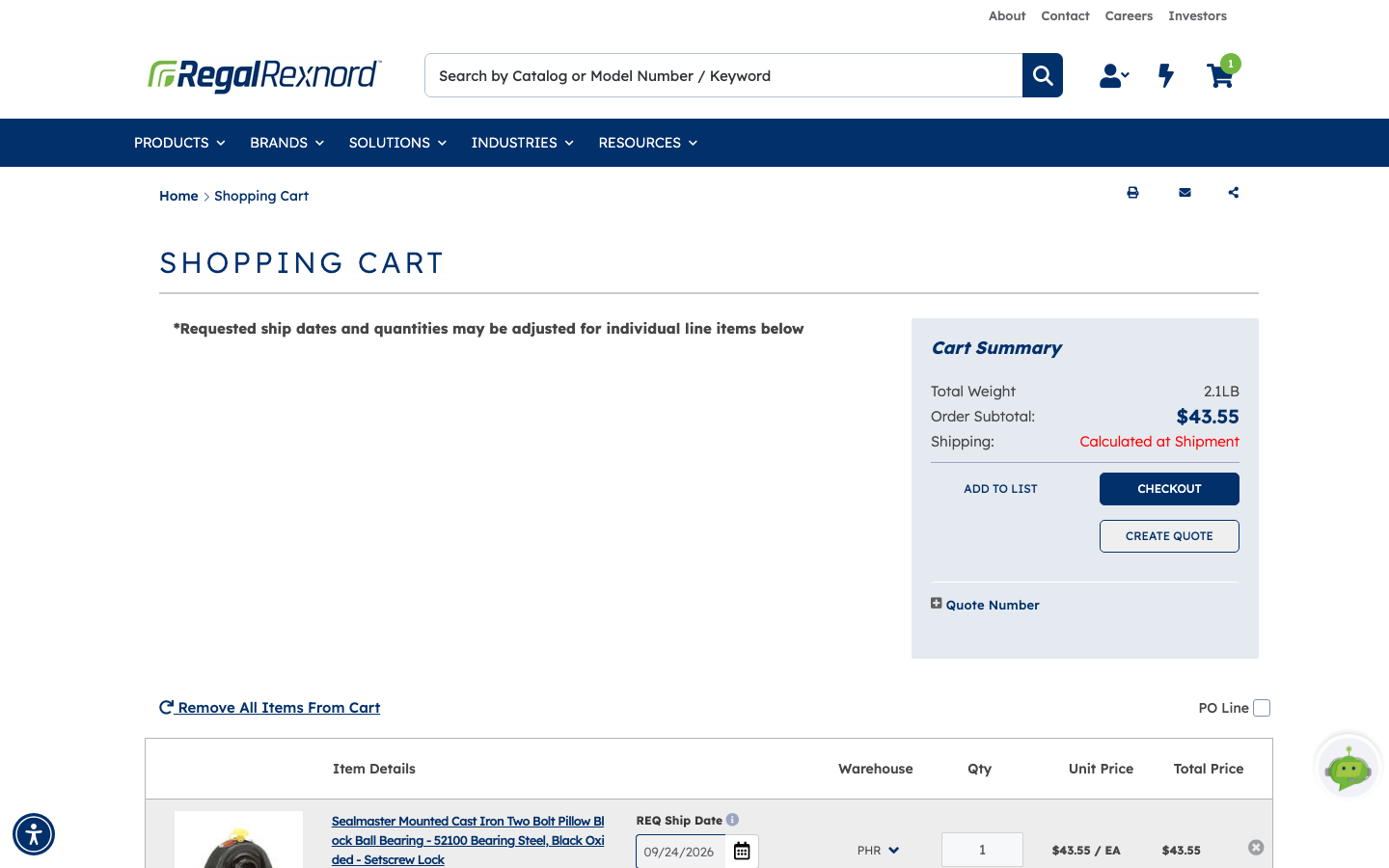
The line itself carries all of it side by side — catalog and part number, unit weight, the note link, the requested ship date picker, the warehouse drop-down, quantity, unit and total price, the estimated ship date, and VIEW SUBSTITUTE where an alternative exists.

Step 5 — Fill in the delivery details
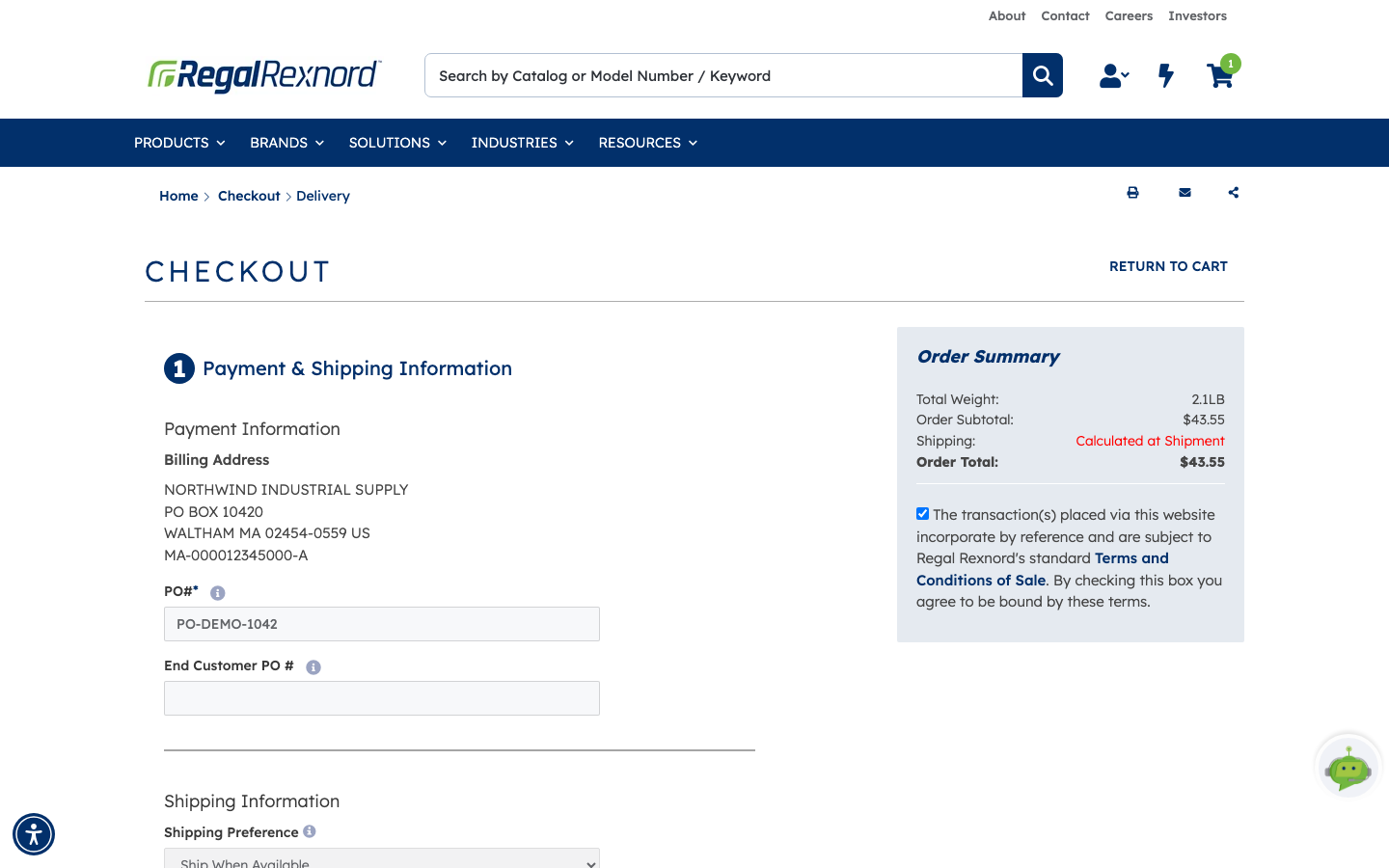
Checkout is two numbered steps. The first, Payment & Shipping Information, is where all the input happens:
- PO# — required. Your purchase order reference; it appears on the order and the invoice.
- End Customer PO # — optional, for distributors ordering on behalf of a customer.
- Shipping Preference — Ship When Available, Ship Line Item Complete or Ship Complete Order. This decides whether partial shipments are allowed.
- Ship-To Address — your primary address by default. Change Ship-To Address picks another, or adds a drop-ship address.
- Shipping Method — Regal Rexnord's Best Way, your own carrier, or customer pickup.
- Shipping Priority — Standard through Next Day AM.
- Shipping Attention To and Shipping Instructions — free text passed to the warehouse.
- Acknowledgement — none, email or fax.
Tick the Terms and Conditions of Sale box in Order Summary, then click Next.
Step 6 — Review and submit
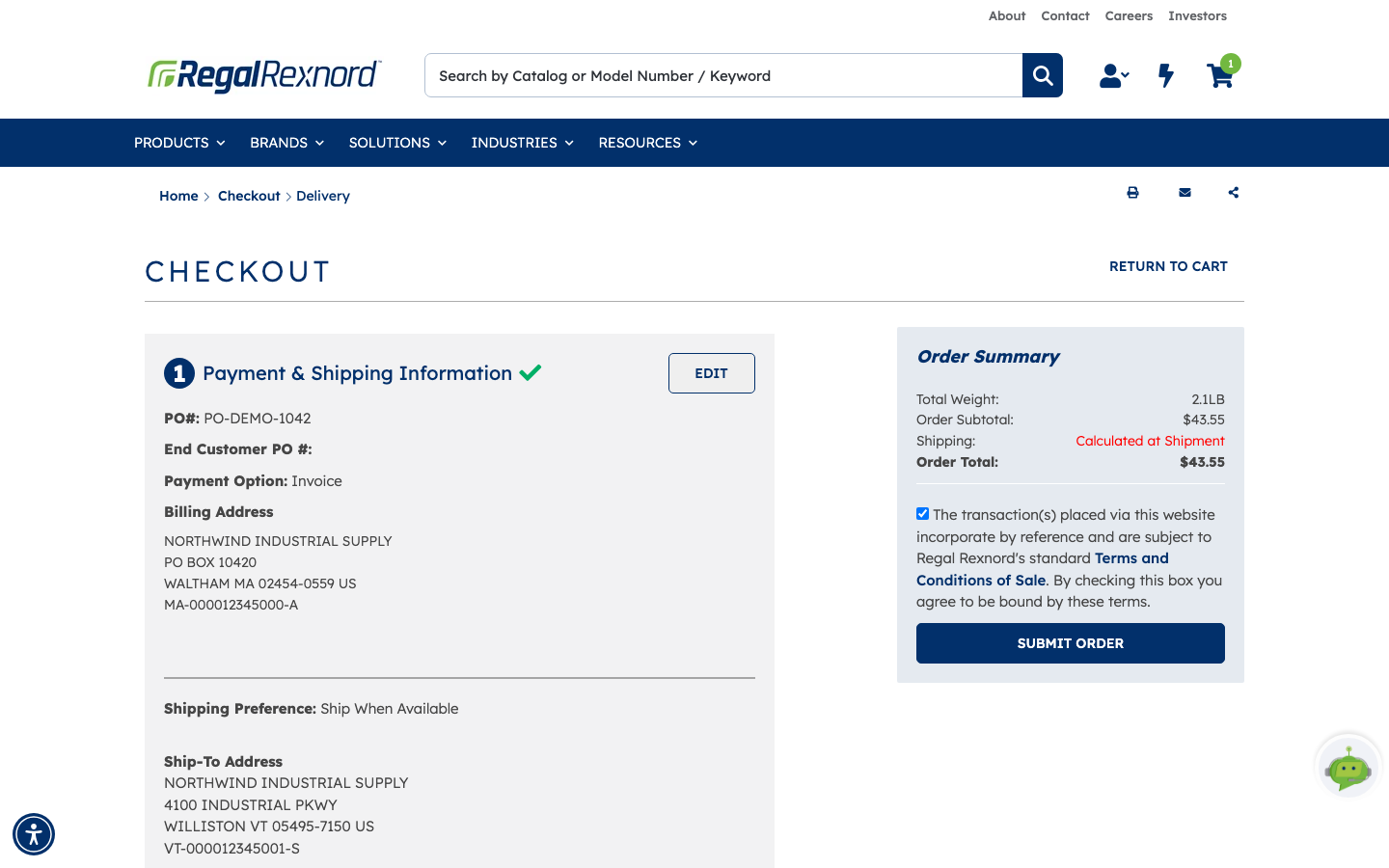
Step 1 collapses into a summary with a green tick and an EDIT link, and Review Order opens below it. This is the last chance to check everything: PO number, payment option, both addresses, shipping method and priority, and the lines themselves.
Order Total sits in Order Summary. Freight is usually Calculated at Shipment rather than quoted here.
When it's right, click SUBMIT ORDER. It takes a few seconds — the order goes through to the ERP.
Step 7 — Note the order number
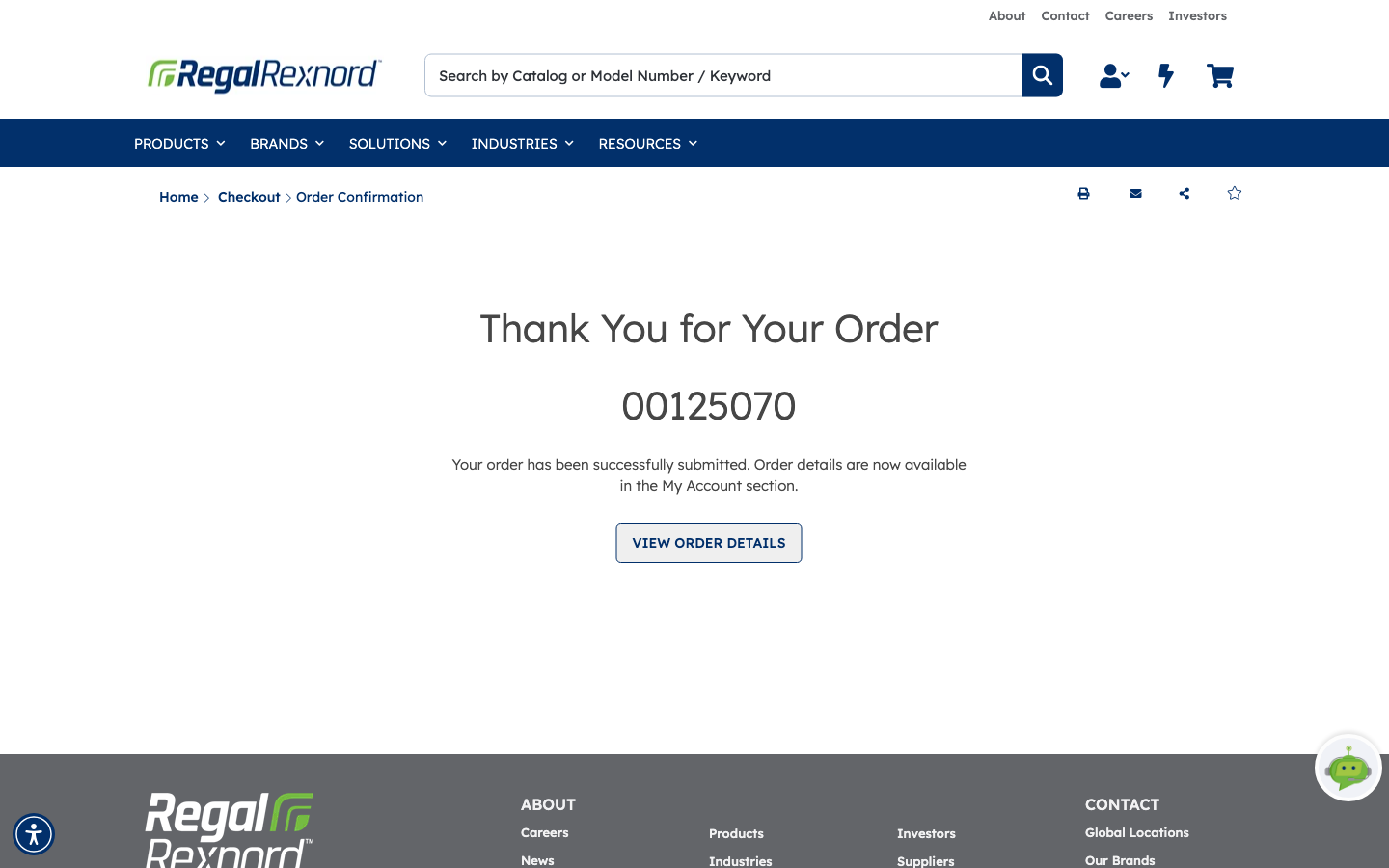
The confirmation page gives you the order number. Keep it — it's how you'll track the order and how support will find it.
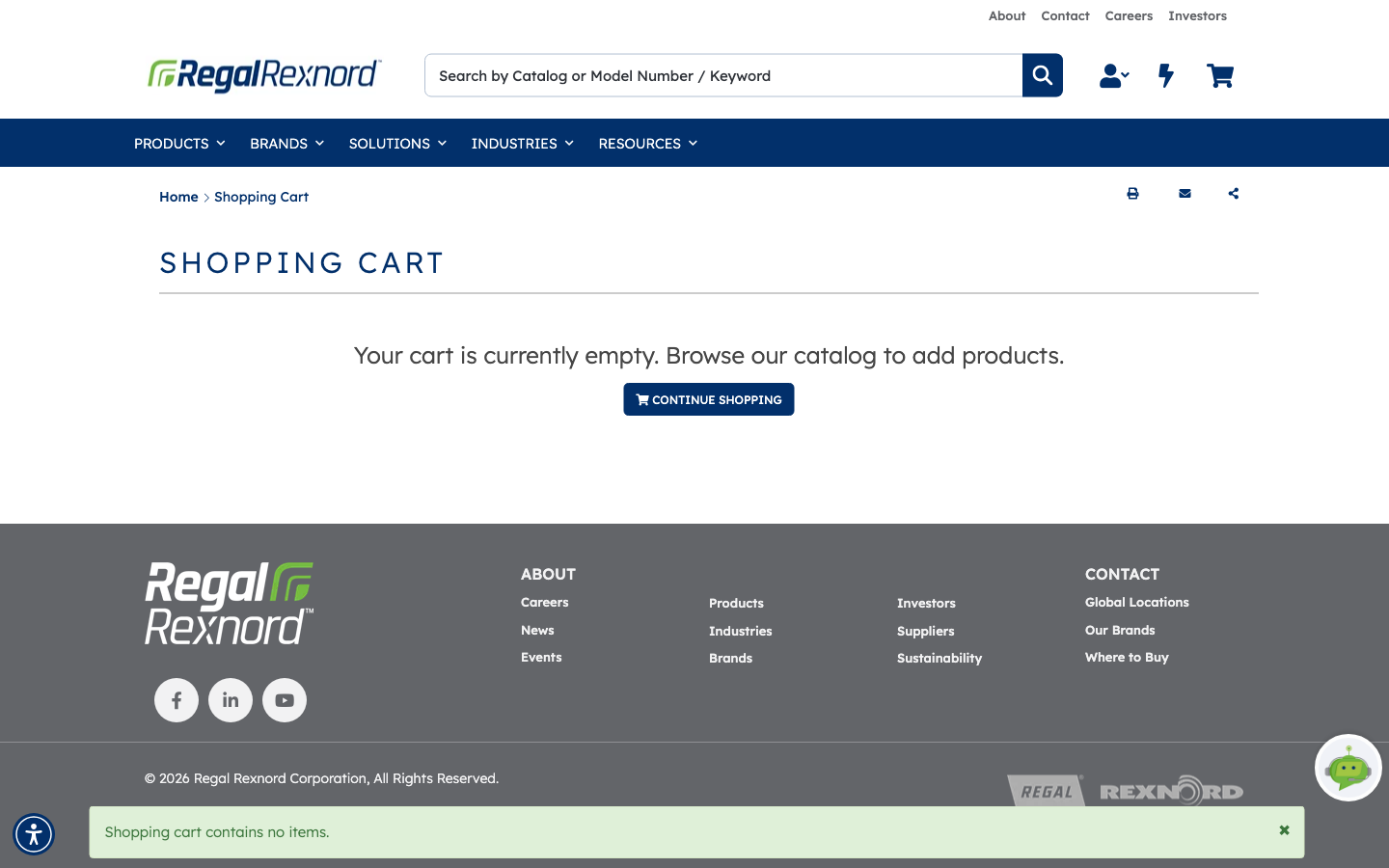
Your cart is emptied at this point.
Open the cart again and it's empty — everything in it became the order.
Step 8 — Check the order record
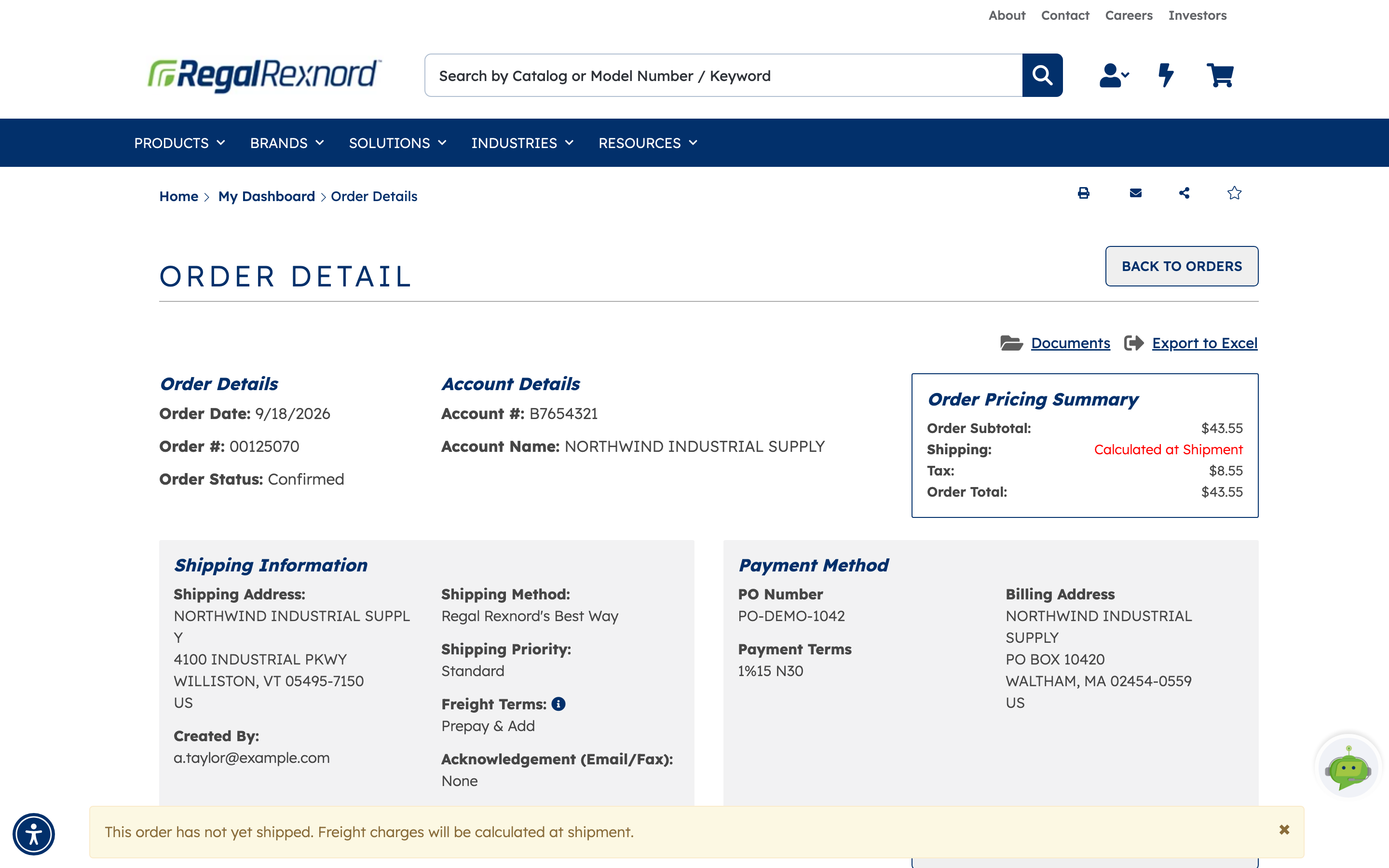
VIEW ORDER DETAILS opens the full record — the same page you'll reach later through Order History.
- Order Date, Order # and Order Status (Confirmed immediately after submission).
- Account # and Account Name.
- Order Pricing Summary — subtotal, tax, shipping and order total.
- Shipping Information — address, method, priority, freight terms, and who created the order.
- Payment Method — PO number, payment terms and billing address.
- Export to Excel, for your own records.
A banner notes that freight is calculated at shipment while the order is unshipped.
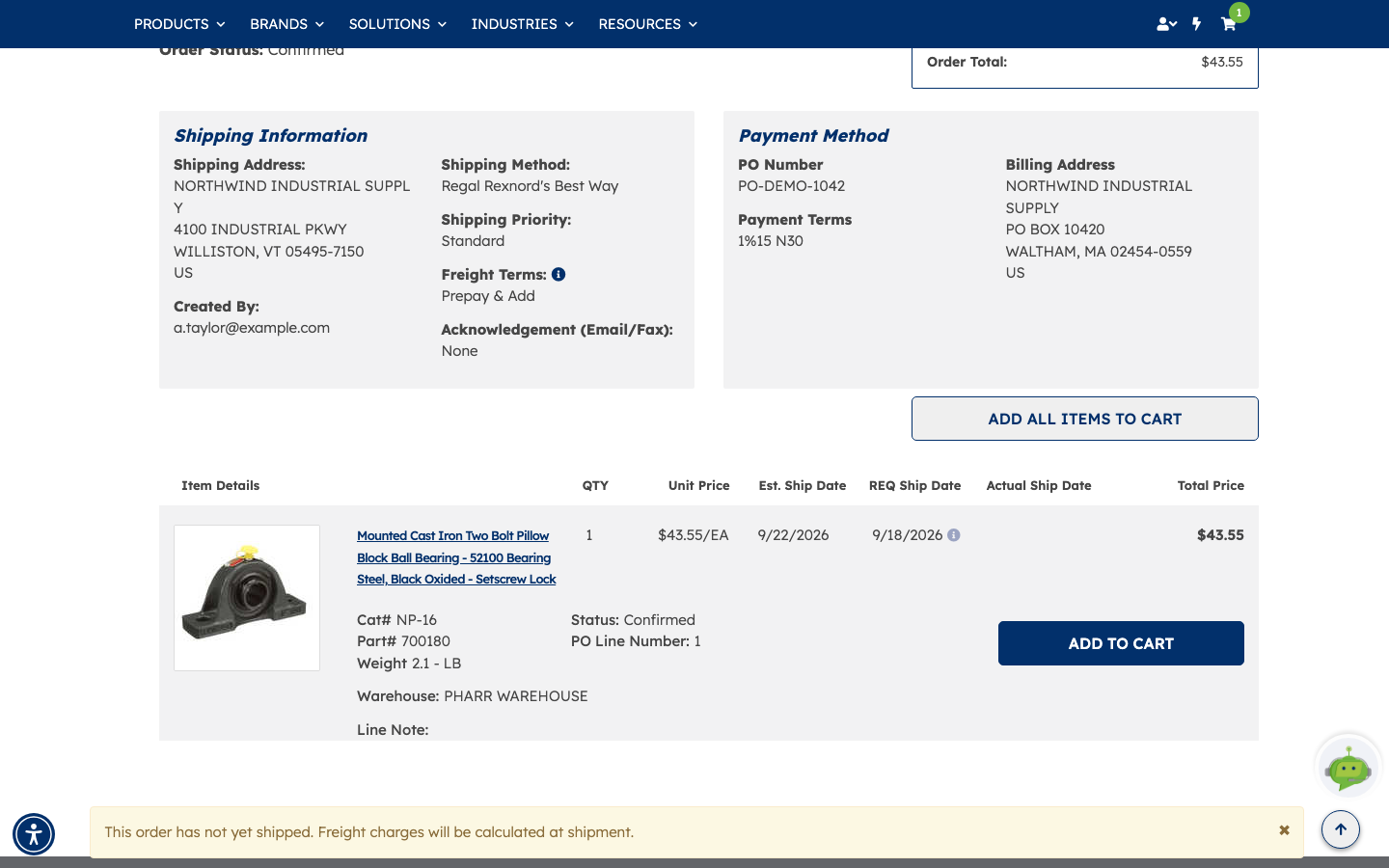
Scroll down and the line items show exactly what was ordered: the catalog and part numbers, the quantity, unit price and line total, the shipping warehouse and the estimated ship date. This is the level of detail you'd check if a delivery date slipped or a line shipped separately.
Each line also carries its own Status, its PO Line Number, and an ADD TO CART button — handy for reordering a single line. ADD ALL ITEMS TO CART above the table repeats the whole order.
| Column | What it tells you |
|---|---|
| Item Details | Description, Cat#, Part# and unit weight |
| QTY | How many you ordered on this line |
| Unit Price | Price per unit of measure — in the example, per EA |
| Est. Ship Date | When the warehouse expects to ship it |
| REQ Ship Date | The date you asked for at checkout |
| Actual Ship Date | Filled in once the line has actually shipped — blank until then |
| Total Price | Quantity × unit price for this line |
| Status | Where this individual line has got to, such as Confirmed |
| PO Line Number | The line's position against your PO, for matching to your own records |
| Warehouse | The stocking location shipping this line |
Finding the order again later
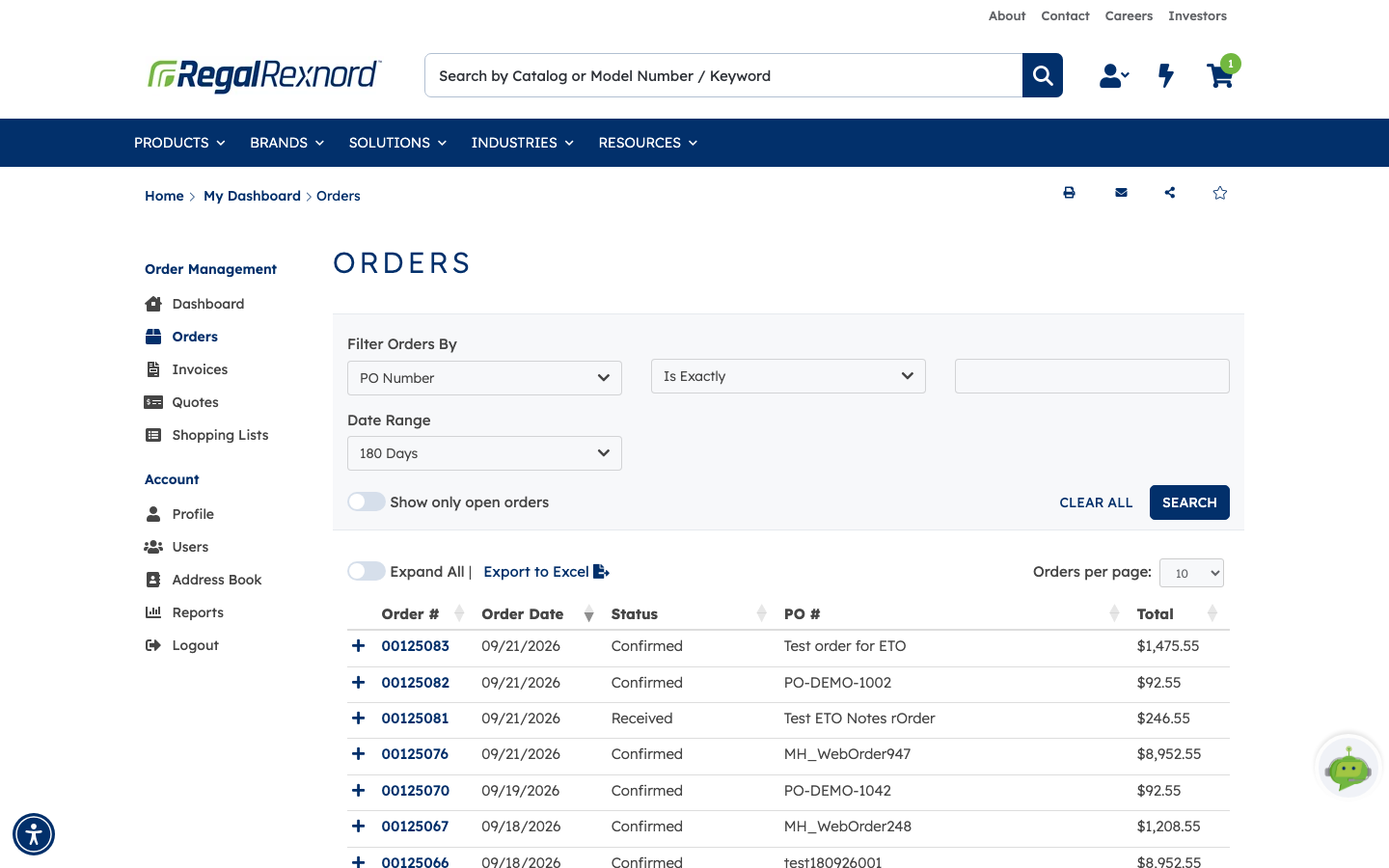
You don't need to keep the confirmation page open. Go to My Dashboard → Orders at any time and your order appears in the list with its order number, date, status, PO number and total. The list is sorted newest first, so a just-placed order sits at or near the top.
Above the list, Filter Orders By narrows things down — pick a field such as PO Number, a match type such as Is Exactly, and a Date Range — and Show only open orders hides anything already complete. Export to Excel takes the list away with you.
Click the order number to reopen the same Order Detail page, line items and all. From there you can track its status as it moves from Confirmed to shipped, or reorder the same items.
What you've done
You've taken a part from search through to a confirmed order, with your PO reference and delivery preferences attached, and you know where to find the record afterwards.
Worth remembering
- Your Price is your contracted price. The Difference shows what it saves against list.
- A PO# is required — have your reference ready.
- Shipping Preference controls partial shipments. Ship Complete Order holds everything until it's all available.
- Freight is normally calculated at shipment, not at checkout.
- Submitting empties your cart and places a real order.
- Keep the order number; Order History is where you'll track it from here.