How to Place an Order from Search to Confirmation
This guide walks you through finding a product by part number, adding it to your cart, and completing a purchase — all in one go. Whether you're ordering a single item or just getting familiar with the process, these steps take you from search to a confirmed order number.
:::info Behind the scenes This walkthrough was captured against the UAT site. See the test instructions it was driven from, and the test results recorded during the run. :::
Before you begin: You're already signed in and starting from any page on the storefront. Have the part number(s) you want to order ready — in this example, we're ordering part NP-16. You'll also need your company's purchase order number (PO#) handy for checkout.
Finding the Product
Step 1 — Search for your part number
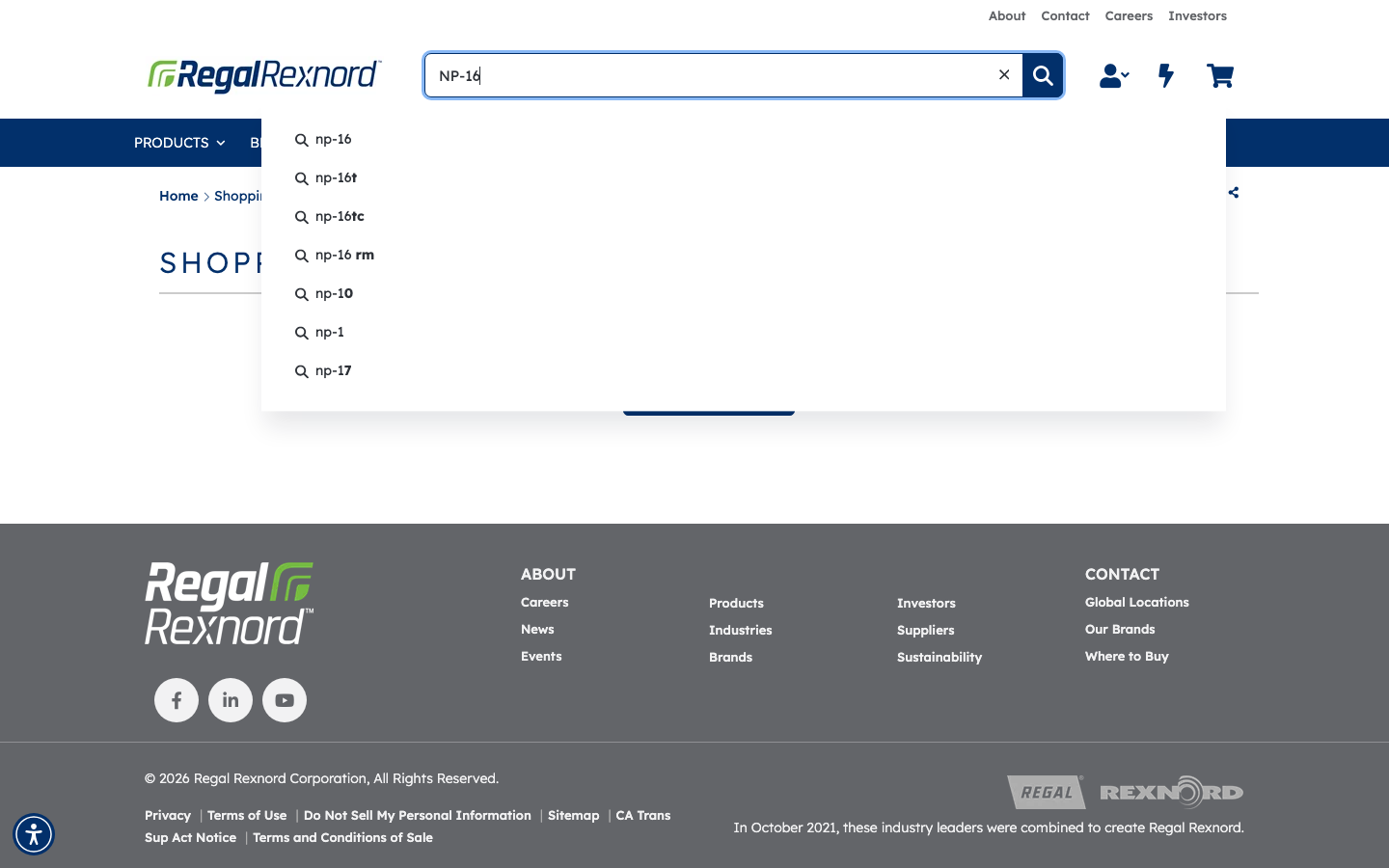
Type your part number into the global search box in the site header and press Enter (or click the search icon). In this example, enter NP-16.
Step 2 — Browse the search results
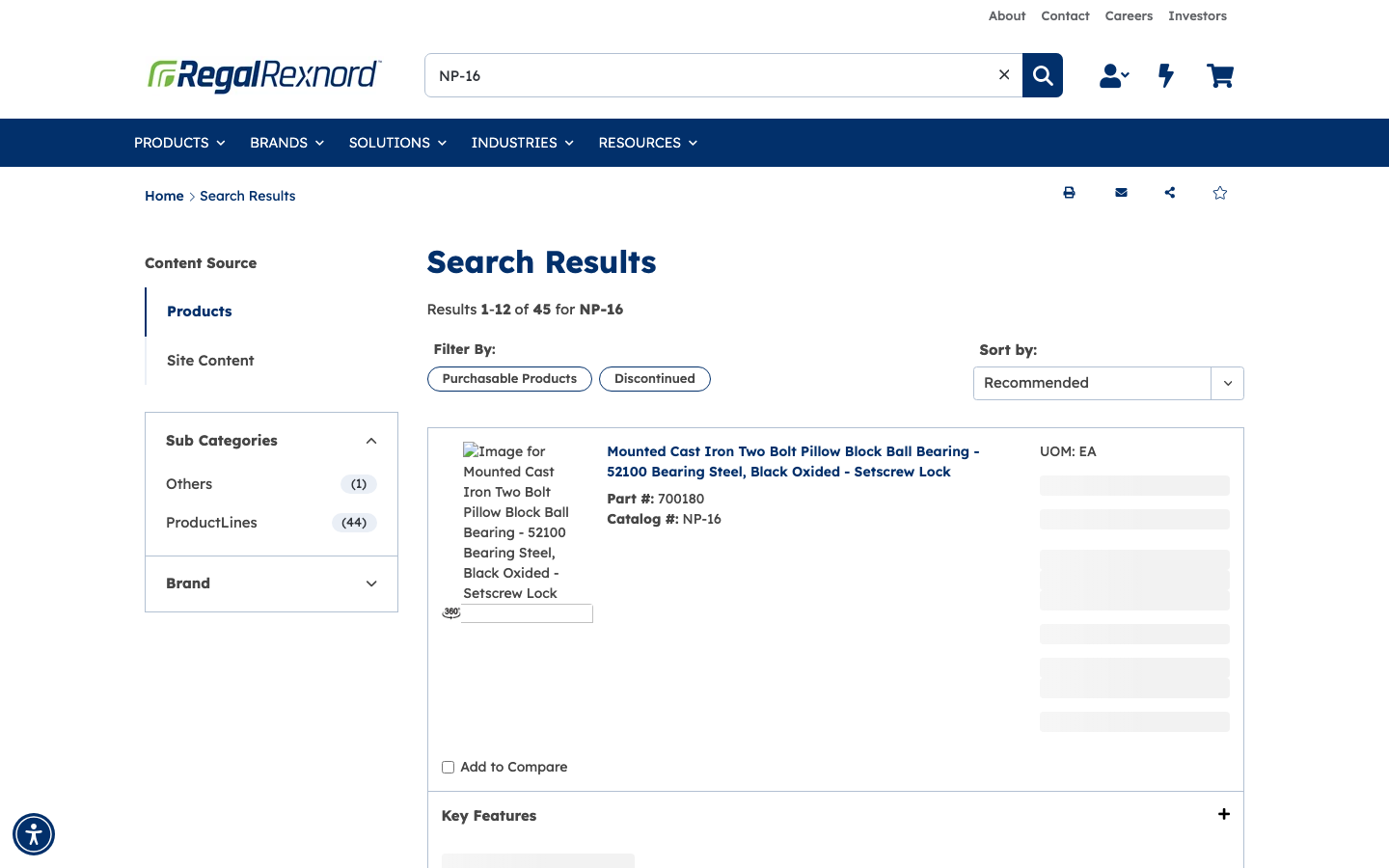
The results page appears, listing matching products. In this example you'll see Results 1-12 of 45 for NP-16. The top result is the Sealmaster Mounted Cast Iron Two Bolt Pillow Block Ball Bearing, Catalog # NP-16, Part # 700180.
Use the filters on the left (such as Sub Category or Brand) to narrow things down if needed.
Step 3 — Open the product detail page
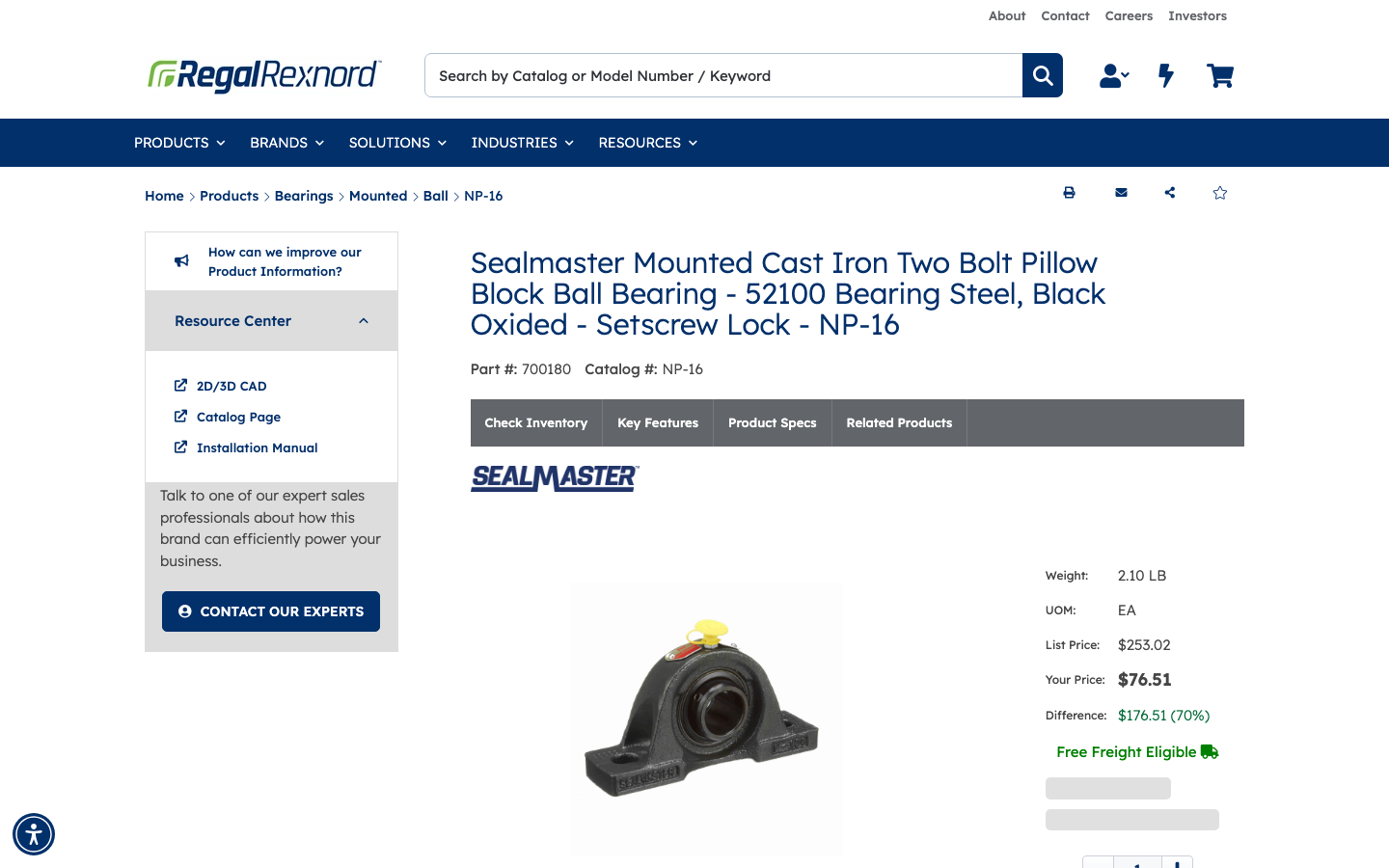
Click the product name in the results to open its detail page. Check that the Part # and Catalog # shown on the page match what you searched for.
For this example:
- Part #: 700180
- Catalog #: NP-16
- List Price: $253.02
- Your Price: $76.51 (your account discount is applied automatically)
- Free Freight Eligible
Adding to Cart
Step 4 — Review the buy box and availability
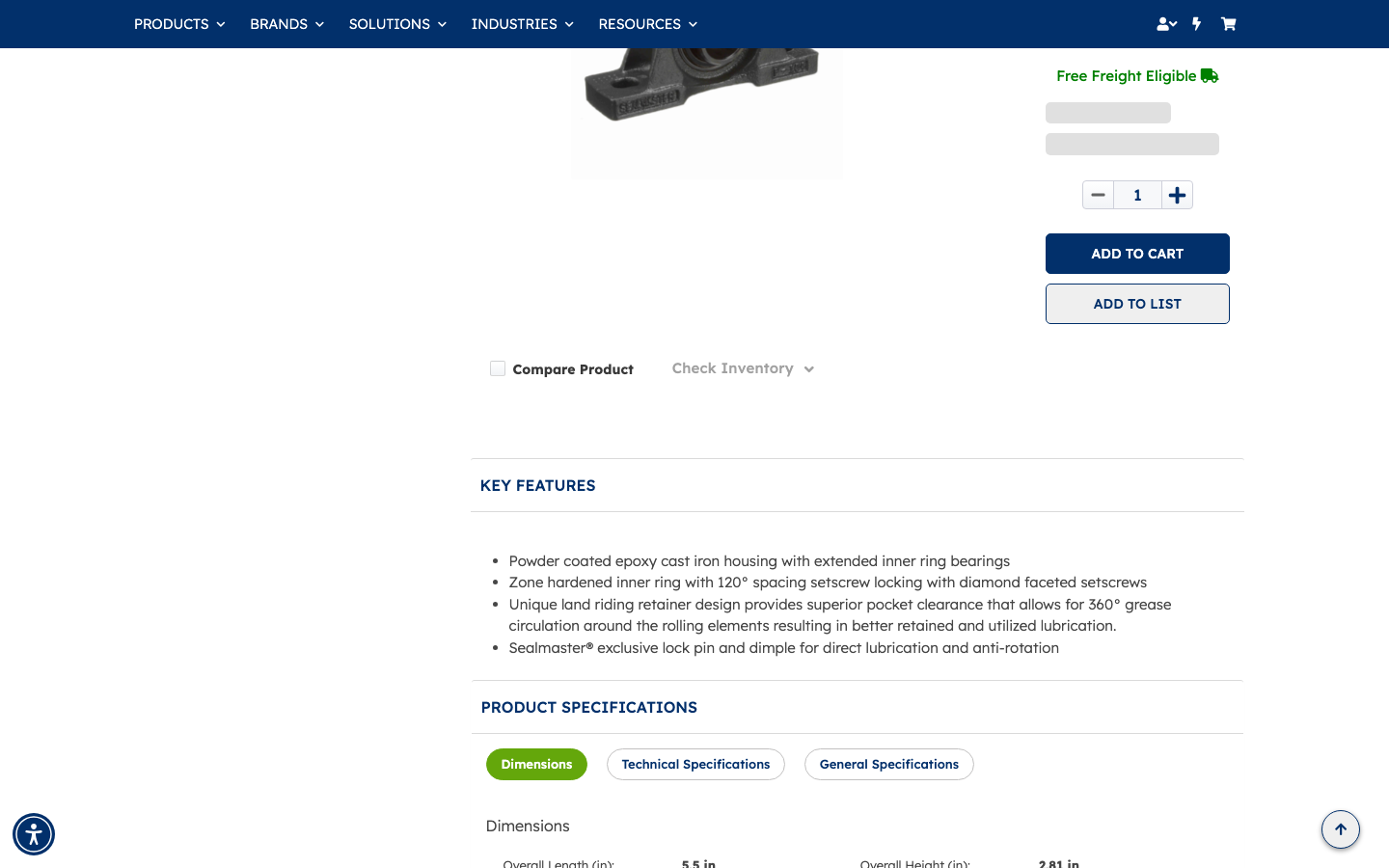
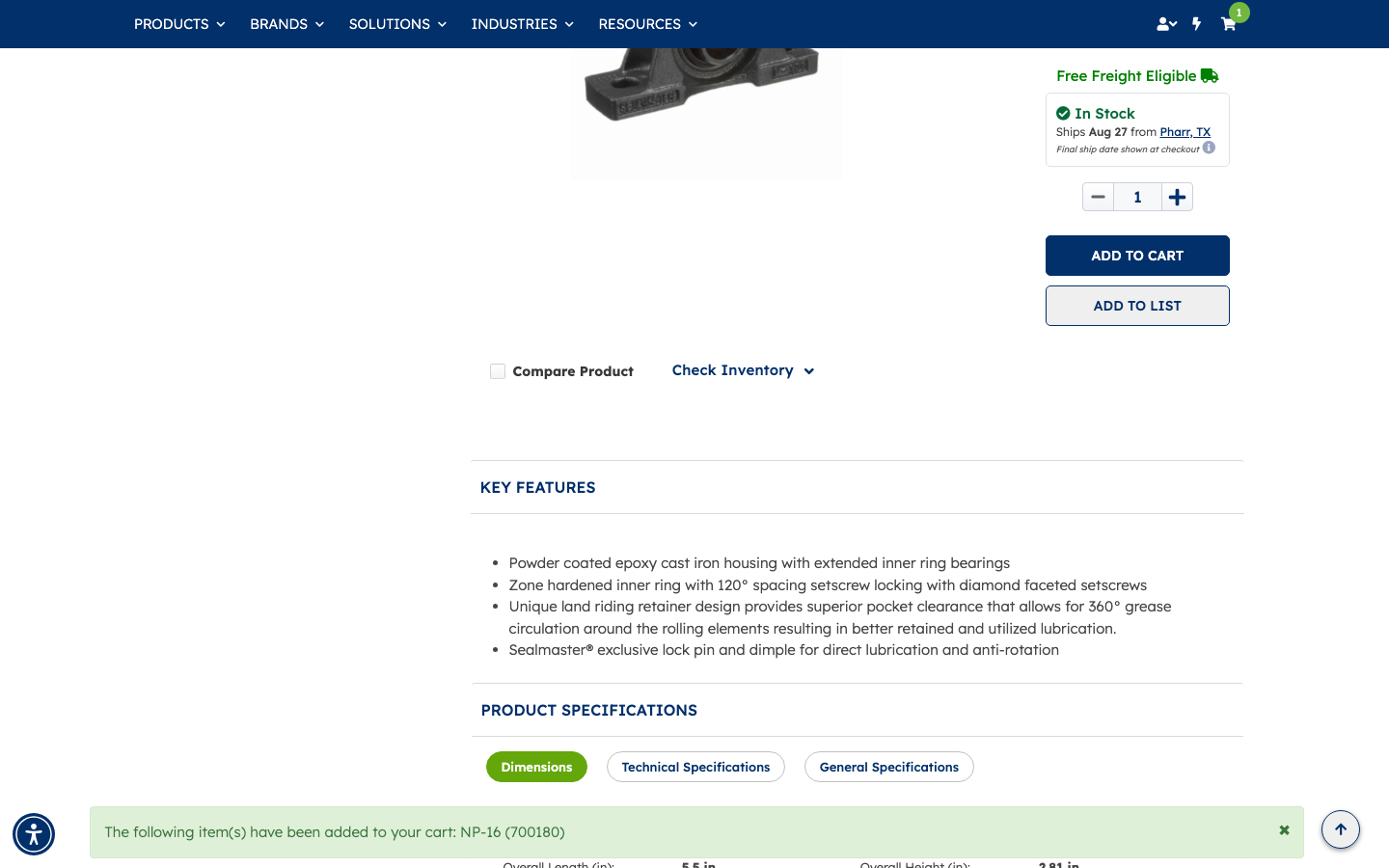
Below the product description you'll find the buy box with a quantity field (defaults to 1), the ADD TO CART button, and an ADD TO LIST option. You can also expand Check Inventory to see stock details before adding.
Step 5 — Add the item to your cart
Set the quantity you need and click ADD TO CART.
A green confirmation banner appears at the top of the page confirming the item was added. The cart icon in the header updates to show the number of items currently in your cart.
In this example: "The following item(s) have been added to your cart: NP-16 (700180)", and the cart badge shows 1. Availability also appears: In Stock, ships Aug 27 from Pharr, TX.
Reviewing Your Cart
Step 6 — Open the shopping cart
Click the cart icon in the header (or navigate to My Cart) to review your items before checkout.
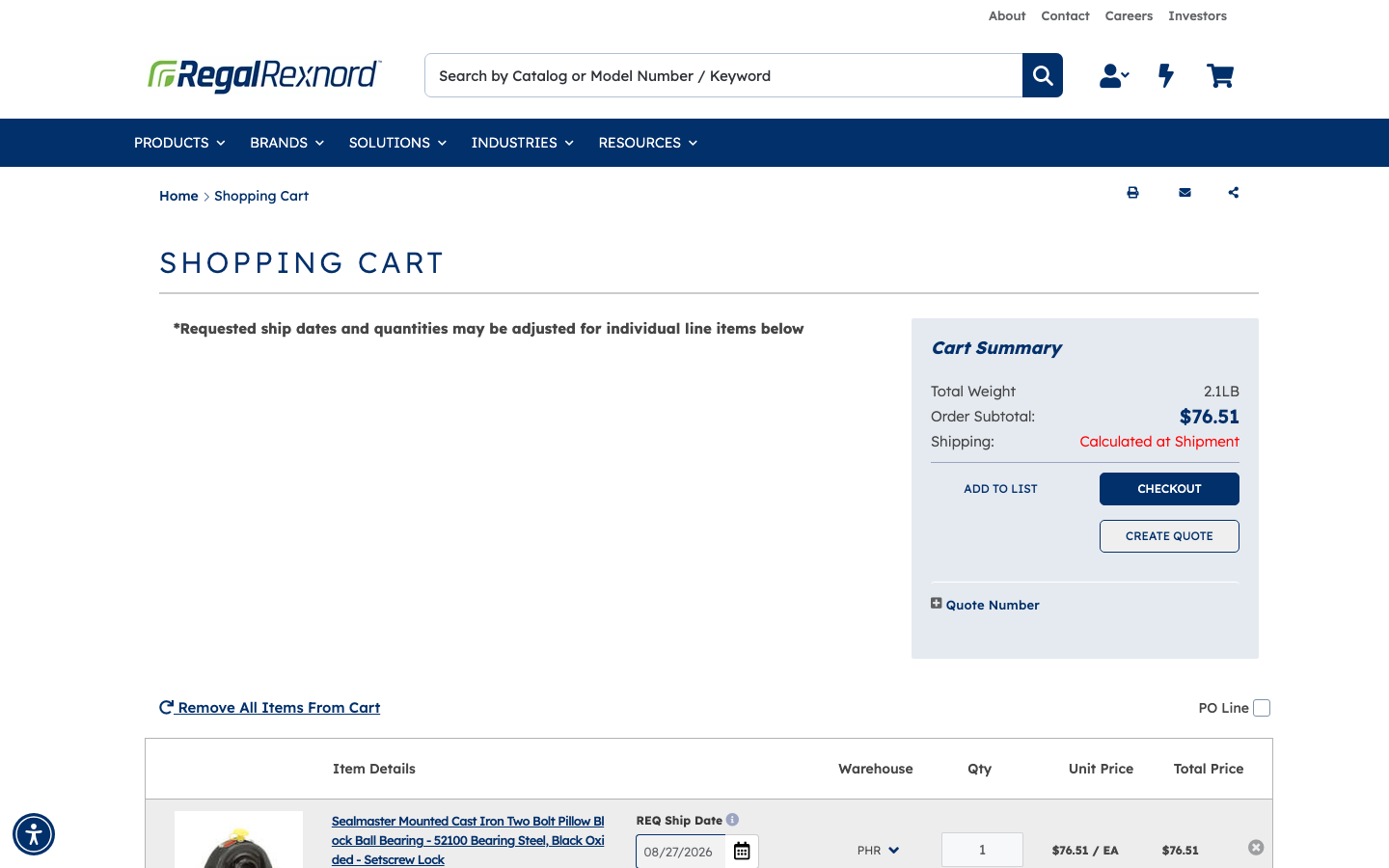
Your cart displays each line item with its catalog number, part number, quantity, unit price, and line total. The Cart Summary on the right shows the order subtotal and notes that shipping is calculated at the time of shipment.
In this example: NP-16 / Part # 700180, Qty 1, Unit Price $76.51 / EA, Total $76.51. Order Subtotal: $76.51.
Two action buttons are available: CHECKOUT to place the order, or CREATE QUOTE if you need a formal quote first.
Step 7 — Check the line item details
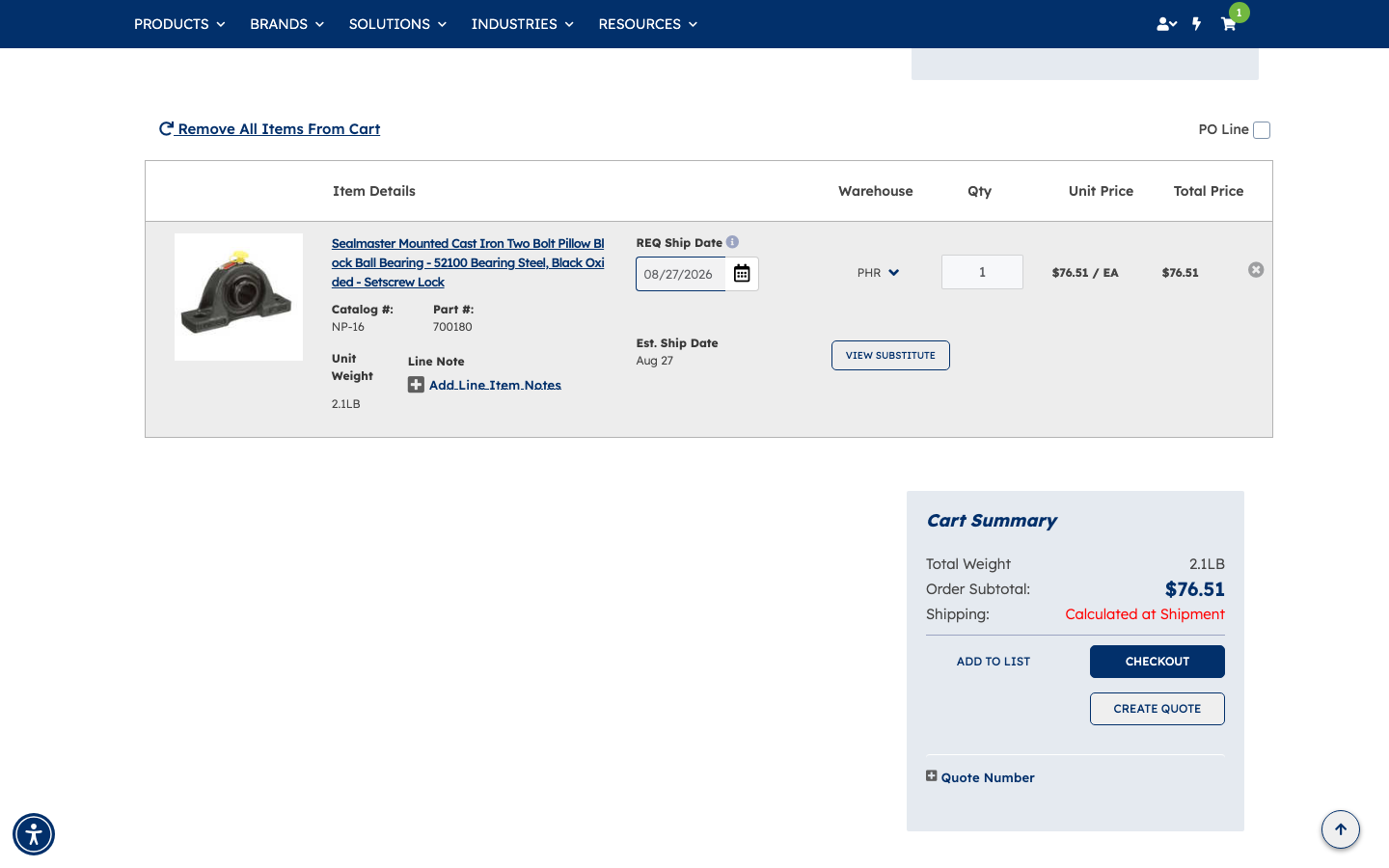
Each line in the cart expands to show additional detail: the warehouse it ships from, your requested ship date, and an estimated ship date.
In this example: warehouse PHR, requested ship date 08/27/2026, estimated ship date Aug 27.
Checkout
Step 8 — Begin checkout
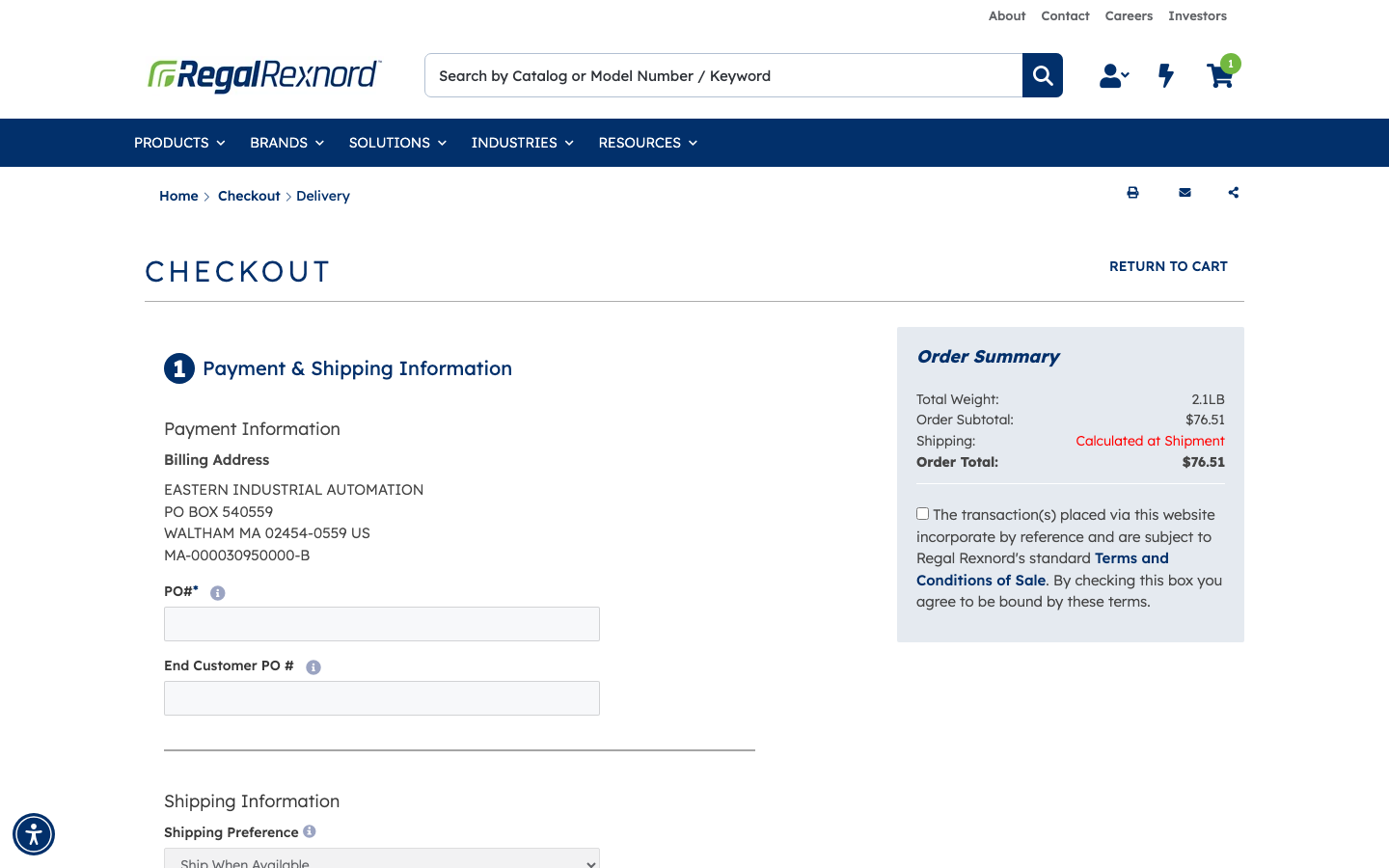
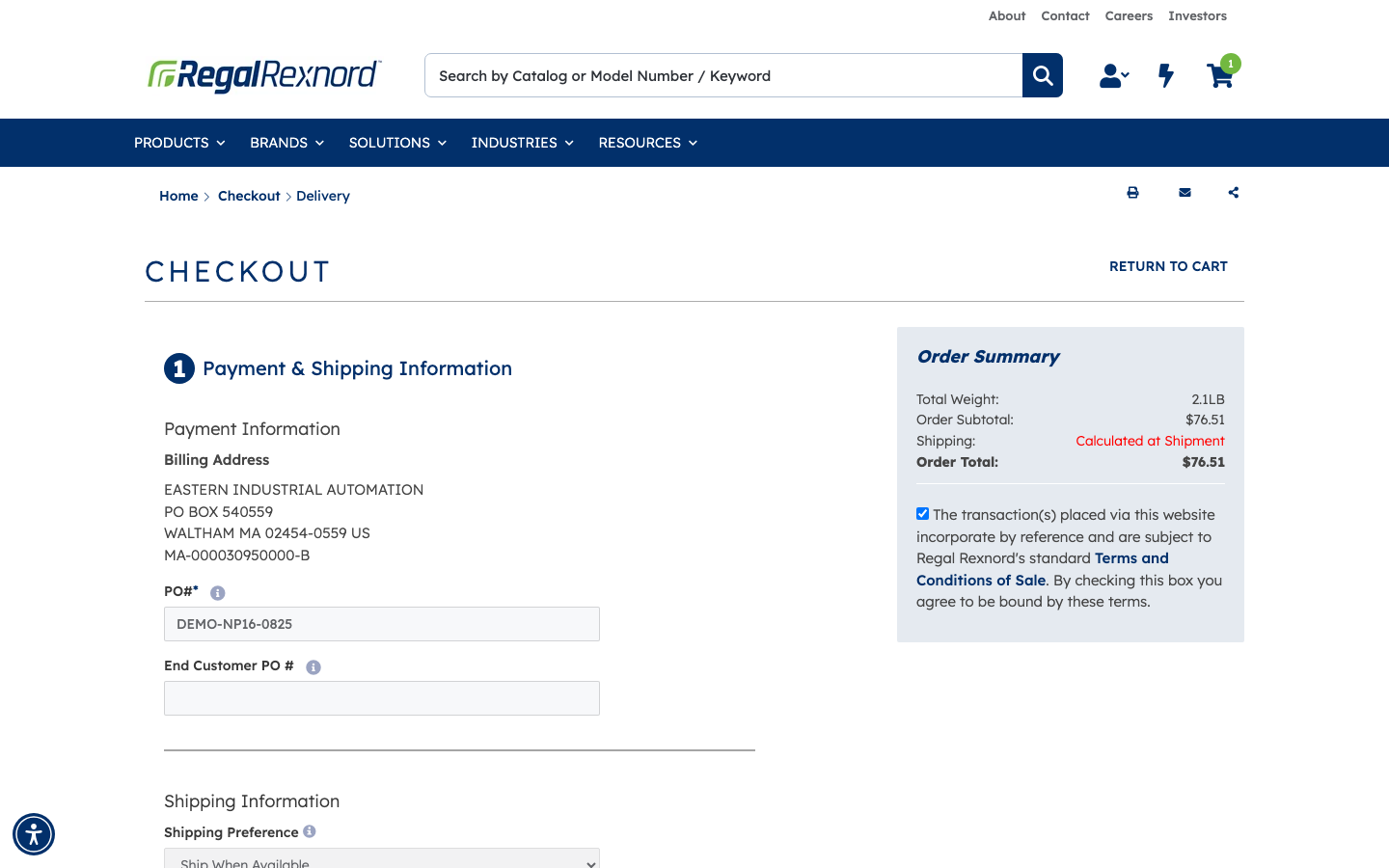
When you're happy with the cart, click CHECKOUT. The first checkout page — Payment & Shipping Information — loads. Your billing address is already pre-populated from your account.
The Order Summary on the right reflects your current subtotal.
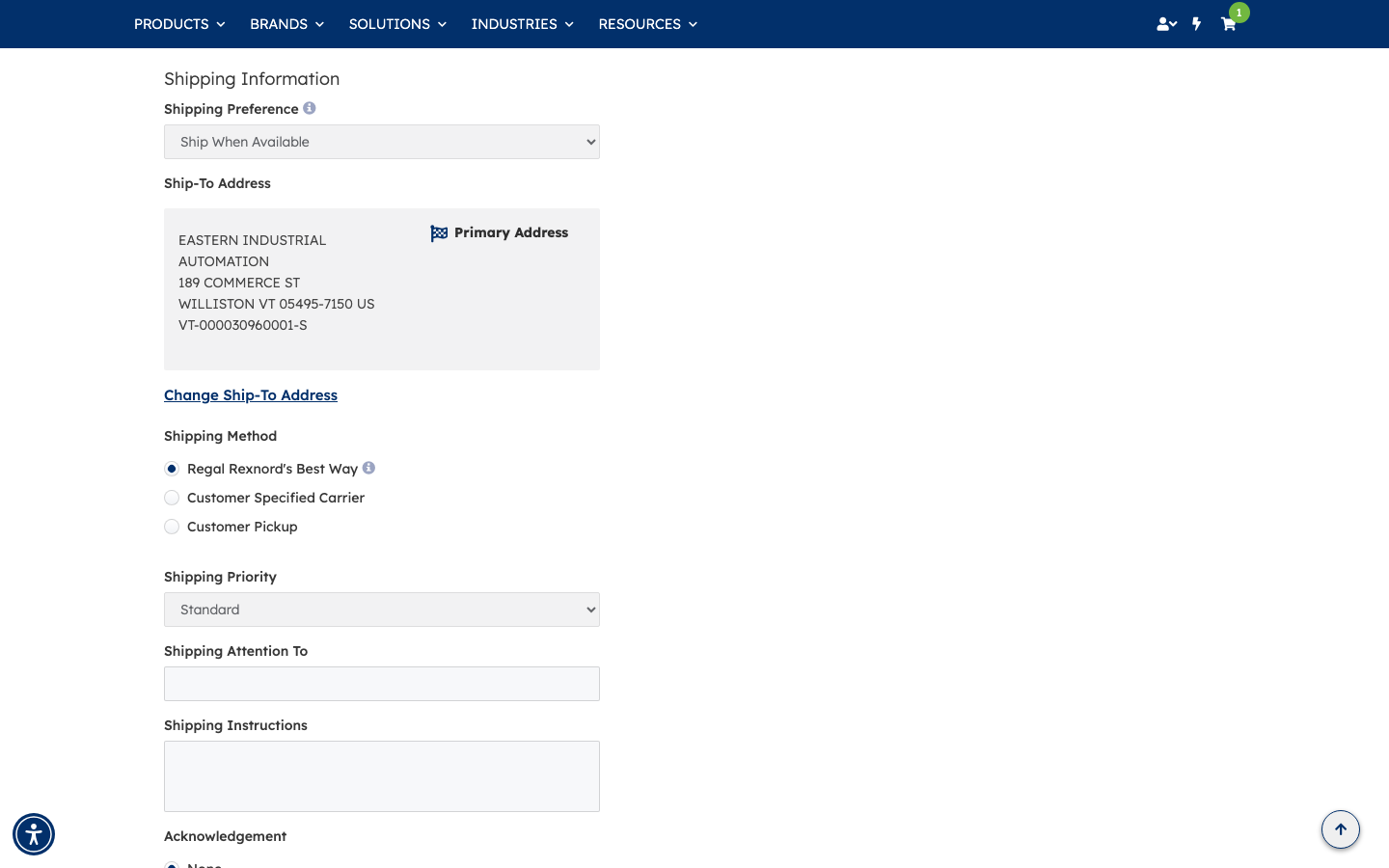
Step 9 — Confirm your shipping details
The Shipping Information section defaults to sensible values for most orders:
- Ship When Available — the order ships as soon as it's ready
- Ship-to address — your Primary Address on file
- Shipping method — Regal Rexnord's Best Way
- Shipping priority — Standard
Optional fields like Attention To and Delivery Instructions are available if you need them. Adjust any of these to match your needs.
Step 10 — Enter your PO number and accept terms
Two fields are required before you can submit:
- PO# — enter your company purchase order number. (In this example:
DEMO-NP16-0825) - Terms and Conditions of Sale checkbox — check this to acknowledge the sale terms.
Once both are complete, the NEXT button becomes active.
Step 11 — Review and submit your order
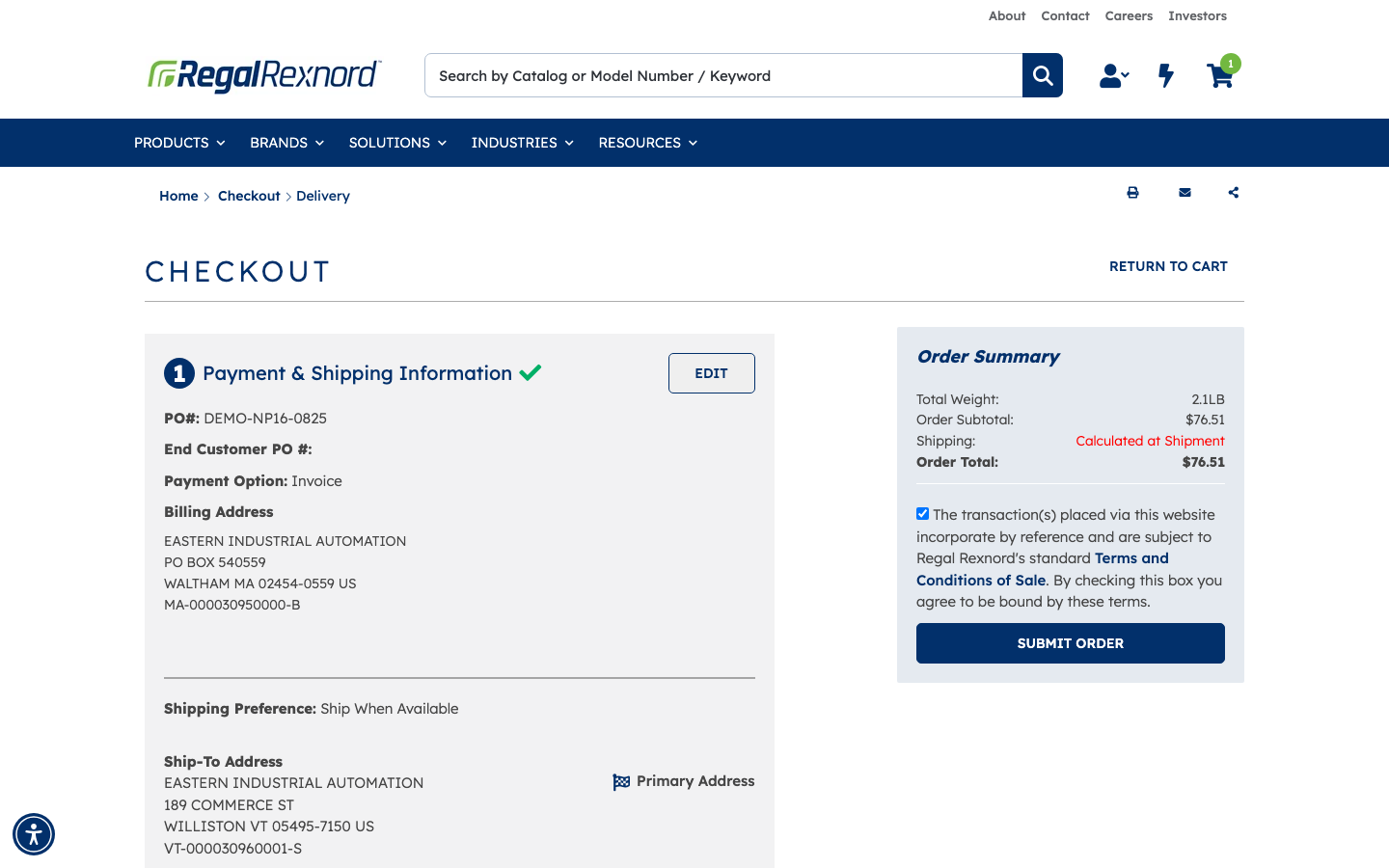
Clicking NEXT collapses the form and shows a summary of everything you've entered — payment details, billing address, shipping preference, and ship-to address. Look these over carefully.
When you're ready, click SUBMIT ORDER in the Order Summary panel on the right.
This can take a few moments while the order is processed.
Confirmation & Order Tracking
Step 12 — Save your order number
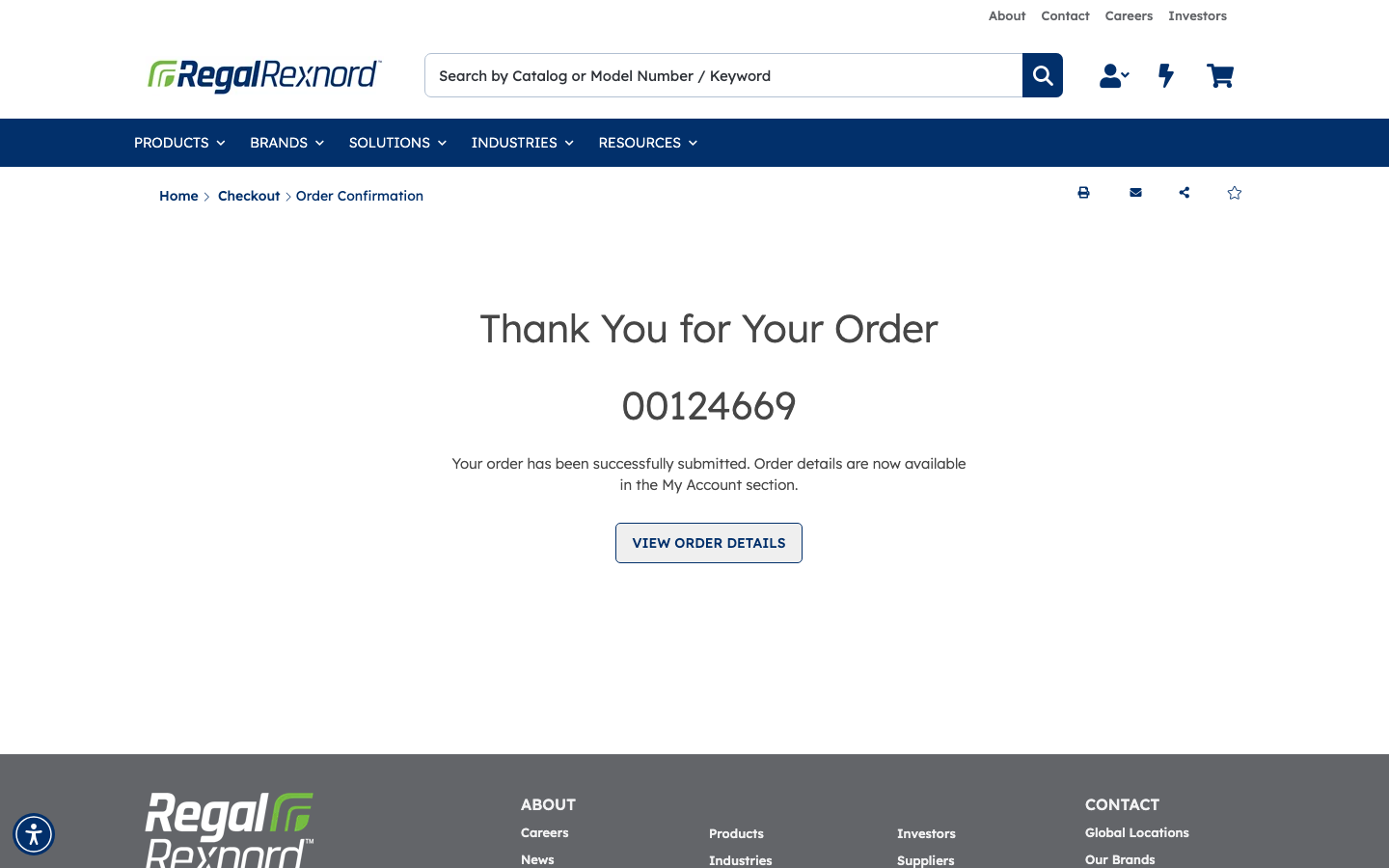
After the order is processed, the Thank You for Your Order page appears with your new order number. Write it down or copy it — you'll use it to look up the order later.
In this example, the order number is 00124669.
Click VIEW ORDER DETAILS if you want to go straight to the order record.
Step 13 — Notice that your cart is now empty
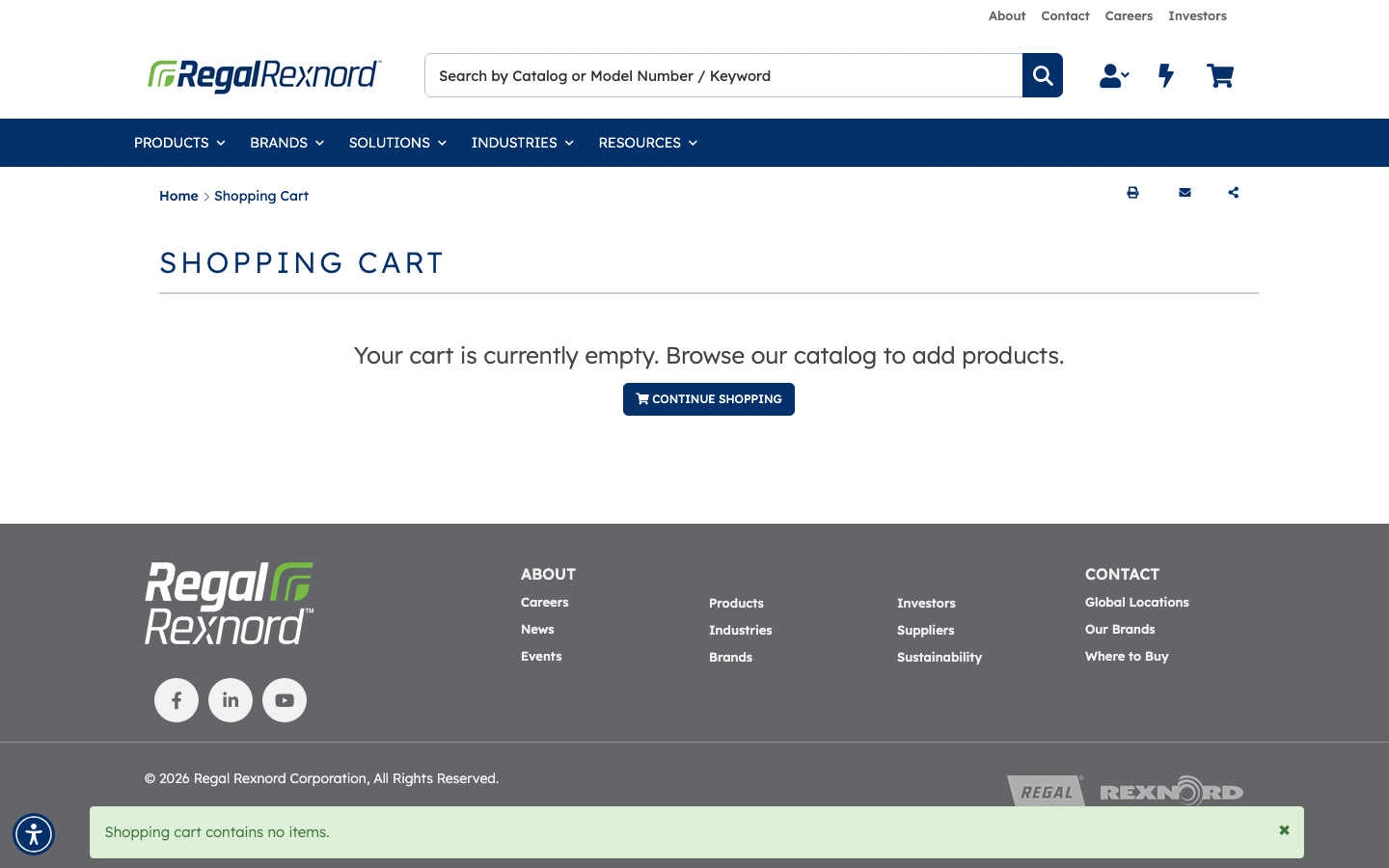
If you navigate back to the cart you'll see "Your cart is currently empty." — the order you just placed has been processed and the cart is cleared automatically.
Step 14 — Find your order in Order History
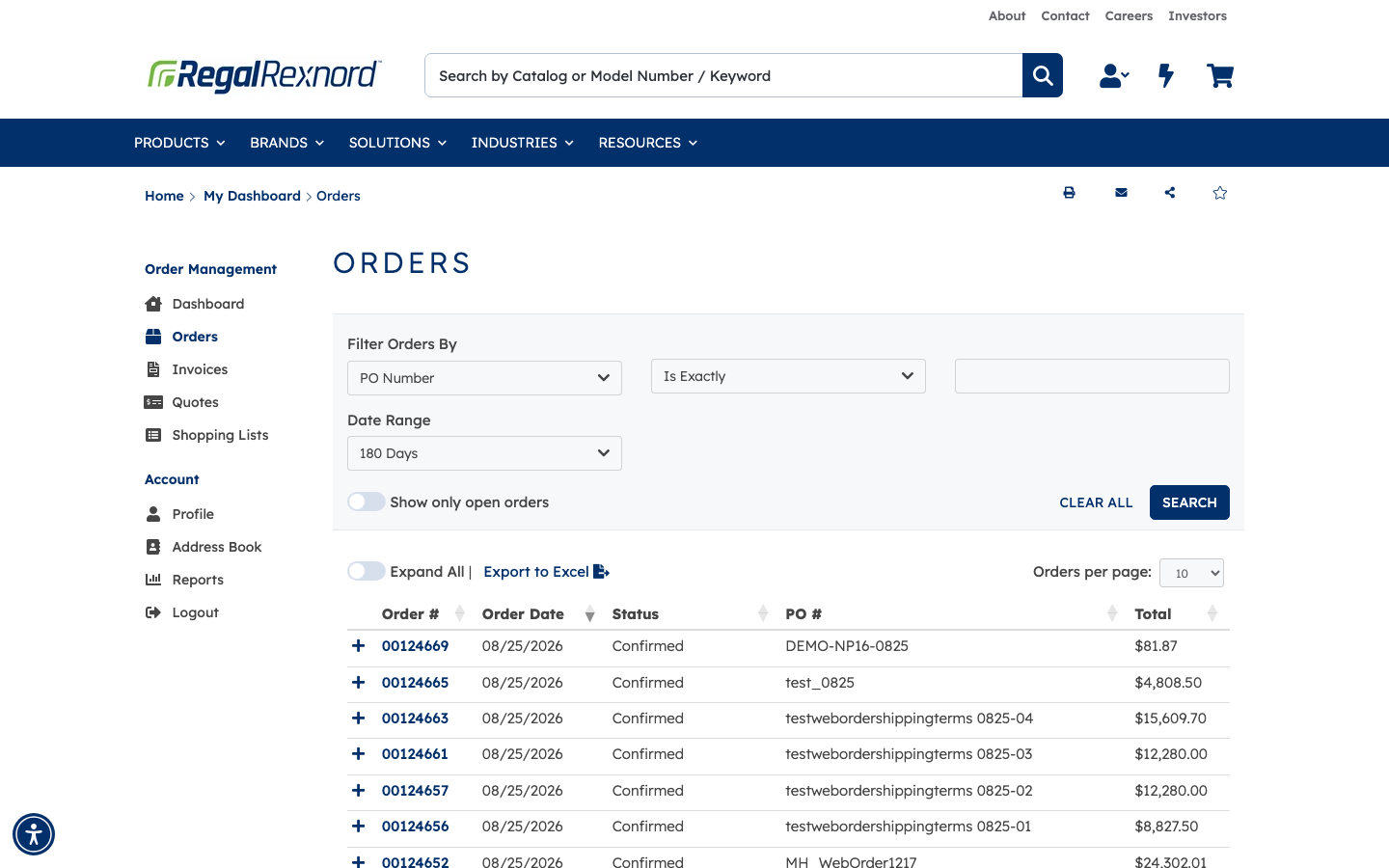
Go to My Dashboard → Orders to see all your orders. Your new order appears at the top of the list with its order number, date, status, PO number, and total.
In this example: order 00124669, placed 08/25/2026, status Confirmed, PO # DEMO-NP16-0825, total $81.87 (subtotal $76.51 plus freight and tax calculated at order creation).
Step 15 — Review the order detail
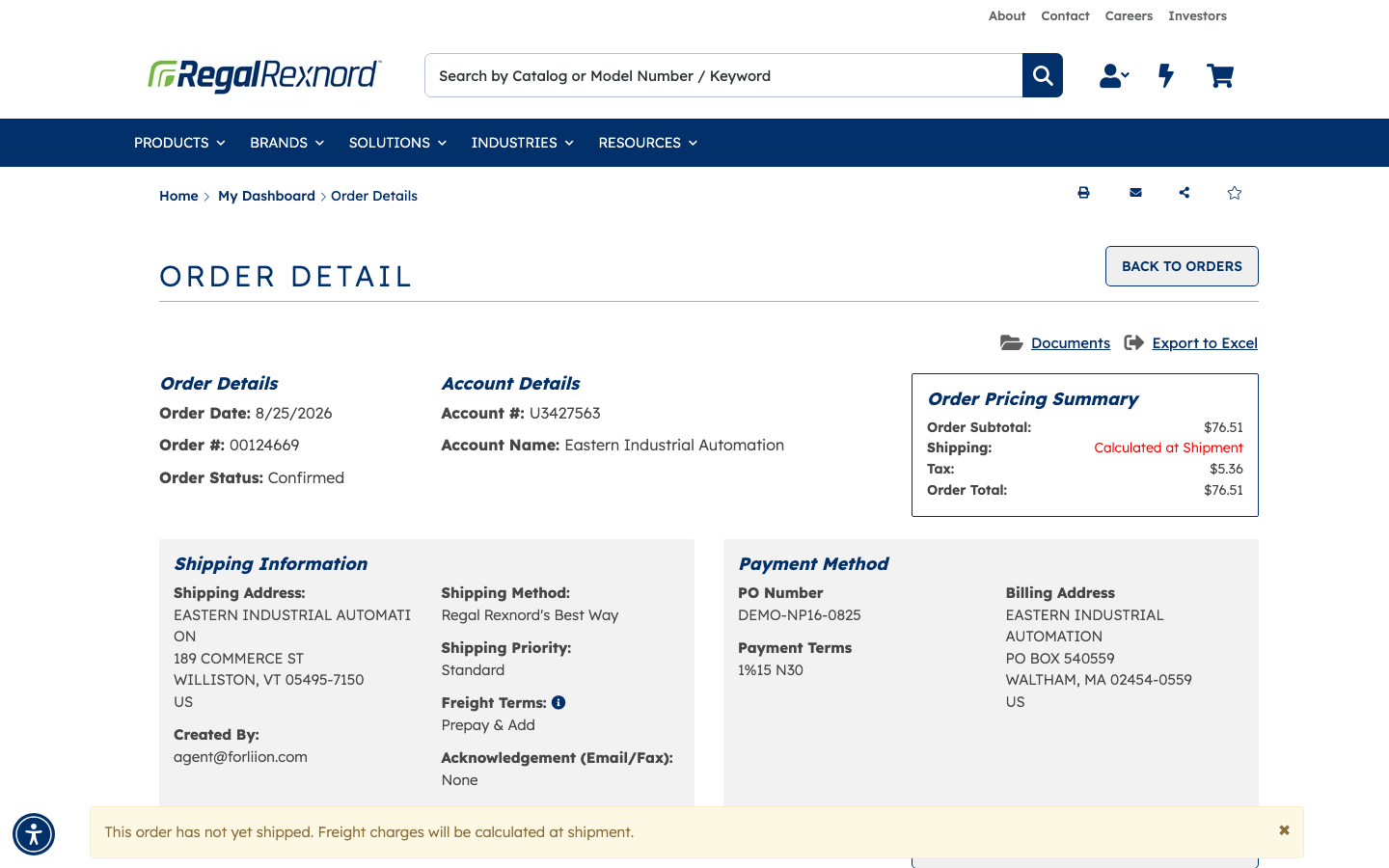
Click the order number to open the full order detail. Here you can confirm every piece of information:
- Order status, order date, and the account it was placed under
- Ship-to address, shipping method, and payment / PO number
- Pricing summary including subtotal, tax, and freight
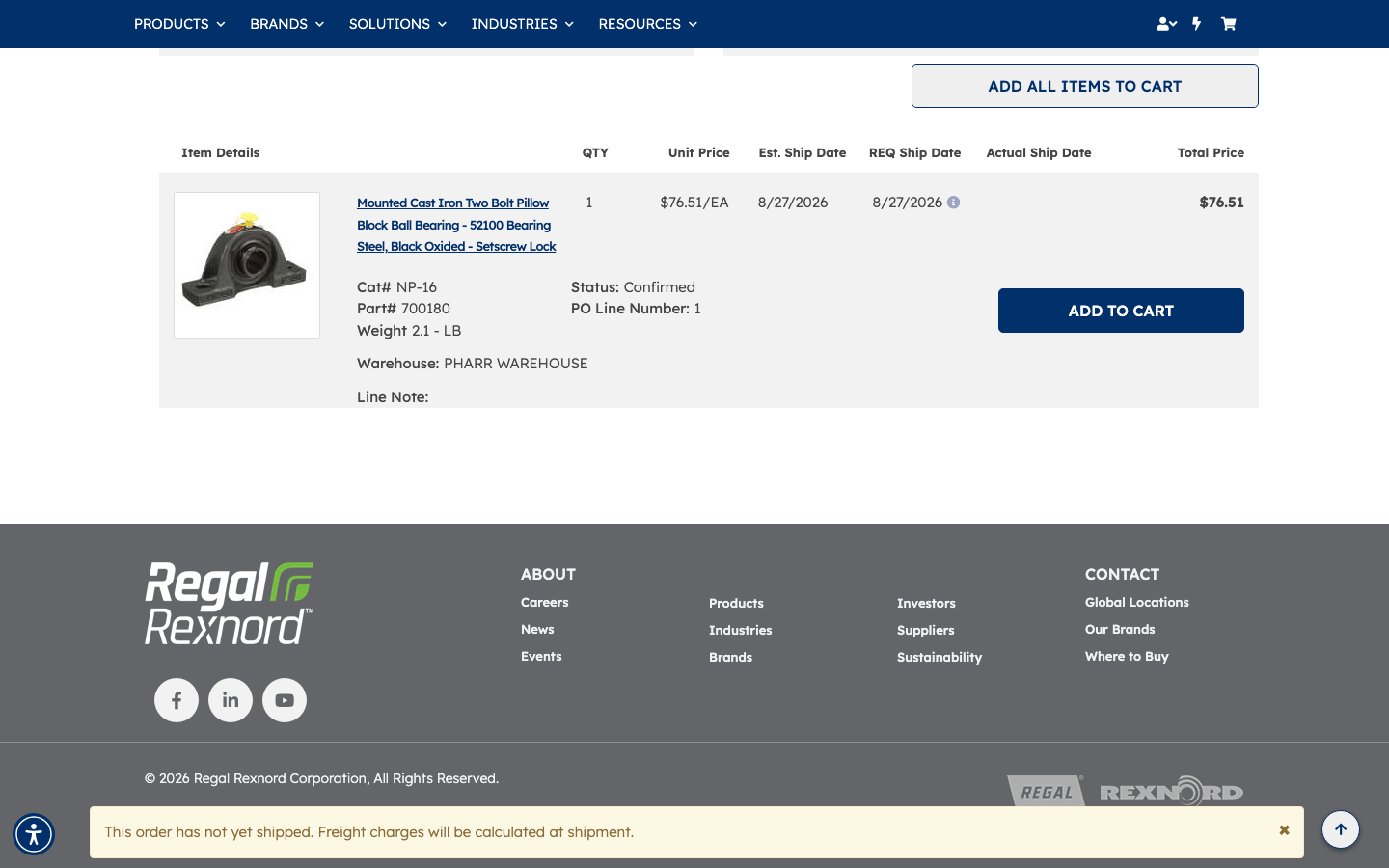
Scroll down to see the line items, which show exactly what was ordered, the quantity, unit price, line total, shipping warehouse, and estimated ship date.
In this example: Cat# NP-16 / Part# 700180, QTY 1, Unit Price $76.51/EA, Total $76.51, status Confirmed, ships from PHARR WAREHOUSE, estimated ship date 8/27/2026.
That's it. Your order is placed and confirmed. You can return to My Dashboard → Orders at any time to track the status of this order, reorder the same items, or view past purchases.