Order Multiple Parts at Once with Quick Order
If you already know the part numbers you need, Quick Order is the fastest way to buy. Instead of browsing or searching the catalog one item at a time, you type your part numbers directly into a grid, review the pricing and availability that fills in automatically, and add everything to your cart in a single click.
:::info Behind the scenes This walkthrough was captured against the UAT site. See the test instructions it was driven from, and the test results recorded during the run. :::
Before you begin: You're already signed in and starting from anywhere on the site — you can reach Quick Order from the top-right Quick Order link in the Single Part Order widget on your Dashboard, or navigate directly through the site menu. Have your part numbers (and any specific quantities) ready before you start.
Step 1 — Open the Quick Order page
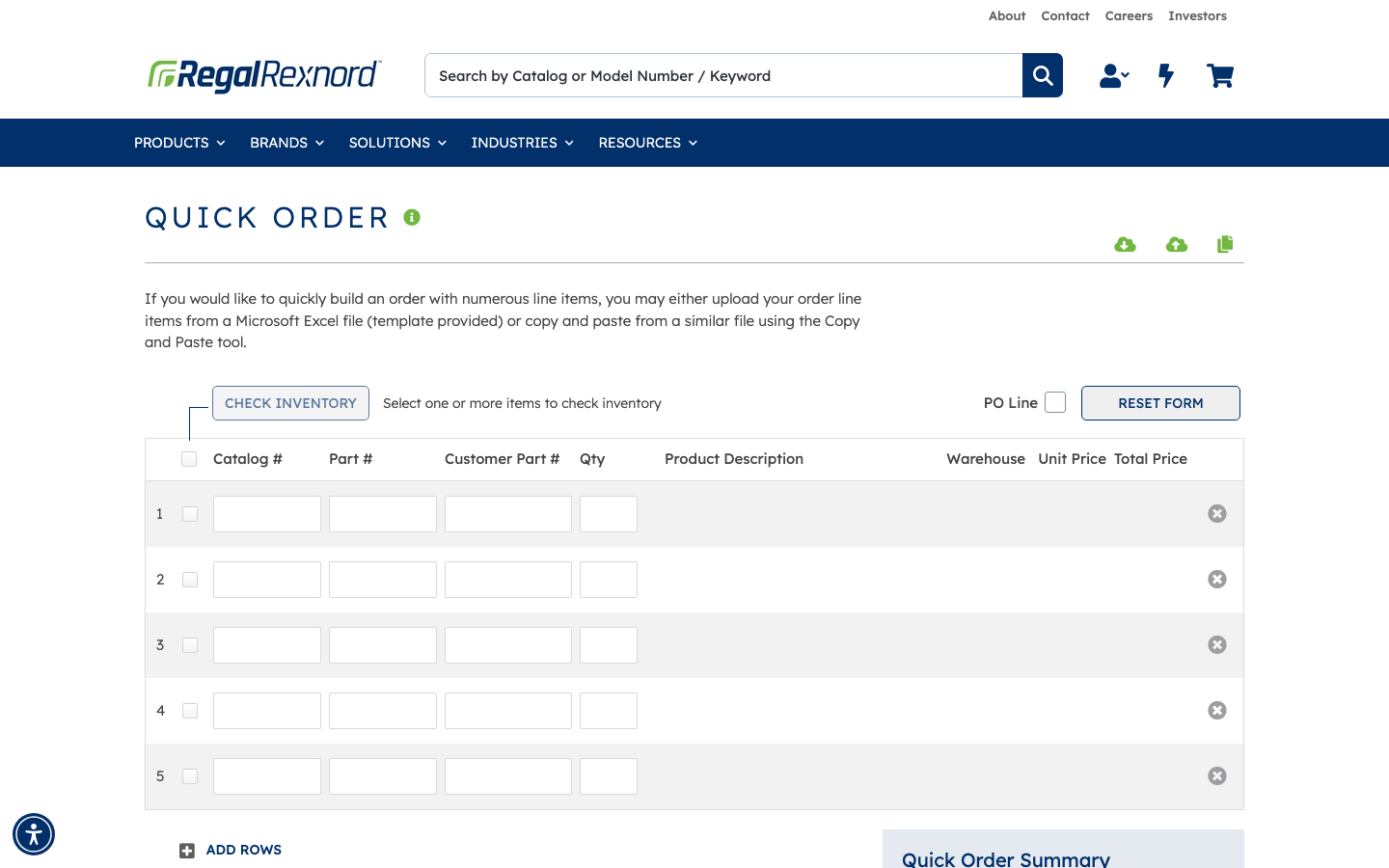
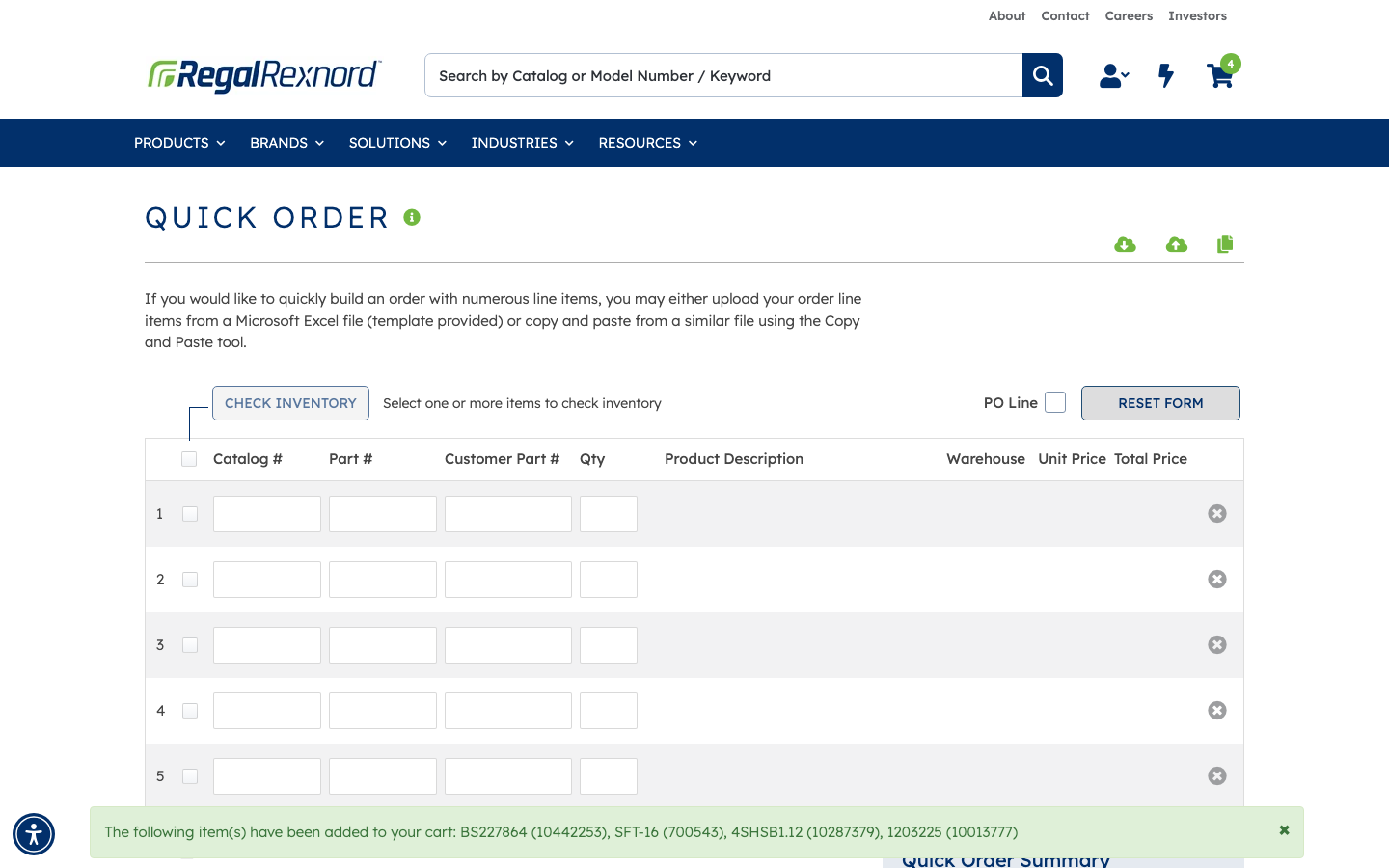
Click the Quick Order link. The Quick Order grid loads with five empty rows. Each row has columns for Catalog #, Part #, Customer Part #, Qty, Product Description, Warehouse, Unit Price, and Total Price.
At the top of the grid you'll also see:
- CHECK INVENTORY — checks stock on any rows you've selected
- PO Line toggle — lets you assign a PO line number per row
- RESET FORM — clears all rows so you can start over
- ADD ROWS — adds more rows if you need more than five
- Three icons in the top-right corner for downloading an Excel template, uploading a filled template, and a Copy & Paste tool (great for pasting from a spreadsheet)
This guide covers typing part numbers directly into the rows. See the icons above if you'd prefer to upload or paste.
Step 2 — Enter your part numbers
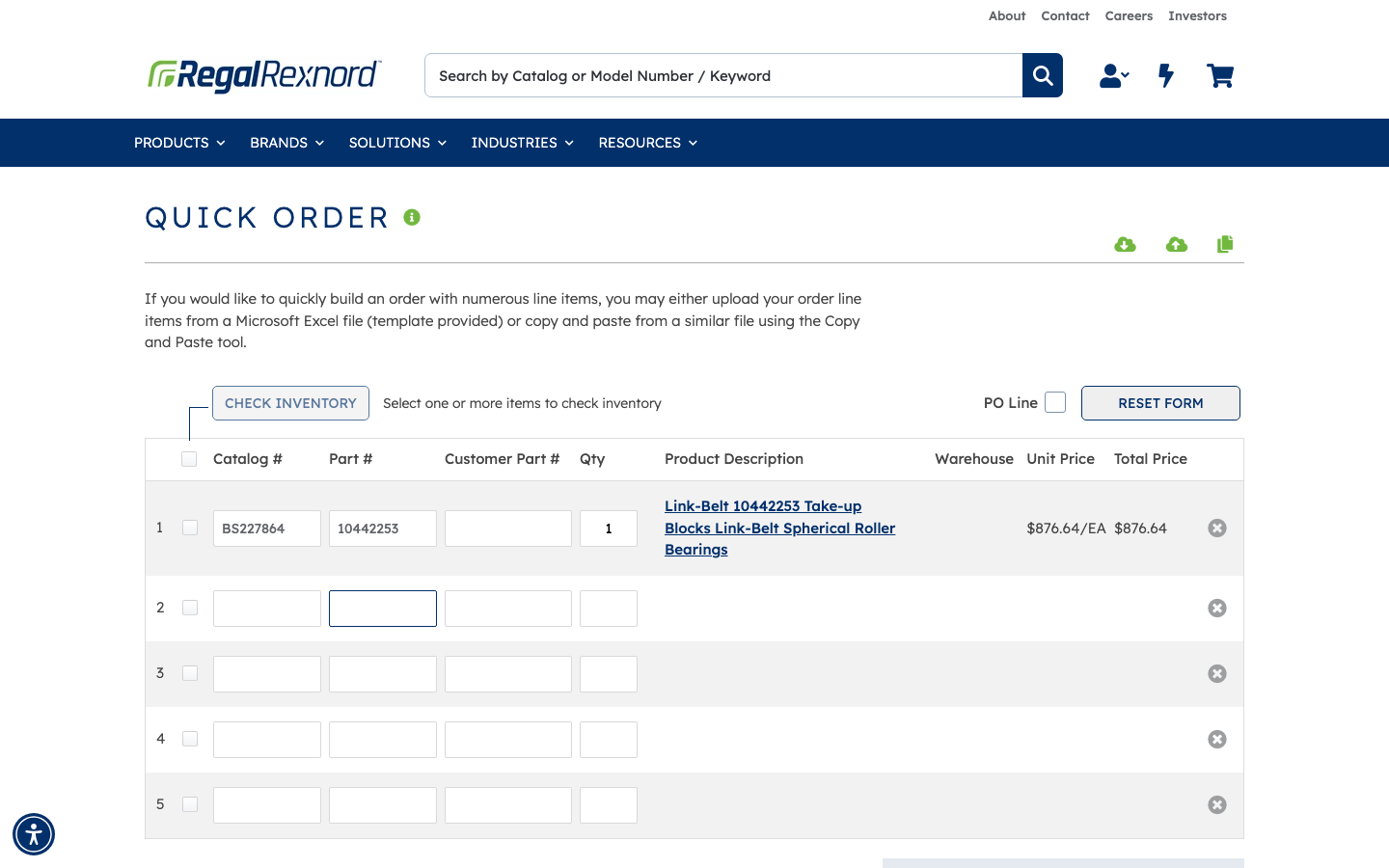
Click into the Part # cell in the first row and type your part number. As soon as the system recognizes it, the row fills in automatically with the product description, catalog number, default quantity, unit price, and total price. You don't need to search — just the part number is enough.
In this example, entering part 10442253 resolves to Link-Belt Take-up Blocks — Spherical Roller Bearings, catalog number BS227864, at $876.64/EA.
Move to the next row and repeat for each additional part. In this example, we're ordering five parts total:
| Row | Part # | Catalog # | Product | Unit Price |
|---|---|---|---|---|
| 1 | 10442253 | BS227864 | Link-Belt Take-up Blocks — Spherical Roller Bearings | $876.64/EA |
| 2 | 700543 | SFT-16 | Sealmaster Mounted Cast Iron Two Bolt Flange Ball Bearing | $76.51/EA |
| 3 | 10287379 | 4SHSB1.12 | Rexnord Hubs — Elastomeric Coupling Parts & Kits | $74.90/EA |
| 4 | 10013777 | 1203225 | Falk Hubs-Flex Gear Coupling Parts & Kits | $1,522.88/EA |
| 5 | 30189120 | 5321-101-006 | Warner Electric 30189120 | — |
Tip: Once you fill the last visible row, the grid automatically adds an empty row below it — you don't need to click ADD ROWS to keep going.
Step 3 — Review each row for notices
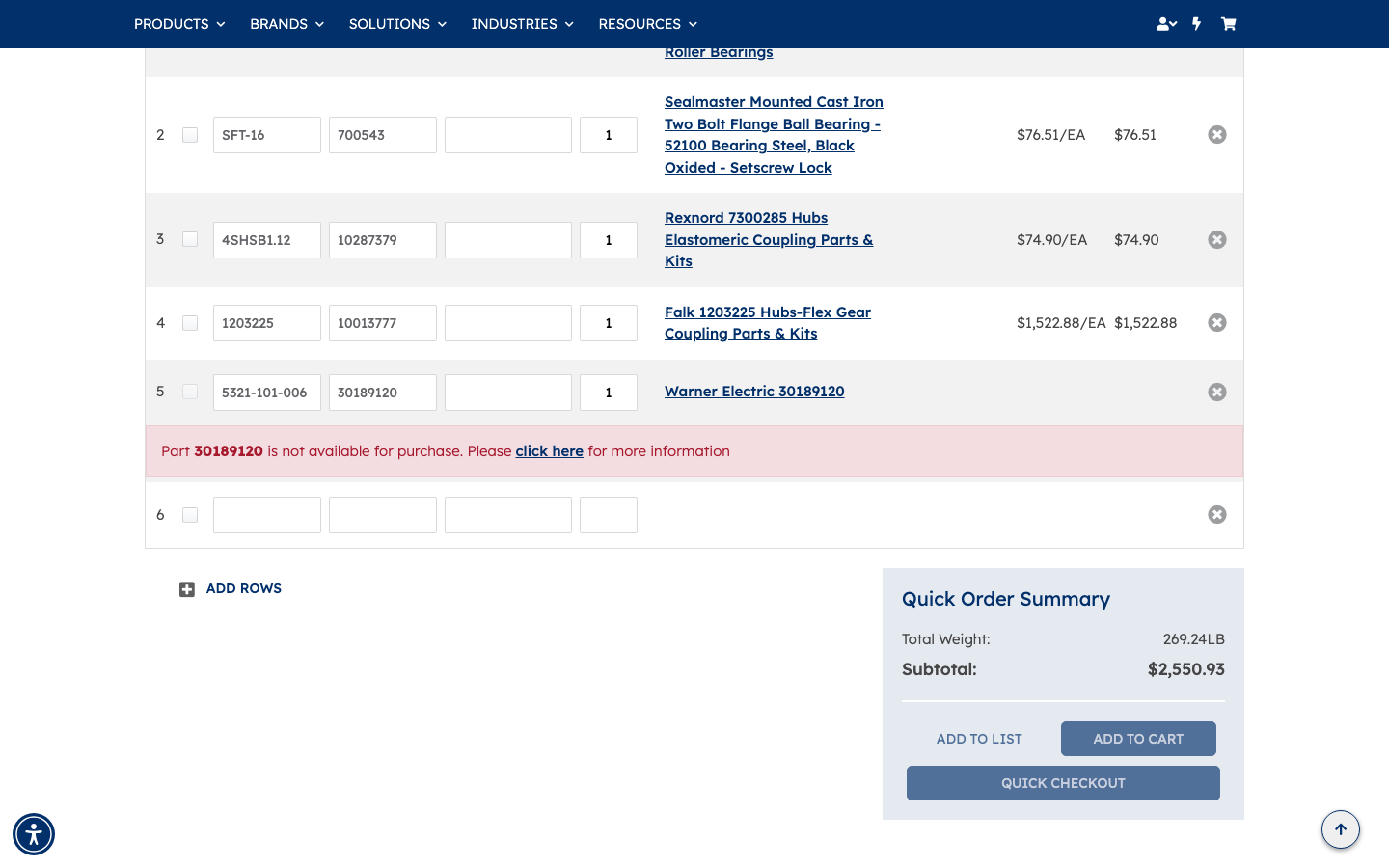
After entering all your parts, look over the rows. Most parts will resolve cleanly with a description and pricing. Occasionally a row will show an inline notice — for example:
Part 30189120 is not available for purchase. Please click here for more information.
This means the part exists in the catalog but cannot be ordered on your account. The Quick Order Summary panel on the right automatically excludes that line from the subtotal, so your total always reflects only what you can actually buy. You can remove a flagged row by clicking the red ✕ on that row, then continue with the rest.
Step 4 — Adjust quantities if needed
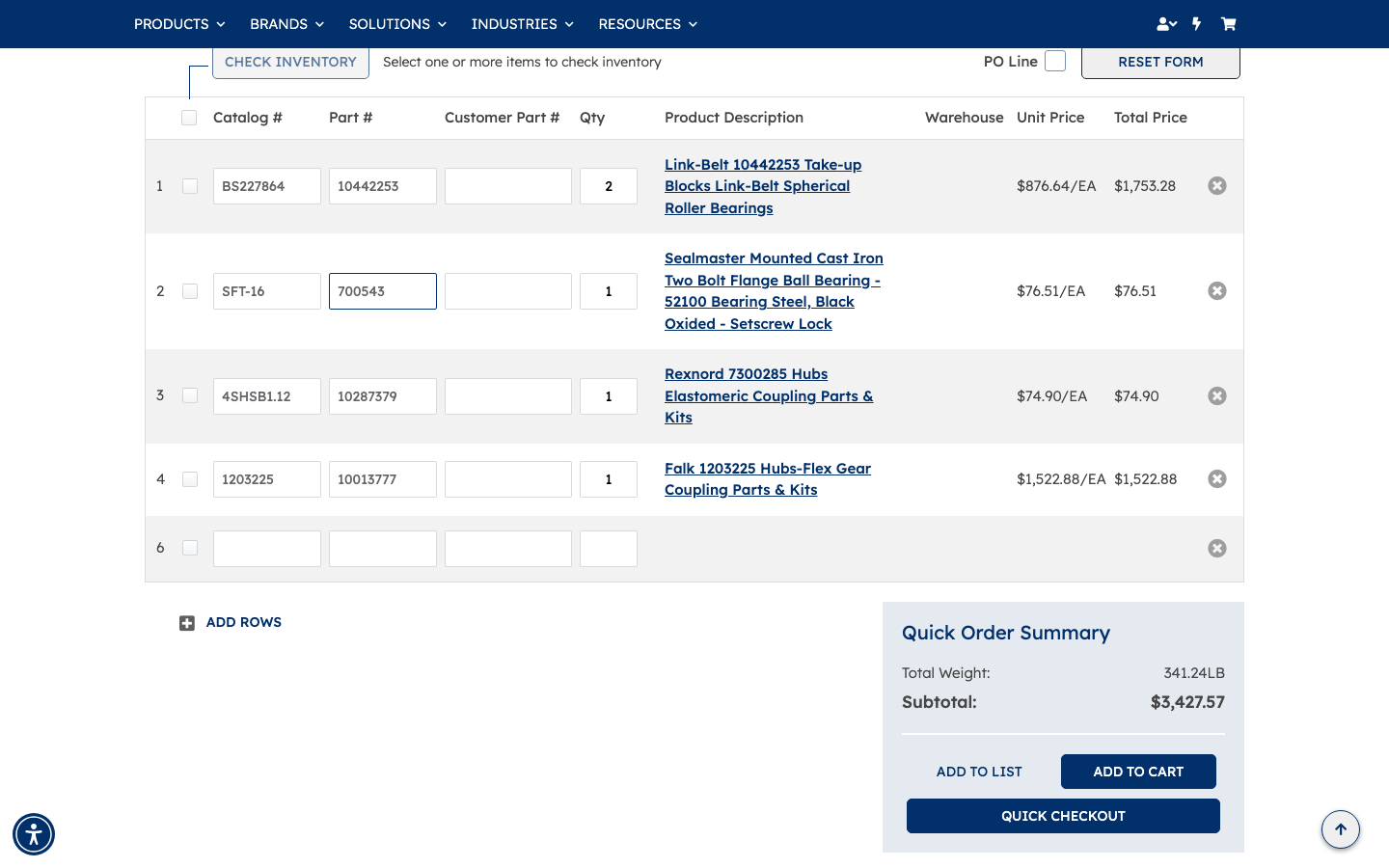
To change the quantity for any row, click its Qty cell and type the new number. The row's Total Price updates immediately, and the Quick Order Summary panel recalculates the order subtotal and total weight at the same time.
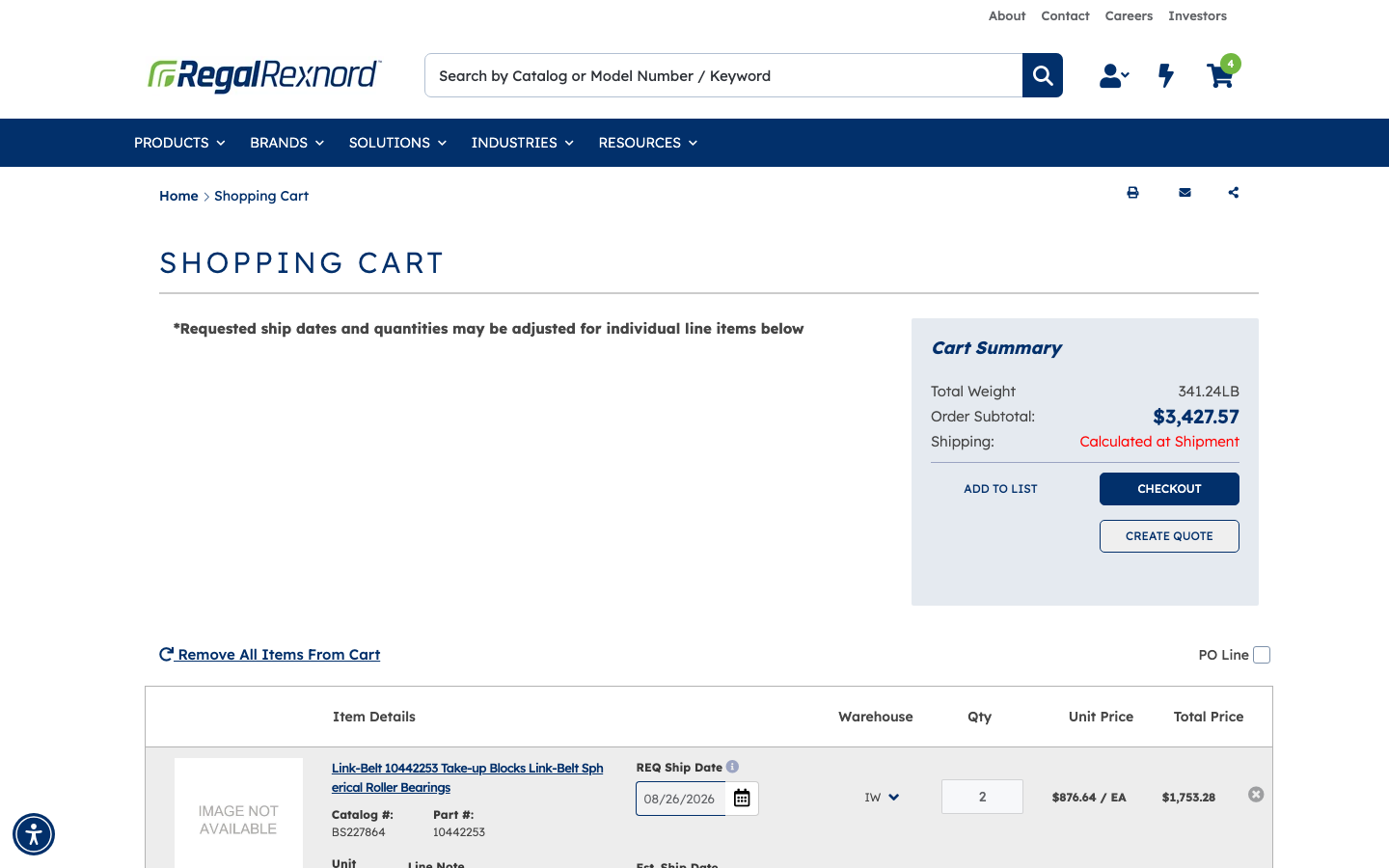
In this example, changing row 1 to Qty 2 moves its total from $876.64 to $1,753.28, and the order subtotal updates to $3,427.57 (341.24 LB total weight).
Step 5 — Add everything to your cart
When you're satisfied with the rows, click ADD TO CART. All valid rows are added in one action. A confirmation banner appears naming each item that was added:
The following item(s) have been added to your cart: BS227864 (10442253), SFT-16 (700543), 4SHSB1.12 (10287379), 1203225 (10013777)
The cart icon in the header updates its count (in this example, from 0 to 4), and the grid resets to five empty rows so you can immediately enter another batch if you need to.
Other options: Instead of ADD TO CART you can also click ADD TO LIST to save these parts as a shopping list for later, or QUICK CHECKOUT to go straight to the checkout form.
Step 6 — Review your cart
Open your cart. Check that all the parts appear with the quantities and prices you entered in Quick Order — the totals carry through exactly.
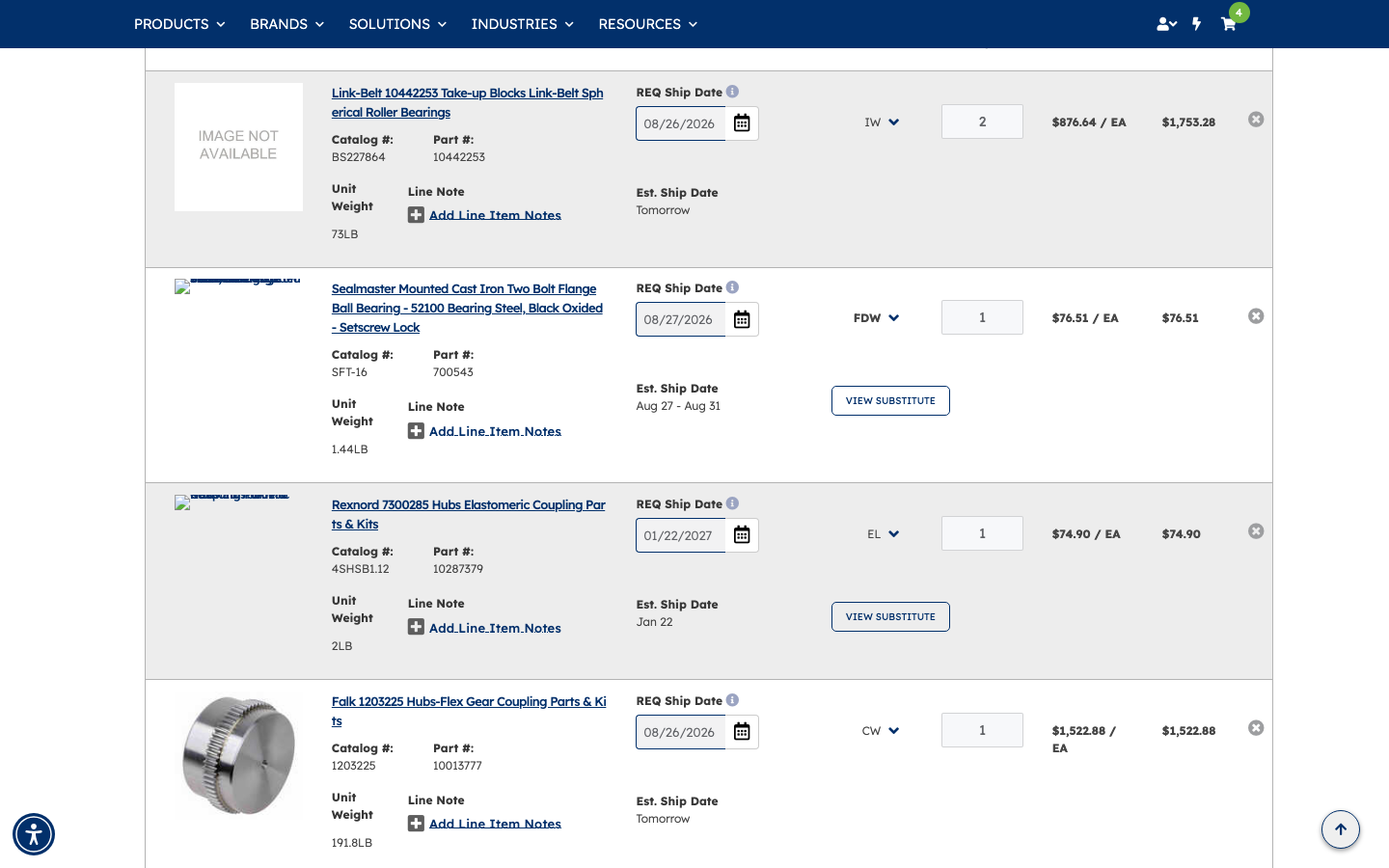
Your cart also enriches each line with additional detail that wasn't shown in the grid — product image, unit weight, warehouse location, requested ship date, and estimated ship date:
| Part # | Catalog # | Qty | Unit Price | Total | Warehouse | Est. Ship |
|---|---|---|---|---|---|---|
| 10442253 | BS227864 | 2 | $876.64/EA | $1,753.28 | IW | Tomorrow |
| 700543 | SFT-16 | 1 | $76.51/EA | $76.51 | FDW | Aug 27 – Aug 31 |
| 10287379 | 4SHSB1.12 | 1 | $74.90/EA | $74.90 | EL | Jan 22 |
| 10013777 | 1203225 | 1 | $1,522.88/EA | $1,522.88 | CW | Tomorrow |
Where the estimated ship date is further out, you may see a VIEW SUBSTITUTE link offering an alternative part that ships sooner.
Step 7 — Proceed to Checkout
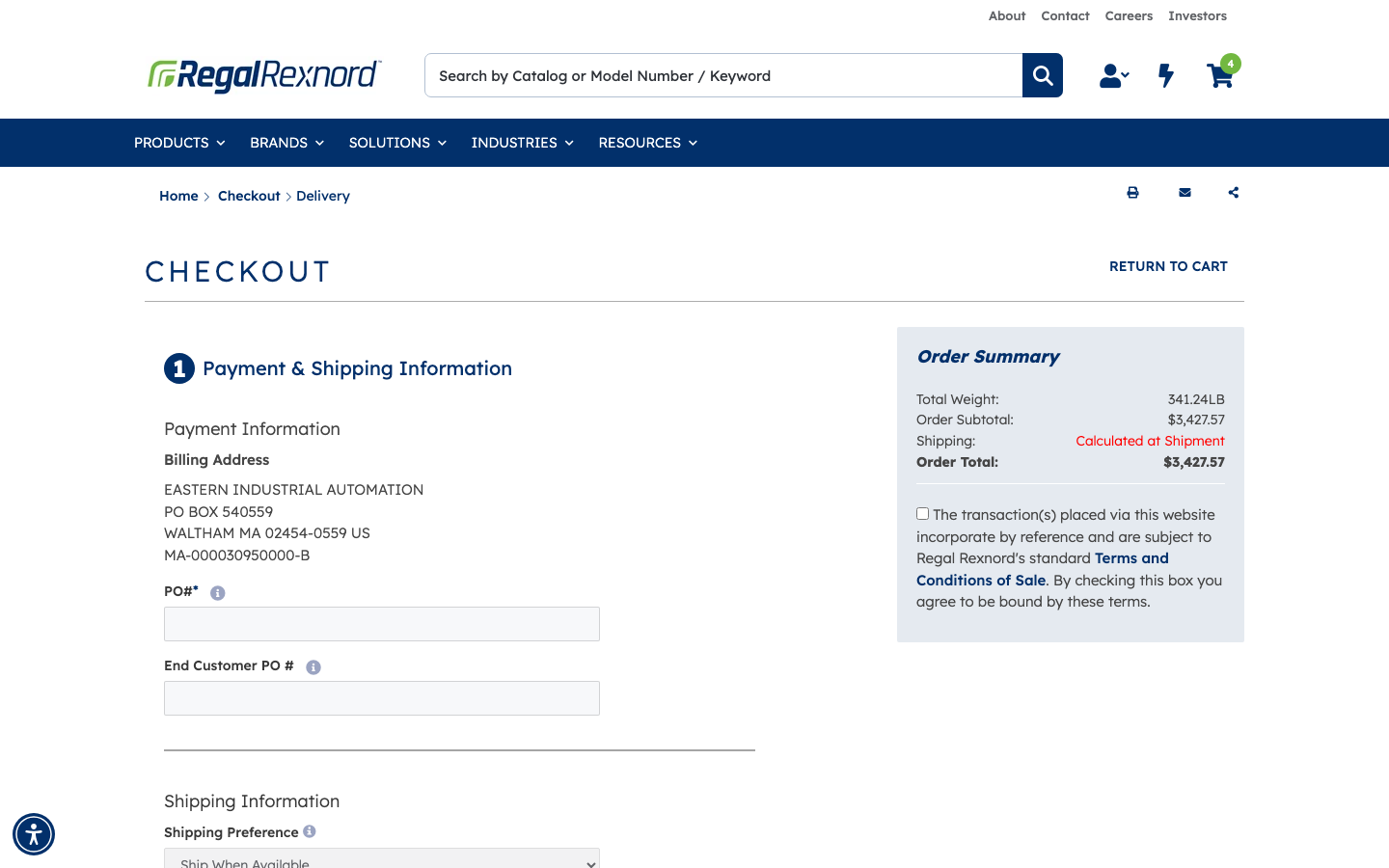
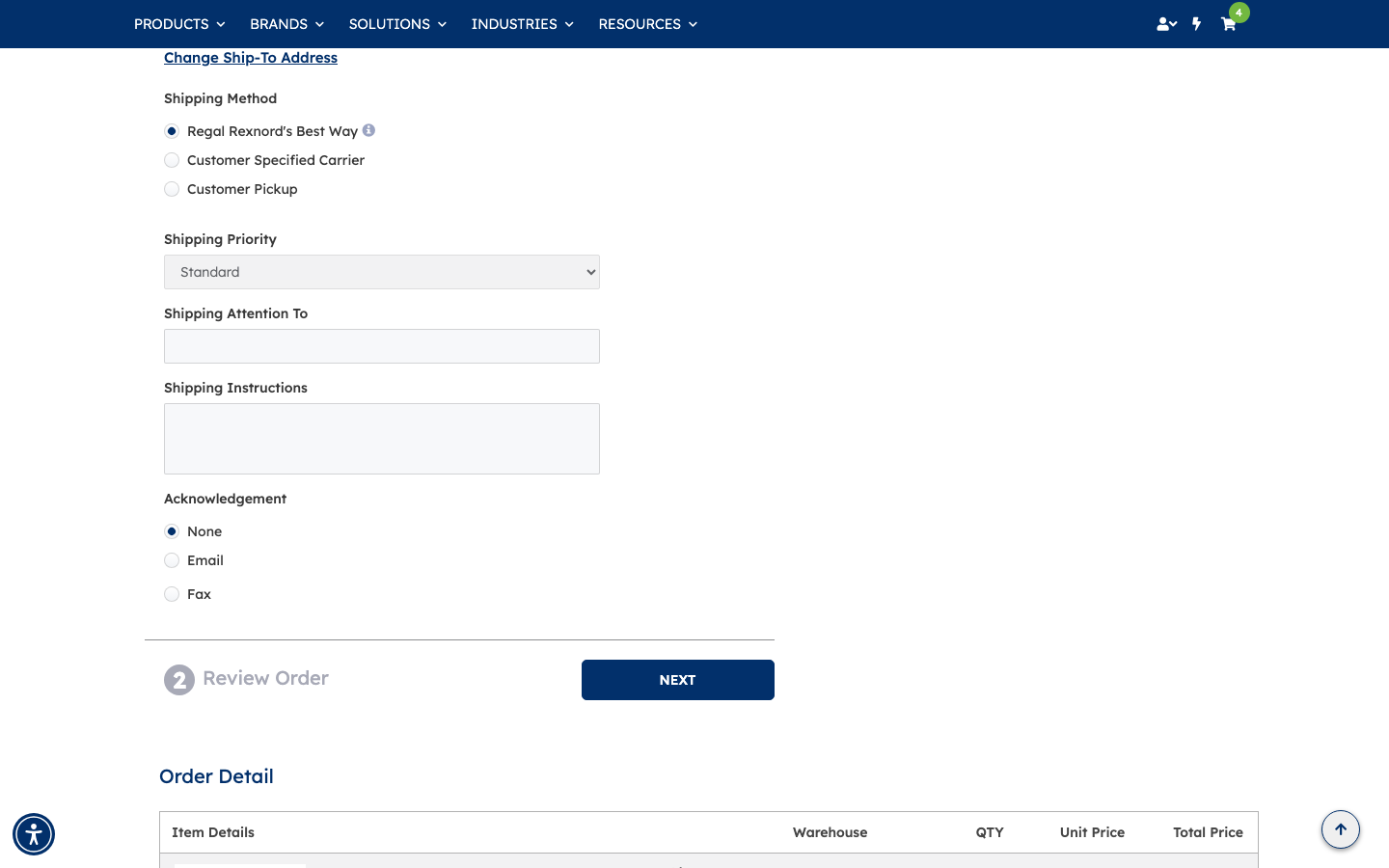
Click CHECKOUT. The checkout form opens with your billing address already pre-populated from your account. Fill in your PO# (required) and any other fields your order needs:
- End Customer PO # — if applicable
- Shipping Preference, Shipping Method, and Shipping Priority
- Shipping Attention To and Shipping Instructions
- Acknowledgement preference (None / Email / Fax)
The Order Summary on the right shows the same totals from Quick Order — Order Subtotal $3,427.57 — so nothing changes as you move through checkout.
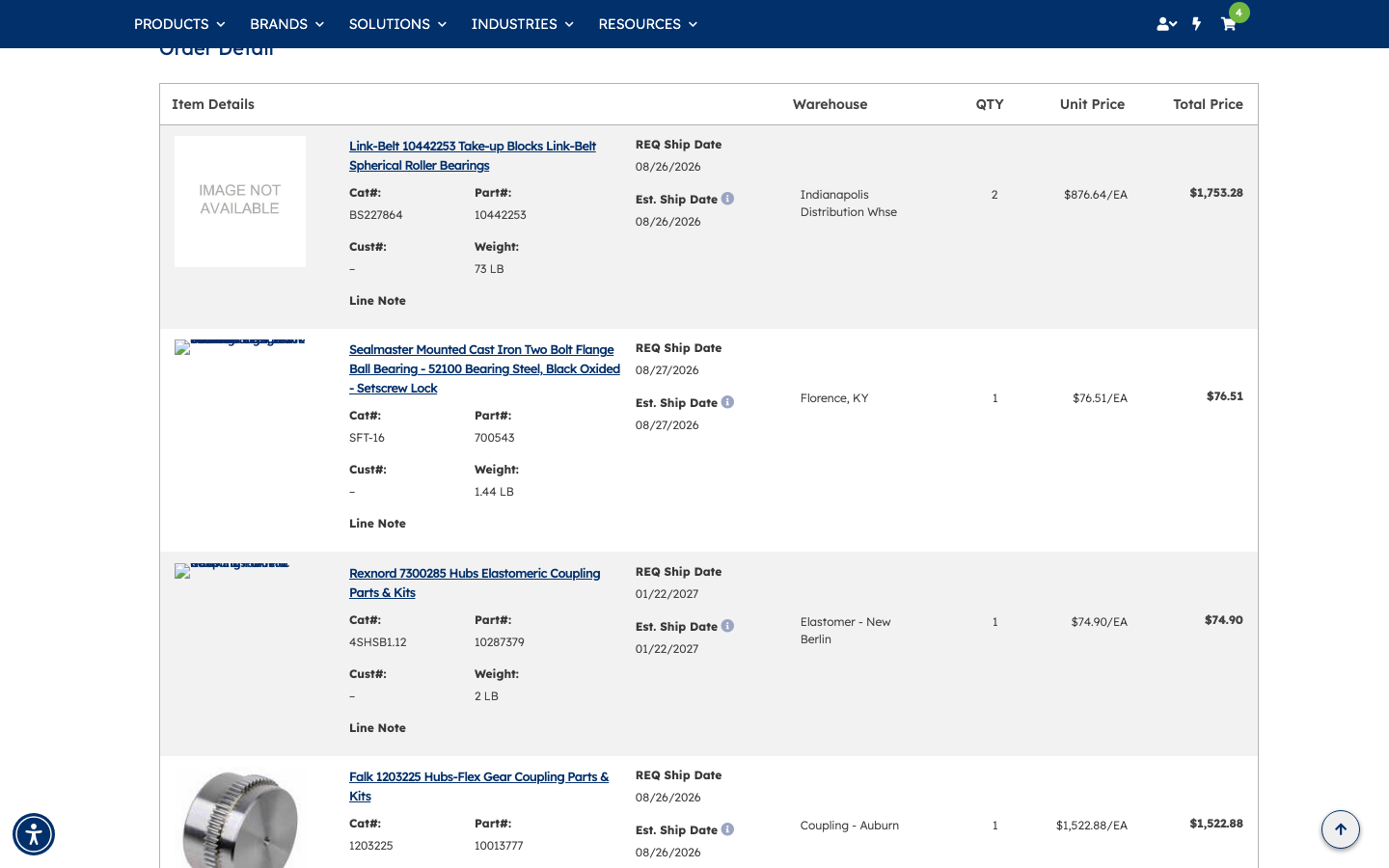
When you advance to Review Order, all four parts appear with their full warehouse names and estimated ship dates resolved automatically — you never had to choose a fulfillment location:
| Part # | Cat # | Qty | Unit Price | Total | Warehouse | Est. Ship Date |
|---|---|---|---|---|---|---|
| 10442253 | BS227864 | 2 | $876.64/EA | $1,753.28 | Indianapolis Distribution Whse | 08/26/2026 |
| 700543 | SFT-16 | 1 | $76.51/EA | $76.51 | Florence, KY | 08/27/2026 |
| 10287379 | 4SHSB1.12 | 1 | $74.90/EA | $74.90 | Elastomer - New Berlin | 01/22/2027 |
| 10013777 | 1203225 | 1 | $1,522.88/EA | $1,522.88 | Coupling - Auburn | 08/26/2026 |
That's it. Review your order details, enter your PO number, and submit. Quick Order took you from a list of part numbers to a fully priced, warehouse-sourced checkout without a single catalog search.