Checking an Item's Price and Availability
Before you order anything, there are two things you usually want to know: what it costs you, and whether it's actually on the shelf. Both live on the product page, and you can get there in a few seconds from the search box at the top of any page.
This walkthrough uses catalog number SFT-16 as the example. Nothing here adds anything to your cart — it's purely a look-up.
You're signed in. Prices are account-specific, so the Your Price you see is the price for the account you're currently working under. If you look after more than one account, check the account shown in the left-hand panel before you trust the number.
The prices in the screenshots are illustrative stand-ins — they all end in .55 — so totals won't tally. On the live site they will. The Difference figure on the product page is shown as-is, so it won't match the gap between the stand-in prices either, and two different items can happen to show the same stand-in price.
Step 1 — Search for the item
Type the catalog number — SFT-16 — into the search box in the site header and press Enter.
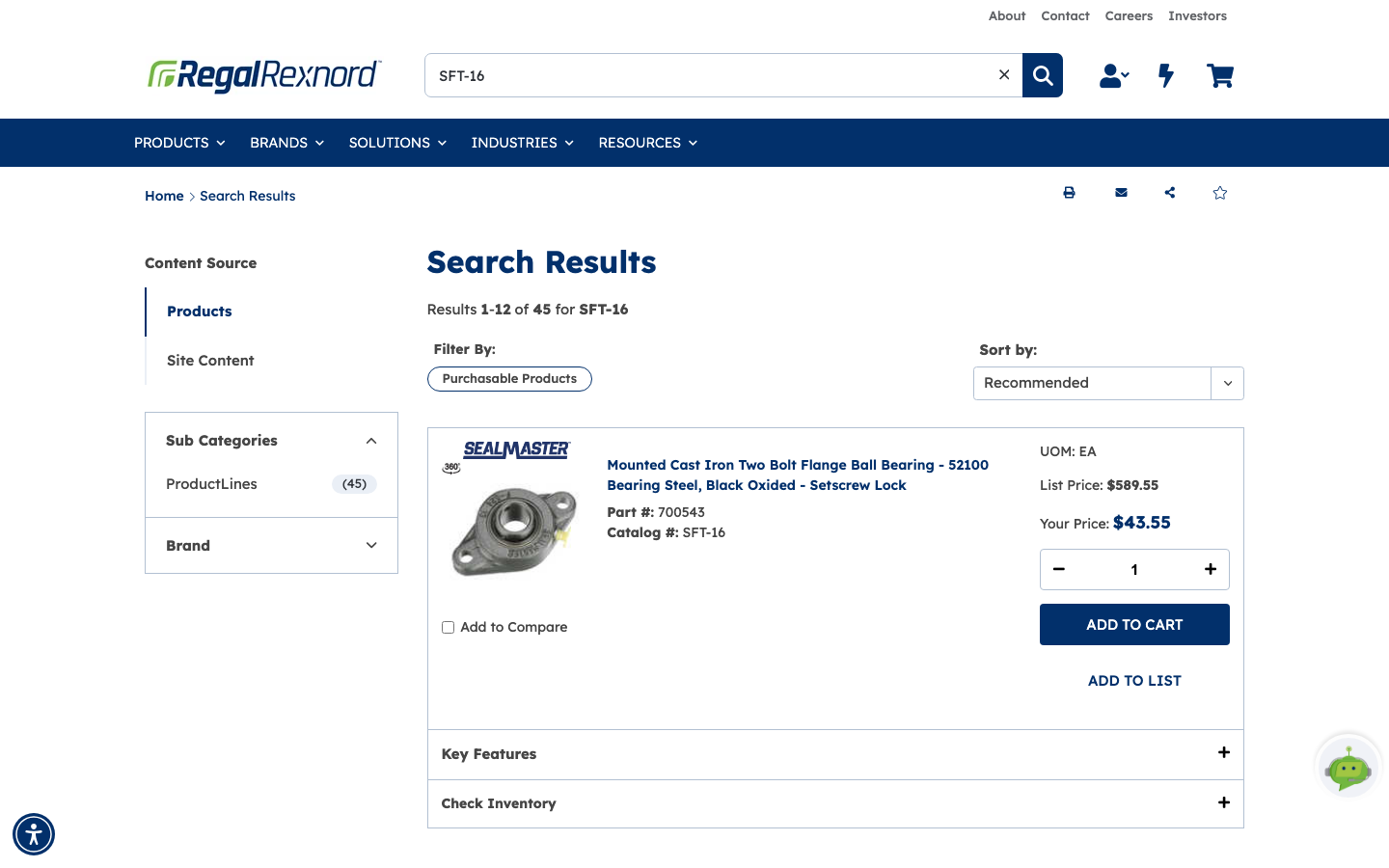
The Search Results page lists everything that matched. Each result card gives you the product name, Part #, Catalog #, unit of measure, and, on the right, the pricing for your account:
- List Price — the published price.
- Your Price — what the item costs on your account, after your contract pricing is applied.
Pricing is fetched separately from the rest of the page, so the right-hand column may show grey placeholder bars for a second or two before the figures land. Give it a moment.
You can already add to cart or add to a list straight from this card, and the Check Inventory accordion at the bottom of the result opens the same warehouse view described in Step 3. If all you needed was the price, you can stop here.
Each result carries two collapsed panels. Key Features opens the headline specifications without leaving the results list — enough to tell two similar bearings apart.
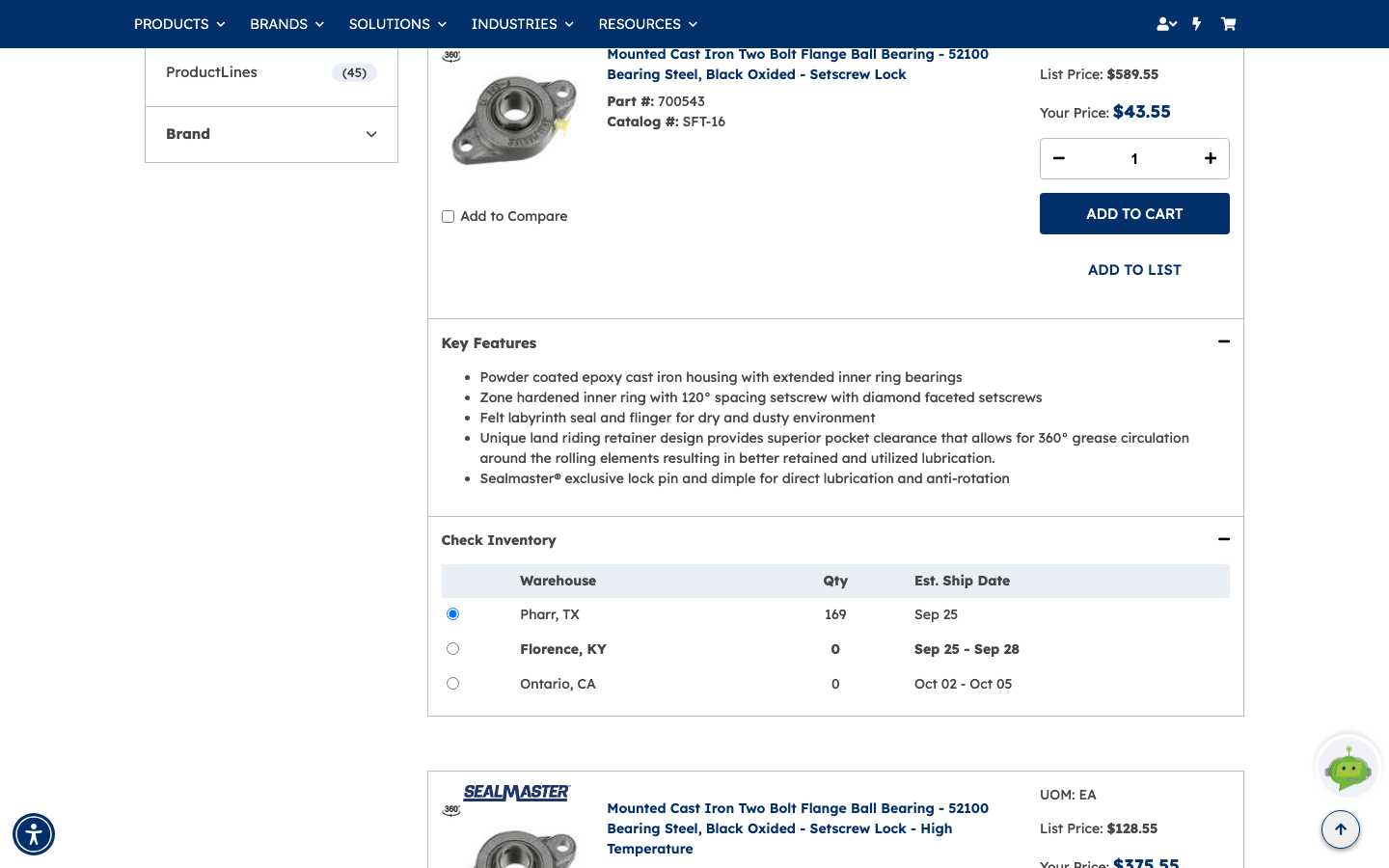
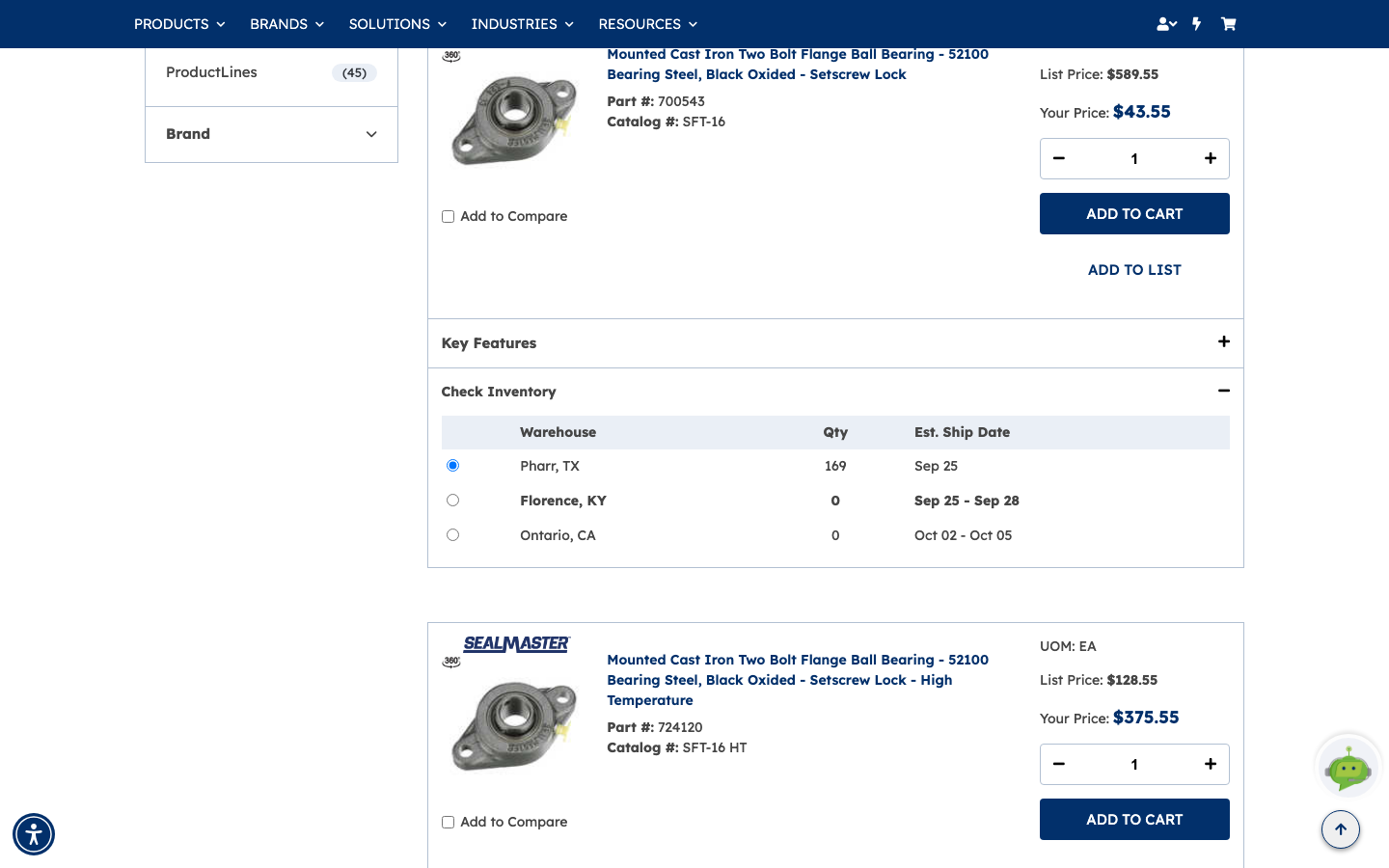
Check Inventory opens the same warehouse view described in Step 3, right there in the results: each stocking location with the quantity on hand and an estimated ship date.
Step 2 — Open the product page for the full pricing picture
Click the product name to open its detail page.
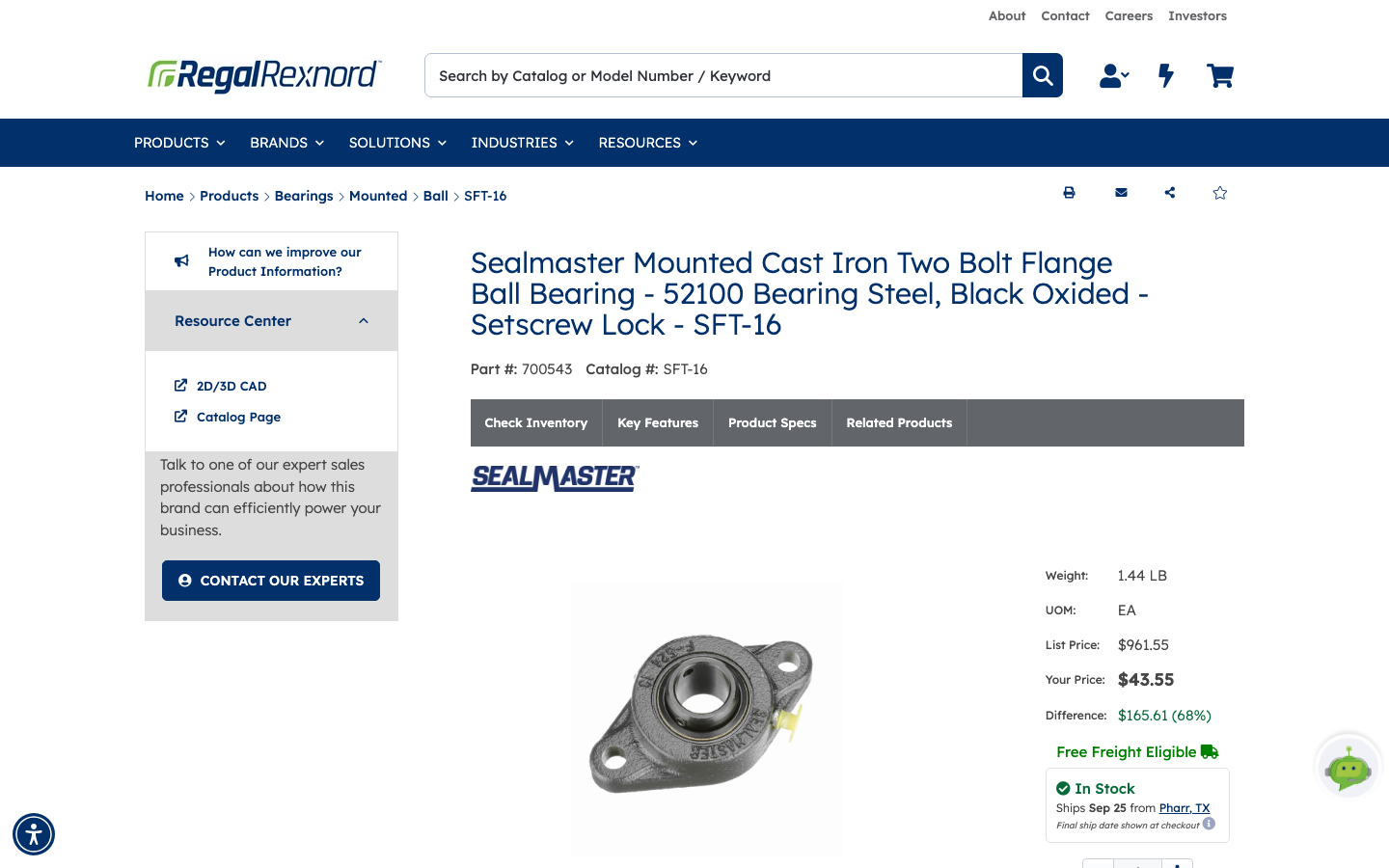
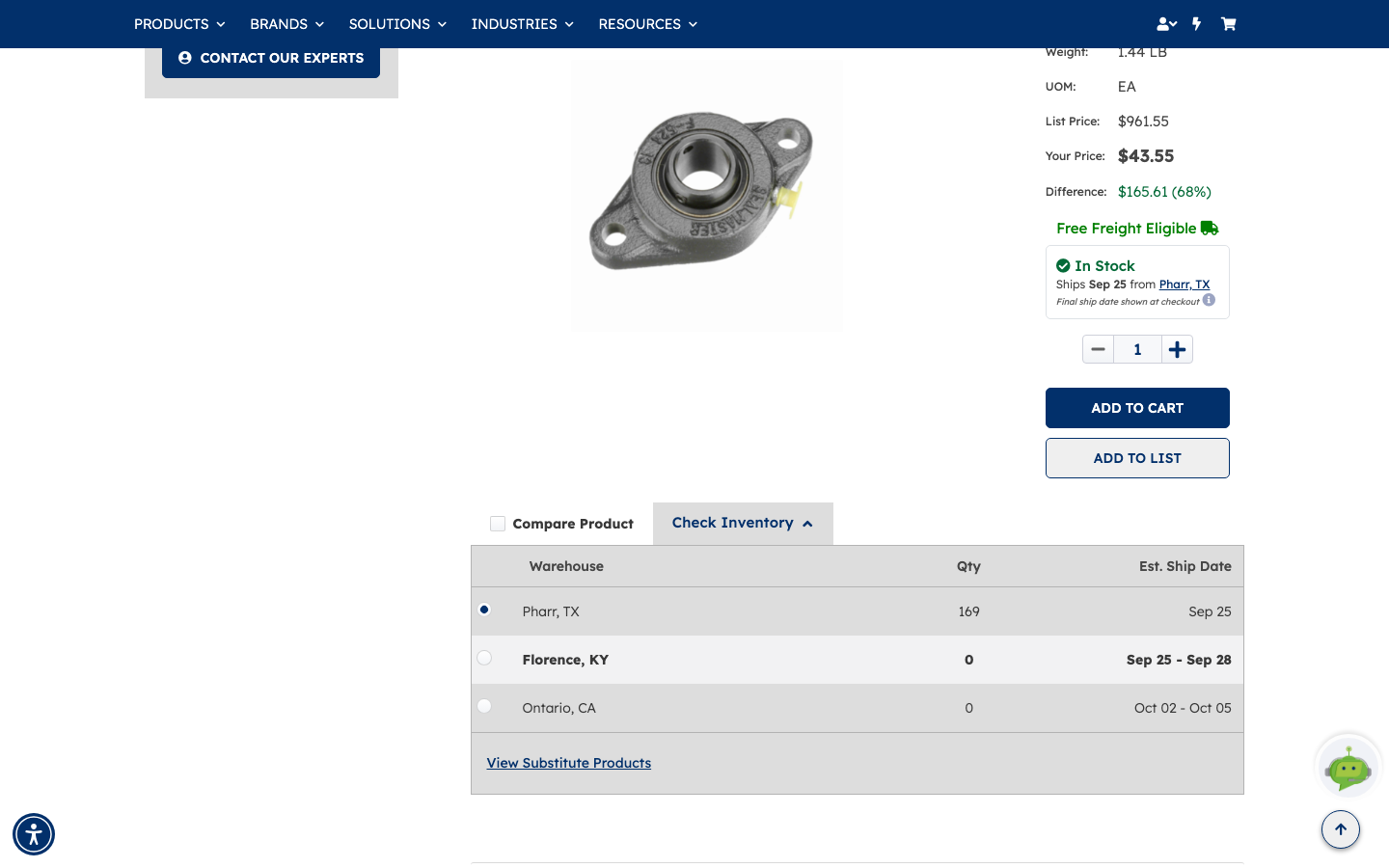
The header repeats the Part # and Catalog # so you can confirm you're on the right item, and the panel on the right of the product image carries the full commercial detail:
| What you see | What it means |
|---|---|
| UOM | The unit the price applies to — each, box, foot, and so on |
| List Price | The published catalog price |
| Your Price | What your account actually pays under your agreement |
| Difference | How much your price saves against list, in dollars and as a percentage |
Weight sits alongside them, and Free Freight Eligible appears when the item qualifies. The unit of measure is worth a glance, because price is per unit of measure.
The row of tabs under the title — Check Inventory, Key Features, Product Specs, Related Products — jumps you down the page to each section.
Step 3 — Check availability
Availability arrives a moment after the rest of the page, in two places.
The first is the stock badge that appears in the pricing panel: In Stock, the date it ships, and the warehouse it ships from. The small print — final ship date shown at checkout — matters: this is an estimate based on the default warehouse, and the committed date is confirmed when you check out.
For the full picture, click Check Inventory below the product image. The panel expands into a table of every stocking warehouse with:
- Warehouse — location, with a radio button to pick the one you want to ship from.
- Qty — units currently available there.
- Est. Ship Date — a single date where stock is on hand, a range where it has to be replenished.
In the example, the default warehouse has stock and ships on a fixed date, while the other two are at zero and quote a date range instead:
| Warehouse | Qty | Est. Ship Date |
|---|---|---|
| Pharr, TX (selected) | 169 | Sep 25 |
| Florence, KY | 0 | Sep 25 – Sep 28 |
| Ontario, CA | 0 | Oct 02 – Oct 05 |
Selecting a different warehouse repoints the order at that location.
If nothing is available anywhere, the panel offers View Substitute Products and an option to enrol in back-in-stock notifications, so you can be emailed when the item returns.
Step 4 — Look at the substitutes
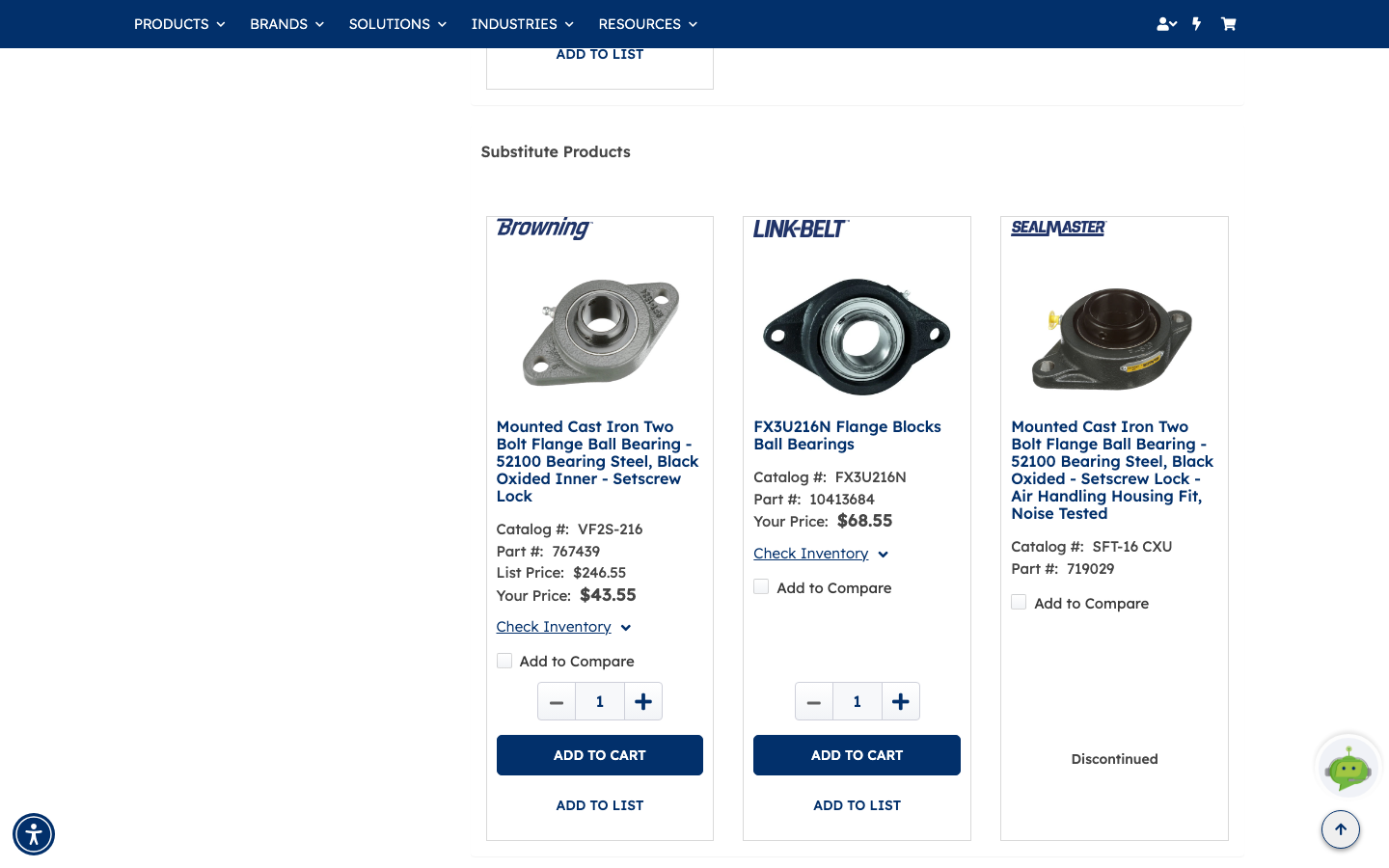
View Substitute Products opens a row of alternatives below the product, each one a card with its own catalog and part number, pricing, a Check Inventory link and an ADD TO CART button — so you can price a replacement without starting a new search.
Read the cards carefully: they don't all behave the same way. In this example the first two can be bought, while the third shows Discontinued in place of the price and buttons — it's listed for identification only.
| What you see on a card | What it means |
|---|---|
| List Price and Your Price | A live alternative you can buy at your account pricing |
| Your Price only | Priced for your account; no published list price to compare against |
| Discontinued | No longer supplied — use it to identify the part, not to order it |
What you've done
You've looked up an item by catalog number, read its list and account-specific pricing, and confirmed which warehouses can ship it and when. From here you can set a quantity and Add to Cart, or save it to a shopping list for later.
A couple of things worth remembering
- Pricing and inventory both load asynchronously. Grey placeholder bars mean the page is still waiting, not that there's no price.
- Your Price follows the account you're working under. Switch accounts and the same item can cost something different.
- The estimated ship date on the product page is indicative. Checkout confirms the real one.