Finding a Regal Rexnord Equivalent for Any Part
Product Cross Reference takes a part number — a competitor's, or one of ours — and finds the Regal Rexnord product that replaces it, side by side, spec for spec.
Sign in. Cross reference works signed out, but you'll only see your contracted pricing and live stock once you're signed in on the right account.
The prices in the screenshots are illustrative stand-ins — they all end in .55 — so totals won't tally. On the live site they will. The Difference figure is shown as-is, so it won't match the gap between the stand-in prices either, and two different prices can happen to share a stand-in.
Step 1 — Open the tool
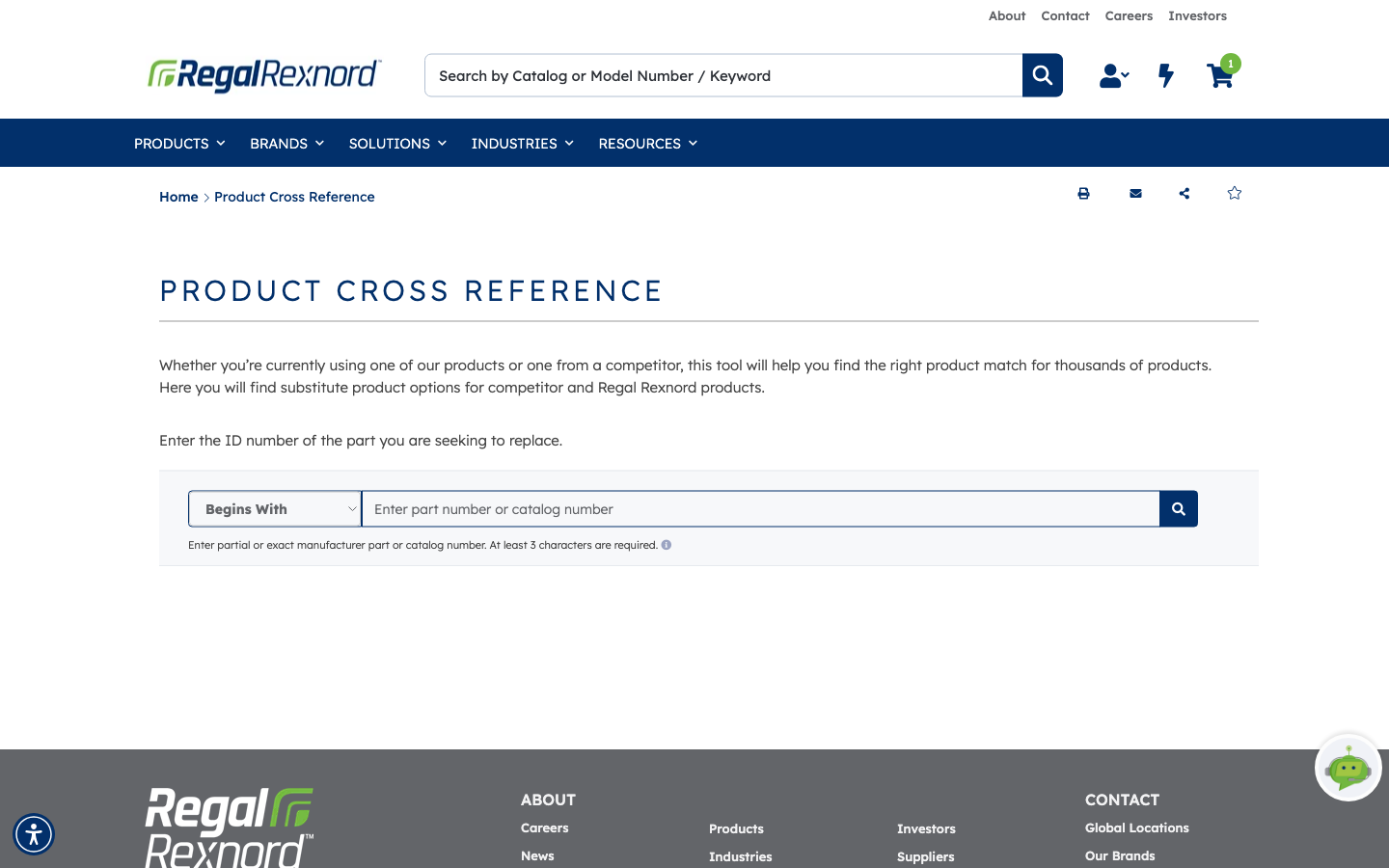
Product Cross Reference sits under PRODUCTS in the main navigation.
The form has two parts: a match-type dropdown and the part number box.
- Begins With (the default) — everything starting with what you type. Good when you're unsure of the full suffix.
- Contains — the string anywhere in the number. The widest net.
- Equals — an exact match only.
At least three characters are required.
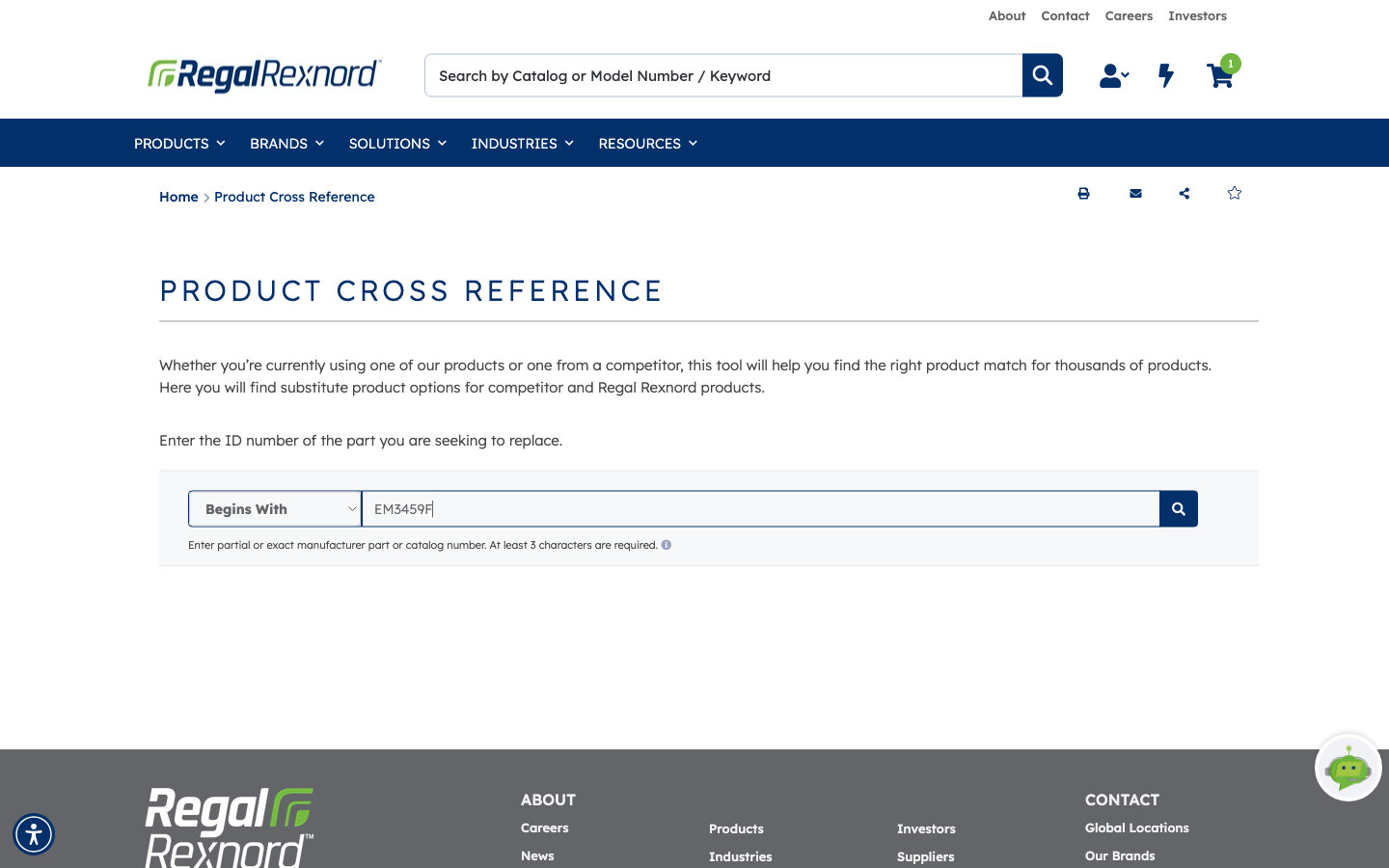
Step 2 — Enter the part you want to replace
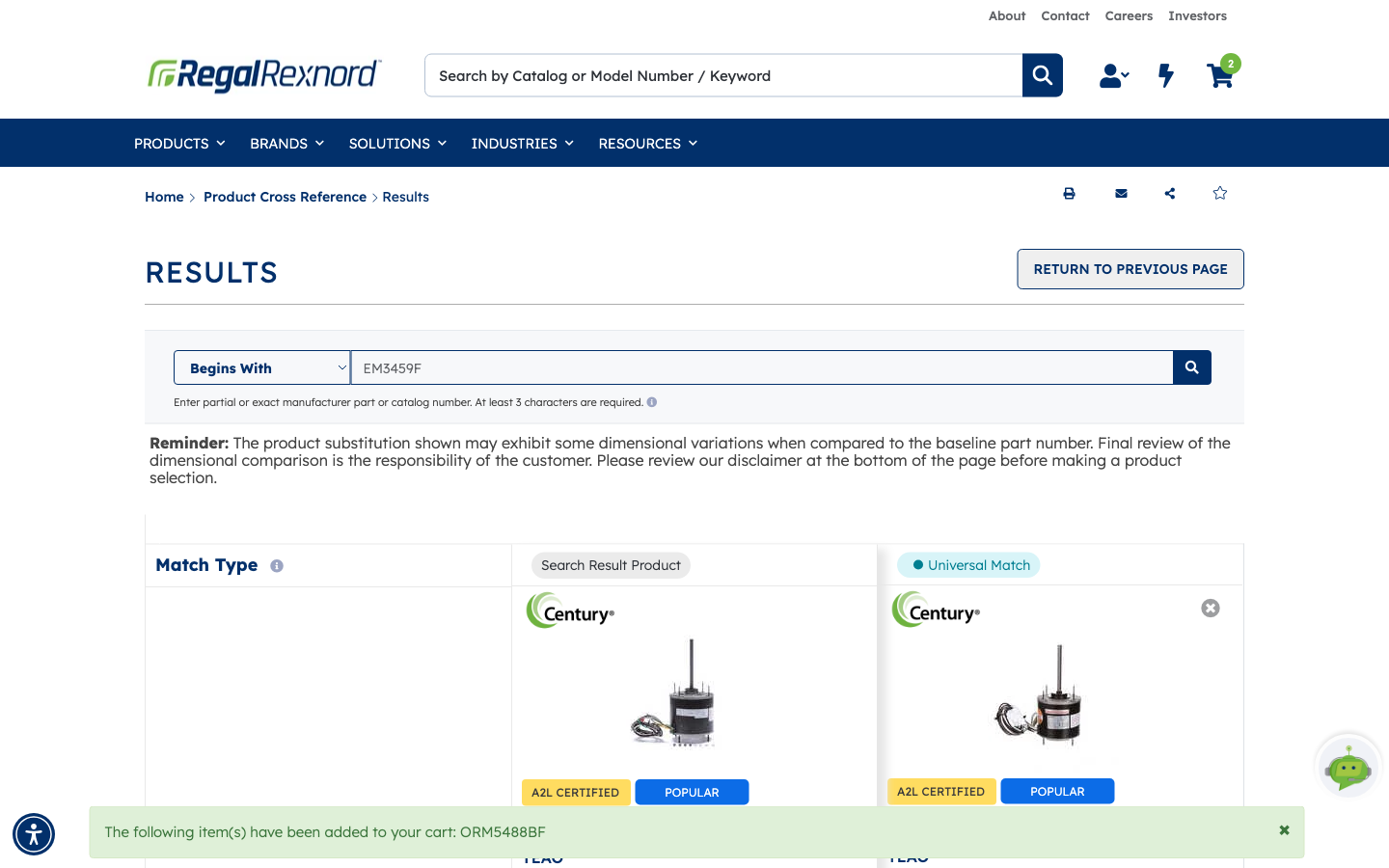
Type the number you're replacing — the example uses EM3459F — and click the magnifying glass.
Step 3 — Read the comparison
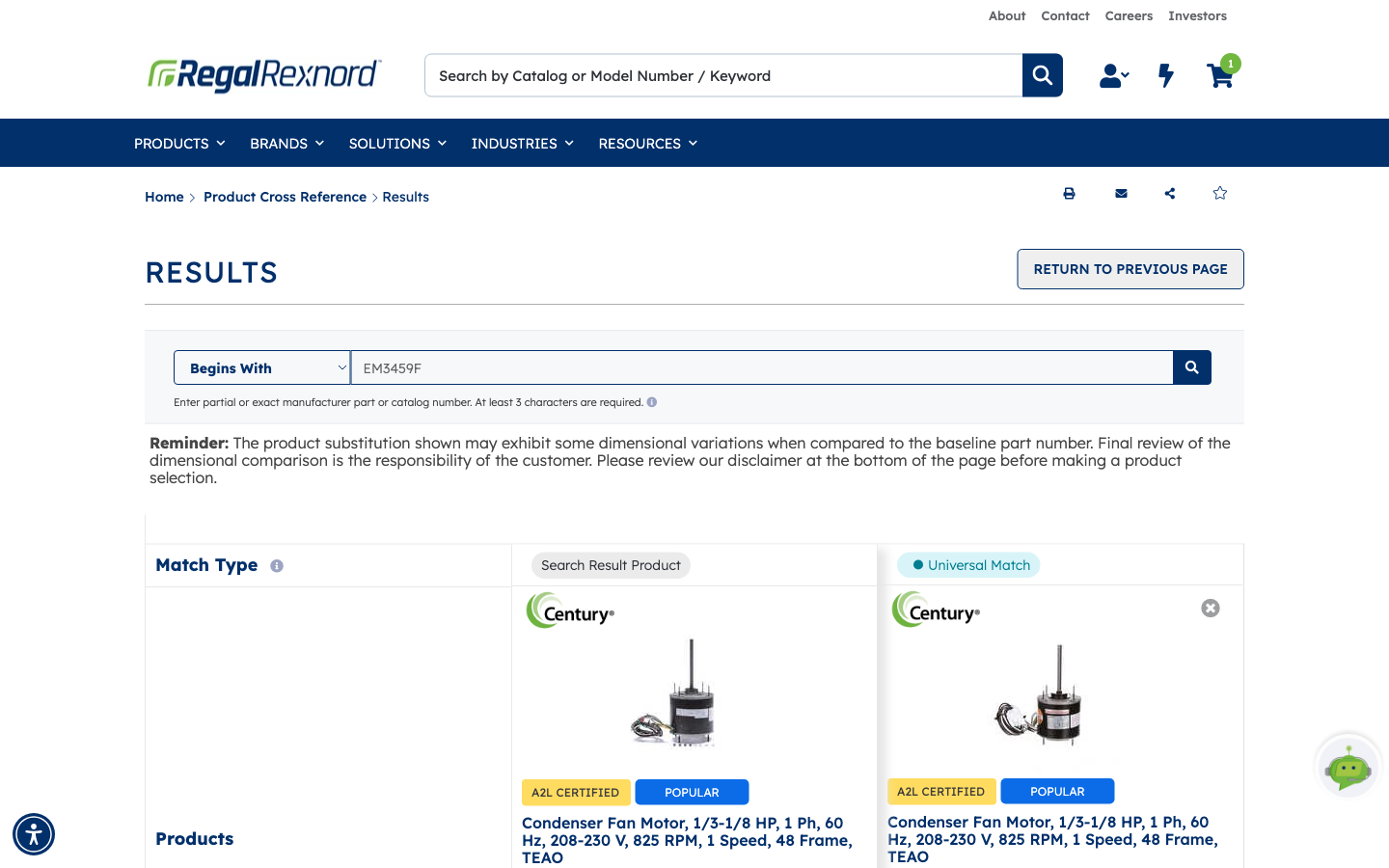
When a search resolves to a single match the tool goes straight to the Results comparison.
The part you searched for sits under Search Result Product. Beside it is the replacement, tagged with its Match Type:
- Universal Match — a direct replacement, fit and function.
- Other match types indicate closer or looser equivalence. The i icon next to Match Type explains each one.
Read the Reminder above the table before you commit. A substitution can differ dimensionally from the part it replaces, and checking that is the buyer's responsibility. The full disclaimer sits at the bottom of the page.
If the search returns several candidates, they appear as additional columns you can scroll through and dismiss with the ✕ on each.
Step 4 — Compare the detail
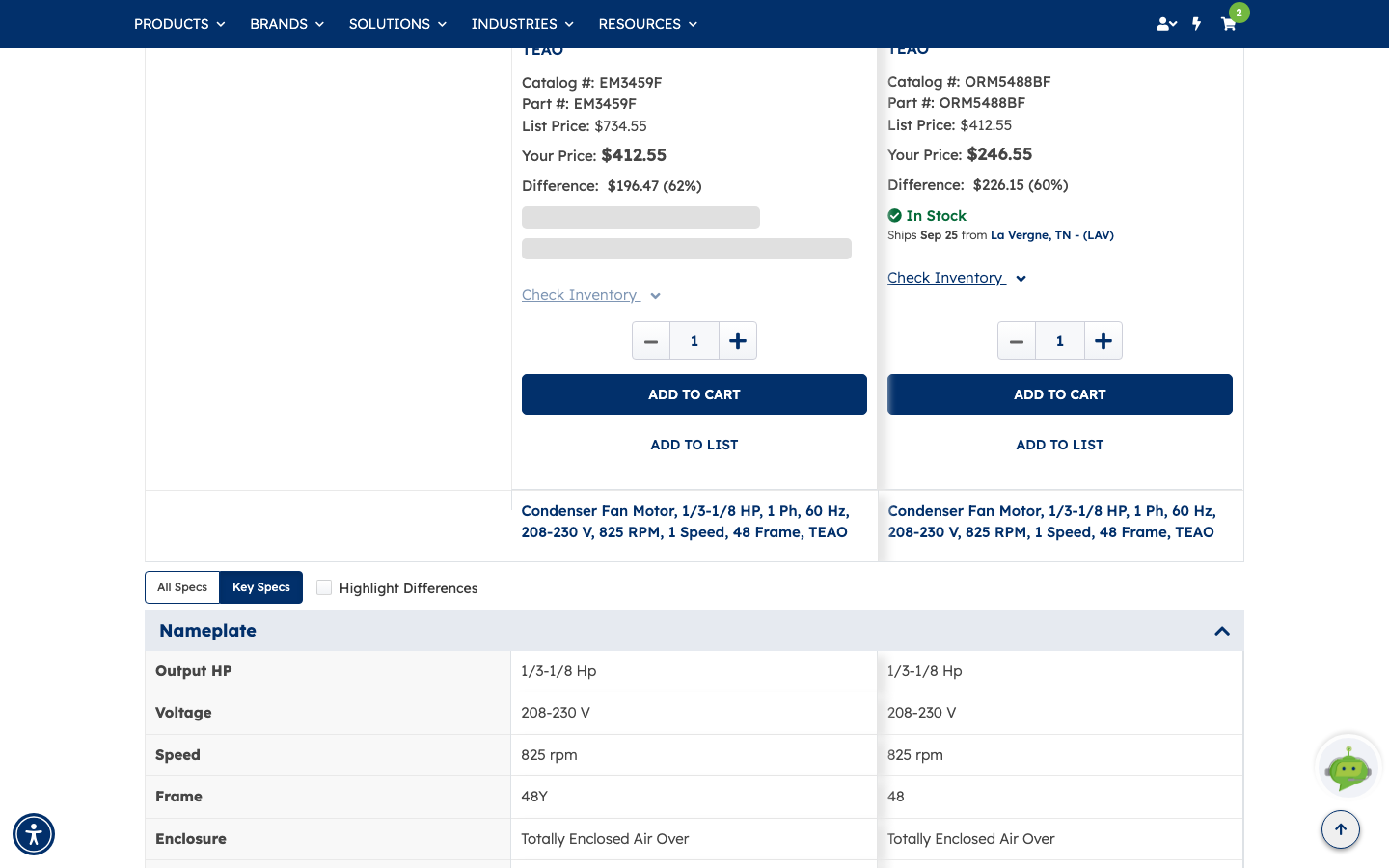
Scroll down and the columns fill out with what you need to make the call:
- Catalog # and Part # for each.
- List Price, Your Price and the Difference your account pricing makes.
- In Stock, the ship date and the warehouse it ships from.
- A quantity box with ADD TO CART and ADD TO LIST on each column.
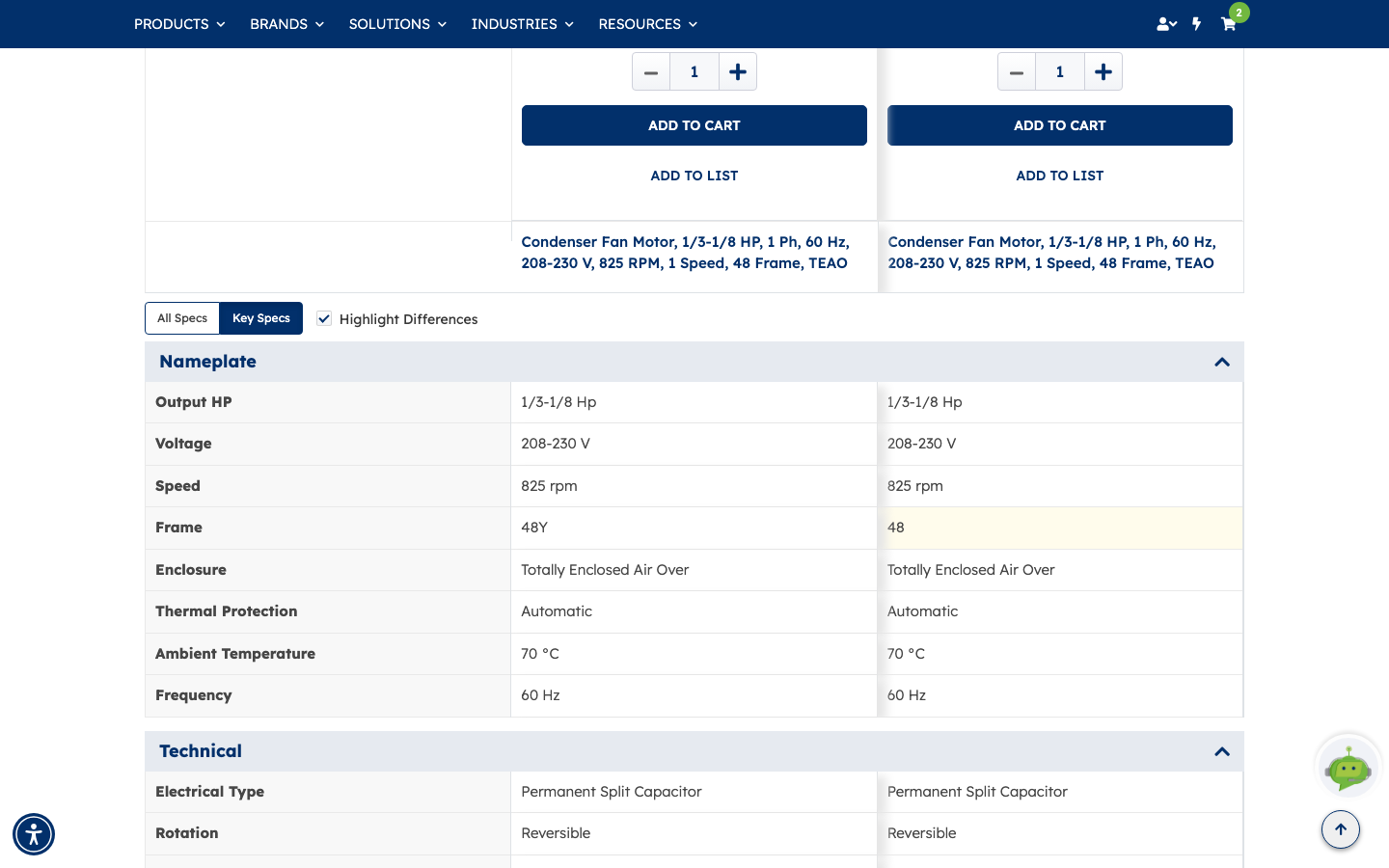
Below that, the specification table puts both products line by line — output HP, voltage, speed, frame, enclosure, thermal protection, ambient temperature and more.
Two controls are worth knowing:
- All Specs / Key Specs — the full table, or just the ones that usually matter.
- Highlight Differences — shades only the rows where the two products differ. With a long spec list this is the fastest way to see what actually changes. In the example, Frame differs (48Y against 48) while everything else matches.
Pricing and stock only appear for products your account can buy. A blank price or a greyed ADD TO CART usually means that part isn't set up for your account rather than that it's unavailable.
With Highlight Differences ticked, the matching rows stay plain and only the one that differs is shaded — here the Frame value on the substitute.
Side by side, the commercial picture for the example looks like this:
| Your part | Recommended replacement | |
|---|---|---|
| Catalog # / Part # | EM3459F | ORM5488BF |
| List Price | $734.55 | $412.55 |
| Your Price | $412.55 | $246.55 |
| Difference | $196.47 (62%) | $226.15 (60%) |
| Availability | — | In Stock — ships Sep 25 from La Vergne, TN |
Step 5 — Check stock before you commit
Check Inventory under a product expands a warehouse-by-warehouse breakdown: location, quantity on hand and estimated ship date. The nearest or default warehouse is pre-selected, but you can pick another — useful when one location can cover your whole quantity and another can't.
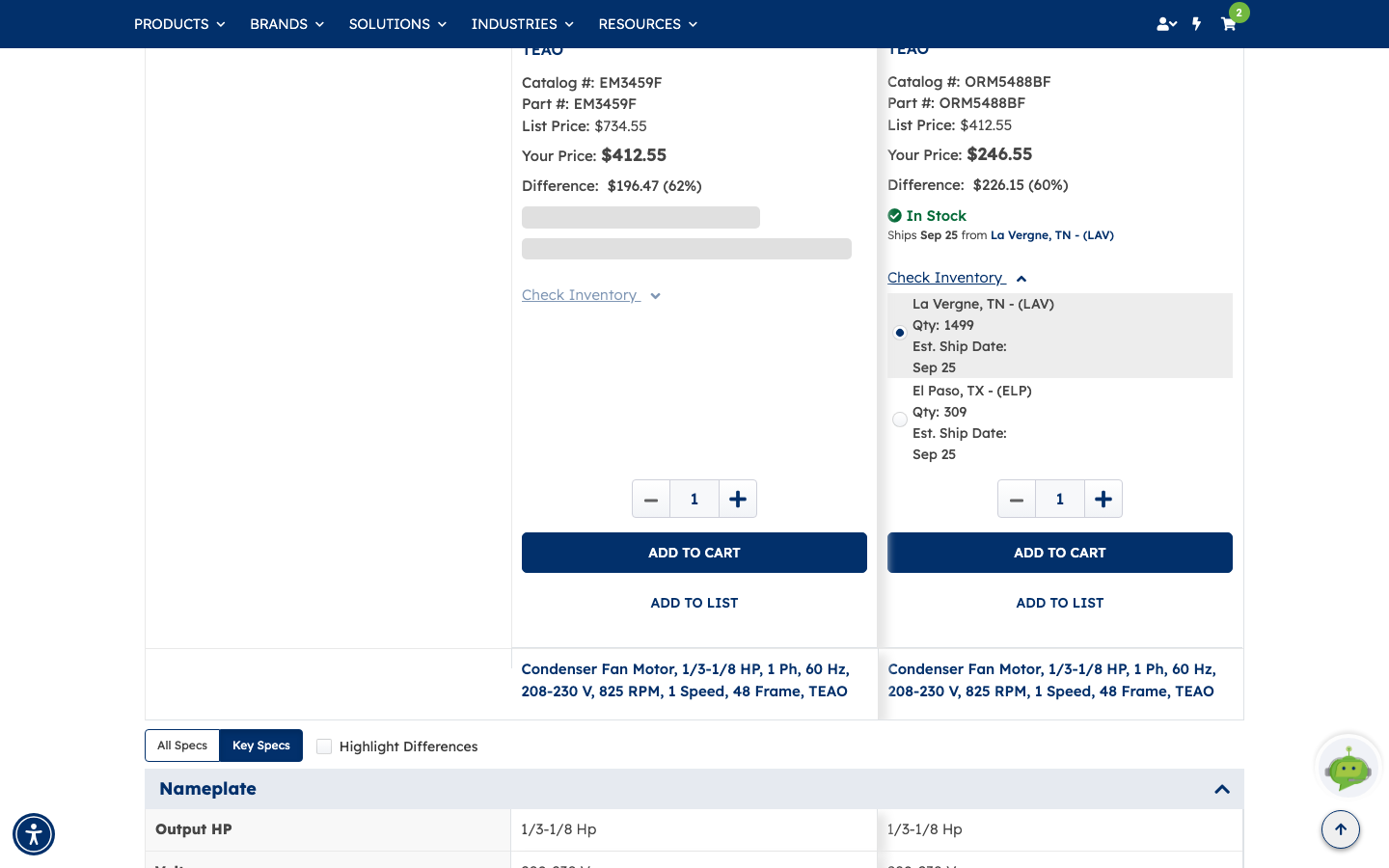
In the example the replacement is held at two locations:
| Warehouse | Quantity | Est. Ship Date |
|---|---|---|
| La Vergne, TN — (LAV) | 1499 | Sep 25 |
| El Paso, TX — (ELP) | 309 | Sep 25 |
Step 6 — Add the replacement to your cart
Set the quantity and click ADD TO CART in the replacement's column. A green banner confirms the part number that went in and the header cart badge ticks up.
ADD TO LIST instead saves it to a shopping list — handy when you're cross-referencing a batch of parts and want to order them together later.
What you've done
You've turned an unfamiliar part number into a Regal Rexnord equivalent, checked the specs that differ, confirmed stock, and put it in your cart.
Worth remembering
- Begins With is the forgiving default; use Equals when you know the number exactly.
- Universal Match means a direct replacement — check the i icon for the other match types.
- Highlight Differences is the quickest way to spot what actually changes between the two.
- Substitutions can vary dimensionally. Verify before ordering; the disclaimer says as much.
- Pricing and stock depend on the account you're signed in under. No price usually means the part isn't set up for that account.
- ADD TO LIST is the better option when cross-referencing several parts at once.