Using Shopping Lists
Shopping lists let you save the products you order again and again, so you can reorder them in a few clicks. You can keep as many lists as you like, share them with colleagues, and send a whole list to your cart at once.
You're already signed in and viewing My Dashboard. Have a product in mind to add to your new list.
The prices in the screenshots are illustrative stand-ins — they all end in .55 — so totals won't tally. On the live site they will.
What you can do with a list
| Action | Where |
|---|---|
| Create a list | Shopping Lists page → CREATE NEW |
| Add a product | Product page → Add To Shopping List |
| Rename a list | List details page → edit the title |
| Favorite a list | List details page → star icon |
| Share a list | Shopping Lists page → SHARE |
| Add a list to the cart | List details page → ADD ALL TO CART |
| Delete a list | Shopping Lists page → X, or DELETE LIST on the details page |
Step 1 — Open Shopping Lists
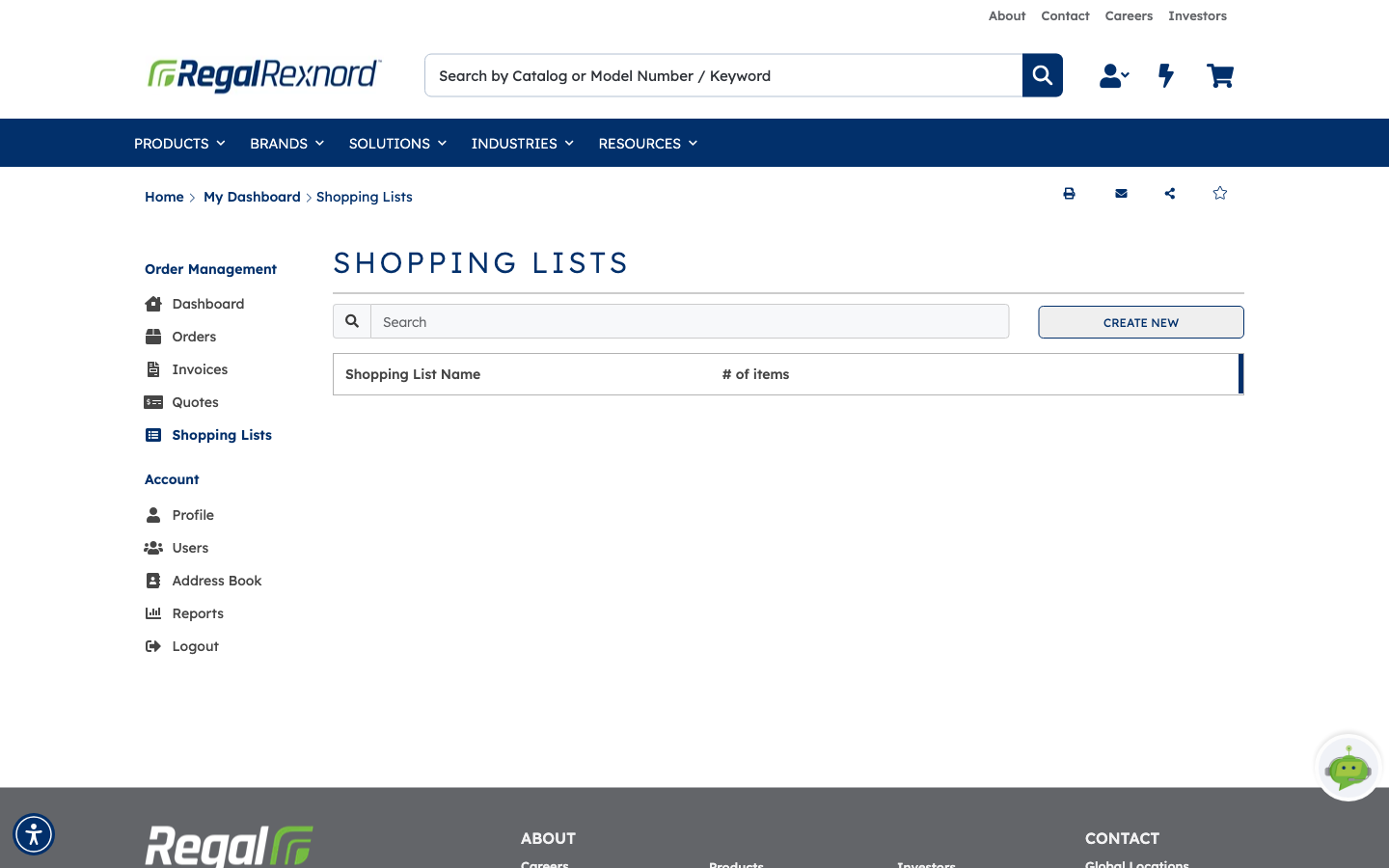
In the left-hand menu, click Shopping Lists. Your saved lists appear in a table with the number of items in each. Use the Search box to find a list by name.
Step 2 — Create a list
Click CREATE NEW. A New Shopping List Name box opens.
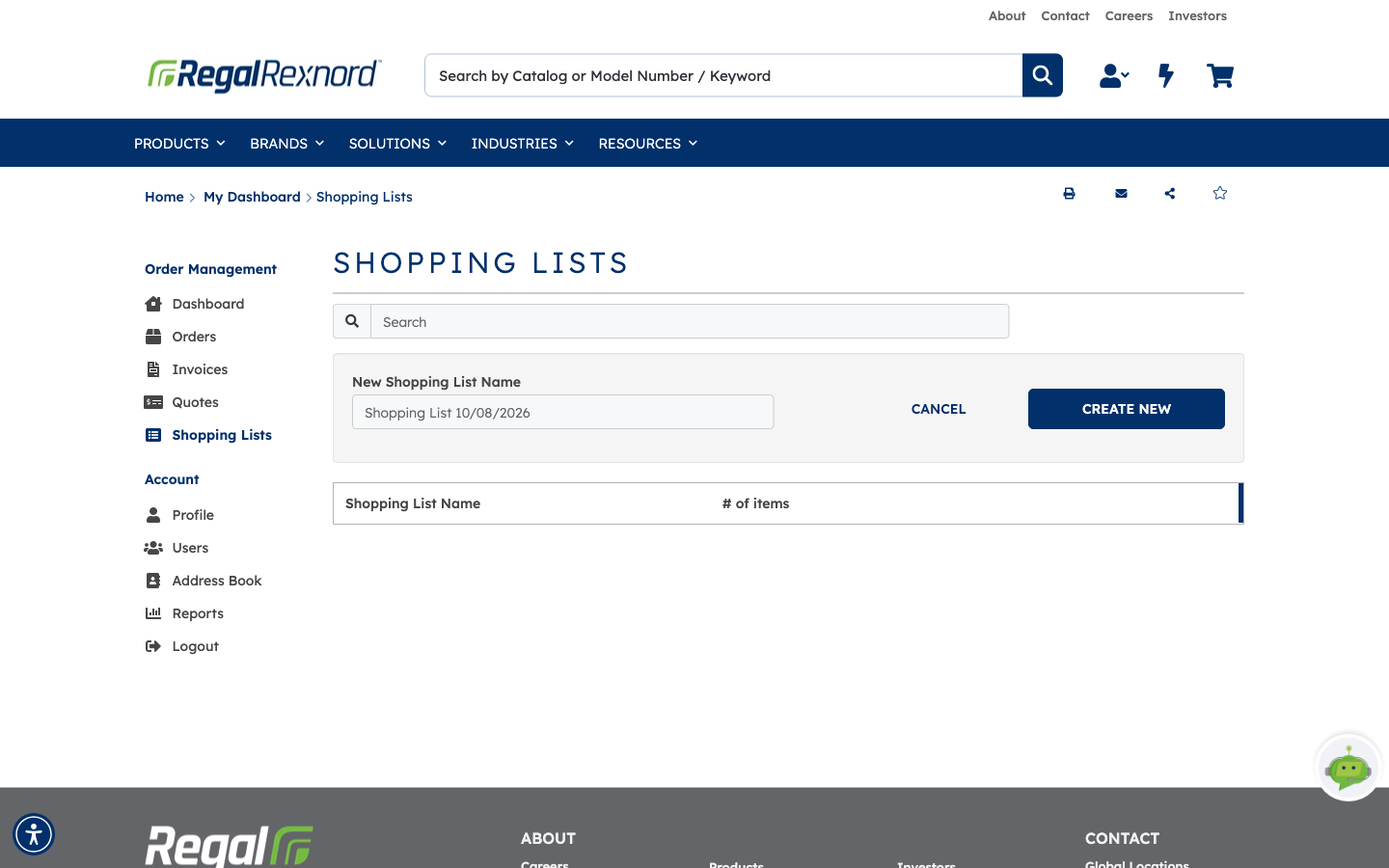
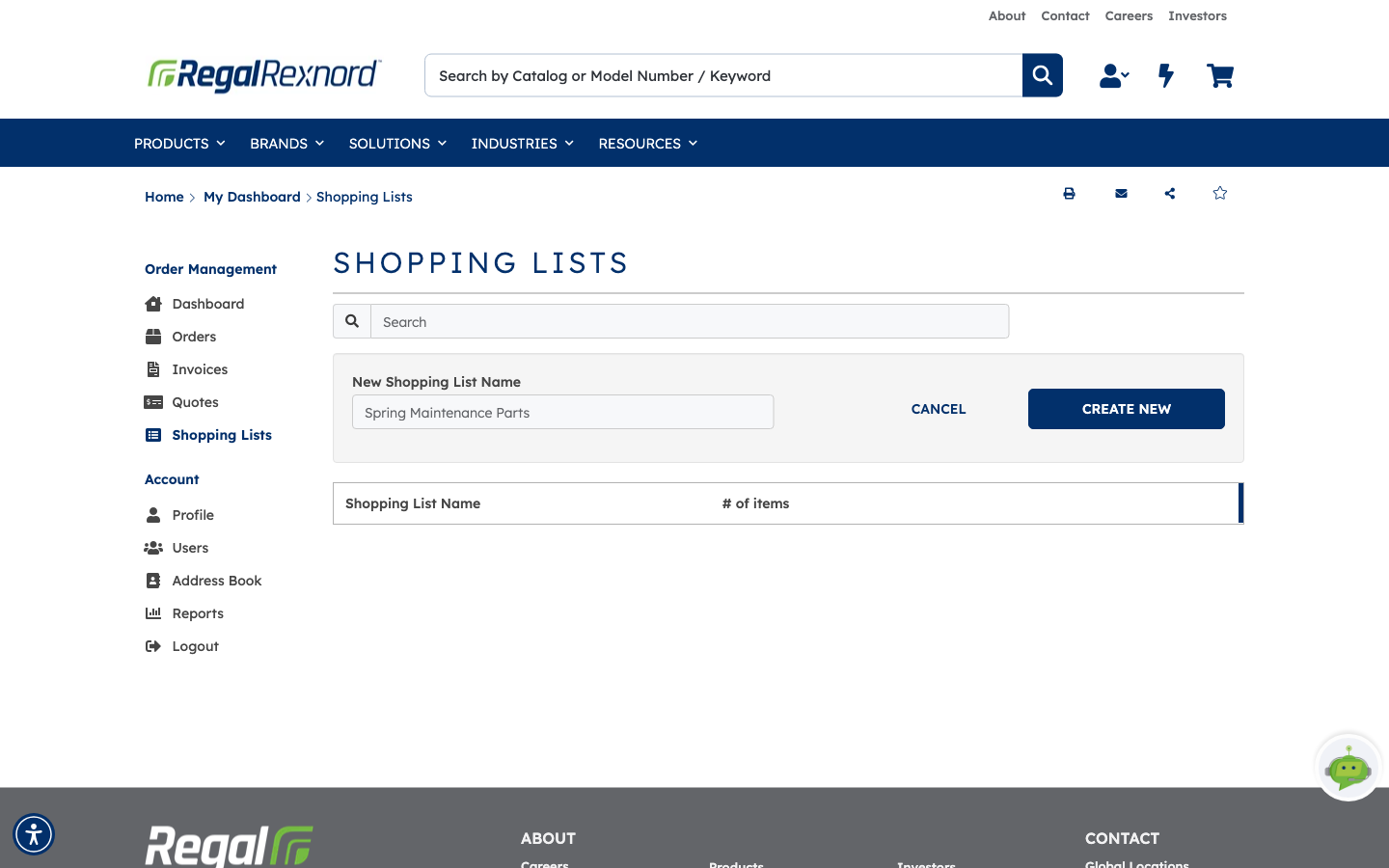
Type a name, then click CREATE NEW again. In this example, we're naming the list Spring Maintenance Parts.
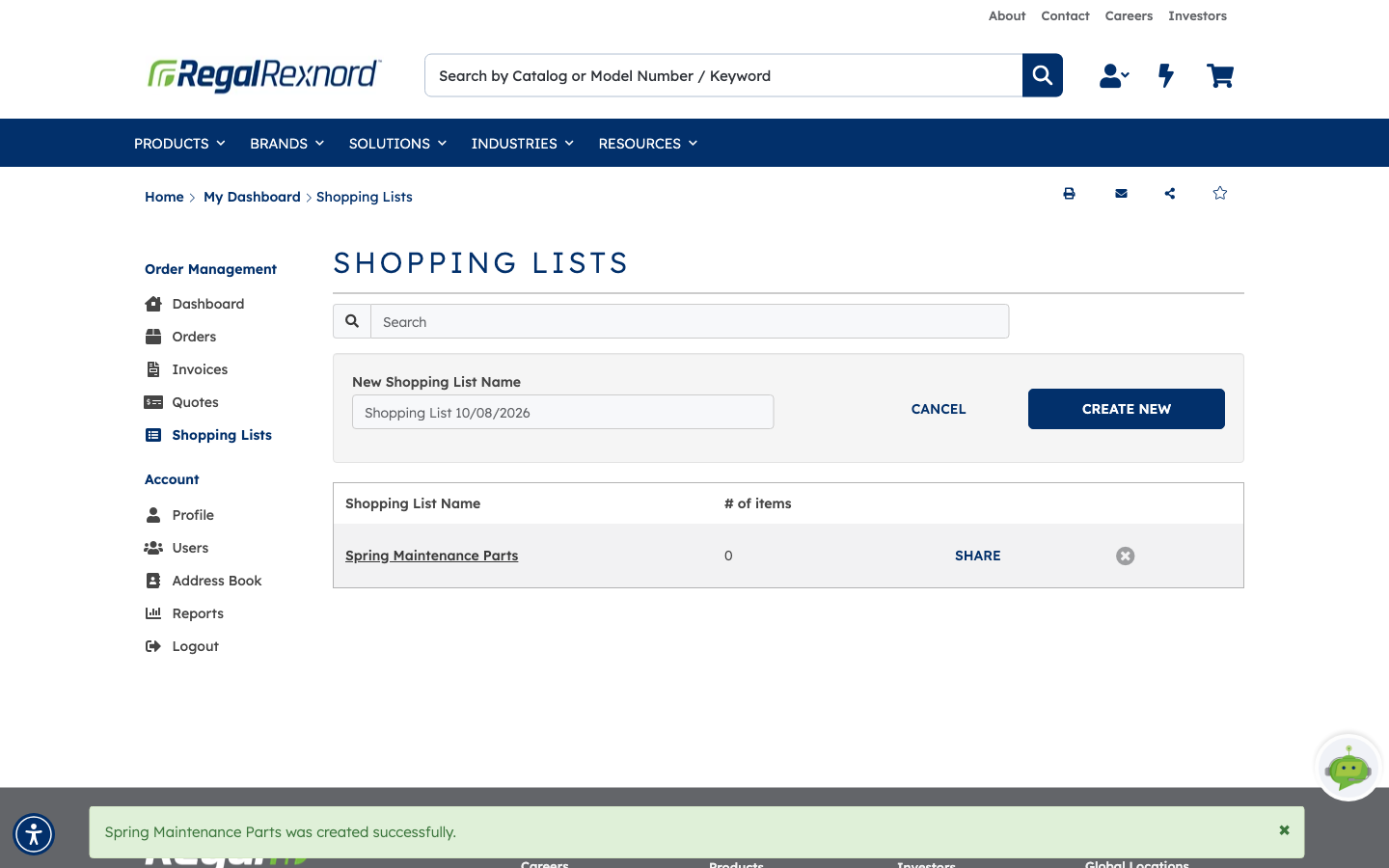
A message confirms the list was created, and it appears in the table with 0 items.
Step 3 — Add products to the list
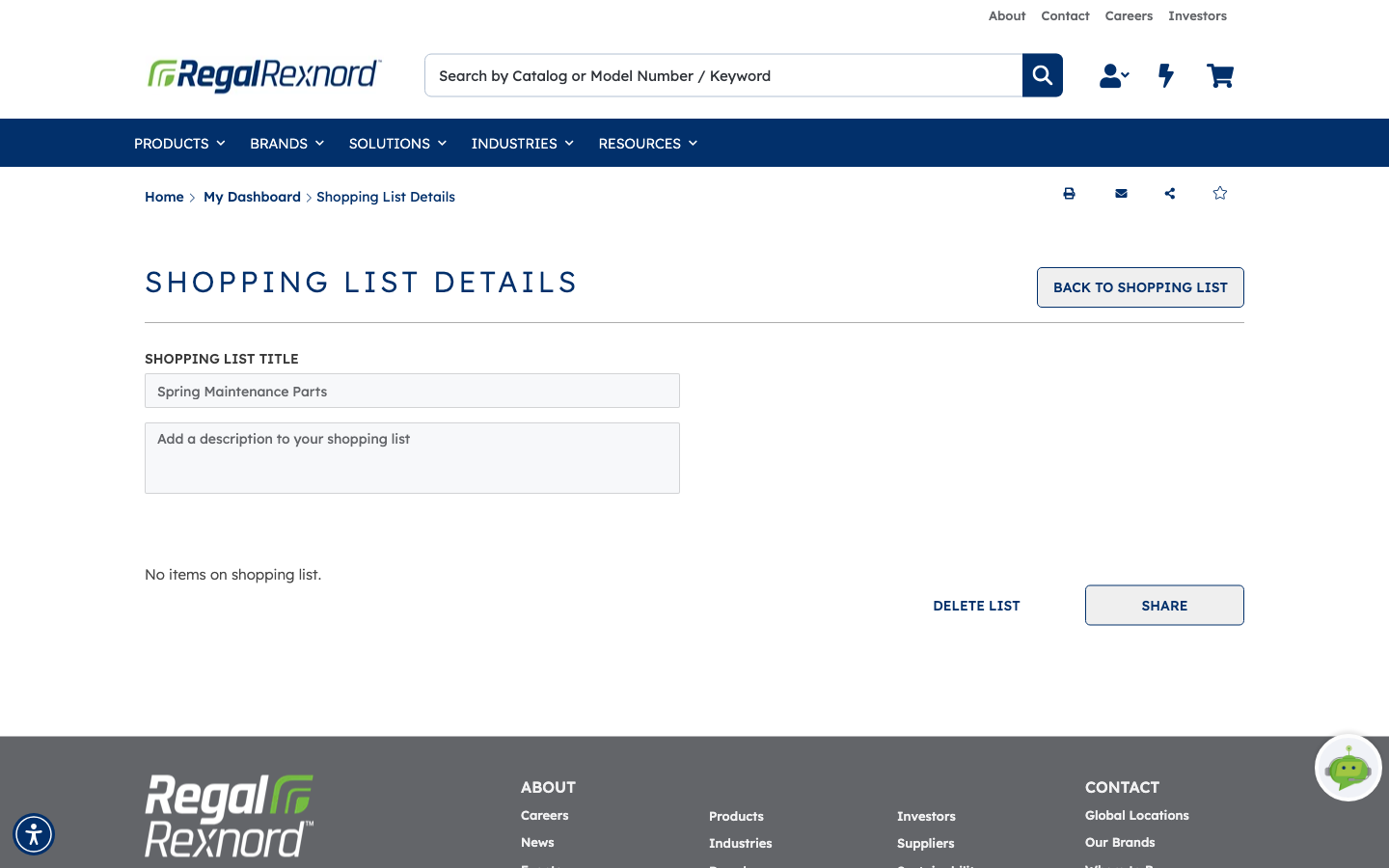
Click the list name to open its details. A new list is empty.
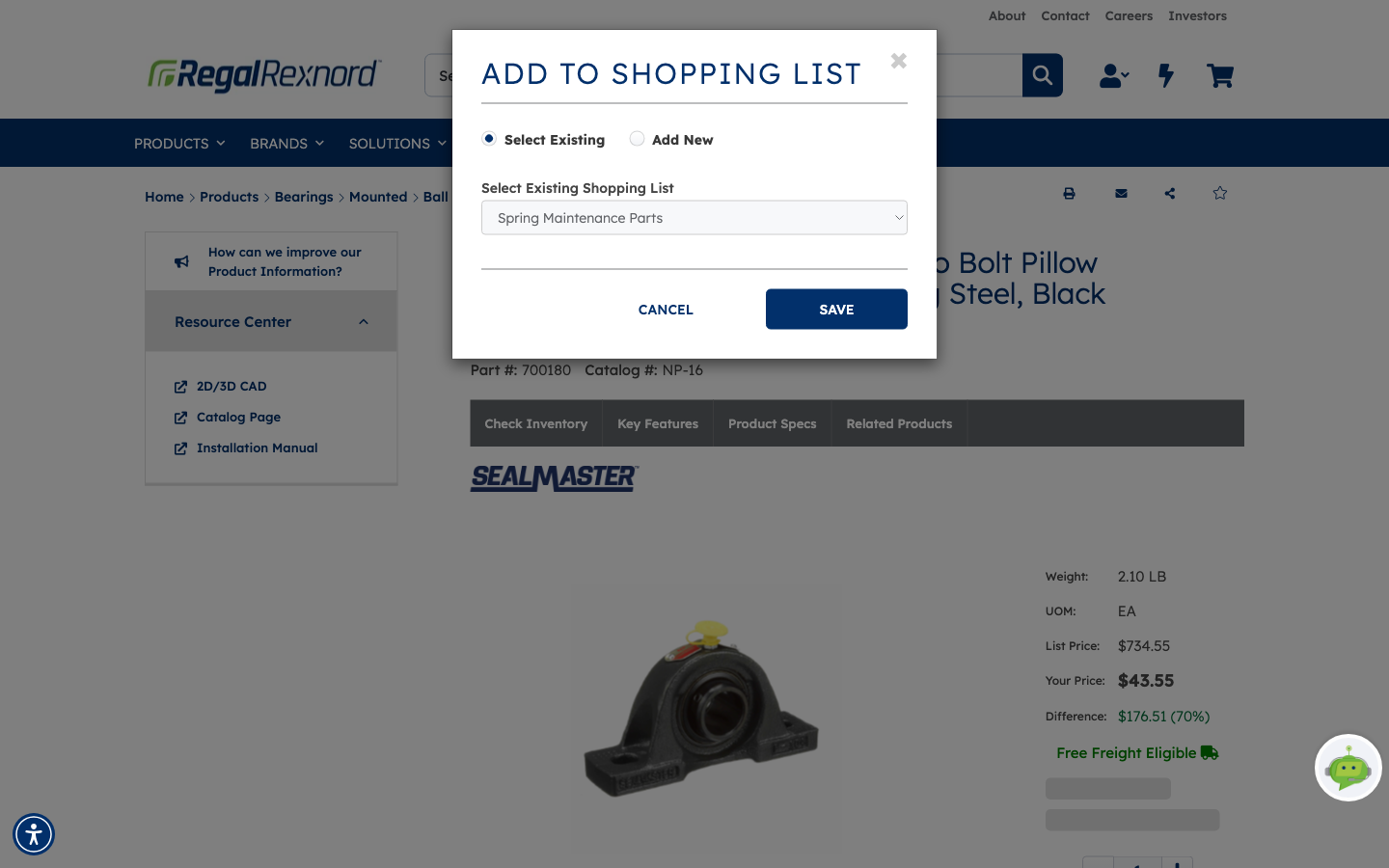
Browse to a product, then click Add To Shopping List. Choose Select Existing, pick your list from the drop-down, and click SAVE.
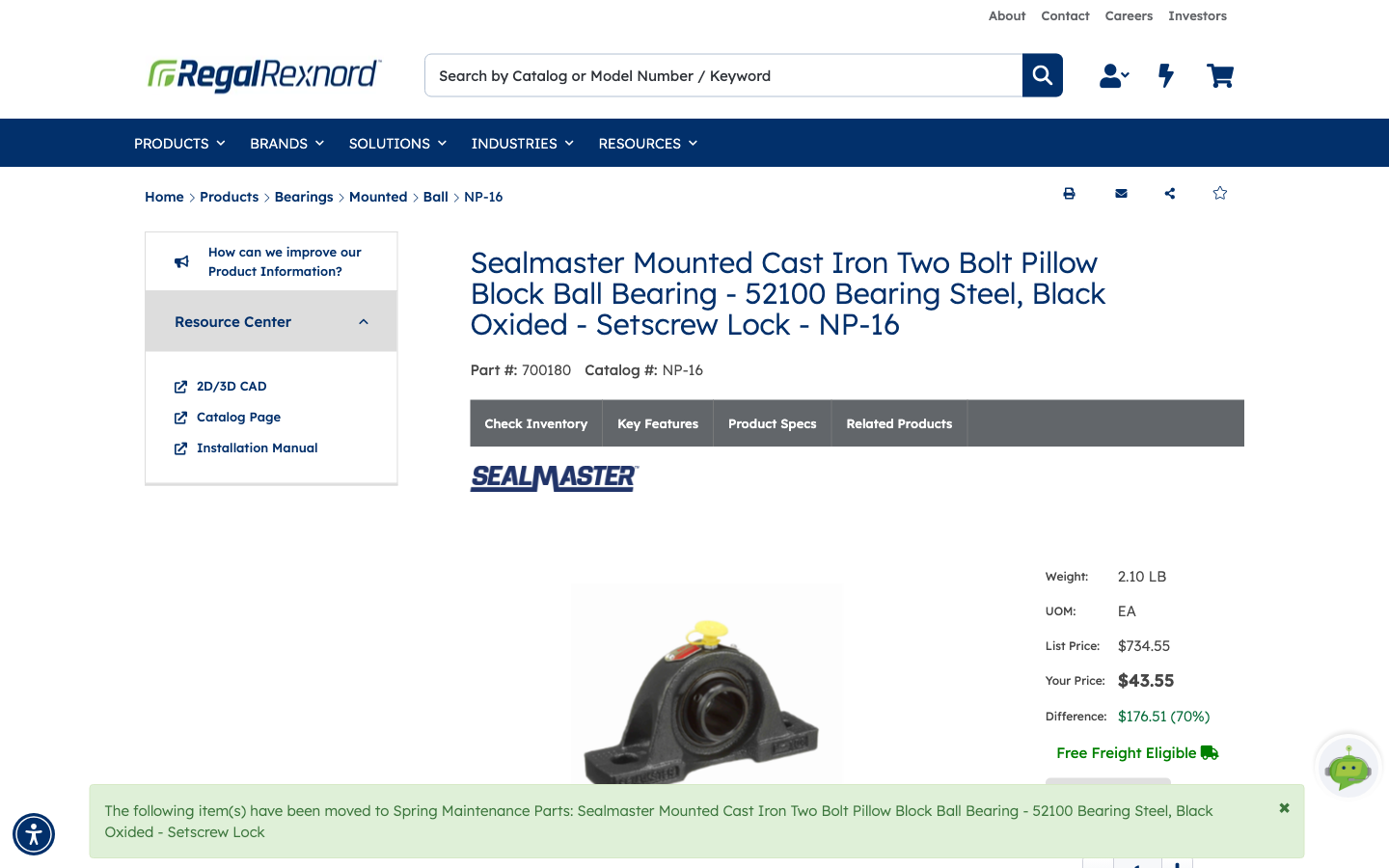
A message confirms the product was added to your list.
Step 4 — Rename the list
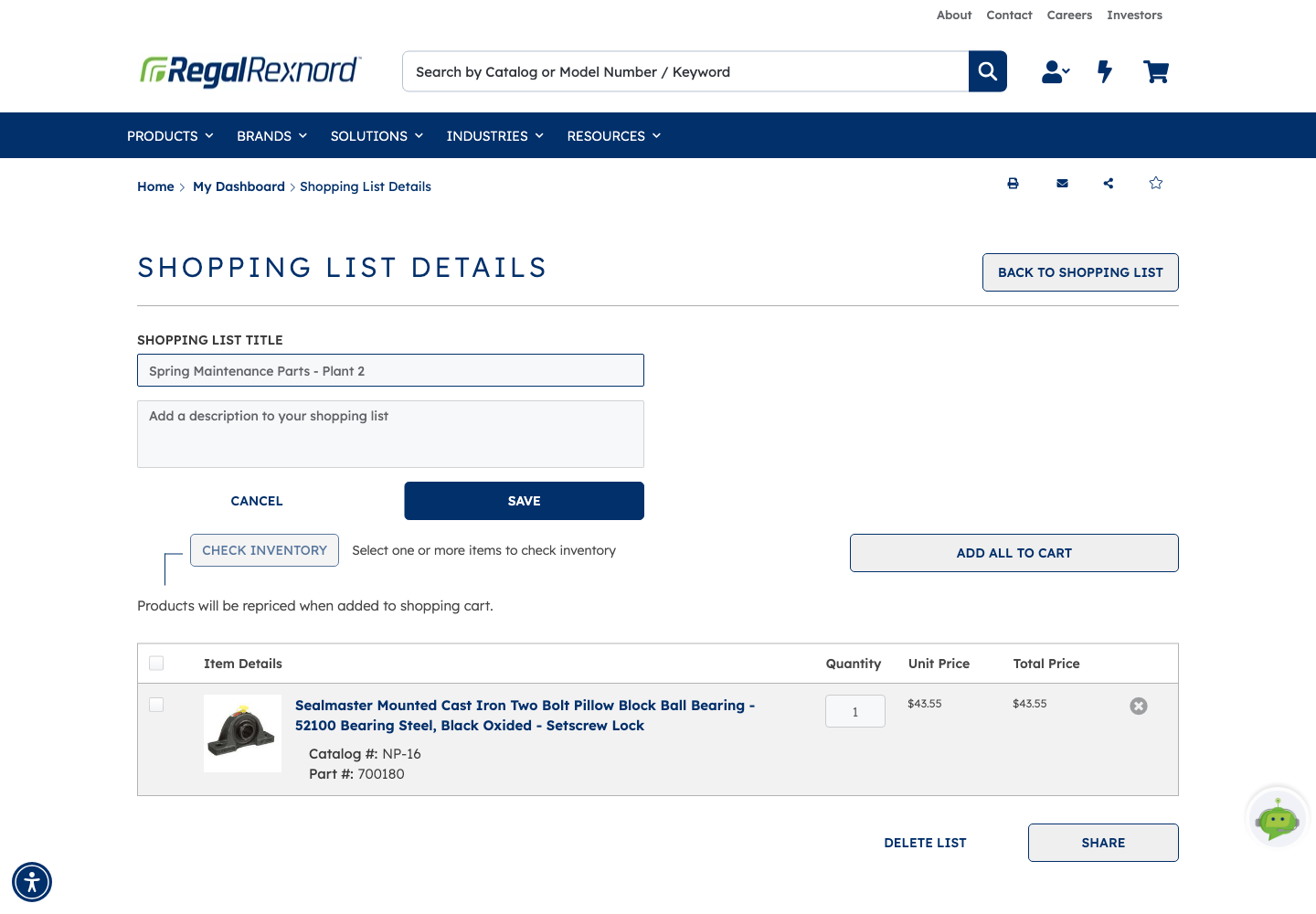
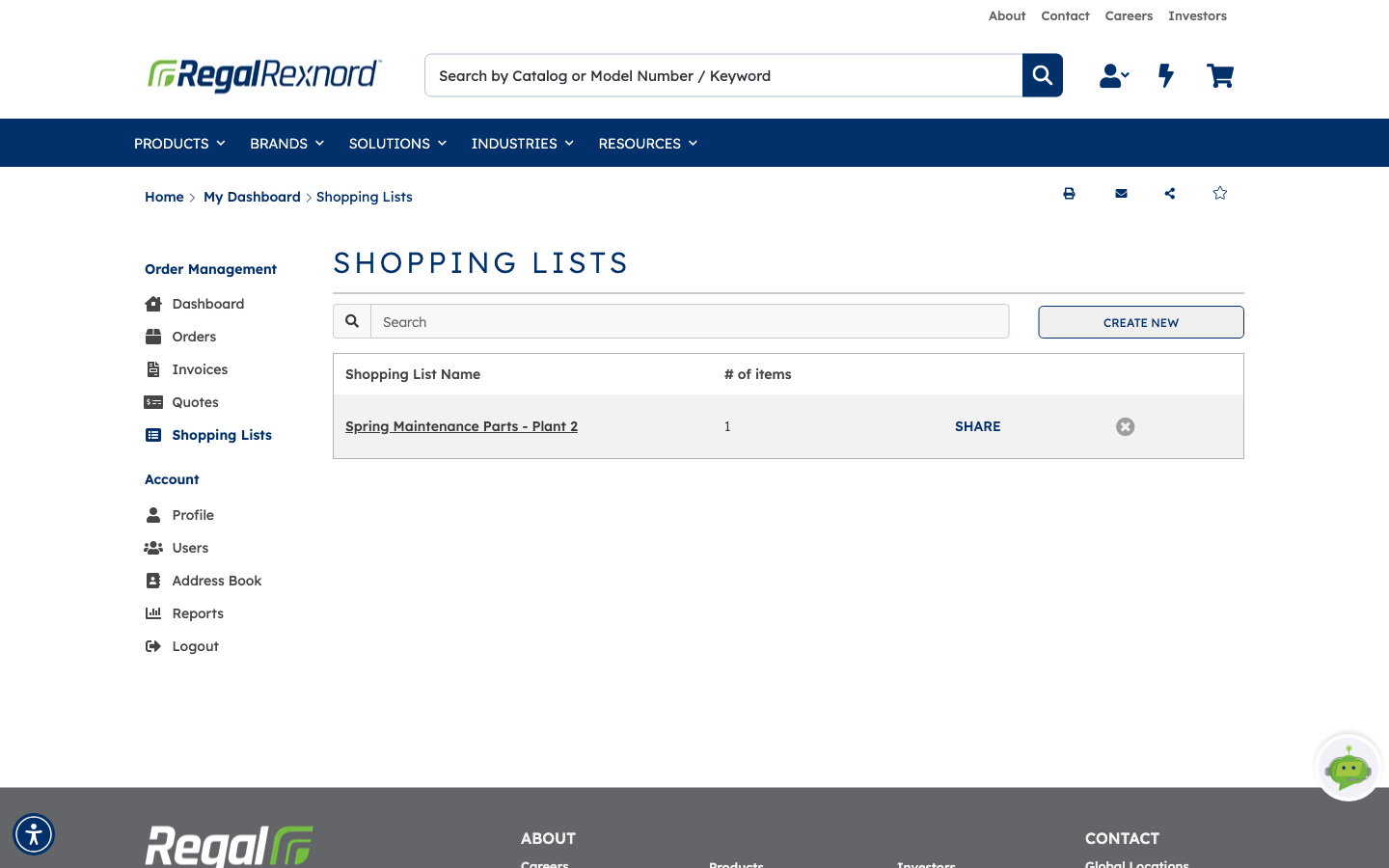
Open the list, then click into the title and change it. CANCEL and SAVE buttons appear. Click SAVE. In this example, the list becomes Spring Maintenance Parts - Plant 2.
Back on the Shopping Lists page, the table shows the new name and the item count.
Step 5 — Favorite the list
On the list's details page, click the star at the top right of the page. The star fills in once the page is a favorite.
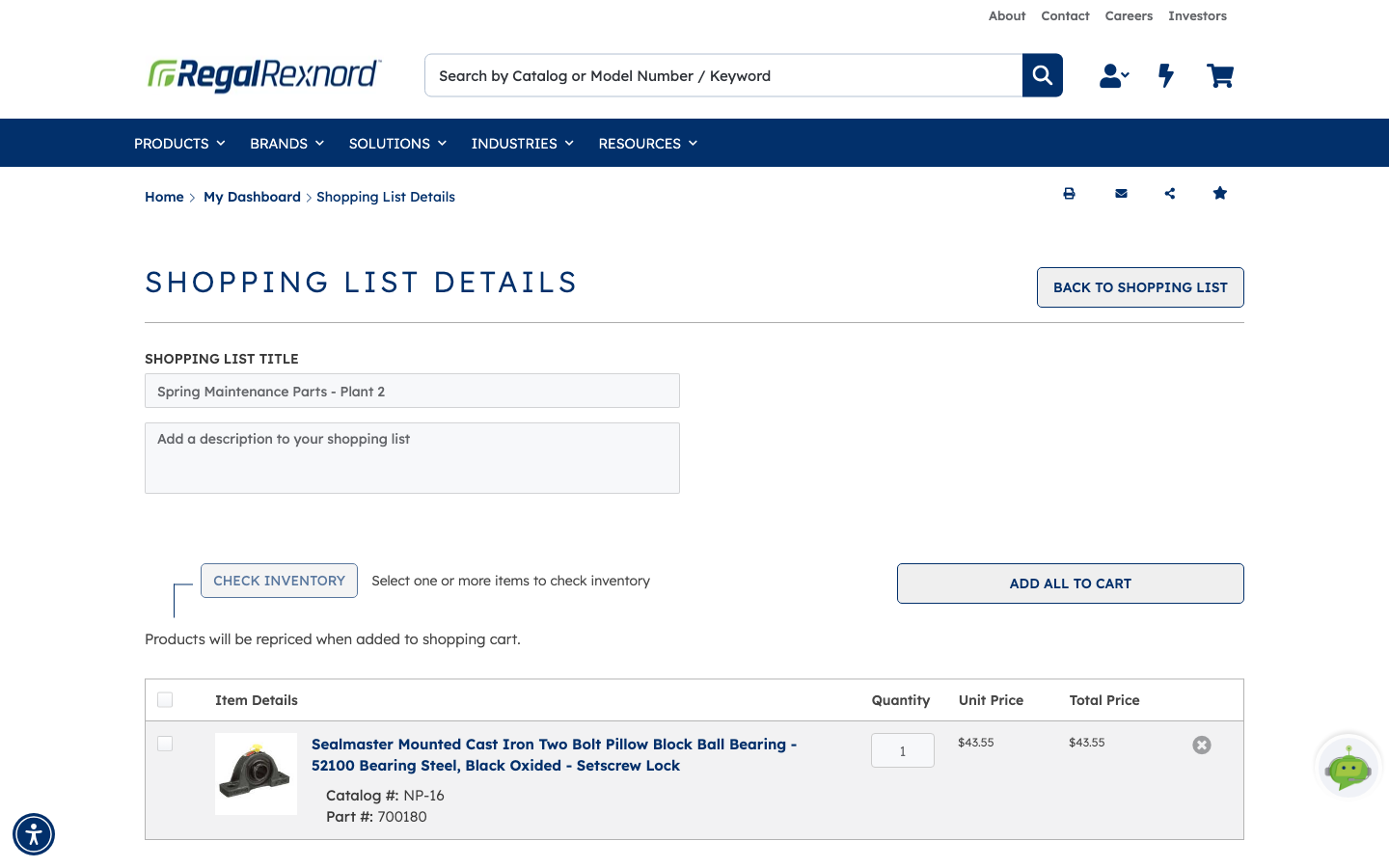
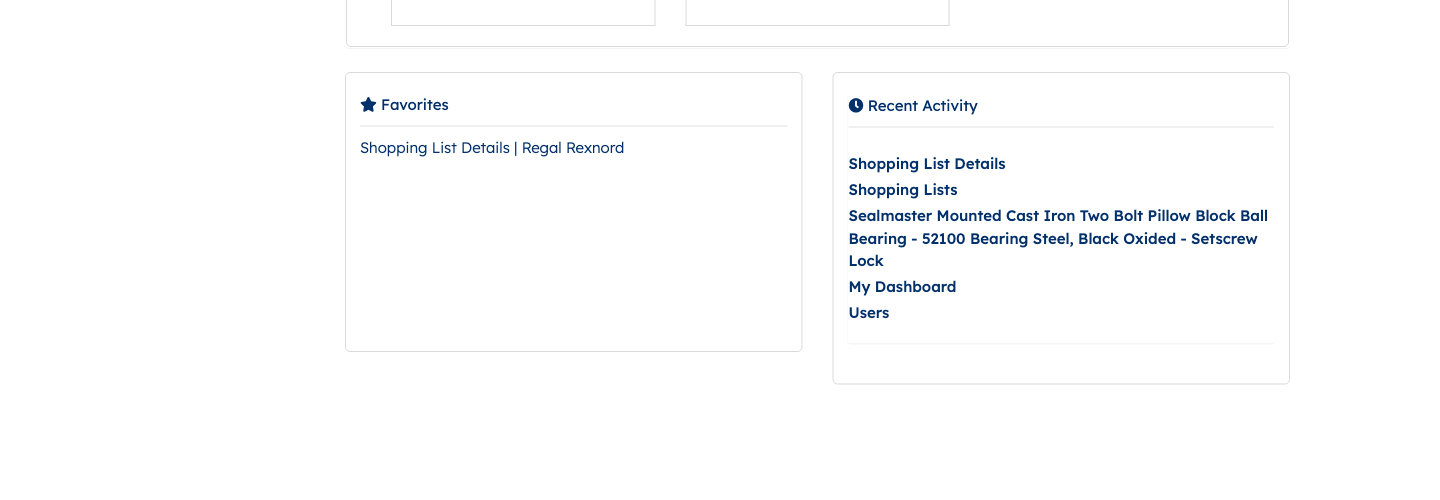
The star favorites the page you're on, so click it from the list's own details page. Your favorites appear in the Favorites panel on your Dashboard, next to Recent Activity.
Step 6 — Share the list
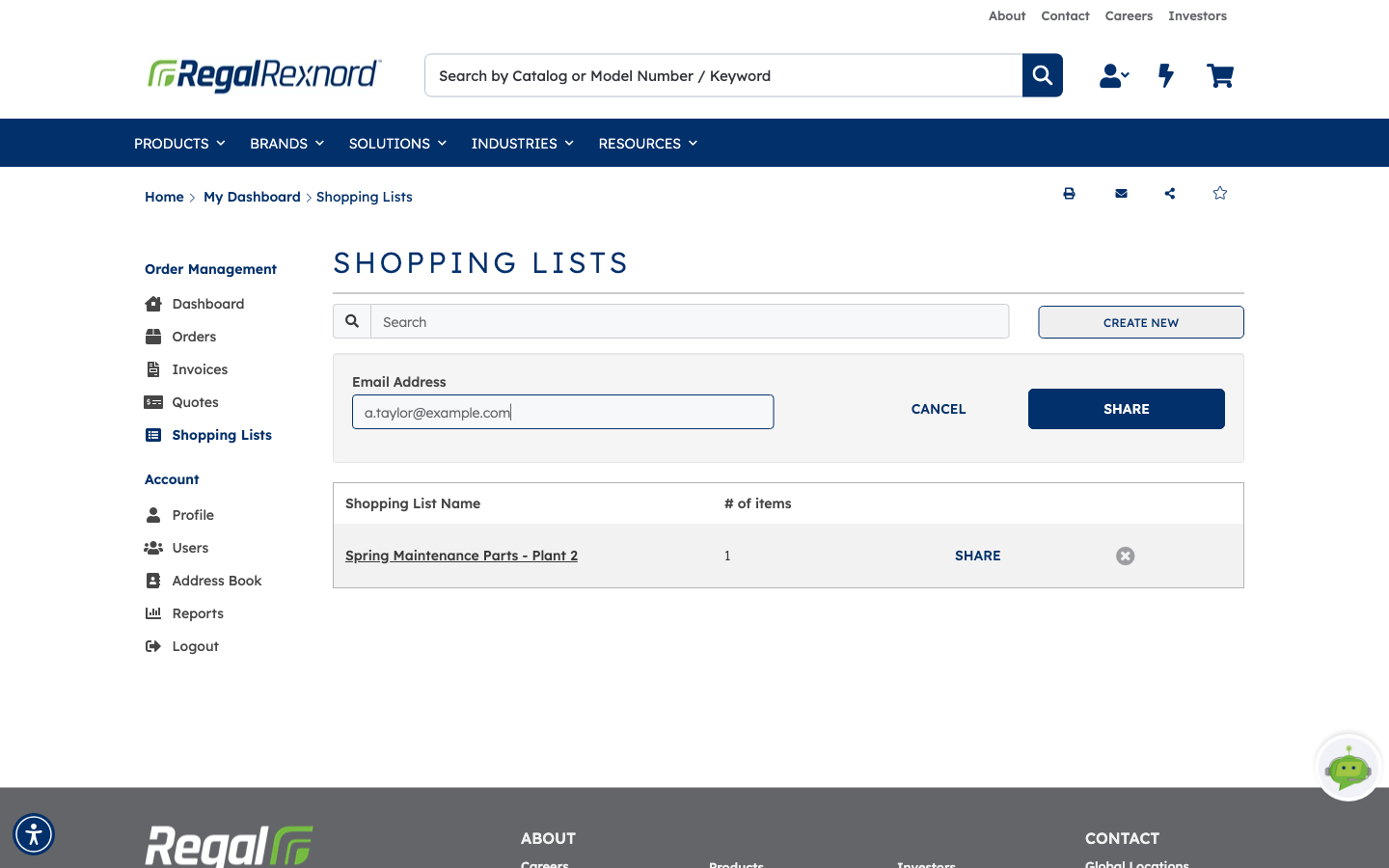
On the Shopping Lists page, click SHARE on the list's row. An Email Address box opens.
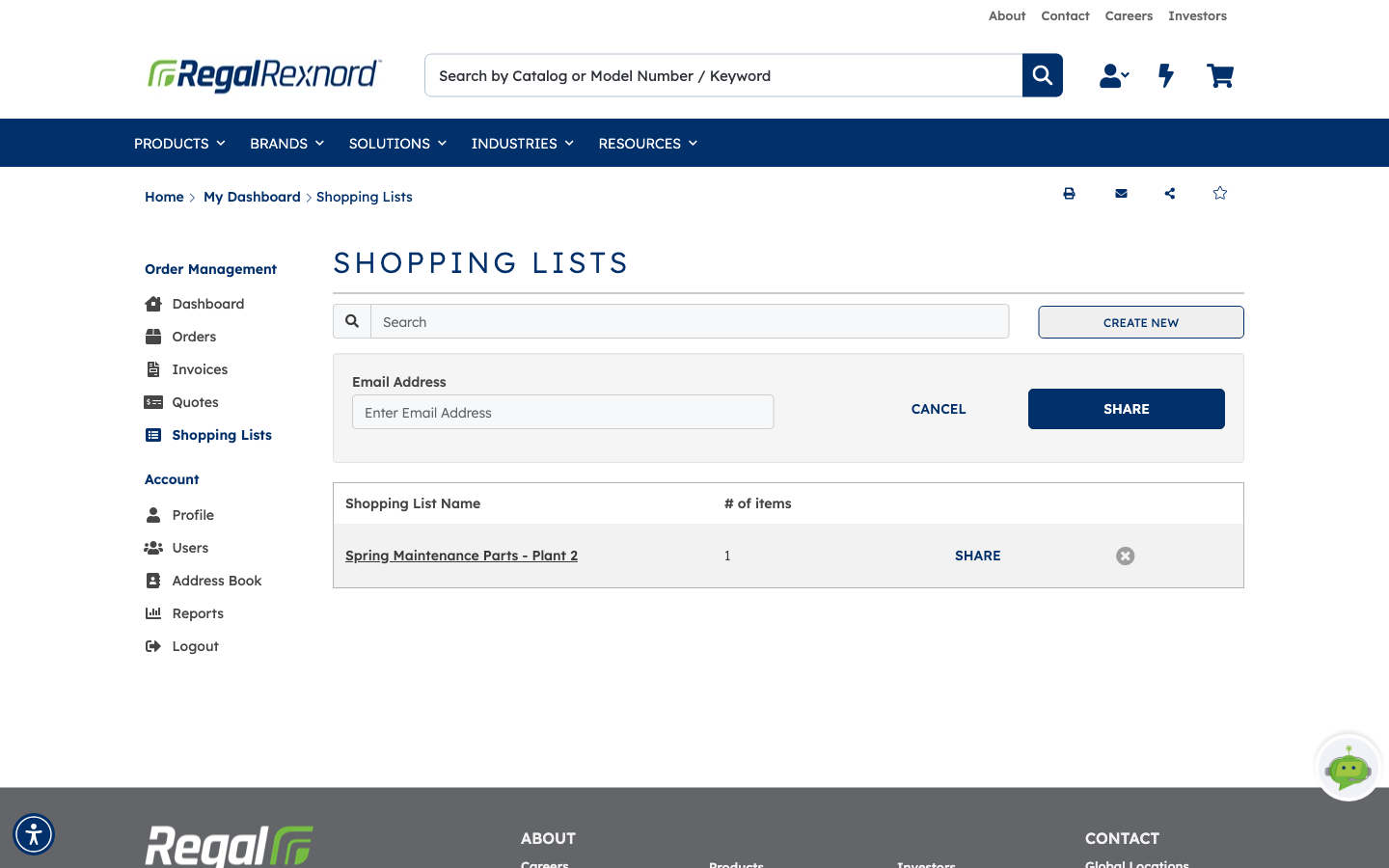
Enter your colleague's email address and click SHARE. They receive the list by email.
Step 7 — Add the list to your cart
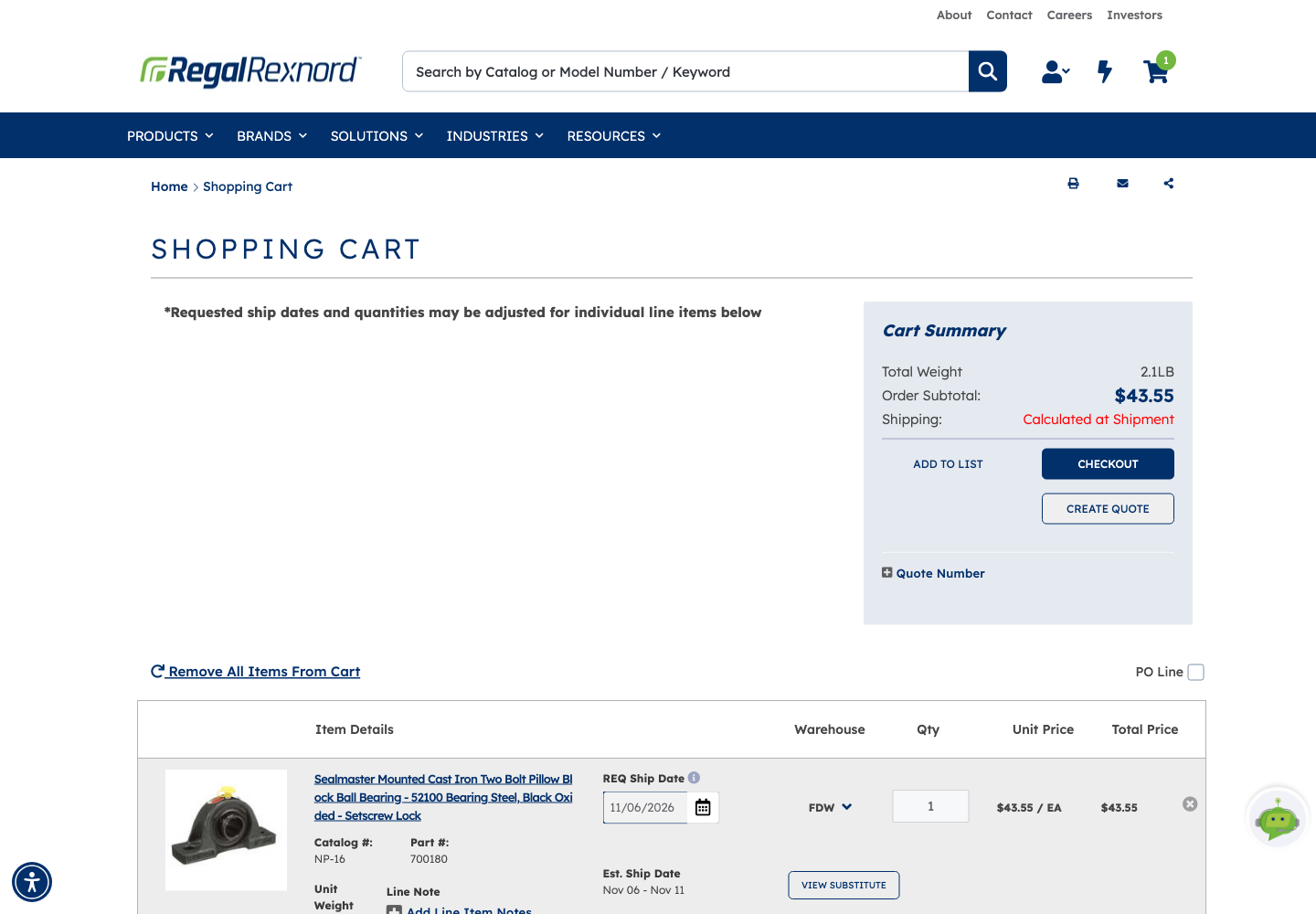
Open the list and click ADD ALL TO CART. Every item in the list goes to your cart, and the cart badge shows the new count. In this example, the cart holds one item with an order subtotal of $43.55.
Step 8 — Delete a list
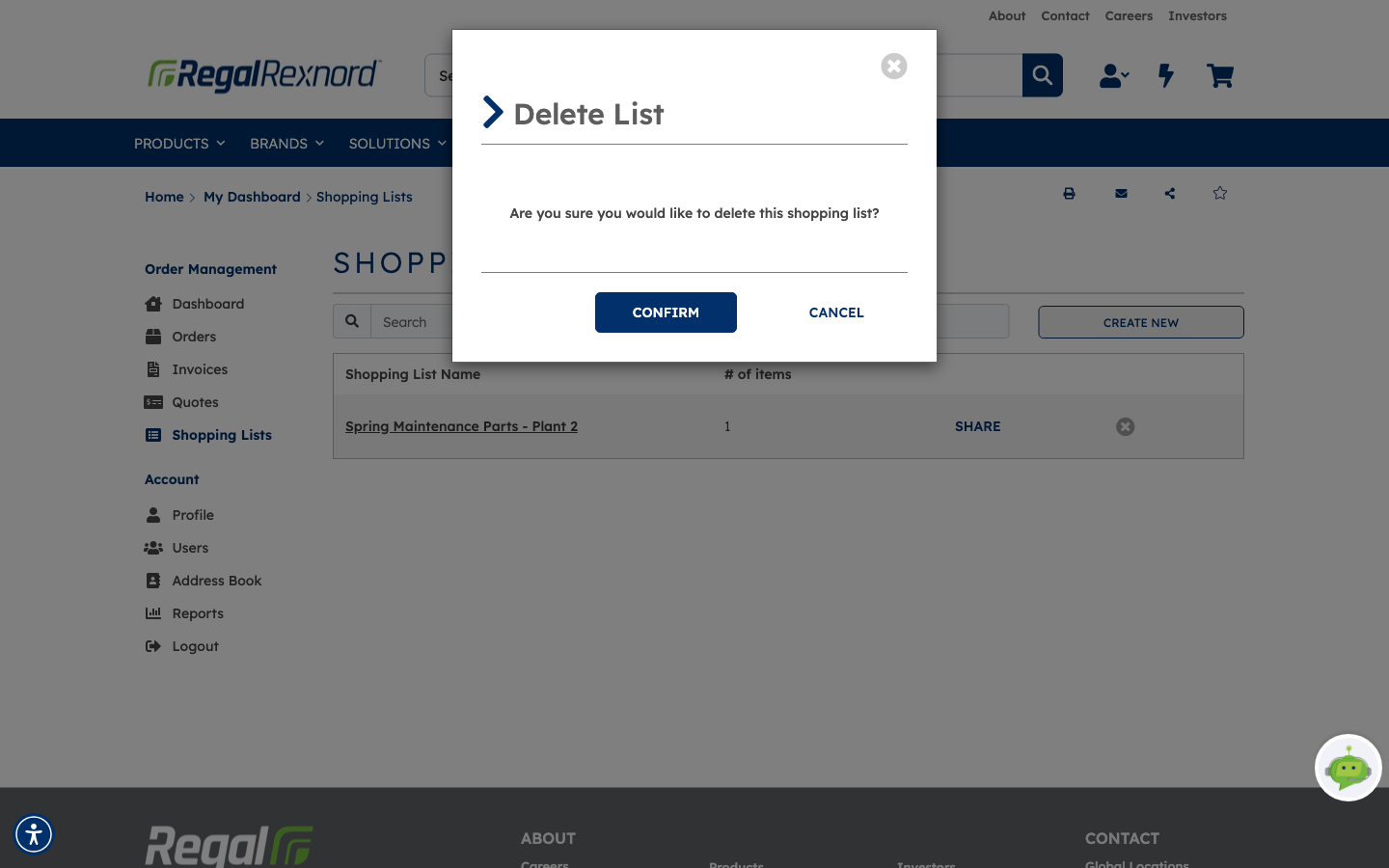
When you no longer need a list, click the X at the end of its row. (You can also click DELETE LIST on the details page.) A confirmation asks Are you sure you would like to delete this shopping list? Click CONFIRM, or CANCEL to keep it.
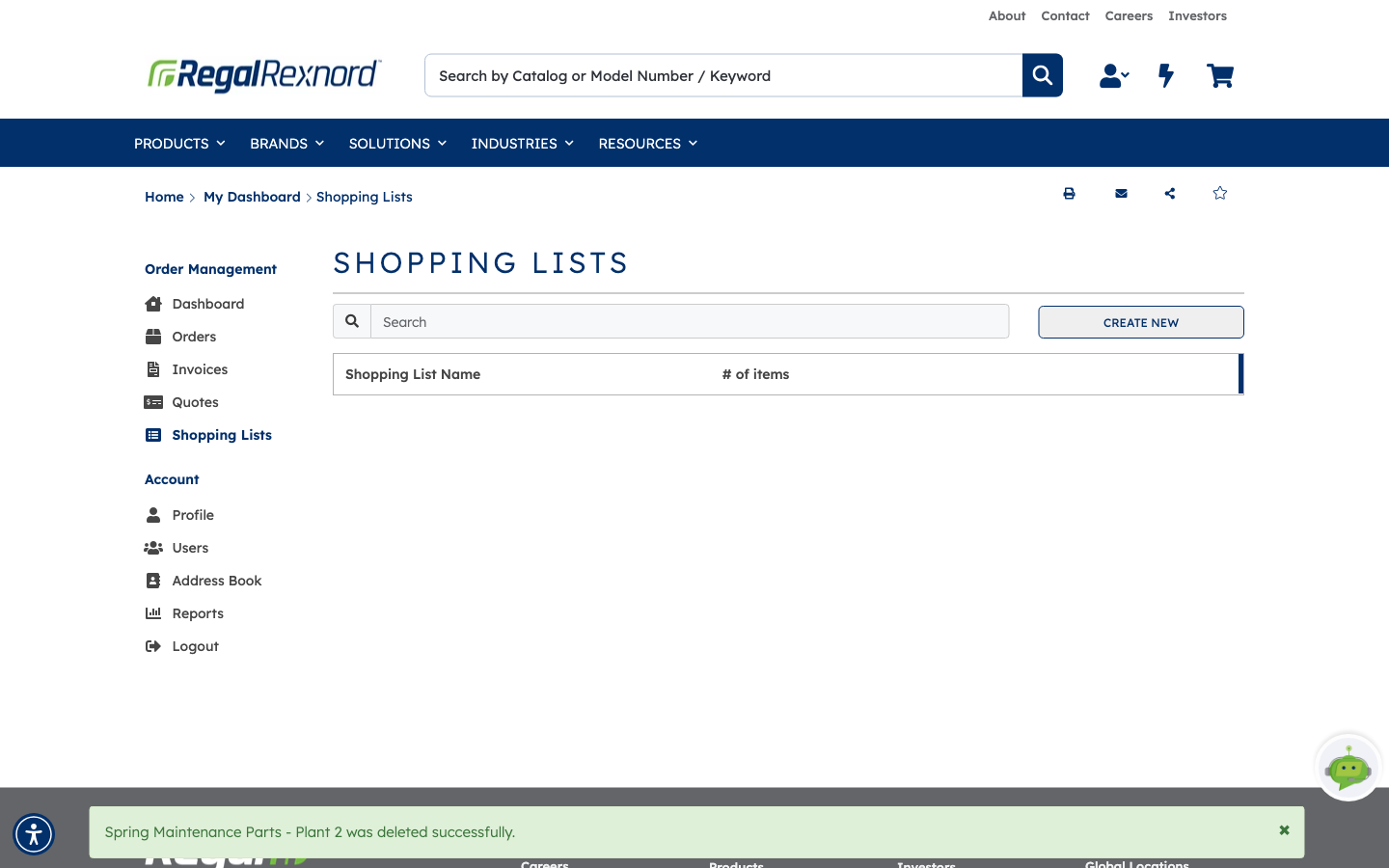
A message confirms the list was deleted, and it no longer appears in the table.
That's it. You can now keep your regular orders in shopping lists, share them with colleagues, and send them to your cart in one click.