Apply a Quote to Your Cart for Special Pricing
When you have a negotiated quote on file, applying it to your cart ensures your order uses the agreed pricing instead of the standard list price. This guide walks you through the process from cart to confirmed quote pricing.
:::info Behind the scenes This walkthrough was captured against the UAT site. See the test instructions it was driven from, and the test results recorded during the run. :::
Before you begin: You're already signed in and on the My Dashboard page. Make sure you have the items you want to order already in your cart, and have your quote number ready (in this example, we're applying quote Q-118806 to part 700180, qty 4).
Step 1 — Go to your Shopping Cart
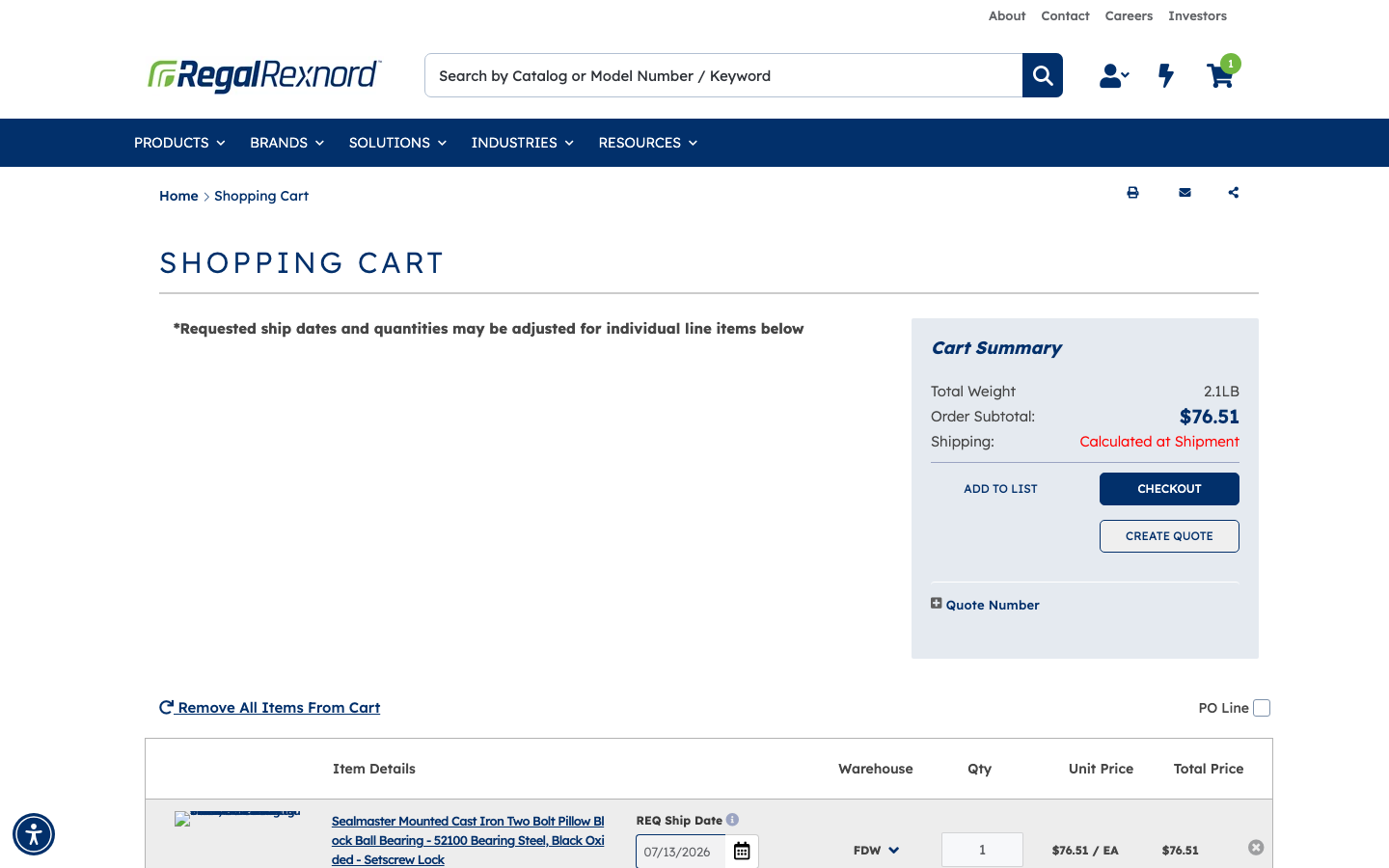
Click the cart icon or navigate to your Shopping Cart page. You'll see your line items listed on the left and a Cart Summary panel on the right. Confirm your items and quantities look right.
Notice the Quote Number section near the bottom of the Cart Summary panel — it starts collapsed (showing a + icon). That's where you'll apply your quote.
Step 2 — Adjust quantities if needed
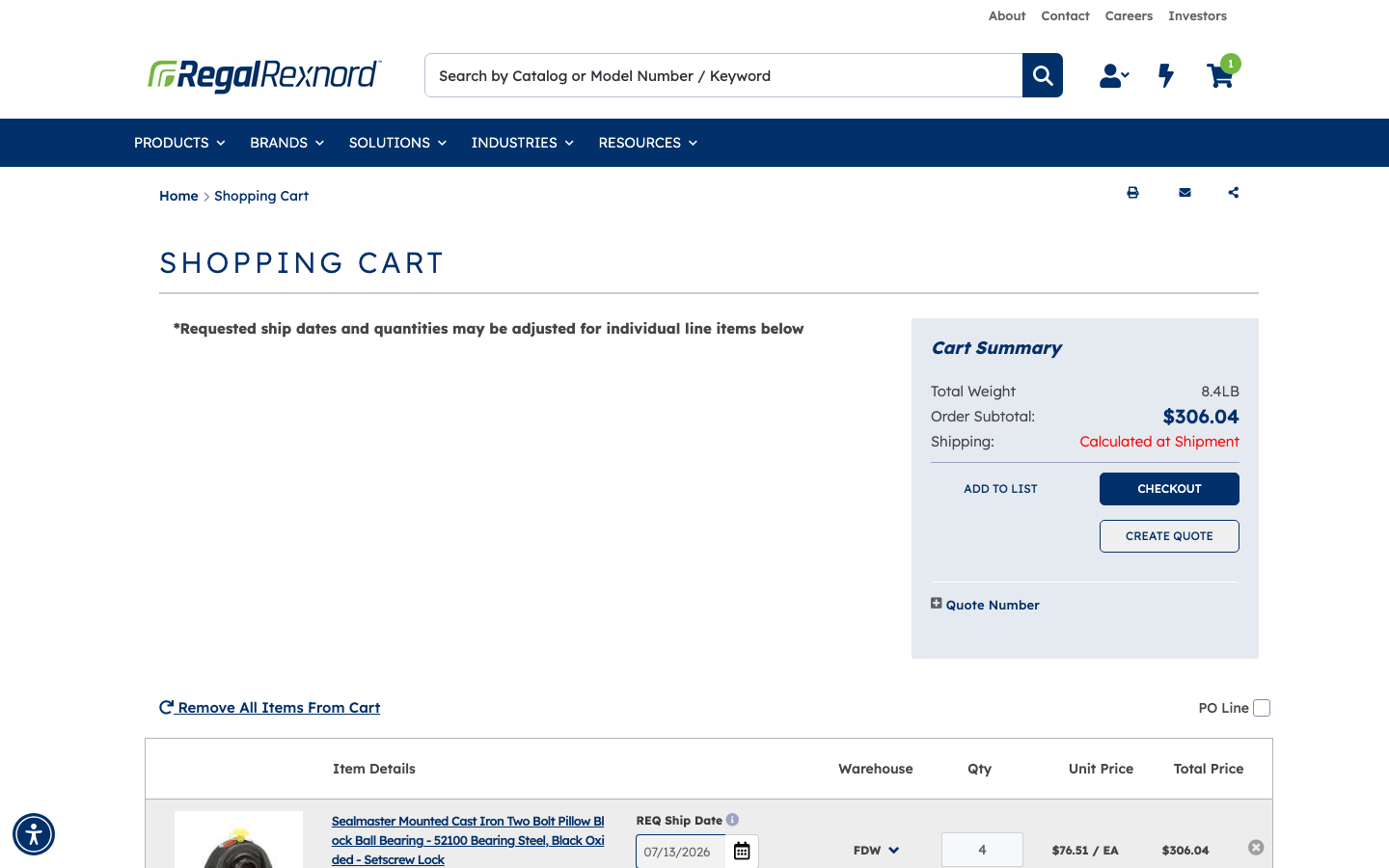
If you need to change the quantity of any item, update the Qty field on the cart line and click Update. The Cart Summary will recalculate automatically.
In this example, the quantity was changed from 1 to 4, bringing the Order Subtotal to $306.04 before the quote is applied.
Step 3 — Expand the Quote Number section
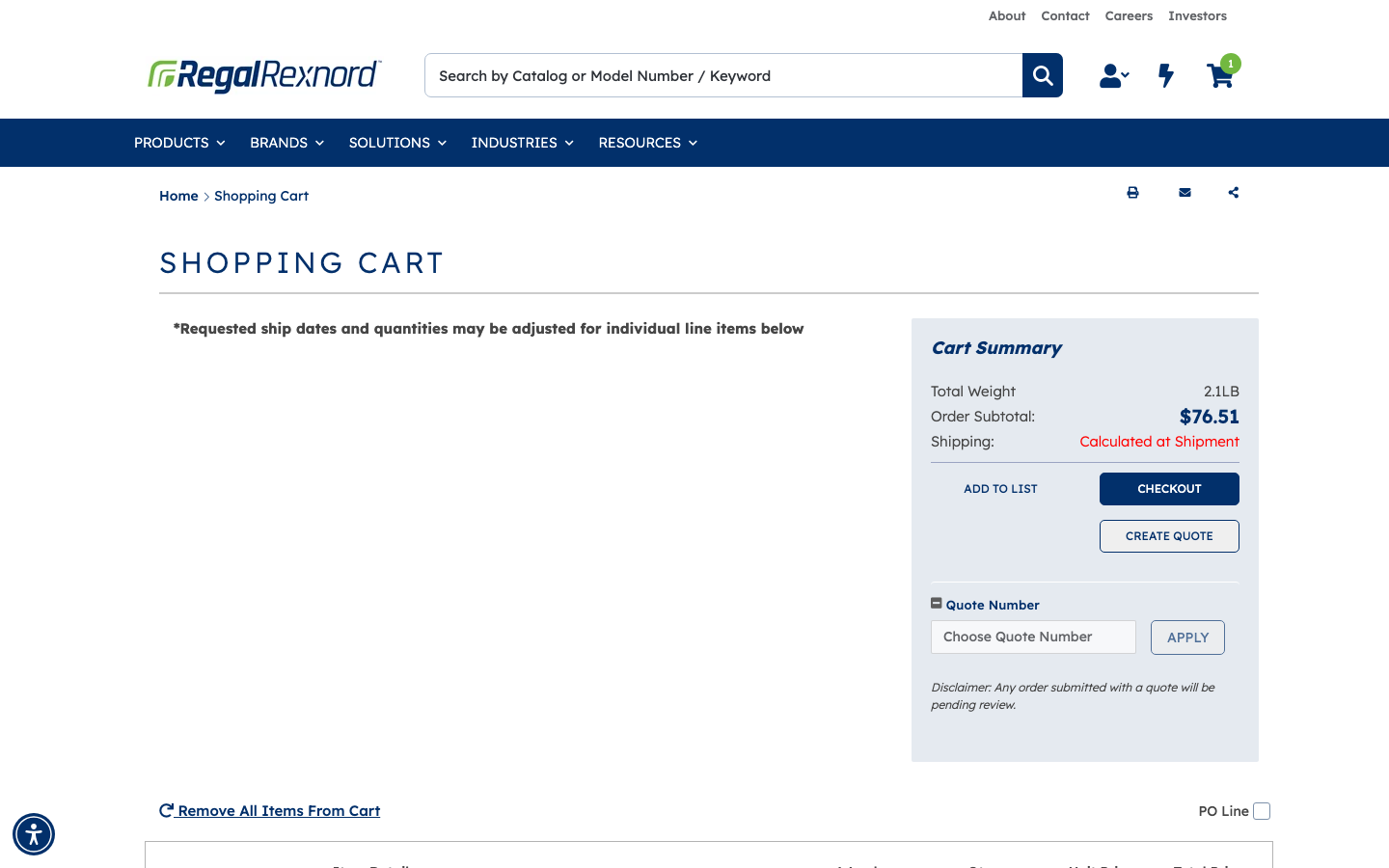
In the Cart Summary panel, click the + Quote Number toggle to expand it. You'll see a Choose Quote Number input field and an APPLY button.
Good to know: A note will appear reminding you that "Any order submitted with a quote will be pending review." This is normal — your order will go through an approval step before it's processed.
Step 4 — Select your quote number
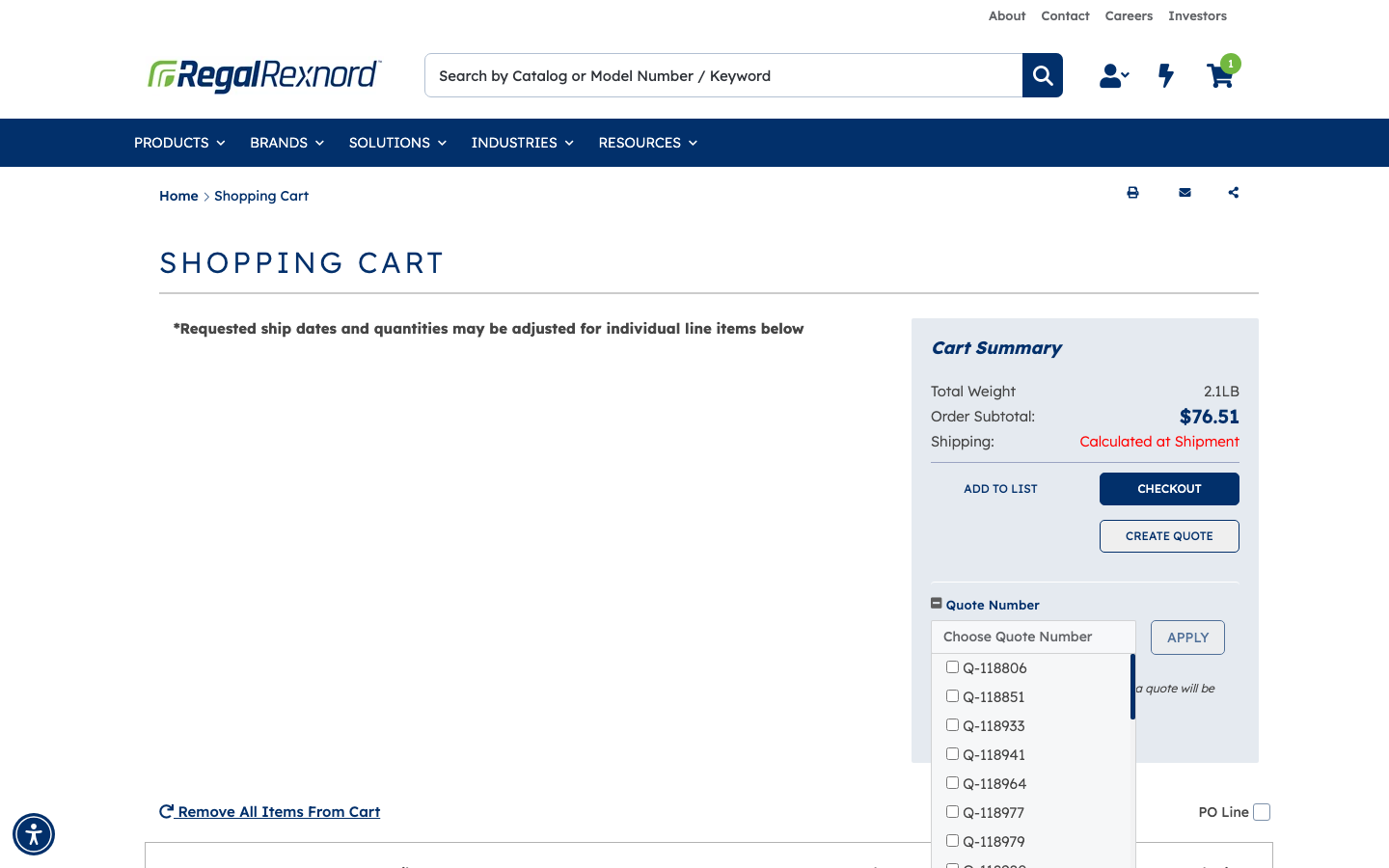
Click the Choose Quote Number field. A dropdown will appear listing your available quotes. Check the box next to the quote you want to apply — in this example, Q-118806.
Once selected, the quote number appears in the field and the APPLY button becomes active (solid navy).
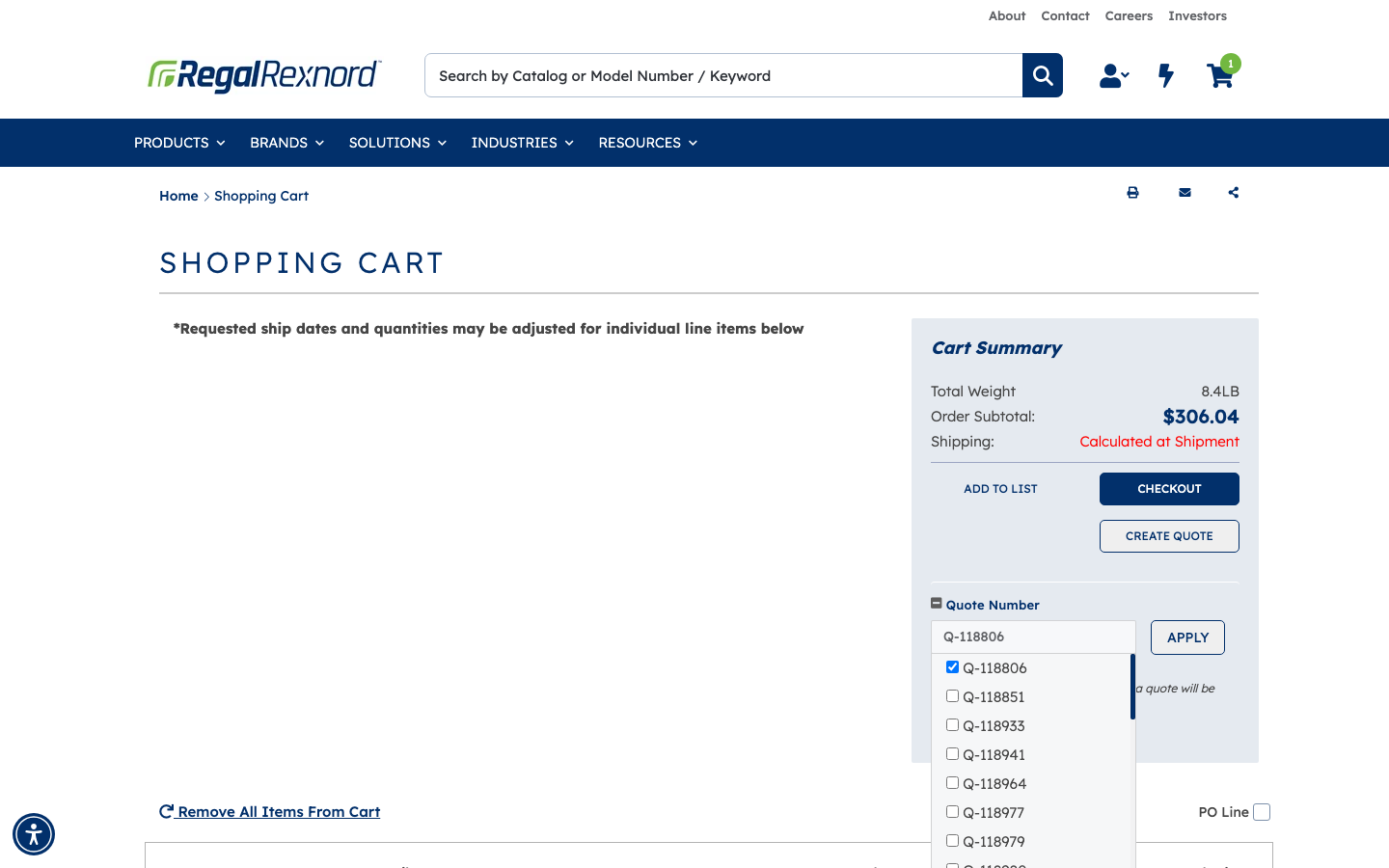
Step 5 — Click APPLY
Click the APPLY button. The page will reload with your quoted pricing applied to the cart.
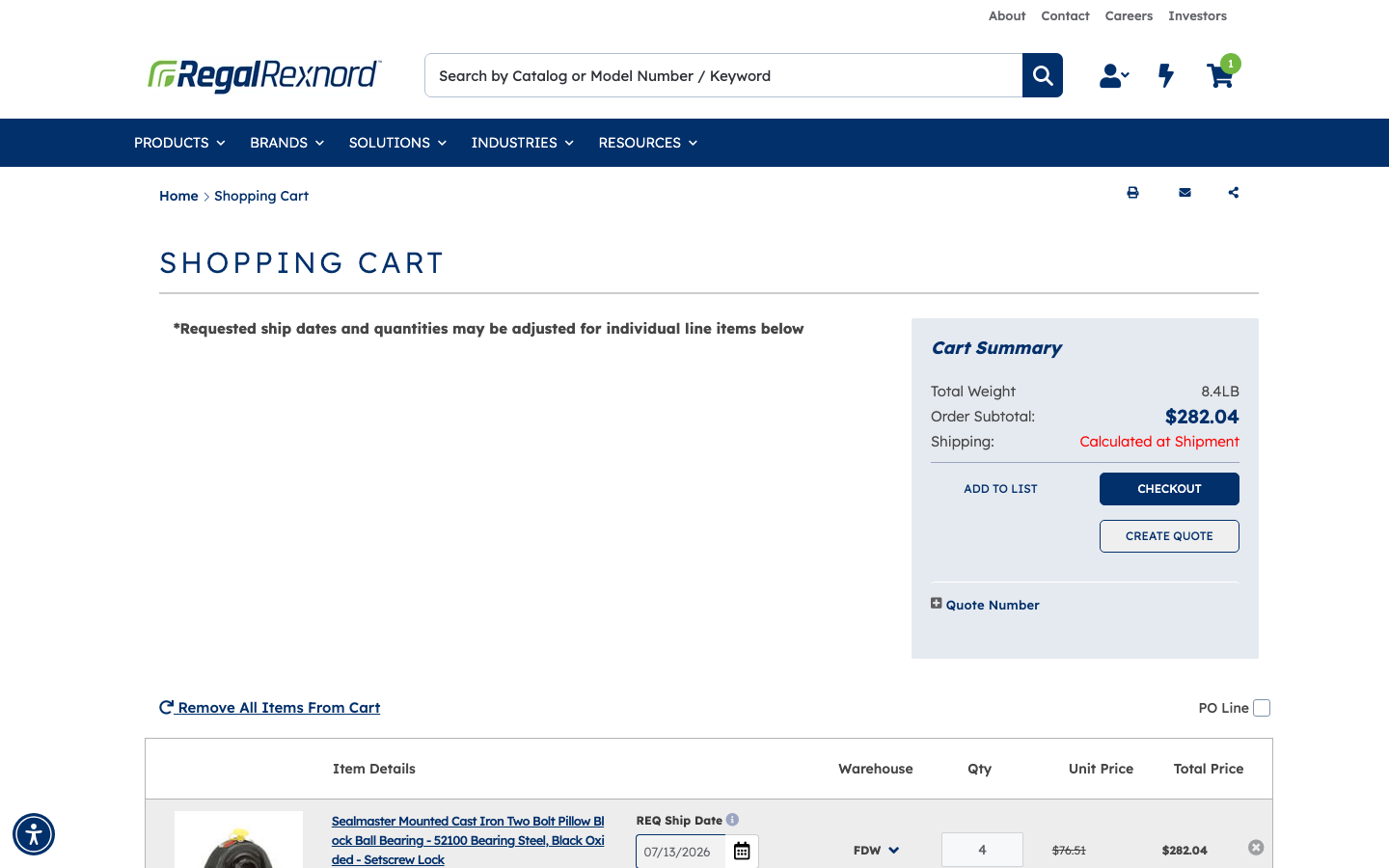
Step 6 — Check that the quote was applied
Once the page reloads, look at your line items and the Cart Summary. You should see:
- The quoted unit price displayed (with the original price shown in strikethrough)
- The Order Subtotal updated to reflect the new pricing
Here's what changed in this example after applying Q-118806:
| Before Quote | After Quote | |
|---|---|---|
| Unit Price | $76.51 / EA | $70.51 / EA |
| Qty | 4 | 4 |
| Line Total | $306.04 | $282.04 |
| Order Subtotal | $306.04 | $282.04 |
A savings of $24.00 (about 7.8%) was applied via the quote. The Quote Number section will collapse back to its default + state, confirming the quote was applied successfully.
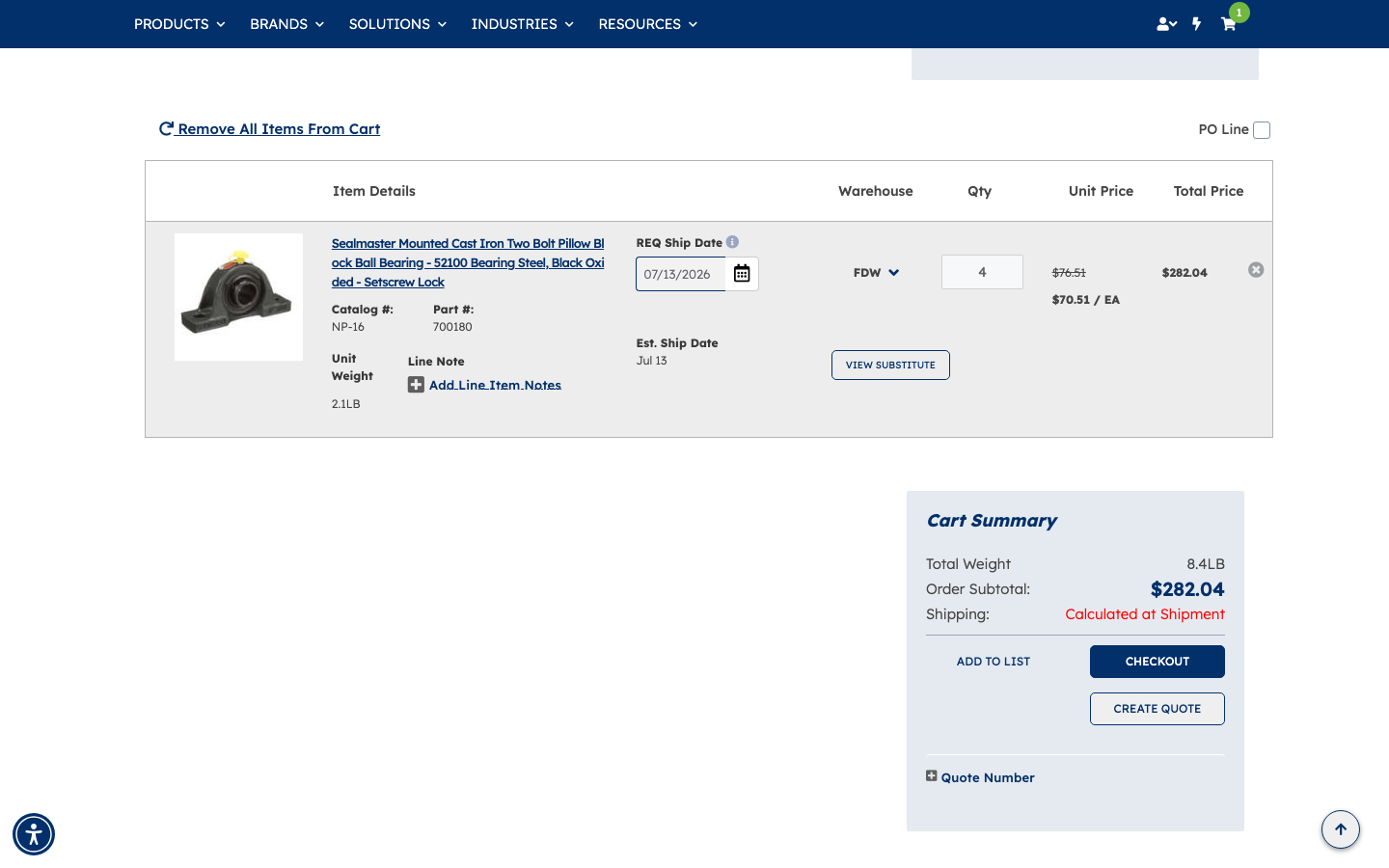
That's it. Your cart now reflects your negotiated quote pricing. When you're ready, proceed to CHECKOUT — your order will go through a brief review before it's finalized.