How to Create a Quote from Your Cart
If you need a formal price quote before placing an order, you can convert the items in your cart into a named quote in just a few steps. Your quote is saved in My Account so you can review it, share it internally, or turn it into an order later.
:::info Behind the scenes This walkthrough was captured against the UAT site. See the test instructions it was driven from, and the test results recorded during the run. :::
Before you begin: You're already signed in and on your My Dashboard page. Make sure you have at least one item in your cart — if your cart is empty, add a part first (for example, enter a part number in the Single Part Order widget on the dashboard and click ADD TO CART).
Step 1 — Go to your Shopping Cart
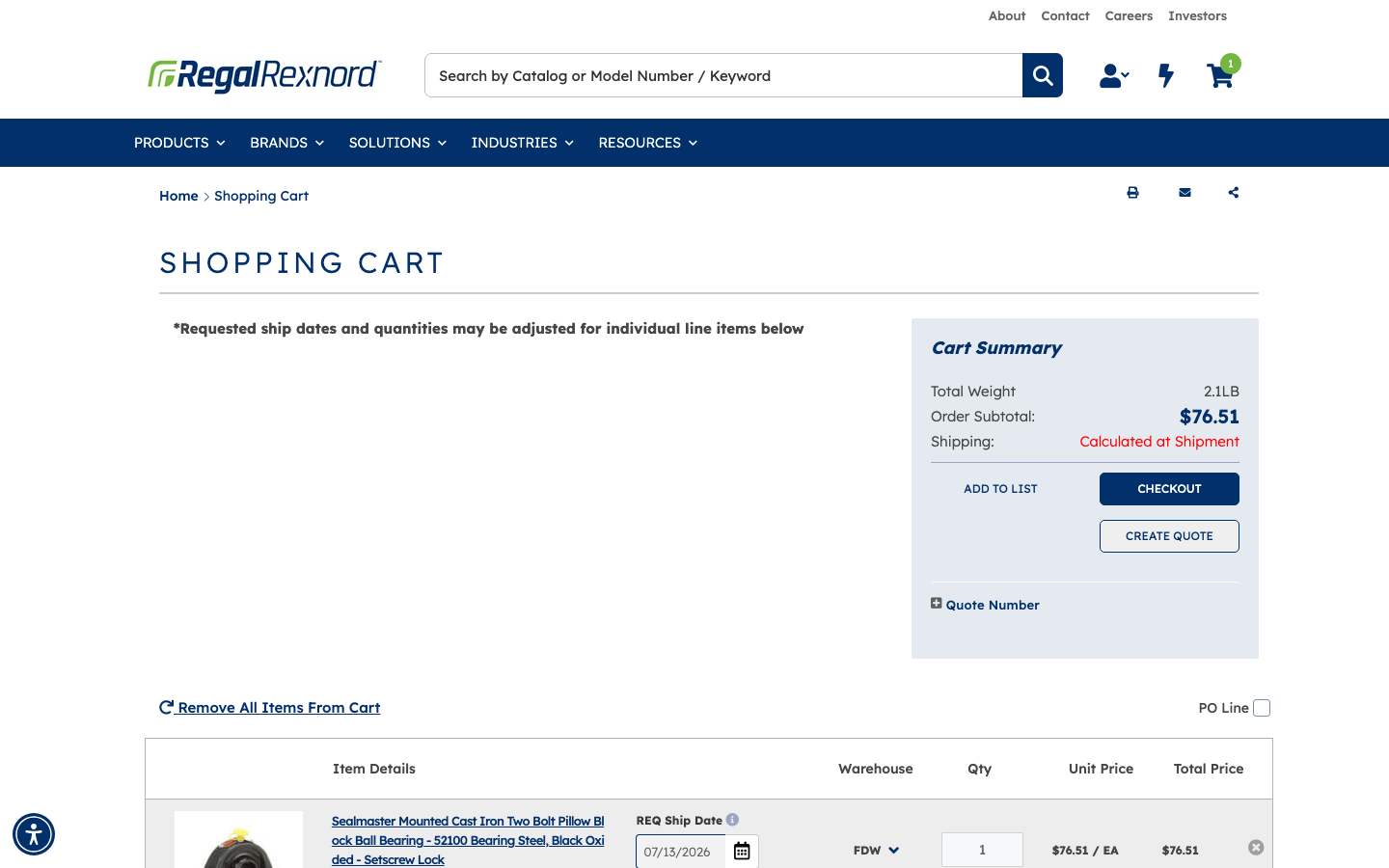
Click the cart icon in the site header to open your Shopping Cart page. You'll see the item(s) you've added listed with their quantity and price. On the right side, the Cart Summary panel shows your Order Subtotal and two action buttons: CHECKOUT and CREATE QUOTE.
In this example, the cart contains one item — part 700180 (Catalog #: NP-16, Sealmaster Mounted Cast Iron Two Bolt Pillow Block Ball Bearing) at $76.51/EA.
Step 2 — Click CREATE QUOTE
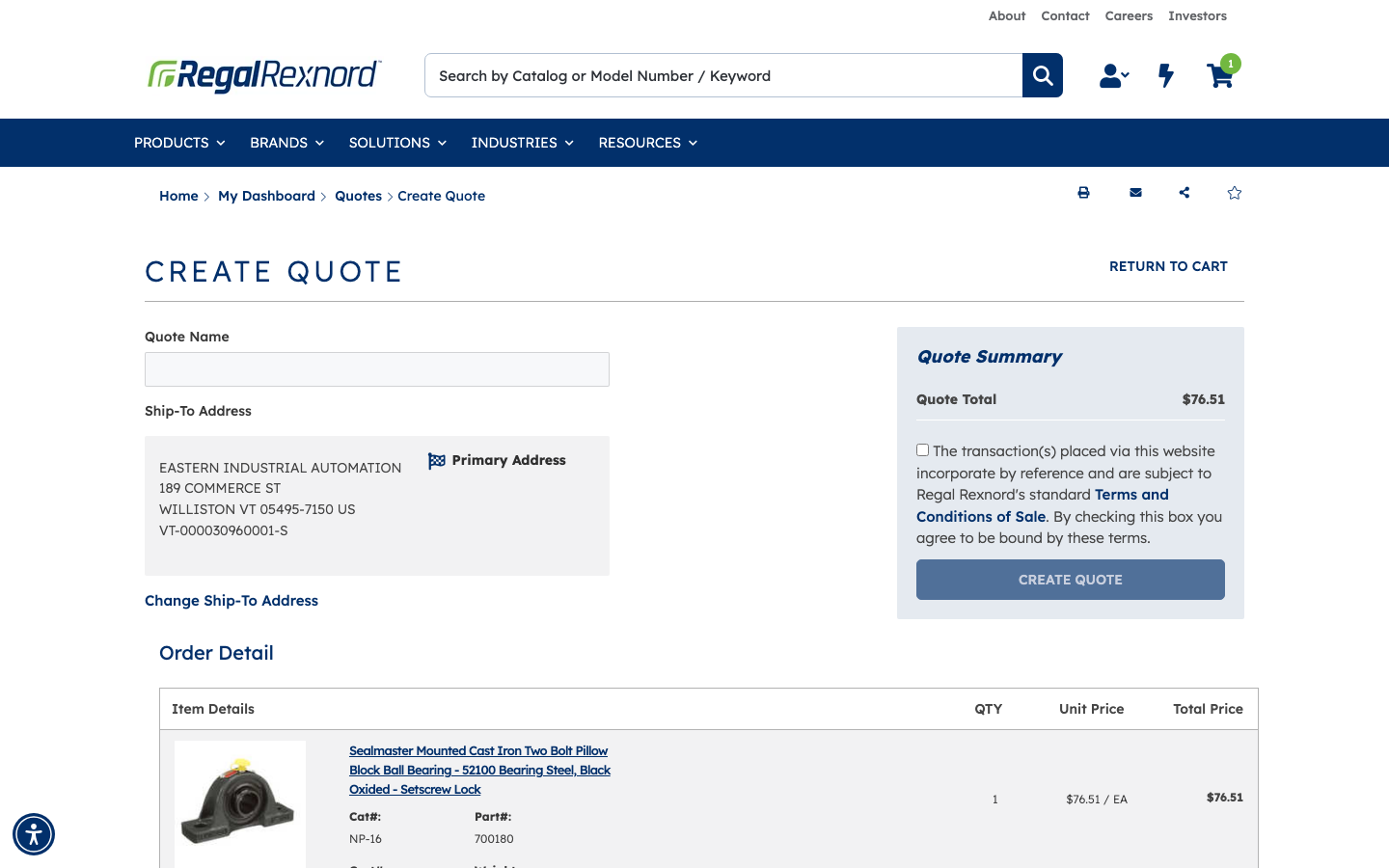
In the Cart Summary panel, click the CREATE QUOTE button. The site takes you to the Create Quote form. Here you'll see:
- A Quote Name field (required)
- Your selected Ship-To Address
- A Quote Summary with the total
- A Terms and Conditions checkbox
- An Order Detail table listing your cart items
- The CREATE QUOTE submit button (greyed out until the form is complete)
Step 3 — Enter a Quote Name
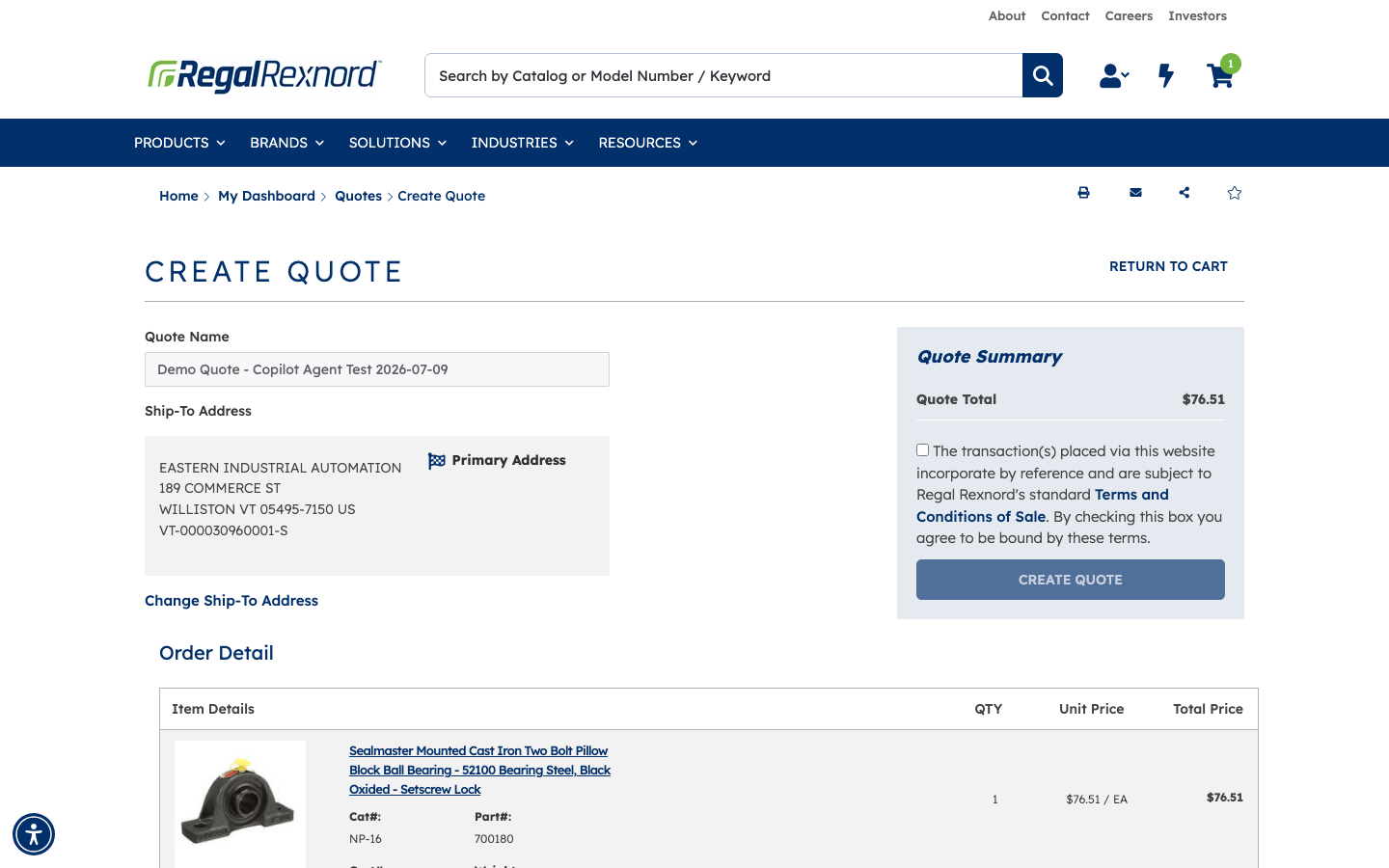
Click into the Quote Name field and type a descriptive name that will help you find this quote later. Keep it under 100 characters.
In this example, the name entered is "Demo Quote - Copilot Agent Test 2026-07-09".
Step 4 — Accept the Terms & Conditions
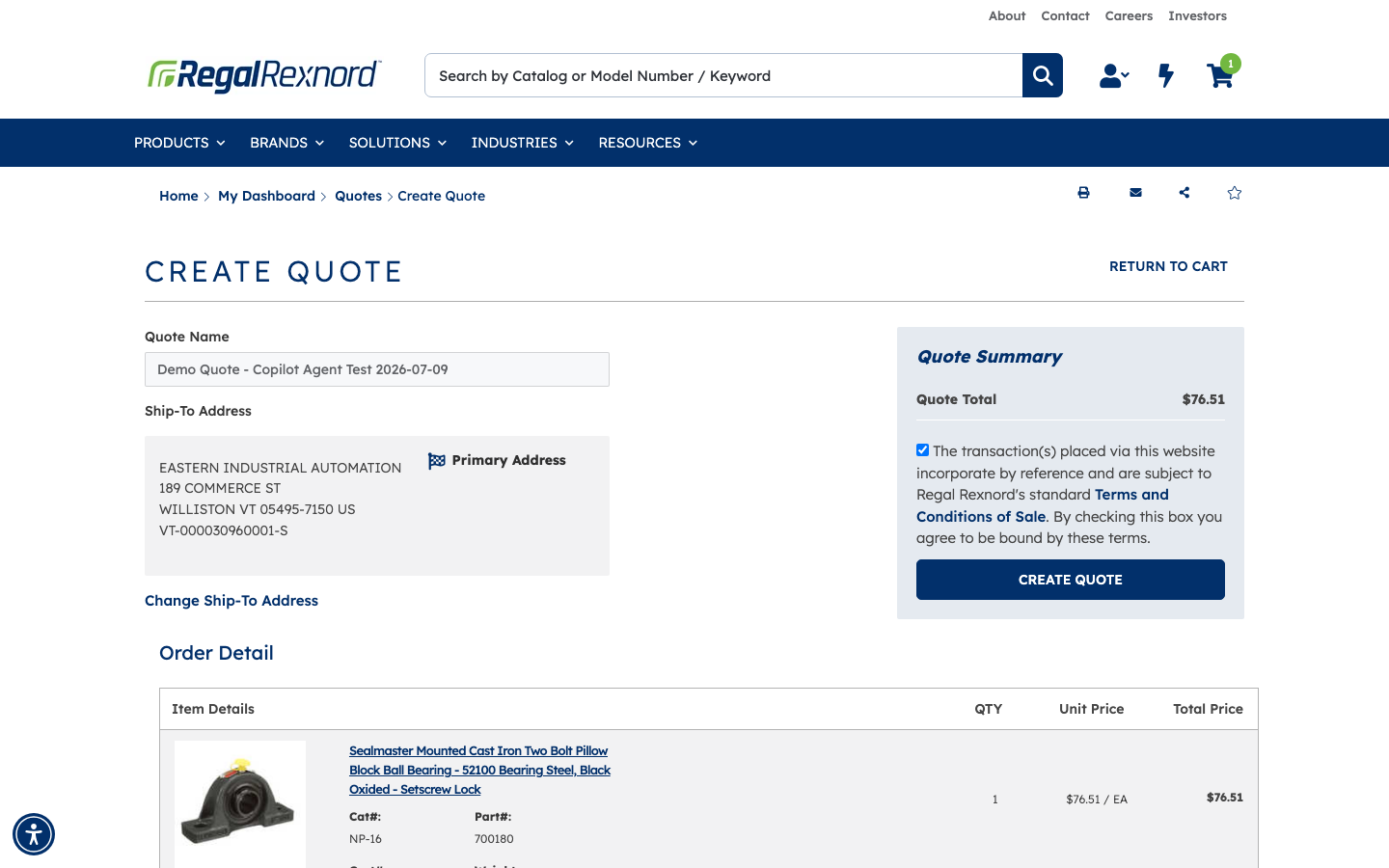
Check the Terms and Conditions checkbox in the Quote Summary panel. This confirms you accept Regal Rexnord's standard Terms and Conditions of Sale.
Once checked, the CREATE QUOTE button turns dark navy, meaning it's now ready to submit.
Step 5 — Submit your quote
Click the CREATE QUOTE button. The site processes your request — this can take a few moments. When it's done, you're automatically taken to the Quote Confirmation page.
Step 6 — Note your quote number
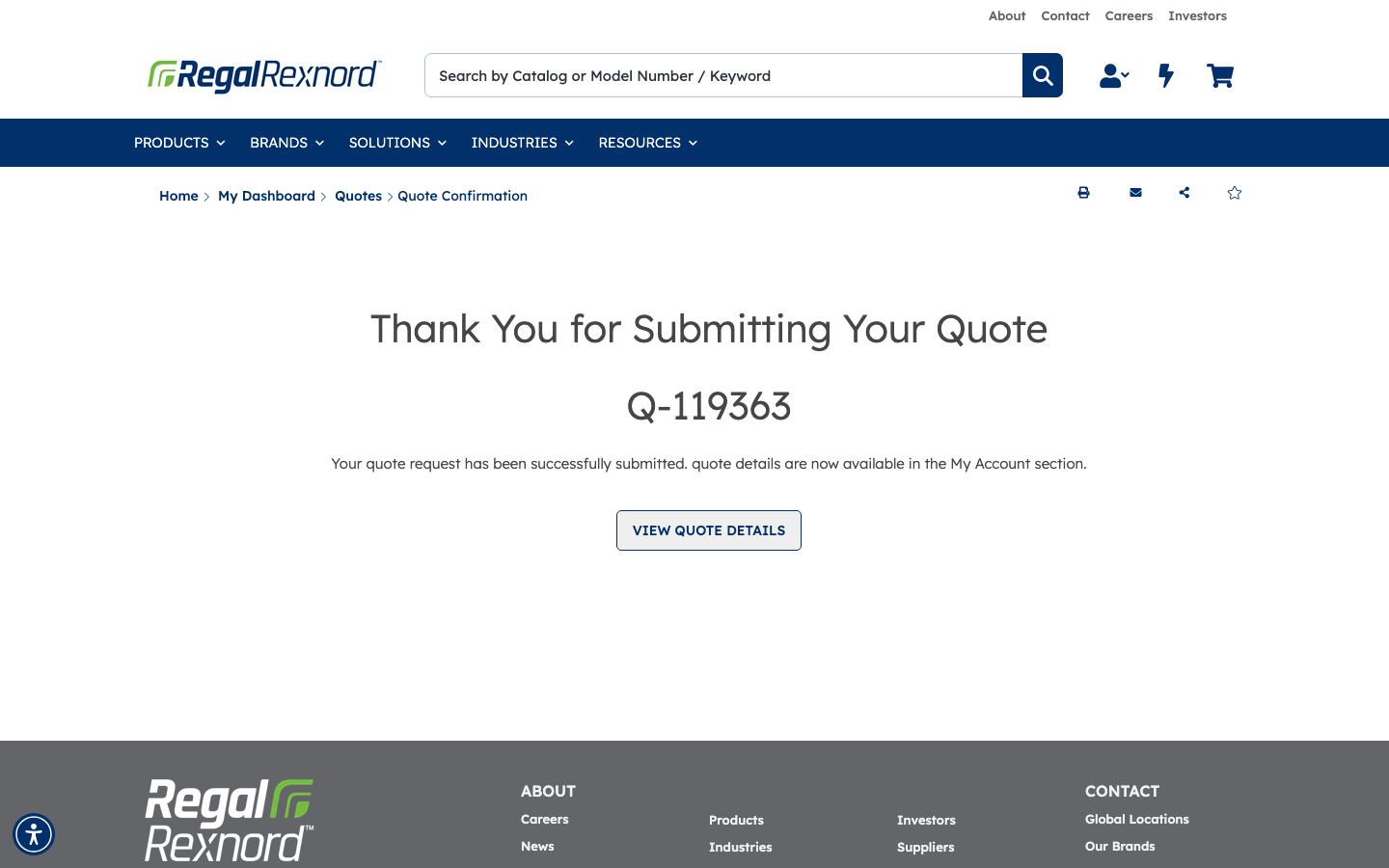
On the Quote Confirmation page, you'll see the heading "Thank You for Submitting Your Quote" and your new quote number. Write down or copy this number — you'll use it to find your quote in My Account.
In this example, the quote number is Q-119363.
The page also shows a confirmation message and a VIEW QUOTE DETAILS button.
Step 7 — Review your Quote Details
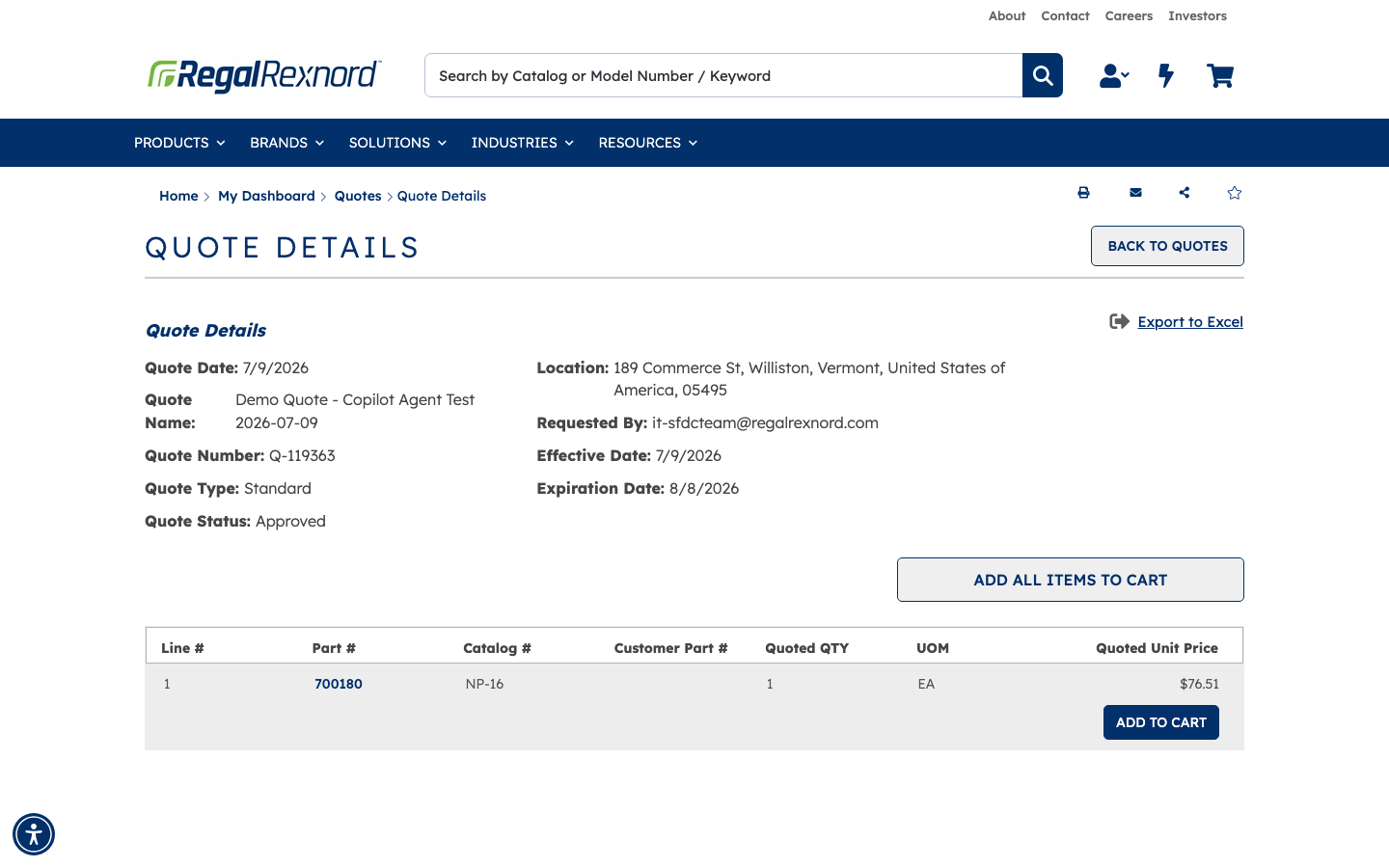
Click VIEW QUOTE DETAILS to open the full quote record. You'll see a summary of all the key information:
| Field | Value |
|---|---|
| Quote Date | 7/9/2026 |
| Quote Name | Demo Quote - Copilot Agent Test 2026-07-09 |
| Quote Number | Q-119363 |
| Quote Type | Standard |
| Quote Status | Approved |
| Location | 189 Commerce St, Williston, VT 05495 |
| Effective Date | 7/9/2026 |
| Expiration Date | 8/8/2026 |
The Order Detail table below lists every line item — in this example, Part# 700180, Catalog# NP-16, Qty 1 EA, Quoted Unit Price $76.51.
When you're ready to order, use the ADD ALL ITEMS TO CART button (or the line-level ADD TO CART button) to pull your quoted items back into your cart.
Check that your quote was created: Your cart should now be empty — notice the cart icon in the header no longer shows an item count. That confirms the quote was saved and your cart was cleared successfully.
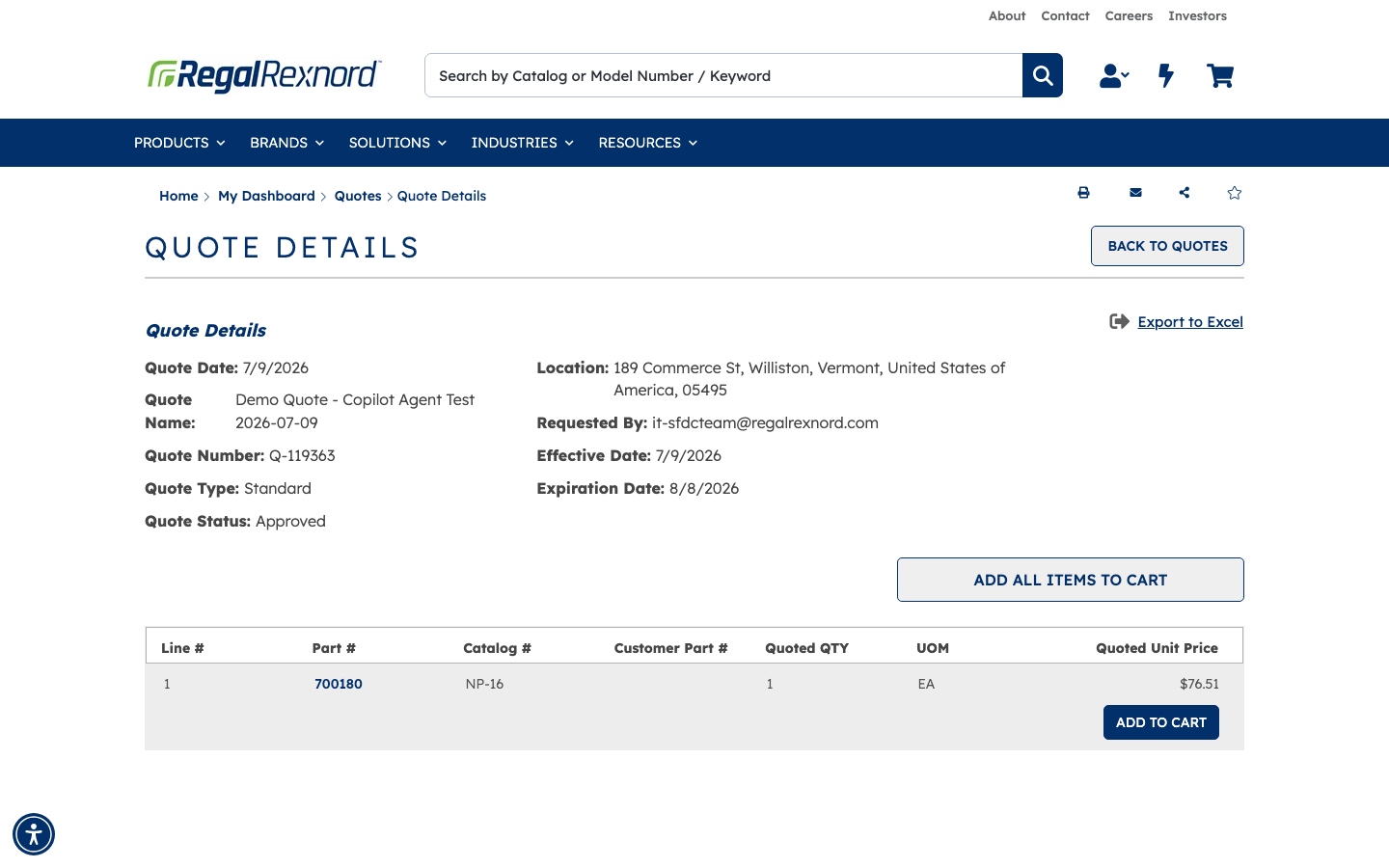
That's it. Your quote is saved in My Account → Quotes where you can revisit it any time before the expiration date, share the quote number with your team, or add the items back to your cart to place the order when you're ready.