How to Create a Quote from Your Cart — Test results
2026-07-09T15:42:08Z by Showboat 0.6.1
Supporting detail for the feature demo.
This demo walks through the Create Quote feature on the Regal Rexnord B2B e-commerce site. It covers adding a part to the cart, navigating to the Cart page, creating a named quote with Terms & Conditions acceptance, and verifying the resulting Quote Confirmation page and Quote Details page.
Site: https://uatwww.rrxpreview.com/ Test Account: agent@forliion.com (Forliion account) Feature: Create Quote from Cart
Prerequisite: Login
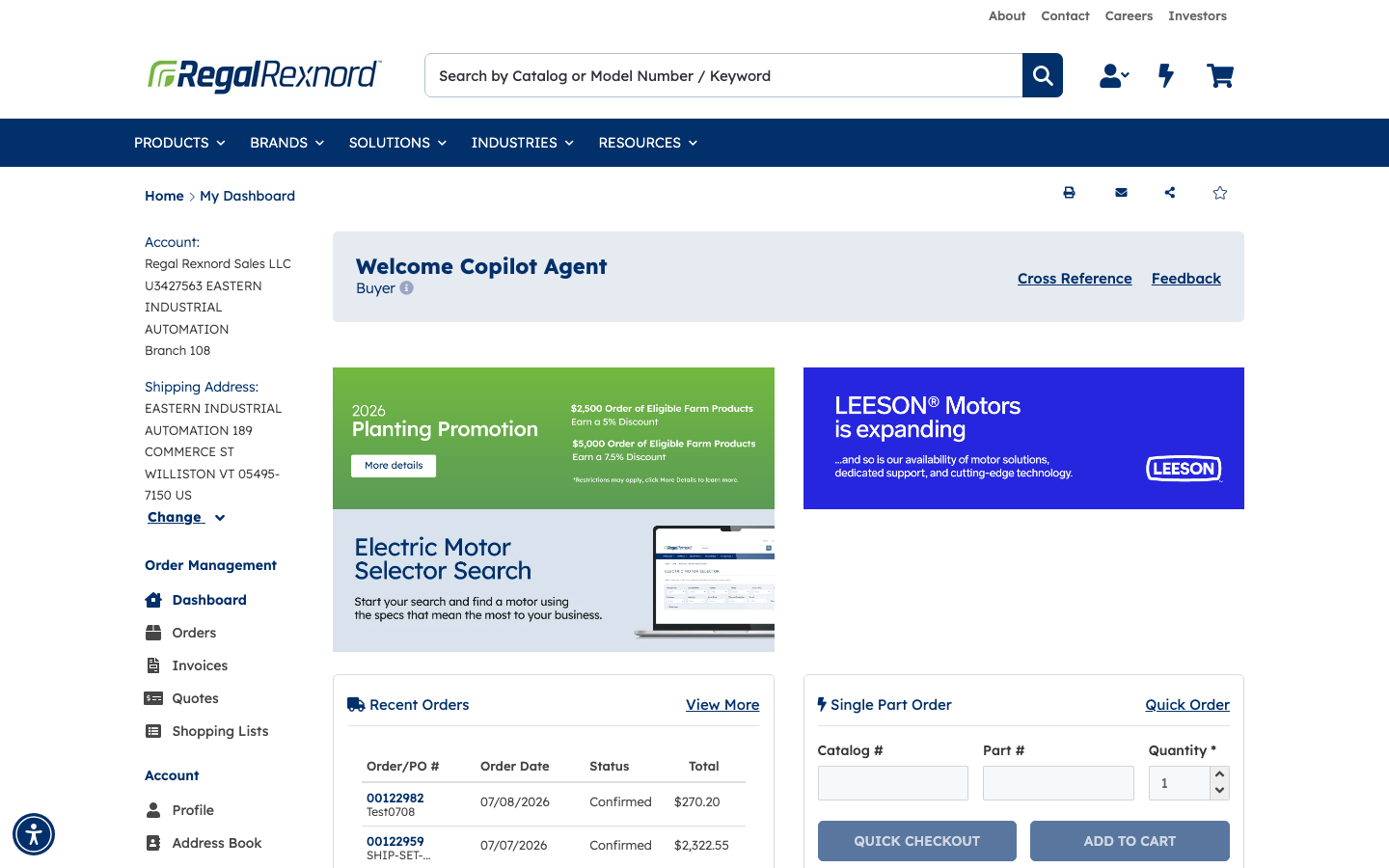
Navigated to the Regal Rexnord UAT site and logged in as the test user (agent@forliion.com). After authentication, the shipping address selector appeared — the Primary Address (Eastern Industrial Automation, 189 Commerce St, Williston VT) was selected and confirmed. The dashboard loaded with the expected Welcome Copilot Agent greeting, confirming the correct test account is active.
Prerequisite: Add Part to Cart
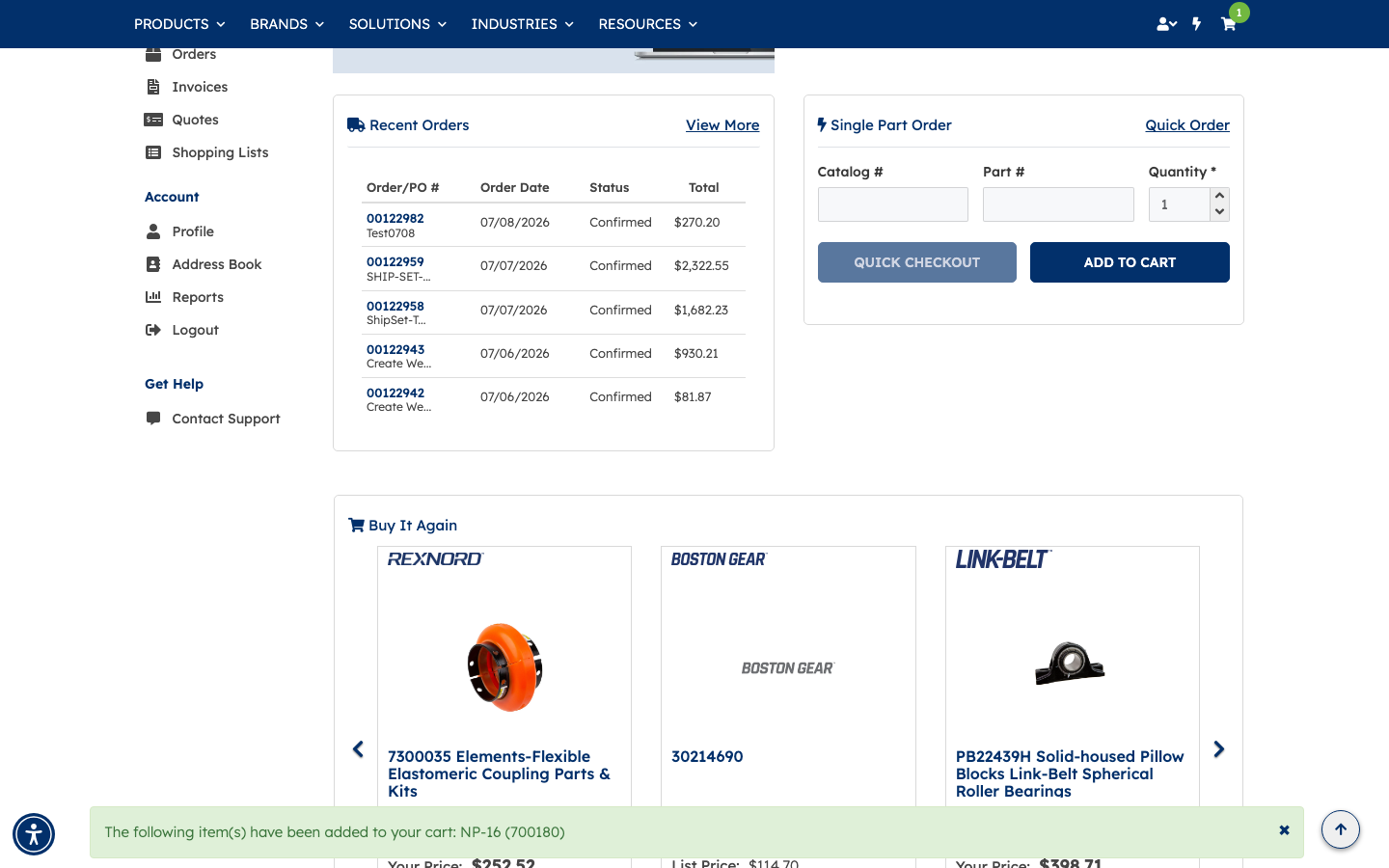
On the My Dashboard page, part number 700180 (Catalog #: NP-16, Your Price: $76.51) was entered in the Single Part Order widget's Part # field. After tab-out triggered the product lookup, the ADD TO CART button was clicked. A success banner confirmed: "The following item(s) have been added to your cart: NP-16 (700180)". The cart badge updated to show 1 item.
Step 1: Navigate to the Cart Page
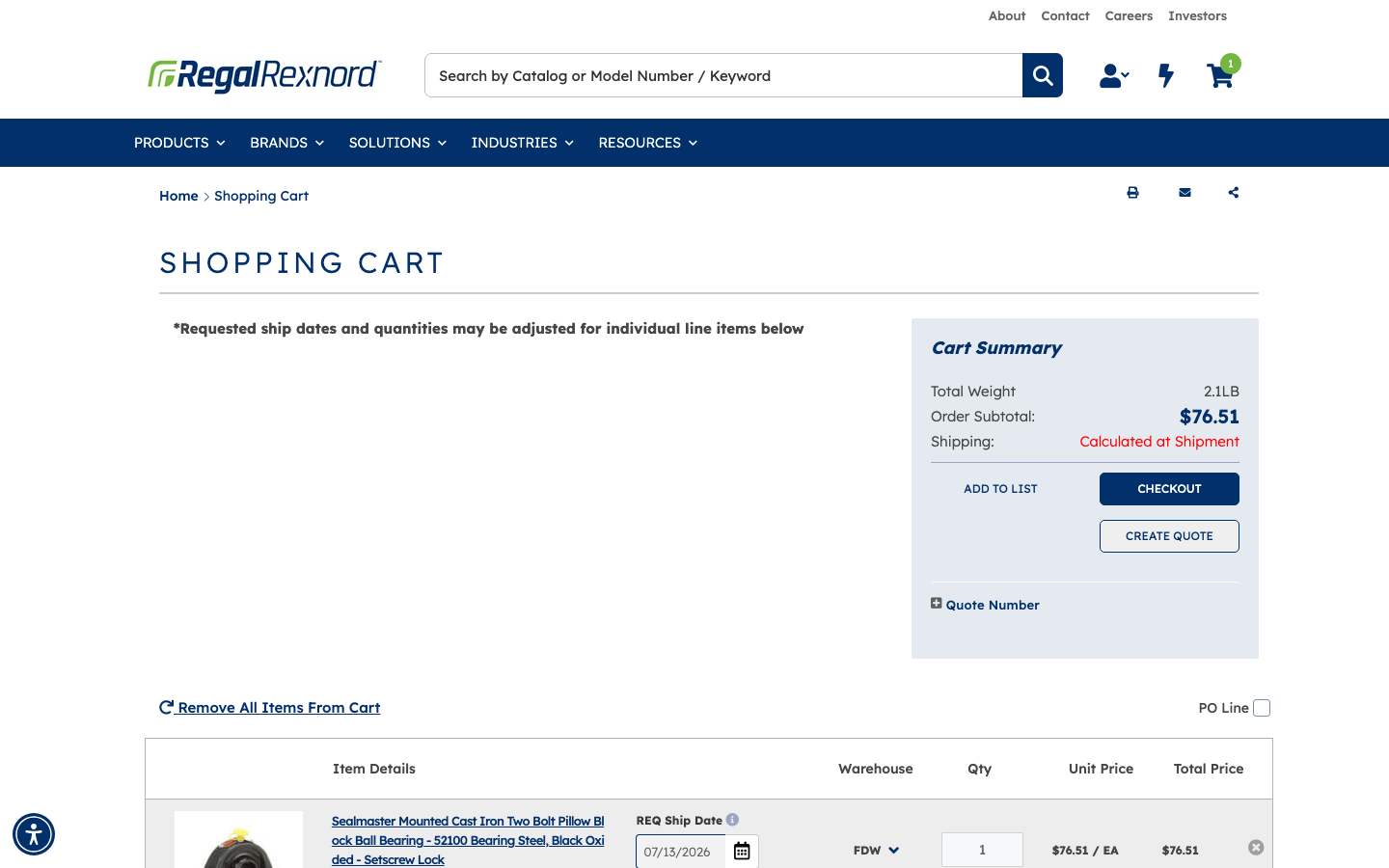
Navigated to the Shopping Cart page (https://uatwww.rrxpreview.com/shoppingcart). The cart shows 1 item — a Sealmaster Mounted Cast Iron Two Bolt Pillow Block Ball Bearing at $76.51/EA. The Cart Summary panel on the right displays the Order Subtotal of $76.51 and two action buttons: CHECKOUT and CREATE QUOTE.
Step 2: Click Create Quote
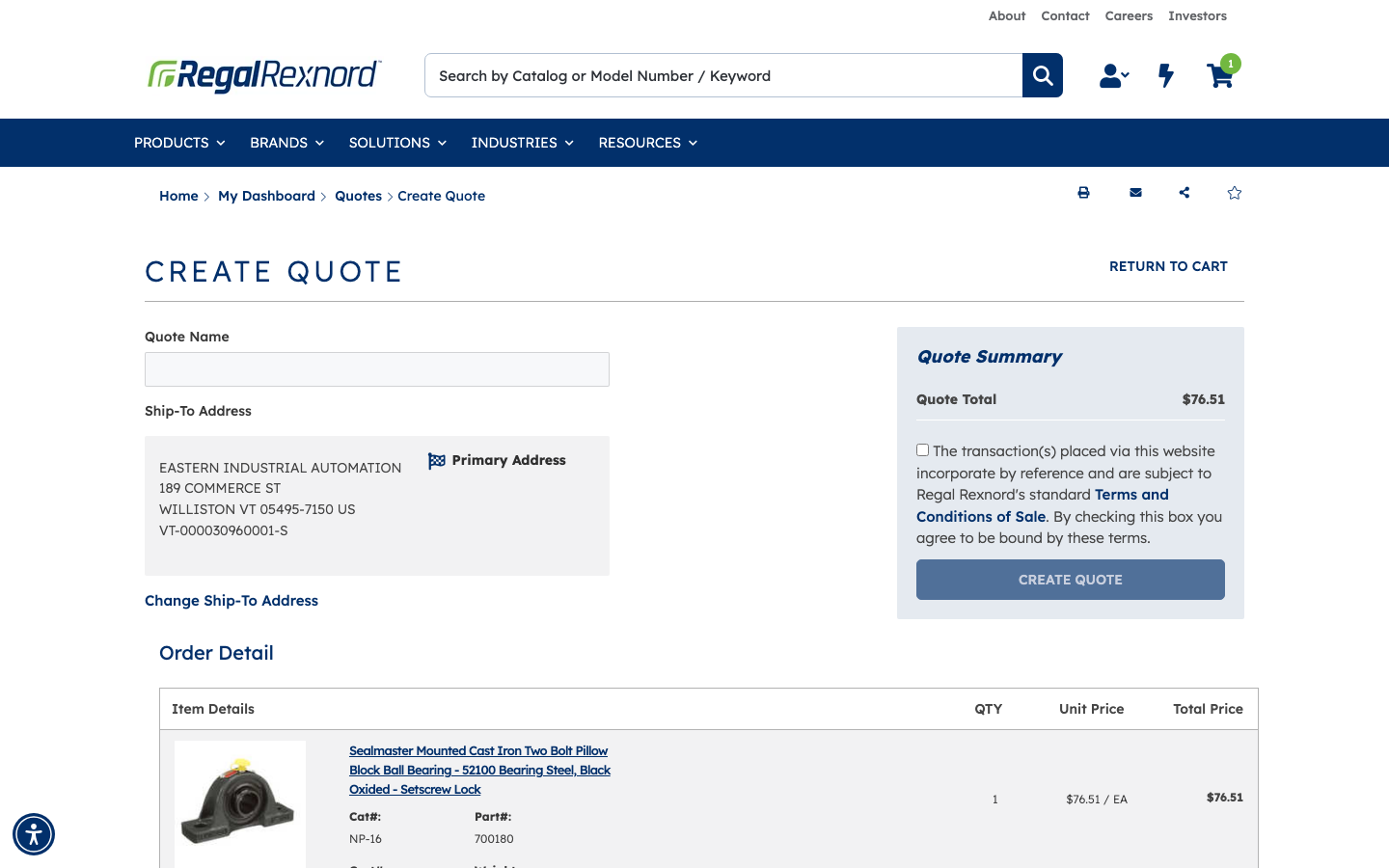
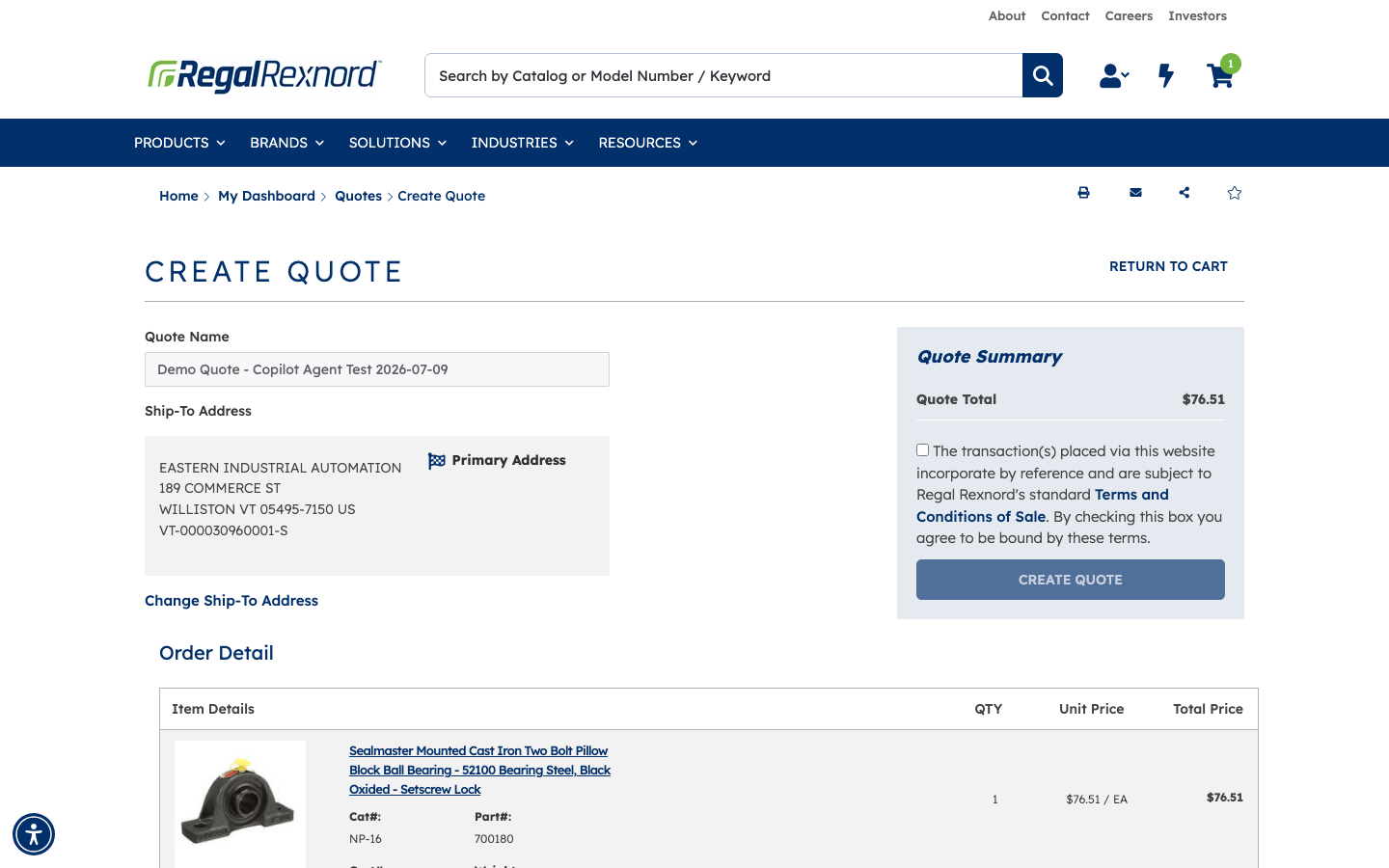
Clicked the CREATE QUOTE button in the Cart Summary panel. The browser navigated to the Create Quote page (https://uatwww.rrxpreview.com/accountmanagement/quotes/create-quote). The page presents:
- A Quote Name text field
- The selected Ship-To Address (Eastern Industrial Automation — Primary Address)
- A Quote Summary showing Quote Total: $76.51
- A Terms and Conditions checkbox that must be accepted before submitting
- The CREATE QUOTE submit button (initially greyed out)
- The Order Detail table listing the cart item (Cat#: NP-16, Part#: 700180, Qty: 1, $76.51)
Step 5: Enter a Quote Name
Typed a descriptive quote name — "Demo Quote - Copilot Agent Test 2026-07-09" — into the Quote Name field. The name is under 100 characters as required.
Step 6: Check the Terms & Conditions Checkbox
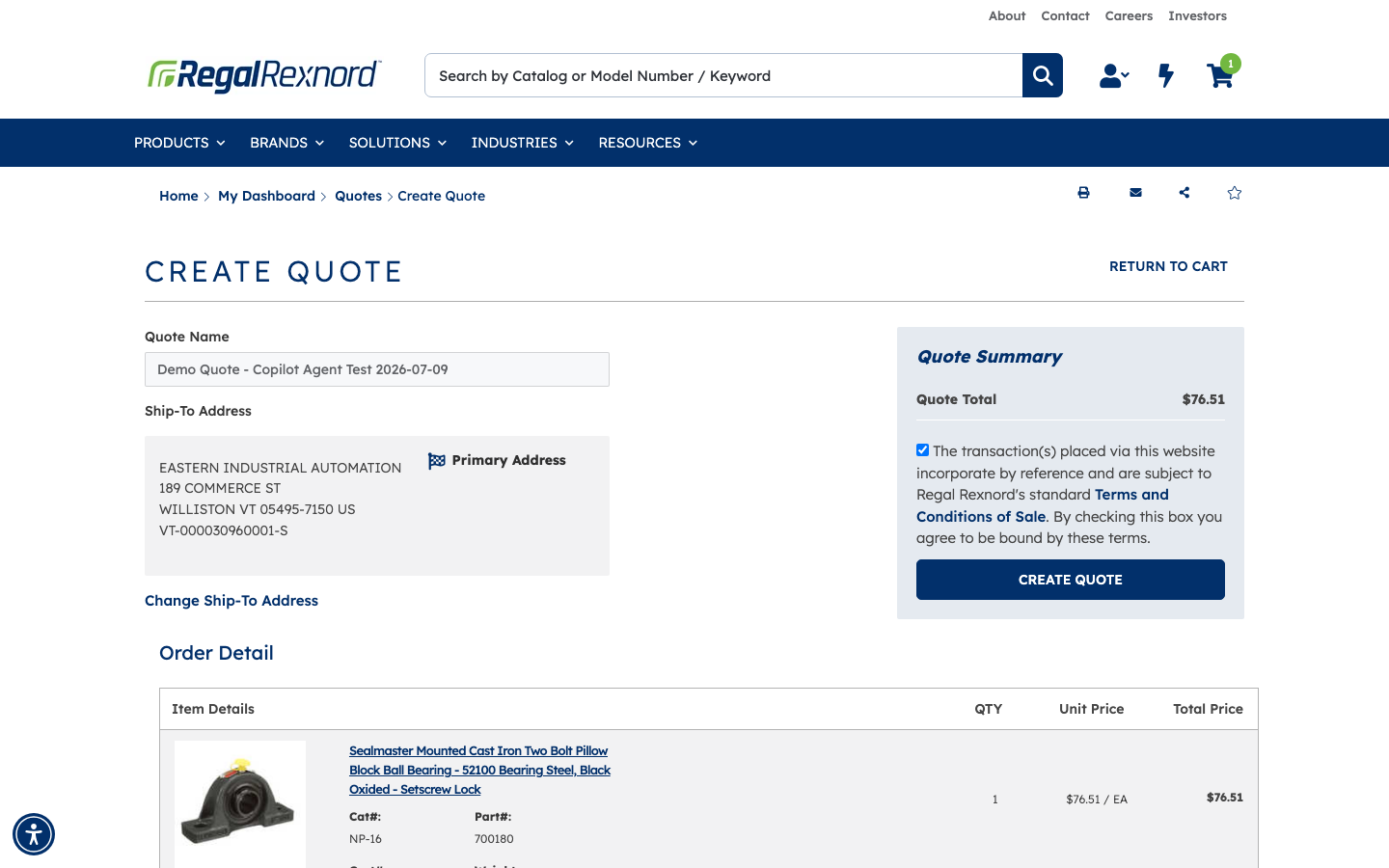
Checked the Terms and Conditions checkbox in the Quote Summary panel. The checkbox confirms acceptance of Regal Rexnord's standard Terms and Conditions of Sale. Once checked, the CREATE QUOTE button became fully enabled (dark navy).
Step 7: Click CREATE QUOTE
Clicked the CREATE QUOTE button. The form was submitted to the Regal Rexnord ERP system. After a brief processing period, the browser redirected to the Quote Confirmation page.
Steps 8 & 9: Quote Confirmation Page — Quote Number Displayed
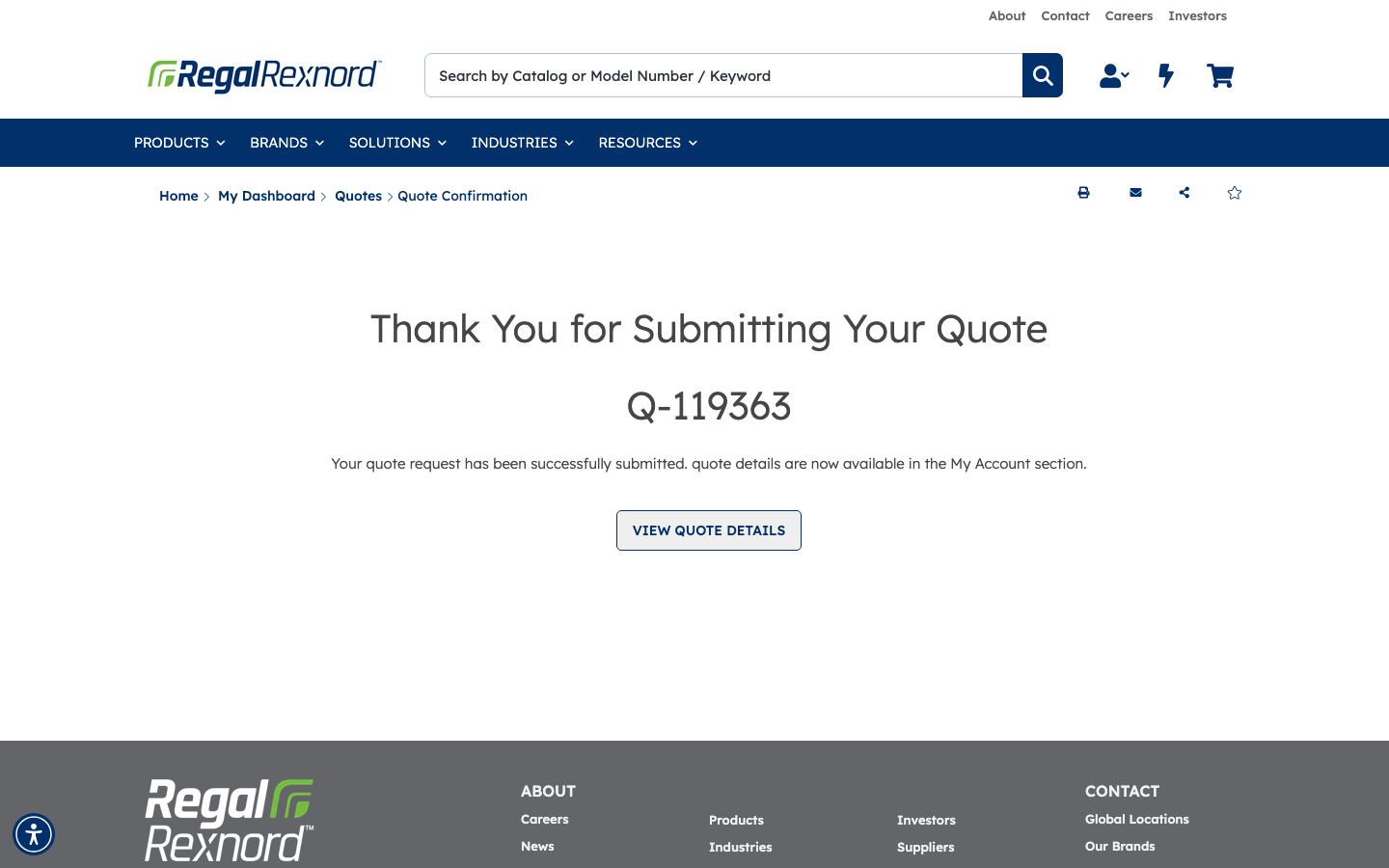
Successfully redirected to the Quote Confirmation page at https://uatwww.rrxpreview.com/accountmanagement/quotes/quote-confirmation?quote-id=aAMOv000002TfhlOAC"e-number=Q-119363
The page prominently displays:
- Heading: "Thank You for Submitting Your Quote"
- Quote Number: Q-119363
- Message: "Your quote request has been successfully submitted. quote details are now available in the My Account section."
- A VIEW QUOTE DETAILS button
Step 10: View Quote Details
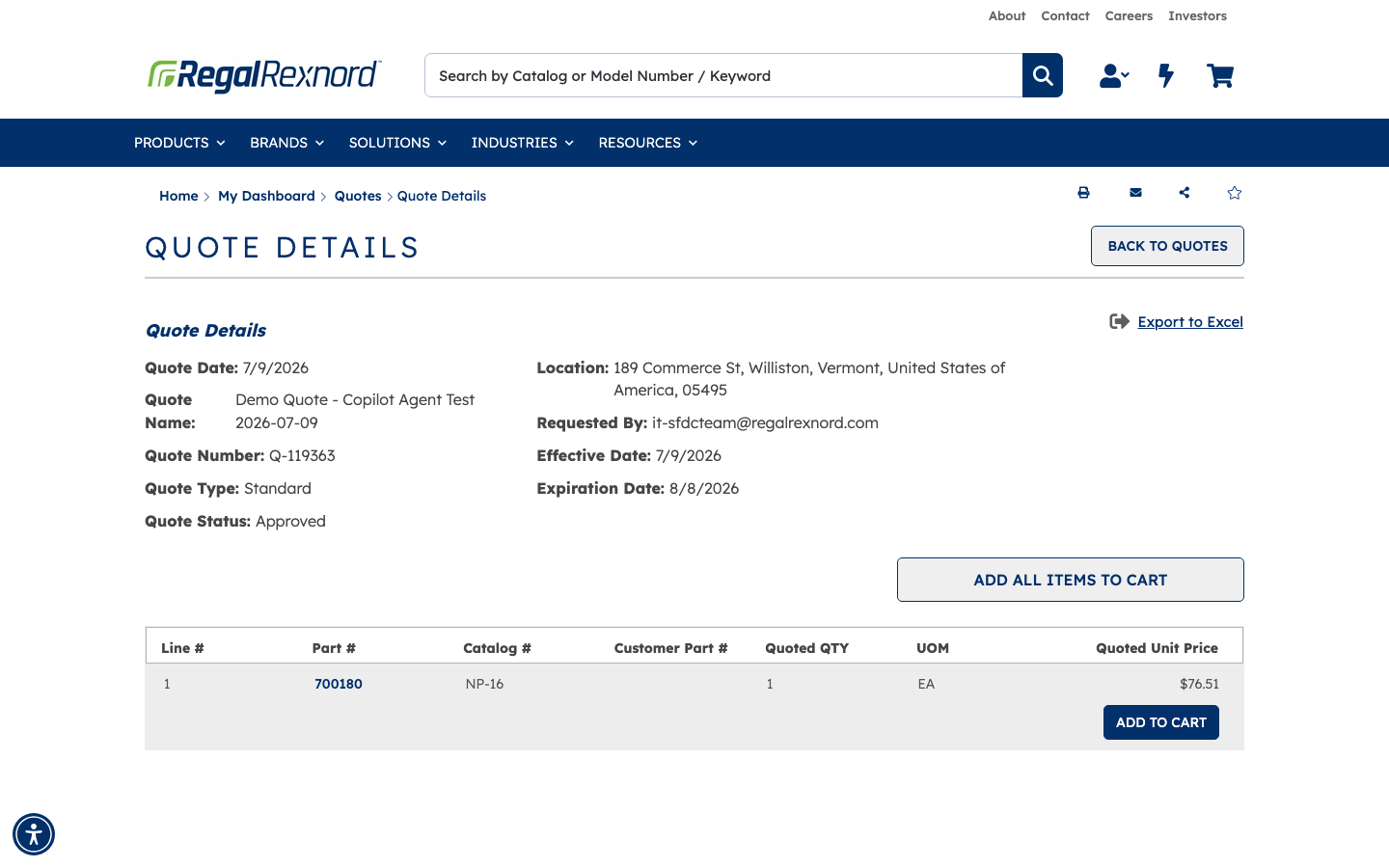
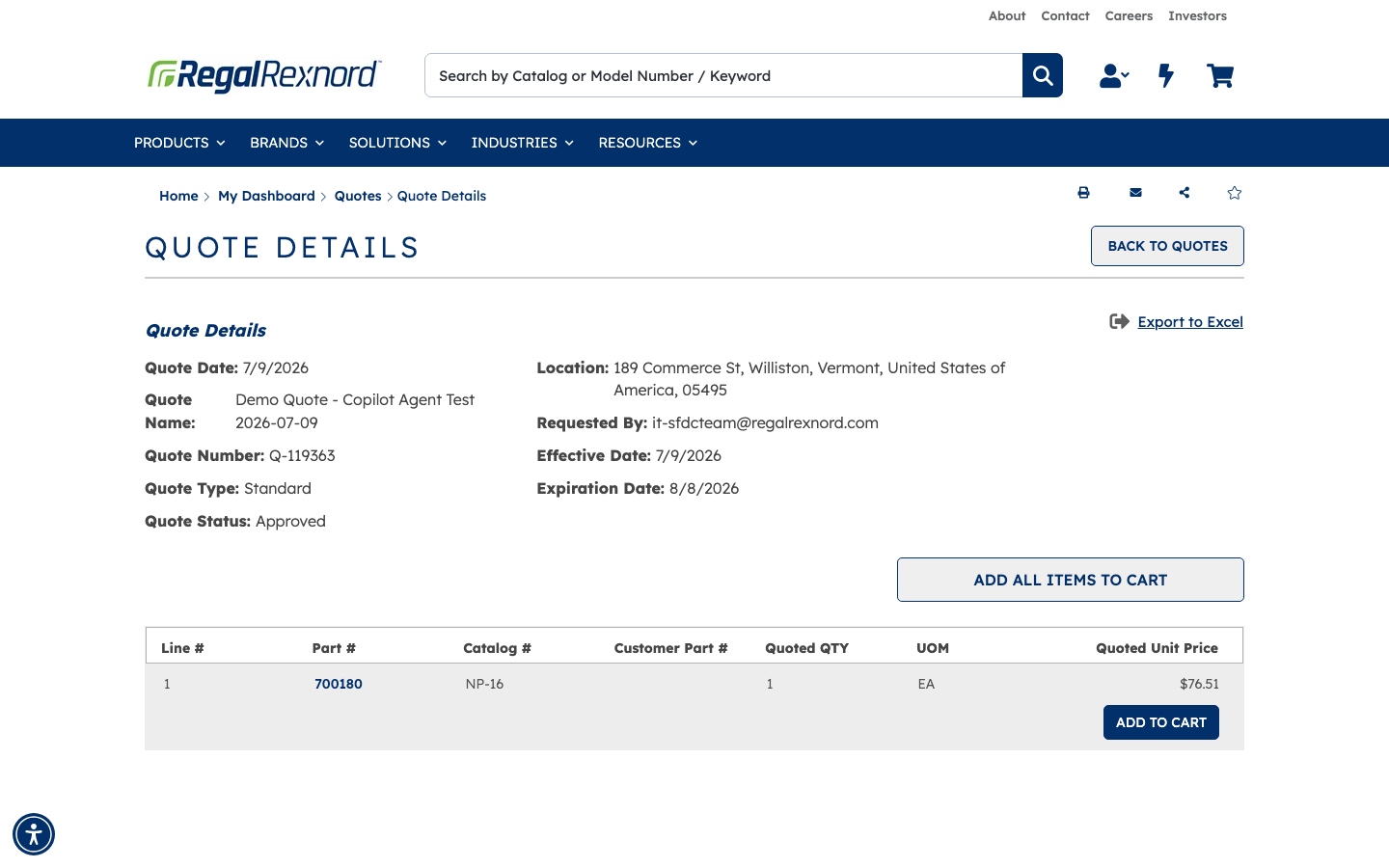
Clicked the VIEW QUOTE DETAILS button on the confirmation page. The browser navigated to the Quote Details page showing full quote information:
| Field | Value |
|---|---|
| Quote Date | 7/9/2026 |
| Quote Name | Demo Quote - Copilot Agent Test 2026-07-09 |
| Quote Number | Q-119363 |
| Quote Type | Standard |
| Quote Status | Approved |
| Location | 189 Commerce St, Williston, VT 05495 |
| Effective Date | 7/9/2026 |
| Expiration Date | 8/8/2026 |
The Order Detail table lists:
- Line #1: Part# 700180, Catalog# NP-16, Qty 1 EA, Quoted Unit Price $76.51
An ADD ALL ITEMS TO CART button and a line-level ADD TO CART button are also available to reorder from this quote.
Post-Step Verification
Cart is empty after quote creation: The shopping cart icon in the header shows no item count badge, confirming the cart was cleared when the quote was created successfully.
Quote Number displayed: Quote Number Q-119363 is visible on both the Confirmation page and the Quote Details page.
Quote Status is Approved: The Quote Details page immediately shows Quote Status: Approved, indicating the quote was processed by the ERP system synchronously.
Summary
| Step | Action | Expected Result | Actual Result |
|---|---|---|---|
| Login | Authenticate as agent@forliion.com, select Primary Address | Land on Dashboard with 'Welcome Copilot Agent' | ✅ Correct user confirmed |
| Add to Cart | Enter Part# 700180 in Single Part Order widget, click ADD TO CART | Item NP-16 added to cart | ✅ Success toast confirmed |
| 1 | Navigate to Cart page | Cart shows part 700180 and CREATE QUOTE button | ✅ Cart loaded with item and button |
| 2 | Click CREATE QUOTE | Navigate to Create Quote page | ✅ Create Quote form displayed |
| 5 | Enter quote name | Name appears in Quote Name field | ✅ 'Demo Quote - Copilot Agent Test 2026-07-09' entered |
| 6 | Check T&C checkbox | Checkbox checked, CREATE QUOTE button enabled | ✅ Checkbox checked, button activated |
| 7 | Click CREATE QUOTE | Form submitted to ERP | ✅ Quote submitted |
| 8 | Verify redirect to confirmation page | Quote Confirmation page loads | ✅ Redirected to confirmation URL |
| 9 | Verify Quote Number displayed | Quote Number visible on confirmation page | ✅ Q-119363 displayed |
| 10 | Click VIEW QUOTE DETAILS | Navigate to Quote Details page | ✅ Full quote details loaded |
| Post-check | Cart is empty | Cart badge shows 0 | ✅ No badge — cart cleared |
| Post-check | Quote Status | Status shown on Quote Details | ✅ Status: Approved |