Applying a Quote to Your Cart
If you've been given a quote, you don't have to re-order from it by hand. Build your cart as usual and apply the quote number — the quoted pricing drops straight onto the matching lines.
Sign in, put the items you want to order in your cart, and have a quote number to hand. Your quotes are listed under Quotes in Order Management. The walkthrough below applies quote Q-120003, an approved quote covering the part in the cart.
The prices in the screenshots are illustrative stand-ins — they all end in .55 — so totals won't tally. On the live site they will. Two different real prices can also land on the same stand-in, so where this guide shows a struck-through price above a quoted price, both read
$43.55. Treat them as "the price before" and "the price after", not as the same number.
Step 1 — Build the cart first
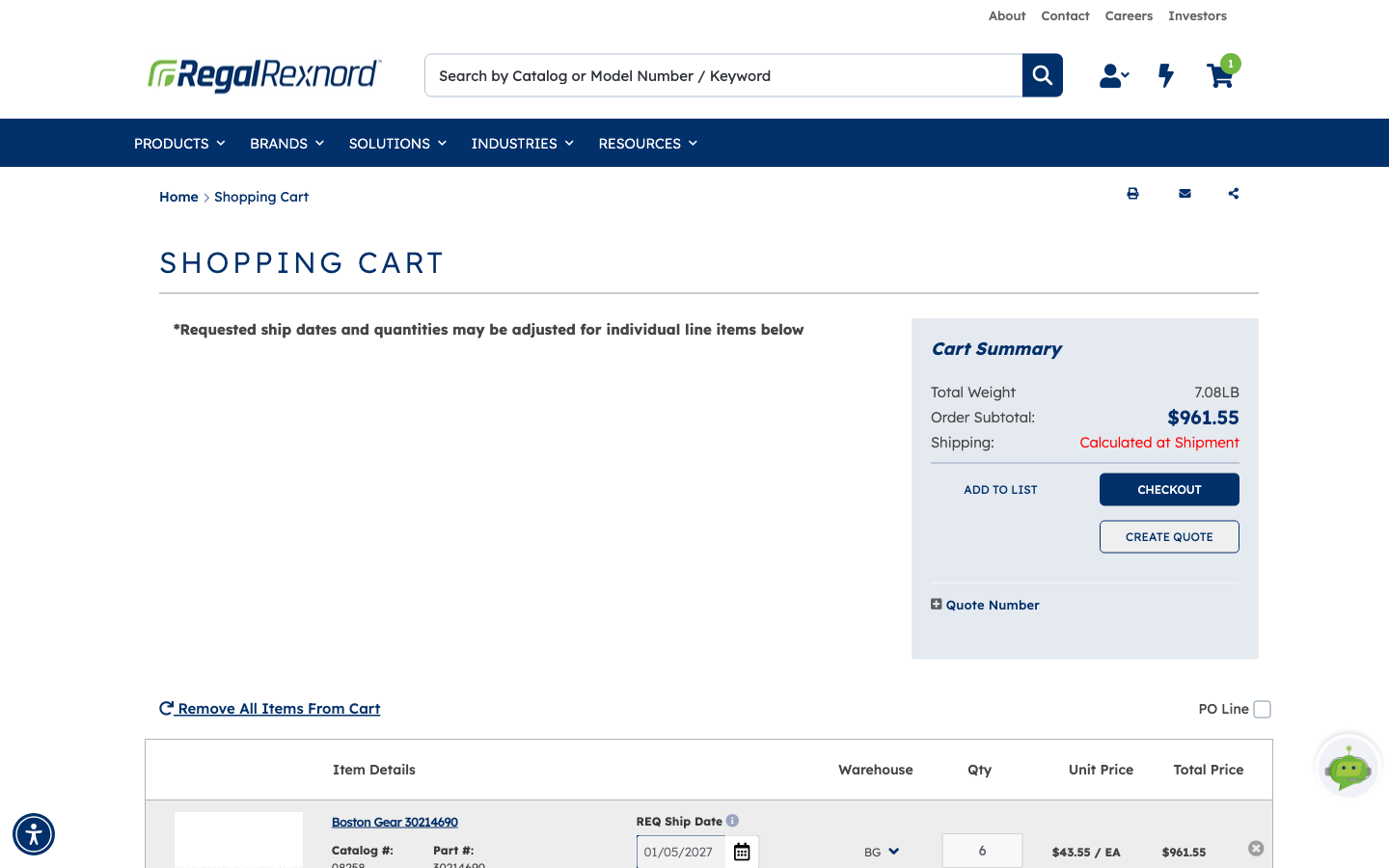
Add what you need however you normally would — search, Quick Order, or the Single Part Order widget on your dashboard. The example holds six of one Boston Gear part at standard account pricing.
Look at the Cart Summary panel on the right. Under CHECKOUT and CREATE QUOTE there's a small + Quote Number heading. That's the control you want.
Step 2 — Pick the quote
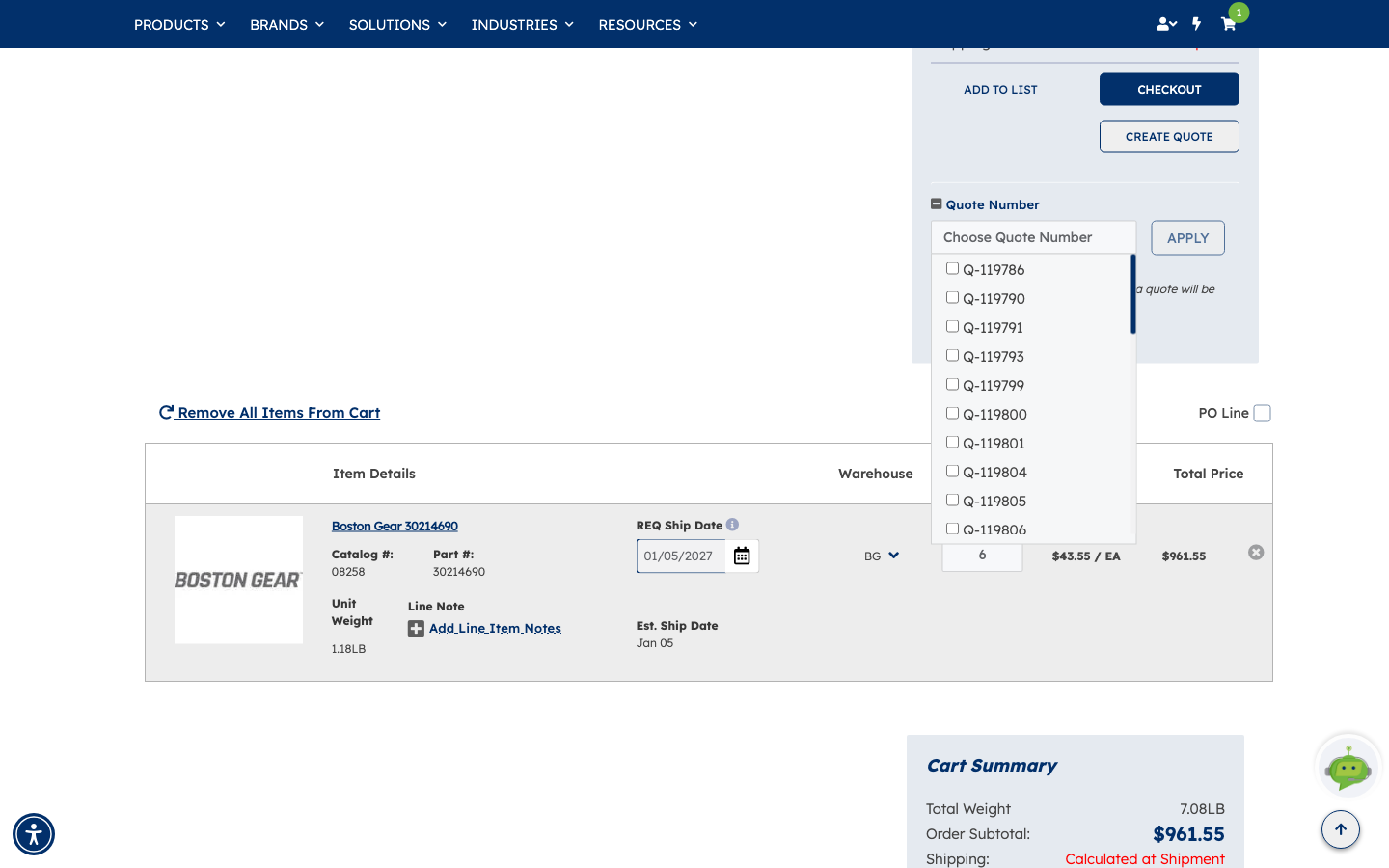
Click + Quote Number to expand it, then click the Choose Quote Number box. A scrollable list of every quote available to your account drops down, each with a tick box.
Tick the quote you want. You can tick more than one — useful when a cart draws on several quotes. The APPLY button stays greyed out until at least one is ticked.
If you know the number, scroll to it; the list is ordered by quote number, so the newest sit at the bottom.
Good to know: A note appears reminding you that "Any order submitted with a quote will be pending review." This is normal — an order placed against a quote goes through an approval step before it's processed.
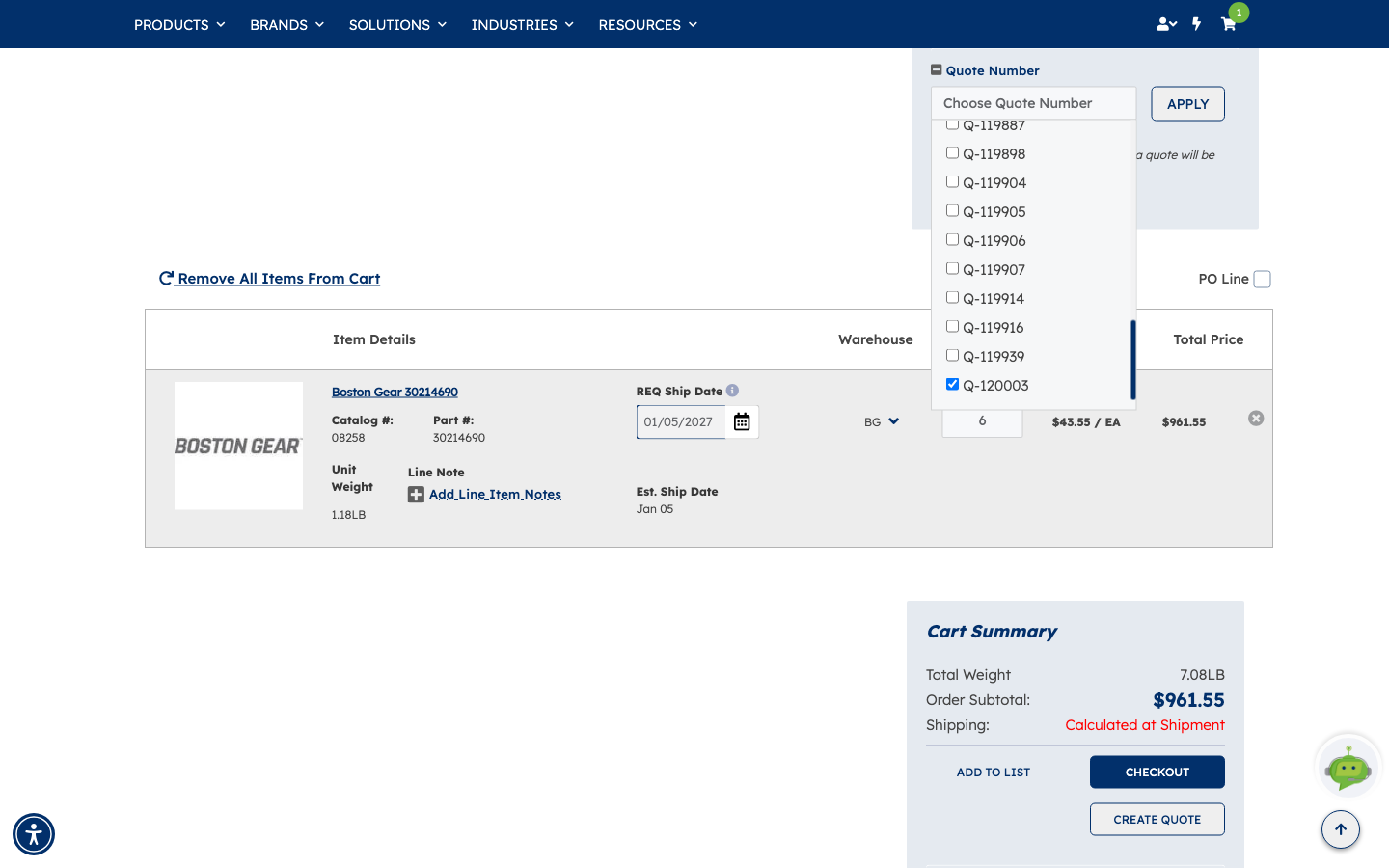
With the list open and nothing ticked yet, APPLY is greyed out and the quote numbers scroll in their own panel beside the Cart Summary.
Step 3 — Apply it
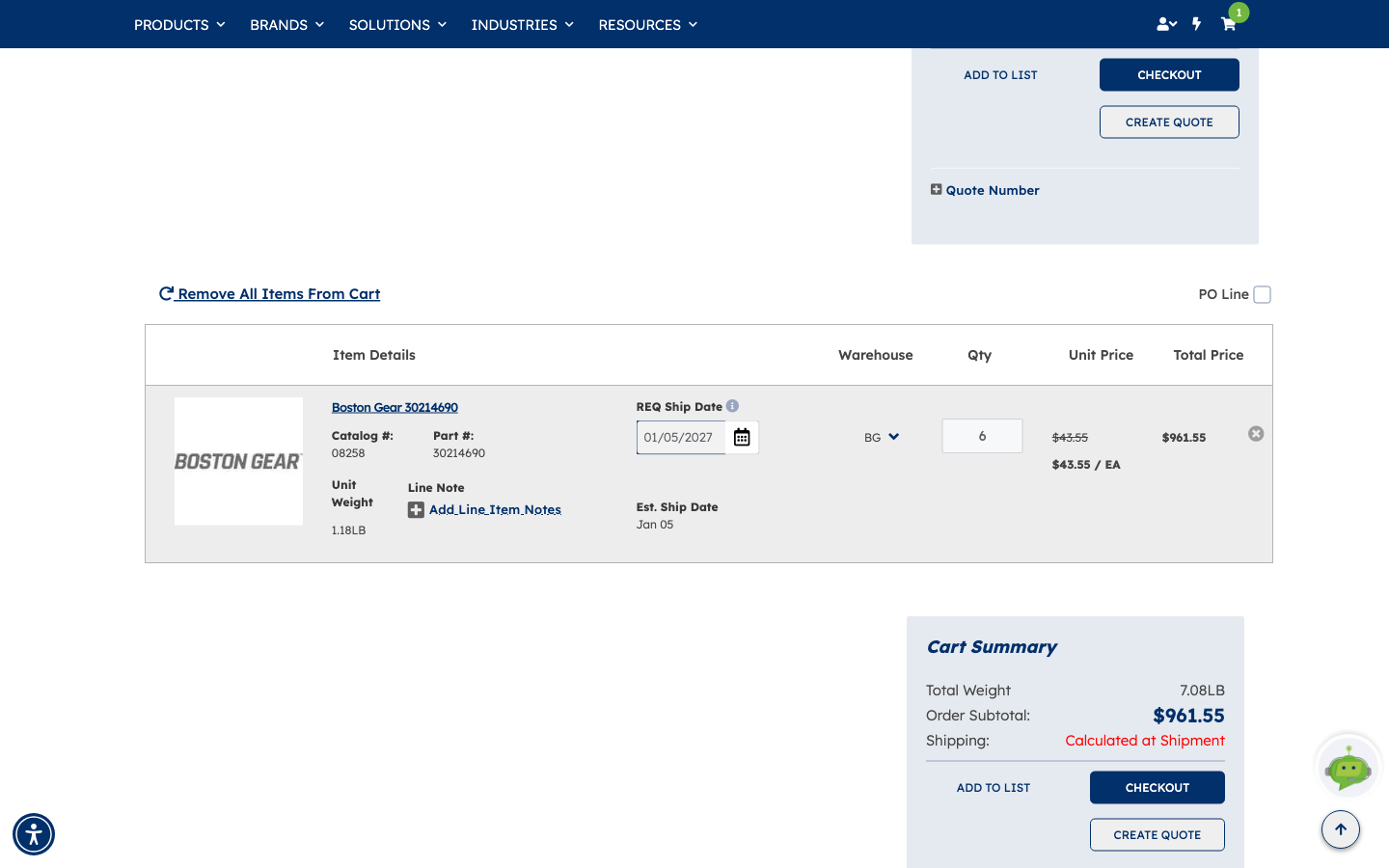
Click APPLY. The cart reprices, then the Quote Number section collapses back to + — that collapse is your confirmation the apply finished.
Look at the Unit Price column. Where a quote covers a line, the standard price is struck through and the quoted price is shown underneath it, and Total Price and Order Subtotal follow.
In this example the cart line is covered by quote Q-120003, so the standard price is struck
through and the quoted price sits beneath it. Both figures read $43.55 in the screenshot because two
different real prices happened to land on the same illustrative stand-in — on the live site the quoted
price reads lower, and the subtotal drops with it.
Lines the quote doesn't cover keep their standard pricing. Nothing is removed and nothing is added: applying a quote only changes prices.
If the quoted price doesn't appear
A quote can be written for a minimum order quantity. When the cart holds fewer than that, the line keeps its standard price and a note appears beneath it reading that the product requires a minimum quantity before the quoted price applies. Nothing has gone wrong; the quote simply doesn't cover an order that small.
Raise the Qty to meet the minimum and click the UPDATE button that appears beside it. The line reprices straight away: the standard price is struck through, the quoted price sits underneath it, and Total Price and Order Subtotal follow. The minimum-quantity note disappears.
In short, here's what applying a quote changes in your cart:
| Before Quote | After Quote | |
|---|---|---|
| Unit Price | List price | Your quoted price |
| Qty | Unchanged | Unchanged |
| Line Total | Qty × list price | Qty × quoted price |
| Order Subtotal | Sum of list-price lines | Sum of quoted lines |
Need to change a quantity? Update the Qty field on the cart line and click UPDATE — the Cart Summary recalculates automatically, and the quote is re-checked against the new quantity.
Step 4 — Check out as normal
From here it's an ordinary checkout. The quoted pricing carries through delivery, payment and the order confirmation, and appears on the order in Order History.
What you've done
You've taken quoted pricing and put it onto a live cart without re-keying a single line.
Worth remembering
- Build the cart first, then apply. The quote prices what's already there.
- Applying a quote never changes quantities or adds items — only prices.
- Only lines the quote covers reprice; everything else stays at your standard price.
- A quote can carry a minimum order quantity. If the price doesn't change, check the line for a minimum-quantity note and raise the Qty to match.
- The struck-through unit price is how you confirm a line is on quoted pricing.
- The Quote Number section collapsing back to + means the apply completed.
- Quotes expire — an expired quote won't be in the list.
- Coming at it from the other direction? Open the quote under Quotes and use ADD ALL ITEMS TO CART to build the cart from the quote instead.