Create a quote
Sometimes you need a price in writing before you can buy — for a budget, an approval, or an end customer. Create Quote takes whatever is in your cart and turns it into a formal, dated quote without you having to re-key any of it.
Who can create quotes: Creating a quote on the website is only available to accounts in the Regal Rexnord Sales LLC sales channel. If your account is in any other sales channel, you won't see a CREATE QUOTE button in your cart. You can still view your existing quotes under Quotes in Order Management and apply them to an order from your cart. To get a new quote, contact your Regal Rexnord sales representative or customer service.
Sign in to your account. This walkthrough quotes four of one part.
The prices in the screenshots are illustrative stand-ins — they all end in .55 — so totals won't tally. On the live site they will.
Step 1 — Find and add products to your cart
A quote is built from your cart, so the first thing to do is put the products you want priced into it. Find each product and click ADD TO CART — use whichever route suits you:
- Search — look up a product by name, part number or catalog number, then add it from the results or the product page.
- Quick Order — enter several part numbers and quantities at once.
- Single Part Order — the widget on your dashboard. Enter a part number and quantity and click ADD TO CART; it's the quickest way to add one item.
Everything in the cart goes on the quote, so if anything is left over from earlier, remove it before you move on. Once your cart holds exactly the items and quantities you want quoted, you're ready for Step 2.
Step 2 — Create a quote from your cart
Open your cart. In Cart Summary, alongside CHECKOUT, sits CREATE QUOTE. The two are alternatives: checkout commits to buying, create quote asks for a price you can come back to.
If you only see CHECKOUT, your account isn't in the Regal Rexnord Sales LLC sales channel, so it can't create quotes on the website. See Who can create quotes at the top of this guide.
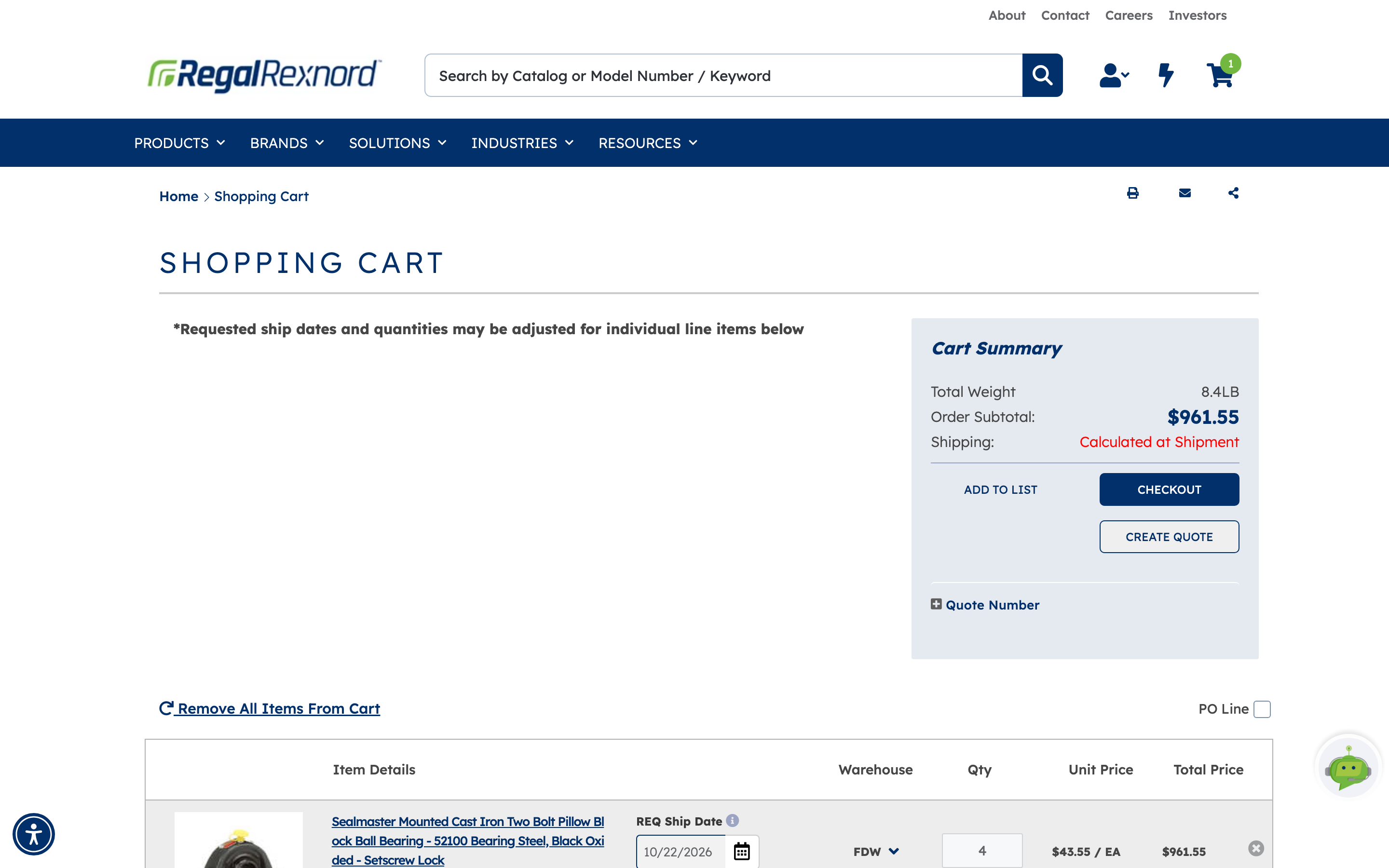
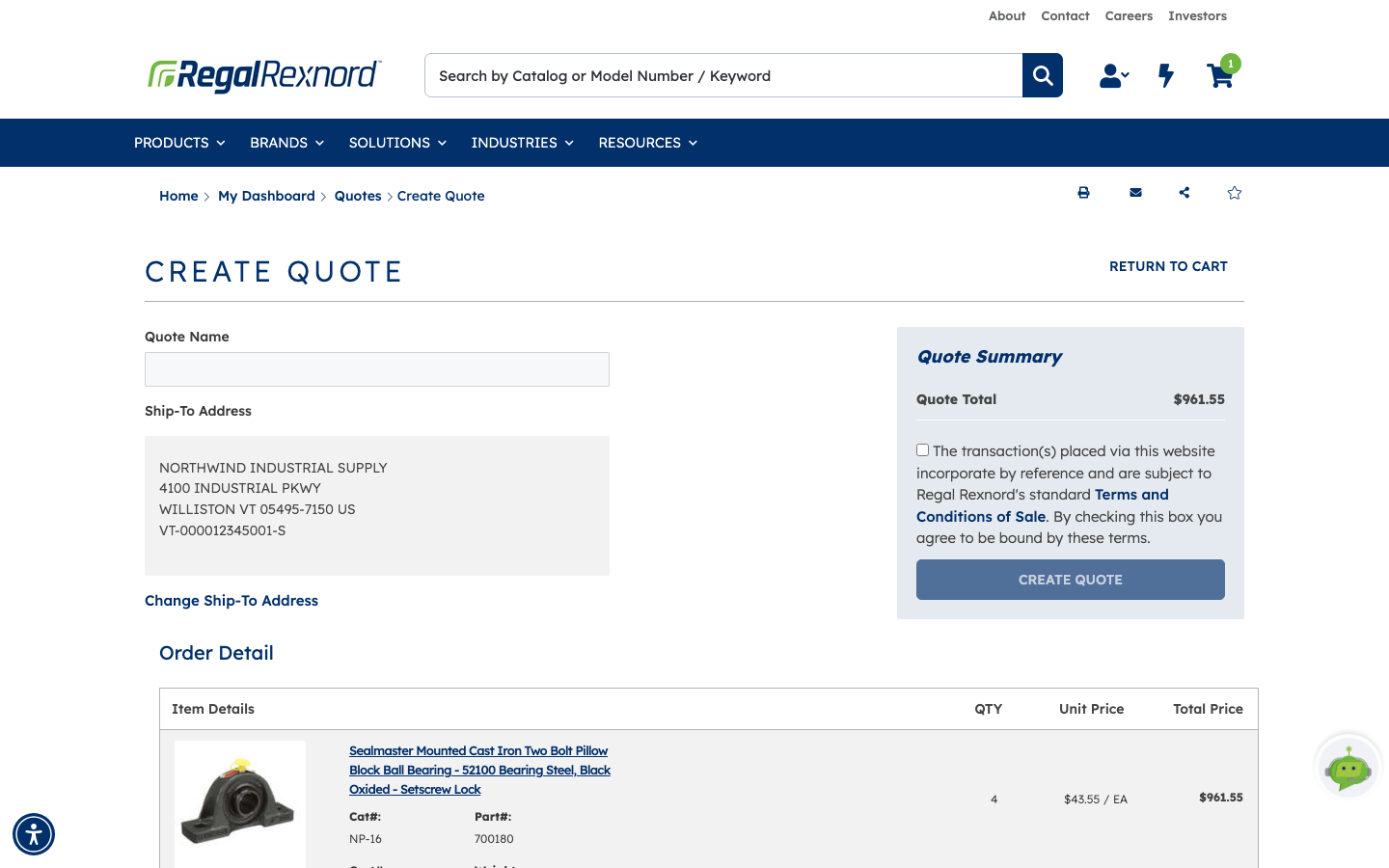
Click CREATE QUOTE. It opens a page that is mostly a review screen. Left to right:
- Quote Name — the only thing you have to type. Free text, under 100 characters. Use something you'll recognise in a list months from now: the project, the customer, the reason.
- Ship-To Address — where the quote assumes delivery. Pricing can vary by destination, so this is worth a glance. Change Ship-To Address picks another from the address book.
- Order Detail — every line, with catalog and part numbers, quantity, unit price and total.
- Quote Summary — the Quote Total, the terms and conditions tick box, and the CREATE QUOTE button.
RETURN TO CART at top right takes you back if something needs changing. Nothing is submitted until you press the button.
Step 3 — Name it, accept the terms, submit
Type the Quote Name, then tick the terms and conditions box — CREATE QUOTE stays greyed out until you do.
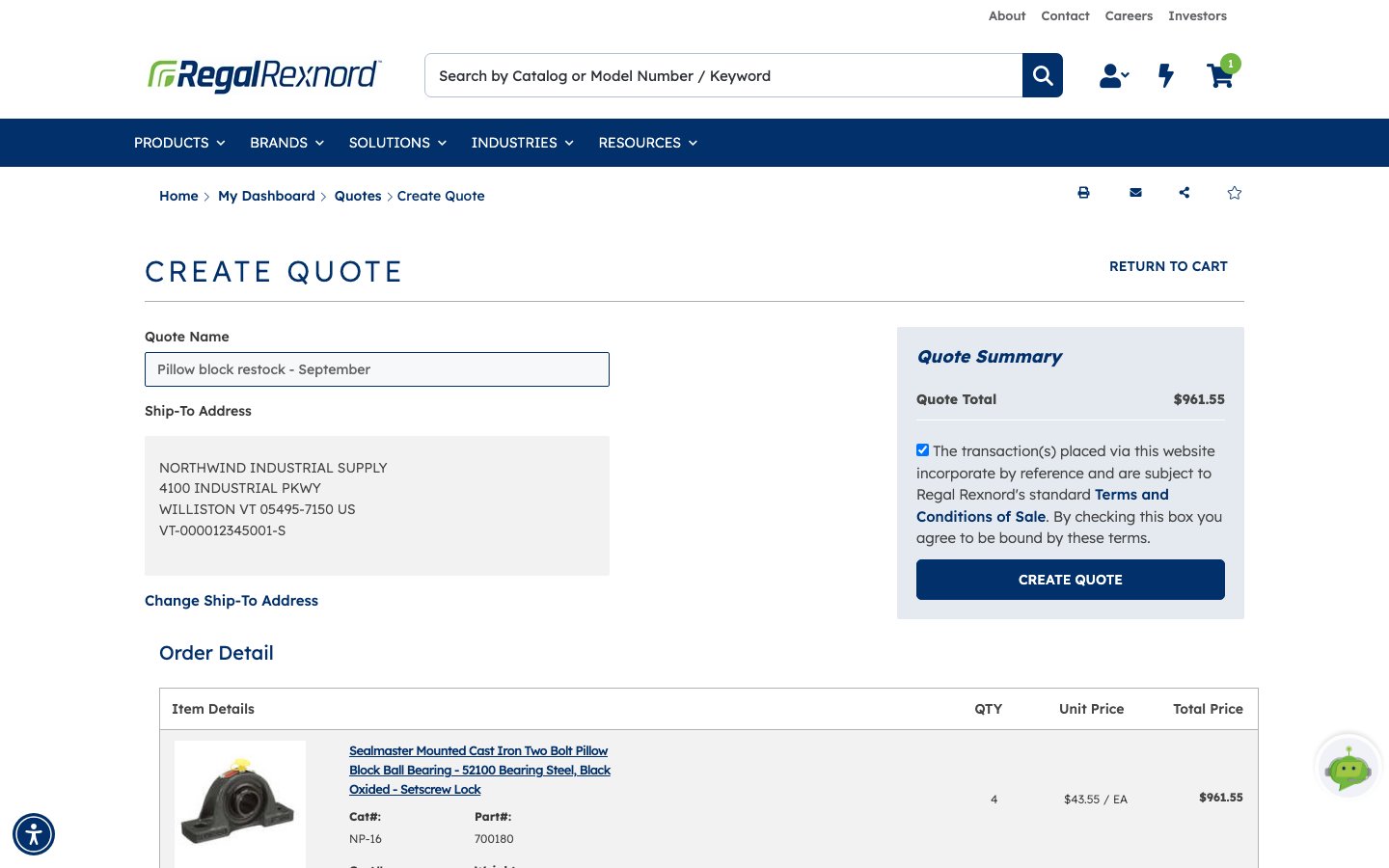
Click CREATE QUOTE. It takes a few seconds.
Step 4 — Note the quote number
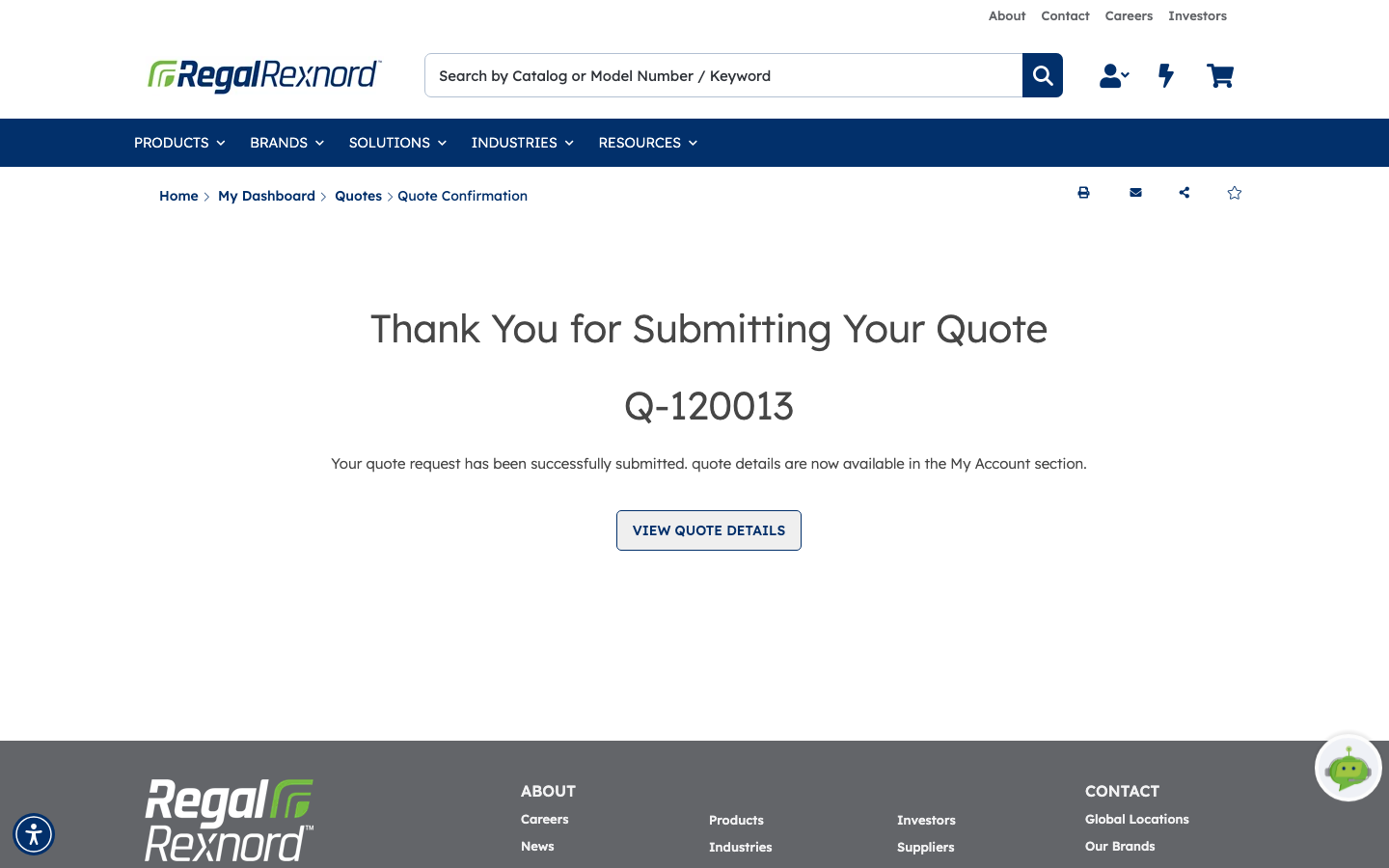
The confirmation page gives you the quote number in large type — Q-120013 in this example. That's the reference for everything that follows, so keep it.
Your cart is emptied at this point: the items have moved onto the quote.
VIEW QUOTE DETAILS goes straight to the quote. You can also reach it later from Quotes under Order Management.
Step 5 — Read the quote
Quote Details is the record you'll come back to. The header carries:
- Quote Date, Effective Date and Expiration Date — quotes don't last forever. The example runs about a month. After expiry you'd raise a new one.
- Quote Name, Quote Number and Quote Type.
- Quote Status — Approved means the pricing is live and you can buy against it.
- Requested By and Location — who raised it and where it's quoted to.
Below that, one row per line with Quoted QTY, UOM and Quoted Unit Price.
Three things you can do from here:
- ADD ALL ITEMS TO CART — the whole quote back into a cart, at quoted prices.
- ADD TO CART on a single line — just that item.
- Export to Excel — the quote as a spreadsheet, for sending on or attaching to an approval.
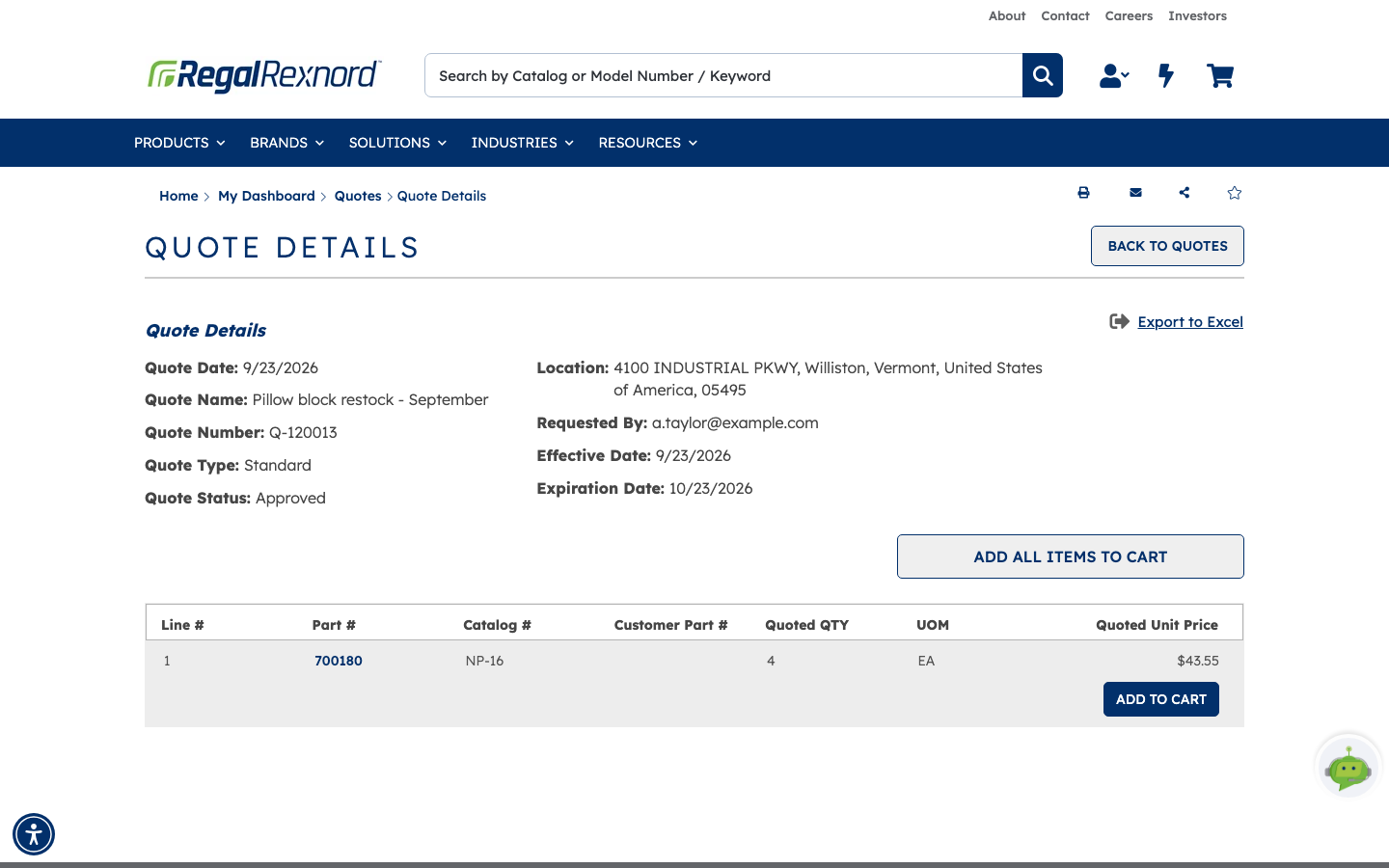
For the worked example, the header reads:
| Field | Value |
|---|---|
| Quote Date | 9/23/2026 |
| Quote Name | Pillow block restock - September |
| Quote Number | Q-120013 |
| Quote Type | Standard |
| Quote Status | Approved |
| Requested By | a.taylor@example.com |
| Location | 4100 INDUSTRIAL PKWY, Williston, Vermont, 05495 |
| Effective Date | 9/23/2026 |
| Expiration Date | 10/23/2026 |
Note the month between effective and expiration dates — that window is what you're buying against.
What you've done
You've turned a cart into a dated, referenced quote with agreed pricing, and left yourself two ways back to it — straight into a cart, or out to Excel.
Worth remembering
- Only accounts in the Regal Rexnord Sales LLC sales channel can create quotes on the website. Accounts in other channels can view and apply existing quotes, but can't create new ones.
- Everything in the cart goes on the quote. Trim first.
- Creating the quote empties your cart.
- Keep the quote number. It's how you apply the quote to a future order.
- Quotes expire. Check Expiration Date before you rely on the price.
- Approved status is what makes the pricing usable.