Requesting a Price Media File
Price Media lets you request an up-to-date copy of your price list as a file you can import into your own systems, then download it when it's ready.
You're already signed in and on your My Dashboard page. You need the Price Media role on your account to see this page.
Step 1 — Open Price Media
In the Account menu on the left, click Price Media.
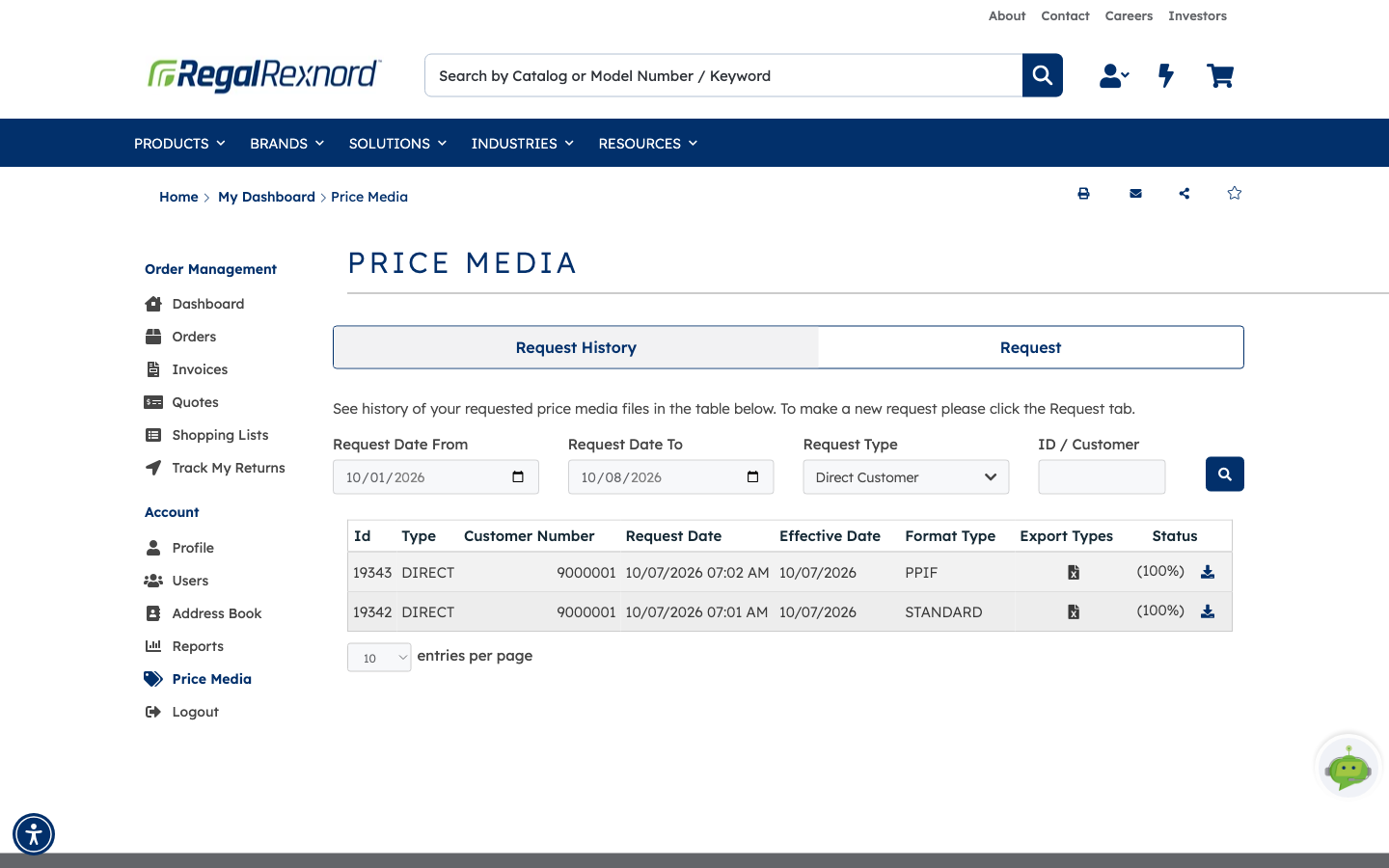
The page opens on the Request History tab, which lists the price media files you've asked for before. Each row shows the request Id, Type, Customer Number, Request Date, Effective Date, Format Type, Export Types and Status. A download arrow appears next to any request that is finished.
Step 2 — Start a new request
Click the Request tab. The form is pre-filled with your account and today's date as the Effective Date.
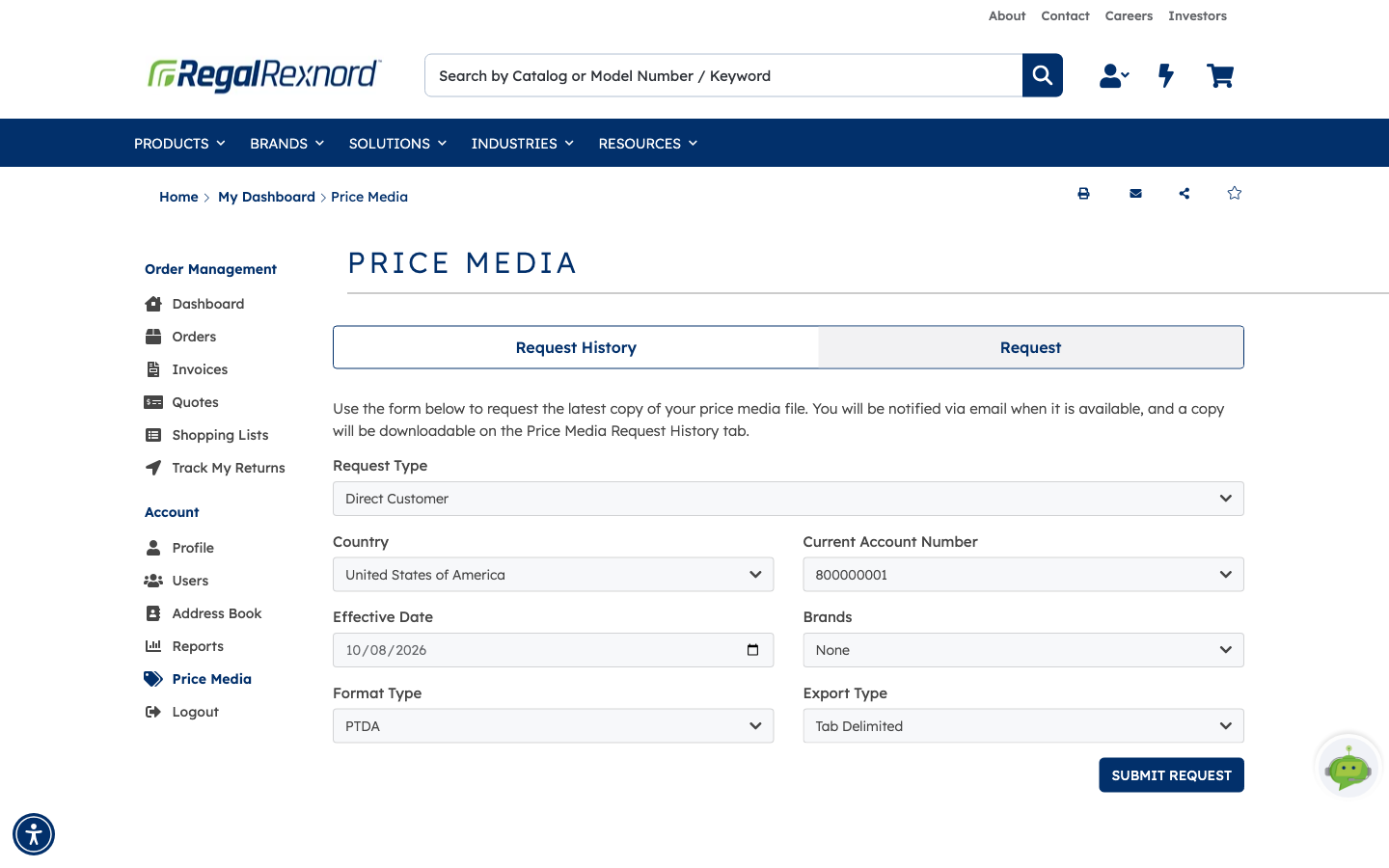
| Field | What to enter |
|---|---|
| Request Type | Direct Customer requests pricing for your own account. Referred Account requests pricing for a ship-to site. |
| Country | The country for the request. |
| Current Account Number | The account the price list is for. |
| Effective Date | The date the prices should apply from. |
| Brands | The brand to include. |
| Format Type | The layout of the file, such as PTDA or HVAC. |
| Export Type | The file type: Tab Delimited, Excel (XLSX) or JSON. |
Step 3 — Choose your options and submit
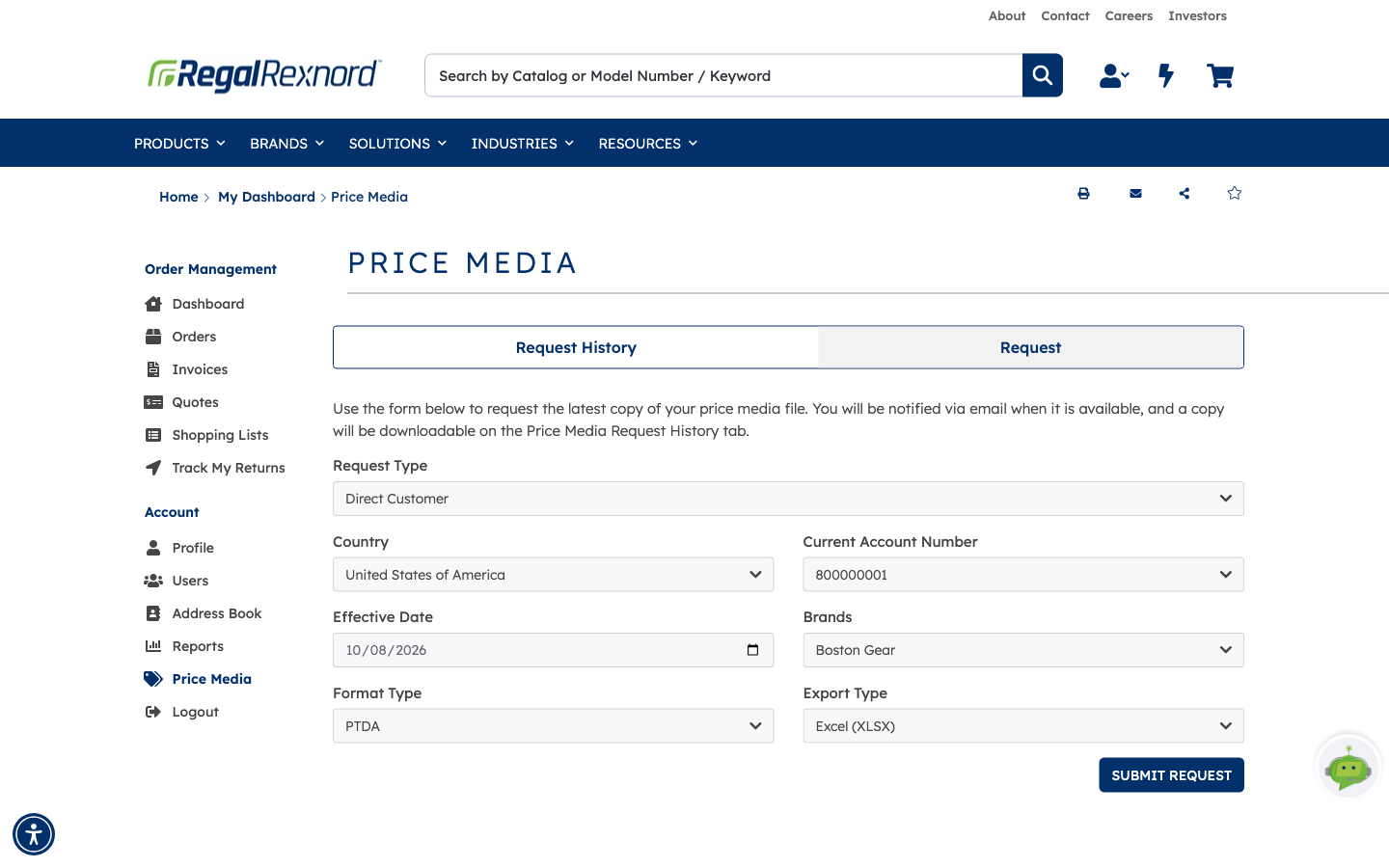
In this example, we choose the brand Boston Gear and the export type Excel (XLSX), and keep the other defaults. Then click SUBMIT REQUEST.
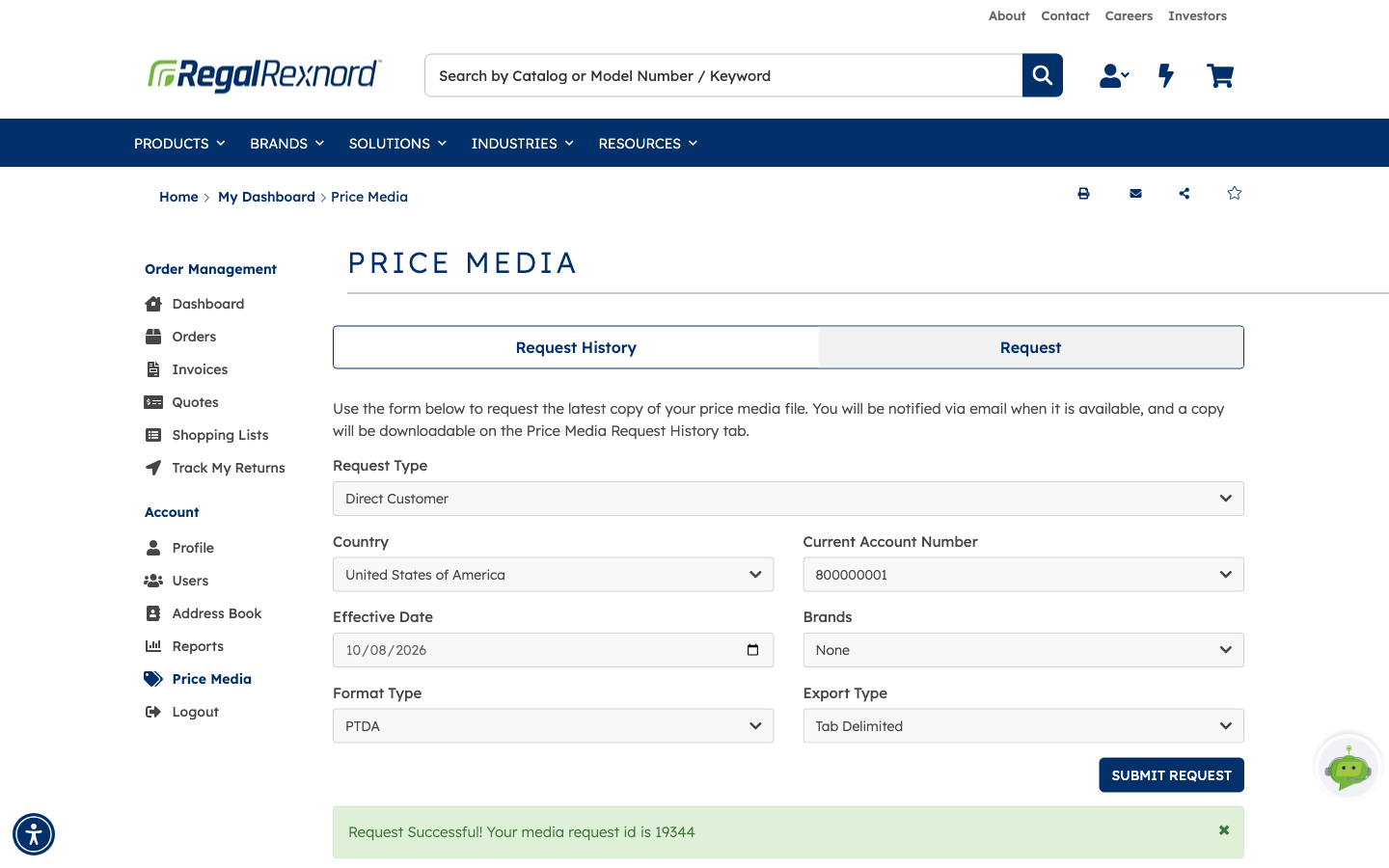
A green message confirms the request and gives it an id — in this example, 19344. You'll also get an email when the file is ready.
Step 4 — Check your request in the history
Click the Request History tab. Your new request is at the top of the list.
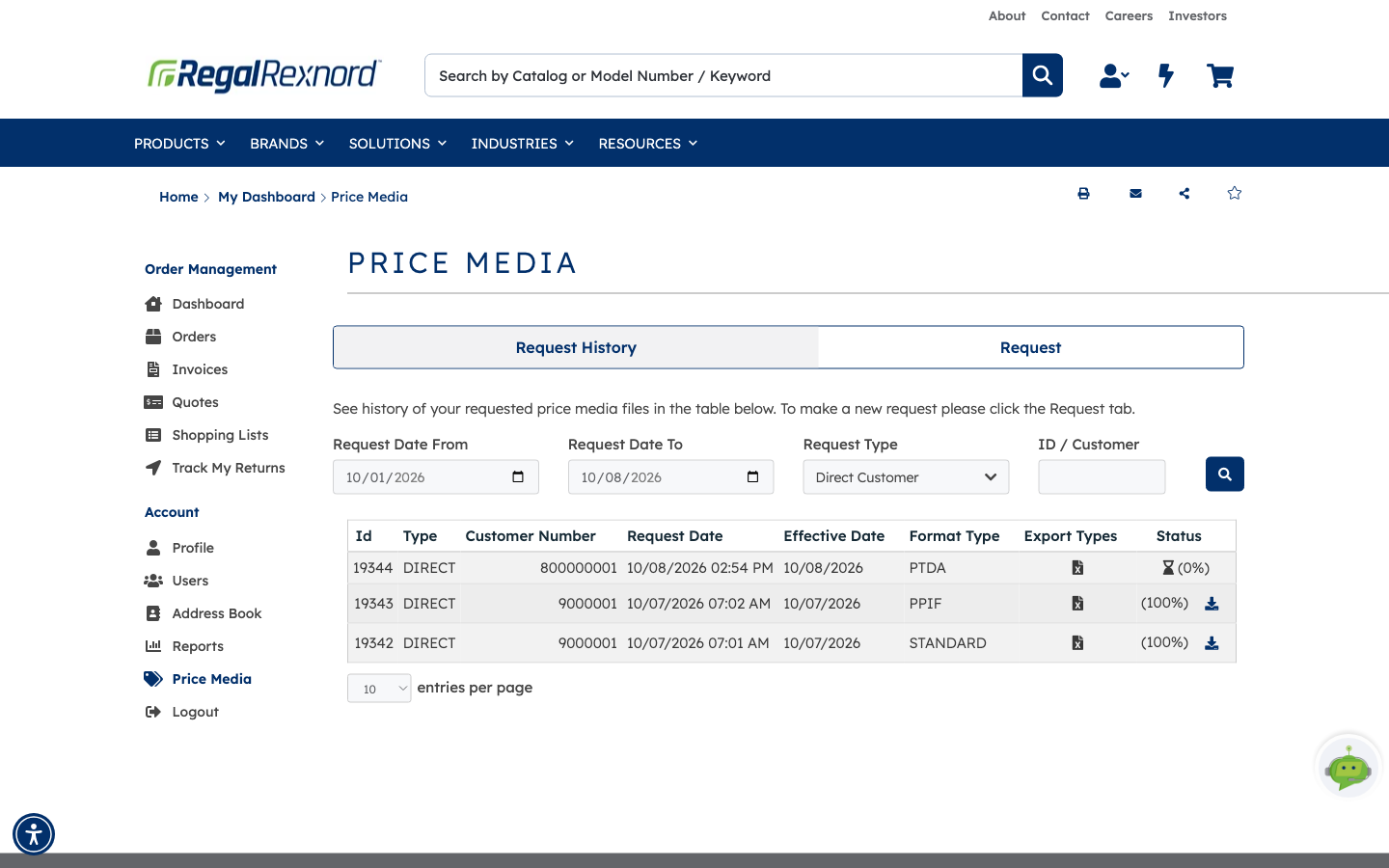
| What you see | What it means |
|---|---|
| Hourglass with (0%) | The request has been received and is still being prepared. |
| (100%) with a download arrow | The file is ready. |
Refresh the history from time to time — it doesn't update on its own. When your request reaches (100%), click the download arrow to save the file. Use the date, request type and ID / Customer filters above the table to find older requests.
That's it. You can request price list files whenever you need them and download each one from your Request History once it's ready.