Using the Reports
Reports answers the questions that come up when someone asks you what you've been spending with Regal Rexnord: how much this year, how much last year, which months, which parts — and what's still outstanding.
There are three reports, each on its own tab: Purchase Summary, Credit Summary and Payment History.
You're signed in. Everything here is read-only. Which tabs you can see depends on your permissions, so you may not have all three. The figures always belong to the account you're currently working under — check the Account block on your dashboard if a number looks wrong.
The amounts in the screenshots are illustrative stand-ins — they all end in .55 — so totals won't tally, and two different figures can happen to share a stand-in. Zero balances show as $0.00. On the live site every figure is real.
Getting there
Click Reports under Account in the left-hand menu of any account-management page.
The page opens with three tabs across the top — PURCHASE SUMMARY, CREDIT SUMMARY and PAYMENT HISTORY. They're three views of the same account: what you've bought, what you still owe, and what you've paid.
Purchase Summary — what you've bought
The tab opens on Purchase Summary.
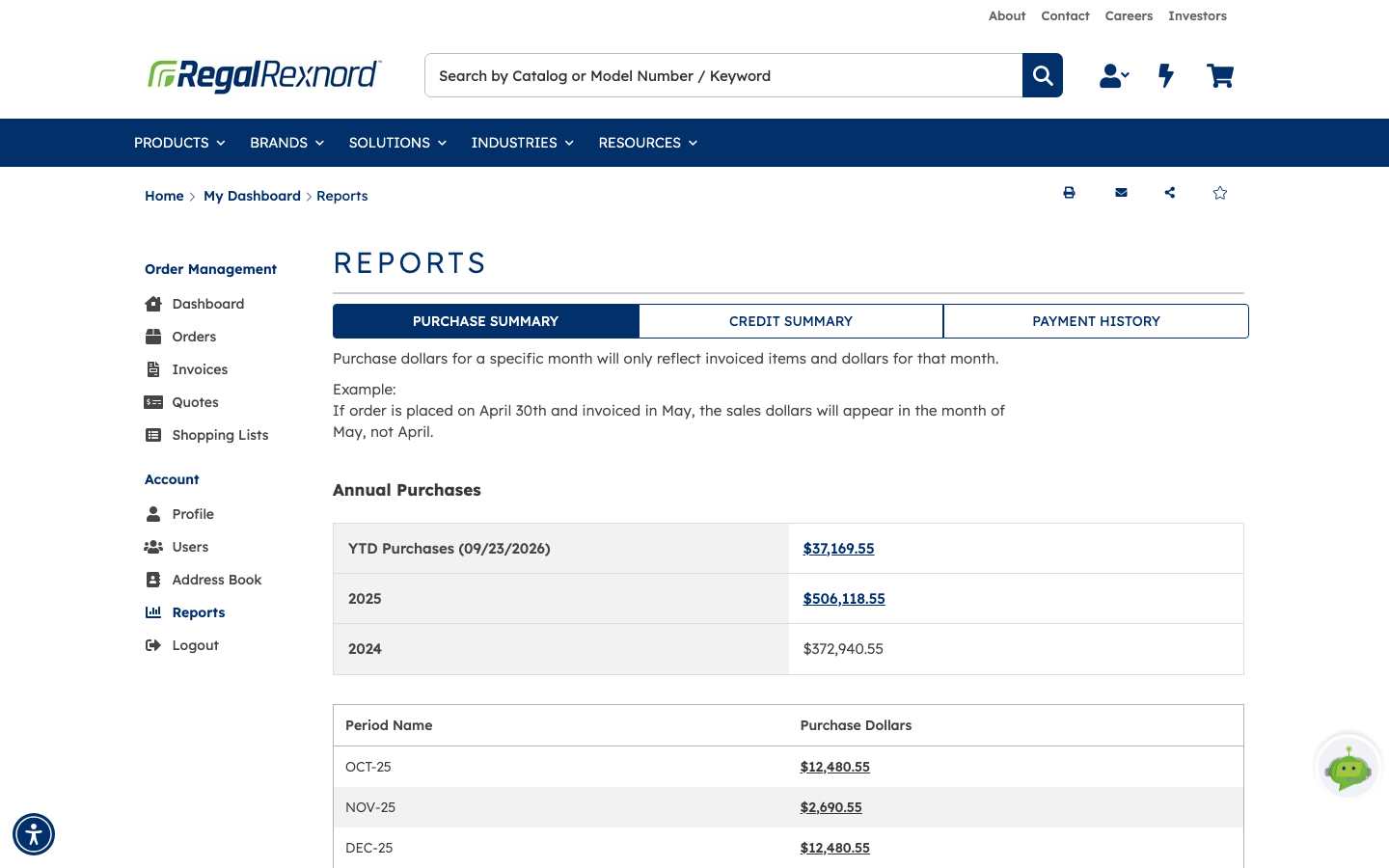
Annual Purchases at the top gives you three figures: your year-to-date total (with the date it was calculated), last year, and the year before. Below that, Period Name / Purchase Dollars breaks the recent months down one by one, with the total for the previous twelve months at the foot.
One thing to know about the months: a month's figure counts what was invoiced in that month, not what was ordered. An order placed on 30 April and invoiced in May appears under May. This catches people out when a month looks lighter than expected.
Drilling into a figure
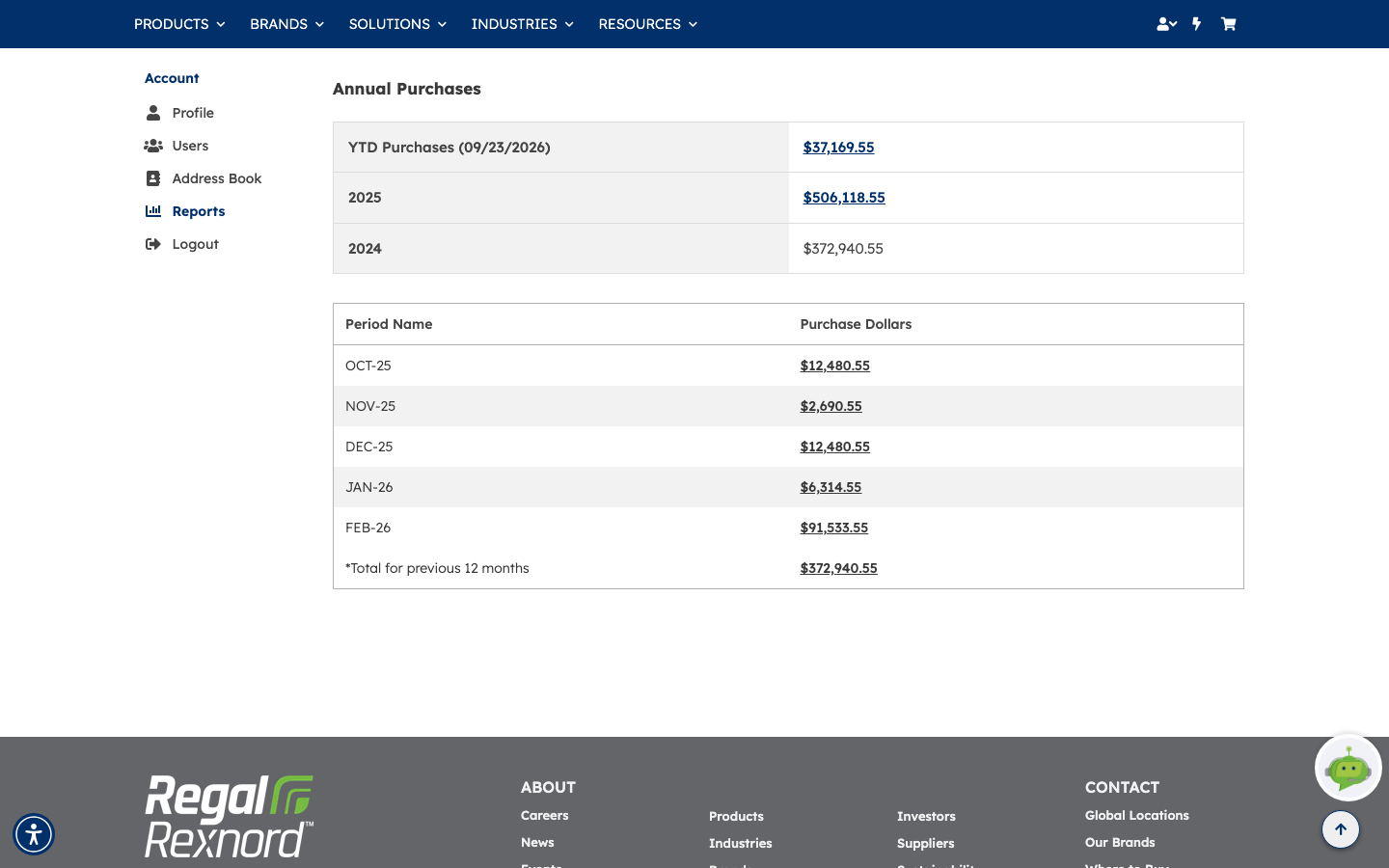
Every dollar amount that appears as a link opens the detail behind it — the year-to-date total, a prior year, or any single month.
The detail page names the period it covers and lists every line that made up the figure: Item Number, Product Description, Quantity, Selling Price and Total Price. Sort on any column using the arrows in its header, show more rows at once with Items Per Page, and pull the whole thing into a spreadsheet with Export to Excel.
Back, above the title, returns you to the summary — use it rather than your browser's back button.
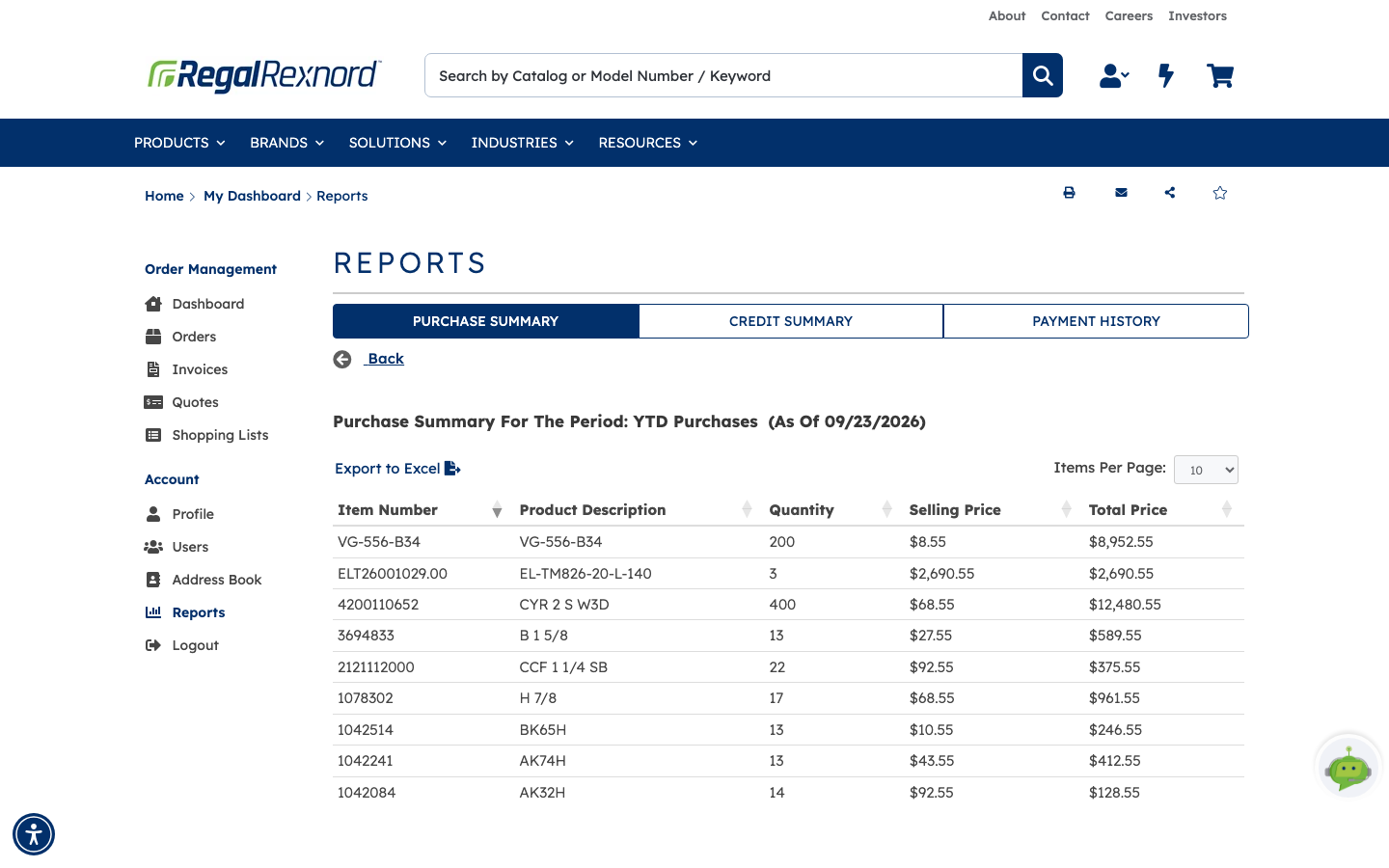
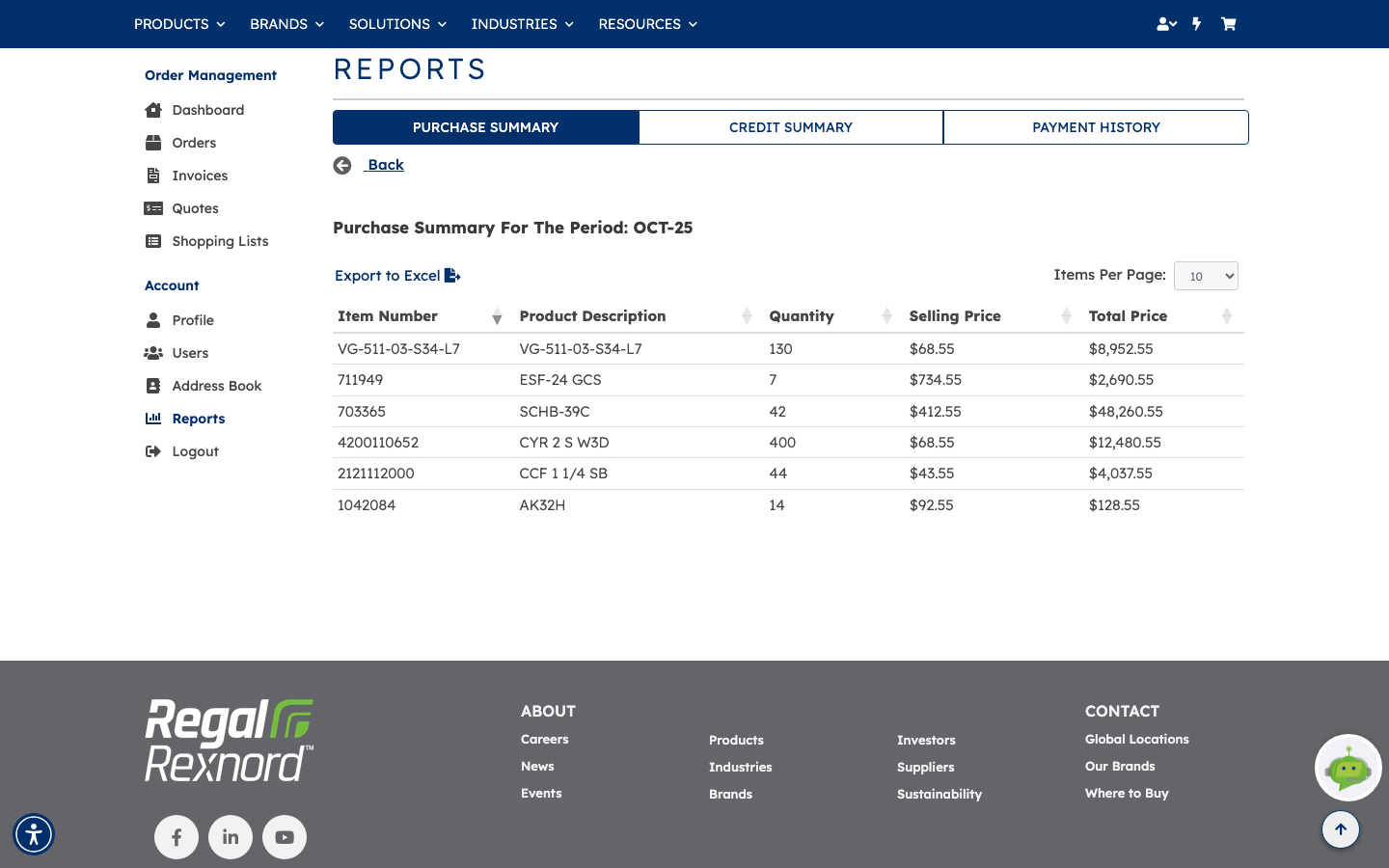
Clicking a single month works the same way, and the heading names the period you drilled into — here, Purchase Summary For The Period: OCT-25. It's the quickest way to answer "what did we actually buy that month?"
Credit Summary — what's outstanding
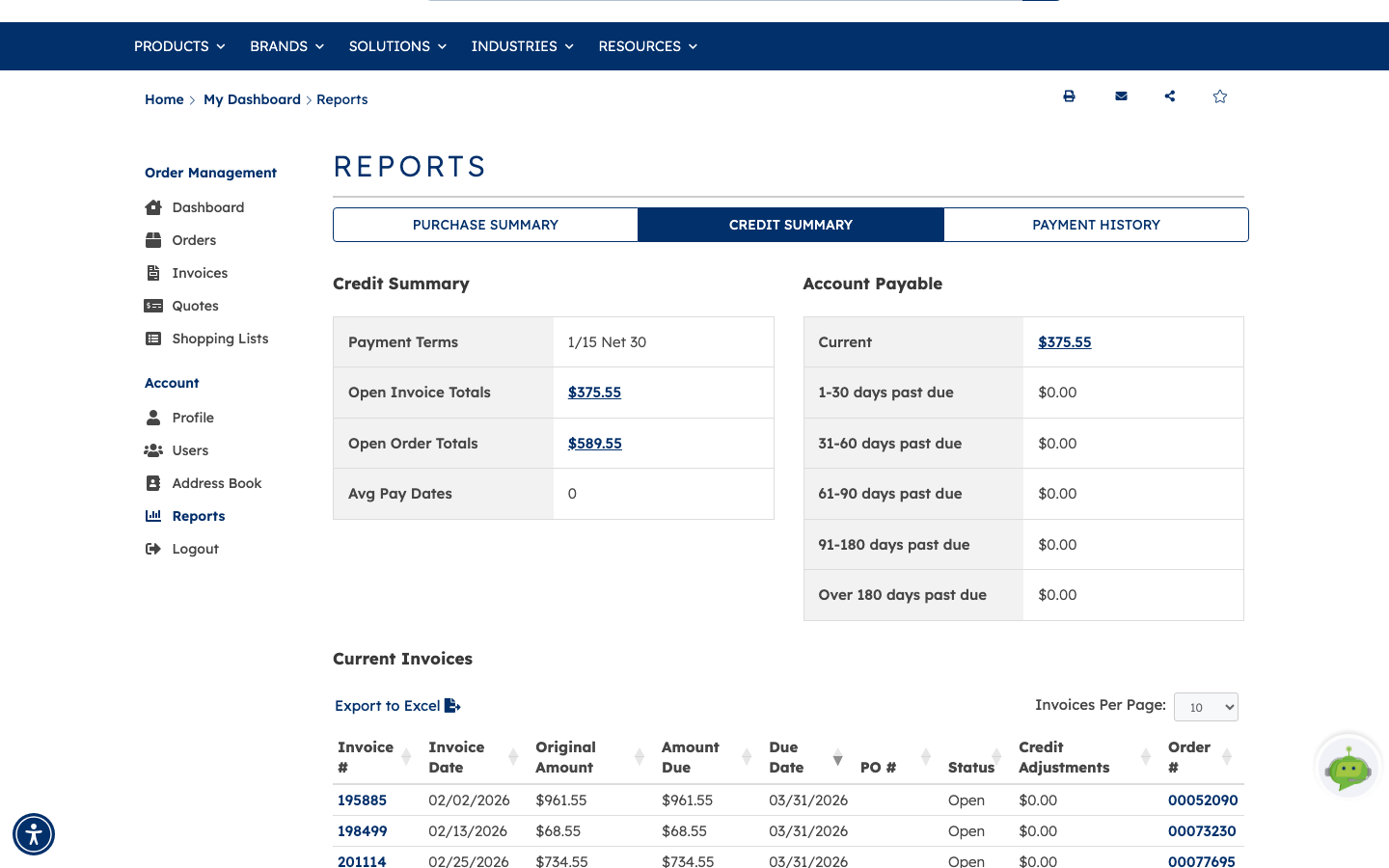
The Credit Summary tab is the accounts-payable view of the same account.
The top of the report carries the essentials:
| Field | What it tells you |
|---|---|
| Payment Terms | The terms agreed for your account |
| Open Invoice Totals | The value of invoices still outstanding |
| Open Order Totals | The value of orders placed but not yet invoiced |
| Avg Pay Dates | How long, on average, your account takes to pay, in days |
Alongside them sits an aging breakdown of what's owed — Current, then 1–30, 31–60, 61–90, 91–180 and over 180 days past due.
Below that, Current Invoices lists the invoices themselves with their invoice number and date, original amount, amount still due, due date, your PO number, status, any credit adjustments, and the order they came from.
Two useful shortcuts:
- Click an aging bucket amount to jump straight down to the invoices behind it — the fastest way to see what's making up a past-due figure.
- Click Open Invoice Totals to jump to the full Invoice List, filtered to open invoices from the last 365 days.
Payment History — what you've paid
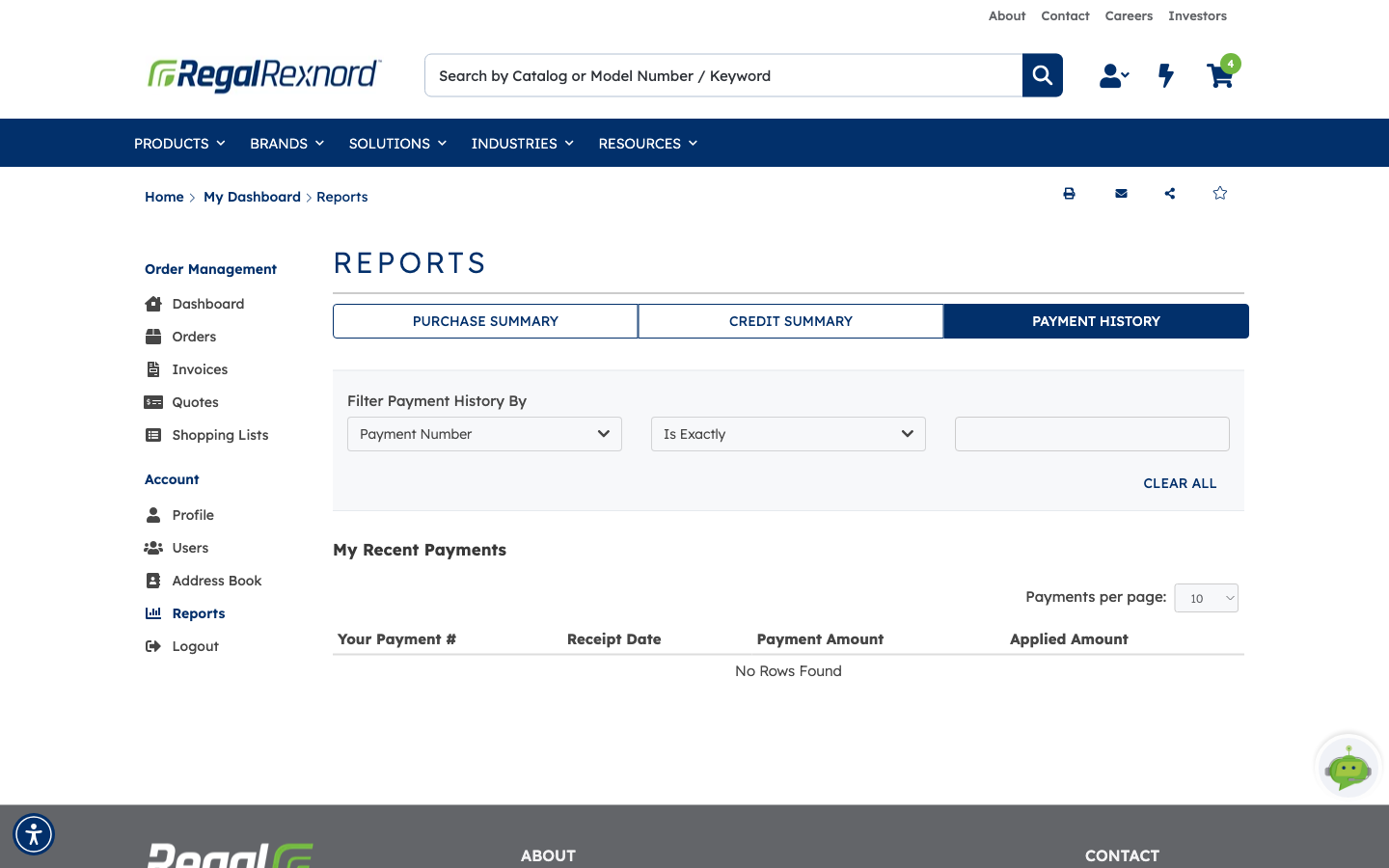
The Payment History tab lists payments received against the account under My Recent Payments, showing Your Payment #, Receipt Date, Payment Amount and Applied Amount.
Use the filter row above the table to narrow the list: choose a field (Payment Number or Amount), choose how to match it (Is Exactly, Starts With), and type the value. CLEAR ALL puts the full list back.
Click any payment number to open it. The detail page repeats the payment's totals and then shows every invoice the payment was applied to — invoice number and date, the amount applied, any discount taken, the date it was applied, and anything still outstanding on that invoice. Export to Excel is available here too, and Back returns you to the list.
That's it. Purchase Summary tells you what you've bought and lets you drill from a yearly total all the way to an individual line; Credit Summary shows what's still owed and how overdue it is; Payment History shows what's been paid and where it was applied. Any of them will export to Excel if you need to work with the figures elsewhere.