Approving or Rejecting Access Requests
When someone asks for access to your account, you decide whether they get it and what they're allowed to do. Account administrators can approve or reject each request right from the Users page.
You're already signed in as an account administrator and viewing the account you manage. Pending requests only appear for accounts you administer.
Which screen do you use?
| Request for one account | Request for several accounts | |
|---|---|---|
| Where you act | Users list | Manage User page |
| Action shown | Approve / Reject | Manage Approval, then approve or reject each account |
| Choose a role | In the Role drop-down | With the Primary Role options |
Step 1 — Open the Users list
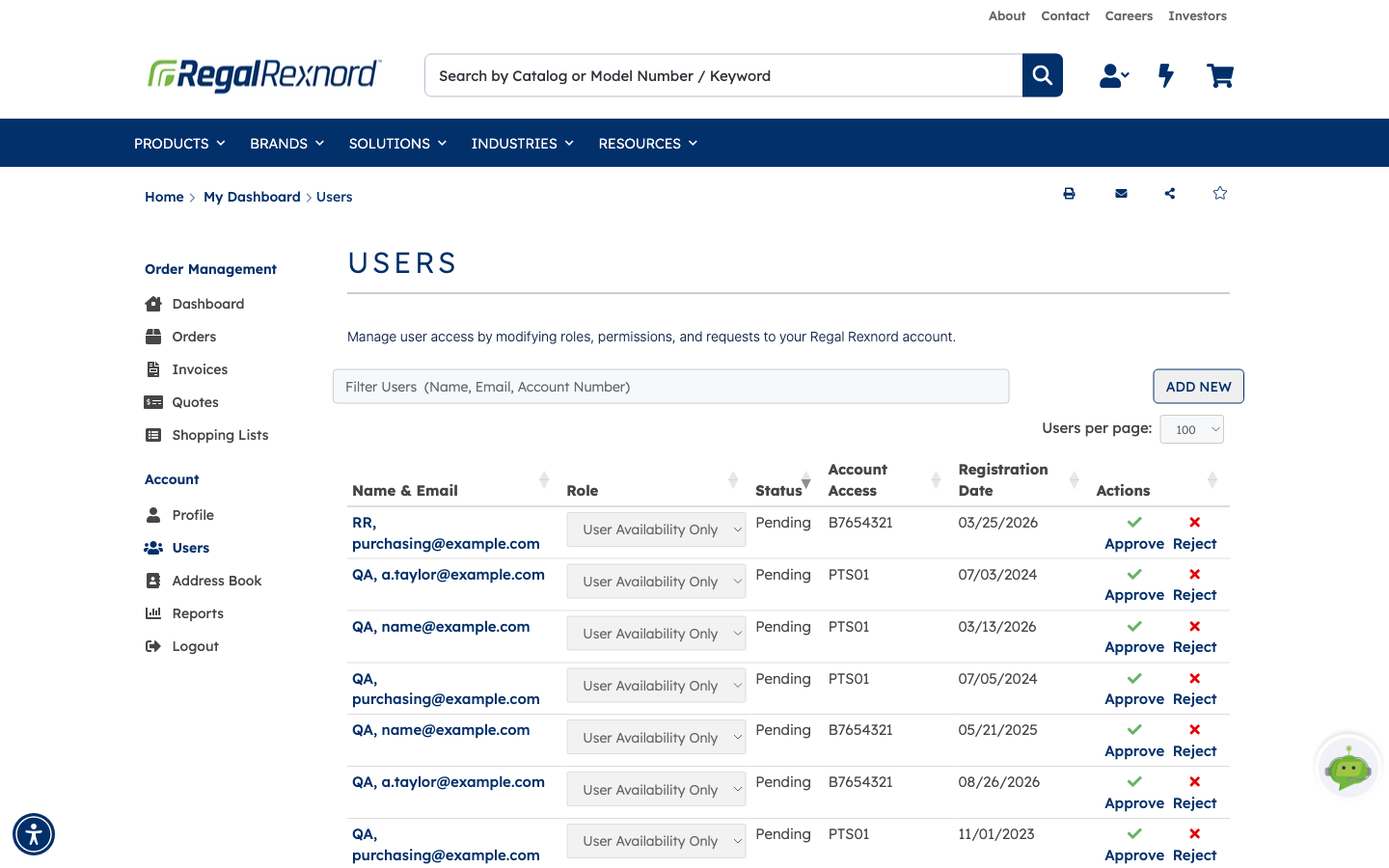
Choose Users under Account in the left menu. Requests waiting for a decision show Pending in the Status column, with Approve and Reject links under Actions. Use Users per page to show more rows.
Step 2 — Find the request
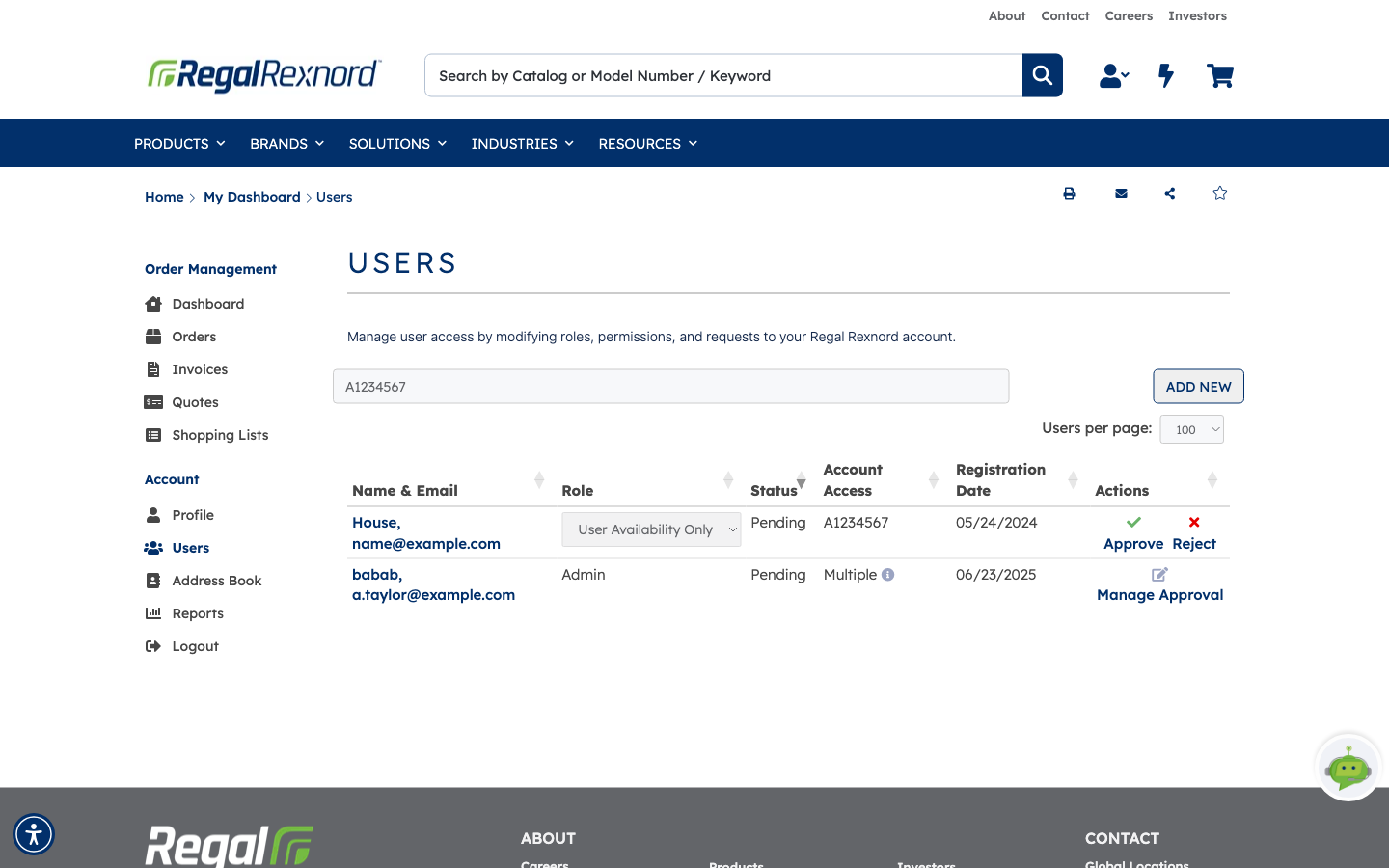
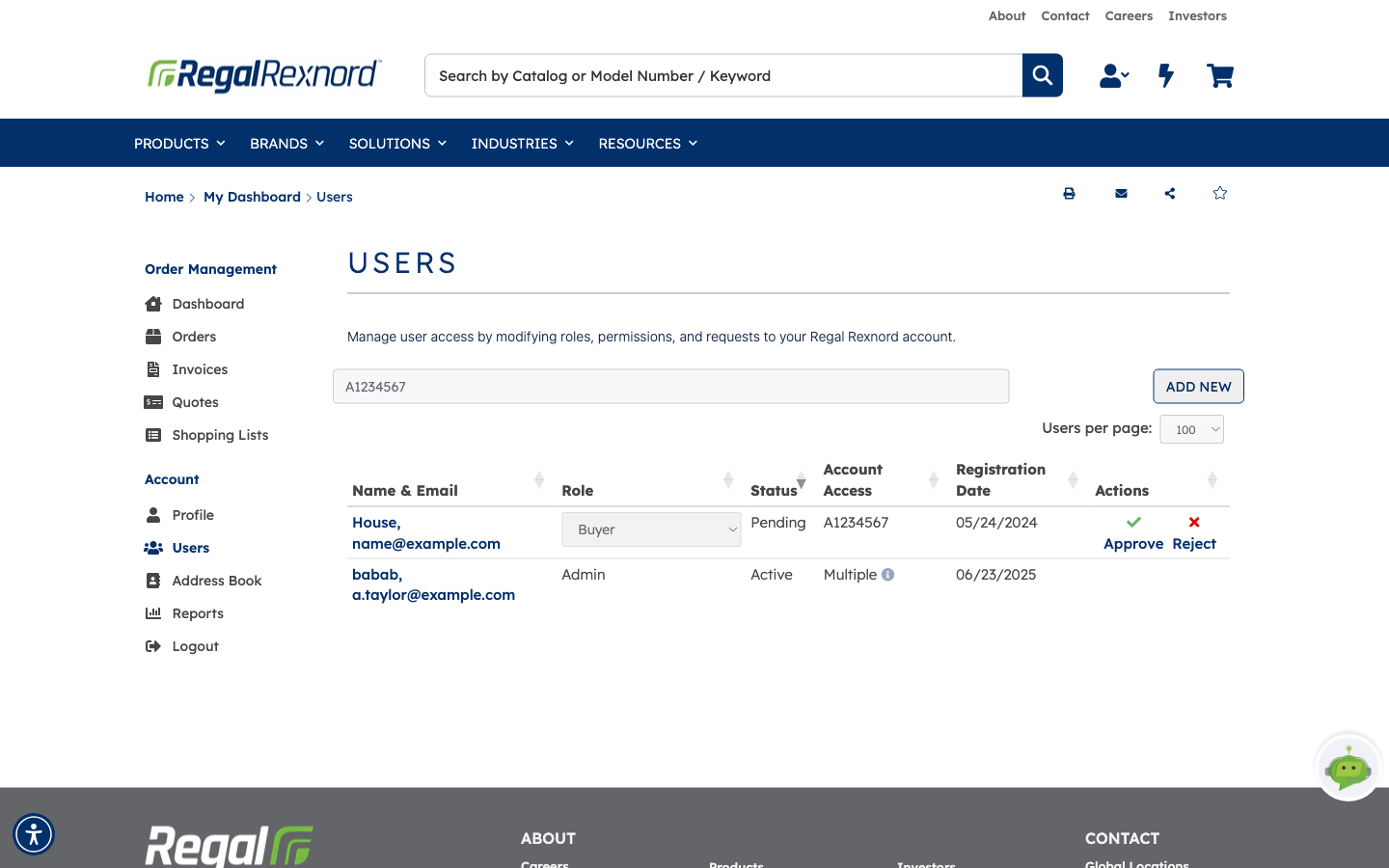
Type a name, email or account number in Filter Users. In this example, we filter by one account number and see two matches: a single-account request with Approve and Reject, and a request covering multiple accounts with Manage Approval.
Step 3 — Open a request that covers several accounts
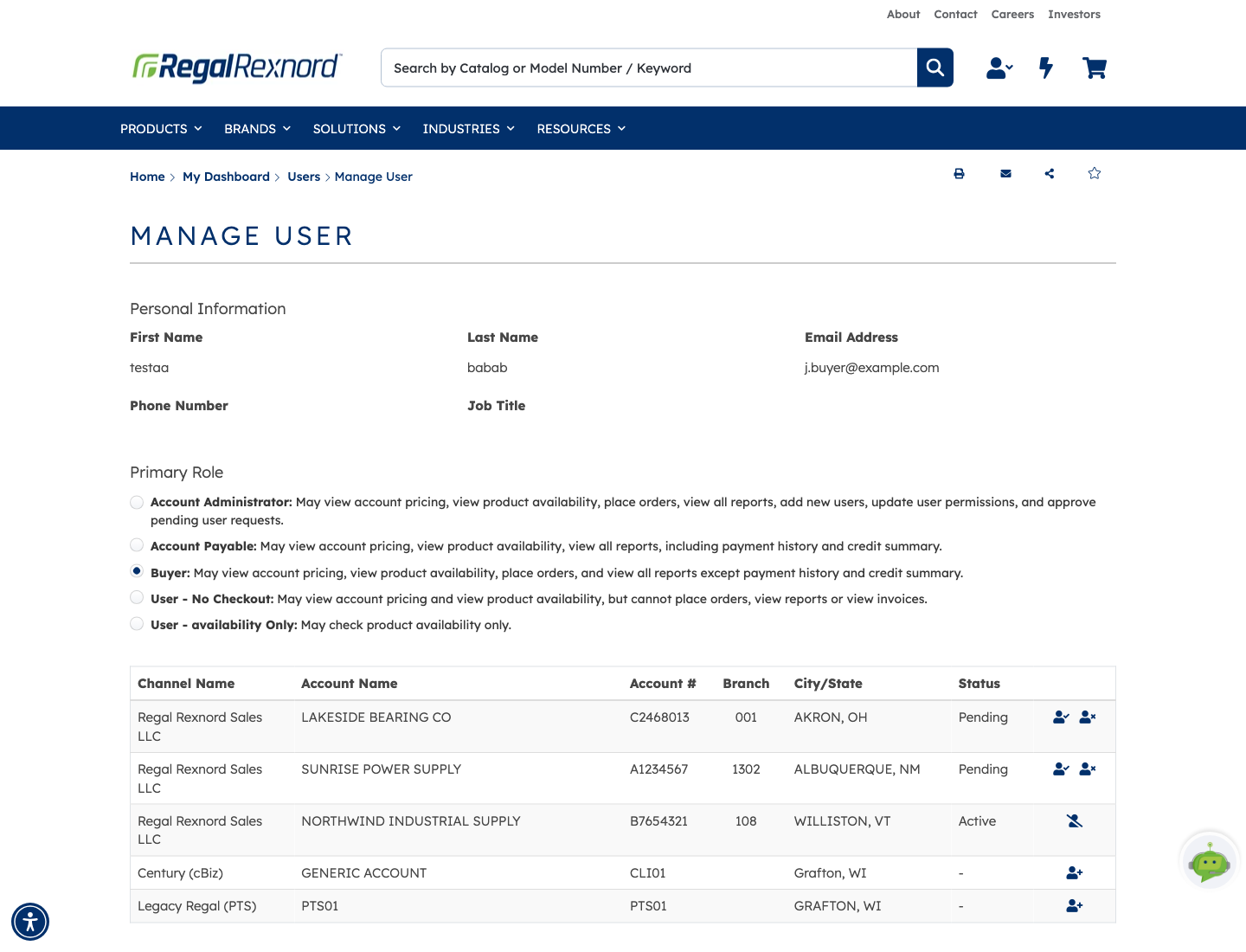
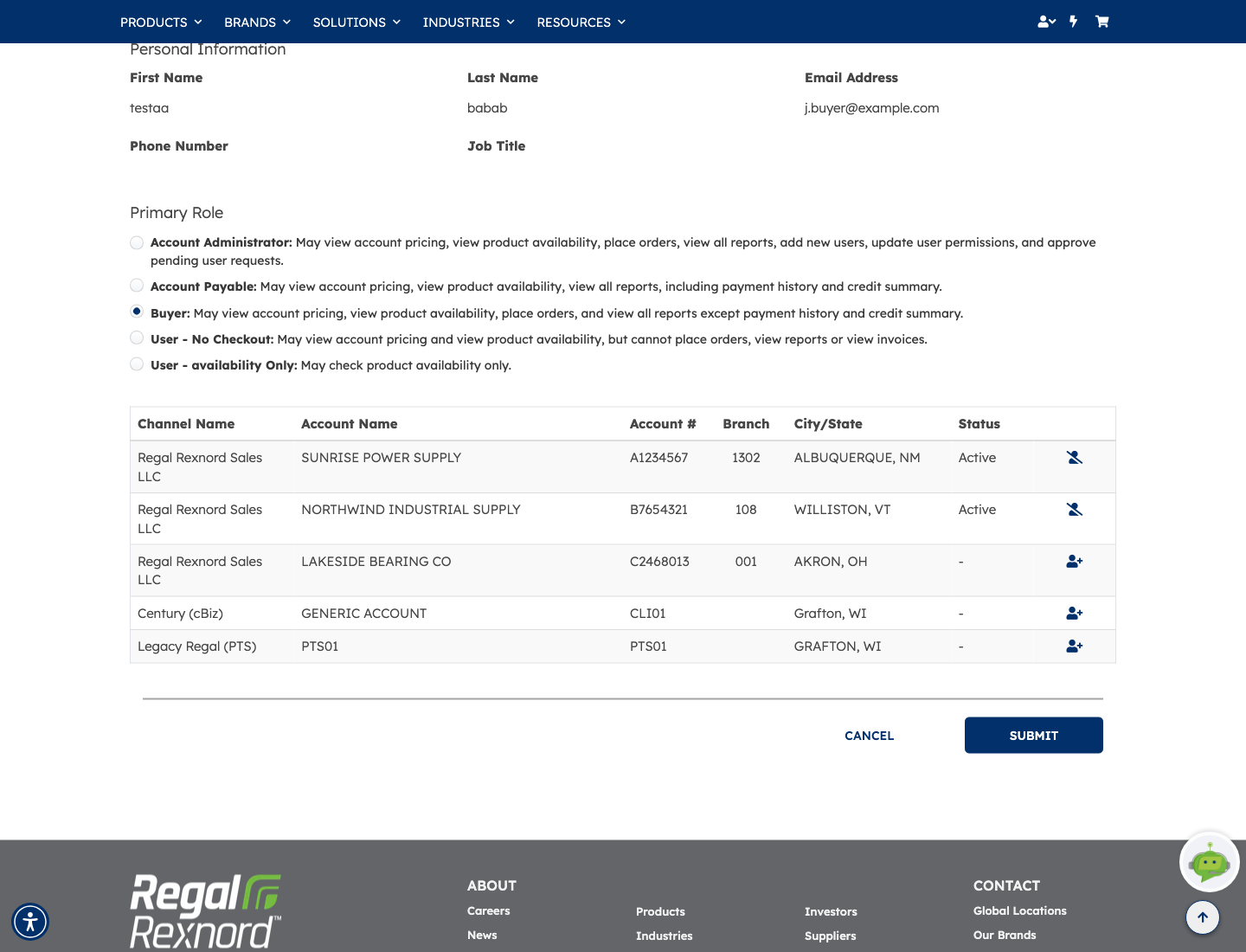
Click Manage Approval (or the user's name). The Manage User page lists the person's details, a Primary Role, and every account they have access to or have requested. Requests show Pending.
Step 4 — Approve or reject each account
In the row for each pending account, use the icons on the right: the person-with-check icon approves, and the person-with-x icon rejects. The row turns green for Approve and red for Reject. Click Cancel on a row if you change your mind.
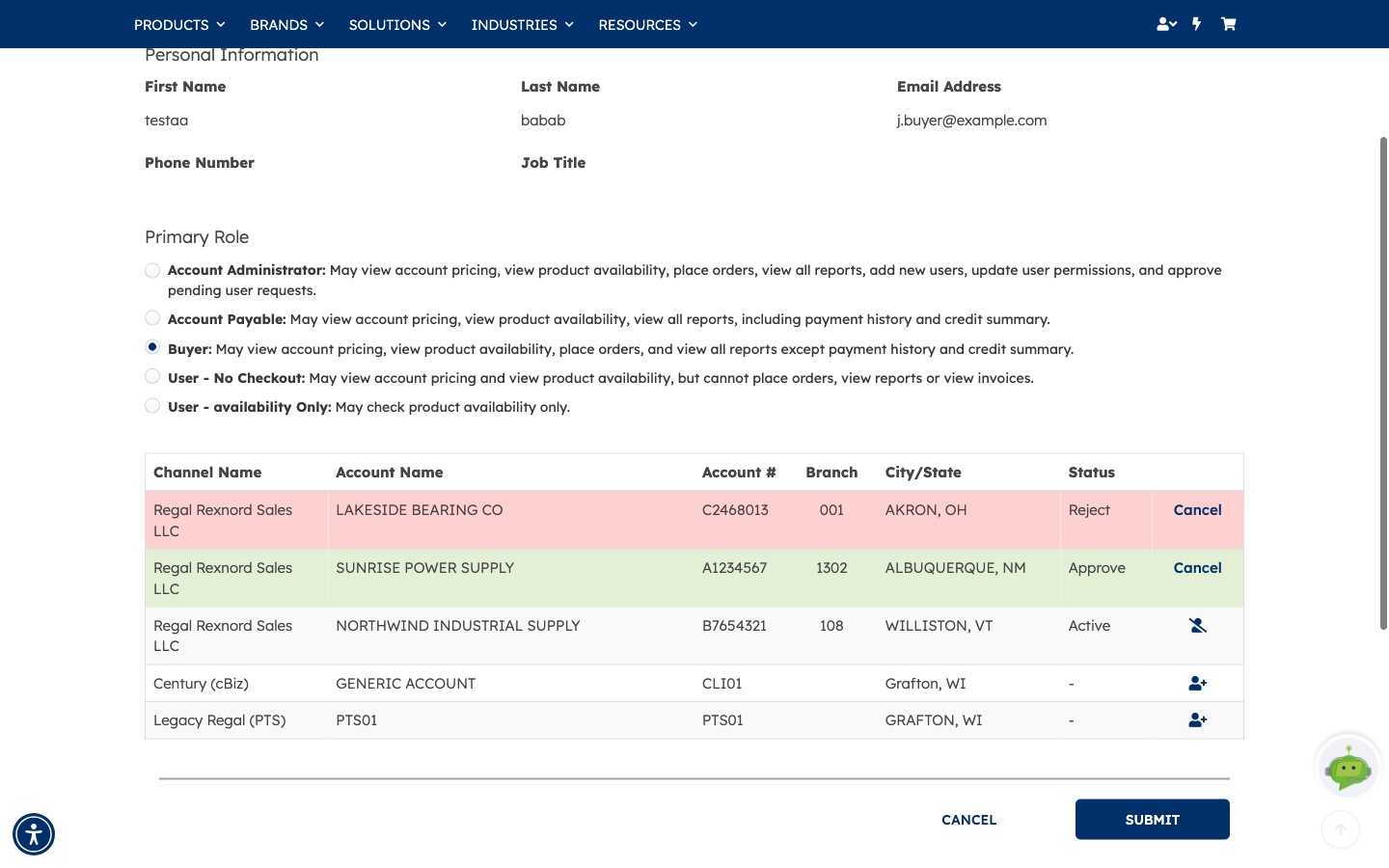
Pick the Primary Role before you submit. It sets what the person can do on the approved account.
Step 5 — Submit your decisions
Click SUBMIT. The approved account now shows Active, and the rejected account shows -, meaning the person has no access to it.
| Before | After | |
|---|---|---|
| Account A1234567 | Pending | Active |
| Account C2468013 | Pending | No access |
Step 6 — Choose a role when approving from the list
For a request covering one account, go back to the Users list. Use the drop-down in the Role column to pick the role before you approve. In this example, we choose Buyer.
| Role | What the person can do |
|---|---|
| Admin (Account Administrator) | View pricing and availability, place orders, view all reports, add users, update permissions and approve requests |
| Accounts Payable | View pricing and availability and all reports, including payment history and credit summary |
| Buyer | View pricing and availability, place orders, and view all reports except payment history and credit summary |
| User No Checkout | View pricing and availability, but cannot place orders or view reports or invoices |
| User Availability Only | Check product availability only |
Step 7 — Approve the request
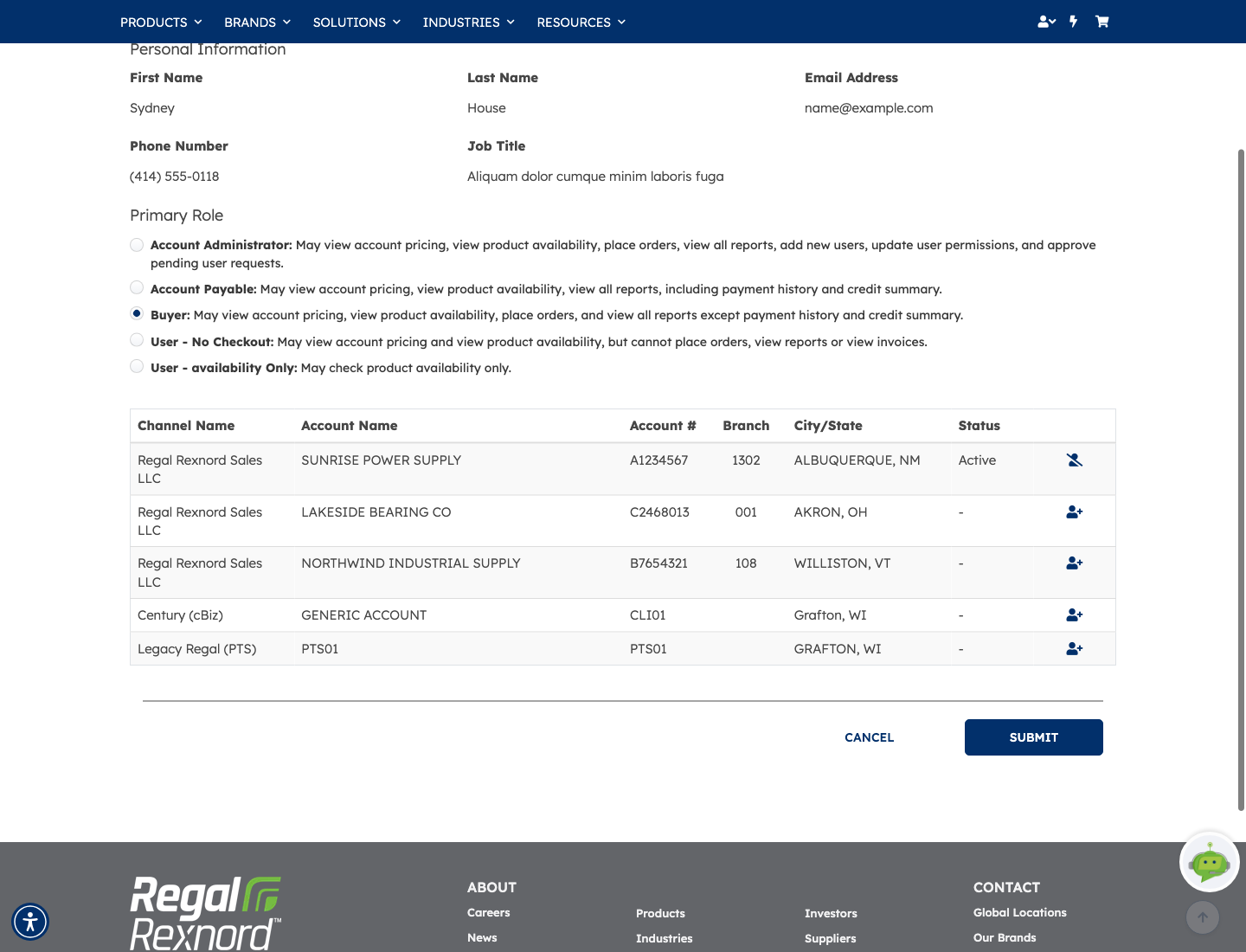
Click Approve. The user becomes Active with the role you chose. Open the user to check: the Primary Role is Buyer and the account shows Active.
Step 8 — Reject a request
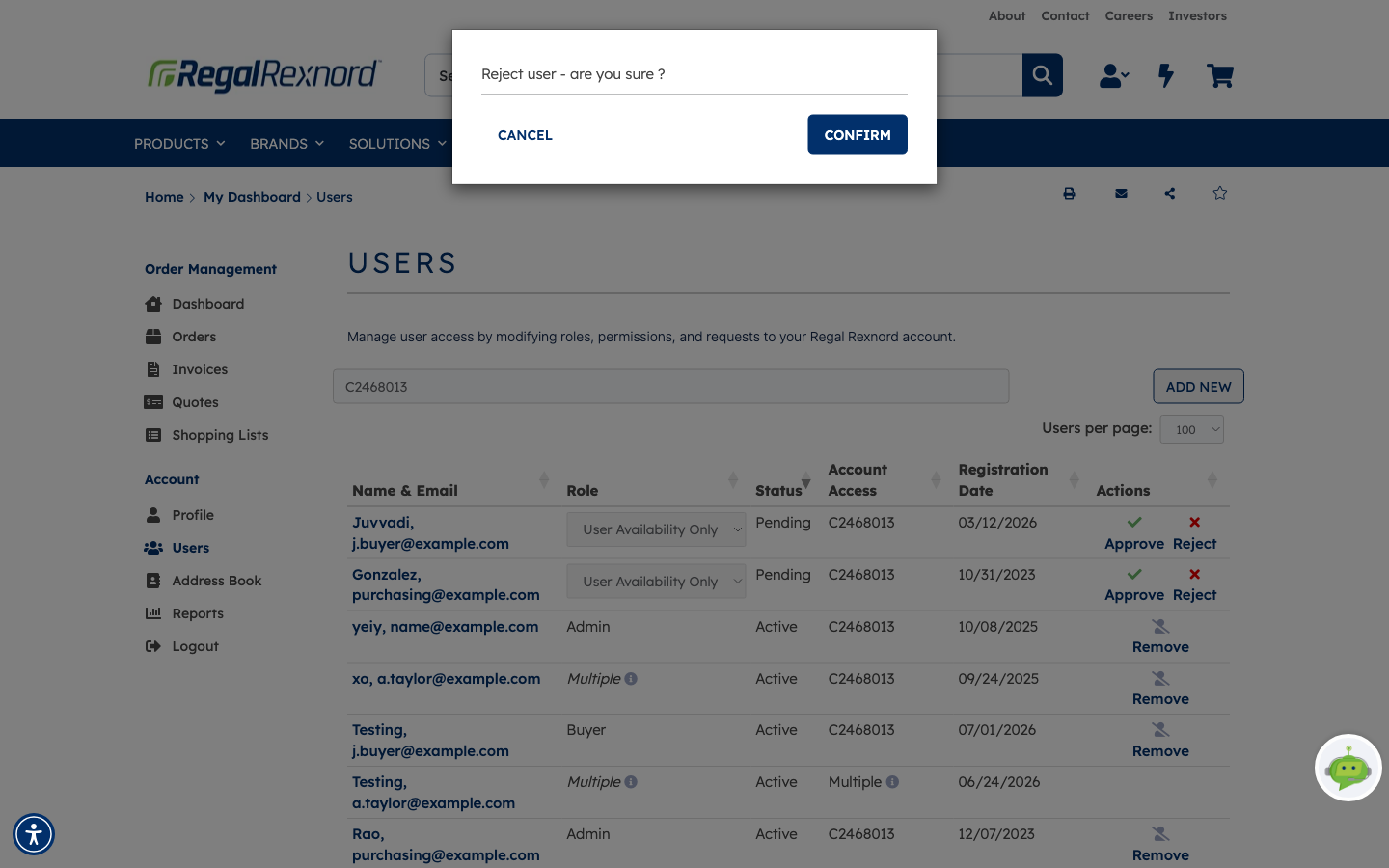
To decline a request instead, click Reject. A confirmation asks Reject user - are you sure ?. Click CONFIRM to reject, or CANCEL to leave the request pending.
That's it. You can now review each pending access request and approve it with the right role, or reject it.