Changing What an Existing User Can Do
People move roles. Someone who only needed to check stock now places orders; someone who was an administrator moves on. Manage User is where you change a colleague's permissions and see which accounts they can reach.
You need an administrator role, and you need to be working under the account the user belongs to. Roles and account access are per account.
Step 1 — Find them
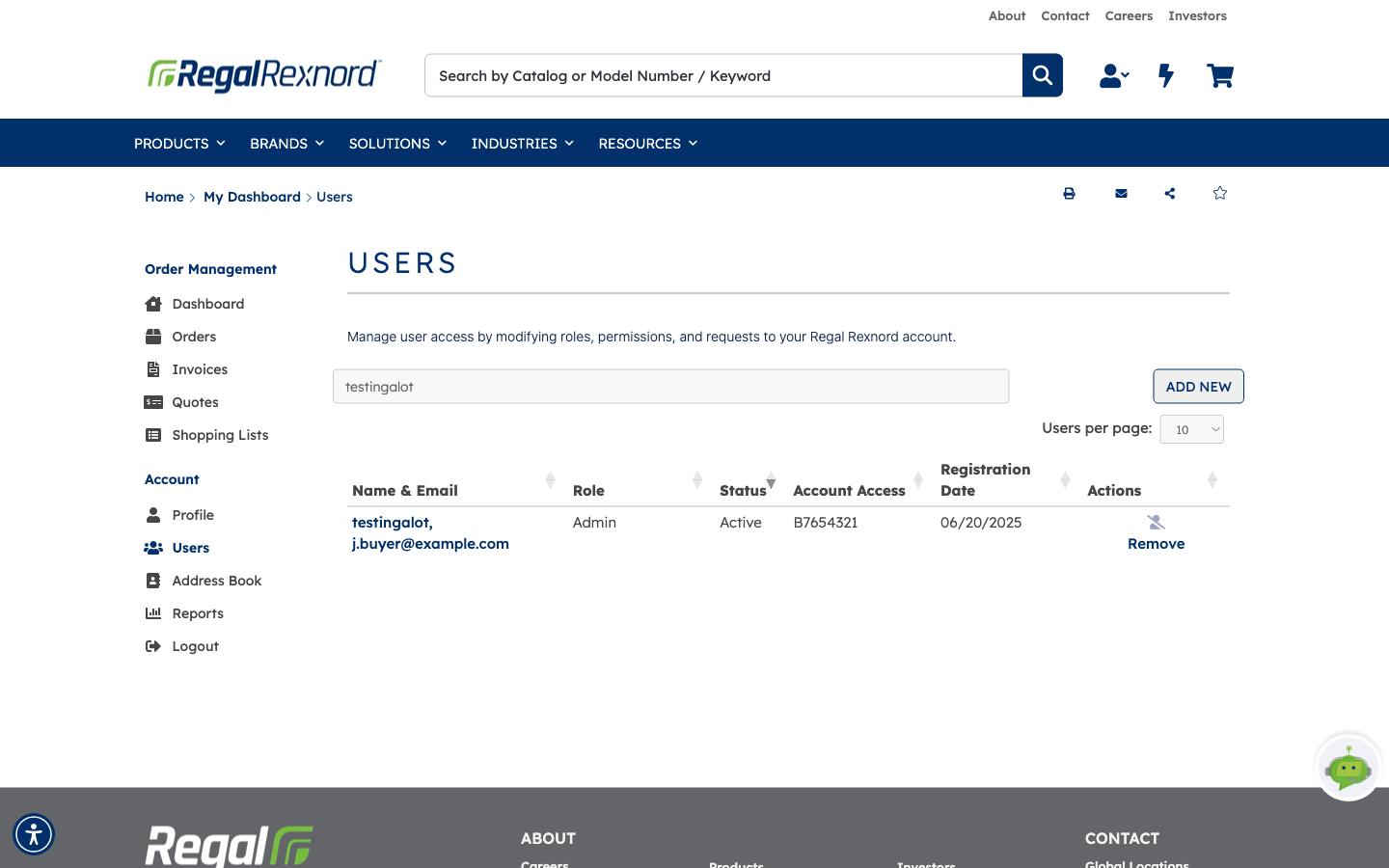
Open Users from the Account menu and type their name, email or account number into the filter box.
Each row tells you their Status and Account Access before you change anything. To see the role they hold today, open their record — the Role column here is a summary and doesn't track the primary role you set on the next screen.
Only Active users can be edited. Someone still pending verification hasn't finished setting up.
Step 2 — Open their record
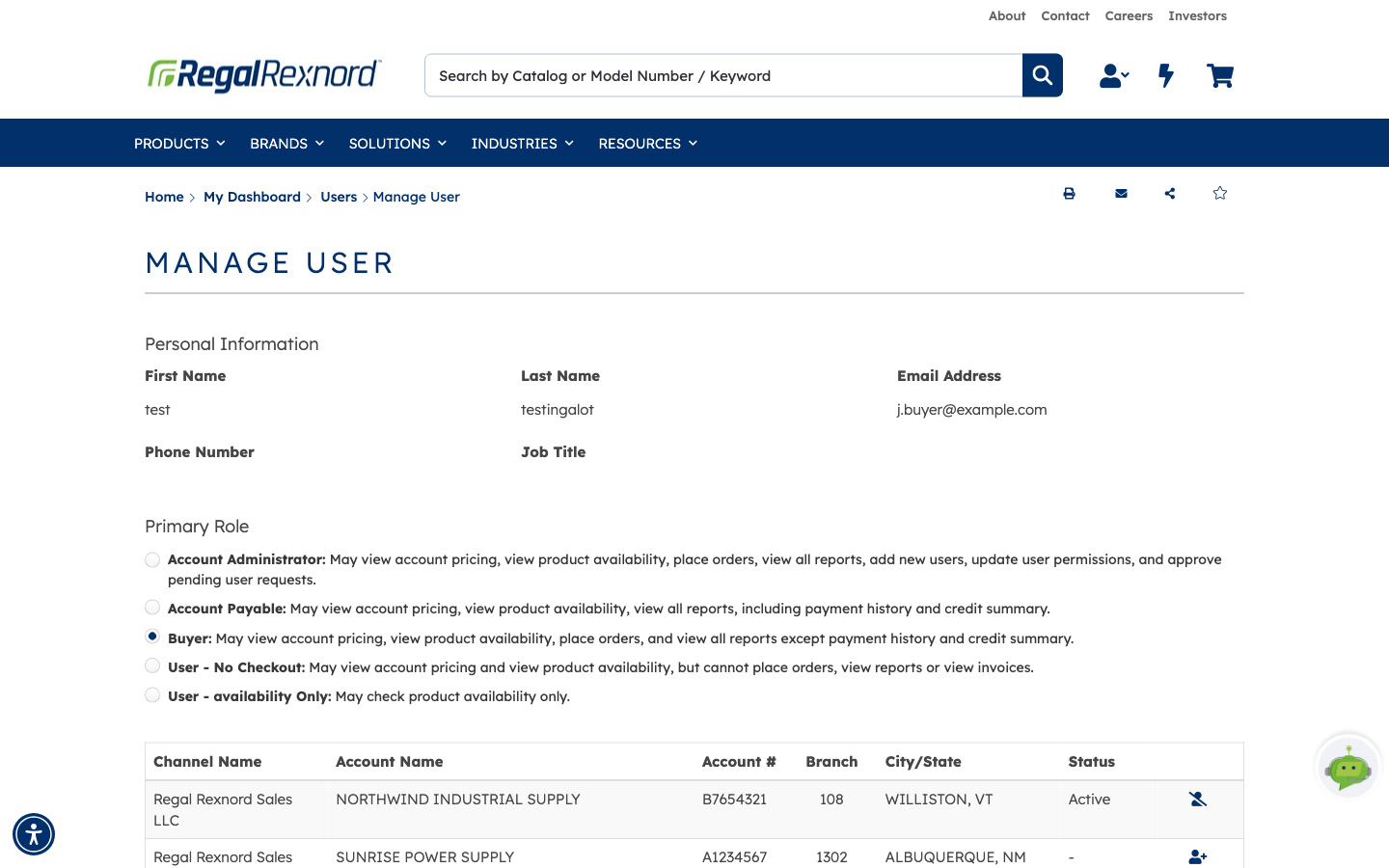
Click the user's name. Manage User opens in two parts.
Personal Information at the top — first name, last name, email, phone and job title — is read-only. Only the user can change their own details, from their profile. If their name or email is wrong, they have to fix it.
Primary Role below is the part you control. Each option spells out exactly what it permits:
| Role | What they can do |
|---|---|
| Account Administrator | View pricing and availability, place orders, view all reports, add new users, update permissions and approve pending requests |
| Account Payable | View pricing and availability, and view all reports including payment history and credit summary |
| Buyer | View pricing and availability, place orders, and view all reports except payment history and credit summary |
| User - No Checkout | View pricing and availability, but cannot place orders, view reports or view invoices |
| User - availability Only | Check product availability only |
The two worth pausing on are Account Payable and Buyer. Both are everyday roles, but only Account Payable sees payment history and credit summary. That's usually the deciding question.
The radio button already selected is their current role.
Step 3 — Check their account access
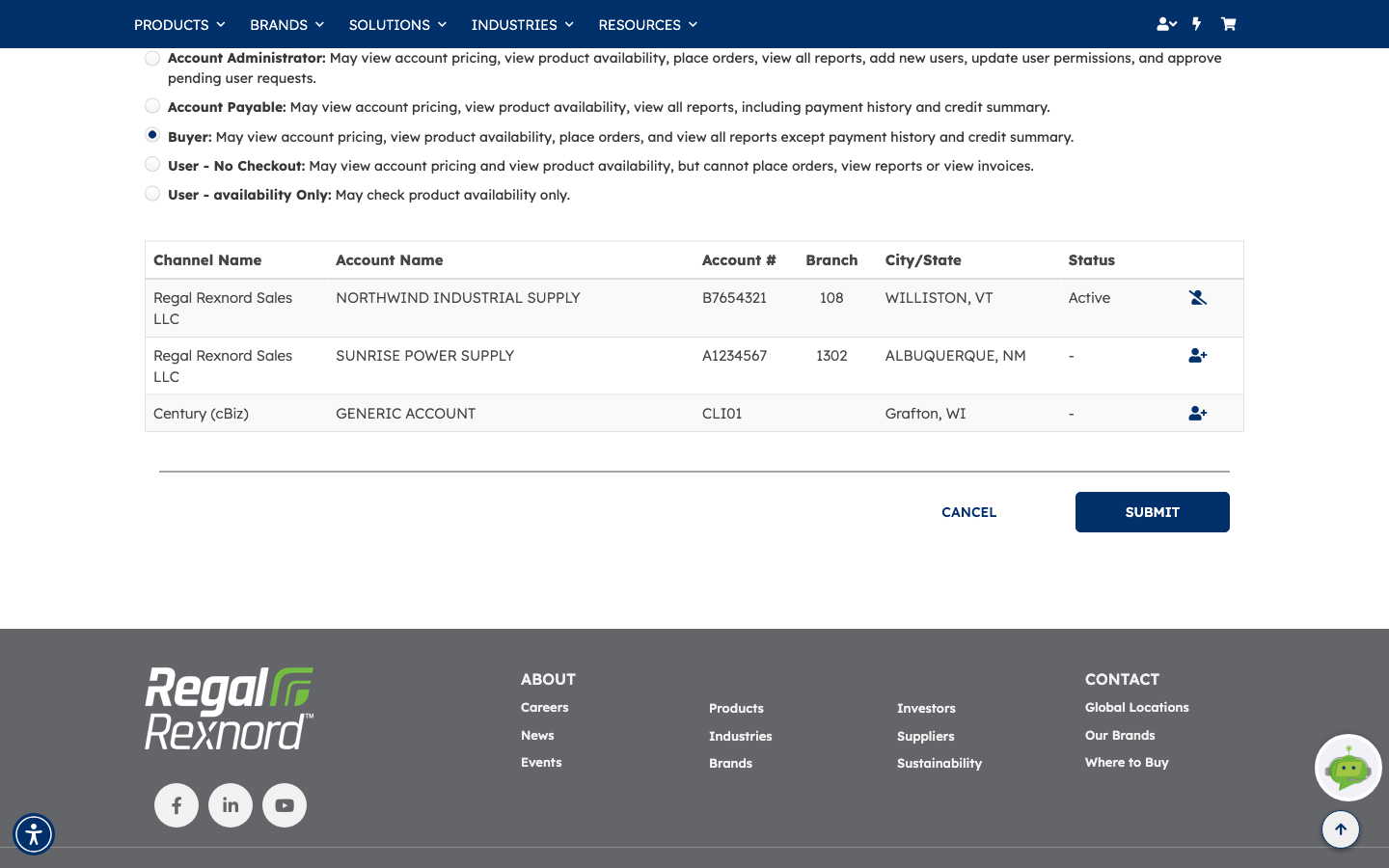
Below the roles sits every account you administer, with its status for this user:
- Active — they have access.
- – — they don't.
The icon at the end of each row toggles it: remove their access to an account, or grant access to one they don't have. So the same page answers both questions — what they can do, and where they can do it.
Step 4 — Save and check
Select the role you want and click SUBMIT. CANCEL leaves everything as it was.
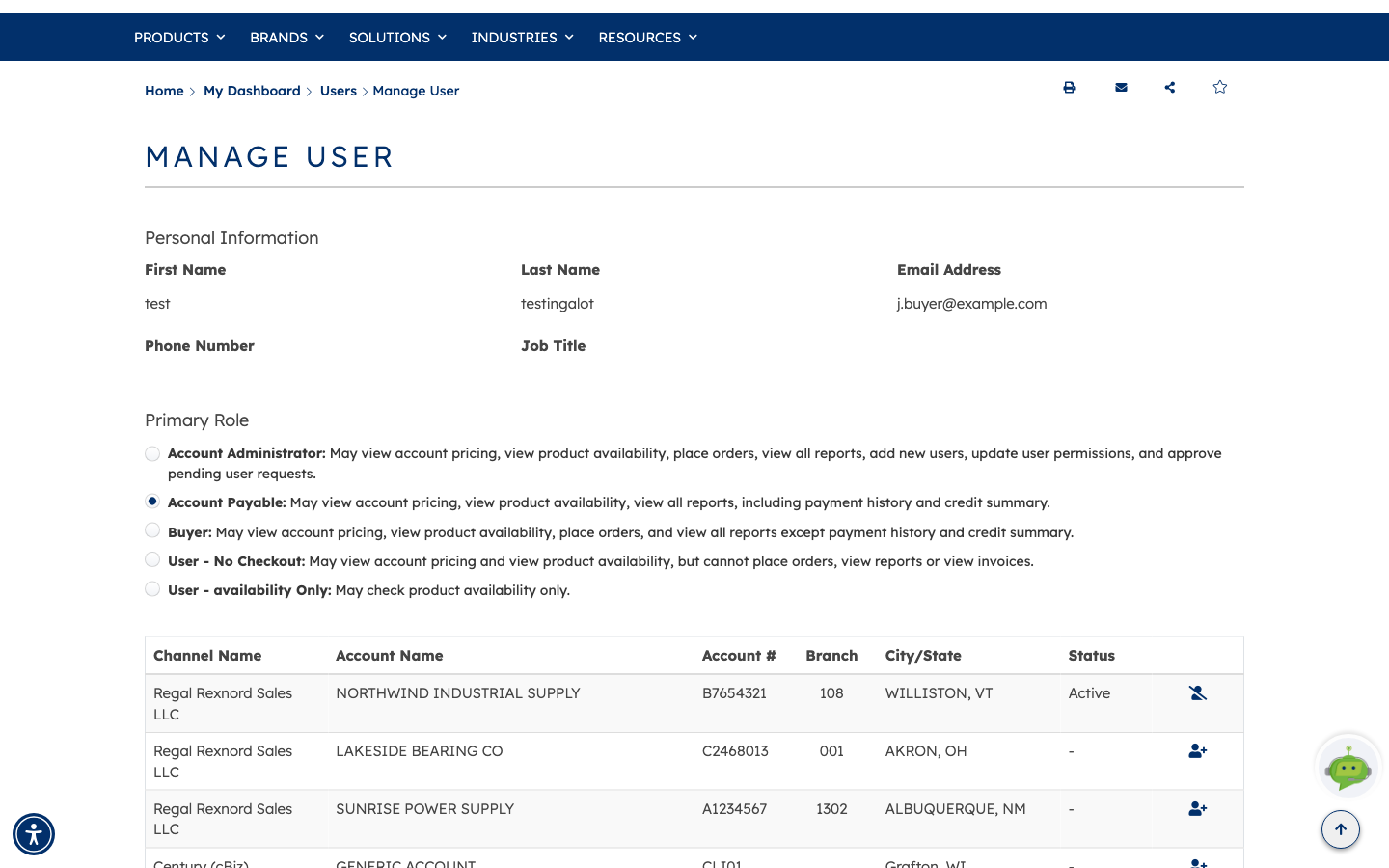
Saving is quiet — there's no confirmation banner, and you stay on the same page. To satisfy yourself it took, leave the page and open the user again: the role you chose is the one now selected.
In this example the user was a Buyer and is now Account Payable — the change that gives them payment history and credit summary.
| Primary Role | Status | Account Access | |
|---|---|---|---|
| Before | Buyer | Active | B7654321 |
| After | Account Payable | Active | B7654321 |
The Role column back on the Users list won't necessarily match what you just set — it's a separate summary. Reopening the user's record is the reliable check.
What you've done
You've changed a colleague's permissions, and seen at a glance which accounts they can work in.
Worth remembering
- Personal details are the user's to change, not yours. Only the role and account access are editable here.
- Read the role descriptions — they're the actual permissions, not a summary.
- Account Payable is the role that sees payment history and credit summary. Buyer doesn't.
- Saving gives no confirmation message — reopen the record to check it took.
- Account access is separate from role: the icon on each account row grants or removes it.
- Roles are per account. Someone can be a buyer on one and availability-only on another.
- Note the old role before you change it, so you can put it back if needed.