Changing What an Existing User Can Do — Test results
2026-08-27T16:25:12Z by Showboat 0.6.1
Supporting detail for the feature demo.
This demo walks through managing an existing user via the User Management area of Account Management on https://uatwww.rrxpreview.com/. Signed in as agent@forliion.com, an administrator with User Management access on account U3427563 — EASTERN INDUSTRIAL AUTOMATION. The user being managed is FName LName / test999@test999.com, created by the Add New User journey and since activated. The change applied is a role change to Buyer.
Prerequisites
Open the Regal Rexnord site and dismiss the cookie consent banner using Accept Cookies.
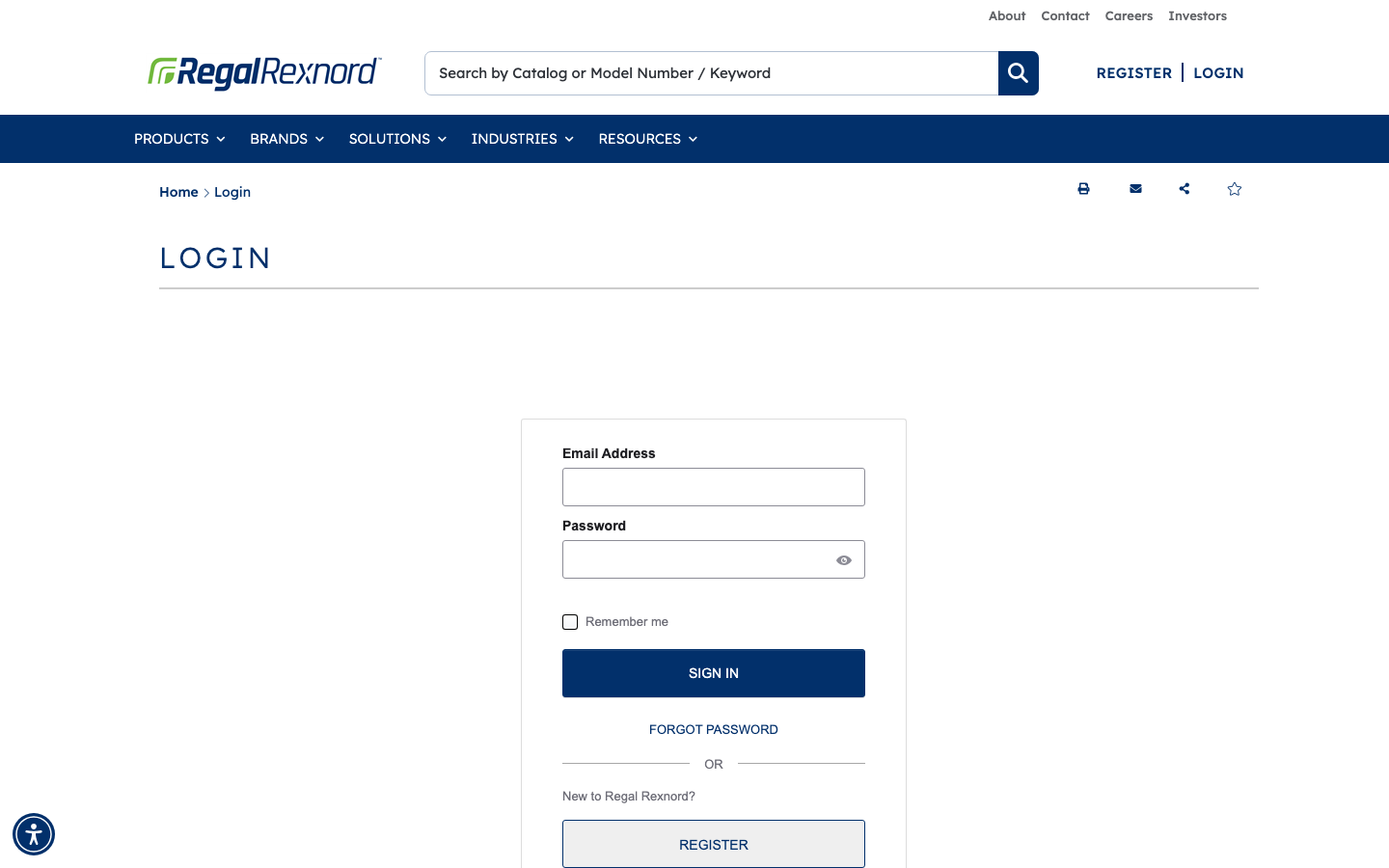
Sign in with the administrator account agent@forliion.com on the Login page.
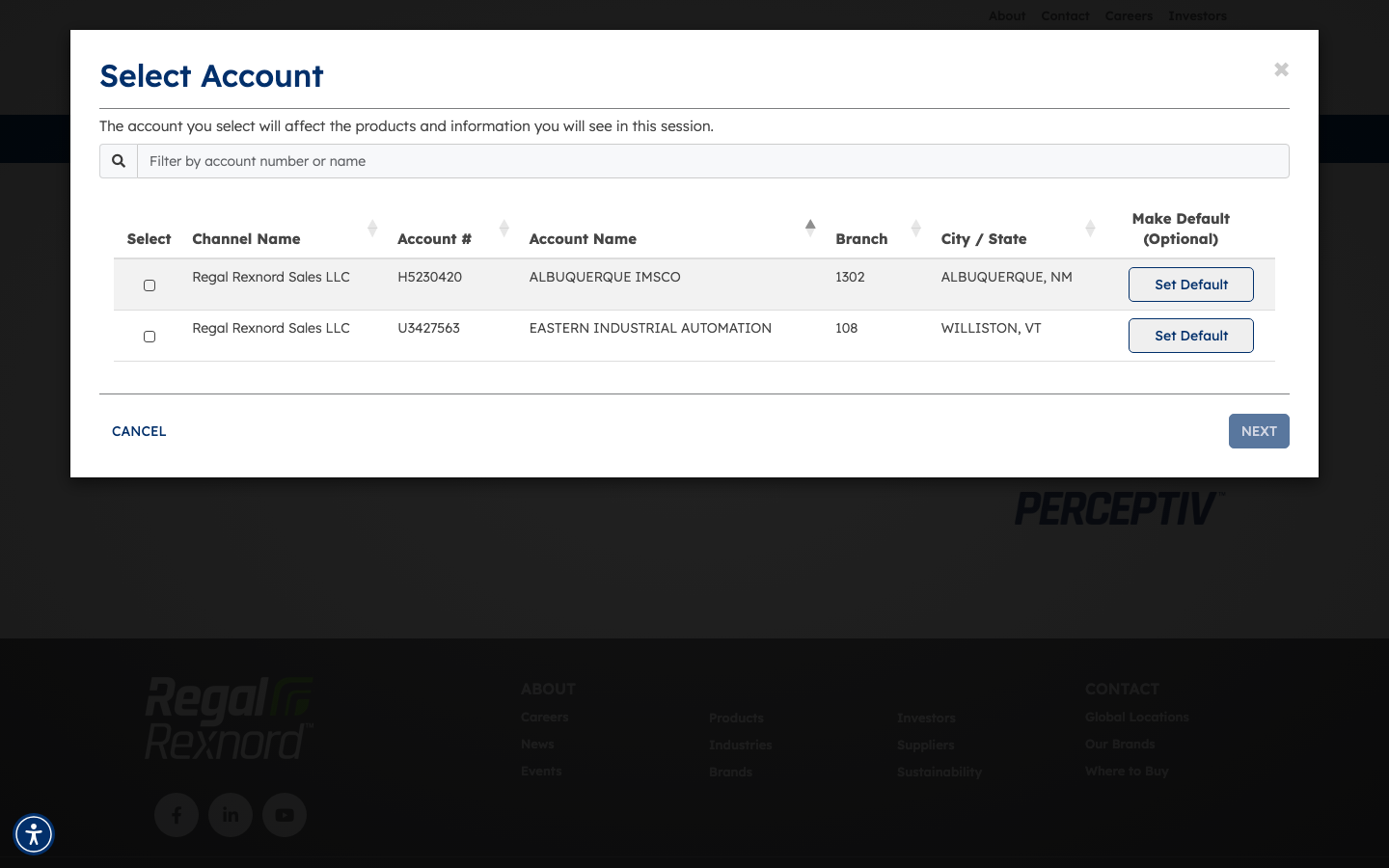
After signing in, the Select Account modal appears. User Management is account-scoped, so select U3427563 / EASTERN INDUSTRIAL AUTOMATION, click NEXT, then choose the Primary Address on the Select Shipping Address step.
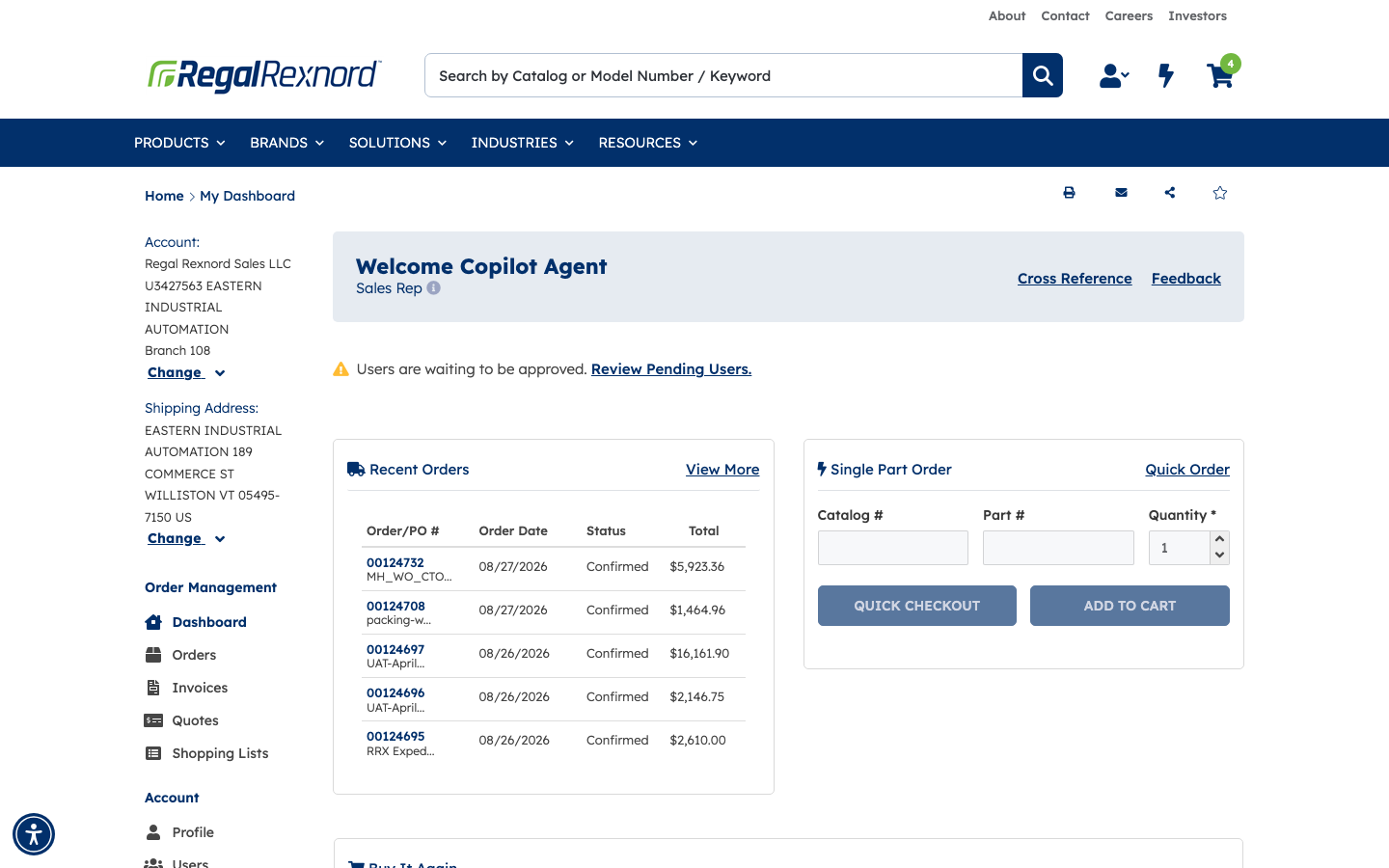
The Dashboard loads at https://uatwww.rrxpreview.com/accountmanagement. The header reads Welcome Copilot Agent, the active account is U3427563 EASTERN INDUSTRIAL AUTOMATION, and the left-hand Account navigation includes the Users entry.
Step 1 — Find the user on the Users page
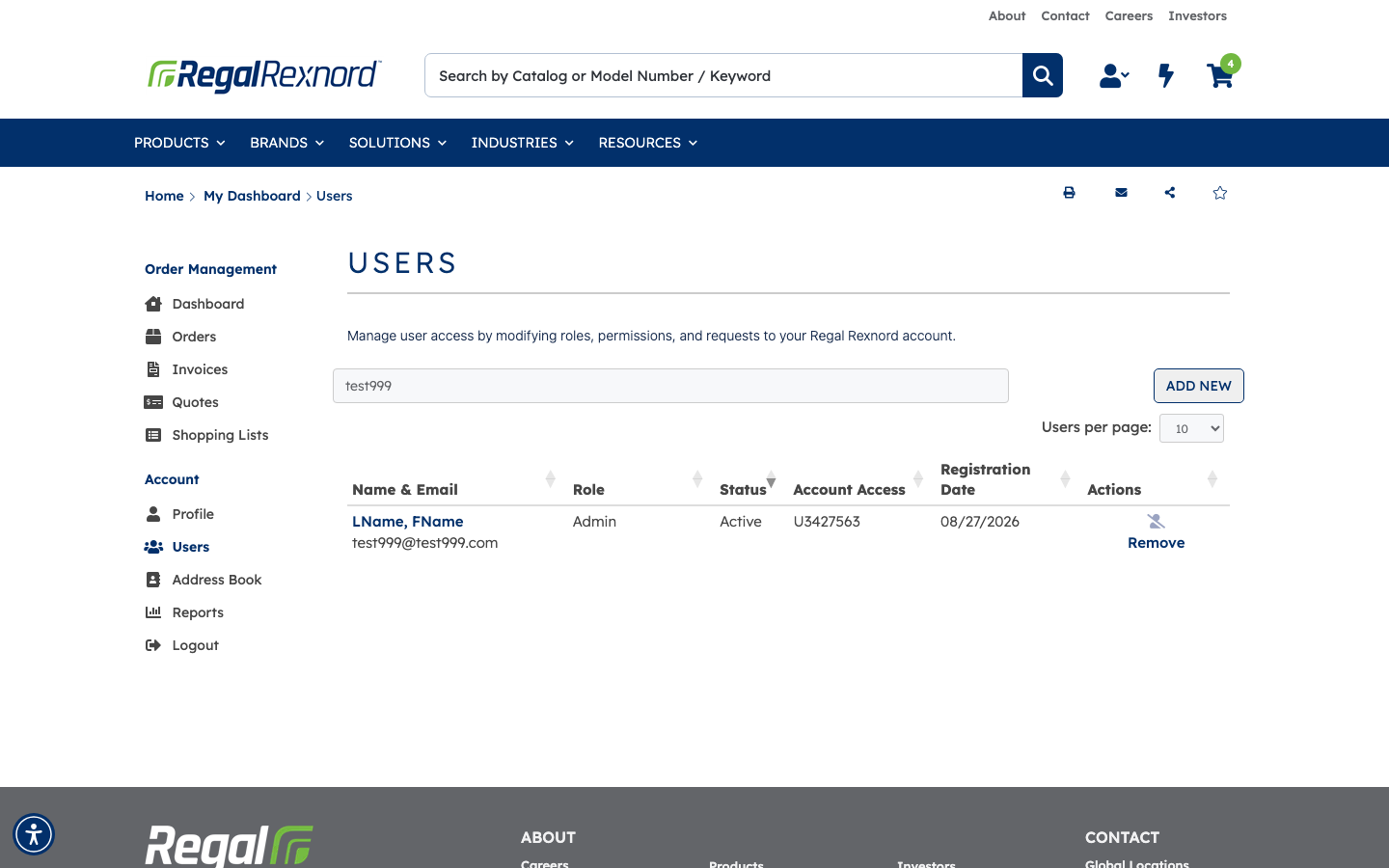
From the Dashboard, select Users in the left-hand Account navigation (https://uatwww.rrxpreview.com/accountmanagement/users) and type test999 into the Filter Users (Name, Email, Account Number) box. One row is returned. This is the before state:
| Name & Email | Role | Status | Account Access | Registration Date |
|---|---|---|---|---|
| LName, FName / test999@test999.com | Admin | Active | U3427563 | 08/27/2026 |
Step 2 — Open the Manage User page
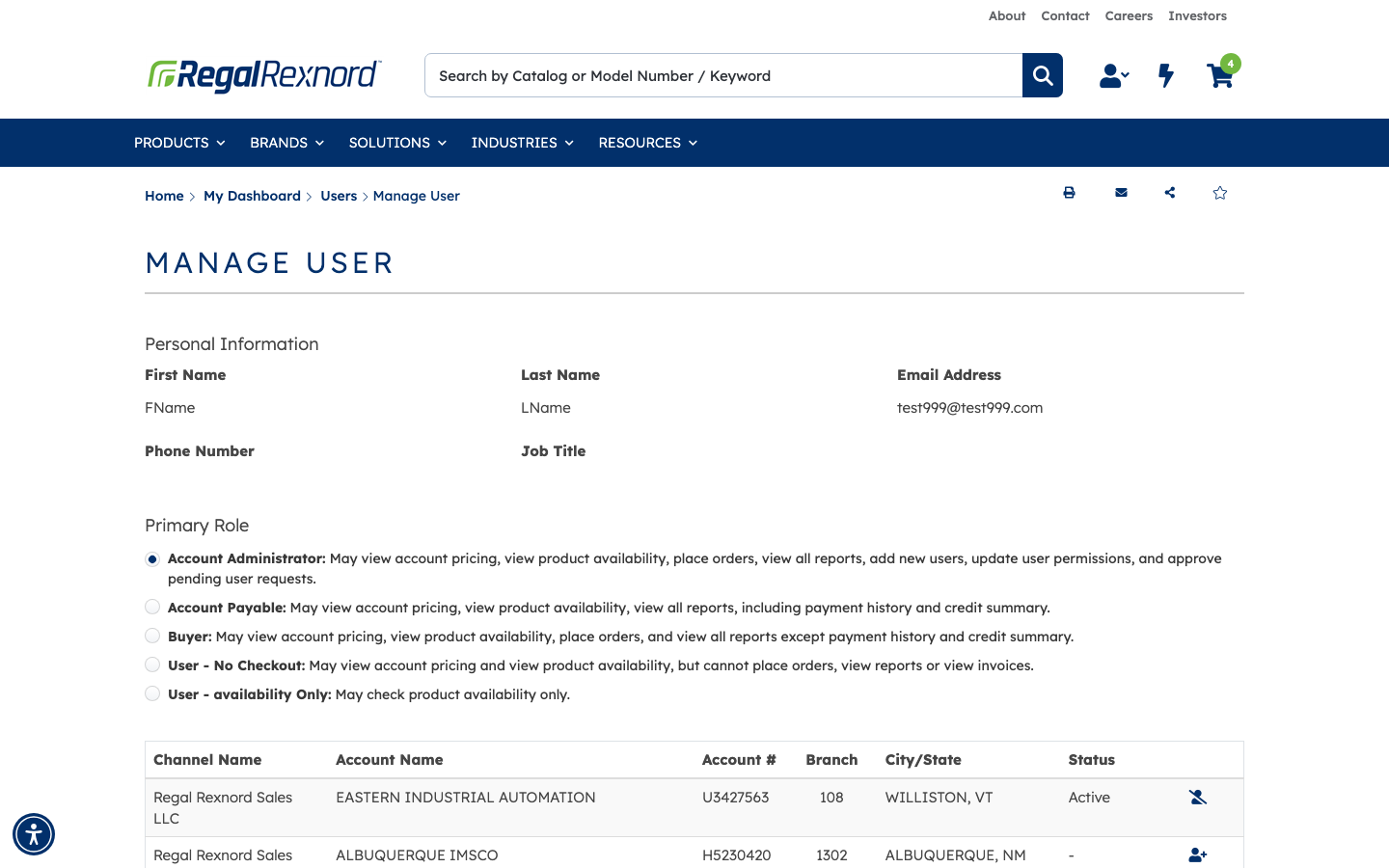
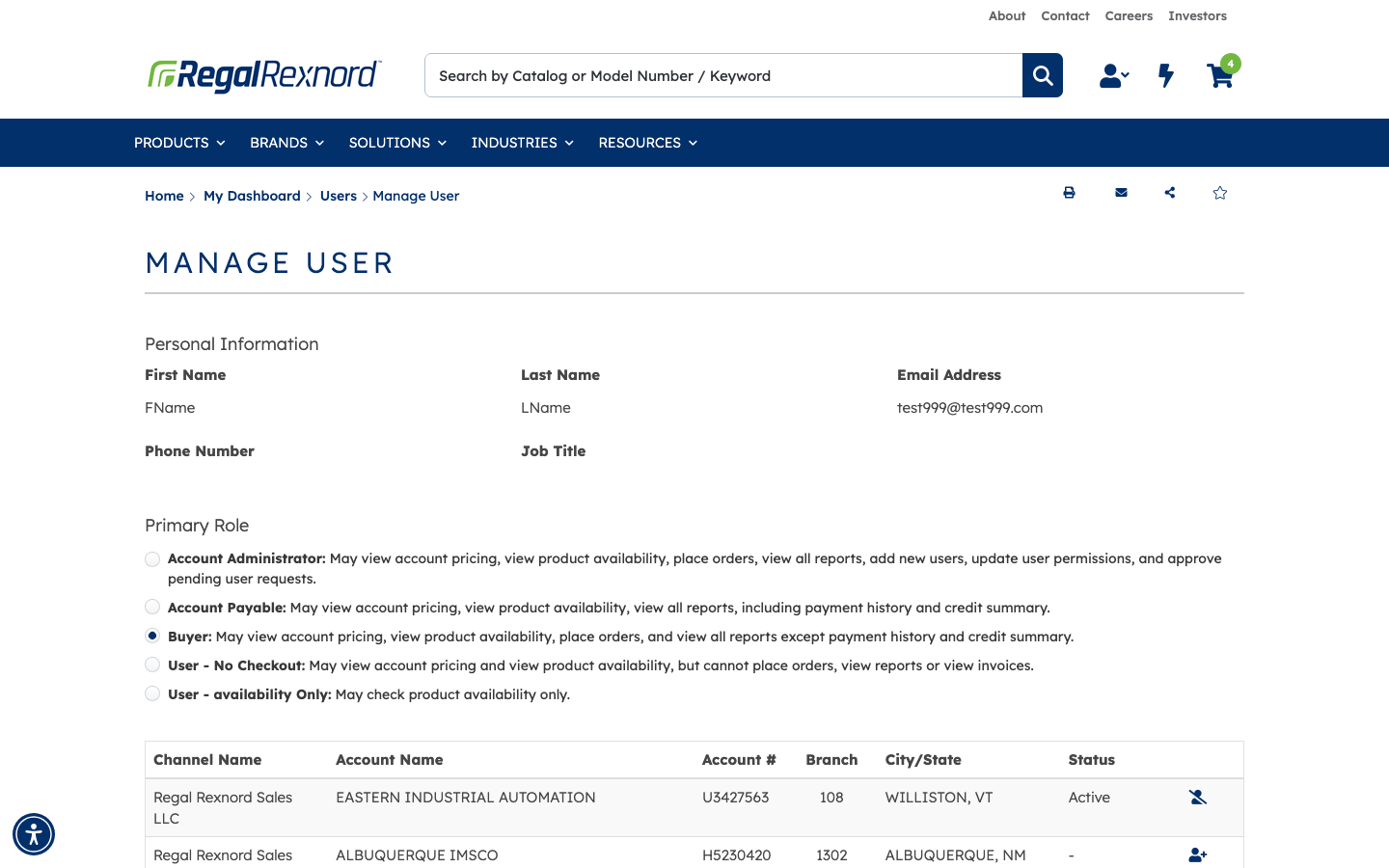
Click the user's name link (LName, FName) to open the Manage User page at /account-management/users/users-manage?userName=<base64 email>. The page shows three sections: read-only Personal Information (First Name FName, Last Name LName, Email Address test999@test999.com), the Primary Role radio list, and the account access table. Account Administrator is the currently selected role, and account U3427563 EASTERN INDUSTRIAL AUTOMATION is listed as Active while H5230420 ALBUQUERQUE IMSCO shows - with an add-user action.
Step 3 — Change the user's role
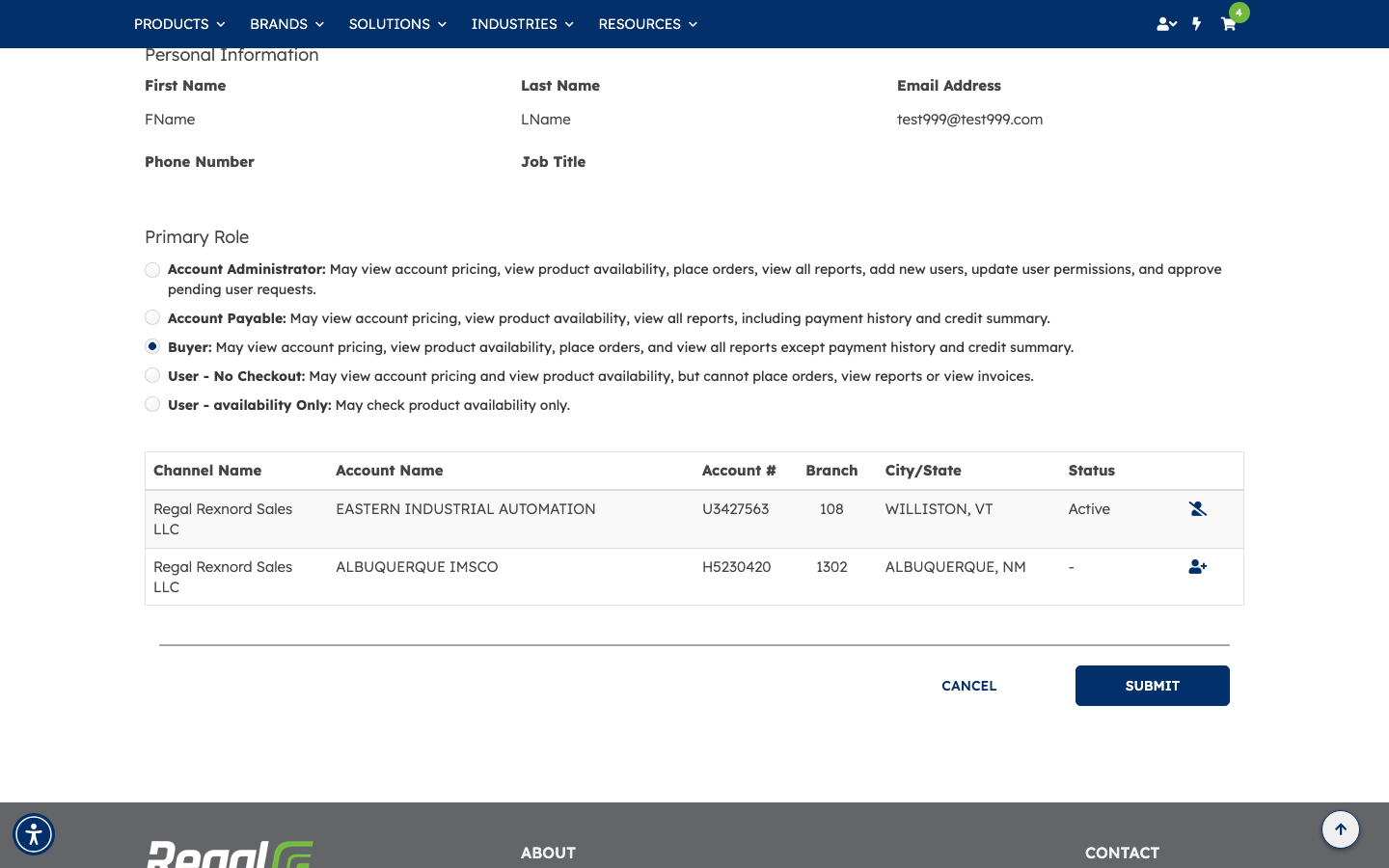
In the Primary Role list, select Buyer. Each option carries a description of what it permits — Buyer may view account pricing, view product availability, place orders, and view all reports except payment history and credit summary. The Account Administrator radio is cleared automatically because only one primary role can be held at a time.
Step 4 — Submit the change
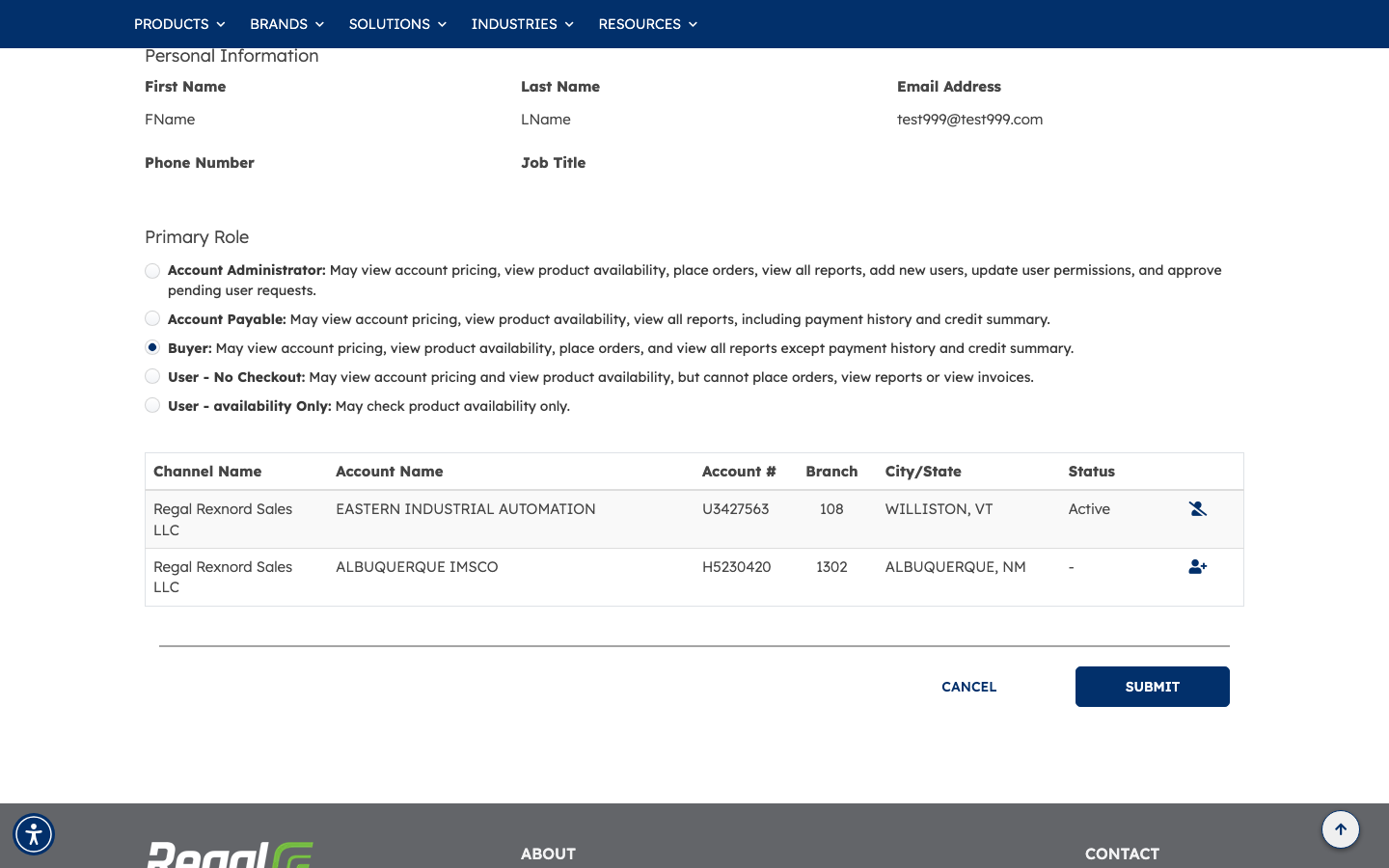
Click SUBMIT. The page saves the new role and re-renders in place — no error messages are raised. Note that the page stays on Manage User rather than returning to the Users list.
Verification
Reload the Manage User page from a clean navigation. Buyer is still the selected Primary Role, confirming the change was persisted server-side and is not just client-side state.
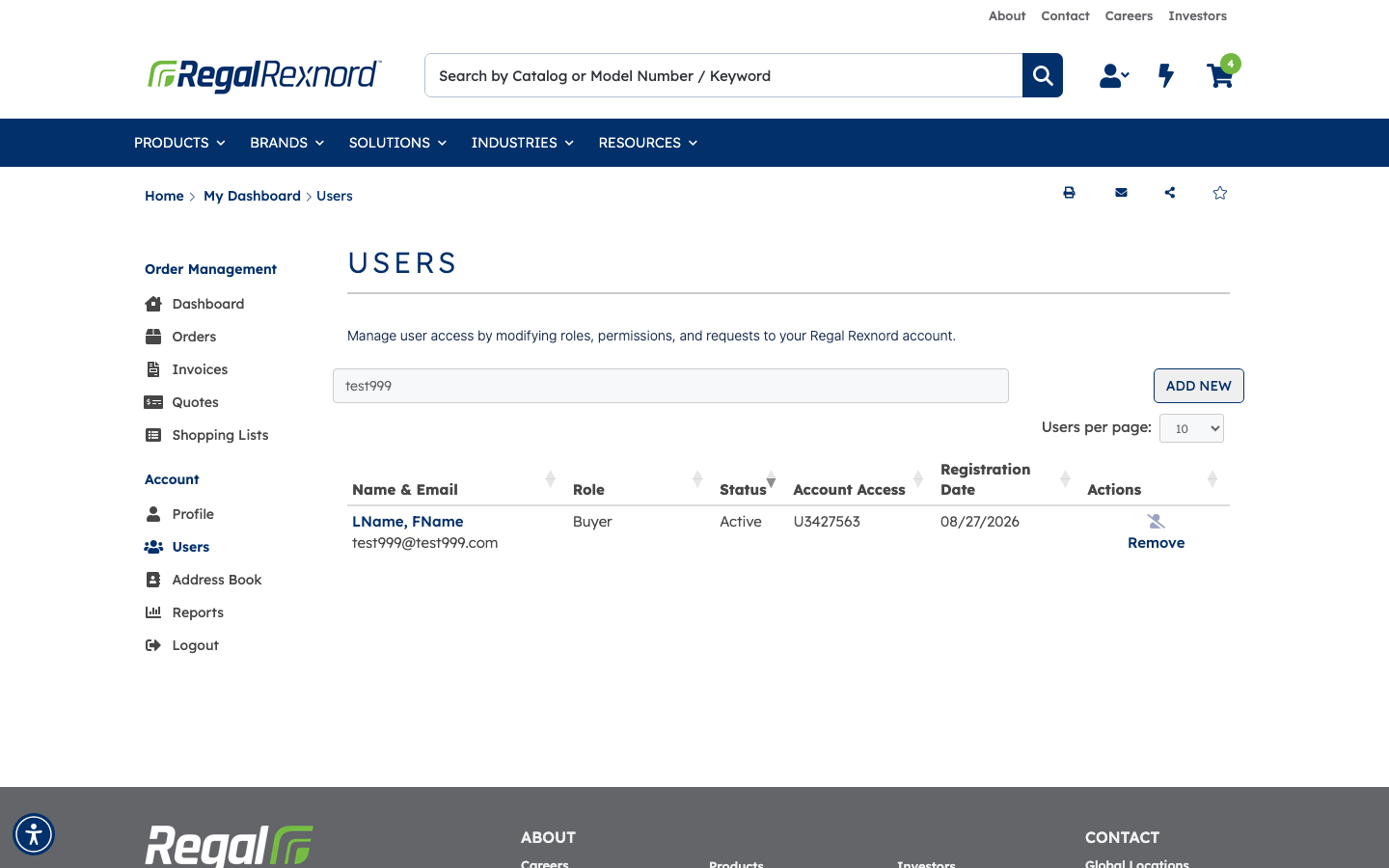
Return to the Users page and filter for test999 again. The row now reports the Buyer role, with Status and Account Access unchanged:
| Role | Status | Account Access | |
|---|---|---|---|
| Before | Admin | Active | U3427563 |
| After | Buyer | Active | U3427563 |
Summary
| # | Step | Expected result | Result |
|---|---|---|---|
| 0 | Sign in and select account U3427563 | Dashboard shows Welcome Copilot Agent and a Users entry in the Account nav | ✅ |
| 1 | Open the Users page and filter for test999 | One row returned: LName, FName / test999@test999.com, status Active | ✅ |
| 2 | Note the current Role and Account Access | Role Admin, Account Access U3427563 | ✅ |
| 3 | Click the user's name link | Manage User page opens at /account-management/users/users-manage?userName=… | ✅ |
| 4 | Check the read-only User Details | FName, LName, test999@test999.com shown under Personal Information | ✅ |
| 5 | Check the currently selected role | Account Administrator radio selected | ✅ |
| 6 | Check the account list | U3427563 EASTERN INDUSTRIAL AUTOMATION listed as Active | ✅ |
| 7 | Select Buyer | Buyer radio selected, Account Administrator cleared | ✅ |
| 8 | Click SUBMIT | Change saved without errors | ✅ |
| 9 | Return to the Users list | Page does not auto-return to the Users list — it stays on Manage User | ⚠️ (see note) |
| 10 | Filter for test999 again | Row now shows role Buyer, still Active on U3427563 | ✅ |
Notes for testers:
- Step 9 of the original instructions expected the page to return to the Users list after submitting. In practice the Manage User page re-renders in place and no success banner is displayed. The save does succeed — reloading the page shows Buyer still selected, and the Users grid reflects the new role.
- User Management is account-scoped. The Users navigation entry and this page are only available while account U3427563 is the active account; they are not available under H5230420.