Removing a User's Access
When someone leaves, changes job, or simply shouldn't have access any more, an administrator removes them. It takes two clicks, so it's worth knowing exactly what it does before you use it.
You need an administrator role, and you need to be working under the account they belong to.
Step 1 — Find them and check the row
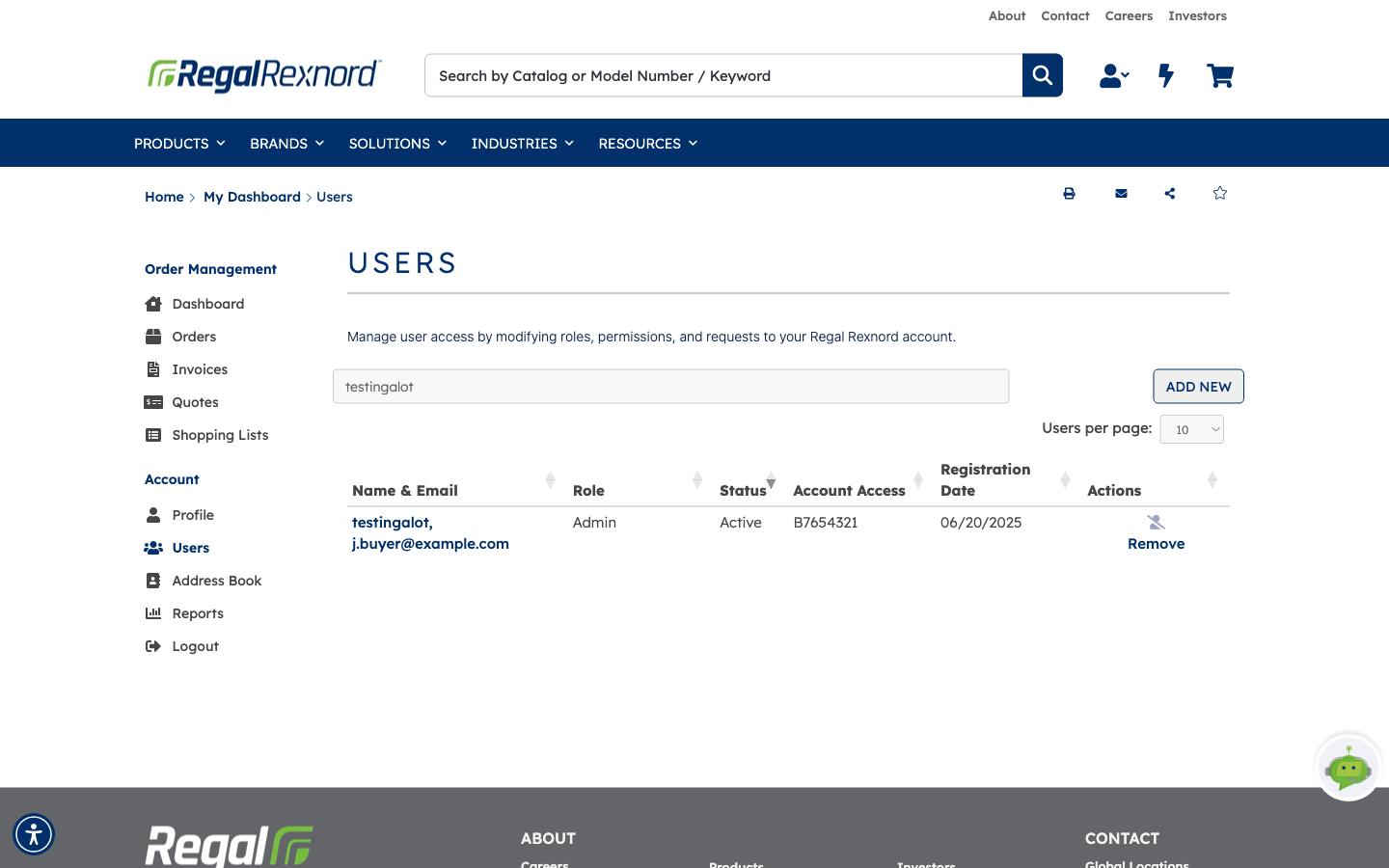
Open Users from the Account menu and filter for the person by name, email or account number.
Before you do anything, read the row:
- Role — what they can currently do.
- Status — Remove only appears for Active users. Someone still pending is approved or rejected instead, using the actions on their row.
- Account Access — which account this removal affects.
That last point matters. Remove is only offered for people who are active and who have access to a single account. If someone has access to several of your accounts, their row shows a link to manage them instead, so you can take away just the access you mean to rather than all of it at once.
The Remove link sits at the end of the row, under Actions.
Step 2 — Confirm, or back out
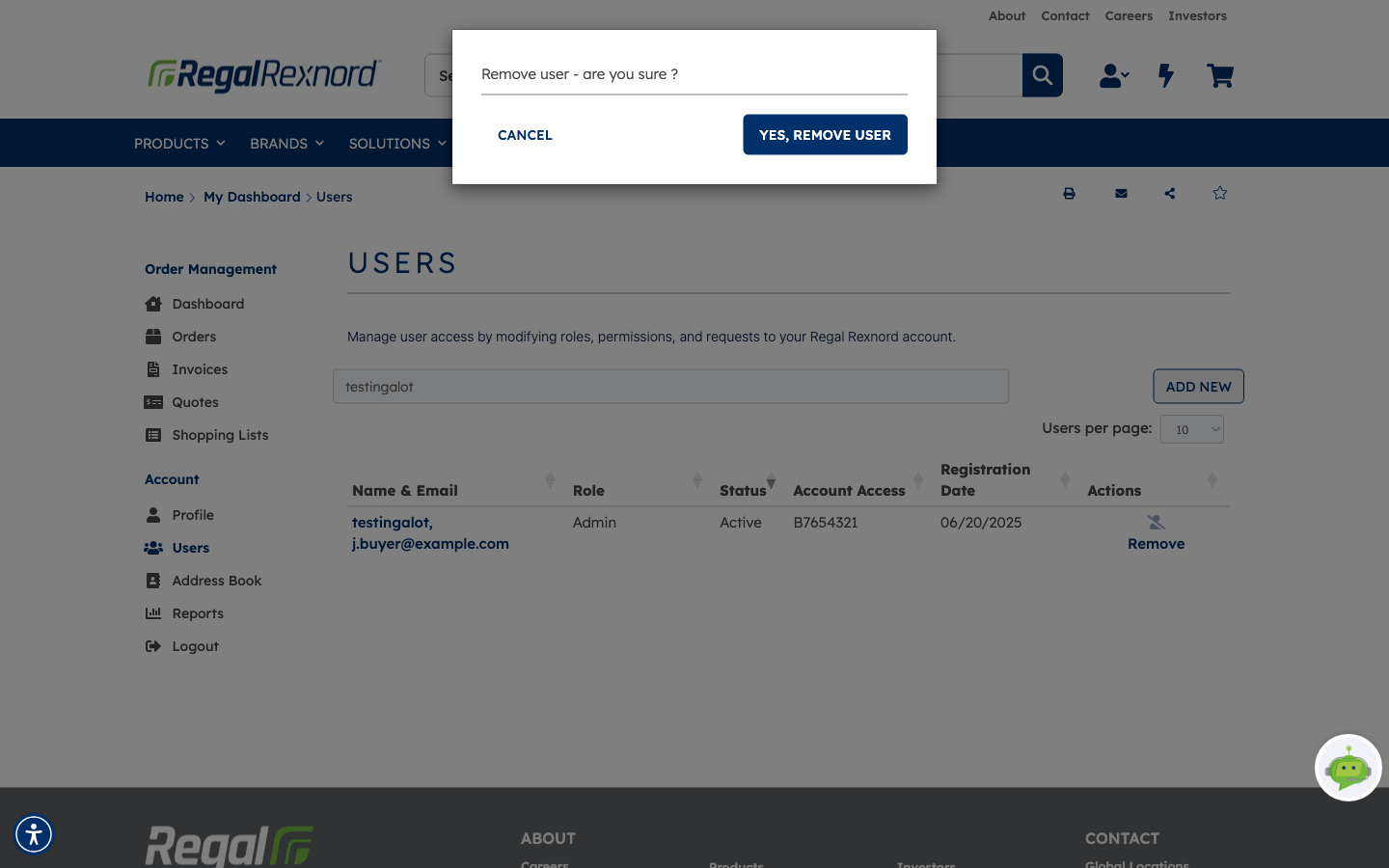
Remove opens a short confirmation: Remove user - are you sure? with CANCEL and YES, REMOVE USER.
There's no undo. YES, REMOVE USER takes their access away immediately; if it was a mistake, you'd add them back through ADD NEW and they'd have to verify their email all over again.
This is the moment to be sure you have the right person — filtered lists make it easy to act on the wrong row.
Step 3 — What happens next
CANCEL closes the dialog and changes nothing. The user's row stays exactly as it was — same role, same status, same account access.
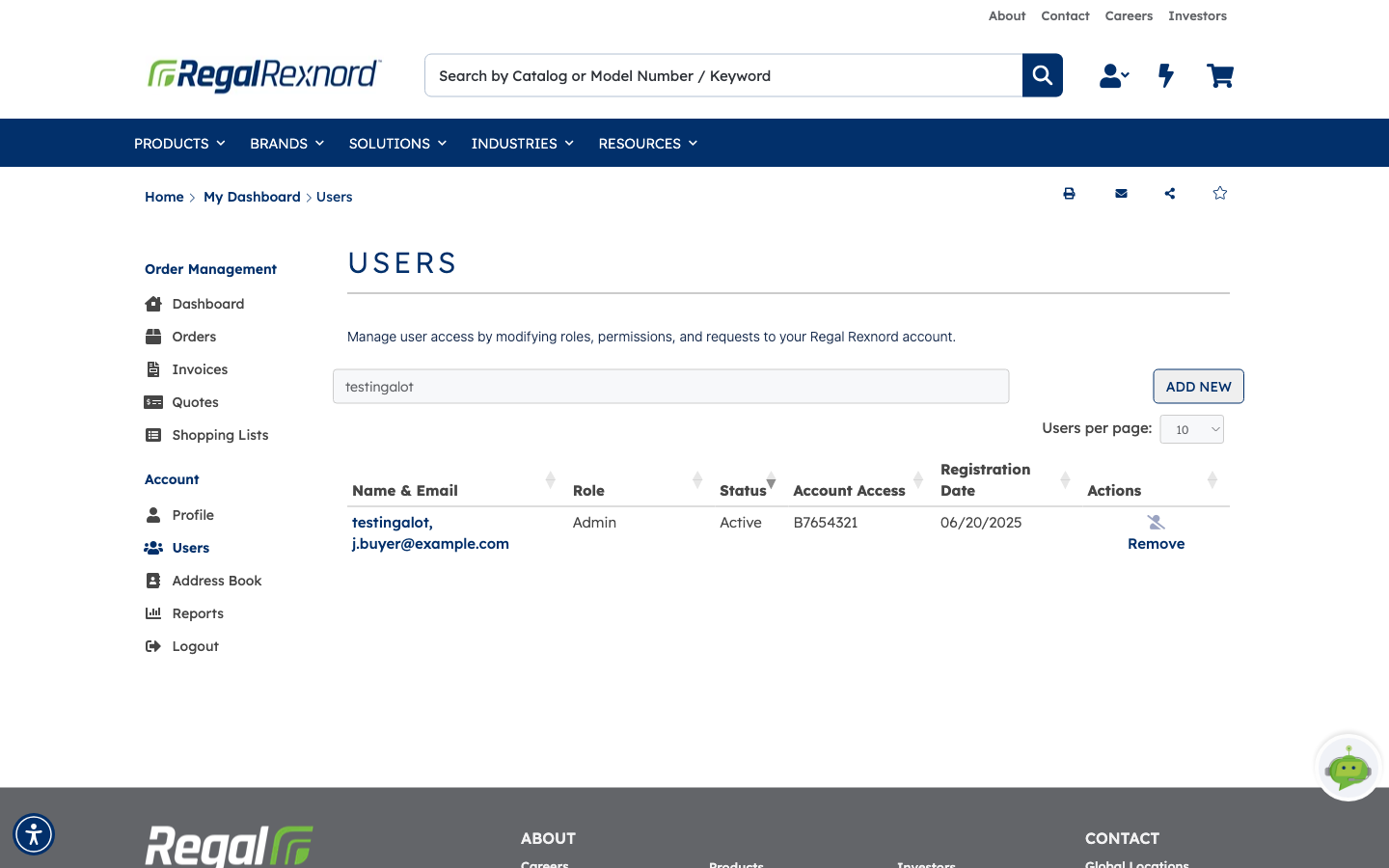
YES, REMOVE USER reloads the list without them. After you confirm, the page dims and shows a spinner for a few seconds while the change is saved and the list refreshes. Filter again and they're gone from this account: no row, just No Rows Found, and no Remove action.
| Role | Status | Account Access | |
|---|---|---|---|
| Before | Admin | Active | B7654321 |
| After | — | No longer listed | Access removed |
If you still see the old row straight after removing someone, refresh the page — the list will then show the up-to-date result.
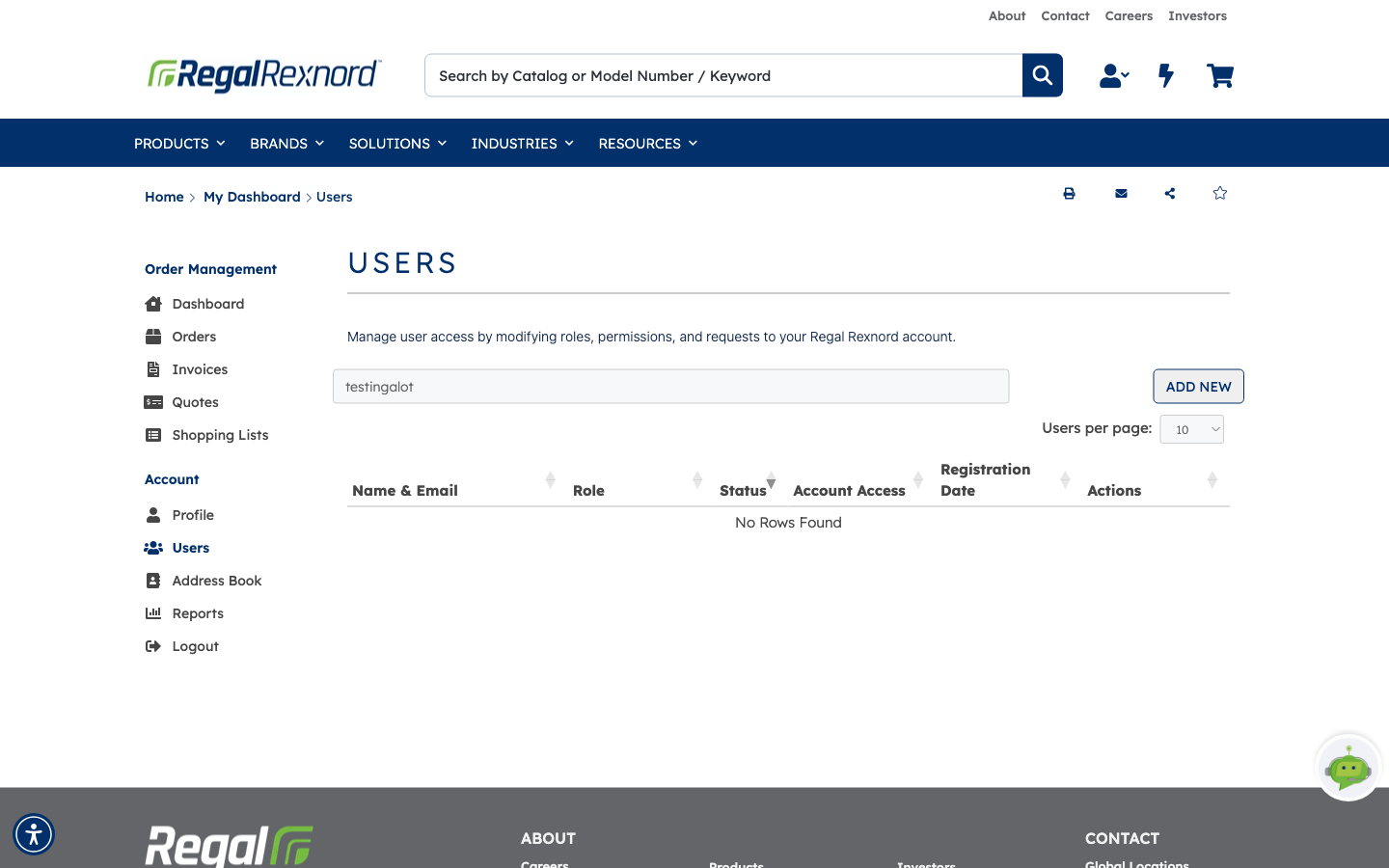
Note that the list gives you no confirmation message — the row simply isn't there any more. The empty result is the confirmation.
What you've done
You know how to take someone's access away, what it affects, and how to back out of the dialog safely.
Worth remembering
- Remove only appears for Active users. Pending users are approved or rejected instead.
- Removal applies to the account you're working under. Remove only appears for people with access to a single account — for anyone with access to several, use the manage link on their row instead.
- There's no undo. Re-adding them means a new invitation and a fresh email verification.
- There's no confirmation message after a removal — the row disappearing from the list is the result.
- CANCEL is always safe — nothing changes until you press the confirm button.
- If someone just needs fewer permissions rather than none, change their role from Manage User instead of removing them.
- If the old row is still showing straight after a removal, refresh the page.